Settings
Blacklist elements
To protect your customers’ sensitive or personal information during a Cobrowse session, you can mask specific elements on your website using the Blacklist Elements option. This ensures that fields like passwords, payment details, or any private data remain hidden while you assist the customer in real time.
To mask personal information:
Log in to your Zoho Assist account.
Go to the cobrowse Configuration page.
Navigate to Settings and find the Blacklist Elements section.
Check the box to enable masking, then click Add Elements.
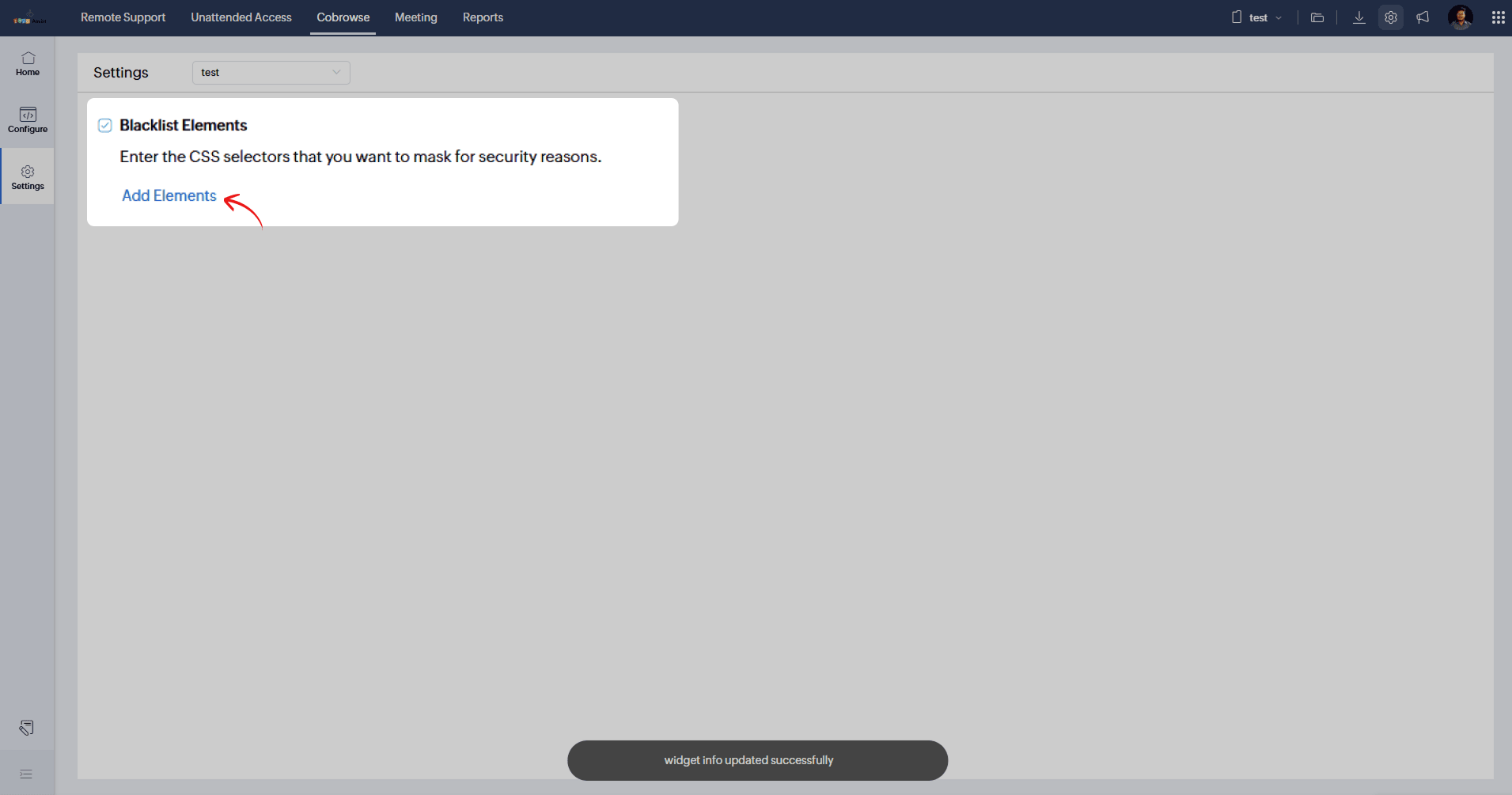
Add the CSS selectors for the elements you want to mask. For example, you can add selectors for input fields like passwords or credit card numbers.
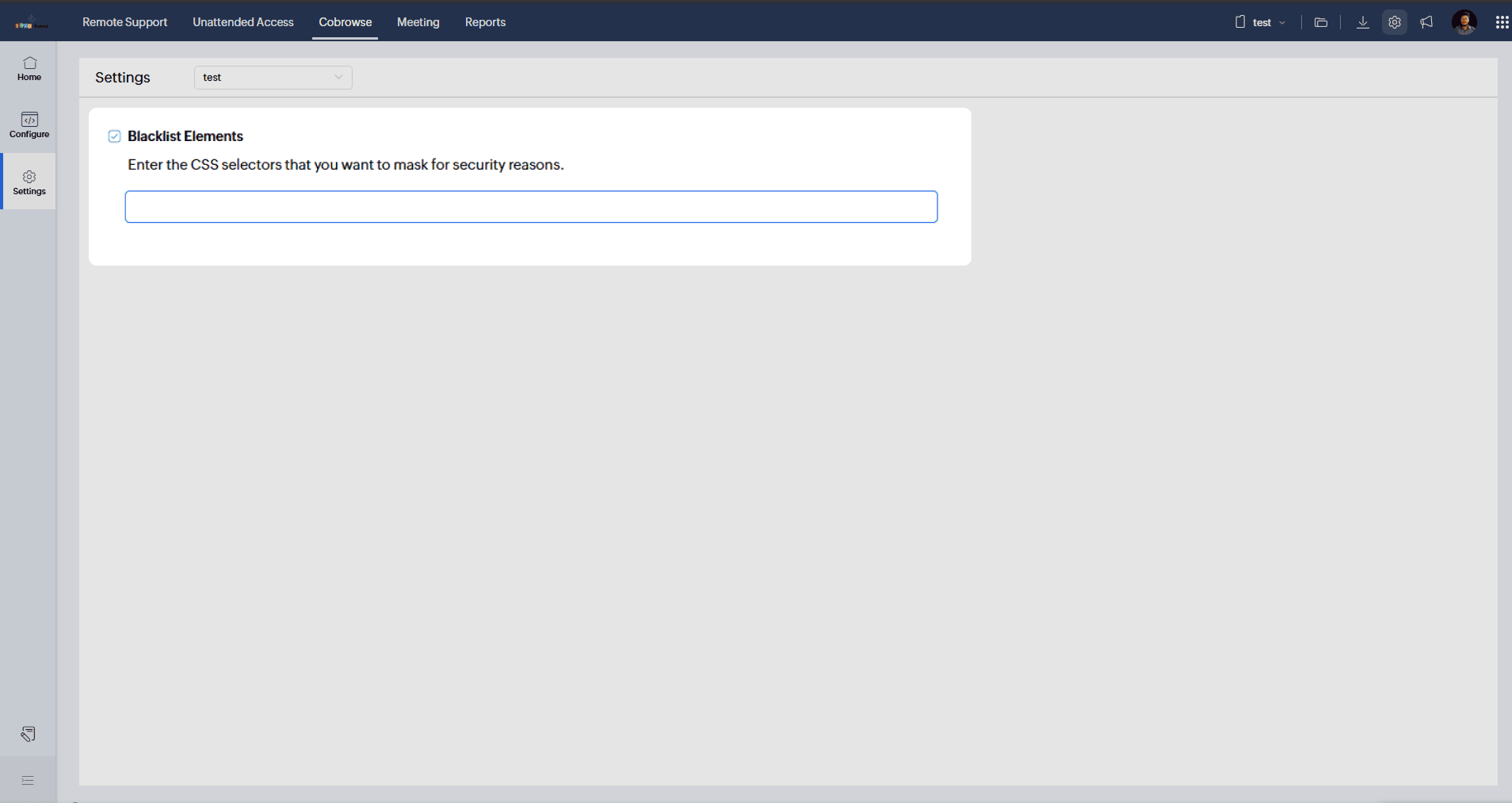
Once configured, any elements added to the blacklist will be automatically hidden or blurred during a live Cobrowse session, ensuring customer privacy.