Manage Devices
The Manage Devices section displays all devices configured for unattended access. From here you can deploy, rename, uninstall, delete, and move devices to other departments.
- Navigate to Unattended Access > Deployment > Manage Devices. By default, all devices in the current department will be displayed.
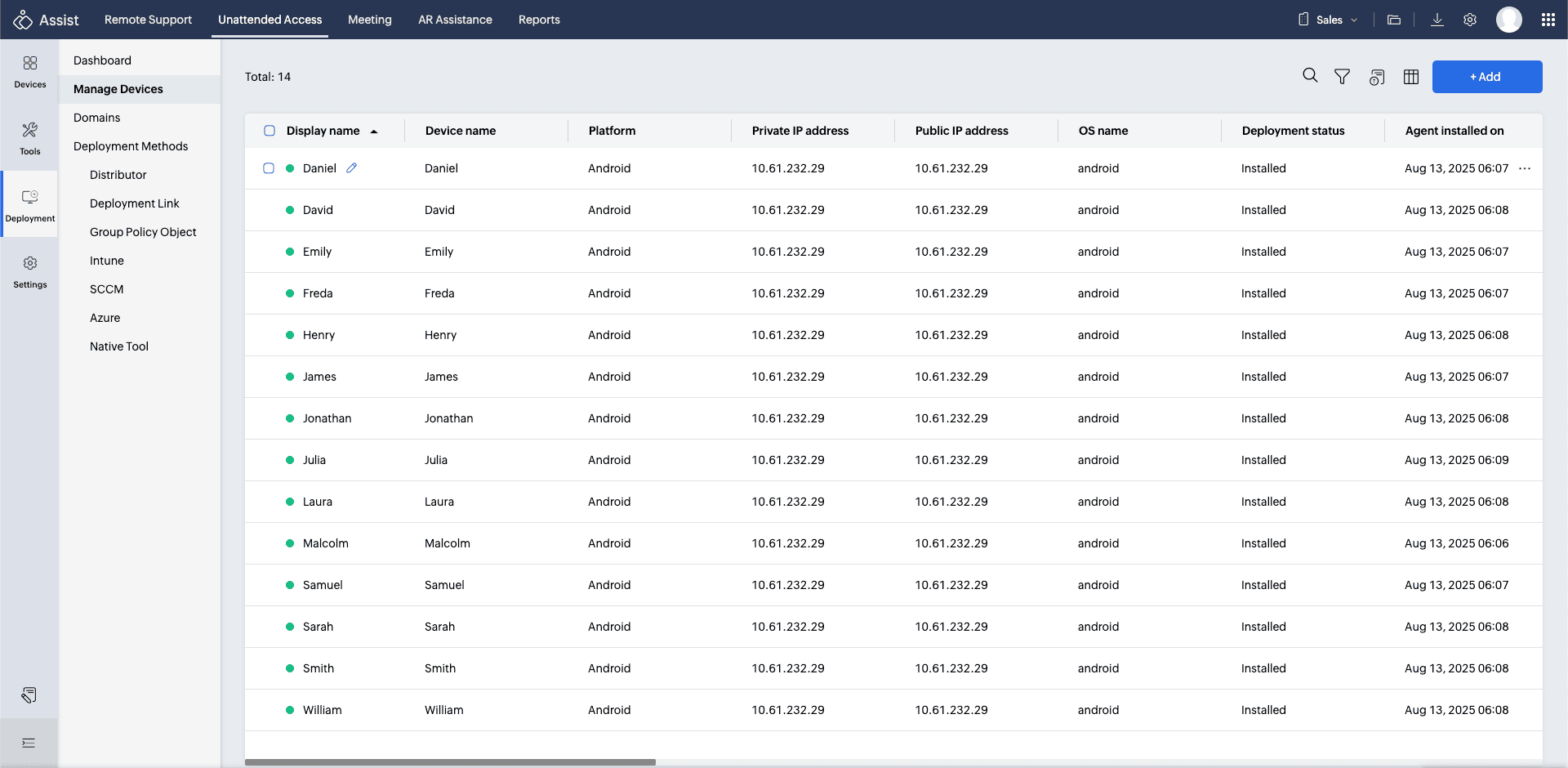
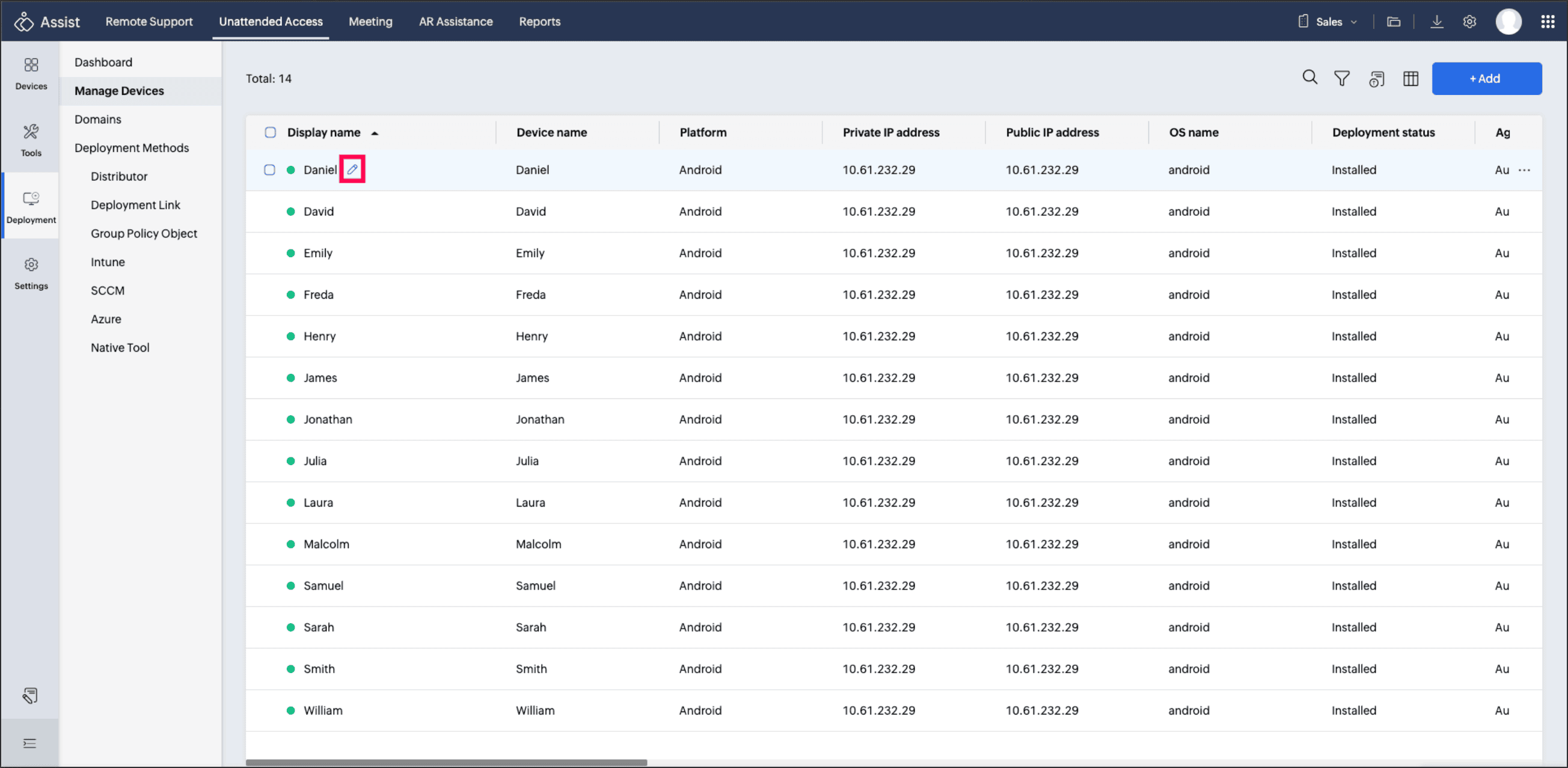
- Click Edit to modify a device name. This change will only update the display name shown in the console; the actual device name on the remote computer will remain unchanged.
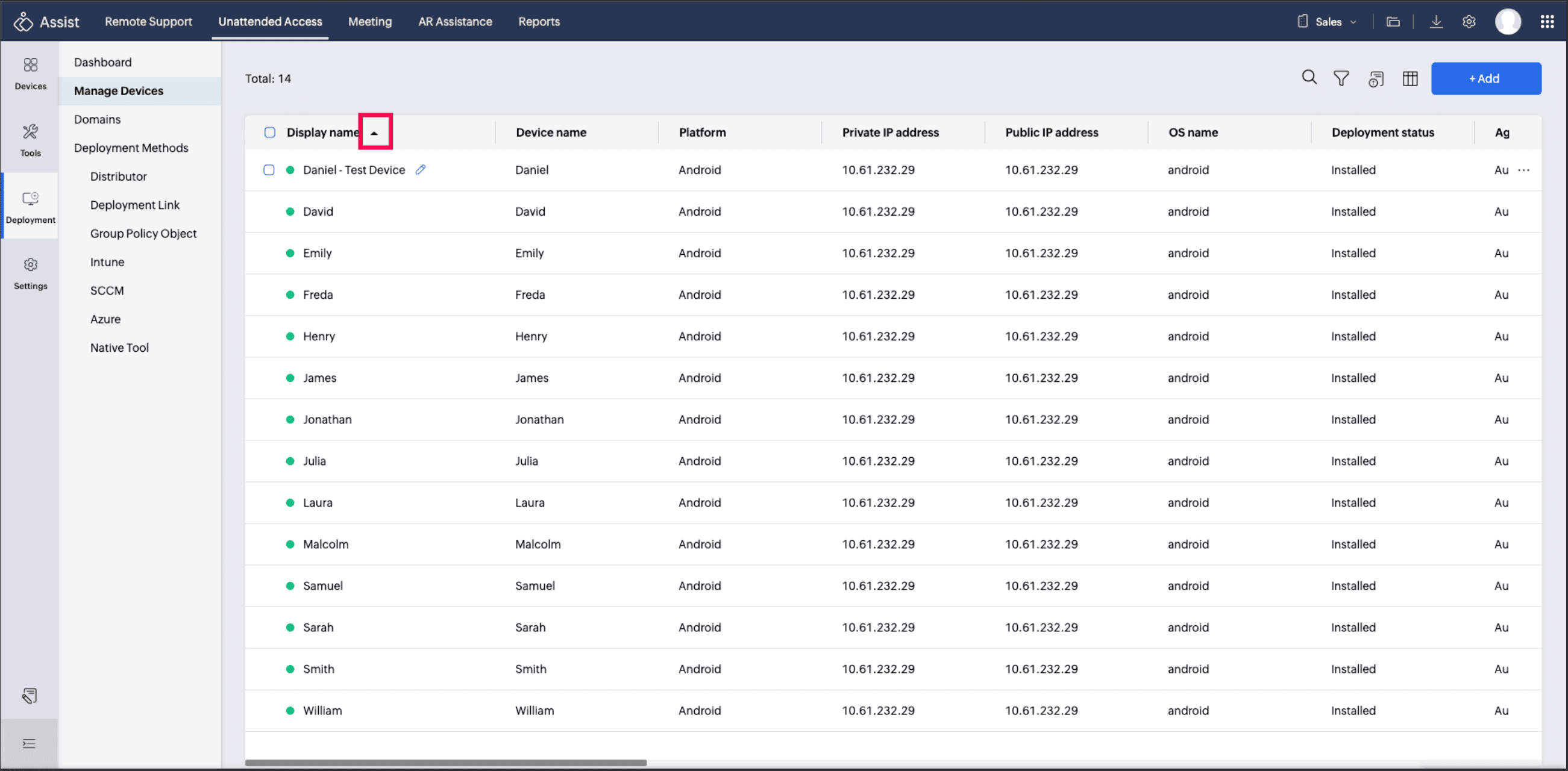
- Use the following options to manage the list:
- Sort any column.
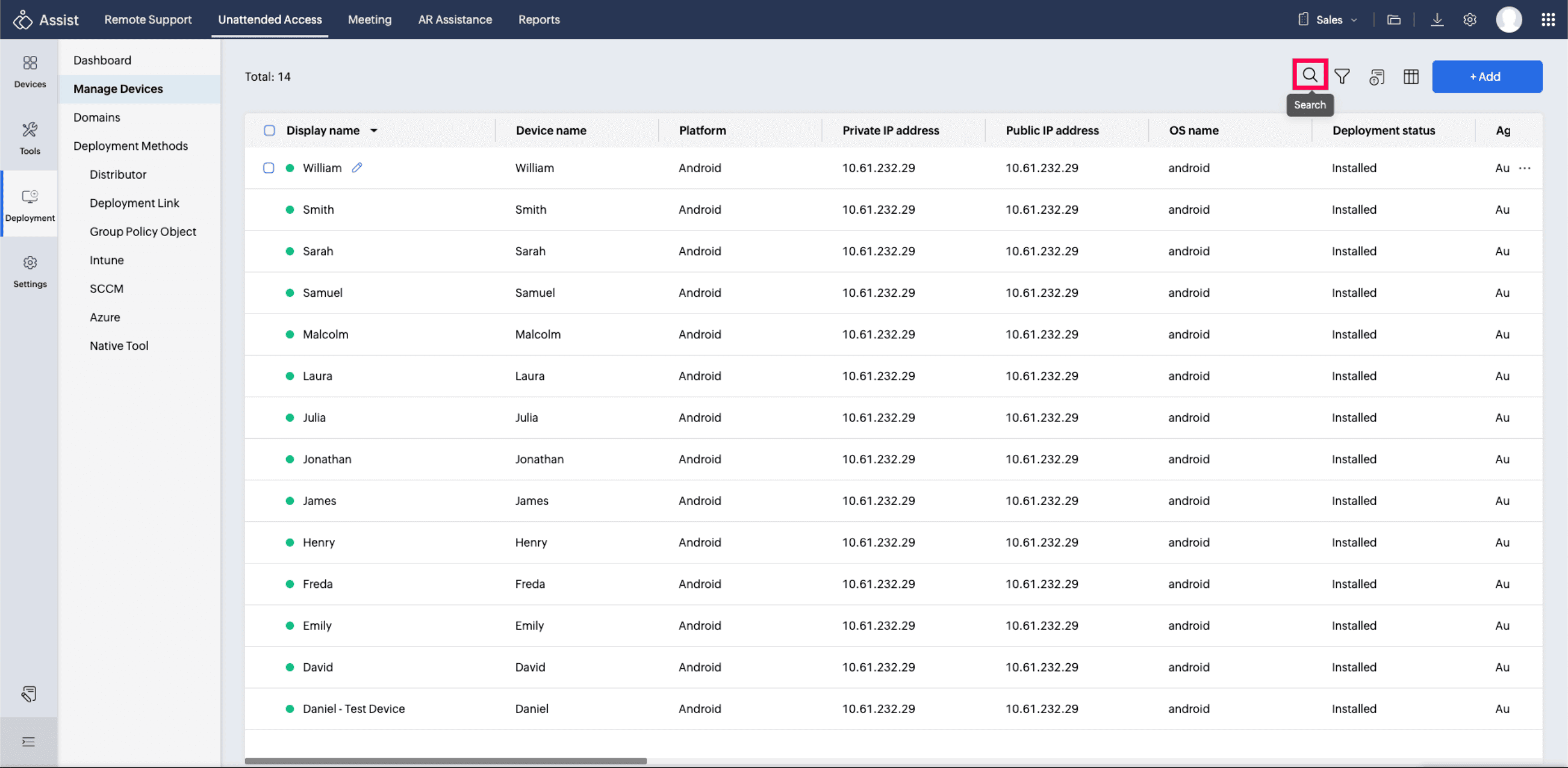
- Search for a device using the search icon.
- Filter devices by type, deployment status, live status, or groups.
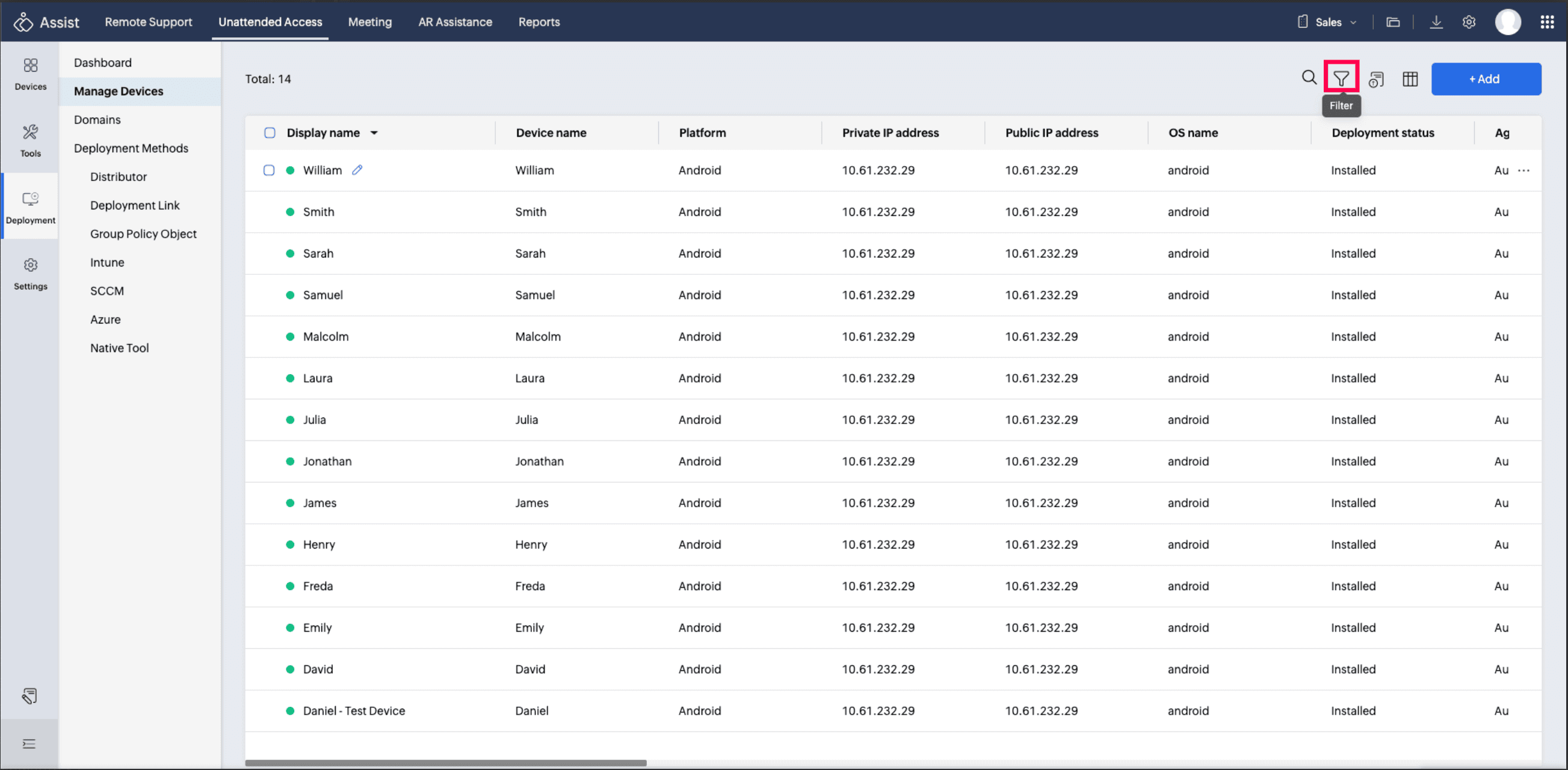
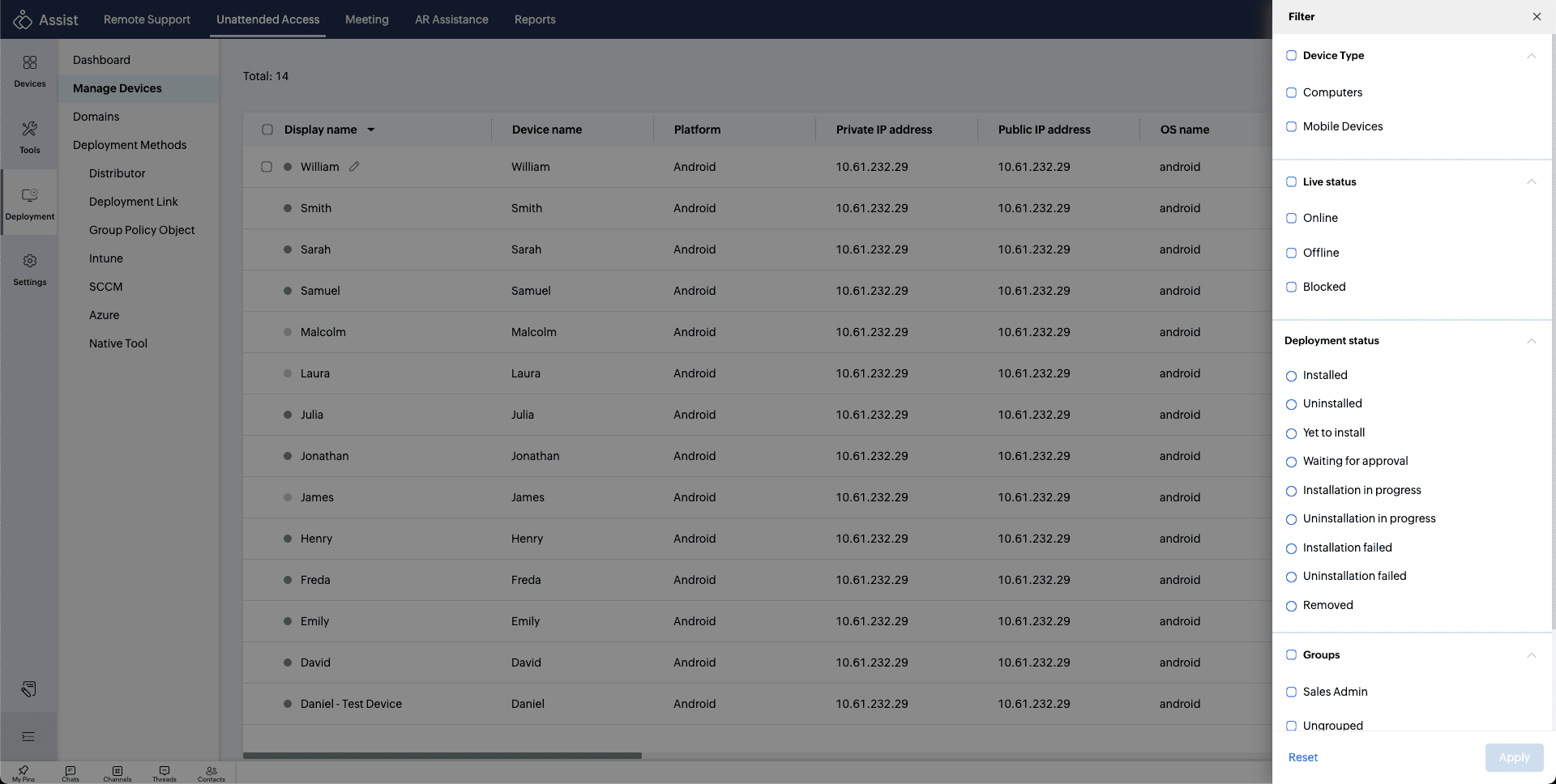
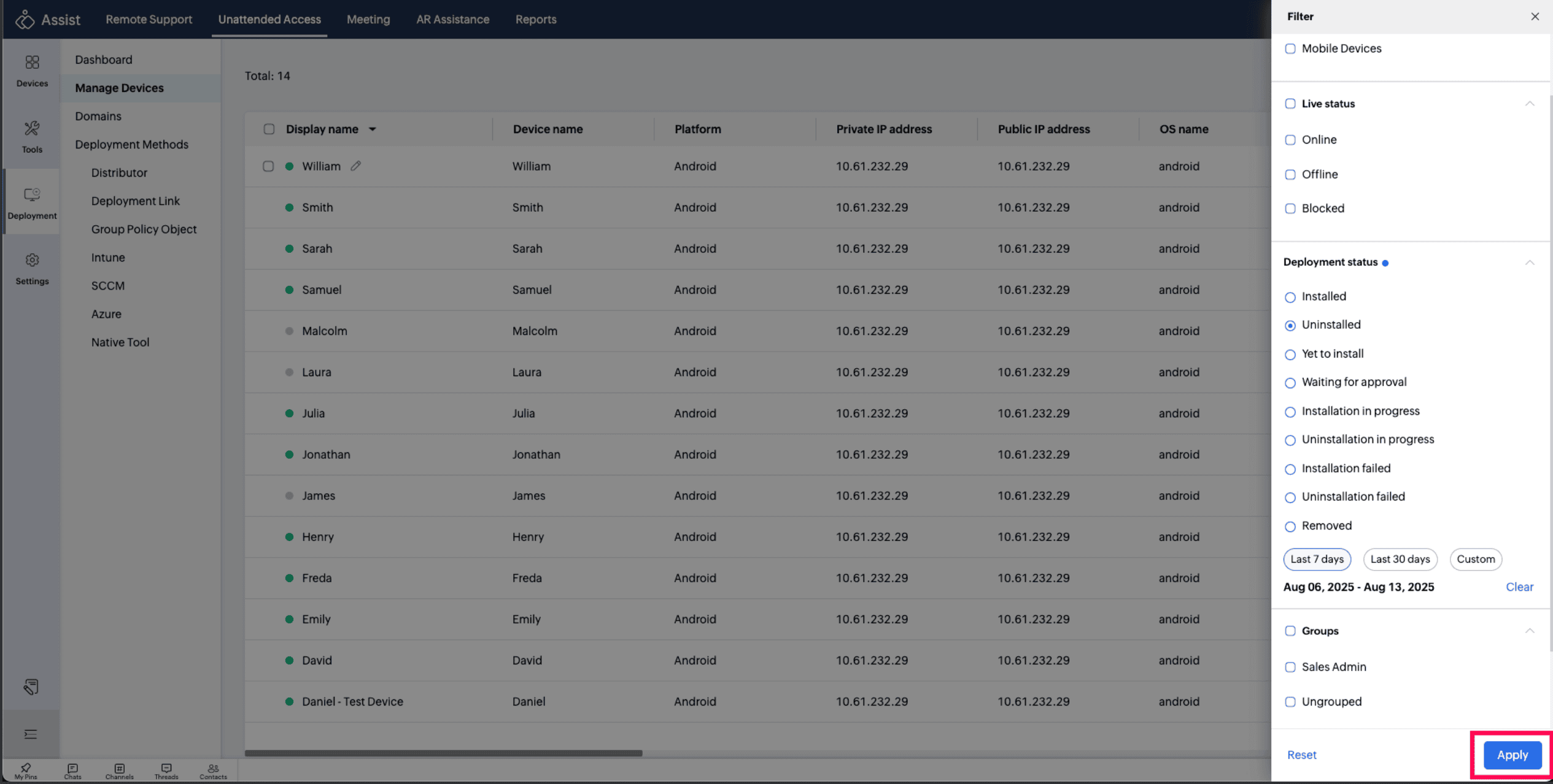
- You can customize columns and adjust the width of any column to improve visibility and readability within the table.
- Sort any column.
Export Device Data
- Export device details in CSV or PDF format.
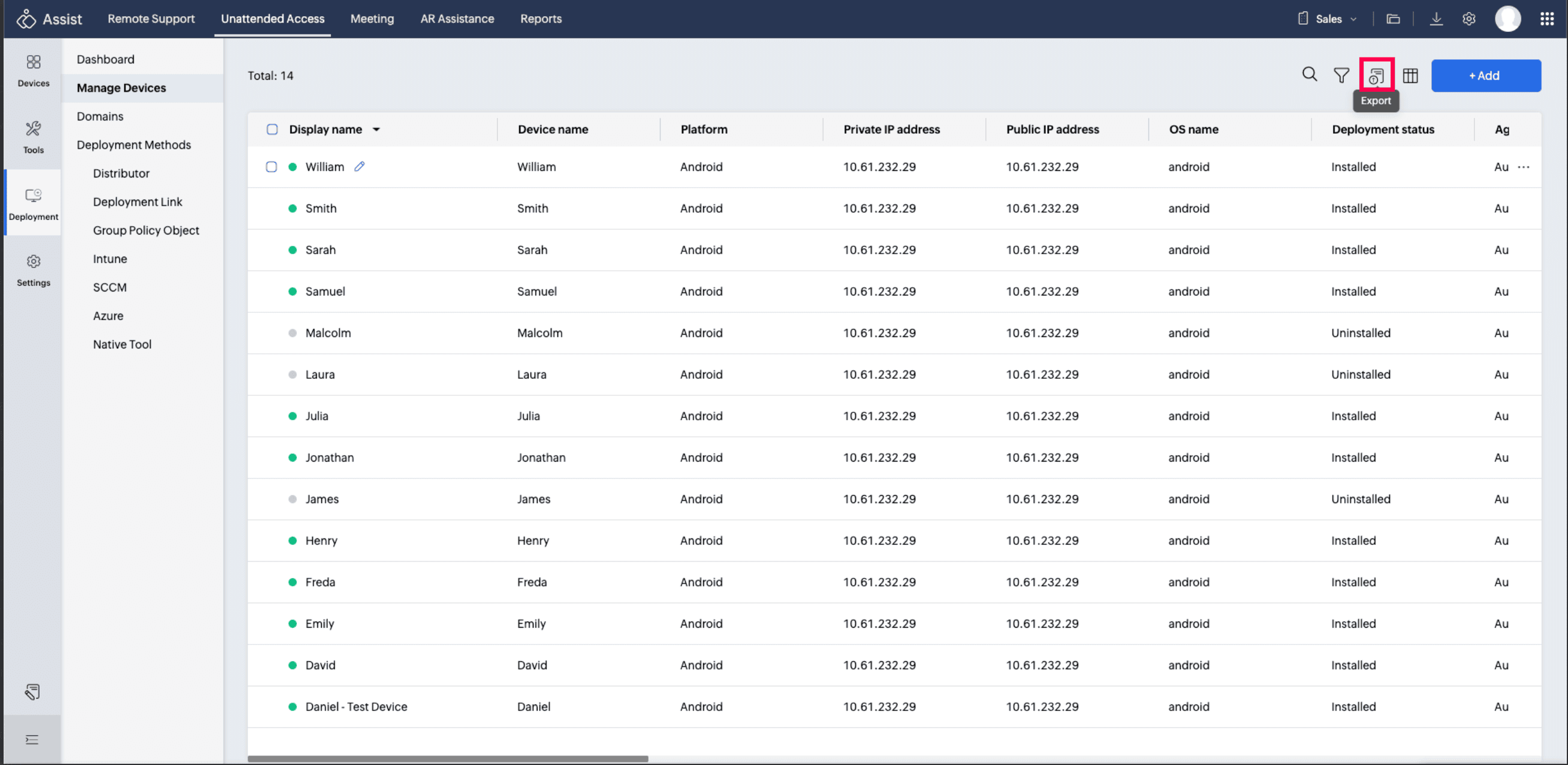
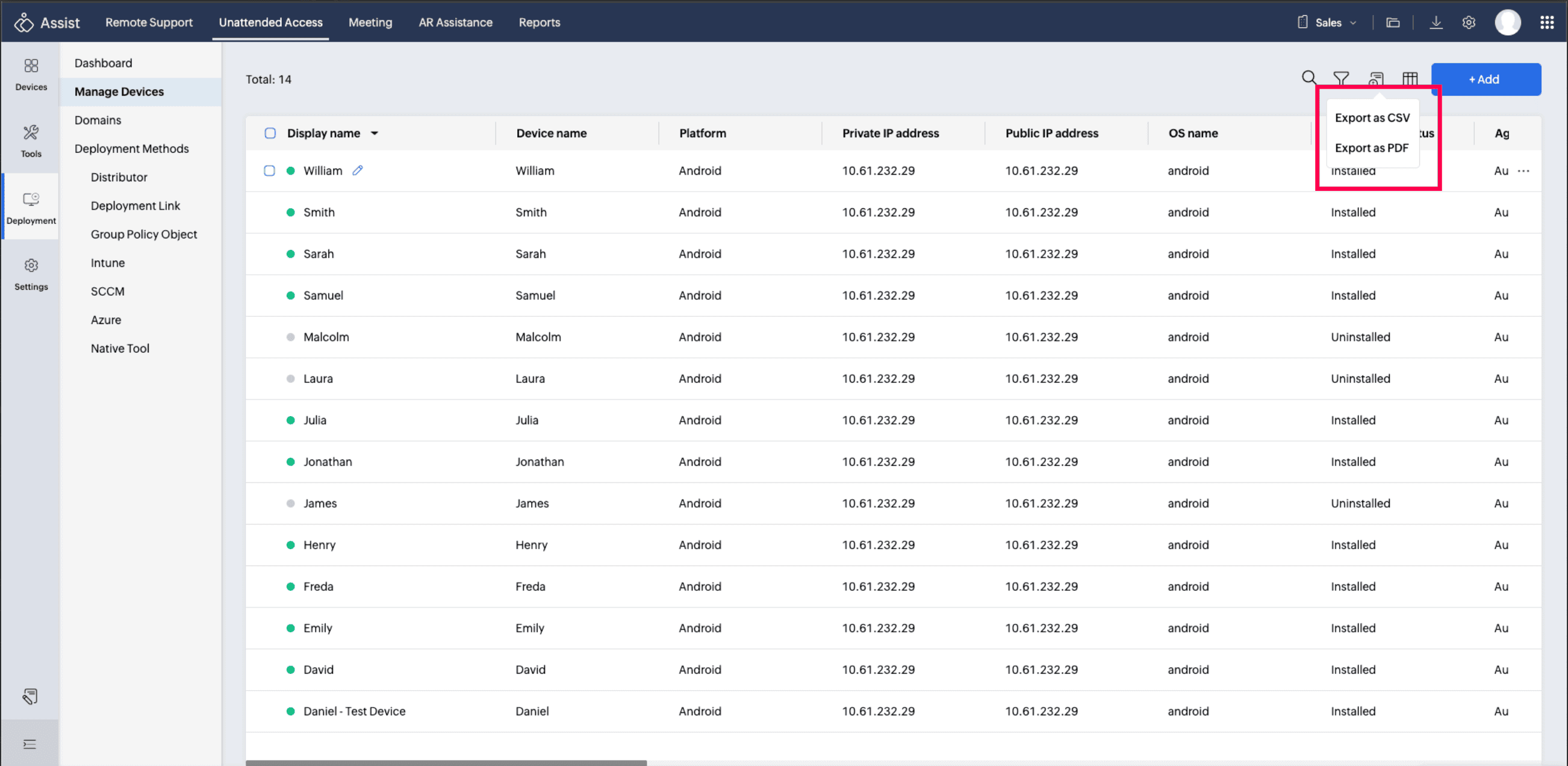
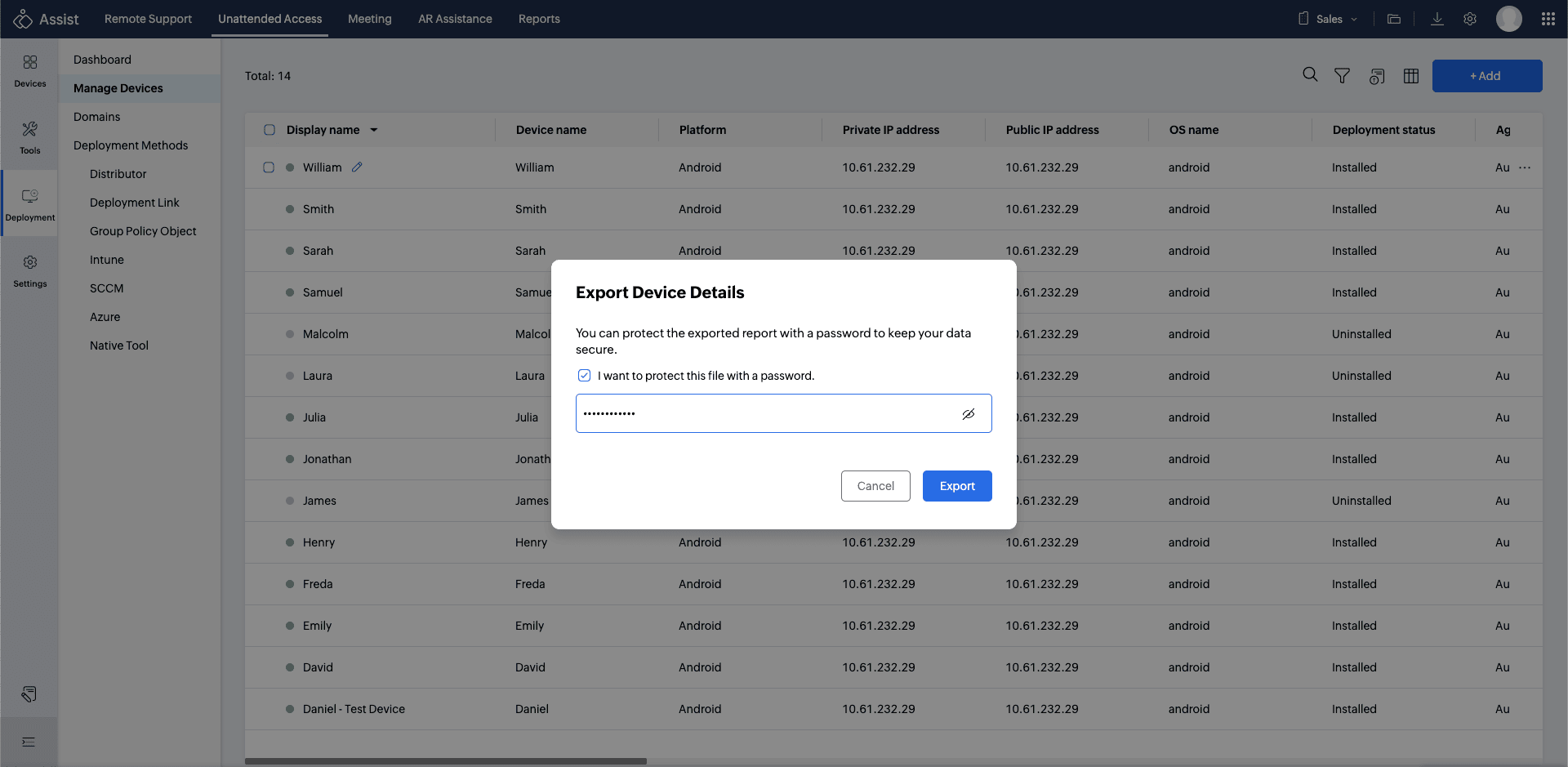
- Add a password to protect exported files if required.
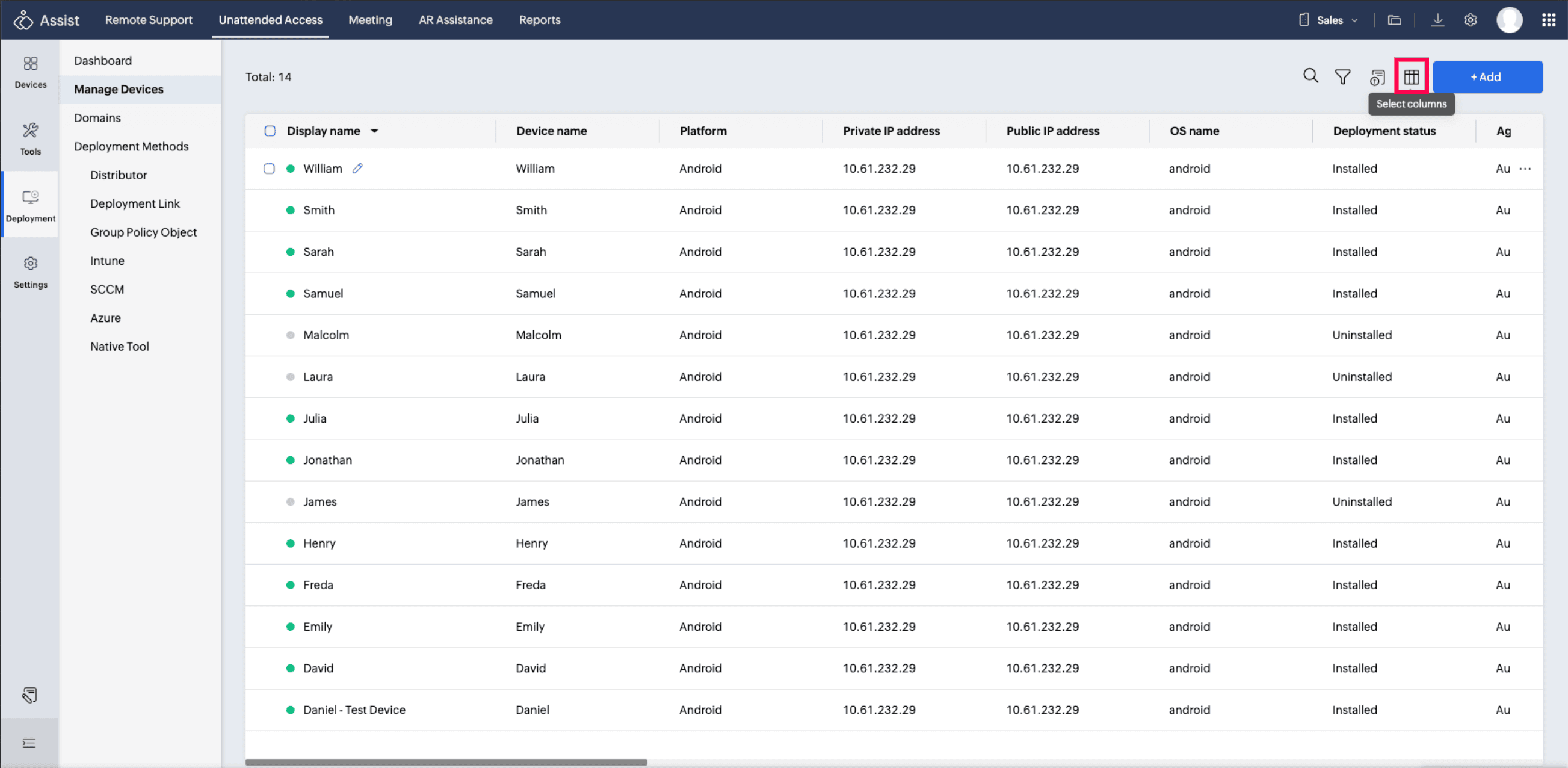
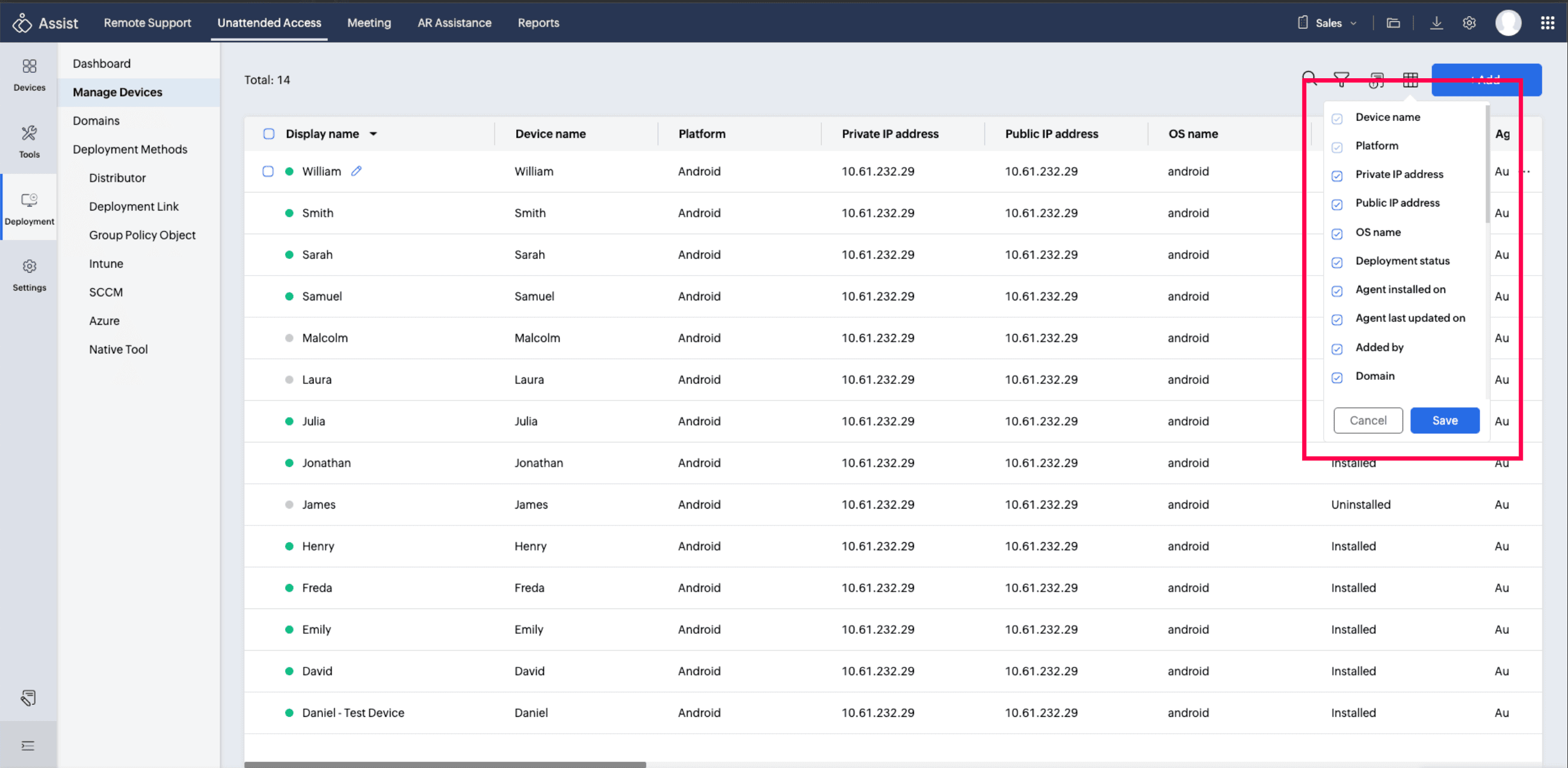
- Use the Column Chooser to select which columns to include in the exported file.
To Manage a Single Device
- Hover over a device and click the More Options (...) icon to manage it.
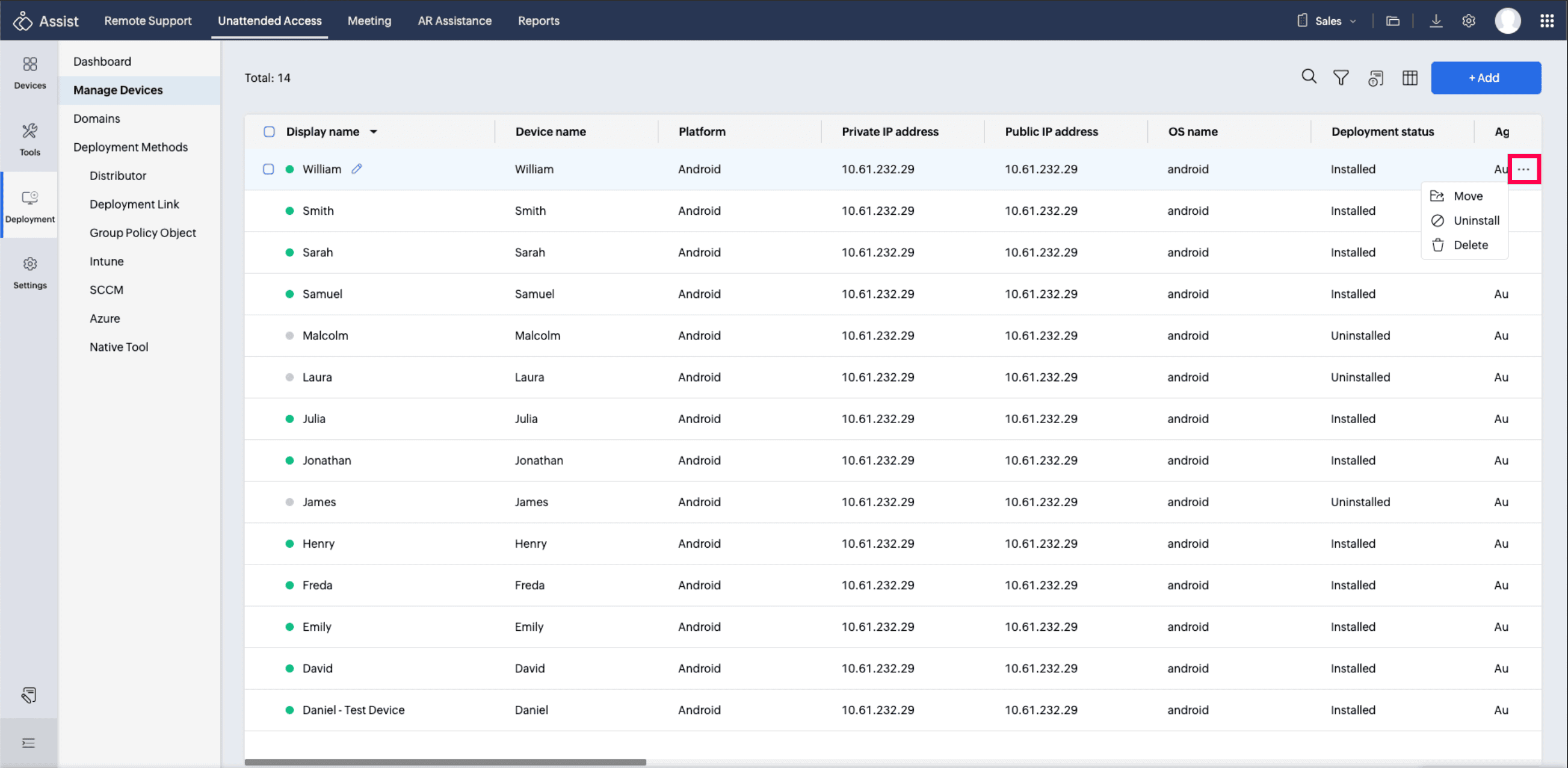
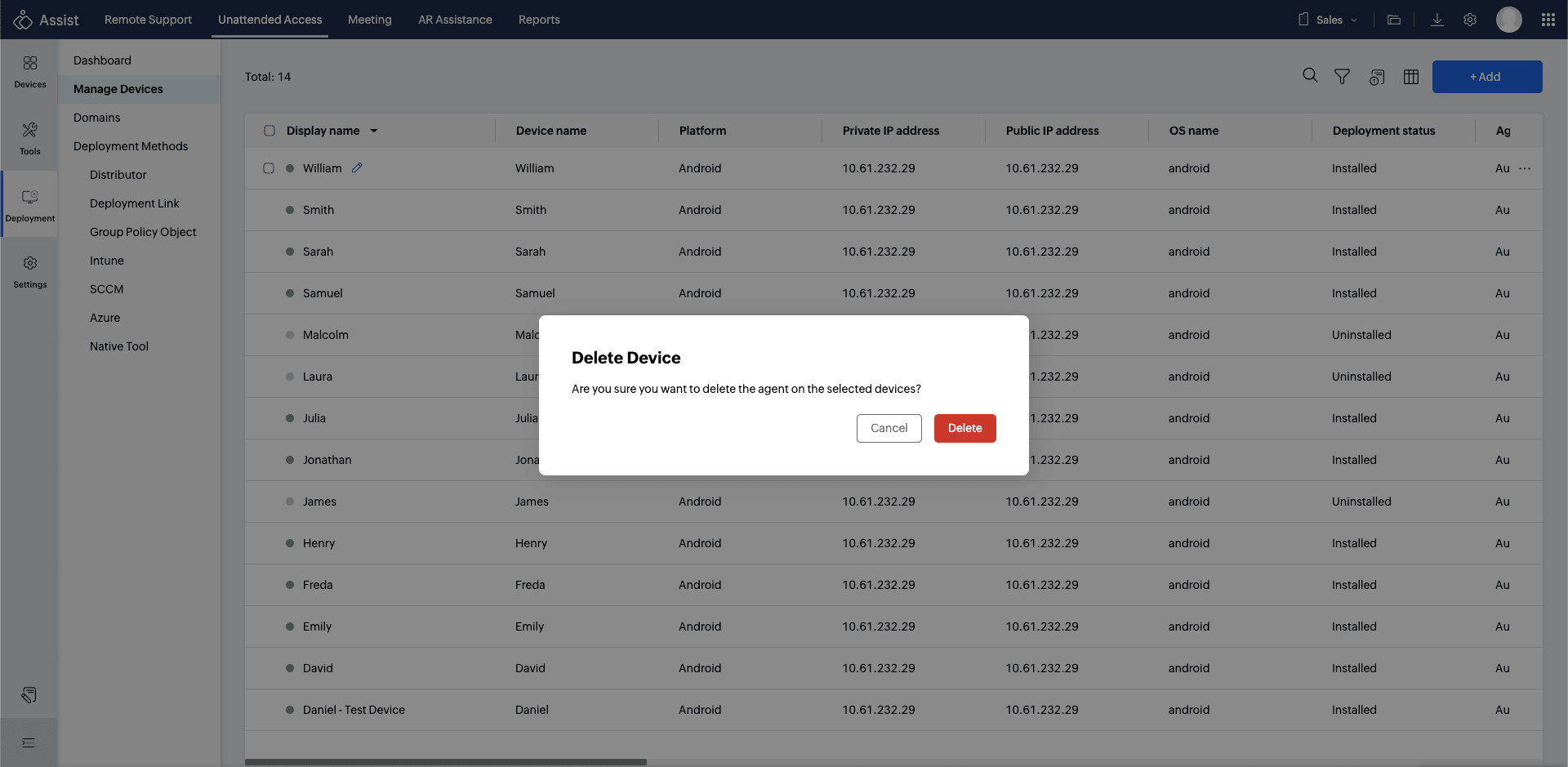
- Delete – Remove the selected device from the list.
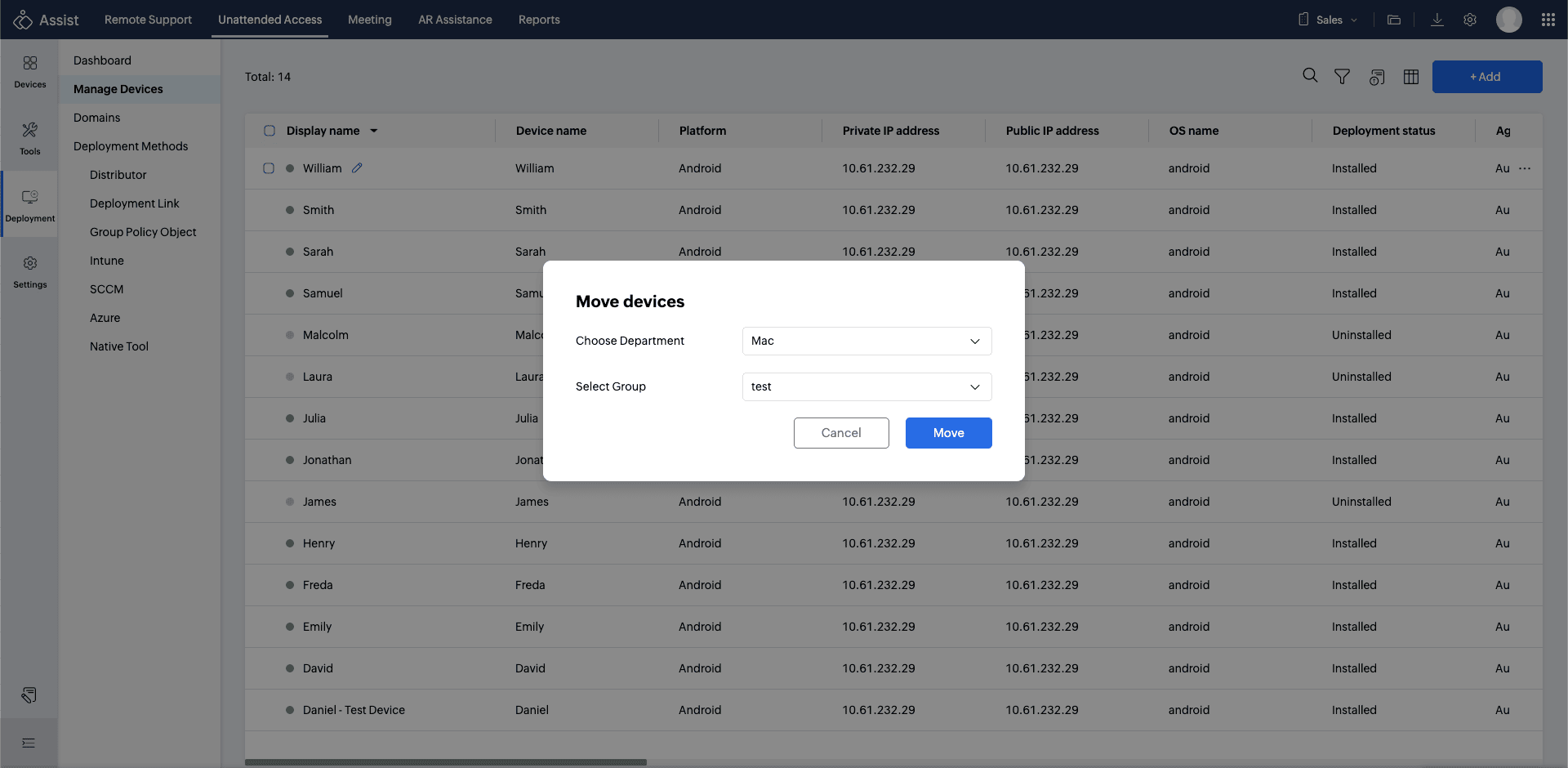
- Move – Transfer the device to another department or group.
- Uninstall – Remove the unattended access agent from the device.
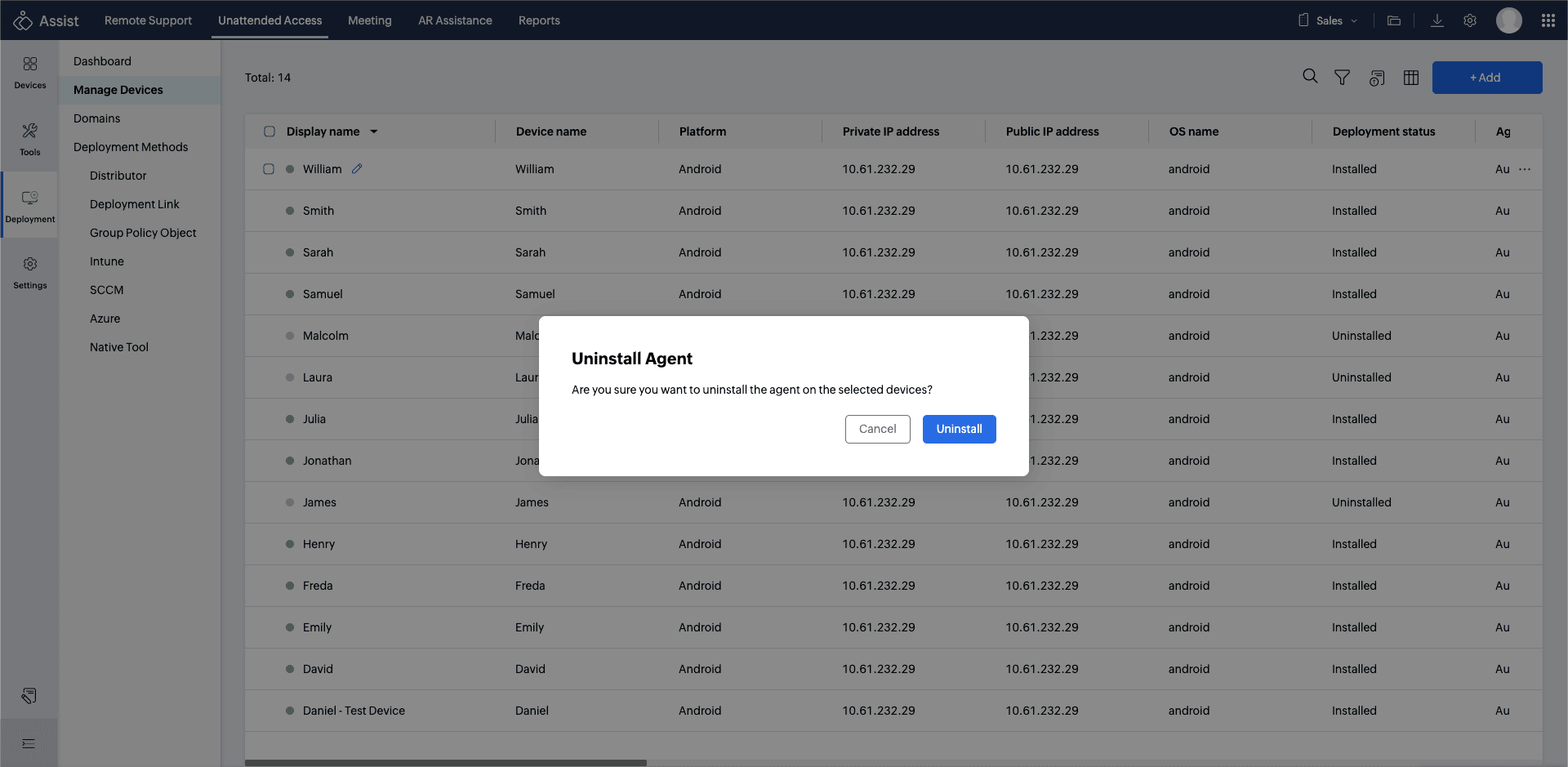
Note: You can only uninstall the unattended access agent if the device is online. Devices that are uninstalled or removed will continue to occupy a license.
To Manage Multiple Devices
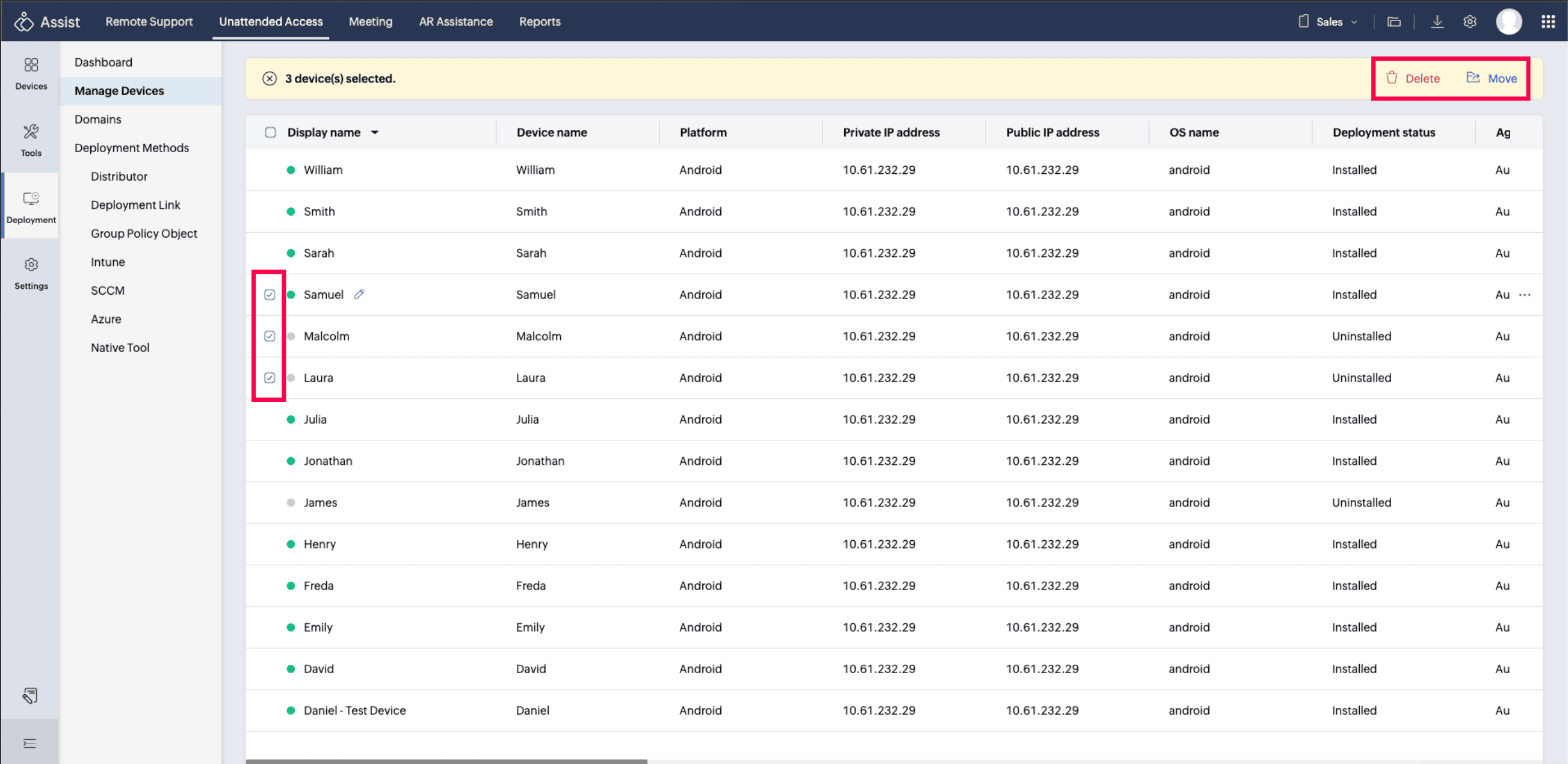
- To delete or move multiple devices, select any number of devices manually and choose Delete or Move.
To Manage All Devices in the Current View
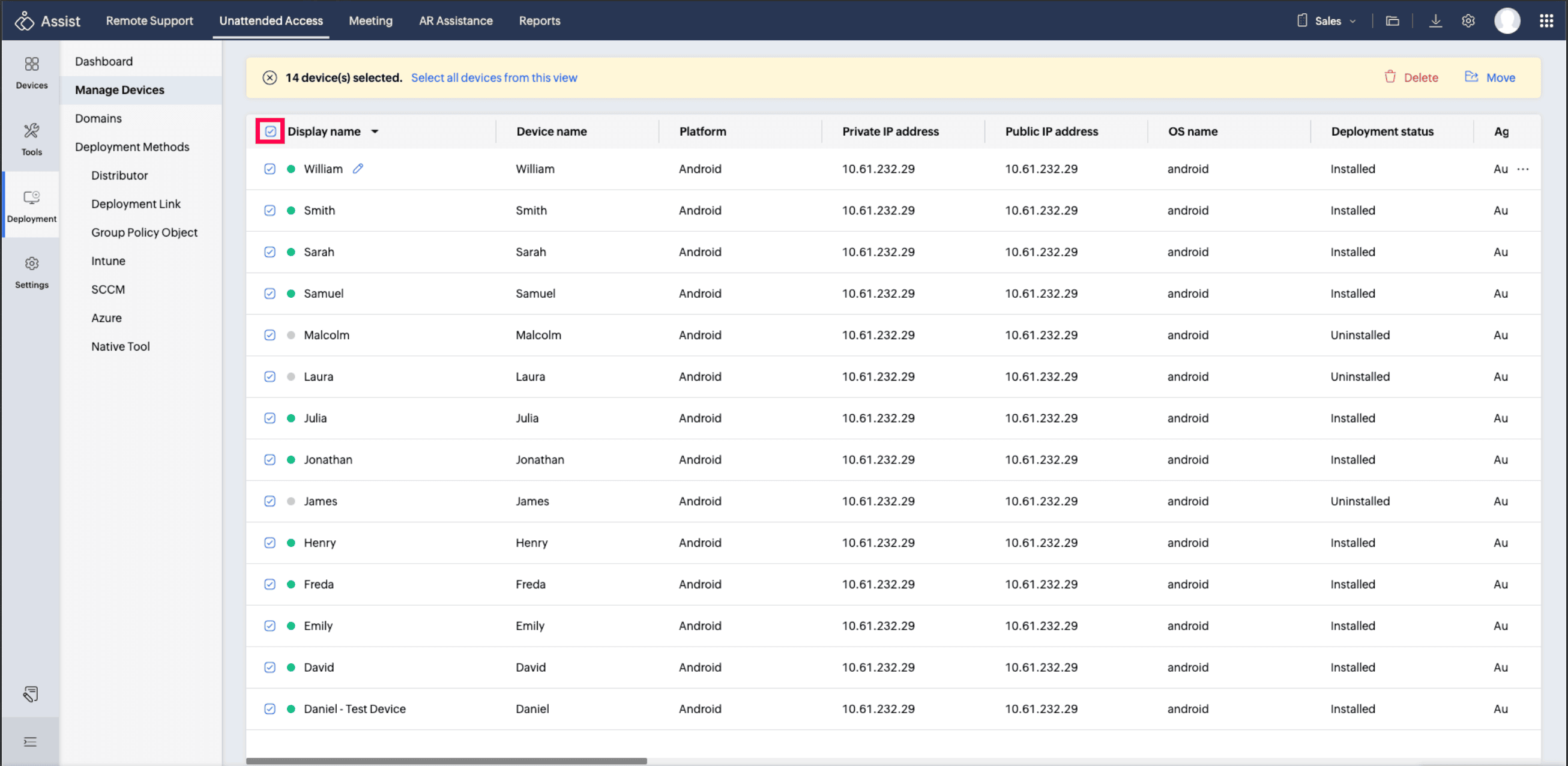
- Select the checkbox beside Display Name and click Select all devices from this view.
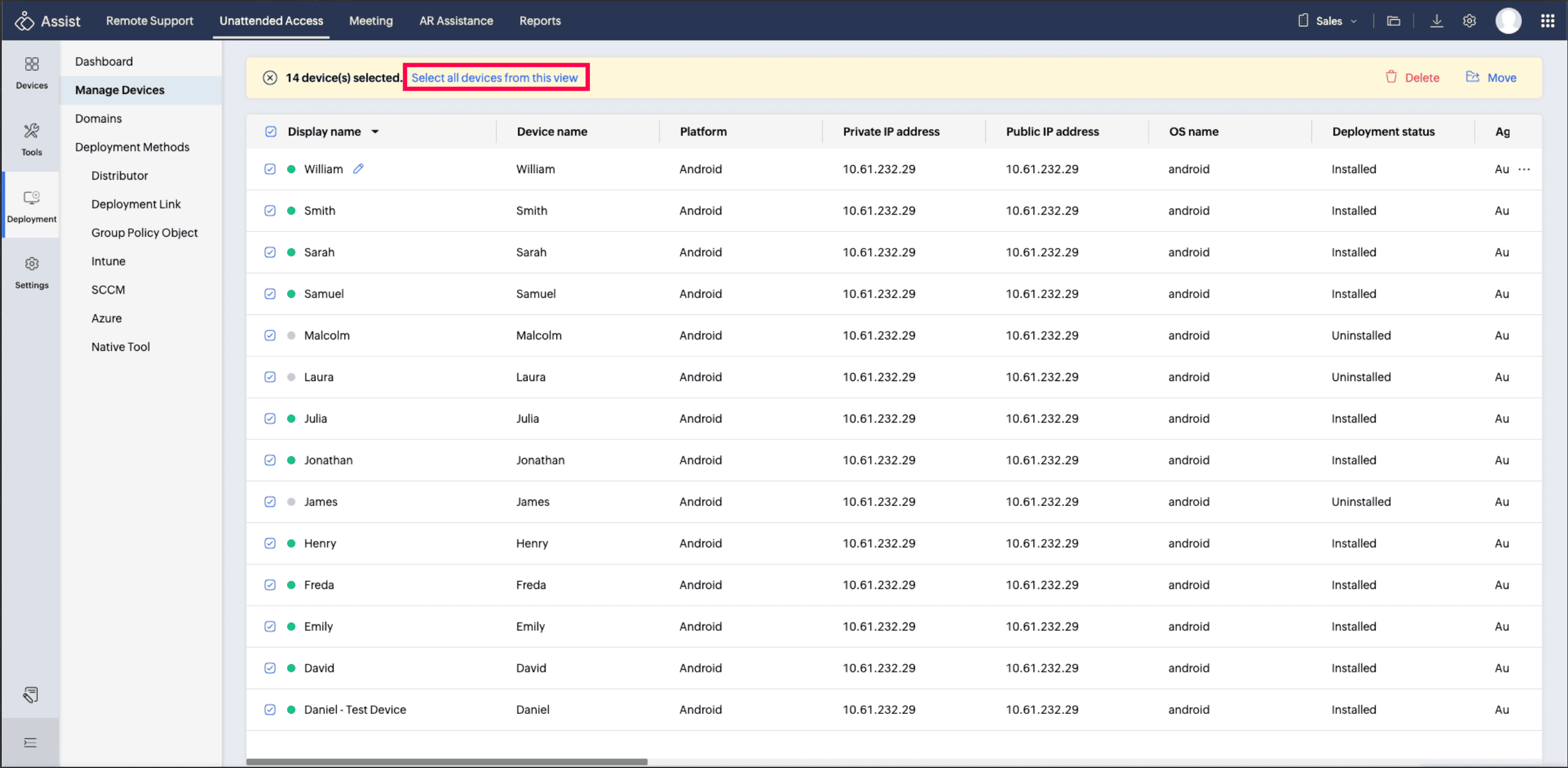
- Refine the list if needed and perform actions (such as Delete) on all filtered devices in one go—even if the list includes thousands of devices.
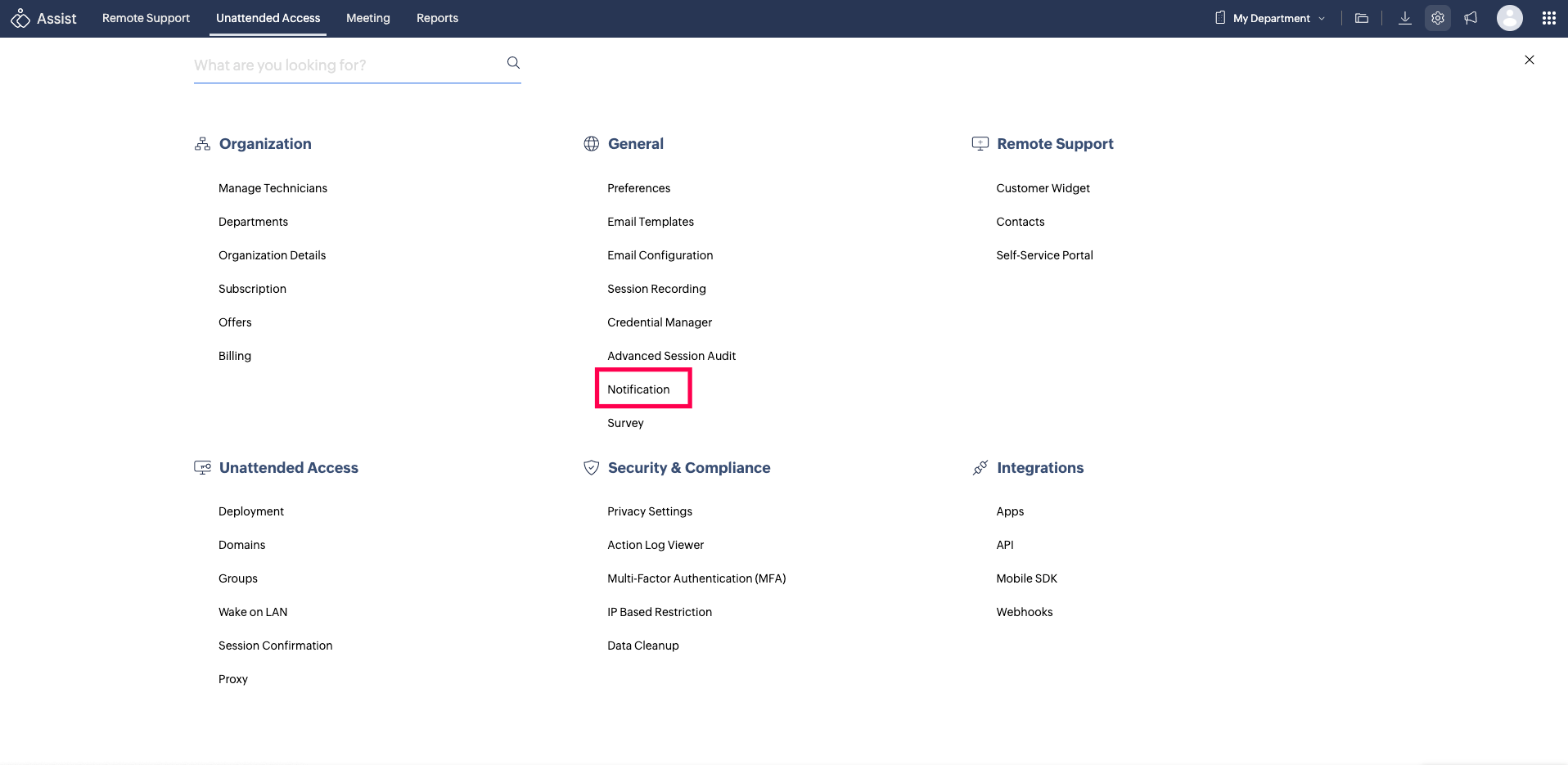
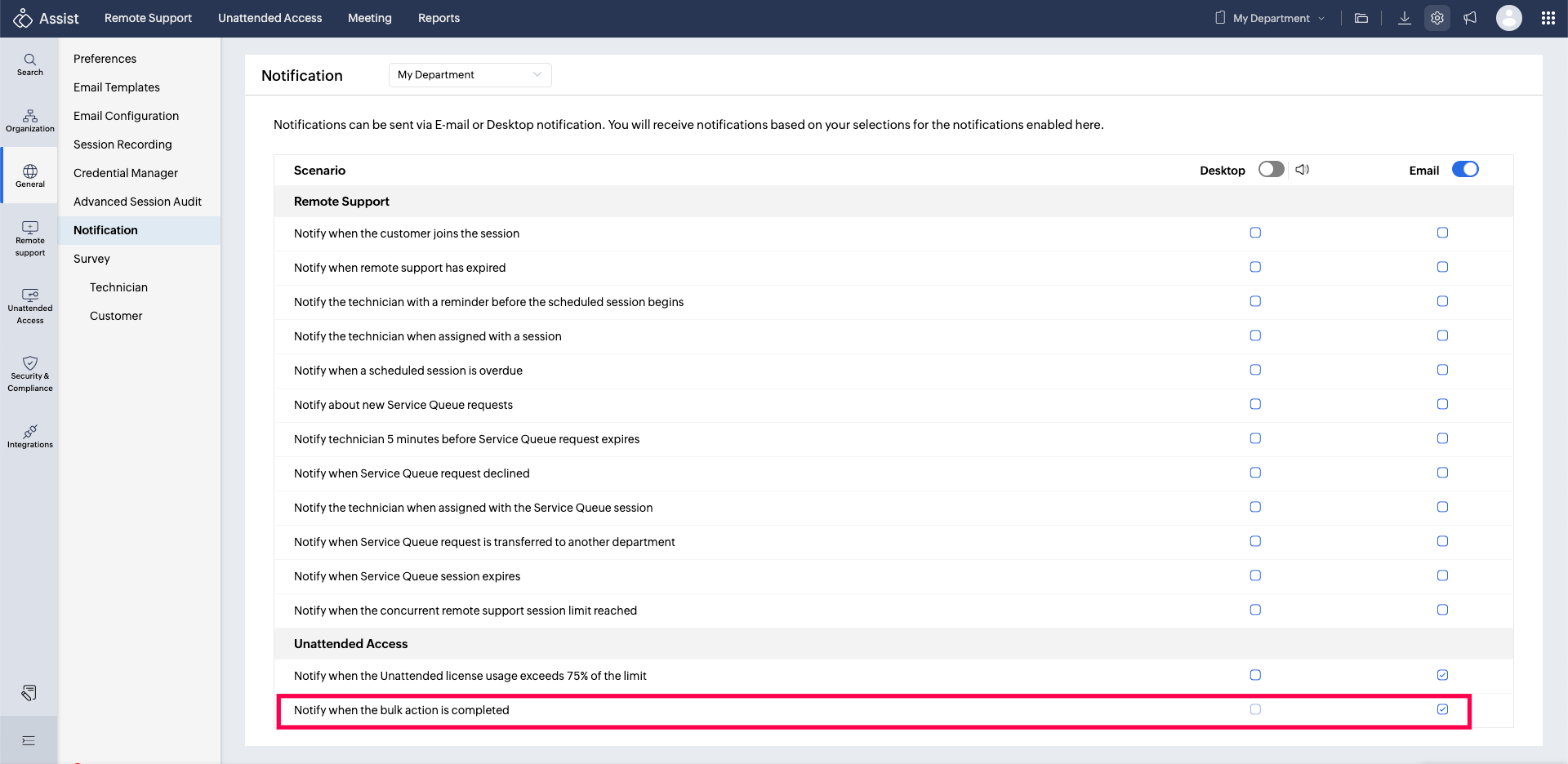
- Bulk actions are processed in the background. Enable notifications from settings to be alerted once the action is complete.
To Enable Approved Devices for Unattended Access
- Go to Settings > General > Preferences.
- Under Unattended Access, select the checkbox Allow connection only to approved unattended devices to enable deployment based on admin approval.
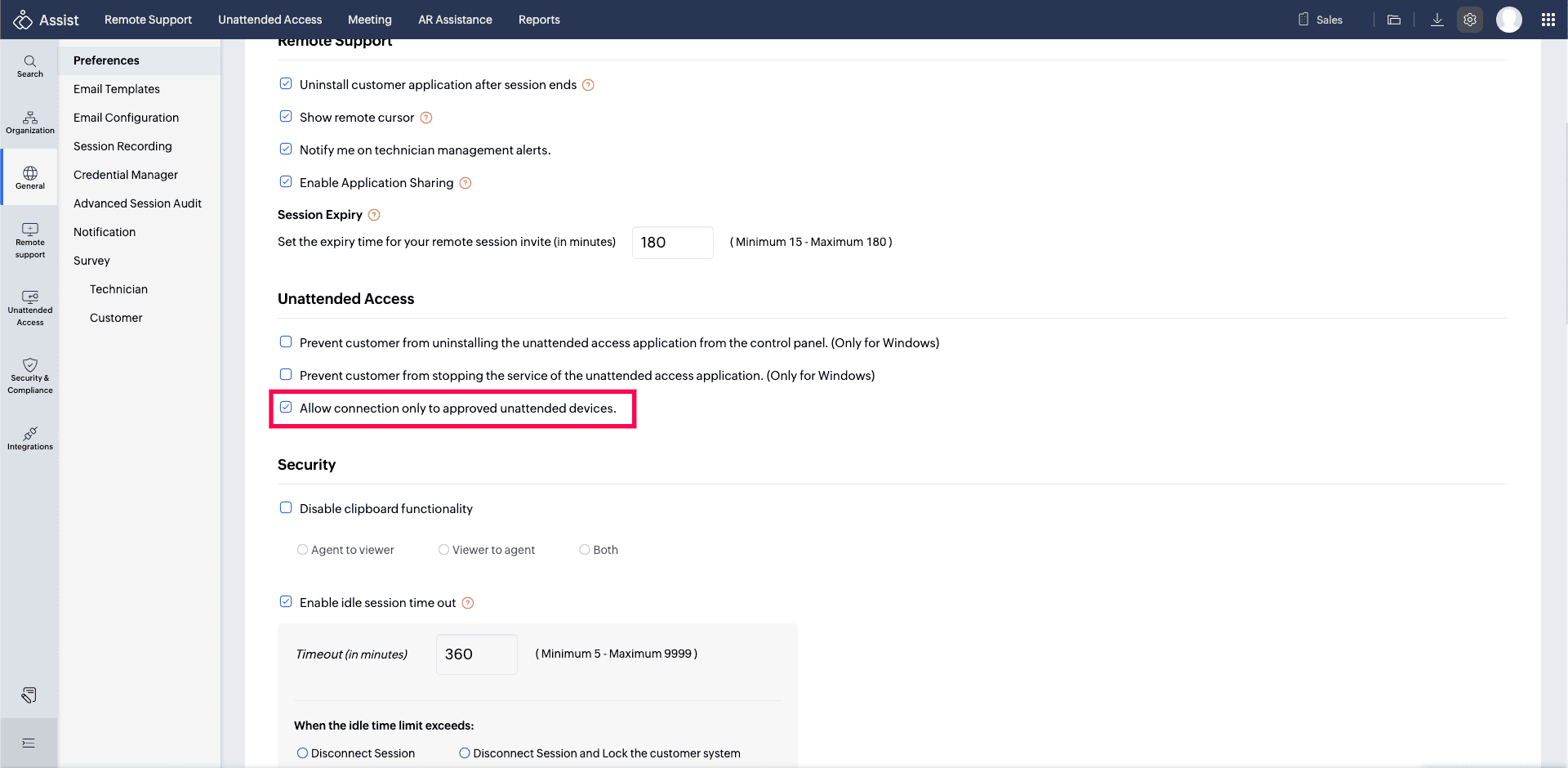
- Once this option is enabled, the super admin must approve any device before the agent can be installed.
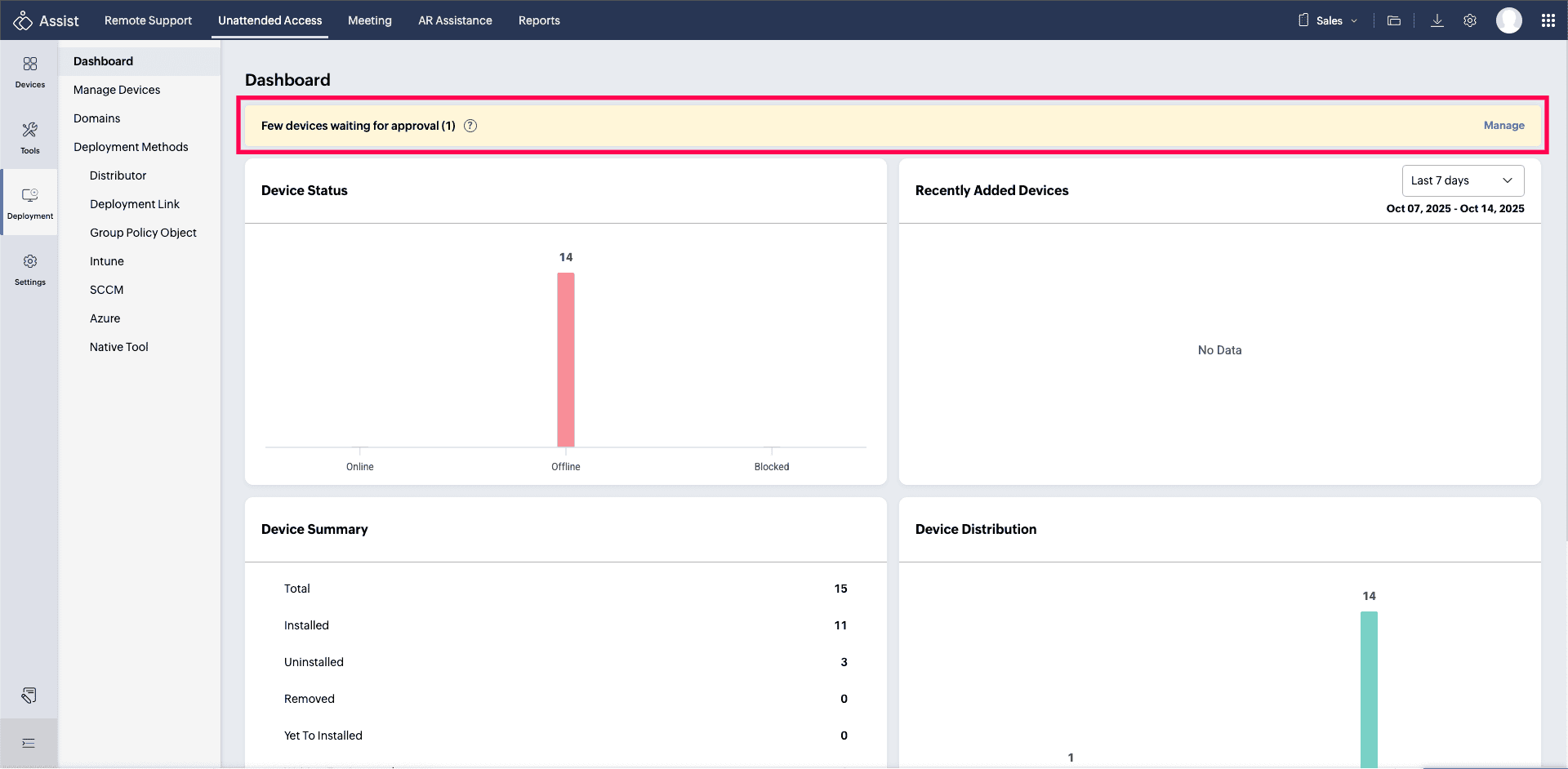
- When a technician attempts to install an agent on a device, an approval notification will appear on the super admin’s dashboard.
- Devices awaiting approval will be displayed as shown in the image below. Click Manage to proceed.
To Approve a Device for Deployment
- Go to Unattended Devices > Deployment > Manage Devices.
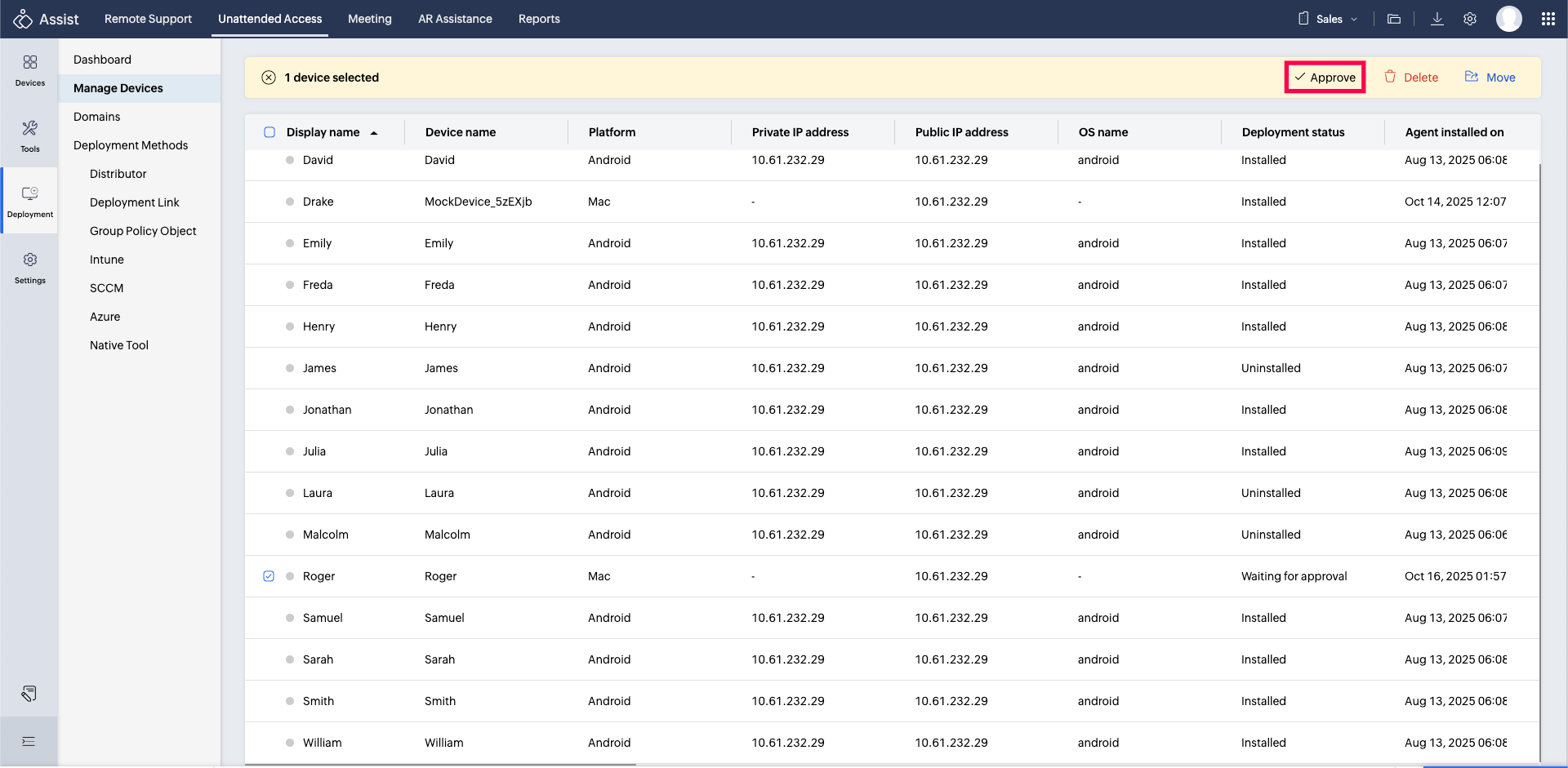
- Devices pending approval will be listed with the status Waiting for approval.
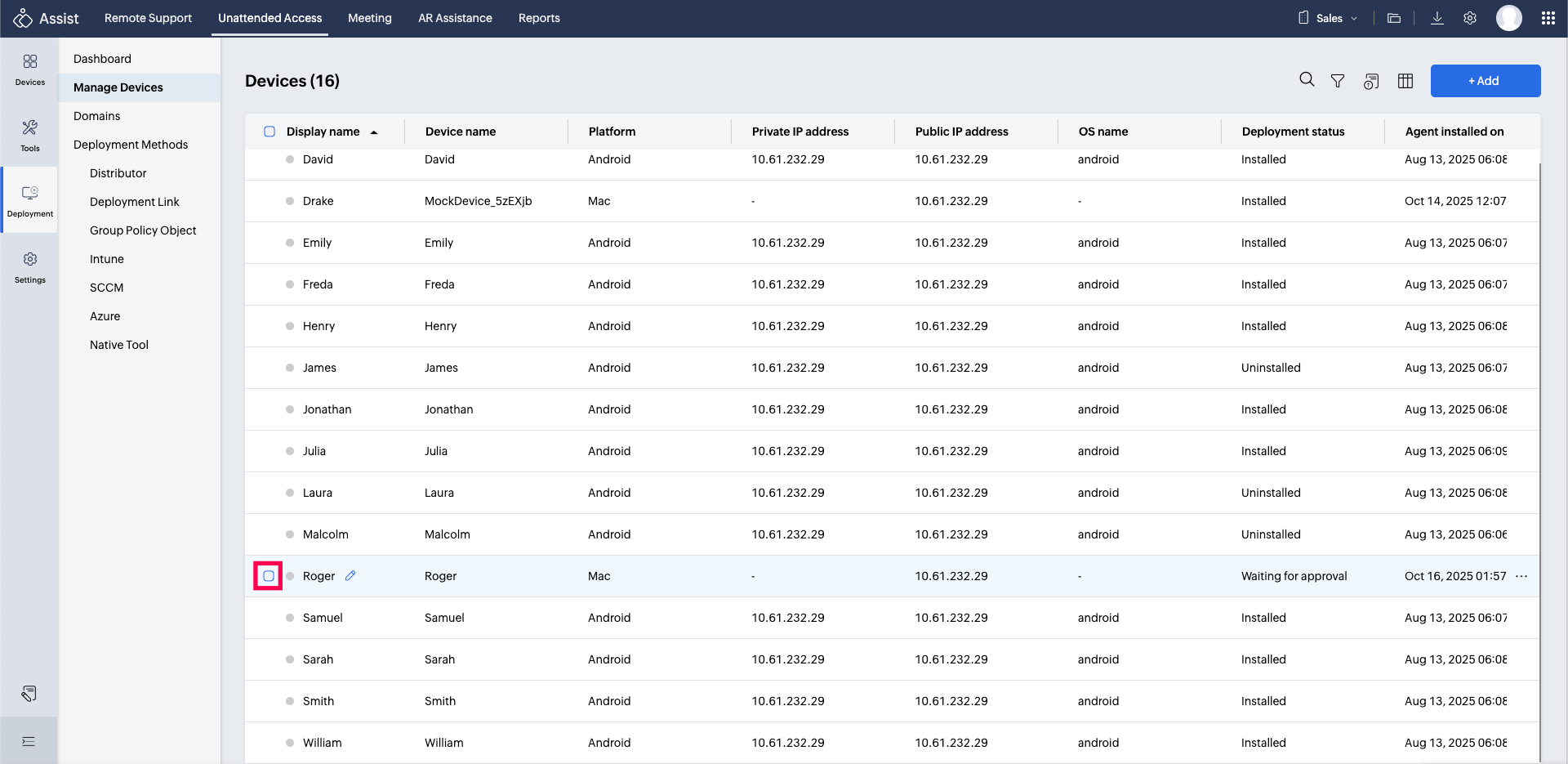
- Select the device(s) you want to approve for unattended access and click Approve.
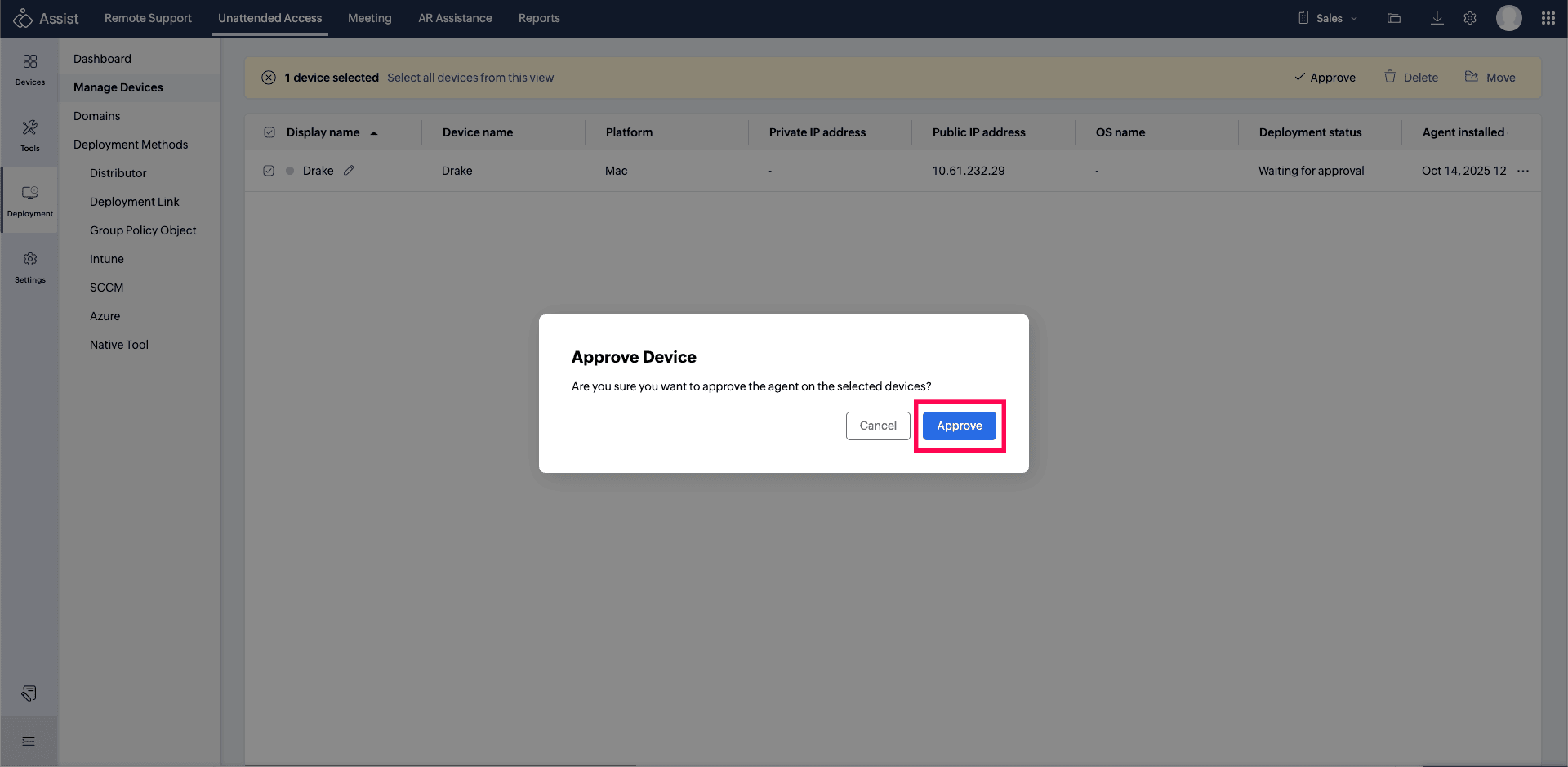
- In the confirmation dialog, click Approve again to confirm your action.
Columns - Manage Devices
You can customize the table view under Mange devices based on the information you want to track. You can choose which columns to display using the Column Chooser. The following table lists all supported columns and their descriptions.
Column Name | Description |
Display Name | User-editable name for the device (like a nickname). |
Device Name | Original name of the device. Cannot be changed after installation. Updates automatically if the device name is changed on the remote device. |
Platform | Operating system of the device (e.g., Windows, Mac, Linux, Android, iOS, ChromeOS). |
OS Name | OS model (e.g., Windows 11 Pro, Sequoia). |
OS Version | Version of the OS. |
Groups | Groups that the device belongs to. |
Private IP Address | Private IP address of the device. |
Public IP Address | Public IP address of the device. |
Agent Version | Assist Unattended Agent version. |
Status | Current status of the device (online, offline, blocked, removed). |
Deployment Status | Status of the agent (installed, uninstalled, waiting for approval, deleted, installation in progress, etc.). |
Agent Installed On | Date and time when the agent was installed. |
Agent Status Last Updated On | Last updated date and time of the agent status. |
Added By | Email ID of the user who installed the agent on the device. |
Domain | Domain name that the device belongs to. |
Fully Qualified Domain Name | Fully qualified domain name (FQDN) of the device. |
Domain Admin Username | Username of the domain administrator. |
Last Connected On | Last connected date and time. |
Last Connected By | User who last connected to the device. |
Last Boot Time | Last boot time of the device. |
Model Name | Model name of the device. |
Manufacturer Name | Manufacturer of the device. |
Service Tag | Service tag of the device. |
Product ID | Product ID or serial number of the OS. |
MAC Address | MAC address of the device. |
OS Build Number | OS build number. |
Agent Last Updated On | Date and time when the agent was last updated. |