Installing Zoho Assist Customer app via Intune - Android
Microsoft Intune offers a seamless method to deploy the Zoho Assist Customer app to Android devices. This guide covers all the essential steps—from device enrollment to app deployment with necessary configurations.
Requirements
- Access to Microsoft Intune
- Android Enterprise setup in Intune
- Managed Google Play account linked with Intune
Deployment
1. Enrolling your device
- Log in to your Microsoft Intune account.
- Navigate to Devices > Android > Android enrollment.
- Select Managed Google Play and complete the setup to link your Managed Google Play account with Intune.
- Choose the enrollment method (e.g., Corporate-owned devices, BYOD) based on your organization’s requirements.
2. Add the app for distribution
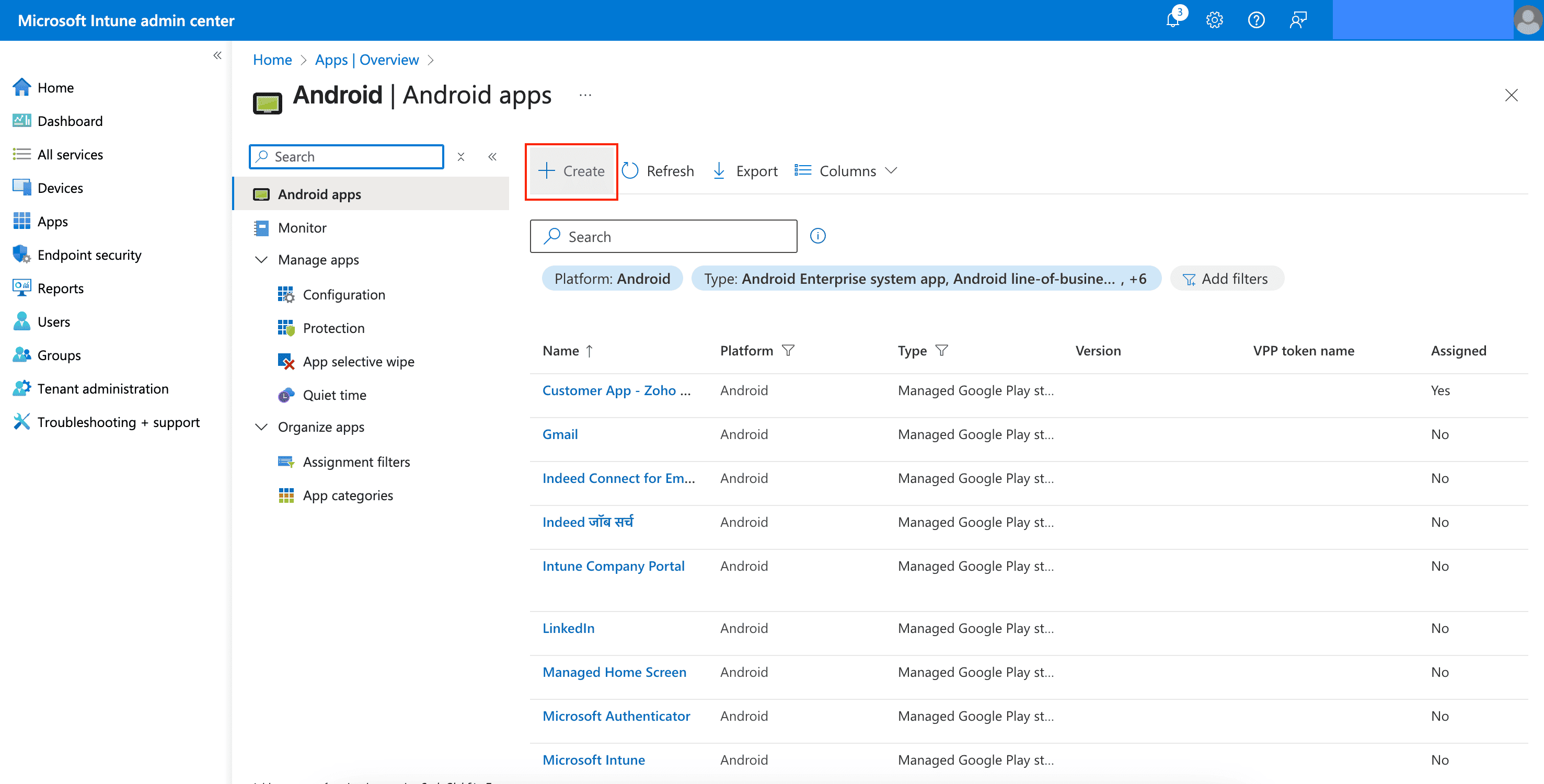
- Go to Apps > All apps and click + Create.
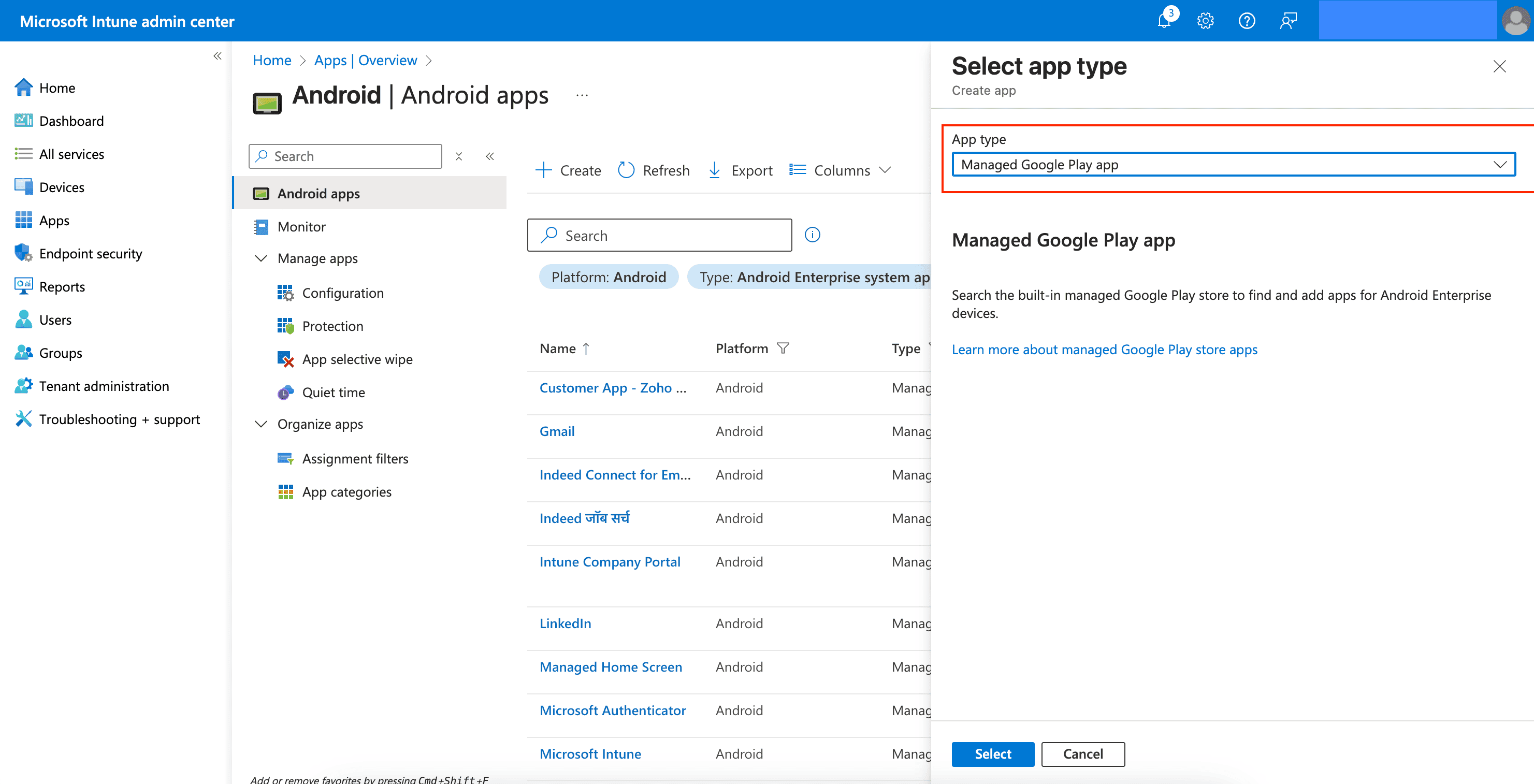
- In the App type, select Managed Google Play app.
- Search for Zoho Assist Customer app and click Select.
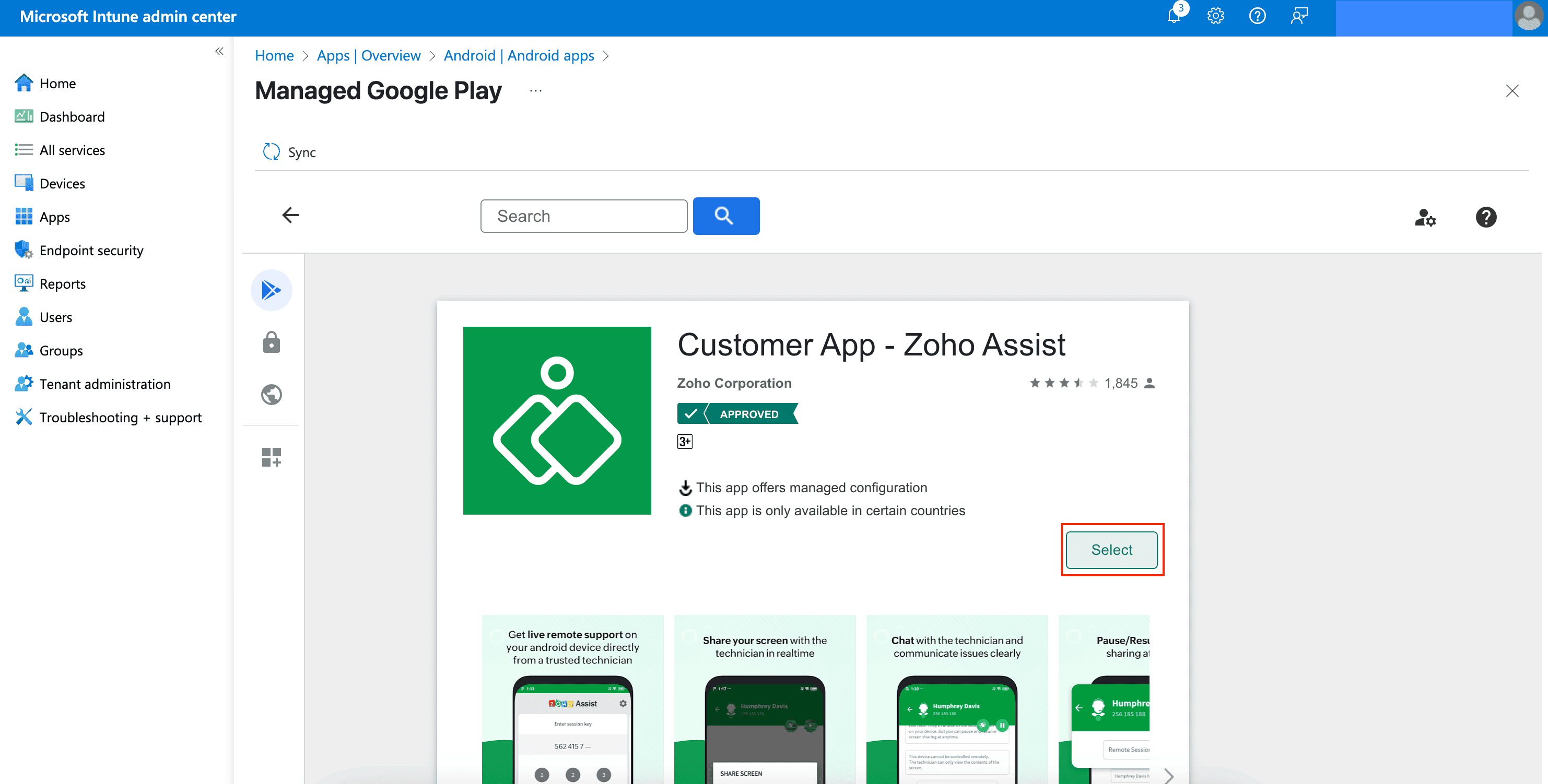
- Click Sync to make the app available in Intune.
3. Configure the app
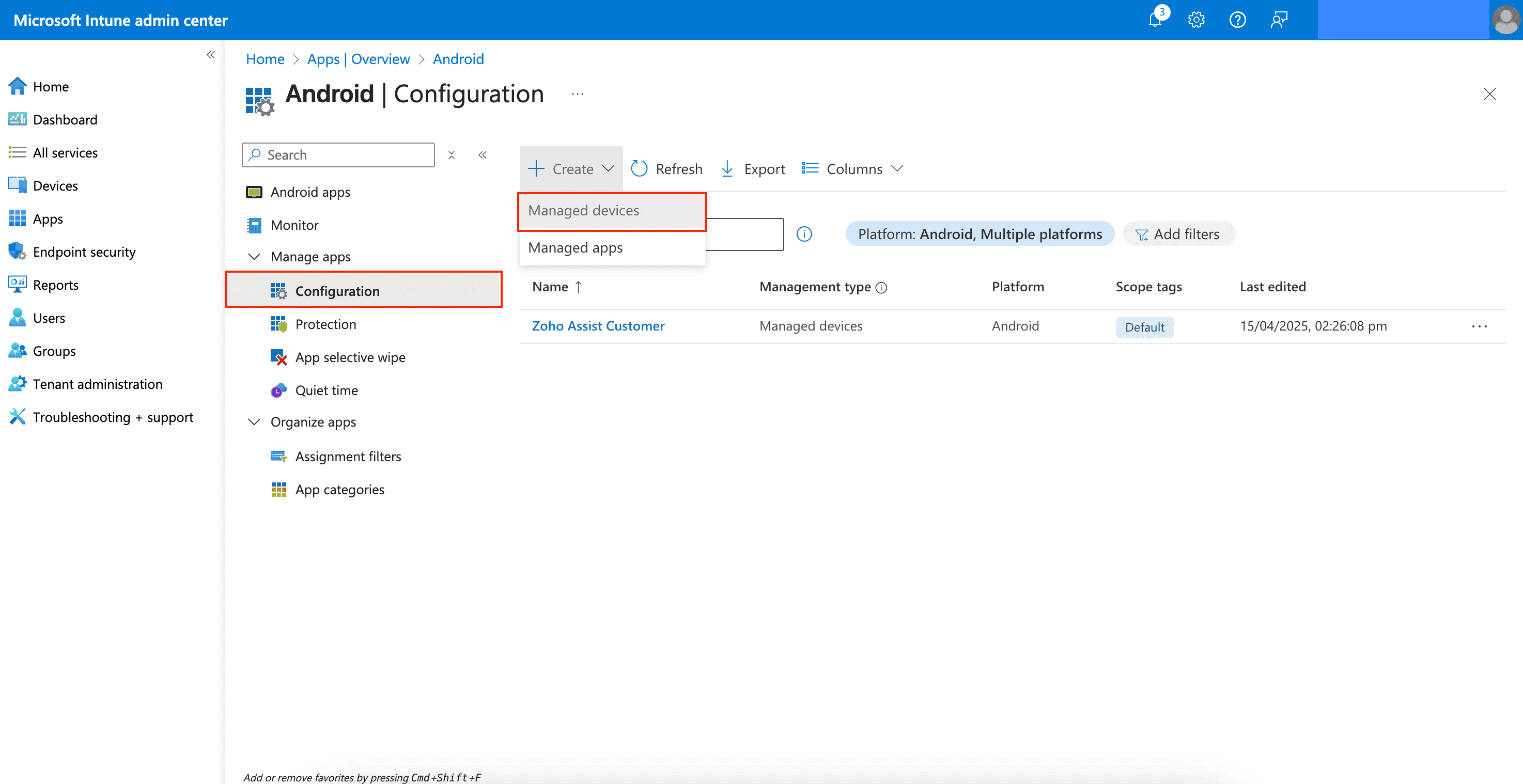
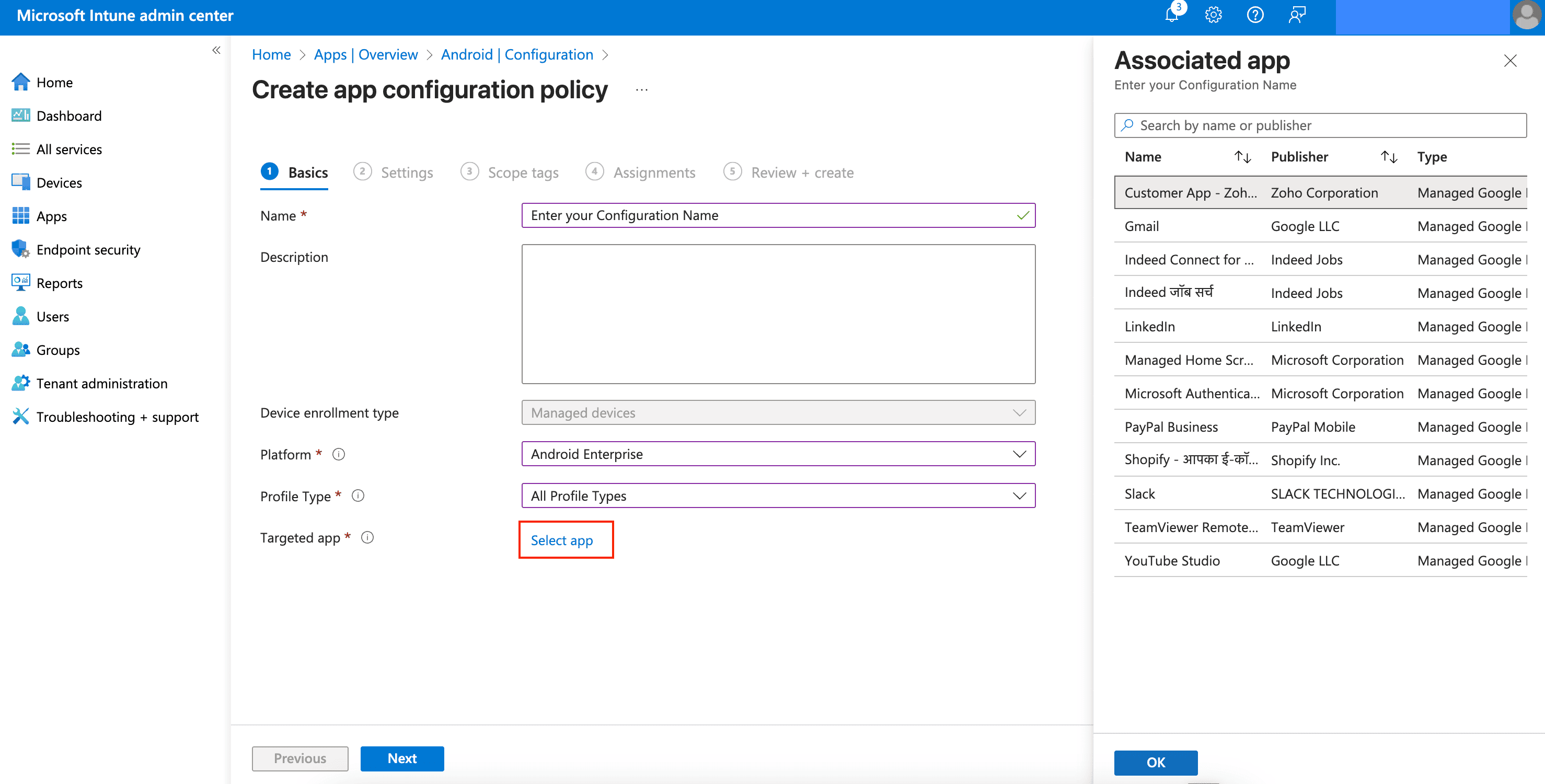
Navigate to Apps > Configuration and click + Create.
Choose Managed devices as the assignment type.
Enter a policy name and choose Android Enterprise as the Platform.
Choose either Work Profile or Device Owner depending on your setup in Profile Type.
Click Select app and choose Zoho Assist Customer app in the Targeted app.
Under Configuration settings, click Add.
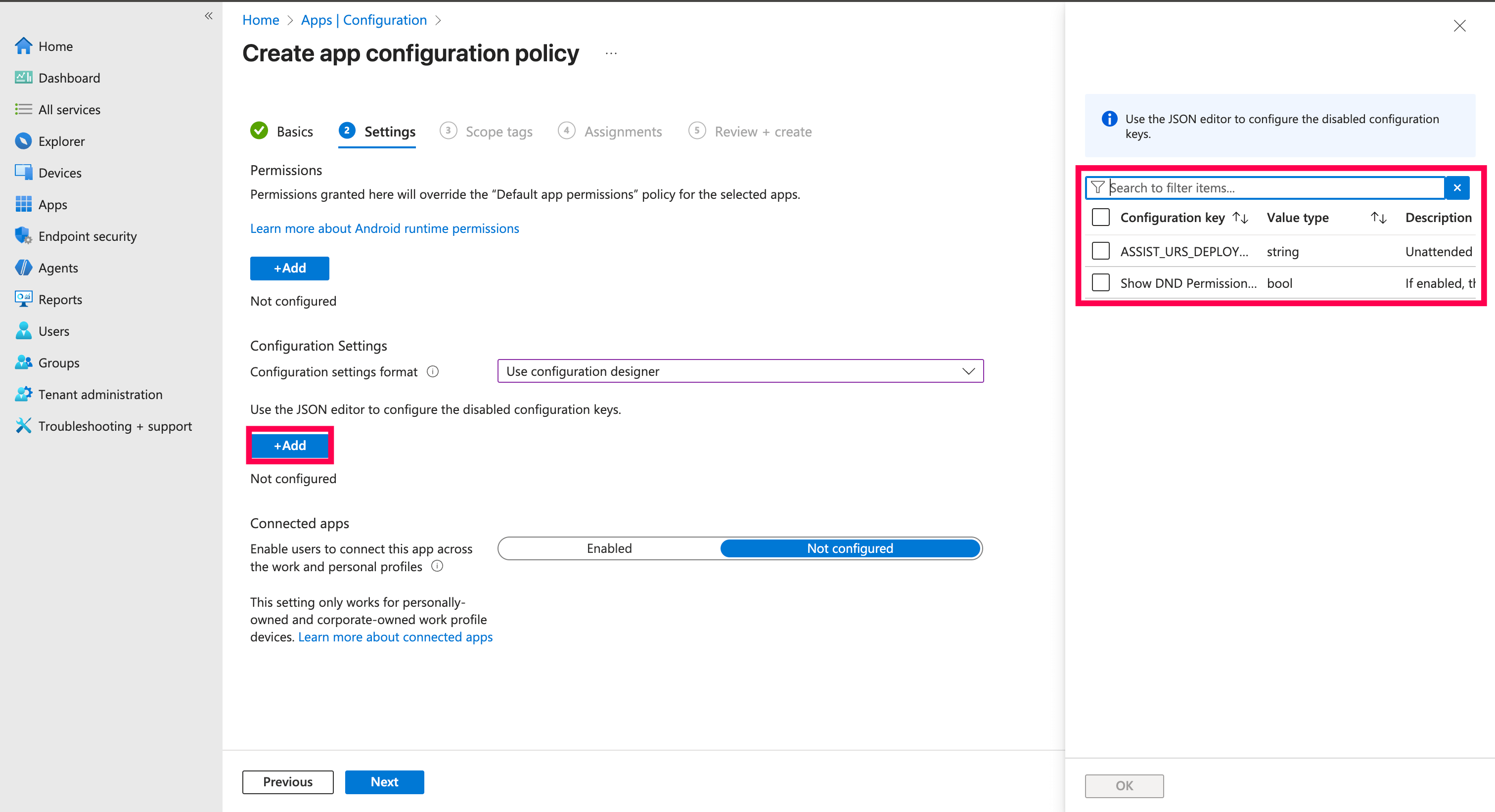
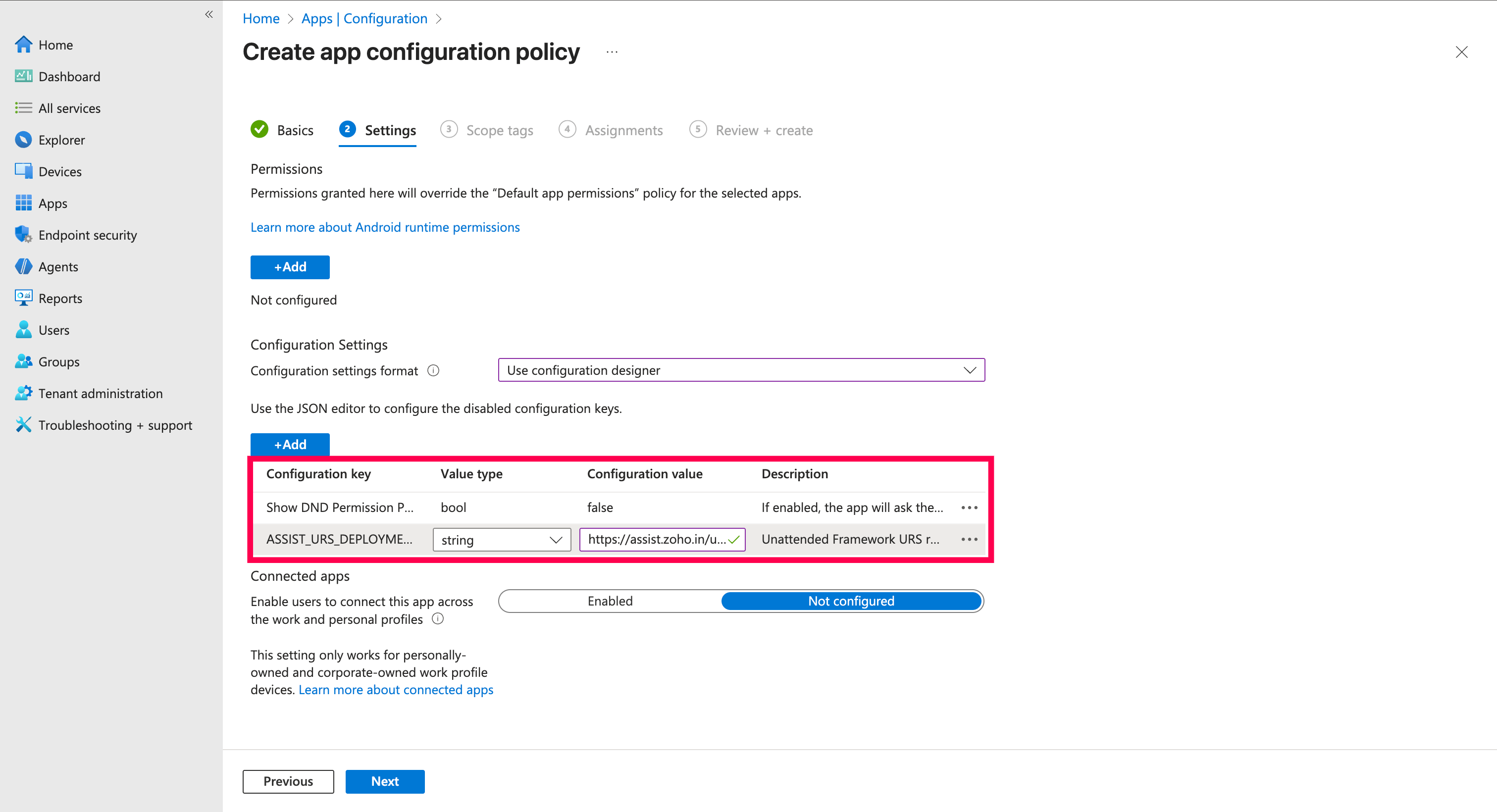
Add the required configuration key and value as mentioned below.
For "ASSIST_URS_DEPLOYMENT_LINK", set the value type to string and enter the deployment link.
For "Show DND Permission Pop-up", the default value type is bool and the default value is false. If you wish to show the DND permission pop-up to the user, change the value to true and manually enable the DND setting through the appropriate OEM-specific configuration in your MDM.
Configuration Key | Value type | Configuration Value |
ASSIST_URS_DEPLOYMENT_LINK | string | < deployment link> |
Show DND Permission Pop-up | bool | false (by default) |
- Assign the policy to the required user or device groups.
4. Distribute the App
- Ensure the Company Portal app is installed on the targeted Android device via Google Play Store.
- Sign in and follow the instructions to register the device with Intune.
- Once registration is complete, the Zoho Assist Customer app will be pushed to the device automatically.
- The app will be installed silently (if the device is corporate-owned) or require user approval to complete installation (in BYOD mode).