

Other Actions
Refunds
There are times when the product or service you render might get canceled or stopped due to various reasons. As a business owner, you will have to fully or partially refund the amount paid as retainer in accordance with your business policies. In this case, you can always record the refund made in your Zoho Books account.
- Navigate to the retainer invoice module and select the appropriate retainer invoice for which the refund needs to be made.
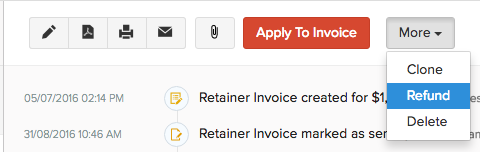
- Select the Refund option from the More drop down.
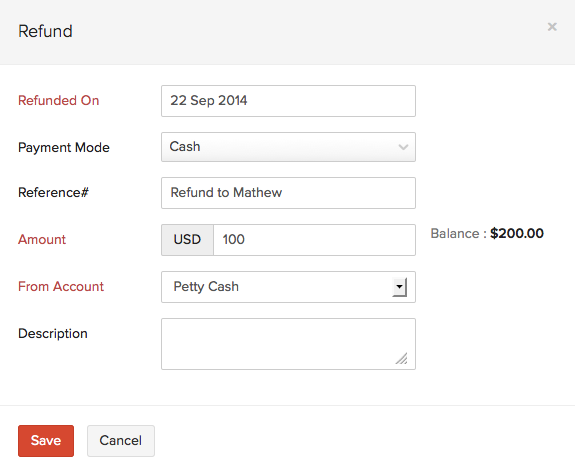
- You can enter the details of the refund transaction in the pop up that appears next.
| Fields | Description |
|---|---|
| Refunded On | The date on which the refund was made. |
| Payment Mode | Choose from different options to record the mode of payment either by cash, bank transfer or through online payments. |
| Reference | Quick reference to the refund made. |
| Amount | The amount to be refunded to your customer. |
| From Account | Select the account from where the refund was made, either from cash accounts or bank accounts in the banking module. |
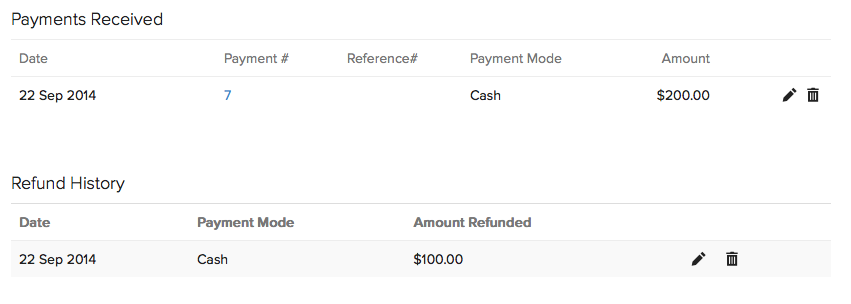
- Once the refund is recorded, the adjustments are uploaded in the retainer invoice.
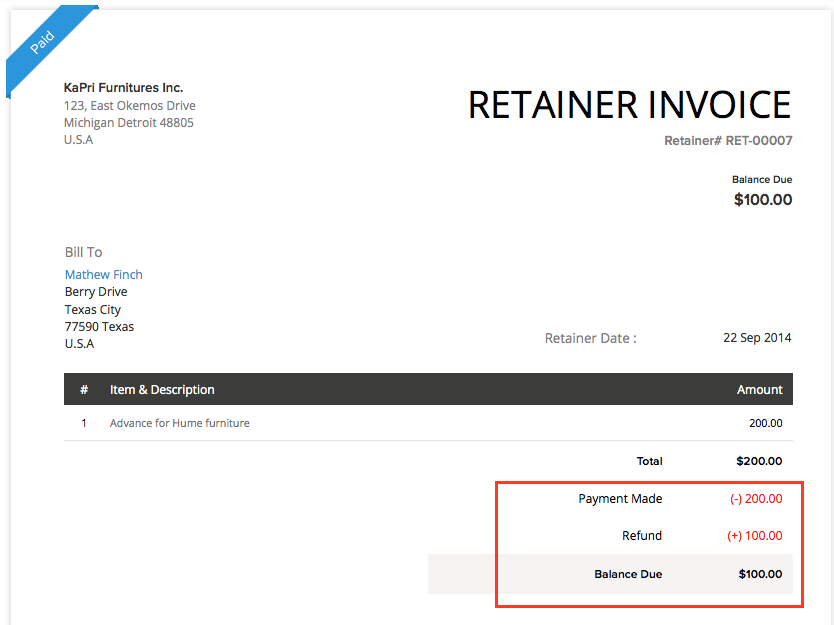
- Refund transaction details will be displayed for a quick view at the bottom of the selected retainer invoice. You can always edit or delete the transaction from the icons present next to the entry.
Cloning your Retainer Invoice
You can create a duplicate of an existing Retainer Invoice in Zoho Books.
There are situations where you would just want to create a duplicate of your retainer invoice to send to your customer. You can do that by following the steps below.
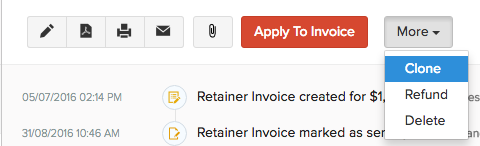
- Click on the More option present on top and select the Clone option from the drop down.
- This will allow you to create a duplicate of your retainer invoice, the date of the invoice will be on the date of cloning.
- As you will be navigated to the retainer invoice form, you can also edit details before saving the invoice.
Reports
Back to Retainer Invoice Overview
 Yes
No
Yes
No
 Thank you for your feedback!