
Project Templates
Project templates simplify project creation. Use templates to create predefined projects. When you create a new project using a template, the project will take its attributes from the template.
Create a template
- Navigate to Projects and click Project Templates from the drop down menu on top left corner .
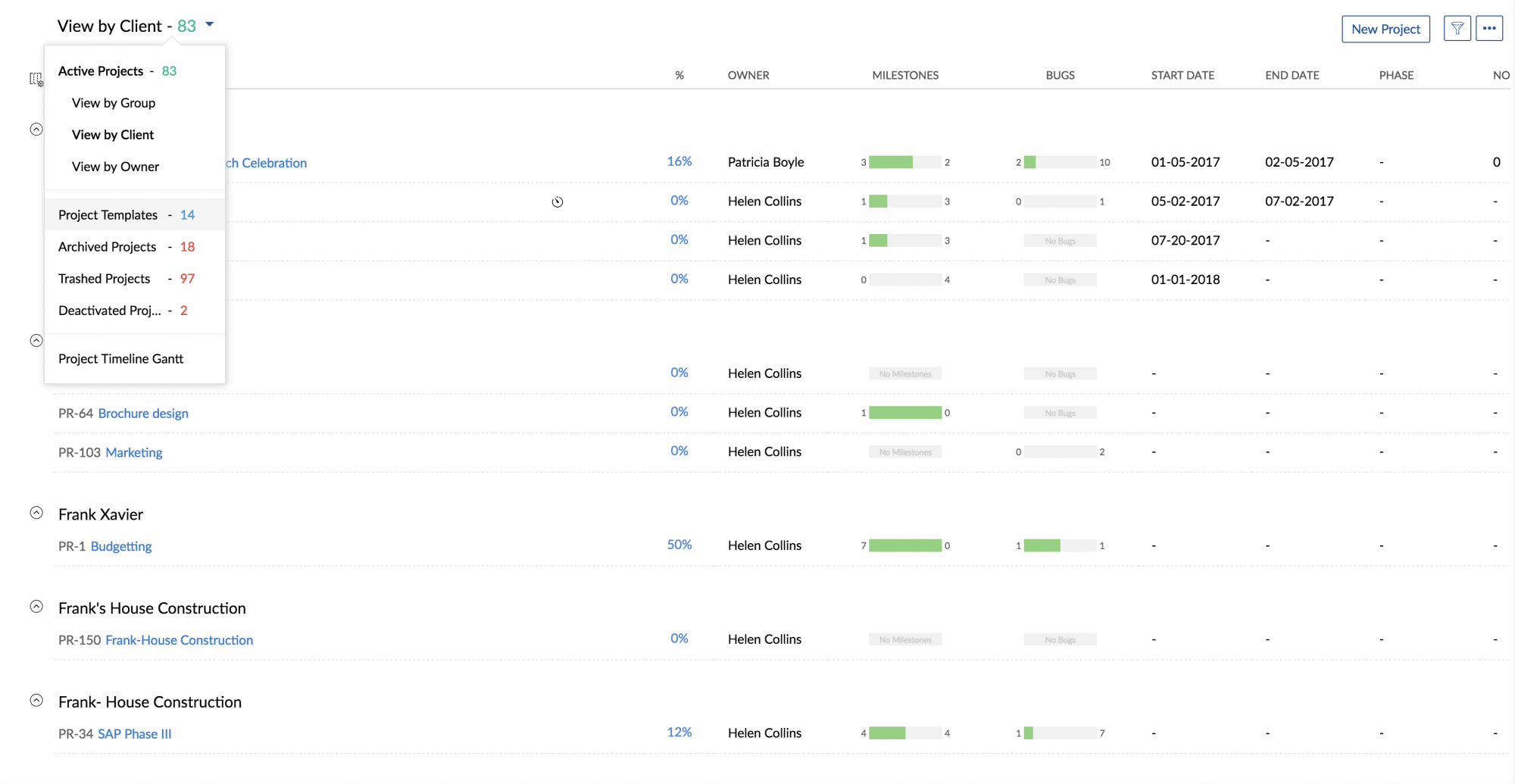
- Click New Project Template.
- Enter Project Template Name.
- Give an overview and click Add Project Template.
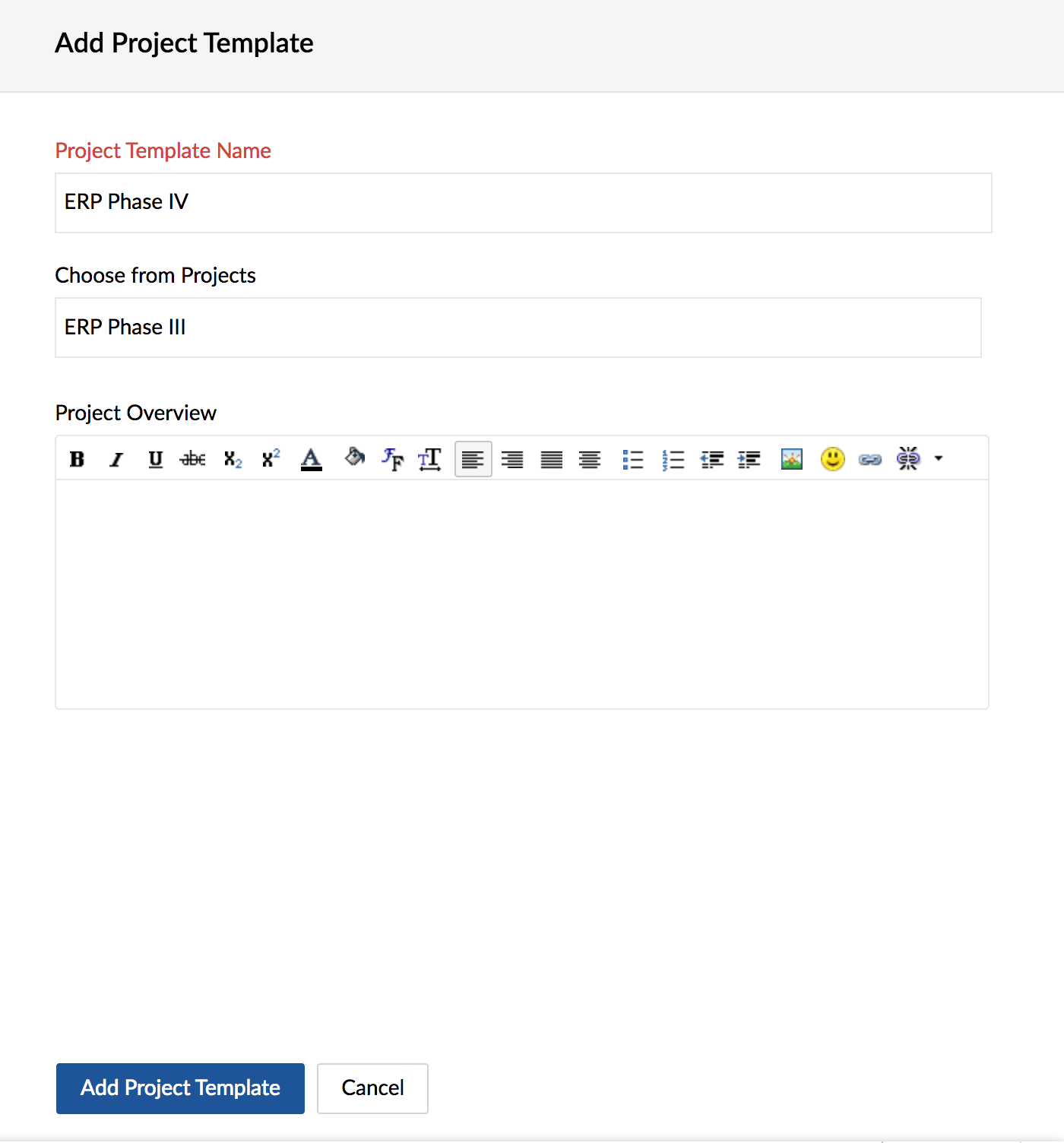
Note: If you make an existing project as a template, milestones, users, documents, and bug settings from the project will carry over to the template.
Edit / delete a template
- Navigate to Projects and click Project Templates.
- Hover over the desired project template.
- Click
 and choose the required option to edit or delete.
 and choose the required option to edit or delete.
Choose a project template
You can now choose and import project template while creating an actual project. While creating a new project select project template. To learn more about creating a new project click here.