Configure Google Calendar settings for Calendar Interoperability
Zoho Calendar users can now conveniently check the availability status of Google Calendar users once the integration is set up on the Google server. To configure, create a Google Workspace Role Account. This allows visibility of user's availability across platforms, enhancing your scheduling and collaboration experience.
Create a Google Workspace role account
Using this account, Zoho Calendar will communicate with the Google server and get the availability status of users.
The following conditions should be checked for while creating a role account:
- The Google Workspace role account should be a low-key account without a dedicated mailbox.
- It is recommended to turn off the password expiration for the role account to avoid service disruption.
- If you have an existing Google Workspace account being used for availability lookups, you can use the same account to set up availability address space.
Configure Google Workspace account credentials for interoperability
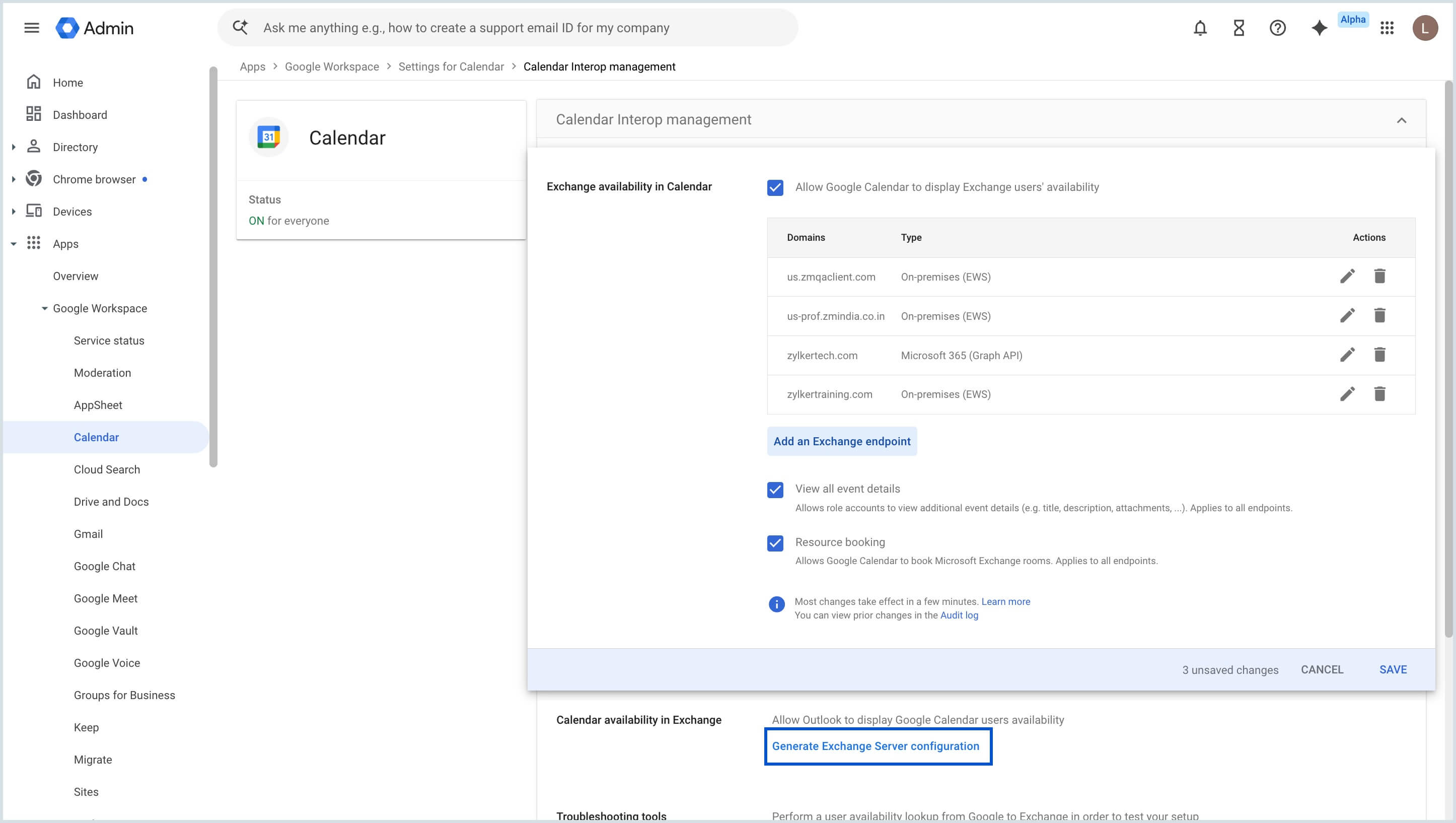
- To generate your Google role account credentials, go to https://admin.google.com/ac/apps/calendar/settings/interop
- Click on Generate Exchange Server configuration under calendar availability in Exchange.
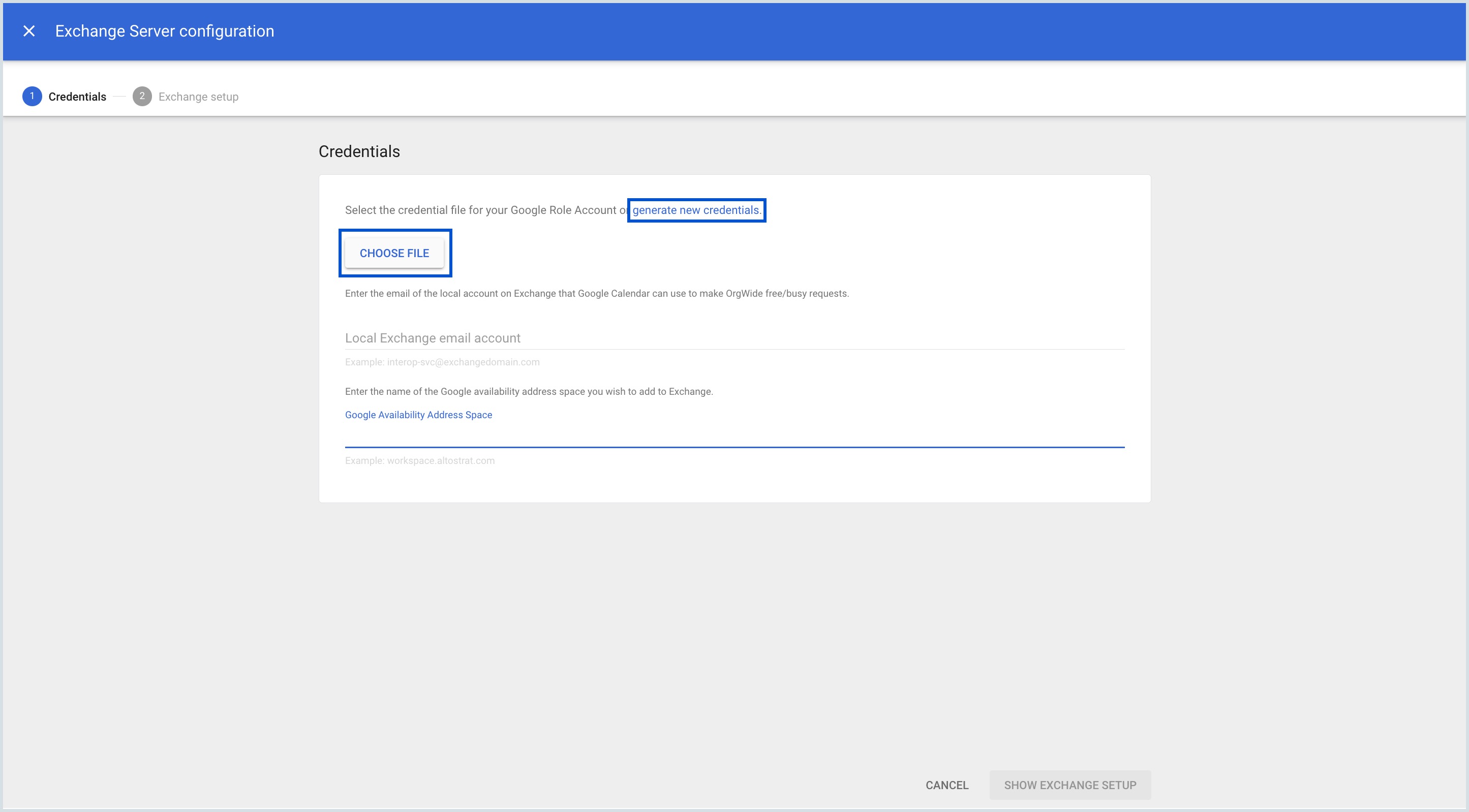
- You can click Choose File to upload the credential file from your local device, or click Generate New Credentials to create a new one.
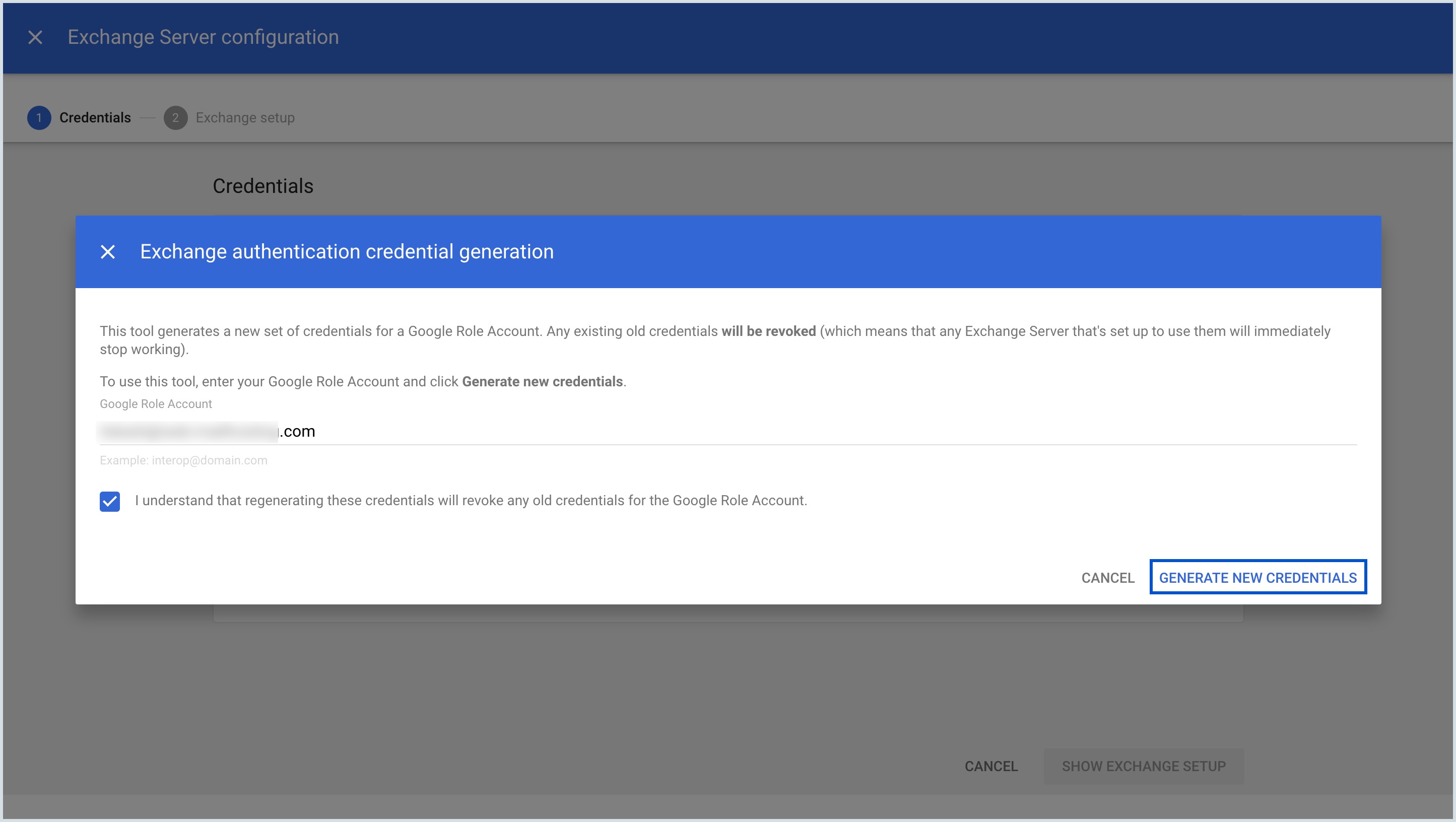
- If you choose to generate a new credential, enter your Google role account address to log into your account.
- Select the check box- 'I understand that regenerating these credentials will revoke any old credentials for the Google Role Account' and click Generate new credentials.
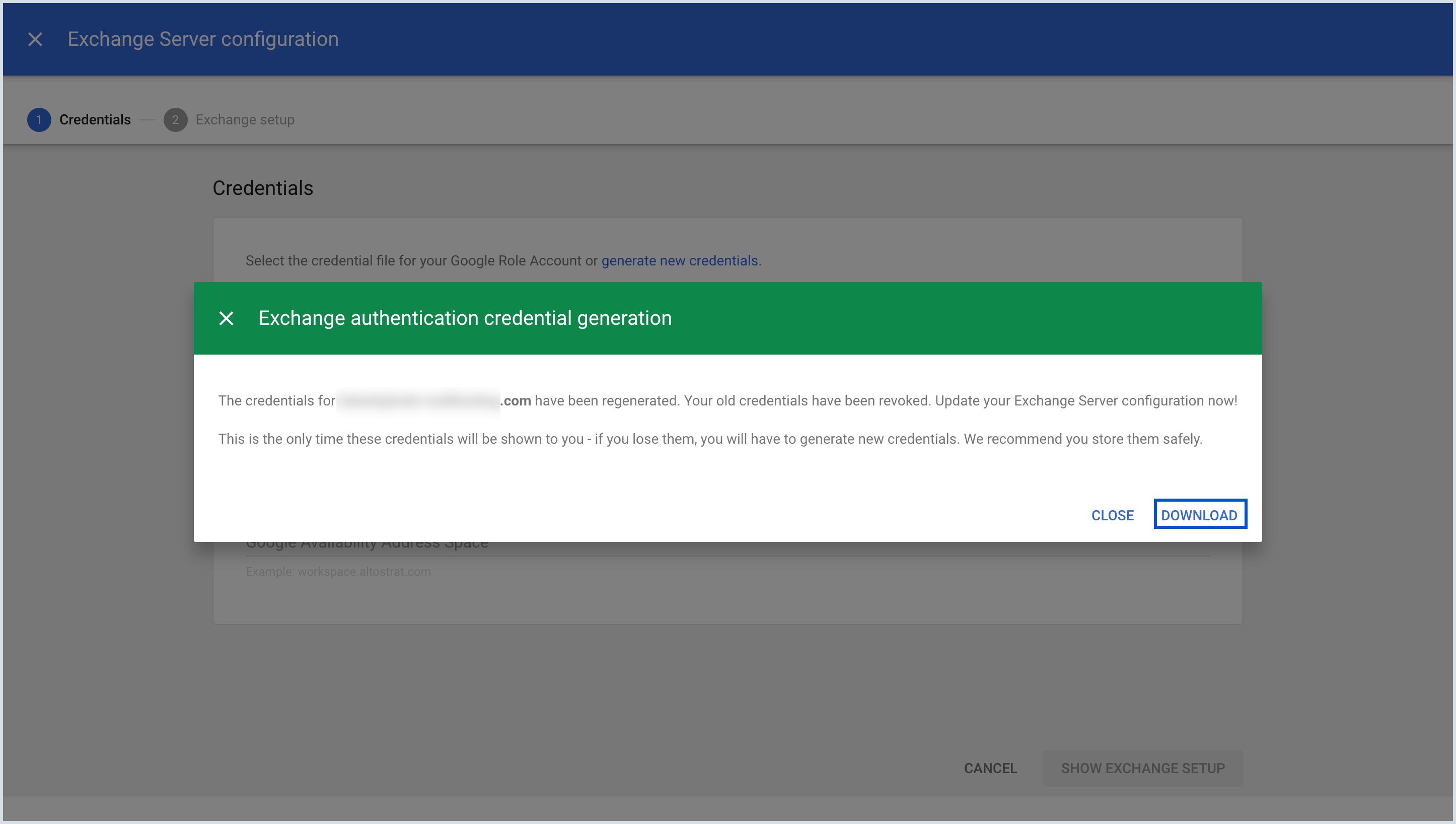
A pop-up will show that your account credentials have been regenerated while the old credentials have been revoked. You can update your Exchange server configuration now.
Note
- The credentials will be shown to you only once and will not be visible again for security reasons.
- You will be asked to regenerate new credentials if you no longer have access to them.
- You can download the dat. file. on your device.
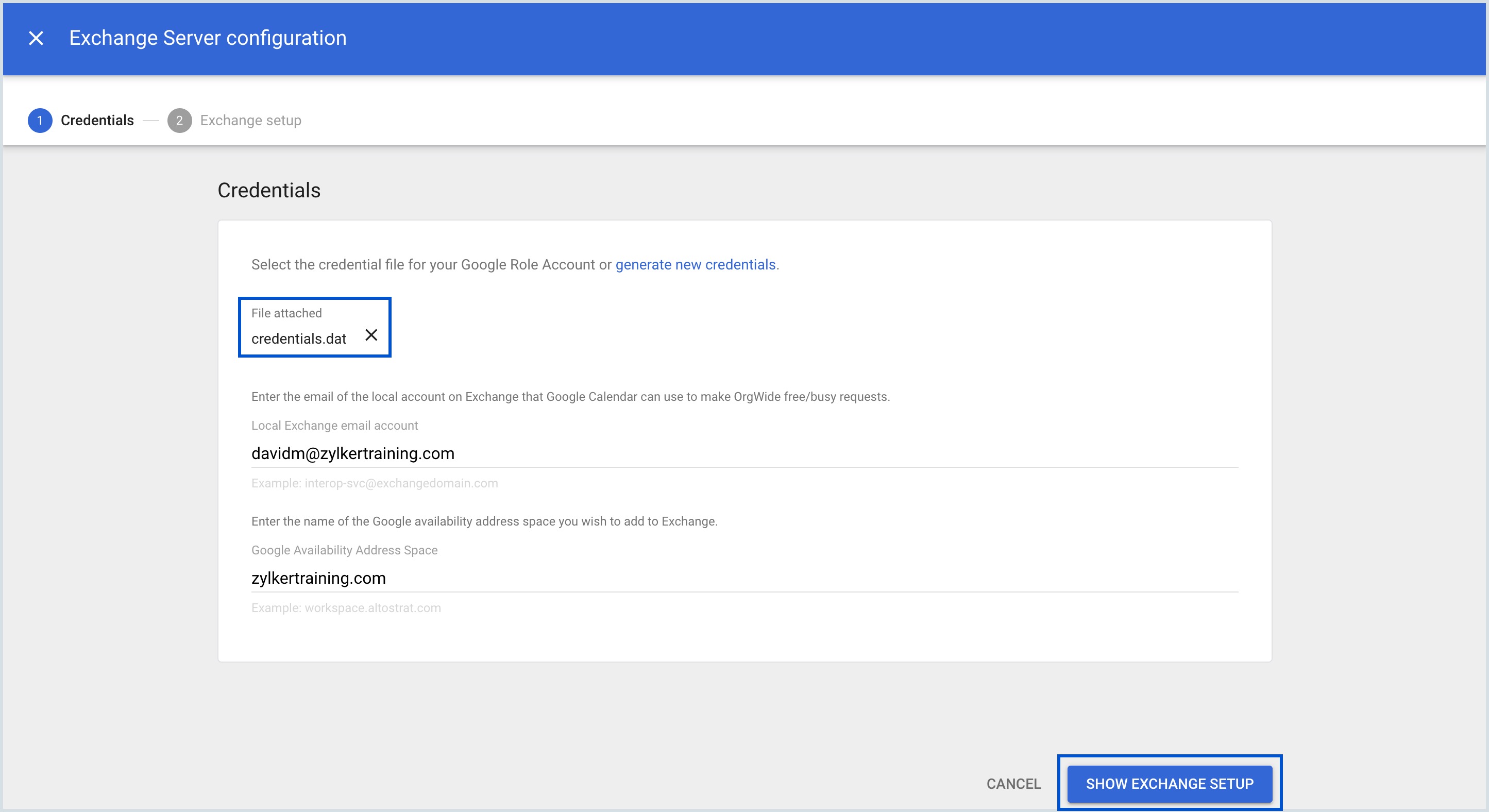
- If you wish to upload a credential file from your local computer, click on Choose File and upload the dat. file.
- Enter your Google role account email address in the Enter the email of the local account on Exchange that Google Calendar can use to make OrgWide free/busy requests field.
- Enter your domain name in the Google availability address space field and select Show Exchange Setup.
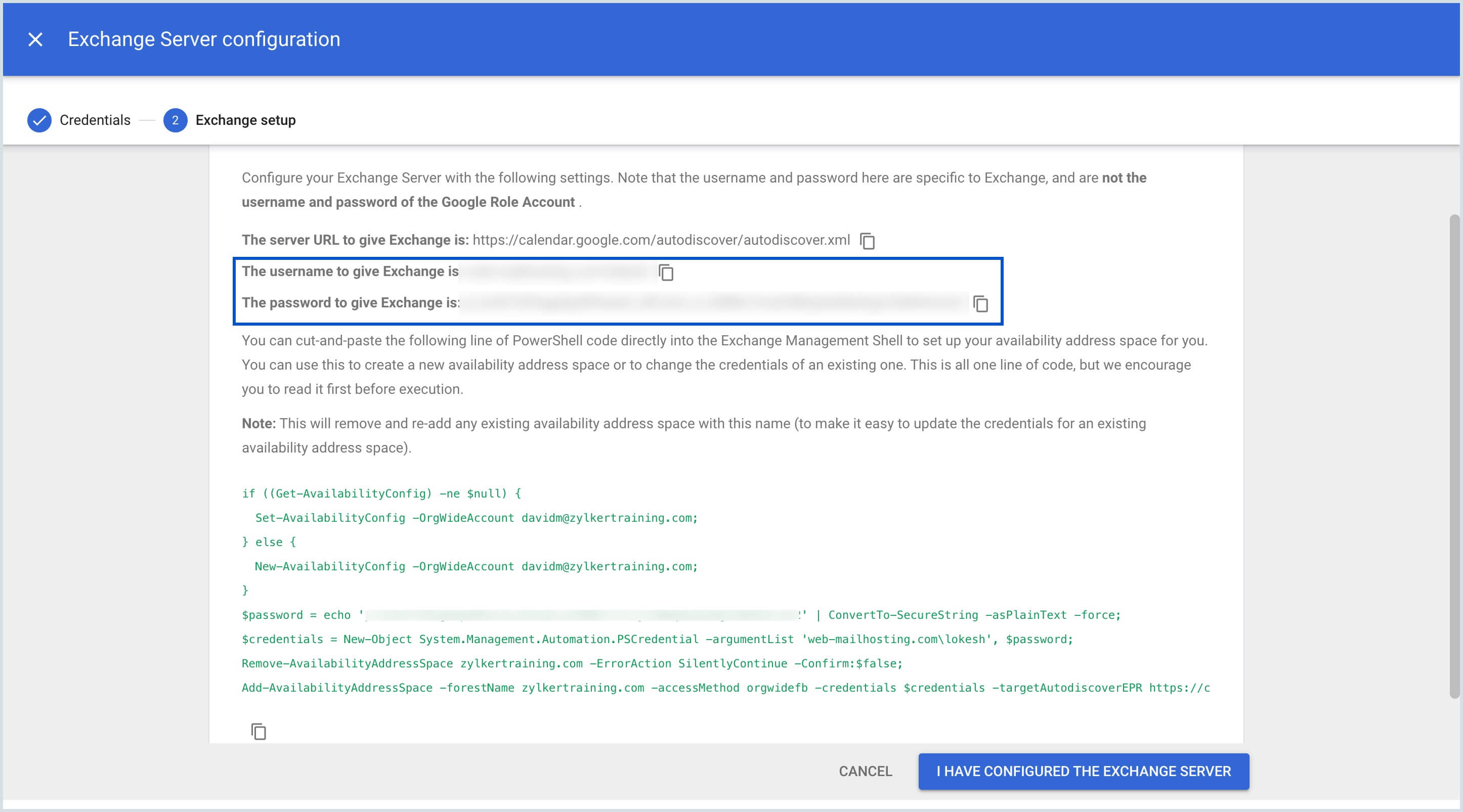
- In the Google Workspace Calendar Interop settings, copy the user name and password to give exchange in your clipboard.
Set up a Google Workspace account in Zoho Calendar
- Log in to Zoho Calendar using your primary domain.
- Navigate to the Admin Console from the User profile section.
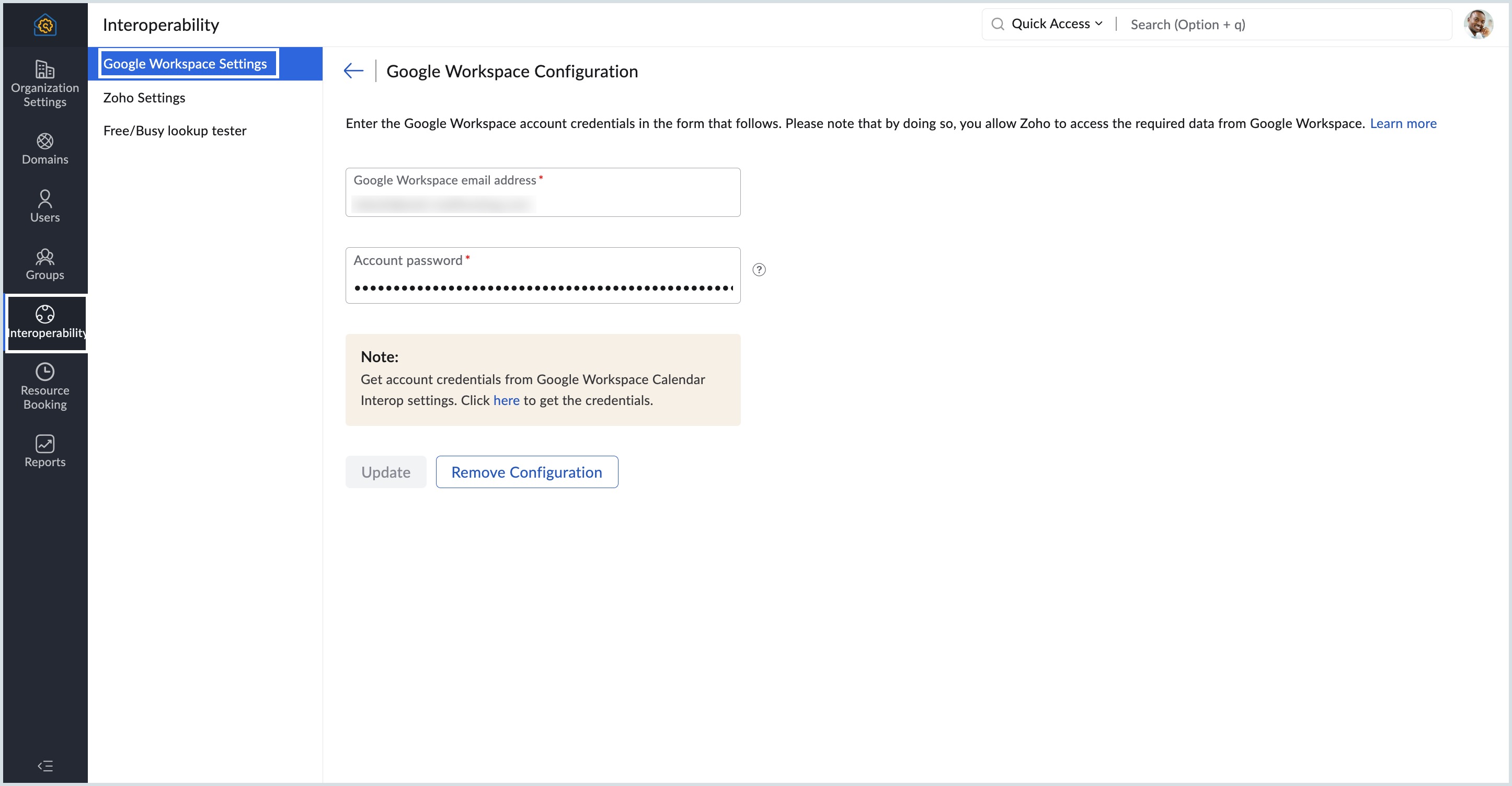
Navigate to Interoperability from the left menu and choose Configure in the Google Workplace option.
Enter your Google role account email address and the password generated from the Google Workspace Calendar Interop settings page.
Click on Add and confirm again to add the new Google Workspace Configuration.
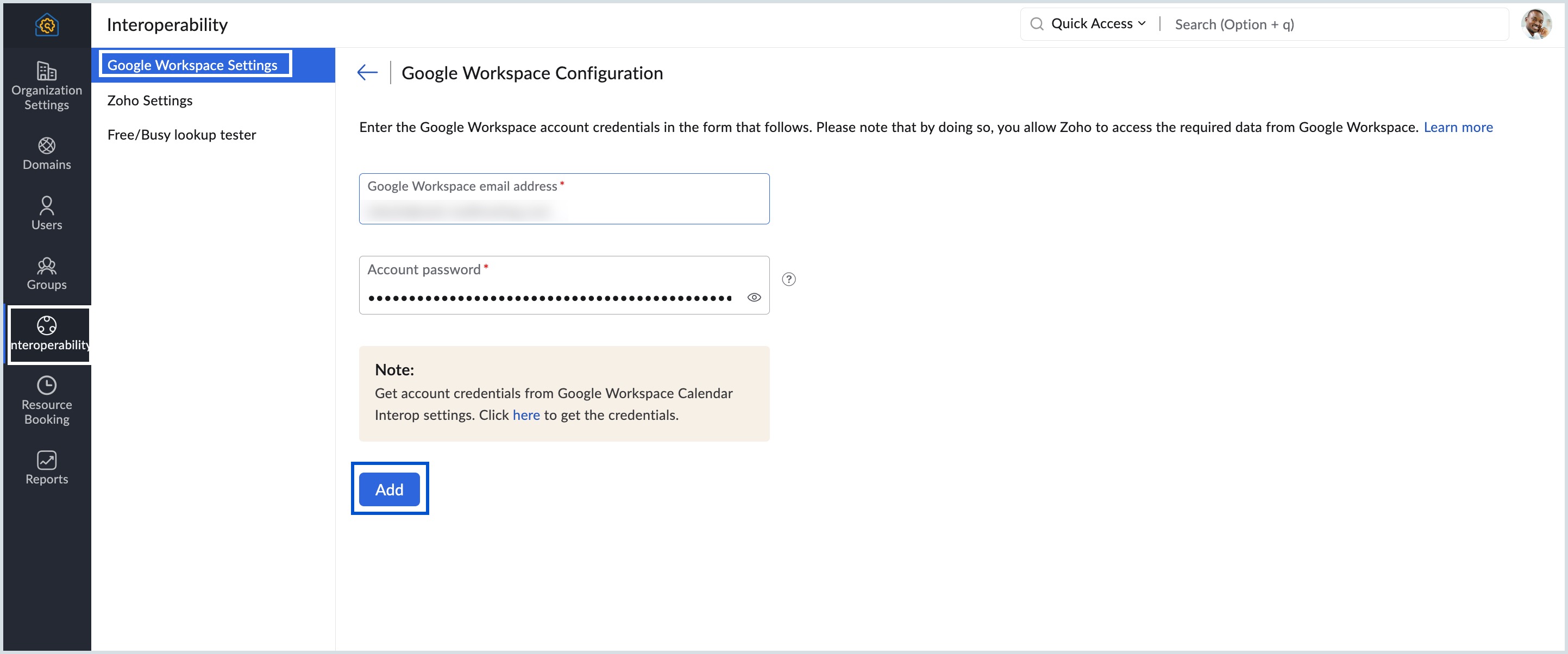
The Google role account is now configured in the Zoho Calendar interoperability.