Print calendars
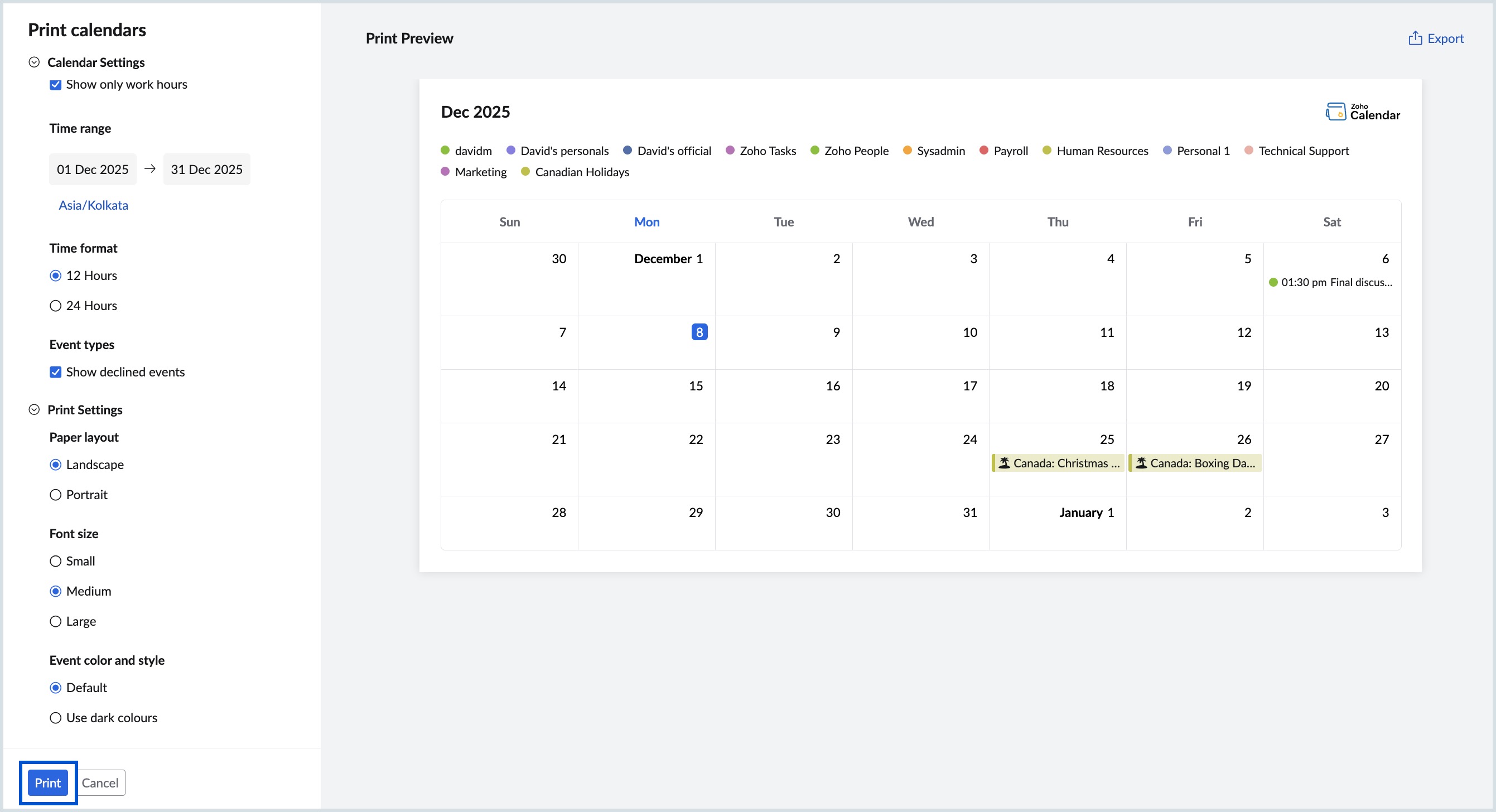
The Print Calendars feature in Zoho Calendar allows you to generate a customized, printable version of your calendar without altering your main calendar view in the home page. You can choose what calendars to include, customize the layout, define the time range, and preview the output before printing. You can also export the customized calendar view as a secured PDF for offline use or sharing.
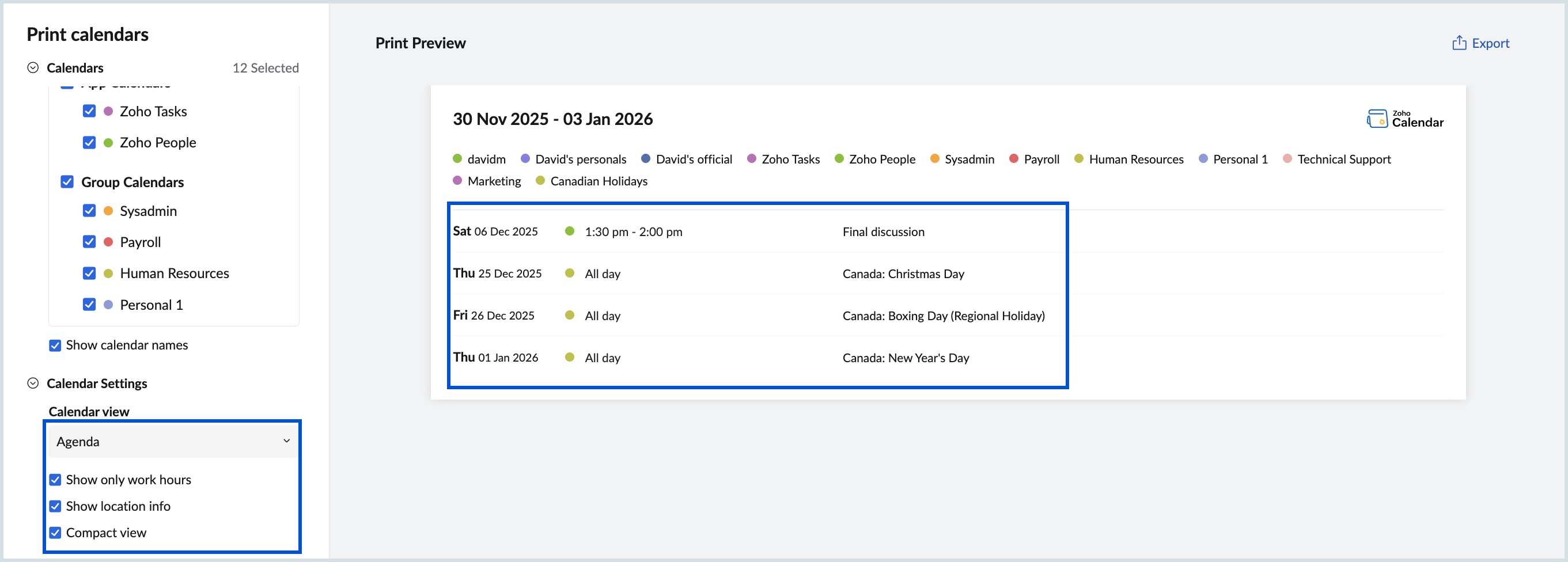
Once your print settings are configured, the right-side Print Preview pane shows how your calendar will look when printed.
Steps to Print a calendar:
- Log in to Zoho Calendar.
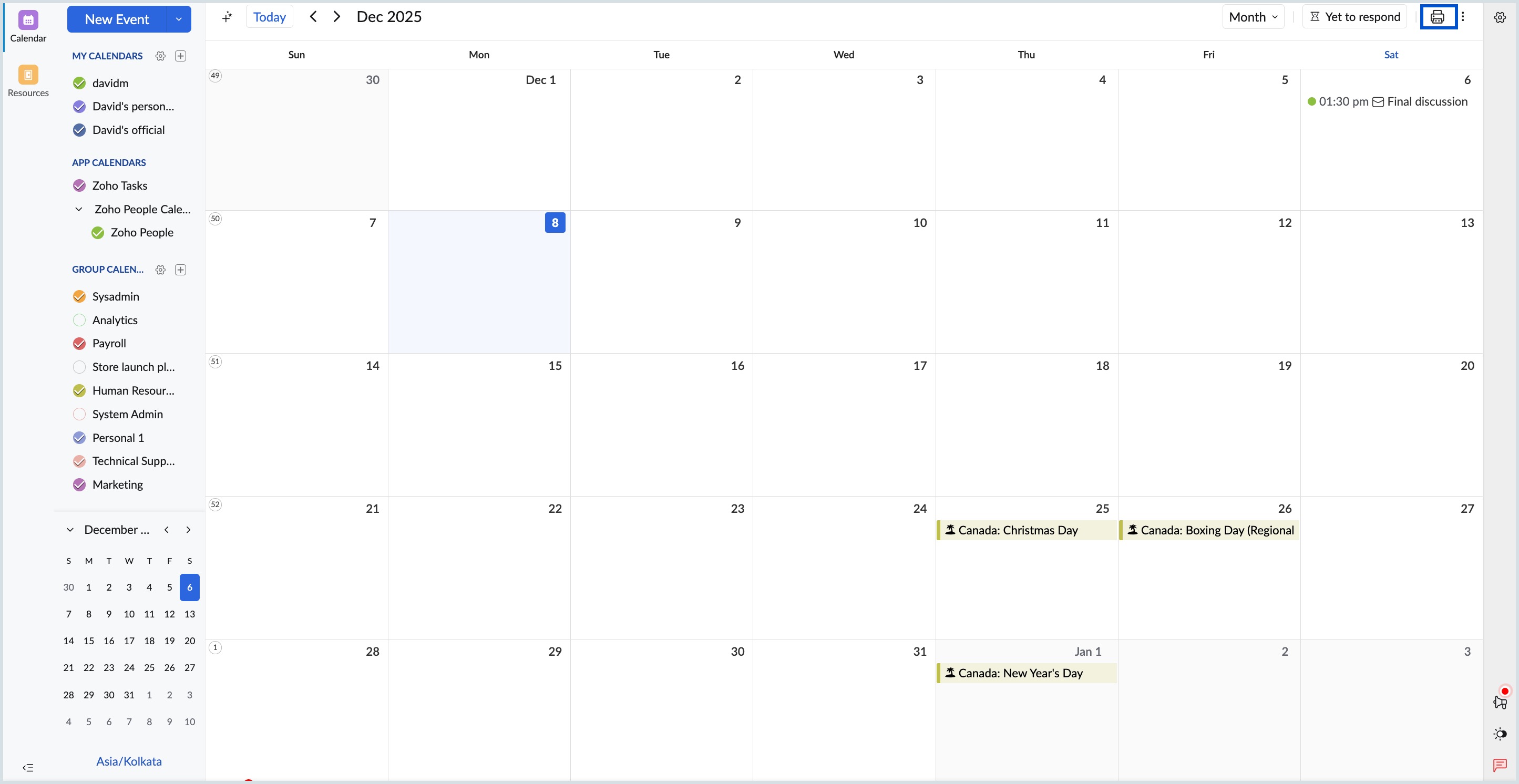
- Click the Print icon at the top-right corner of the calendar grid.
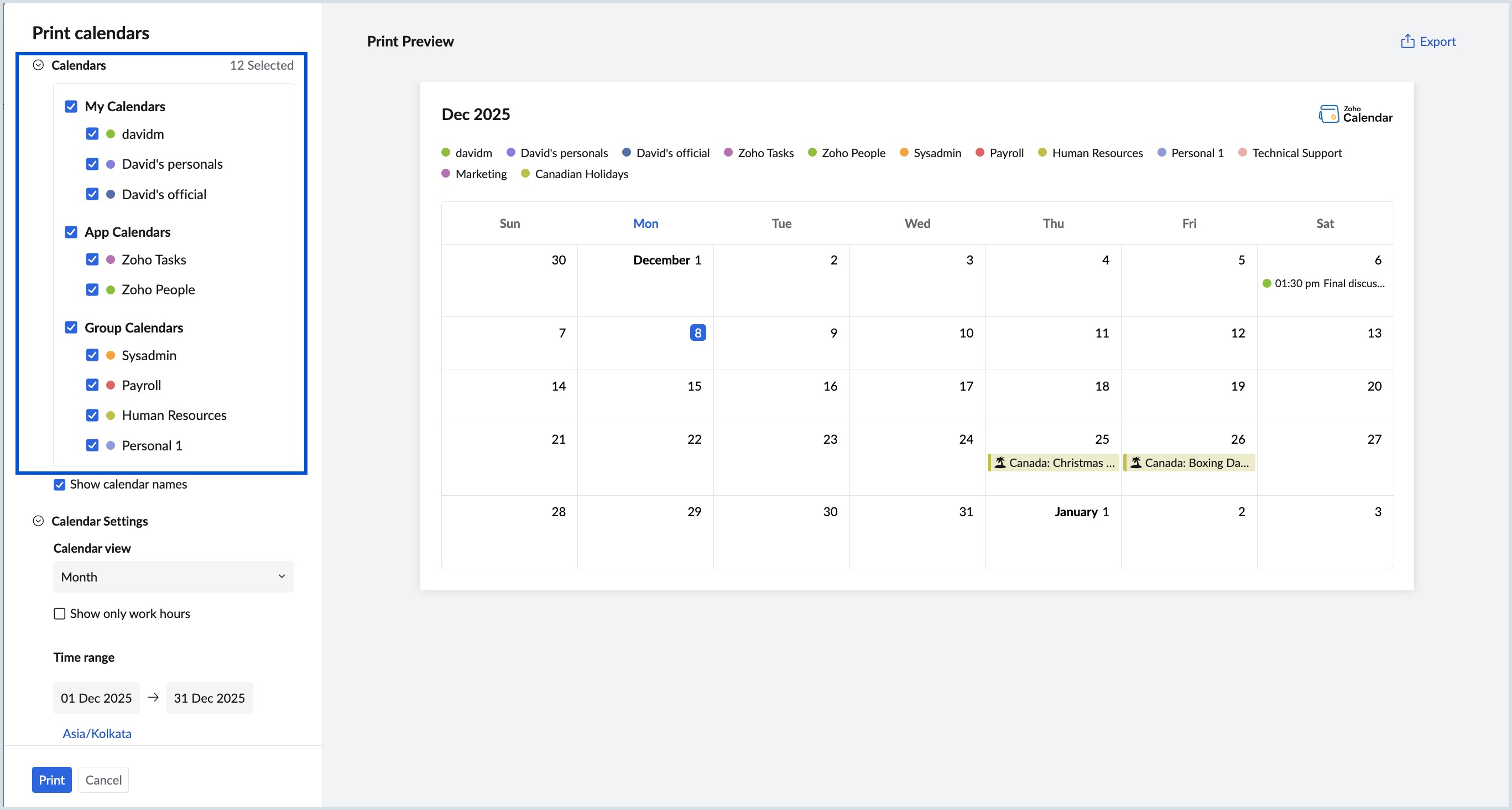
- In the Print Calendars window, under Calendars, choose the calendars you want to include in your customized calendar view by selecting them from the scrollable list.
- The calendar grid displays events only from the calendars you have enabled from the list.
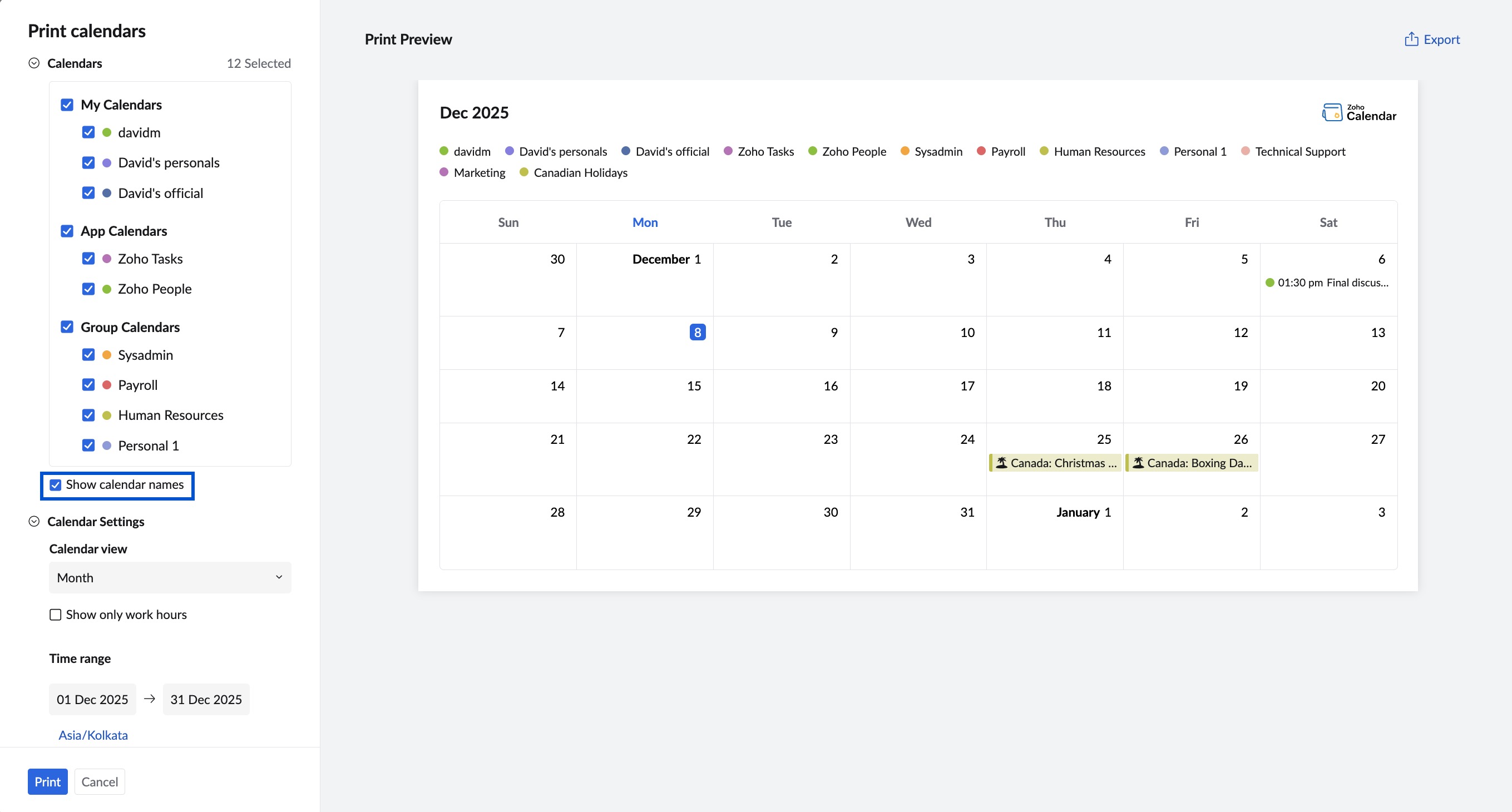
- Enable Show calendar names if you want calendar names to appear above the printed grid.
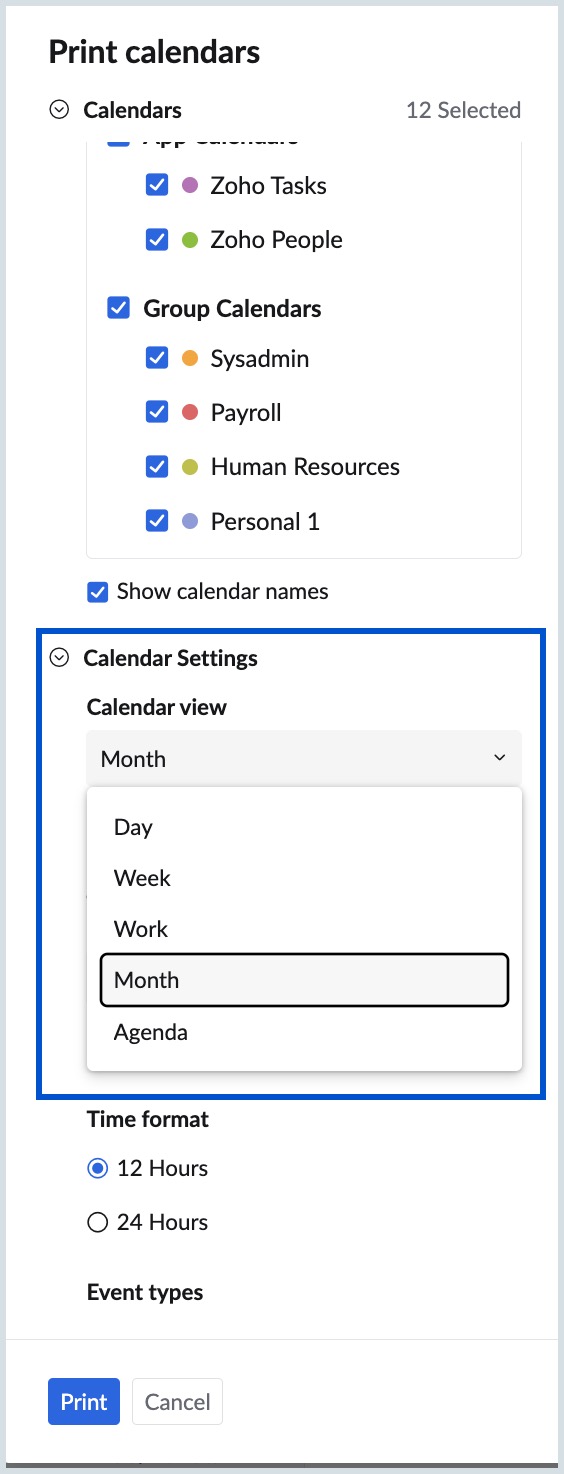
- Under Calendar Settings, choose the view you want to print (Day, Week, Work, Month, or Agenda). The preview updates based on your selection.
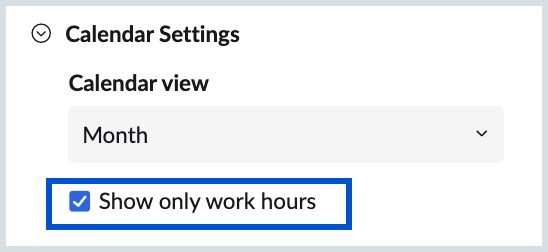
- If needed, enable Show only work hours to remove non-working hours from the output. This option is applicable only for Day, Week, Work, and Month views.
- If you select the Agenda view, you can further customize it by enabling the Show location info and Compact view options (Applicable only for Agenda view).
- Configure the following to optimize your calendar output:
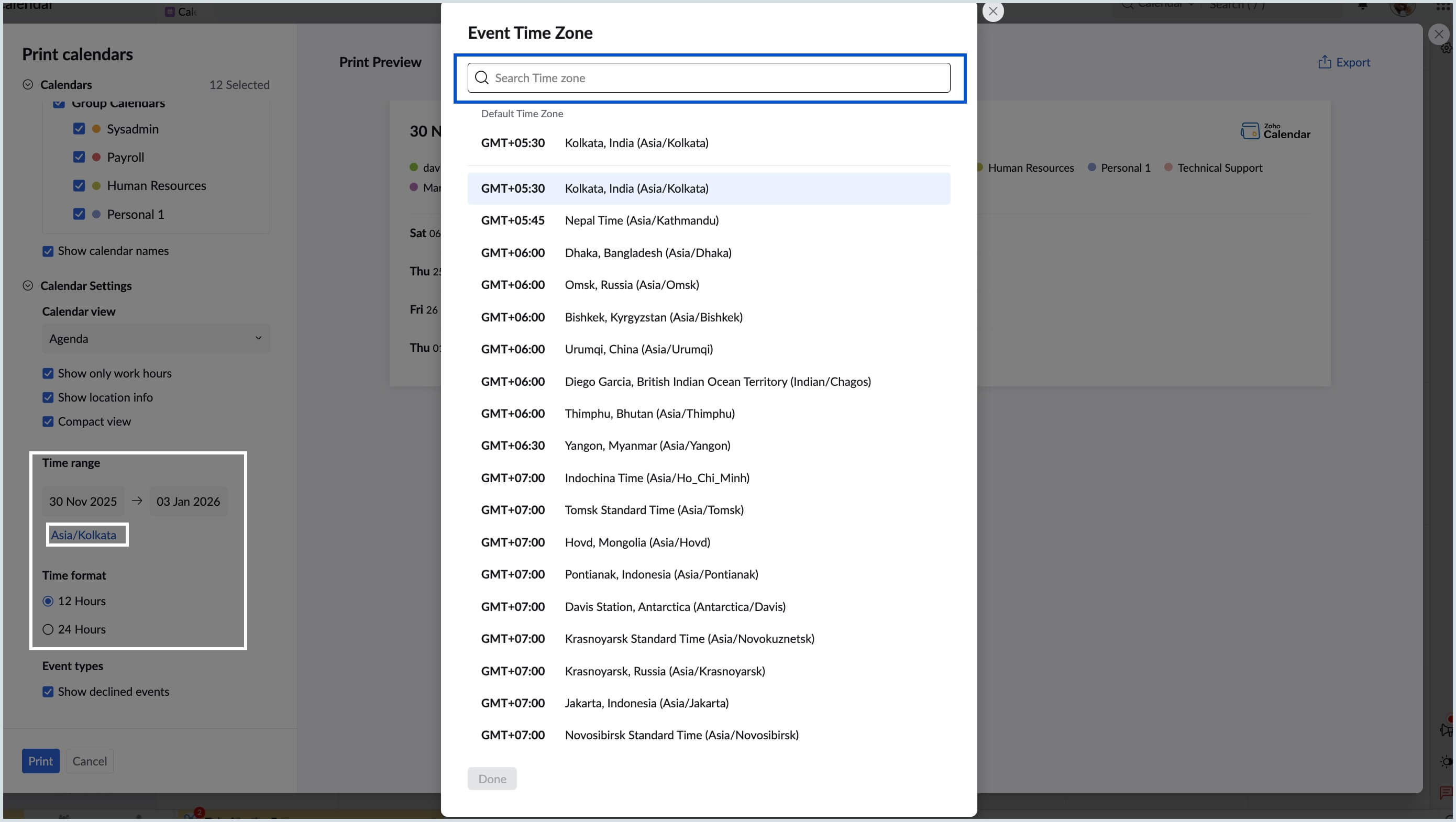
- Time range: Enter the start and end dates to limit the preview to events within that period.
- Time format:
- Choose 12-hour or 24-hour format for event time display.
- Click Default Time Zone and use the search bar to set your preferred time zone.
- Show declined events: Enable this option if you want declined events to be shown on your calendar grid, or disable it to hide them.
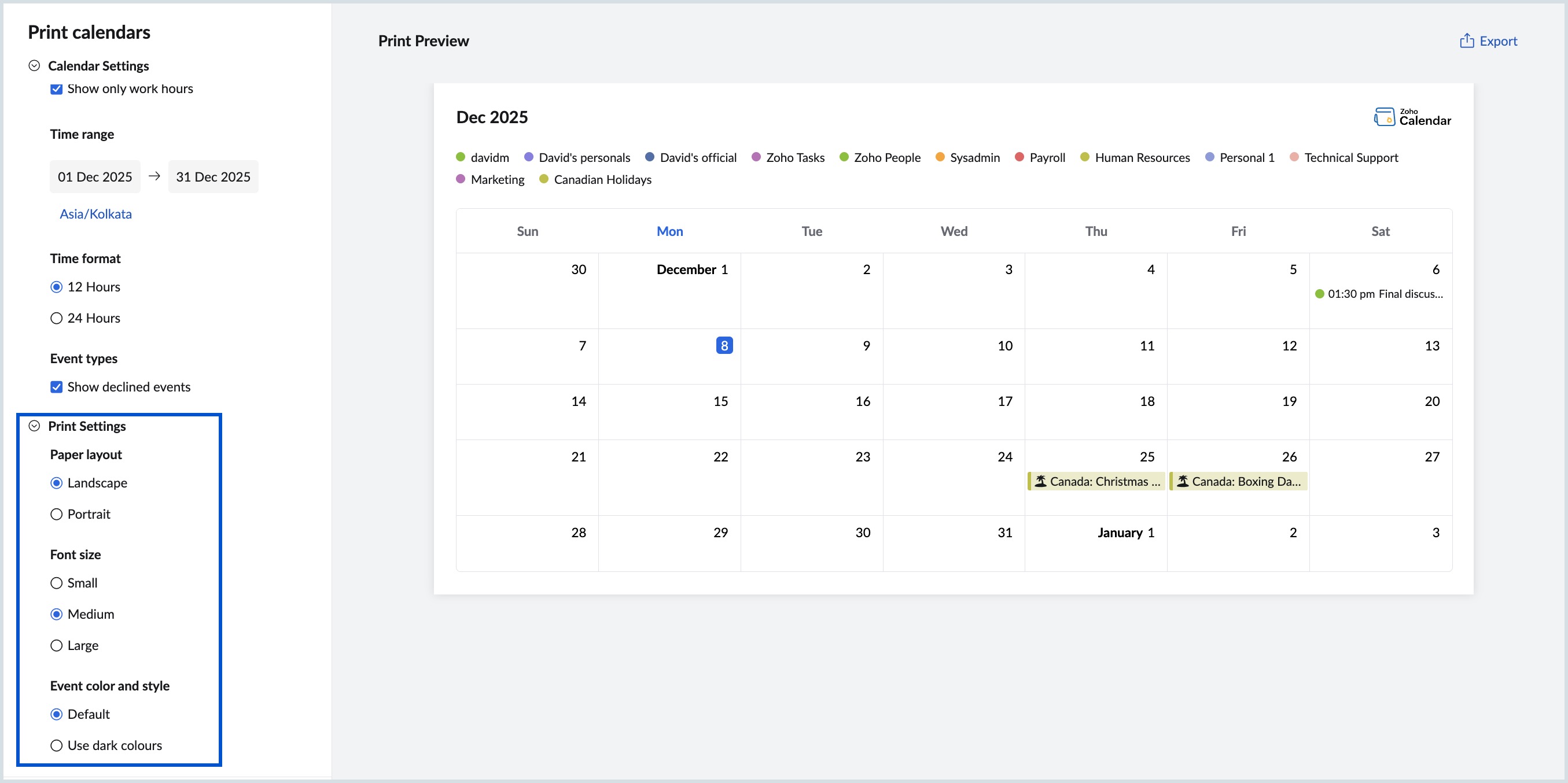
- Under Print Settings, configure:
- Paper layout: Choose Landscape or Portrait.
- Font size: Select Small, Medium, or Large for readability.
- Event color and style: Choose between Default or Use dark colours based on your preference.
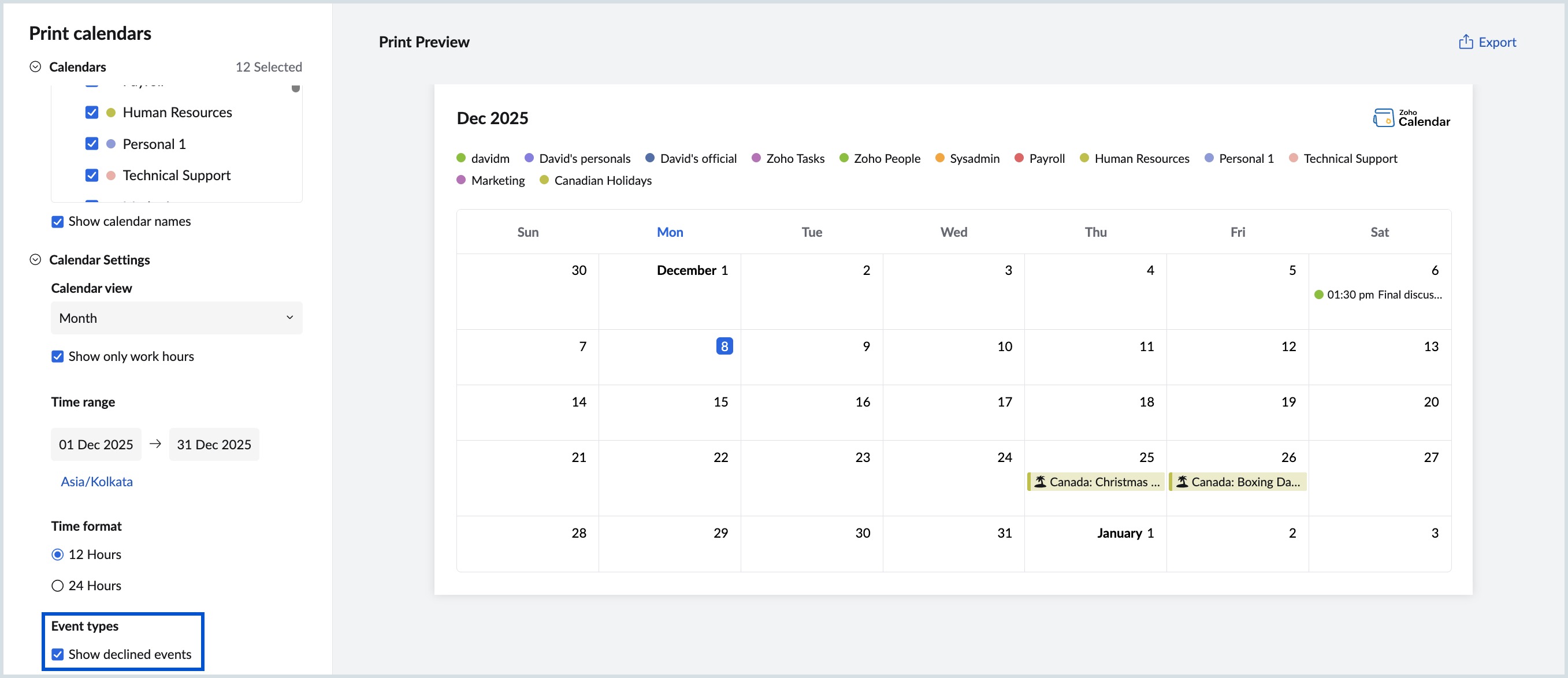
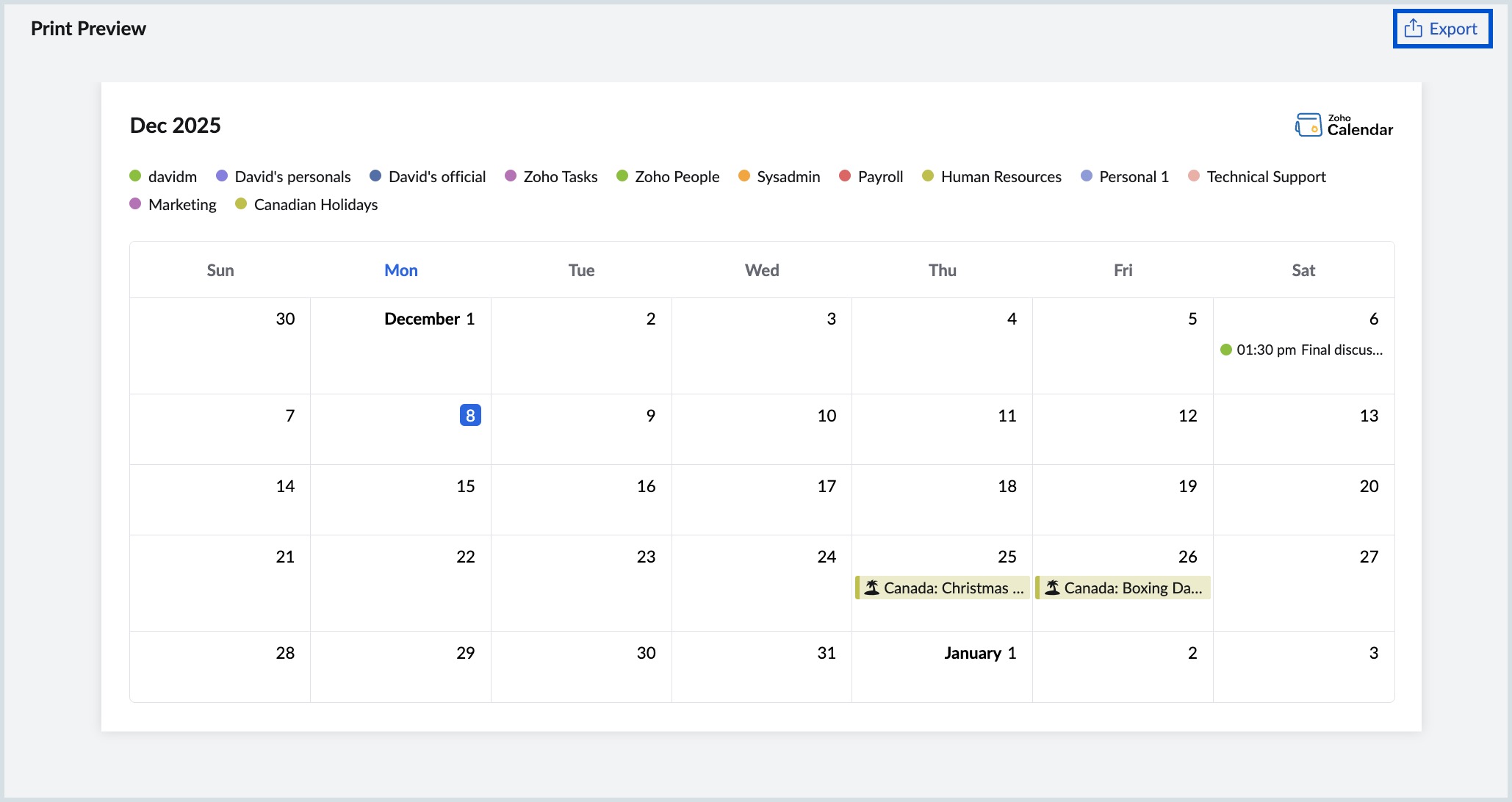
- Review the Print Preview pane on the right and scroll through it to verify dates, event placement, colors, and selected calendars.
- If adjustments are needed, update your settings in the left panel and review the preview again.
- To save the customized calendar view as a PDF, click the Export icon in the top-right corner of the Print Preview window.
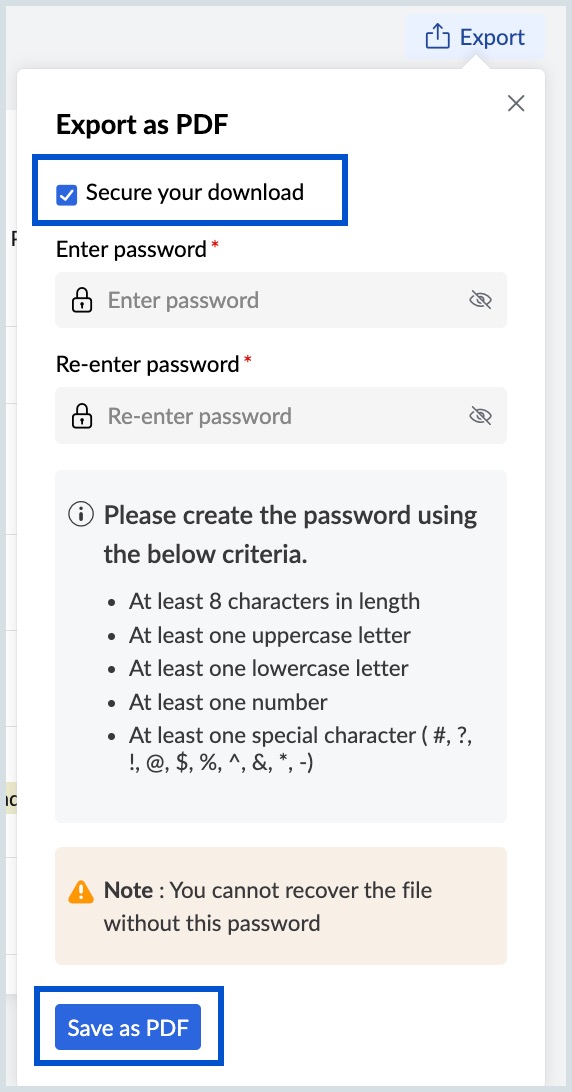
- To save the PDF as a secured file, enable Secure your download and set a password for the PDF.
- Click Save as PDF to download your customized calendar view as a PDF file, which you can store locally, share, or print whenever needed.
- To print the customized calendar view, click Print at the bottom-left corner of the Print Calendars window.