
Add to applications as developer
To add to application as developer:
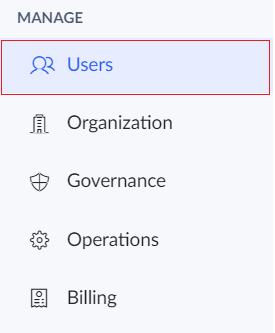
- Click on the Users option under the Manage section in the left pane.
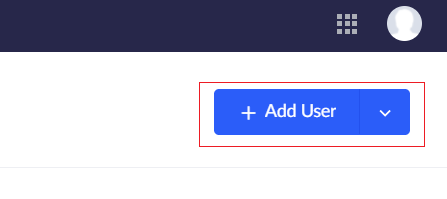
- Click the Add Users button.
- The Add Users tab appears. Enter the name, email address and other details of the user.
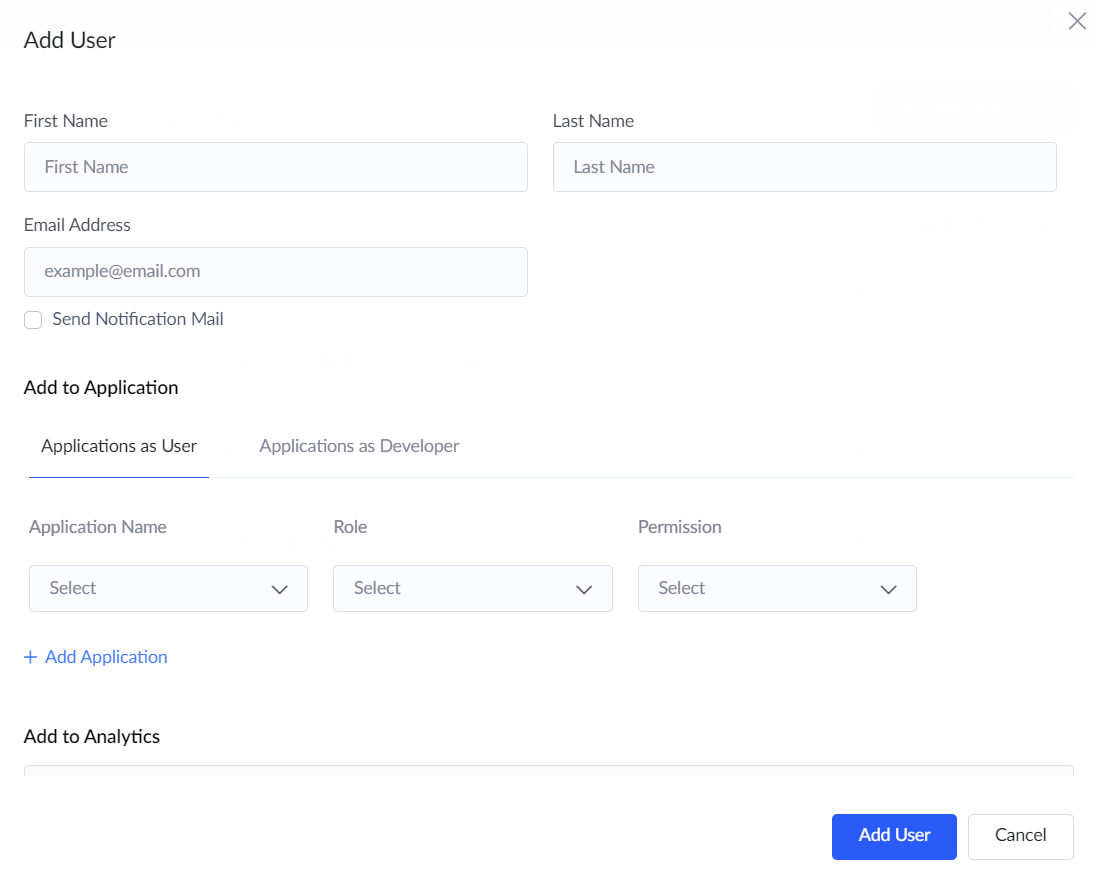
- Tick the Send notification mail checkbox if required.
- Under the Add to application section, choose Applications as developer option.
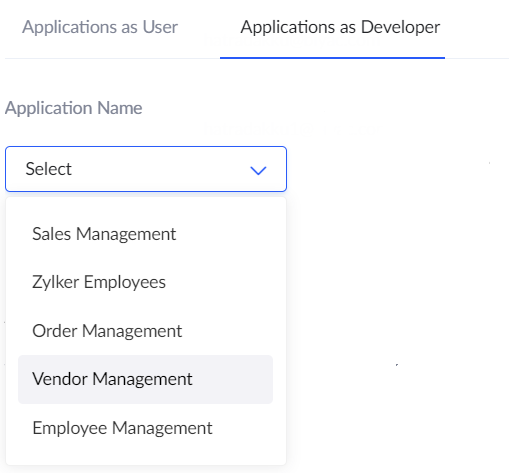
- Under the Application name field, choose the app to which the user is to be added.
- Under Development field, choose the permission which is to be assigned to the user in the development environment. The options available are : Access and Publish. You can choose either one or both. Access gives permission to edit and access the development app whereas Publish gives permission to publish the development changes to Stage.
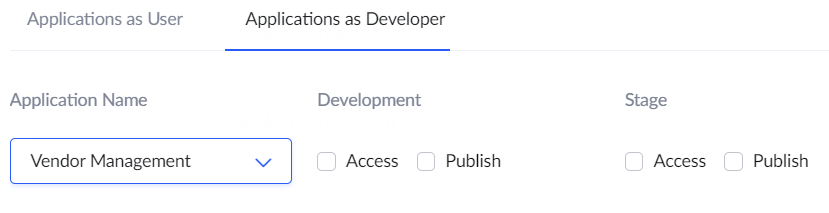
- Similarly, under Stage field choose the permission which is to be assigned to the user in the stage environment. The options available are : Access and Publish. You can choose either one or both. Access gives permission to only access the stage application and Publish gives permission to publish the versions to production.
Note: The Development and Stage fields will be displayed only if the environments has been enabled for the app. To enable environments visit the Environments page under the Deploy section of the left pane.
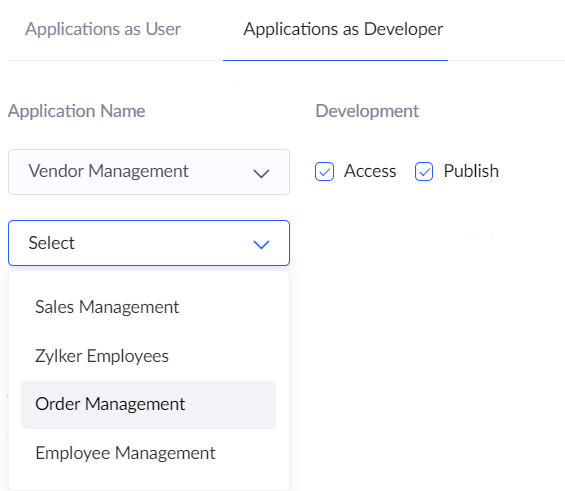
- Click on + Add Application to add the developer into multiple applications.
- Click the Add user button.