
Code sign Android app for customers
Refer to this page for the Android code sign prerequisites
- Edit your app. You'll be taken to your app's Design page.
- Click Settings at the top of the Design page. You'll be taken to your app's Settings page.
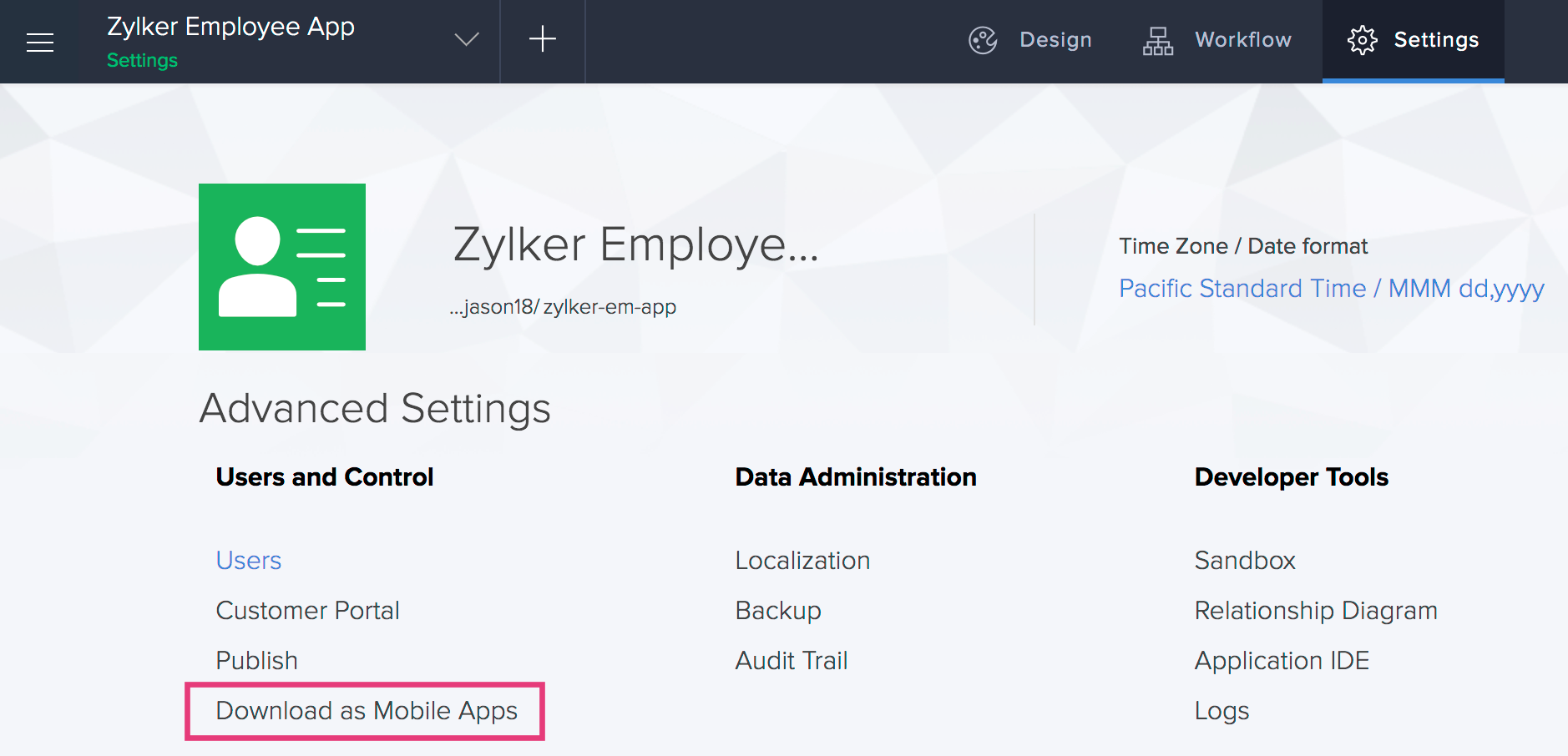
- Click Download as Mobile Apps under the Users and Control:
- Click For Android under the For Customers section:
The Download as Mobile App pane will appear on the right.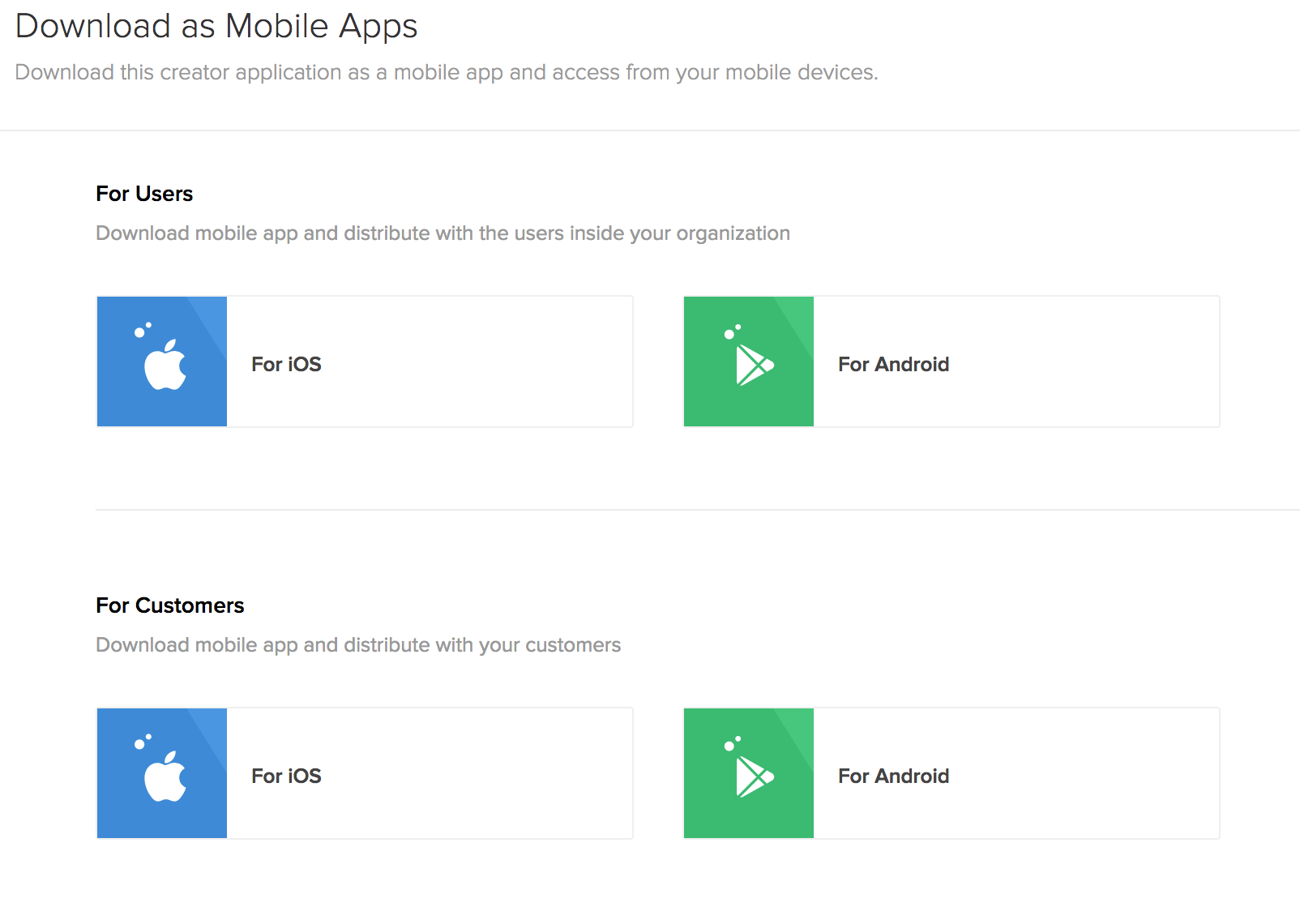
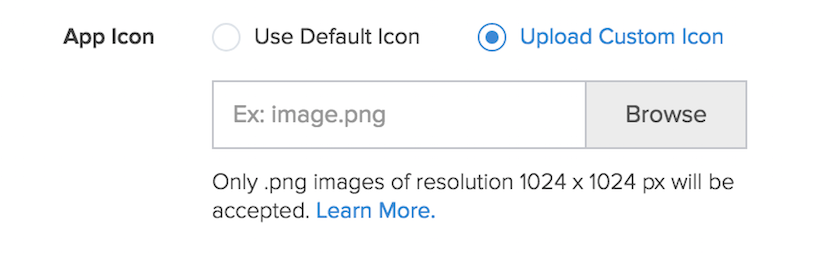
- Set App Icon as required. This will be your app's icon in your customers' mobile devices.
- Use default icon will be selected by default. This is the application icon you set in the Settings page, as mentioned here.
- You can opt to Upload Custom Icon — a PNG file of 1024x1024 px resolution
Refer to this page for sourcing the inputs required for performing steps 6-9
- Upload Keystore File.
- Enter Keystore Password.
- Enter Key Password.
- Enter Alias Name.
- Enter Package Name. This will uniquely identify your Android app. It's usually in the format: com.companyname.appname. For example, com.zylker.employeemanagement
Firebase config file and FCM server key are required for enabling push notification support. Refer to this page to learn how to source them.
- Upload Firebase config file.
- Enter FCM server key.
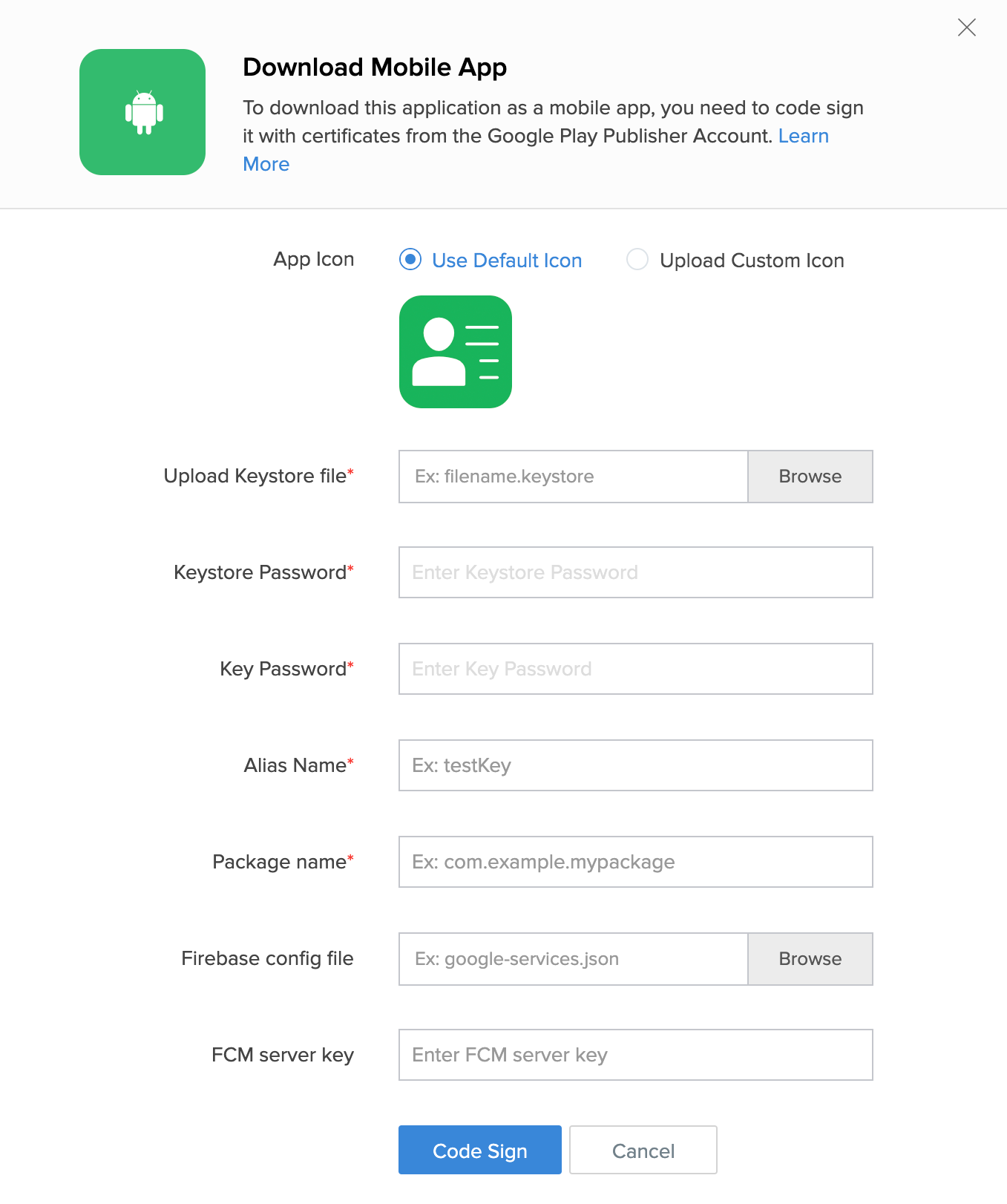
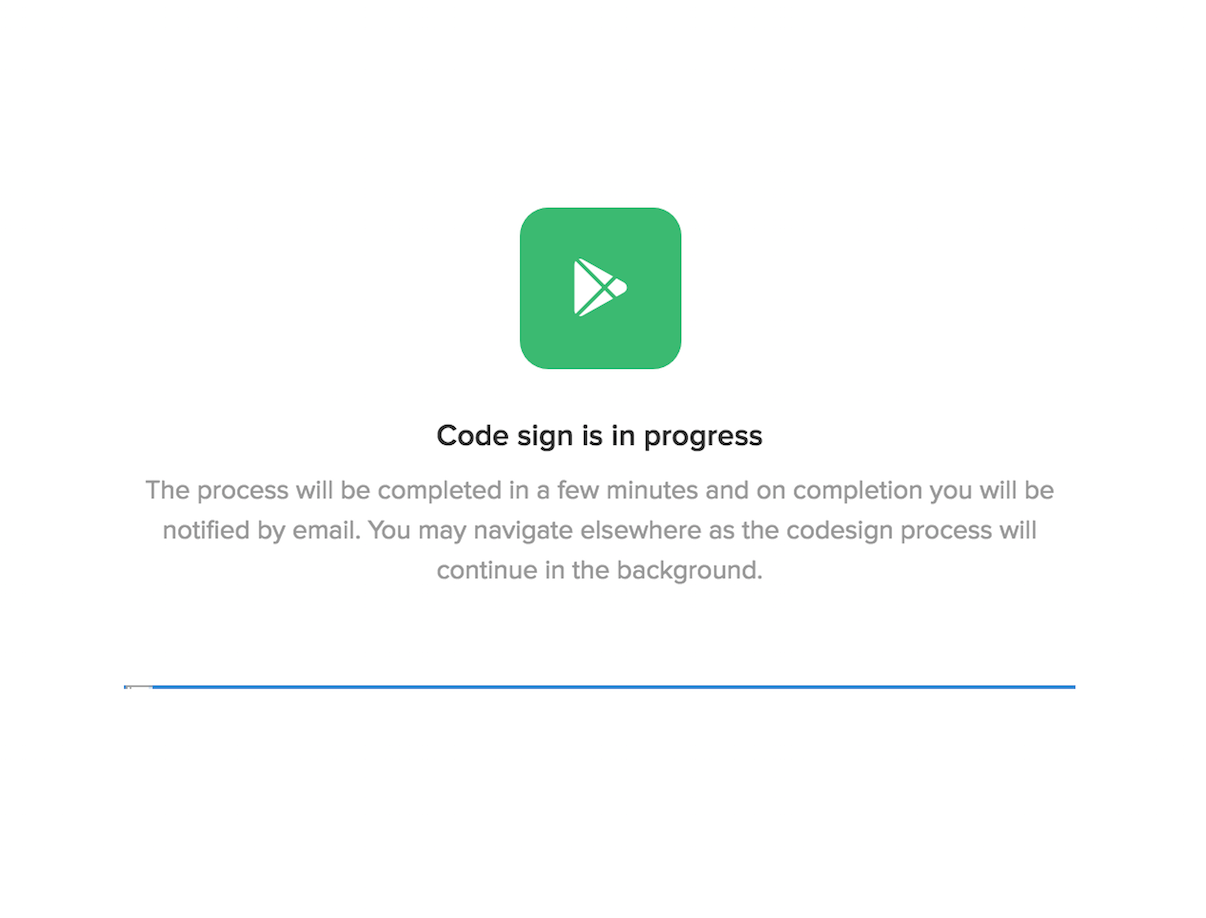
- Click Code sign. The code sign process can take up to 10 minutes:
- View the code signing status under For Android:

Upon successful code signing, the status will change to Available:

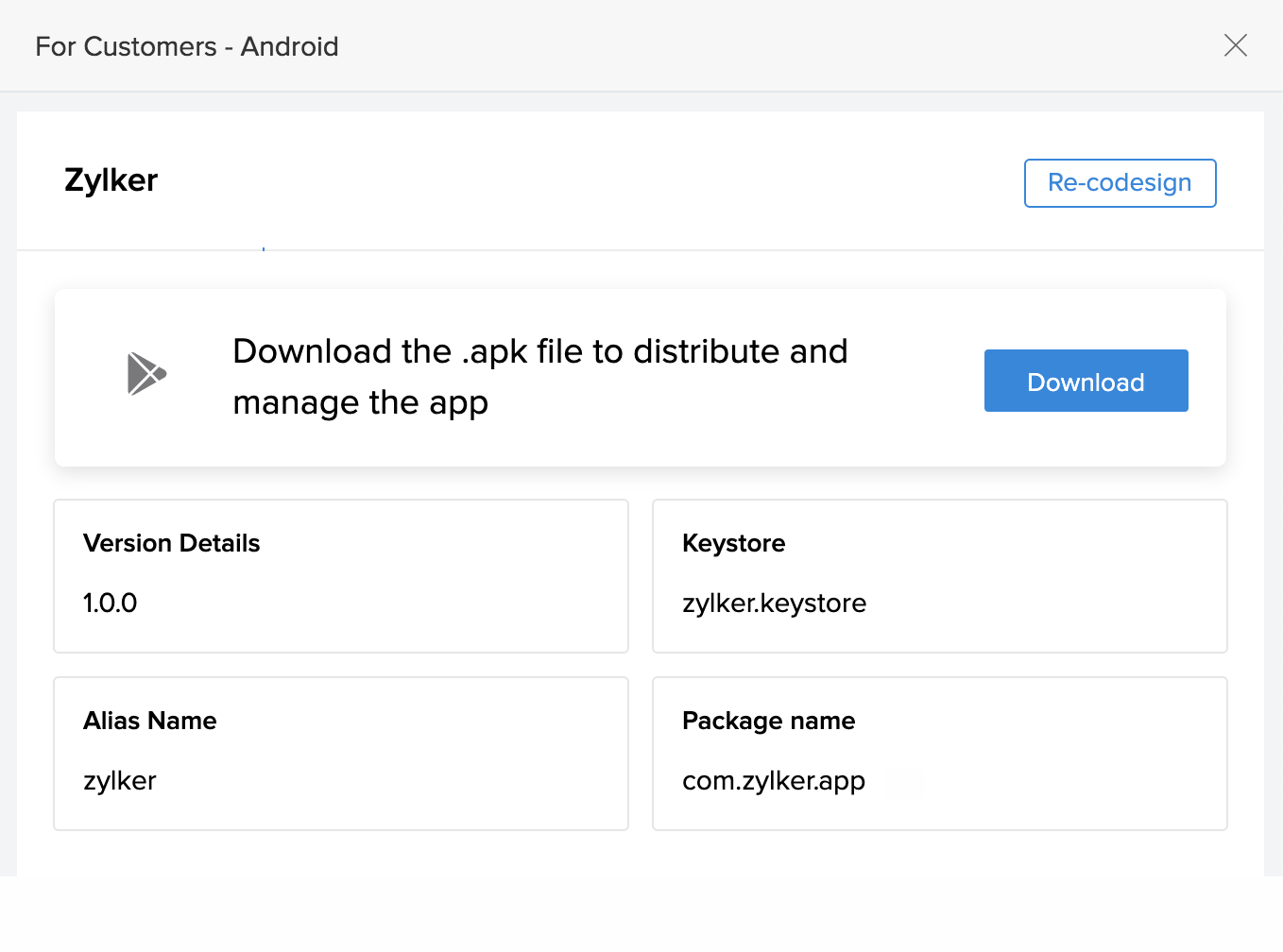
- Click the For Android button. The For Customers - Android pane will appear on the right.
- Click the Download button. The code-signed Android Package Kit (.apk) file will be downloaded to your device.
- Distribute the .apk file to your customers.