Automate time-based escalations and follow-ups with Supervisor rules and SLAs
Scenario
A UK-based organization in the financial services industry, operates a high-volume customer support desk processing over 5,000 tickets weekly across email, phone, live chat, and web forms.
The company maintains strict regulatory and contractual obligations when responding to customer inquiries. Based on the case severity resolution and first response time vary, they also have different urgency tiers for standard enquiries and time-sensitive transaction disputes.
The organization requires a dependable system to automatically escalate tickets nearing or missing deadlines. They want to initiate follow-up reminders at regular intervals for every unresolved or unassigned cases when the set timeline exceeds.
Problem
- Delayed response erodes customer trust, especially in time-sensitive financial queries and disputes.
- FRTs and SLAs promised as per the contract is often violated drawing penalty and distrust.
- With standard workflows they couldn't automate actions and escalations based on ticket age.
Solution
Zoho Desk provides two complementary automation mechanisms for time-based escalations and follow-ups:
➤ SLAs escalation: SLAs define response and resolution time commitments for tickets. Once an SLA is attached to a ticket, the system monitors the remaining time against the specified response and resolution goals. SLA Escalations allow administrators to configure multi-level escalation rules that trigger before, on, or after the response or resolution deadline. At each escalation level, the system performs the following:
- Sends email alerts to designated roles (such as team leads or support managers) using escalation email templates.
- Reassigns the ticket to a different agent.
- Automatically changes the ticket priority.
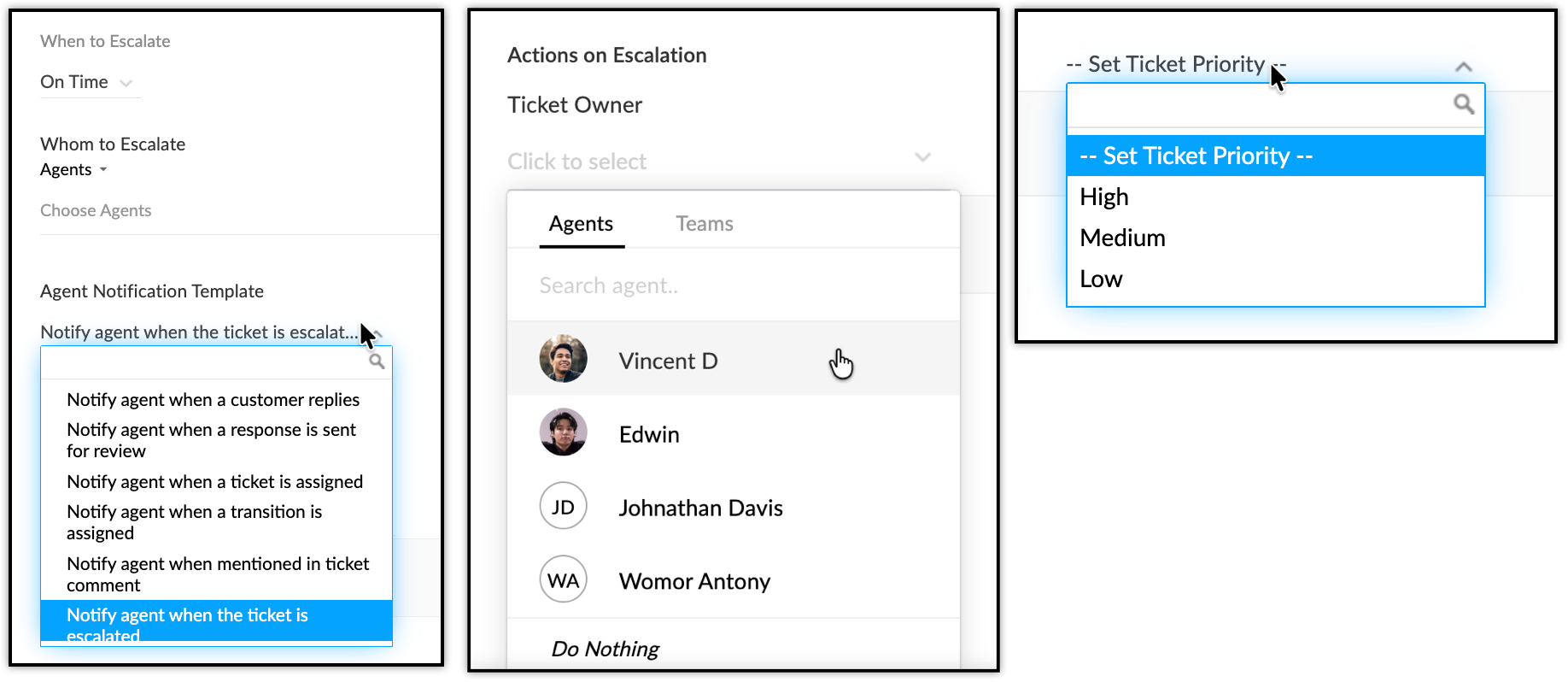
Note: A maximum of two response escalations and four resolution escalations can be configured per SLA, each with its own set of actions. SLA execution and escalation timing are calculated based on either calendar hours or business hours, ensuring that non-working days and holidays are excluded when appropriate.
➤ Supervisor Rules for Elapsed-Time Follow-Ups: Supervisor Rules helps automate follow-up actions when a ticket remains in a particular state for a specified period. Unlike Workflow Rules, which trigger immediately when their conditions are met, Supervisor Rules run hourly to check whether tickets have reached defined time-based conditions, such as:
- Hours since created
- Hours since assigned.
- Hours since requestor responded.
- Hours since agent responded
- Hours since first response pending.
- Hours since status updated.
- Hours to due date.
➤ When a time-based condition is met, the rule can trigger three types of actions:
- Alerts (email notifications to agents, teams, or roles)
- Tasks (follow-up tasks assigned to specific agents with due dates)
- Field updates (automatic changes to ticket fields such as status or priority).
➤ Monitoring and optimizing the rules: Administrators can monitor the effectiveness of SLA escalations and Supervisor Rules through SLA dashboards, department-level reports, and supervisor rule activity logs. By tracking escalation frequency, response times after escalation, and resolution rates for escalated tickets, administrators can fine-tune escalation timing, adjust SLA targets, and refine Supervisor Rule thresholds to optimize the balance between proactive intervention and alert fatigue.
Configuration
To configure SLA escalations
- Navigate to Setup > Automation > Service Level Agreements (SLA).
- Click New SLA.
- In the Create SLA page, enter "Standard Response SLA" as the Name, and enter "SLA for monitoring response and resolution timelines for high-priority financial queries." as the description.
- Under When do you want to execute the SLA?, select Ticket create.
- Click Next.
- Click Add Targets.
- Under Select conditions for this Target, select Priority and set the value to High.
- Under Set the response and resolution time:
- Set Respond within to 1 Hour.
- Set Resolve within to 8 Hours.
- Under Operational hours, select the UK Shift to exclude non-working hours from the SLA calculation.
- Enable Escalate based on business hours.
- Enable Response Escalation.
- Under Level 1 escalation:
- Set When to escalate as After, 30 minutes the response deadline.
- Under Whom to escalate, select Support Administrator and choose Vincent D.
- Select Notify agent when the ticket is escalated under Agent Notification Template.
- Enable Resolution Escalation.
- Under Level 1 escalation:
- Set When to escalate to After, 30 minutes the resolution deadline.
- Under Whom to escalate, select the Vincent D.
- Select the Notify agent when the ticket is escalated under Agent Notification Template.
- Under Actions on Escalation, select the Support Manager Edwin as the Ticket owner if unresolved tickets must be reassigned.
- Click Save.
To configure Supervisor Rules or time-based follow-ups
- Navigate to Setup > Automation > Supervisor Rules.
- Select the Customer Relations department.
- Click Create Rule.
- In the Time-based action page, do the following:
- Enter "Follow-up for unresolved tickets" as the Rule Name.
- Select Active.
- Select UK shift as Business hours.
- Enter "Automatically follow up on tickets that remain unresolved for a specified duration." as the Description.
- Click Next.
- Under Criteria, set Hours since created - is greater than 4.
- Under Action, click the Add (+) icon and select Task.
- Configure the task as follows:
- Enter "Follow up on unresolved ticket" as the Task subject.
- Select the Task status as Not Started.
- Select the Task priority as High.
- Select Ticket owner to assign the task to the agent handling the ticket.
- Set the Due date to 2 Hours after the Supervisor Rule trigger time.
- Enter "Follow up with the customer and review the pending ticket for resolution." as the Description.
- Click Save.
- Click Save to save the Supervisor Rule.
Output
- Tickets approaching the SLA deadlines will automatically trigger escalation emails to designated managers and team leads after the deadline eliminating the need for manual SLA monitoring and reducing SLA breach rates.
- Upon SLA escalation, tickets are automatically reassigned to another agent and the priority is updated to high.
- Supervisor Rules run hourly and detect tickets that have remained unresolved, beyond defined 4 hours (the resolution SLA is 8 hours since ticket creation) triggering alerts, creating follow-up tasks, and updating ticket fields without any manual intervention.
- Support reps receive email reminders and follow-up tasks when their tickets cross defined time thresholds, reducing the number of tickets that fall through the cracks and improving overall resolution rates.
- SLA dashboards and department-level reports reflect accurate escalation activity, allowing administrators to measure the impact of escalations on response and resolution times and to continuously refine escalation thresholds and SLA targets.
Read more:
- EditionStandard and above
- Key FeaturesSupervisor Rules and Service Level Agreements (SLA)
- Profile PermissionHelpdesk Automation