Branched logic to triage, route, summarize tickets and auto reply using Automation Studio
Scenario
A small-scale e-commerce company gained significant traction within its first year, now receiving hundreds of order-related support requests daily across email and web forms. Issues range from order delays and payment failures to refunds, damaged products, incorrect deliveries, cancellations, and product quality concerns. All customer communications are captured as tickets in Zoho Desk.
The customer support lead oversees a team of eight representatives who manually review each ticket, comprehend the issue, and assign it to the appropriate product team.
Problem
Agent inefficiency in manual triage: Support representatives had to manually read through every incoming ticket to understand the issue and assign it to the appropriate team, consuming significant time as ticket volume grew steadily.
SLA breaches due to rising First Response Time: First Response Time (FRT) increased steadily, and SLAs were frequently breached because agents could not triage and route tickets fast enough during peak periods.
Workflow rule saturation: To cope with manual routing, the team created multiple workflow rules for each product and issue type, eventually saturating the workflow rule limit available in their edition.
Lack of automated summarization: Even with workflows in place, agents still had to read lengthy customer emails one by one to understand context, as there was no automated summarization capability within the existing workflow setup.
Customer experience degradation: Customers experienced delayed acknowledgements and slower resolutions, impacting overall satisfaction and trust in the brand.
Solution
The organization adopted Automation Studio to consolidate ticket summarization, customer acknowledgement, and conditional routing into a single automation rule, reducing multiple workflow rules into one. Its easy to maintain and manage change log as requirements evolve.
When a ticket is created, the rule triggers and executes a chained sequence of actions:
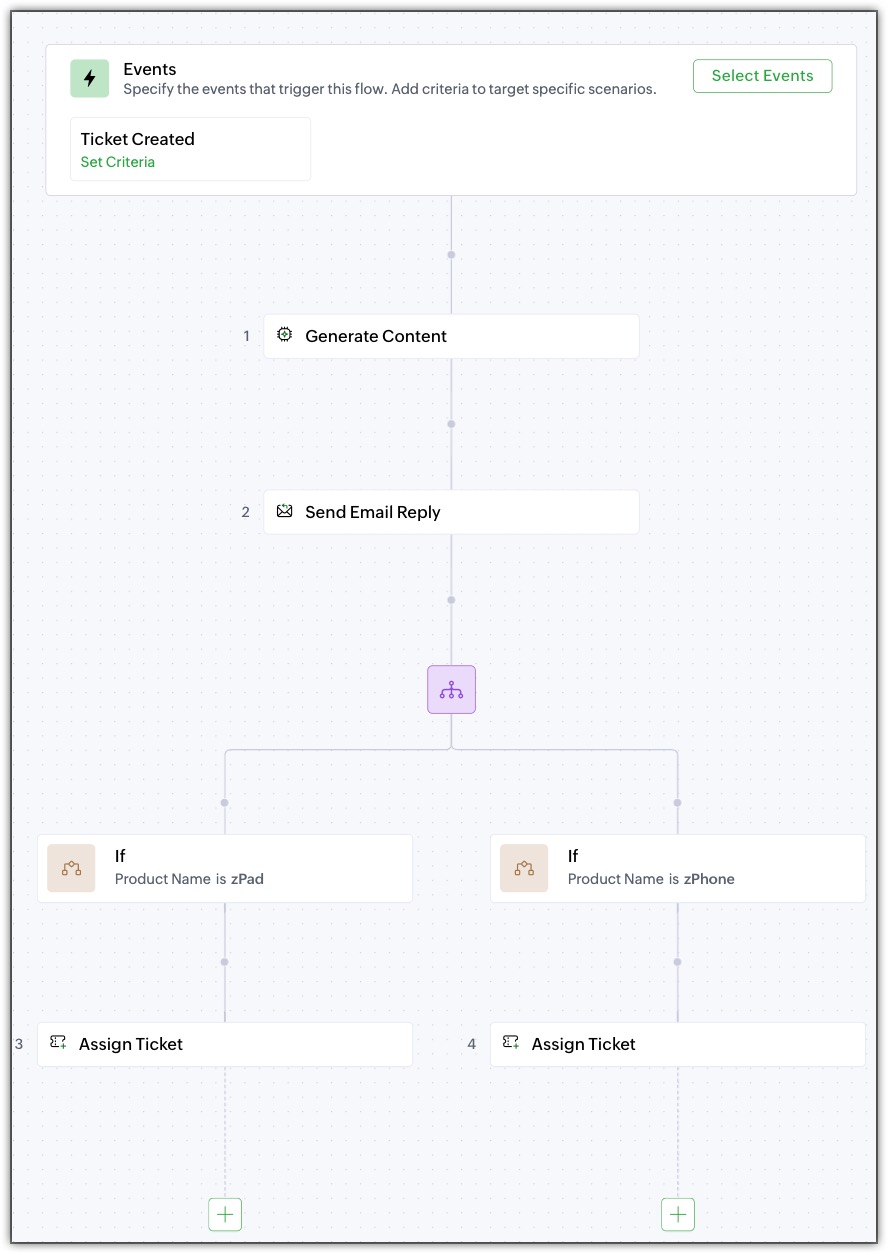
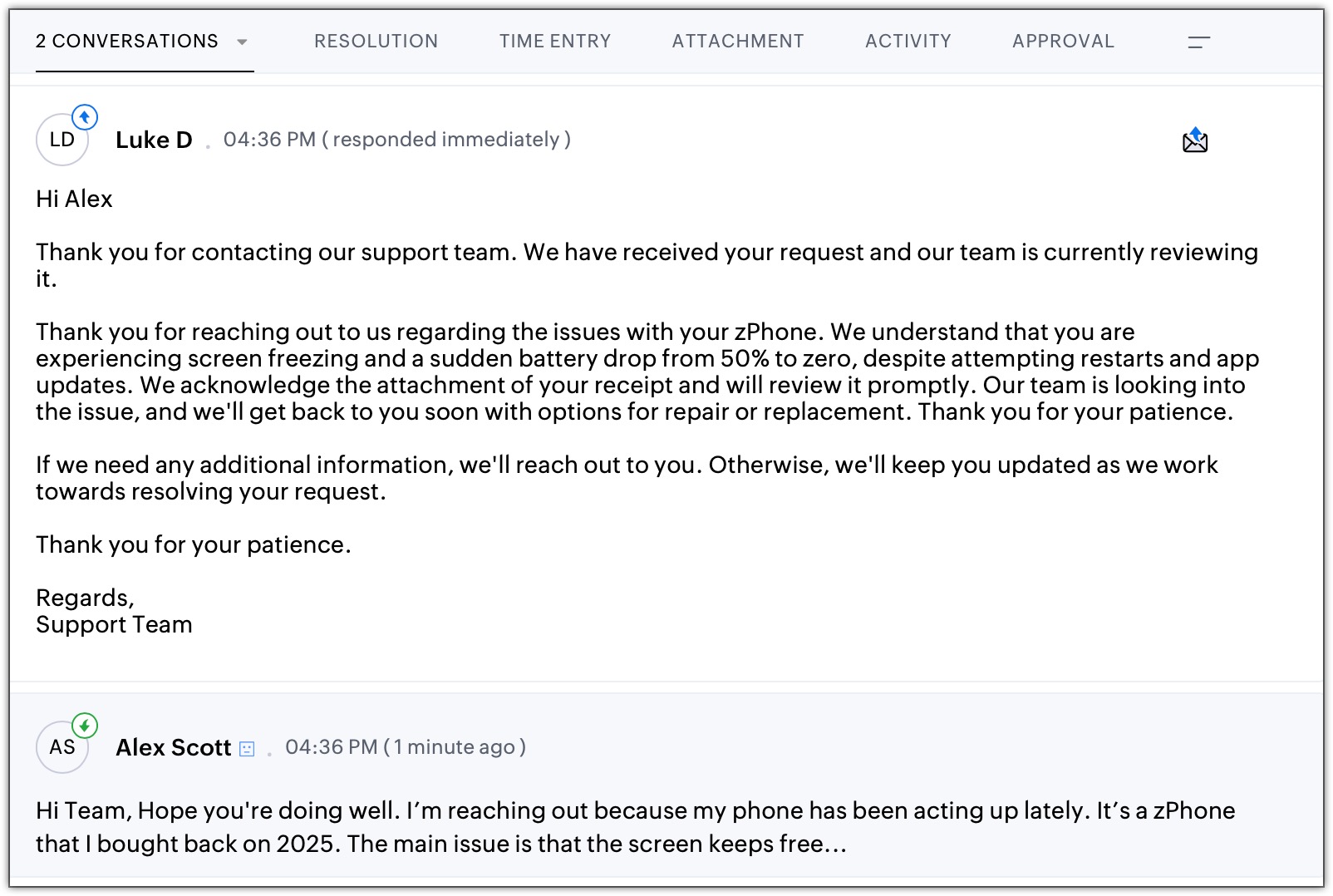
Generate Content (Zia): Zia analyzes the ticket's latest thread content, subject, description, status, created time, and product name to generate a concise, customer-friendly summary of the issue. The summary is added as a private comment on the ticket, giving agents an immediate understanding of the context without reading the full thread.
Note:
Generative AI services and Zia action must be enabled in the Zoho Desk account before configuring the Generate Content action.
Zia generates the content only in English only.
The accuracy and usefulness of the Zia-generated summary depends on the quality of the prompt and the context fields selected. Admins should test and refine the prompt before deploying the rule.
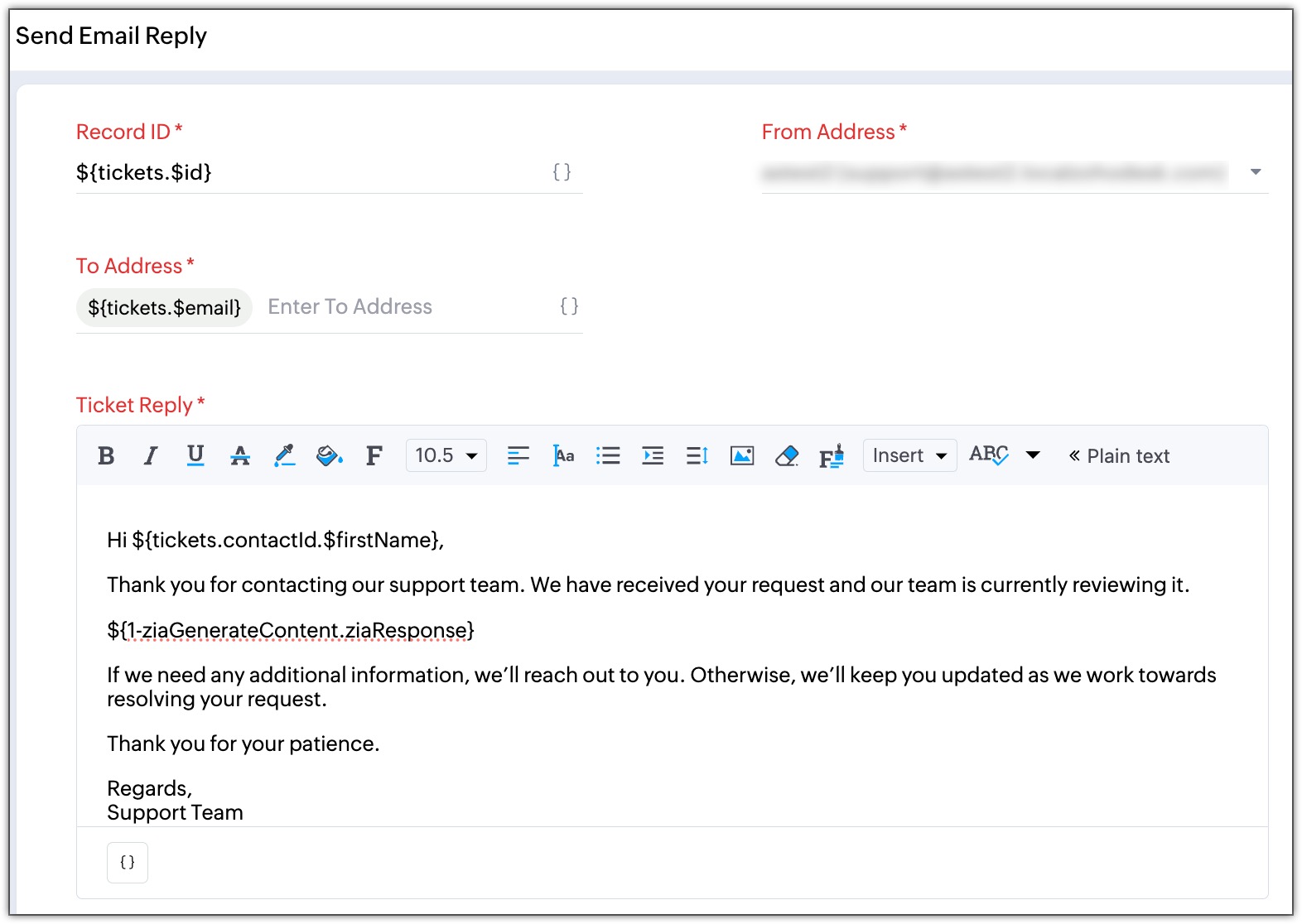
Send Email Reply: The output of the Generate Content action, the Zia-generated summary, is passed into the email reply template using the placeholder ${1-ziaGenerateContent.ziaResponse}. This method, known as action chaining, allows the generated summary to be dynamically inserted into the acknowledgement email sent to the customer. The customer receives an immediate, contextual response confirming that their request has been received and summarizing the issue as understood by the system.
Note: The Send Email Reply action depends on the output of the Generate Content action. If Zia fails to generate content (e.g., due to insufficient or unclear ticket content), the placeholder ${1-ziaGenerateContent.ziaResponse} will not be populated, and the email reply may contain a blank summary section.
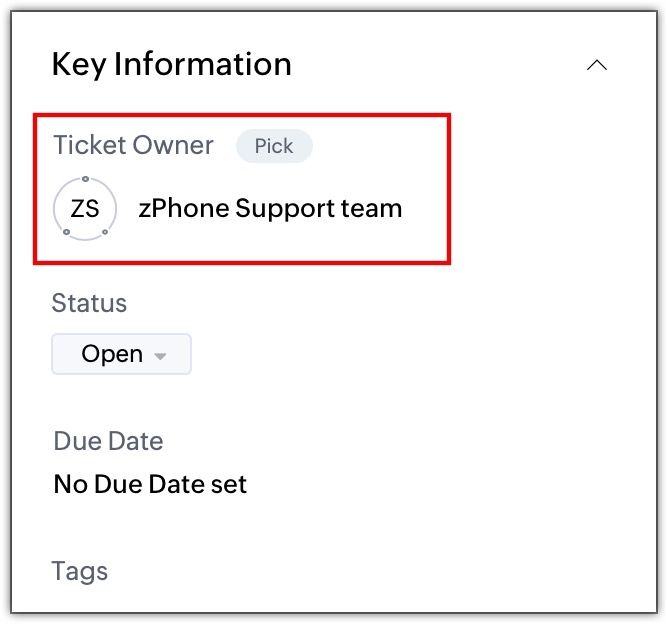
Fork Block with Conditional Assignment: The rule then splits into multiple paths using a Fork Block. Each path evaluates a condition based on the Product Name field. When the condition is met, the ticket is automatically assigned to the corresponding product support team using the Assign Ticket action. This replaces the need for separate workflow rules per product, consolidating all routing logic within a single rule.
Note: A maximum of five paths can be created in a Fork Block. Organizations with many products may need to evaluate whether all product-to-team mappings fit within a single fork or whether additional rules are required.
All four actions - summarization, email acknowledgement, conditional evaluation, and team assignment executed without manual intervention. Even with high ticket volume, every ticket is triaged, acknowledged, and routed within seconds of creation. Additionally, tickets that have been auto-summarized display the Zia-generated summary as a private comment in the ticket's Conversation View, providing direct visibility into triaging accuracy.
Impact Assessment: Manual Workflows vs. Automation Studio
| Aspect | Before (Manual Workflows) | After (Automation Studio) |
| Ticket Summarization | Agents had to read lengthy customer emails one by one to understand the context before taking action. | Zia automatically generates a concise summary as a private comment on the ticket, allowing agents to grasp the issue instantly. |
| Customer Acknowledgement | Customers had to wait for a response from the agent. | An automated acknowledgement email is sent to the customer within seconds of ticket creation, confirming that the request has been received. |
| Ticket Routing | Multiple workflow rules were created per product, eventually saturating the available workflow rule limit in the edition. | Dedicated workflow rules with product-based criteria cleanly route tickets to the correct product support team using the Assign Ticket custom action. |
| First Response Time | First Response Time increased steadily during peak periods, and SLAs were frequently breached because agents could not triage tickets fast enough. | First Response Time is reduced significantly as automated acknowledgement emails are sent instantly upon ticket creation, improving SLA compliance. |
| Agent Workload | Agents spent several minutes per ticket on manual reading, comprehension, and assignment before beginning resolution work. | Agents receive pre-summarized, pre-routed tickets and can begin resolution immediately without manual triage or routing. |
| Workflow Rule Utilization | Multiple rules were consumed for routing alone, leaving little room for other automation needs within the edition limit. | Summarization and acknowledgement are consolidated into a single rule, while routing rules are streamlined, leaving remaining rule quota available for other use cases. |
Monitoring & Optimization
Support managers can track the automation's effectiveness through three standard reporting tools in Zoho Desk:
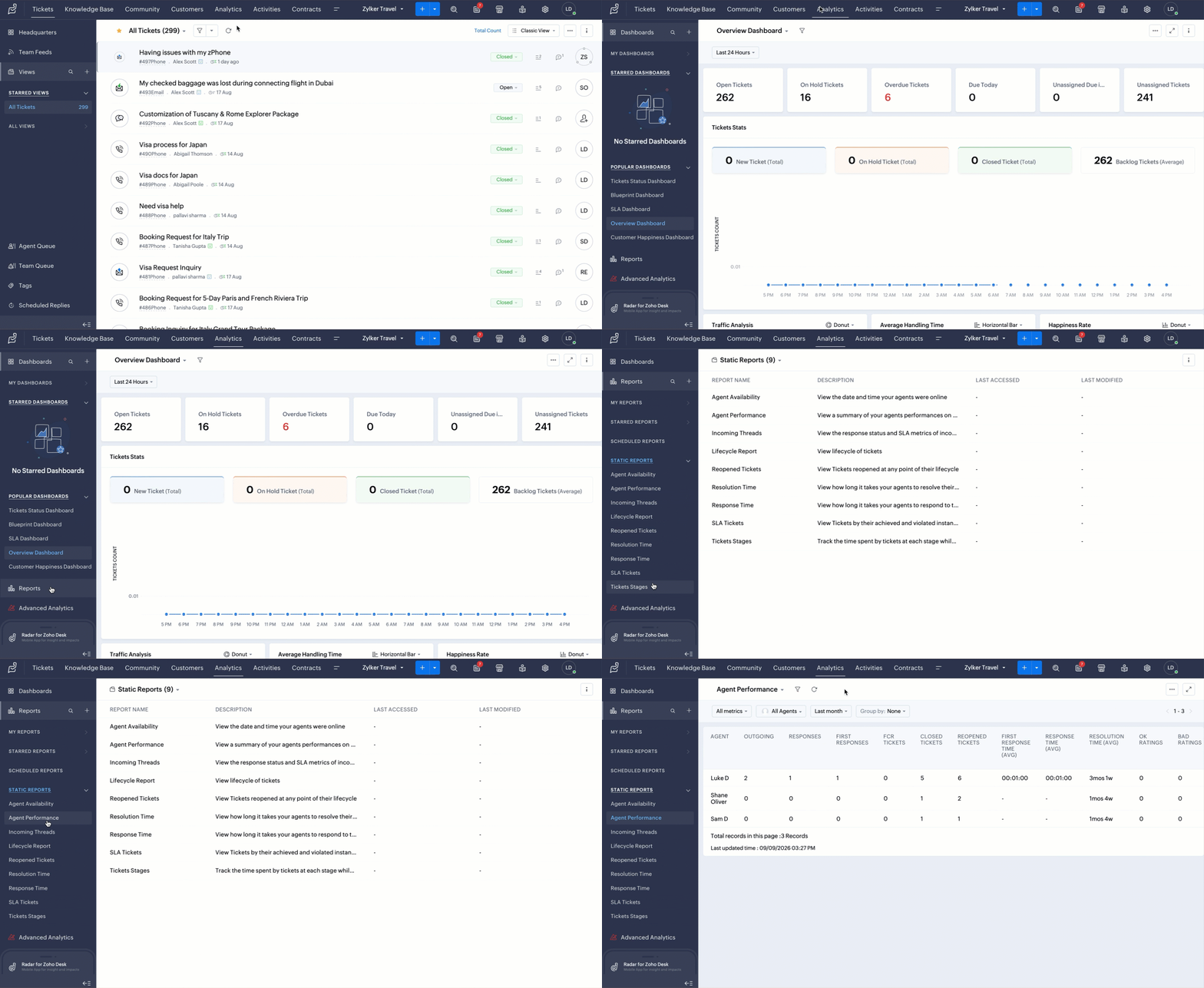
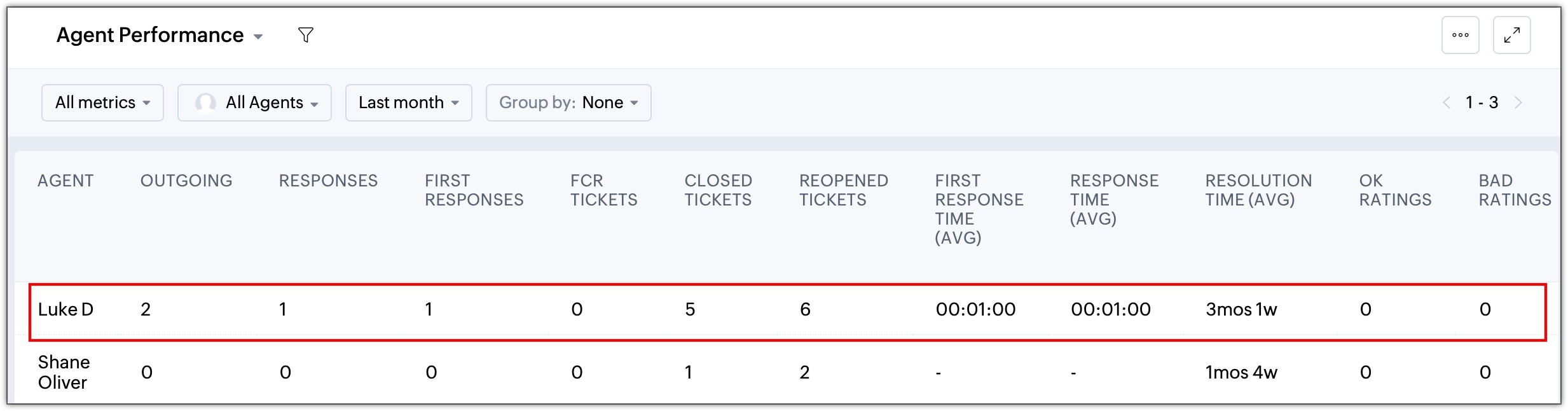
Agent Performance Report: Tracks per-agent metrics including first response time, number of responses, and resolution time. By comparing these metrics before and after the automation rule was deployed, managers can measure the impact of auto-summarization and auto-routing on agent pickup rates and overall productivity.
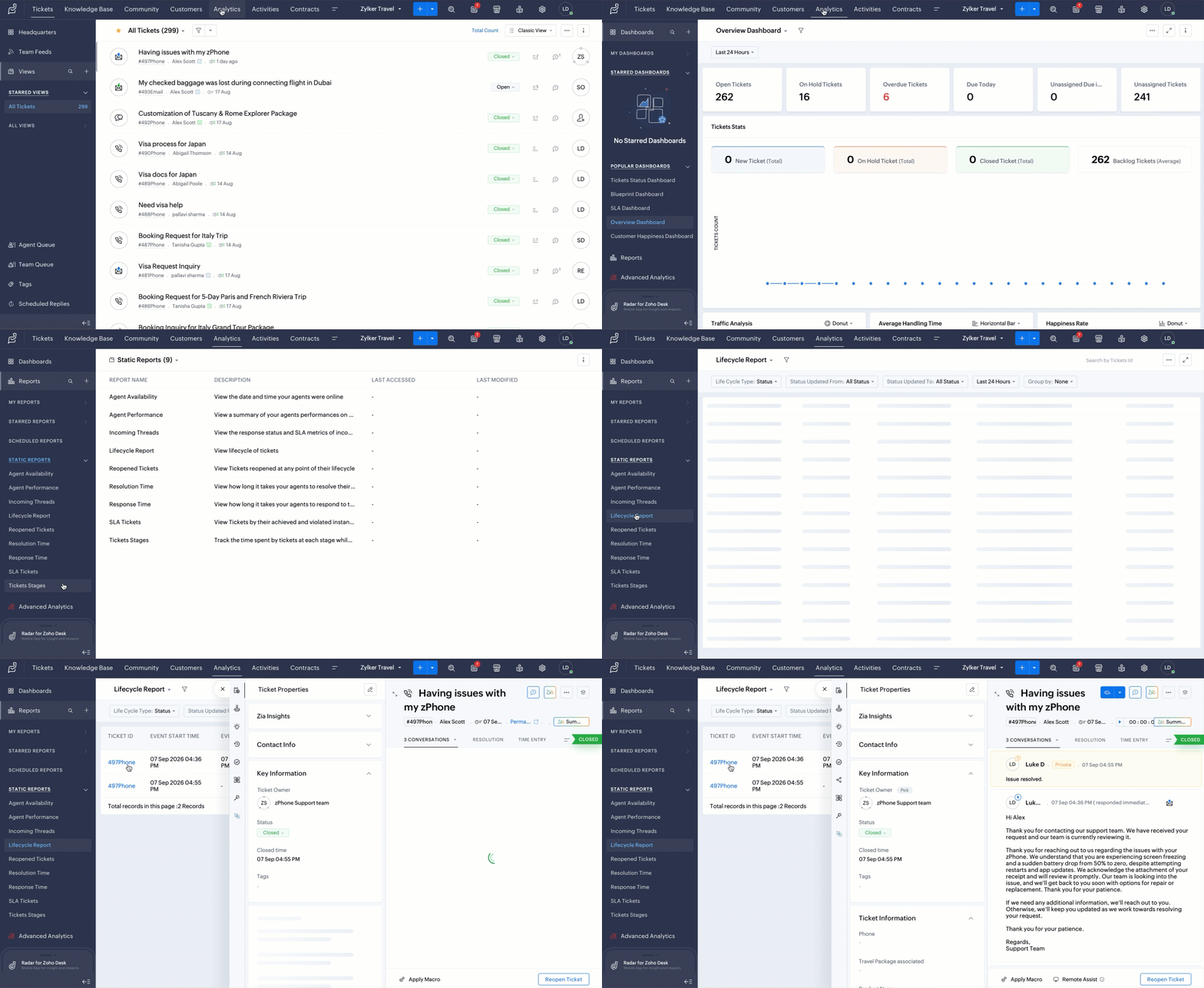
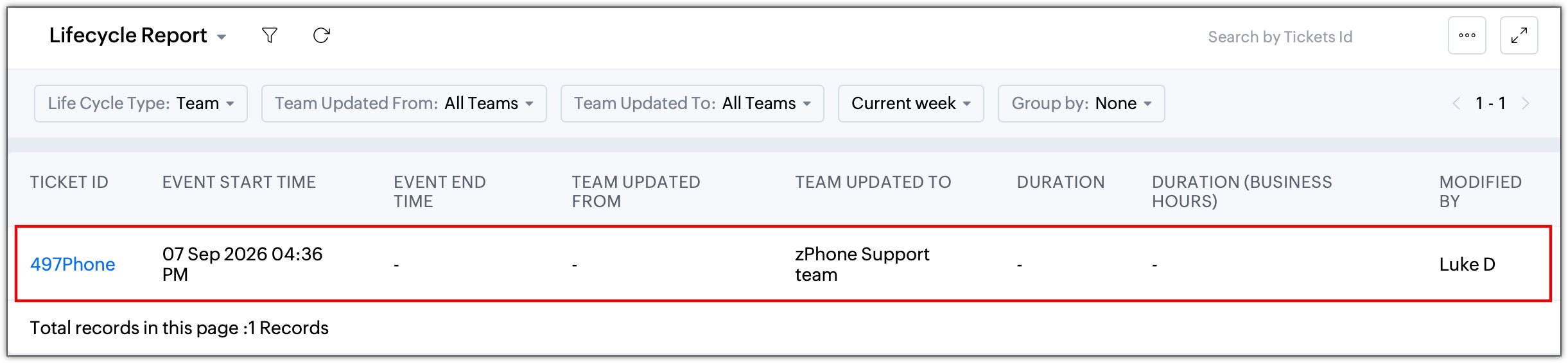
Lifecycle Report (Team Report): Tracks ticket transitions by showing exact timestamps of assignment changes and duration spent at each stage. Managers can use this to verify that tickets are reaching the correct product team immediately after the automation rule executes and identify any delays in the handoff.
Configuration / Steps
- Navigate to Setup > Automation > Automation Studio.
- Click Create Rule.
- On the Rule information page, do the following:
- Enter Rule Name: Auto-generate Summary and route tickets.
- Enter Description: Automatically generate summary using Zia and assign the tickets based on the product.
- Select Tickets module from the drop-down.
- On the Rule configuration page, click Choose Event and select Ticket Created.
- Click + and select the Action Block.
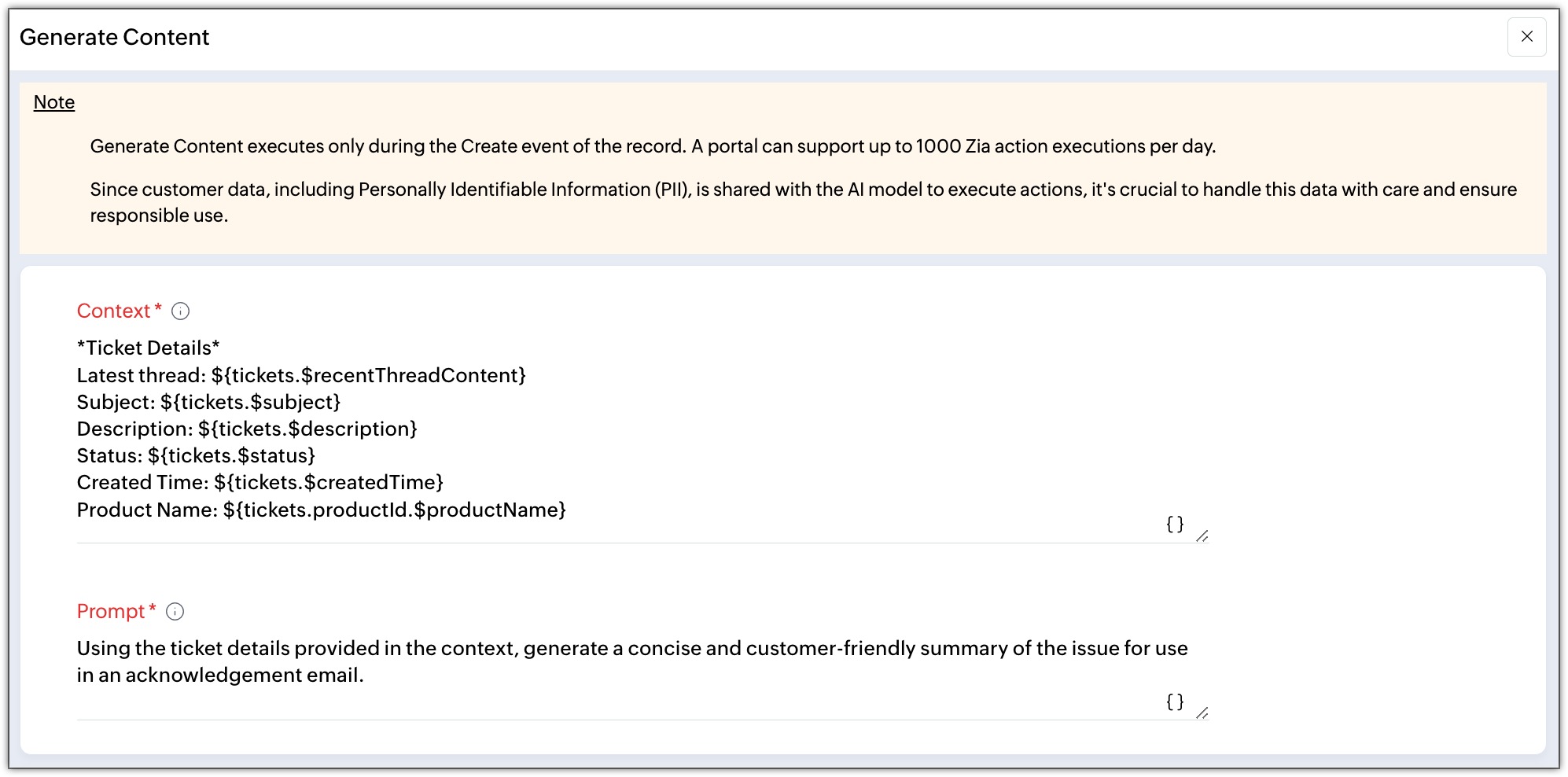
- Click Generate Content under Zia.
- In the Context field, select Last Thread, Subject, Description, Status, Created Time, and Product Name from the placeholder.
On selecting the above mentioned values, the context field will have the following input:
*Ticket Details*
Latest thread: ${tickets.$recentThreadContent}
Subject: ${tickets.$subject}
Description: ${tickets.$description}
Status: ${tickets.$status}
Created Time: ${tickets.$createdTime}
Product Name: ${tickets.productId.$productName} - In the Prompt field, enter Using the ticket details provided in the context, generate a concise and customer-friendly summary of the issue for use in an acknowledgement email.
- Click + and select the Action Block.
- Select Send Email Reply under Ticket and do the following:
- In the Record ID field, select the Ticket Identifier placeholder.
- In the From Address field drop-down, select an email address.
- In the To Address field, select the Email placeholder.
- In the Ticket Reply field, enter the following:
Hi ${tickets.contactld.$firstName},
Thank you for contacting our support team. We have received your request and our team is currently reviewing it.
${1-ziaGenerateContent.ziaResponse}
If we need any additional information, we'll reach out to you. Otherwise, we'll keep you updated as we work towards resolving your request.
Thank you for your patience.
Regards,
Support Team
- Click + and select the Fork Block.
- In Path 1:
Click + and select the If Block.
In the Set Criteria pop-up, select Product Name is zPad and click Save.
Click + and select the Action Block.
Click Assignticket under Ticket.
In the Record ID field, select the Ticket Identifier placeholder.
In the Assignee field drop-down, select Team.
In the Team Name field drop-down, select zPad Support team.
Click Save. - In Path 2:
Click + and select the If Block.
In the Set Criteria pop-up, select Product Name is zPhone and click Save.
Click + and select the Action block.
Click Assign ticket under Ticket.
In the Record ID field, select the Ticket Identifier placeholder.
In the Assignee field drop-down, select Team.
In the Team Name field drop-down, select zPhone Support team.
Click Save.
- In Path 1:
- Click Save & Activate.
To view Agent Performance report
- Navigate to the Analytics module.
- Click the Report tab.
- Under Static Reports, select Agent Performance.
To view Lifecycle report
Navigate to the Analytics module.
Click the Report tab.
Under Static Reports, select Lifecycle Report.
Output
A Zia-generated summary appears as a private comment in the ticket's Conversation View immediately after creation, visible to all agents and stakeholders involved in resolution.
The Assignee field on the ticket detail page reflects the correct product support team within seconds of ticket creation, based on the Product Name criteria configured in the routing workflow rule.
The Agent Performance Report shows comparative first response time and resolution time metrics, enabling managers to quantify the productivity gains from automated triage and acknowledgement.
The Lifecycle Report (Team Report) displays timestamped assignment transitions, allowing managers to verify that tickets move from creation to the correct product team queue without intermediate delays.
- EditionProfessional and above
- Key FeaturesAutomation Studio
- Profile PermissionHelp Desk Automation