Closing the loop on inactive tickets: Automate follow-ups and closure using Automation Studio
Scenario
A mid-sized SaaS company provides a cloud-based project management platform to over 10,000 customers worldwide. The support team handles approximately 1,200 tickets per month across email, chat, and web forms. A significant portion of these tickets require additional information from customers such as log files, screenshots, or account verification details, before support reps can proceed with resolution.
When a support rep requests more information, the ticket is moved to a custom status called 'Waiting for Customer Response.' However, customers may not reply and these tickets remain open indefinitely. The support lead oversees a team of 20 members who must manually track inactive tickets, send follow-up reminders, and close them one by one. This process is time-consuming, inconsistent, and contributes to inflated ticket counts and distorted SLA metrics.
Problem
- Inflated active ticket count: Tickets in the 'Waiting for Customer Response' status inflate the active ticket count, giving the support team an inaccurate view of workload and backlog.
- Distorted SLA compliance metrics: Inactive tickets that remain open impact the SLA, making it difficult for managers to assess team performance against response and resolution targets.
- Time consuming manual follow-up: Support representatives must manually identify and follow up on inactive tickets, consuming time that could be spent on active resolution work.
- Customer experience gaps: Customers who forget to respond to pending requests experience delayed resolutions, and the lack of automated reminders creates an inconsistent follow-up experience.
- Operational inefficiency: Without a time-based automation in place, the team doesn't have a mechanism to escalate systematically or close tickets based on inactivity duration.
Solution
The organization used Automation Studio to consolidate customer reminders and automatic ticket closure into a single automation rule, eliminating the need for manual follow-ups and separate supervisor rules.
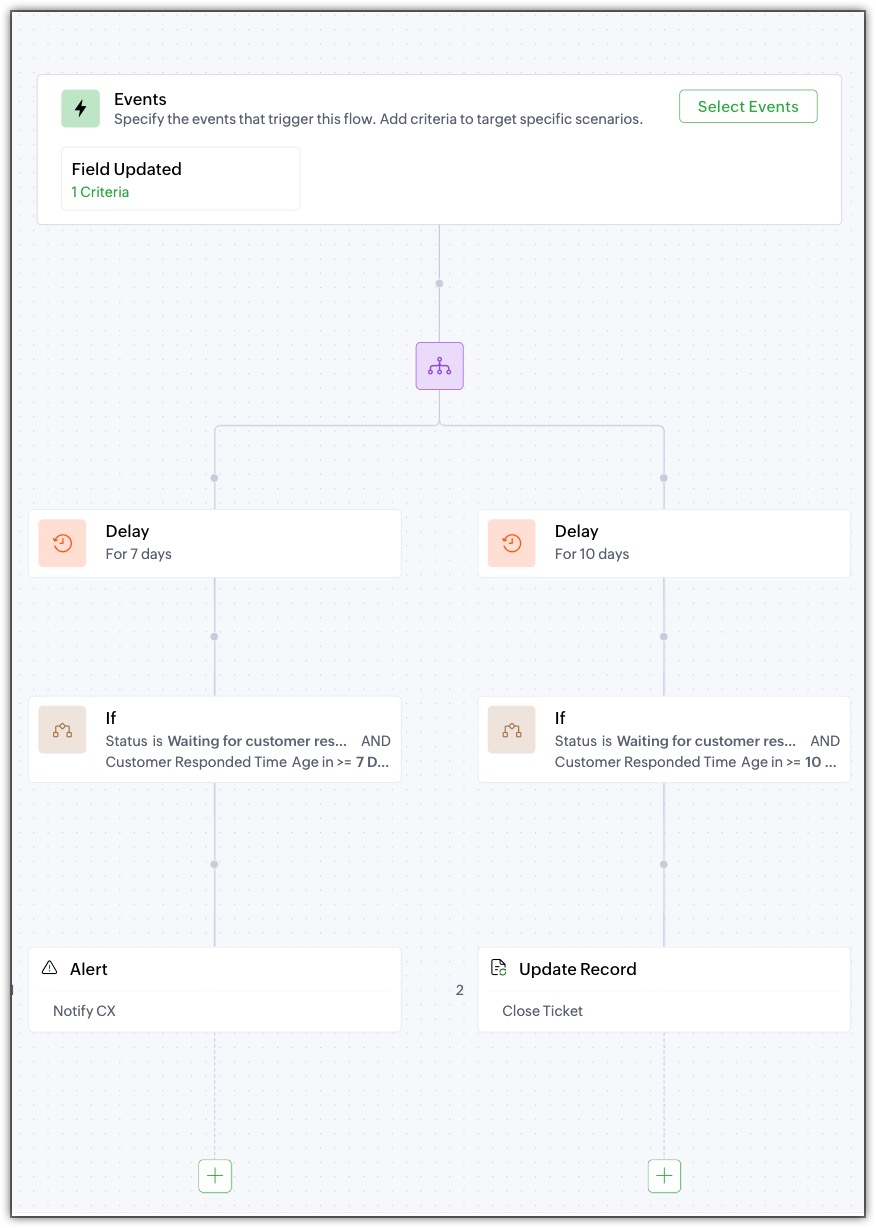
When a ticket's status is changed to 'Waiting for Customer Response,' the rule triggers and executes a forked sequence of time-delayed actions independently and concurrently from the same triggering event.
Customer Reminder (7-Day Delay): A Delay block is added to pause execution for 7 days. After 7 days, the If block verifies if the ticket is still in 'Waiting for Customer Response' status and the Customer Responded Time field is not updated for 7 or more days since the status change. If the condition is met, the Action block sends an email reply to the customer reminding them that their response is pending.
Note: If the customer has already responded during the 7-day delay period, the ticket would have automatically fallen back to the default Open status. In this case, the If block will not be executed since the condition is not met.
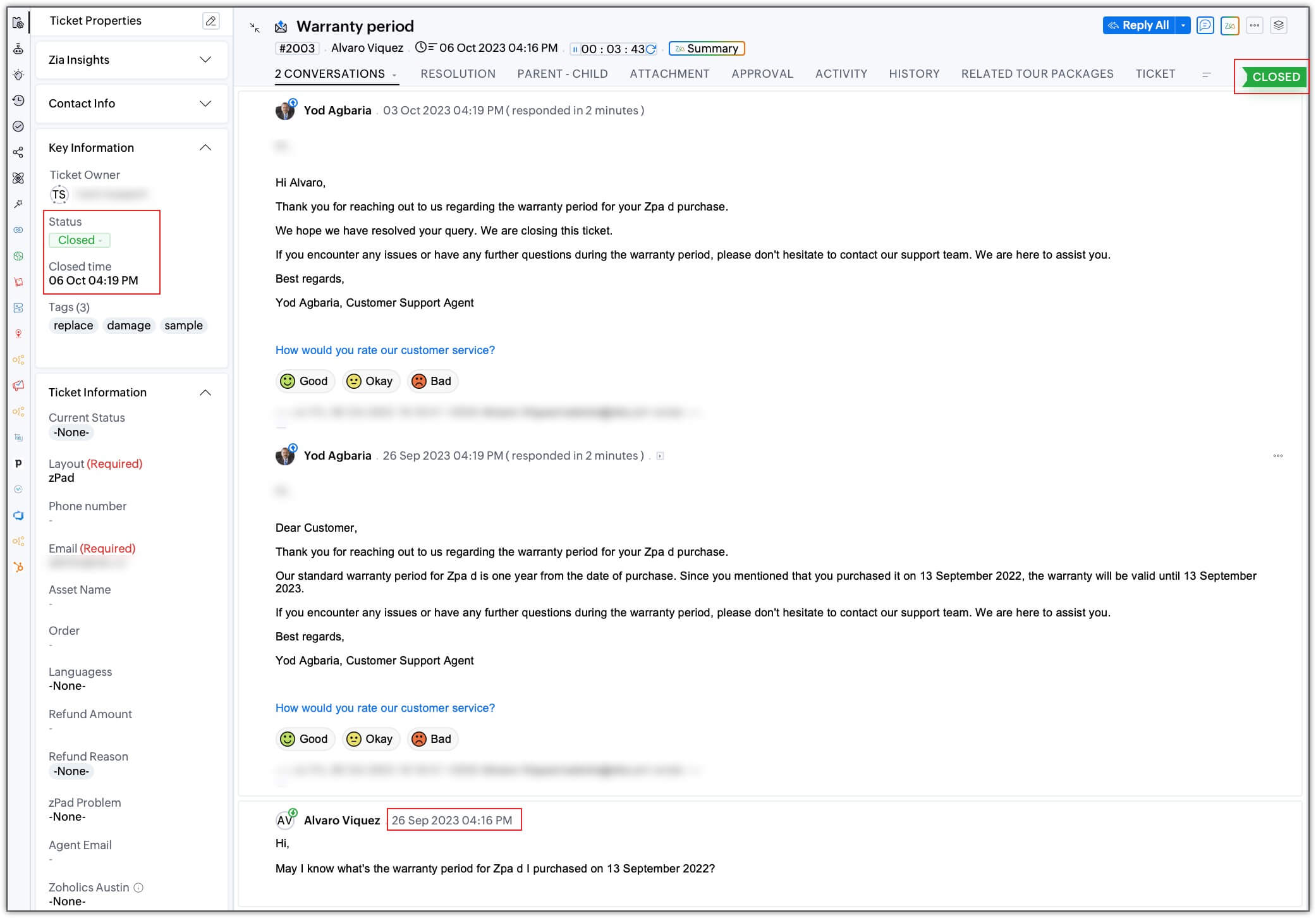
Auto-Closure (10-Day Delay): A Delay block is added to pause execution for 10 days. After 10 days, the If block verifies that the ticket is still in 'Waiting for Customer Response' status and that 10 or more days have passed. If the condition is met, an Action Block updates the ticket record, changing the status to 'Closed.'
Note: If the customer responded after receiving the 7-day reminder (from Path 1) but before the 10-day auto-close triggers, the ticket would have reverted to Open status. Even in this case, the If block will not be executed since the condition is not met.
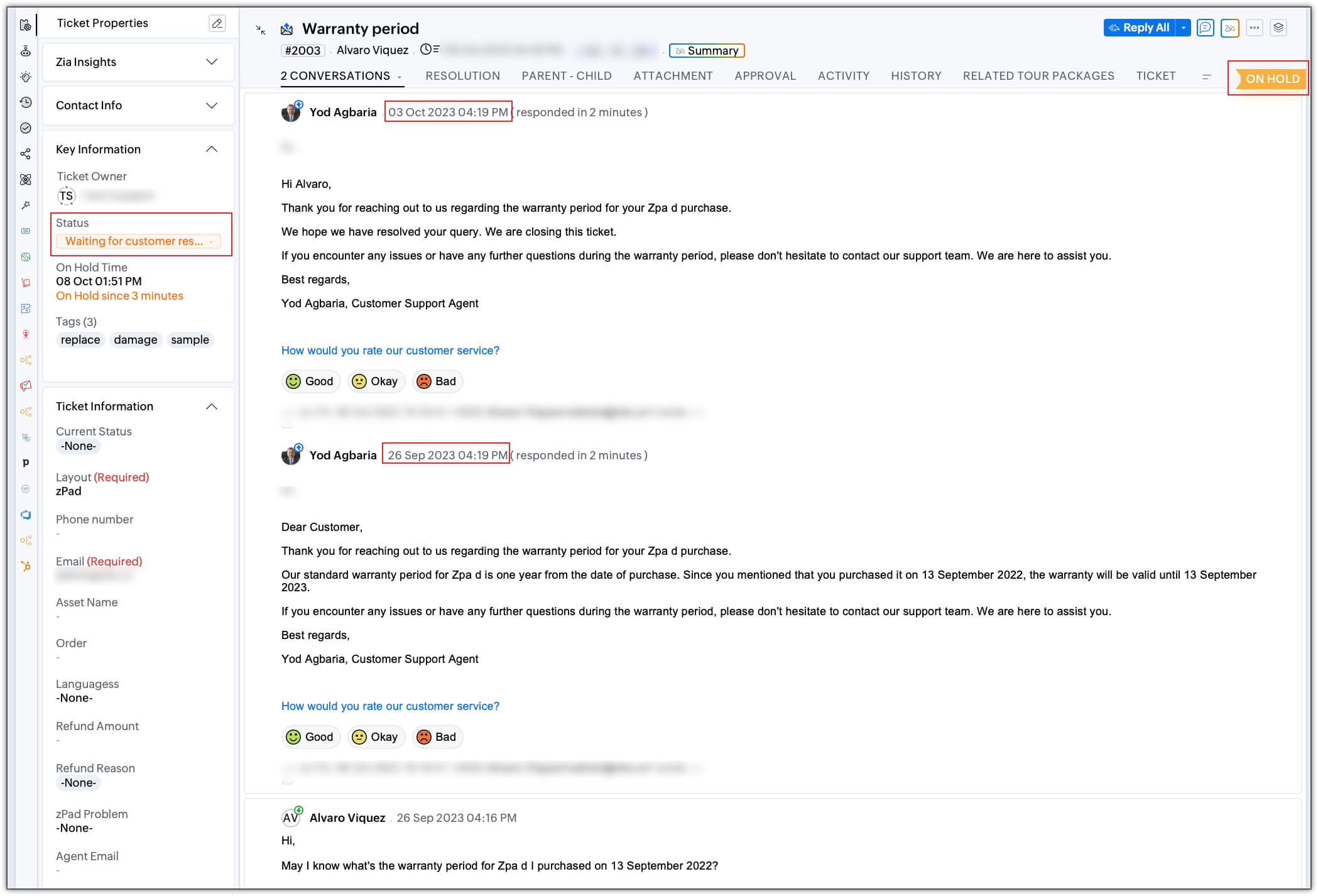
On Hold State Integration: The 'Waiting for Customer Response' status is mapped to the On Hold state. This ensures that SLA timers freeze while the ticket awaits customer input, preventing false SLA breaches during the waiting period. When a customer responds at any point, the ticket automatically falls back to the default Open status, SLA timers resume with recalculated due times, and the If Block conditions in both fork paths doesn't meet.
Note: On Hold cannot be set as the default status and automatically falls back to Open when a customer replies, as the Fall-back to default option is mandatory for On Hold statuses. Tickets moved to On Hold are no longer considered overdue, and their due times are not recalculated when they are updated to Open.
Both the paths execute without manual intervention. Even with high ticket volume, every inactive ticket receives a standardized 7-day reminder and a 10-day auto-close, ensuring a consistent and predictable ticket lifecycle.
Monitoring & Optimization
Support managers can track the automation's effectiveness through two standard reporting tools in Zoho Desk:
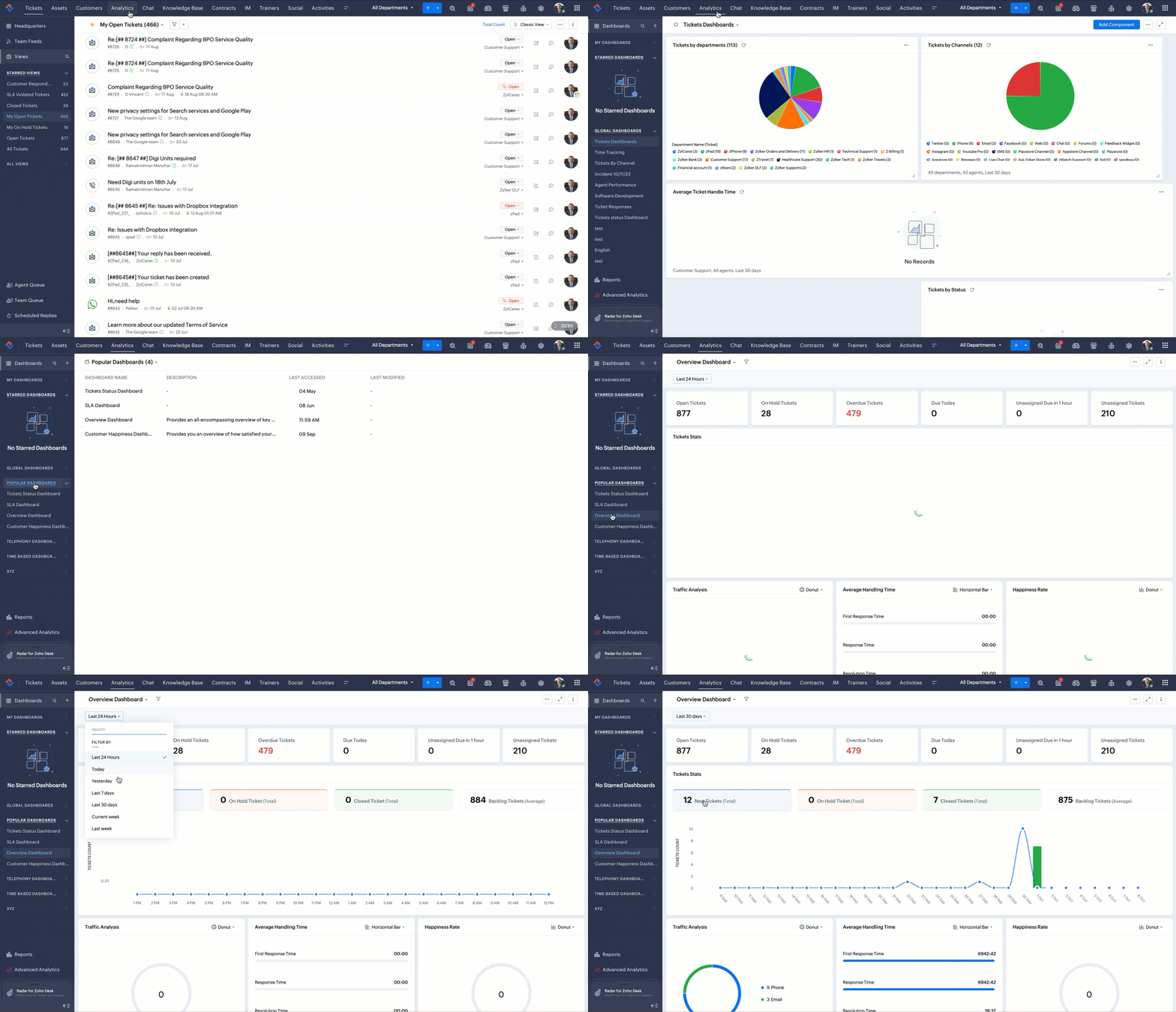
- Ticket Status Dashboard: Displays ticket distribution across all statuses, including On Hold. Managers can monitor how many tickets are currently in 'Waiting for Customer Response' status, average time spent in that status, and how many tickets are being auto-closed by the rule. This allows managers to identify if the 7-day and 10-day thresholds need adjustment based on actual customer response patterns.
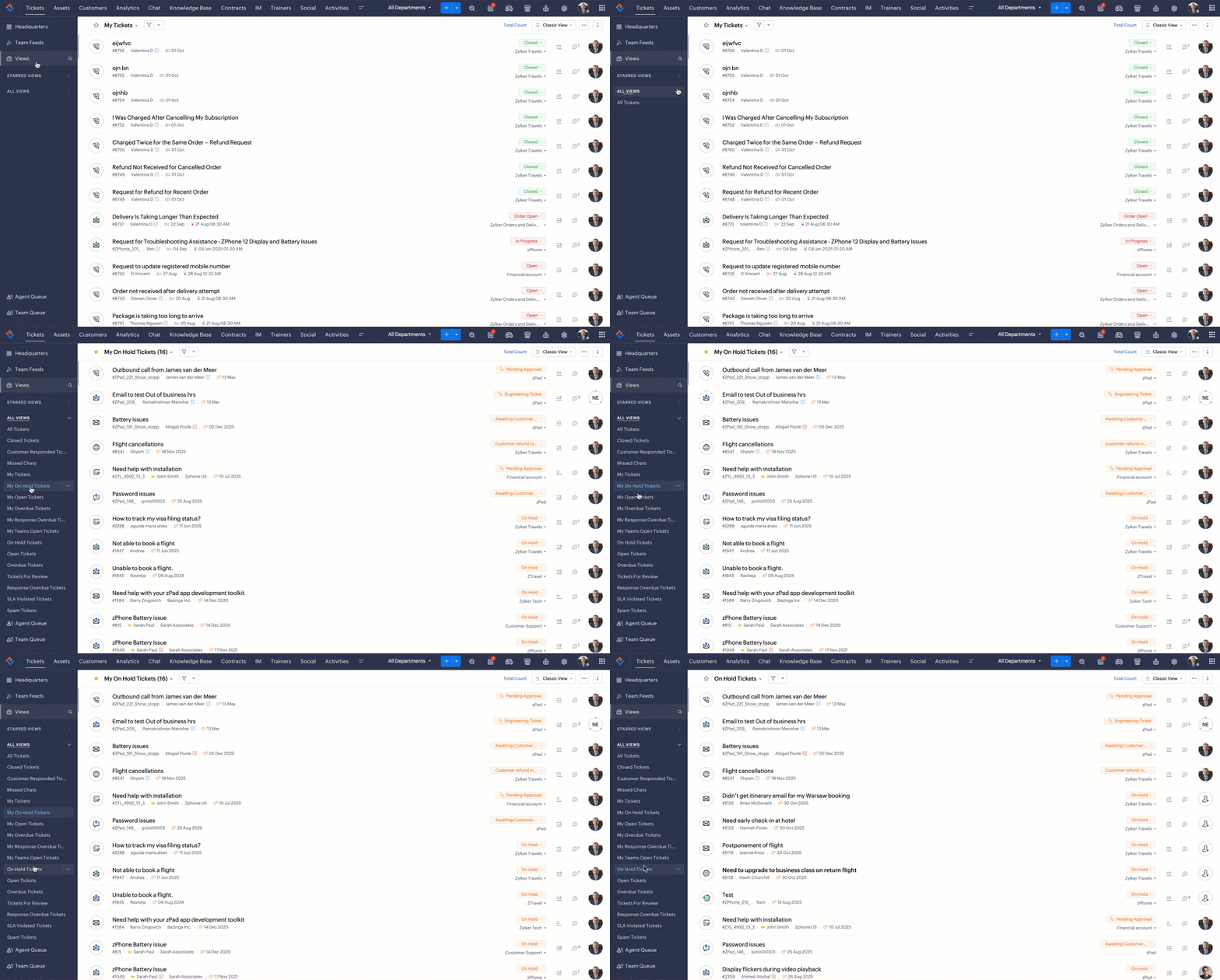
- Predefined On Hold Views: Zoho Desk provides two predefined views - On Hold Tickets and My On Hold Tickets. This allows support reps and managers to filter and view all tickets currently in the On Hold state. These views can be sorted by Customer Responded Time for easy prioritization.
Configuration / Steps
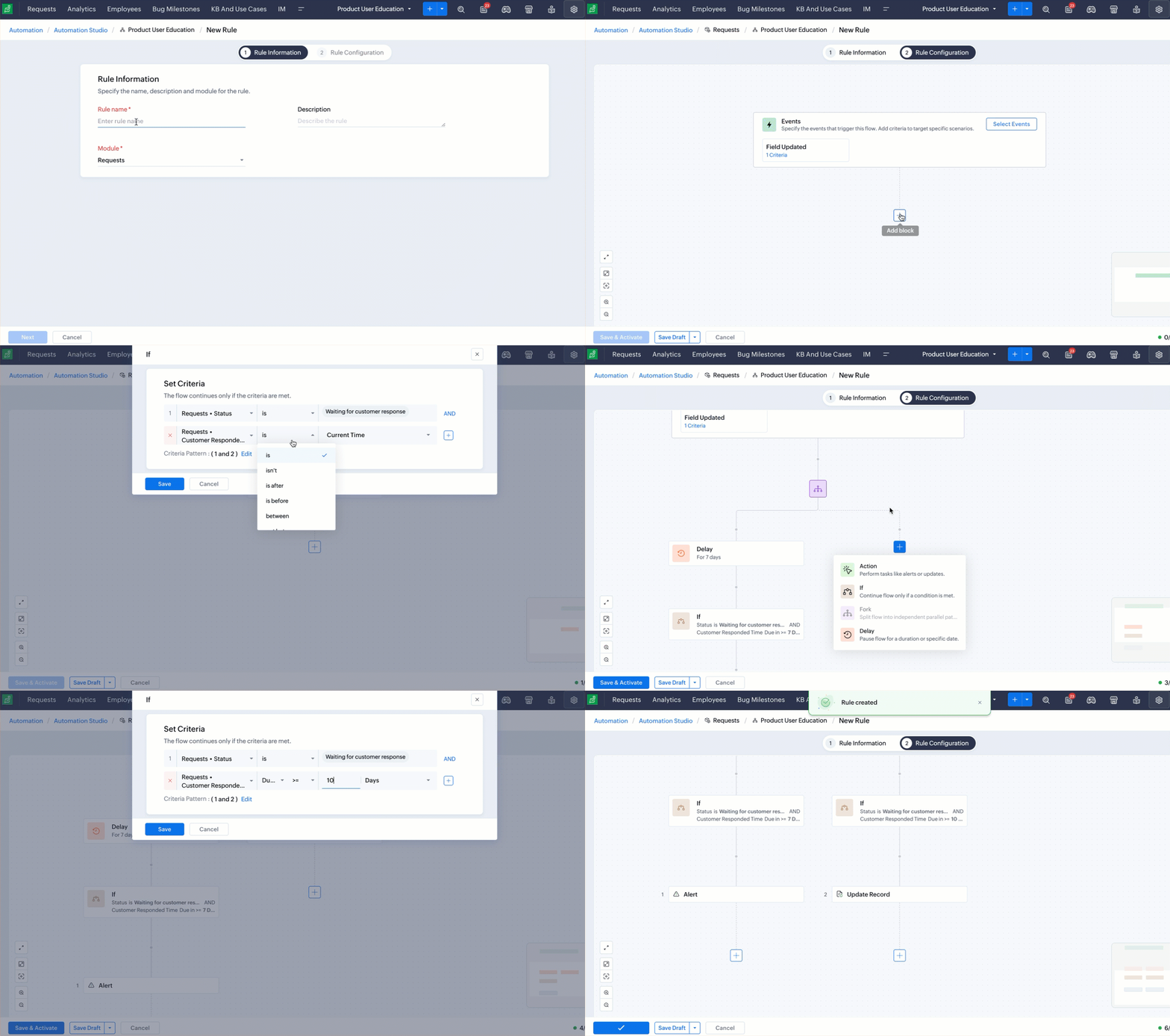
- Navigate to Setup > Automation > Automation Studio.
- Click Create Rule.
- On the Rule information page, do the following:
- Enter Notify and Auto-Close Inactive Tickets as the rule name.
- Enter Sends a reminder email to customers after 7 days of inactivity and auto-closes tickets after 10 days if no response is received as the description.
- Select Tickets module from the Module drop-down.
- On the Rule configuration page, click Choose Event and select the event as Field Updated and the criteria as Ticket status changed from any value to Waiting for customer response.
- Click + and select the Fork Block.
- In Path 1:
- Click + and select the Delay Block.
- In the Pause flow section, select For a specific duration.
- In the Pause for field, select 7 Day(s).
- Click Save.
- Click + and select the If block.
- In the Set Criteria field, select Ticket status as the field, is as the comparator, and Waiting for customer response as the value.
- Click + to add another criteria.
- Select Customer responded time as the field, due in >= as the comparator, and 7 days as the value.
- Click + and select the Action block.
- Click Unalter Notification.
- Select Notify contact on ticket closure as the Email Template.
- Select agents, teams, roles, and roles subordinates as required.
- In the Recipient Emails field, select the placeholder and select Email from the Tickets module.
- Click Save.
- Click + and select the Delay Block.
- In Path 2:
- Click + and select the Delay Block.
- In the Pause flow section, select For a specific duration.
- In the Pause for field, select 10 Day(s).
- Click Save.
- Click + and select the If block.
- In the Set Criteria field, select Ticket status as the field, is as the comparator, and Waiting for customer response as the value.
- Click + to add another criteria.
- Select Customer responded time as the field, due in >= as the comparator, and 10 days as the value.
- Click + and select the Action block.
- Click Update Record under Record Management.
- In the Record ID field, select the placeholder and select Ticket Id from the Tickets module.
- In the Module field, select Tickets from the drop-down.
- In the Departments field, select Customer Support.
- In the Assignment Values field, Status - Closed.
- Click Save.
- Click + and select the Delay Block.
- In Path 1:
- Click Save and Activate.
To view Ticket Status Dashboard
- Navigate to the Analytics module.
- Click the Dashboard tab.
- Under Popular Dashboards, select Overview Dashboard.
To view predefined ticket views
- Navigate to the Tickets module.
- Click Views.
- From the View drop-down, select My On Hold tickets or On Hold tickets.
Impact Assessment: Manual vs. Automation Studio
| Aspect | Before (Manual Process) | After (Automation Studio) |
| Customer Reminders | Agents manually identified inactive tickets and sent follow-up emails individually, with no consistent timing. | Customers receive an automated, personalized reminder email 7 days after a ticket enters 'Waiting for Customer Response' status, ensuring consistent follow-ups. |
| Ticket Closure | Agents manually closed inactive tickets one by one, often after weeks or months of inactivity. | Tickets that remain inactive for more than 10 days are automatically closed via an Update Record action, removing them from the active queue without agent intervention. |
| Ticket Backlog | Inactive tickets inflated the active ticket count, making it difficult to assess true workload. | Inactive tickets are systematically closed after 10 days, reducing ticket backlog by an estimated 15–25% and providing an accurate view of active workload. |
| SLA Compliance | Tickets in 'Waiting for Customer Response' status continued to impact SLA time, leading to premature breaches. | By mapping the status to the On Hold state, SLA timers pause during the waiting period, preventing false breaches and improving overall SLA compliance metrics. |
| Follow-Up Consistency | Reminder timing varied by support reps as some followed up after 3 days, others after 2 weeks. | Every inactive ticket follows the same standardized 7-day reminder and 10-day auto-close lifecycle, eliminating variability in user driven practices. |
| Workload | Support reps spent an estimated 3–5 hours per week on manual follow-ups and closures. | Support reps no longer need to track manually, remind, or close inactive tickets, freeing up time for active customer support work. |
| Customer Experience | Customers received no automated nudge and were often unaware when tickets were closed manually. | Customers receive a timely reminder with ticket details and a clear timeline for auto-closure, improving transparency and allowing them to re-engage before closure. |
Output
A reminder email is sent to the customer 7 days after a ticket enters 'Waiting for Customer Response' status, visible in the ticket's Conversation View as an outgoing thread, confirming that the customer was proactively notified.
The Status field on the ticket detail page changes to 'Closed' automatically after 10 days of inactivity, visible in the ticket's status timeline, confirming that the auto-close action executed without any intervention.
SLA breach is prevented and the support reps gain their time back to spend on resolving other customer queries.
Read More:
- EditionProfessional and above
- Key FeaturesAutomation Studio
- Profile PermissionHelp Desk Automation