Implement validation processes for Benefits Verification requests within a healthcare setting
Scenario
A healthcare organization manages a high-volume Benefits Verification (BV) operation, where representatives verify insurance eligibility, benefits, authorizations, and claim-related information on behalf of patients or healthcare providers.
The BV team handles requests involving medical and pharmacy benefits, insurance coordination, prior authorizations, and claim validation. Since each request must be thoroughly verified before closure, the organization follows a strict operating principle: no clean validation, no close.
Problem
Premature closure: Representatives close Benefits Verification requests before completing all required eligibility, authorization, and claim validations because there is no standardized verification process.
Verification Compliance: Support representatives close Benefits Verification requests before completing all required eligibility, authorization, and claim validations because there is no standardized process to enforcing verification checklist.
Data Consistency: Authorization details such as the drug name, payer, facility, and date of service need to be validated consistently, but the verification status is not always updated in a structured manner.
Downstream Billing Impact: Secondary insurance rejections remain unresolved when a request is closed, creating downstream billing issues and additional follow-up work.
Process Ownership: Requests that fail a validation require corrective action or escalation to another team, but manual routing delays resolution and makes ownership unclear.
Quality Monitoring: Supervisors need a consistent way to review completed requests and identify recurring errorsacross representatives, payers, and facilities.
Performance Visibility: The organization lacks centralized reporting to measure gate compliance, billing error rates, first-pass claim accuracy, secondary rejection resolution, and recurring errors.
Solution
The solution leverages the following Zoho Desk capabilities to create a structured Benefits Verification workflow:
Blueprint: Controls the sequence of verification stages and prevents the request from progressing to closure until the required validations are completed.
Custom Ticket Fields: Captures the required verification details in a structured format.
Transition-level Automation: Routes failed validations for corrective action or escalation.
Assignment Rules: Routes requests for corrective action or escalation when validations fail.
Analytics: Provides supervisors with visibility into compliance and recurring process issues.
Before the validation begins
A Benefits Verification request can enter Zoho Desk through email, a web form, or an integrated system. As part of the initial ticket routing, the request is routed to the Benefits Verification department and assigned to the appropriate team.
The request then follows a controlled validation process:
A typical Benefits Verification request follows this flow:
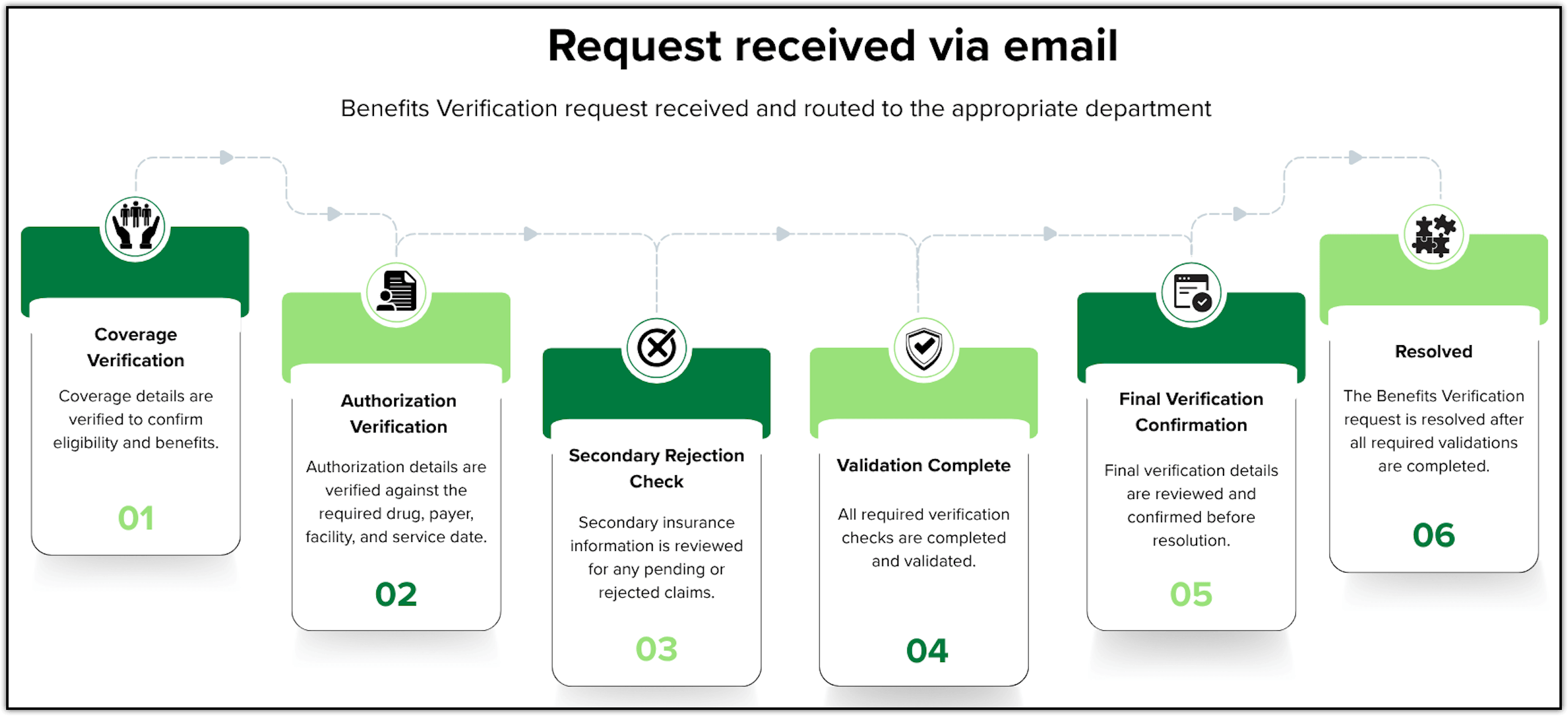
If any validation fails:
Validation Failed → Corrective Action / Escalation → Revalidation → Continue Validation
Prerequisites
Before configuring the validation process, ensure that the following are available in Zoho Desk:
Agents: Add the agents/support reps who will handle these requests and associate them with the required departments and teams.
Note: The workflow and field configurations described in this use case are examples and may vary based on the organization's Benefits Verification process, team structure, and operational requirements.
Configuration
Step 1: Select the department for Benefits Verification
A Department in Zoho Desk is a way to organize support operations based on specific teams, functions, or business areas within an organization.
Identify the department that will handle Benefits Verification requests.
If a dedicated Benefits Verification department already exists, use that department.
If BV requests are handled within an existing department, use that department instead of creating a new one.
If BV requests are currently mixed with unrelated support requests and need separate ownership, create a dedicated Benefits Verification department.
To create departments:
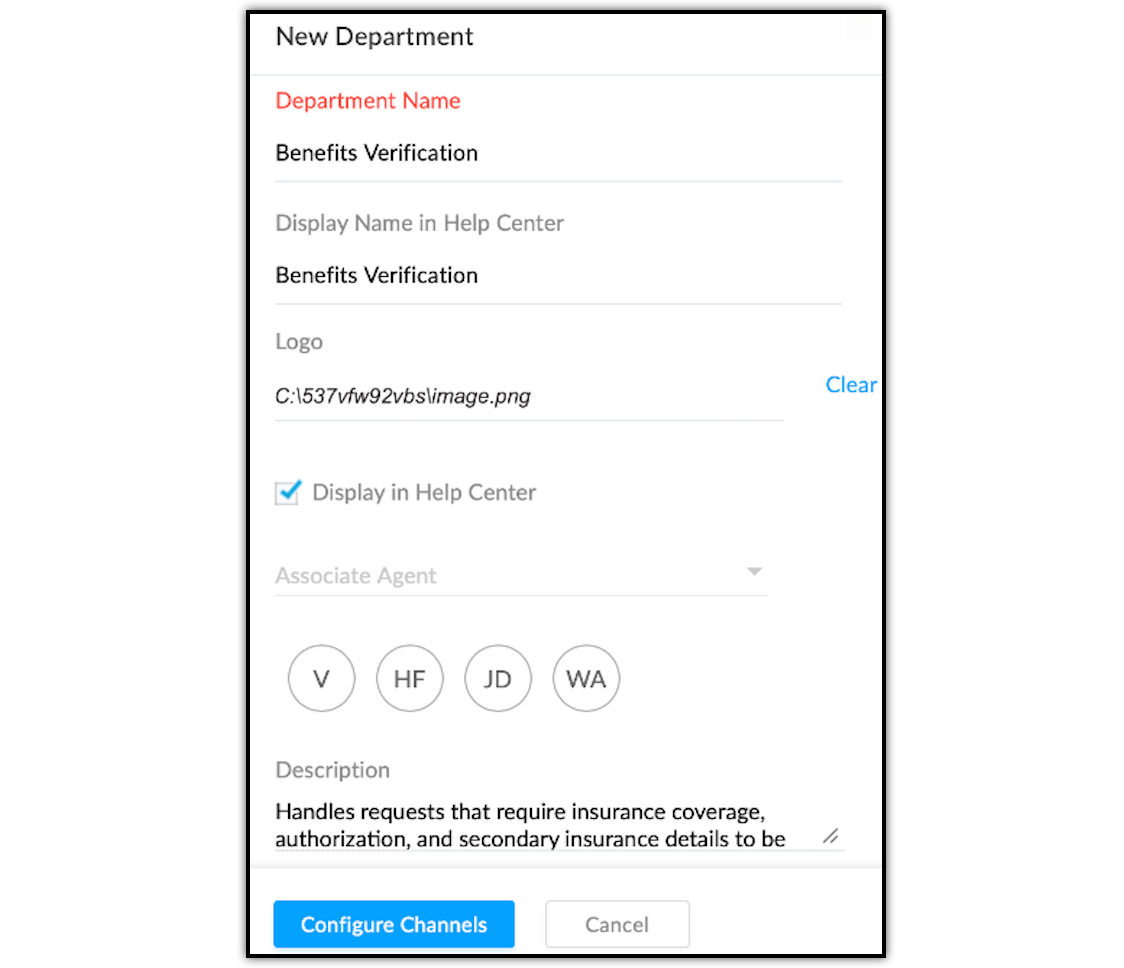
Navigate to Setup > Organization > Departments.
Click New Department in the upper right corner.
Enter Department Name as Benefits Verification, let the Display Name reflect as it is in Help Center, and select a logo.
Check Display in Help Center for external-facing departments.
Associate agents who will handle tickets in this department.
Click Configure Channels, then Save.
Step 2: Organize agents and teams for Benefits Verification
Different stages of Benefits Verification may be handled by the same team or may require escalation to specialized teams.
Create teams only when different types of validation failures require different ownership.
For example:
- Verification Team: Handles standard BV requests and performs the required validations.
- Authorization Team: Handles authorization-related exceptions that require specialized action.
- Billing/Claims Team: Handles secondary insurance or claim-related exceptions.
To configure teams :
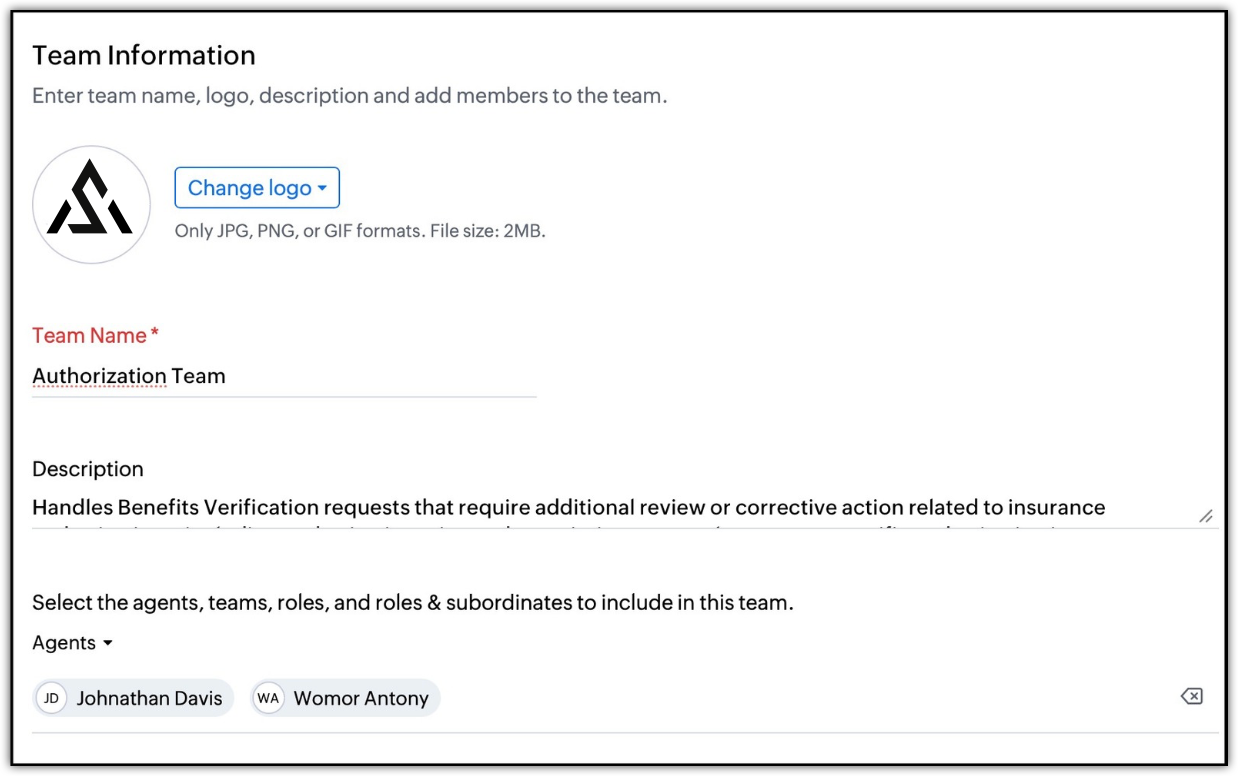
- Navigate to Setup → User Management → Teams.
- Click New Team.
- Enter the Team as Authorization Team.
- Add the agents who will belong to the team.
- Associate the team with the Benefits Verification department.
- Click Save.
- Repeat the steps to create additional teams such as Verification Team and Claims Team for exception handling, if required.
The team structure can later be used when configuring assignment rules and Blueprint transition ownership.
Step 3: Create ticket fields for the three validation gates
An email or incoming request may contain enough information to identify a Benefits Verification request, but the information required to verify the request may not be available in a structured format.
For example, a request may state:
“Please verify coverage and authorization for this medication.”
The agent may still need to verify the member's coverage, payer, benefit type, authorization, facility, and date of service.
Create custom ticket fields to capture these validation results in a consistent format.
For example:
Create fields such as:
| Field | Suggested values |
| Coverage Status | Verified / Failed |
| Payer | Payer name |
| Benefit Type | Medical / Pharmacy |
Create fields such as:
| Field | Suggested values |
| Authorization Status | Approved / Failed / Not Required |
| Drug/Procedure | Relevant drug or procedure |
| Authorization Payer | Payer name |
| Facility | Facility name |
| Date of Service | Date |
These fields capture the information required to validate the authorization against the request.
Create fields such as:
| Field | Suggested values |
| Secondary Insurance Status | Verified / Rejection Found / Not Applicable |
| Rejection Status | Resolved / Unresolved / Not Applicable |
| Resolution / Action Taken | Relevant action |
- Validation Status
- Validation Failure Reason
- Escalation Required
- Final Verification Confirmation
To configure ticket fields :
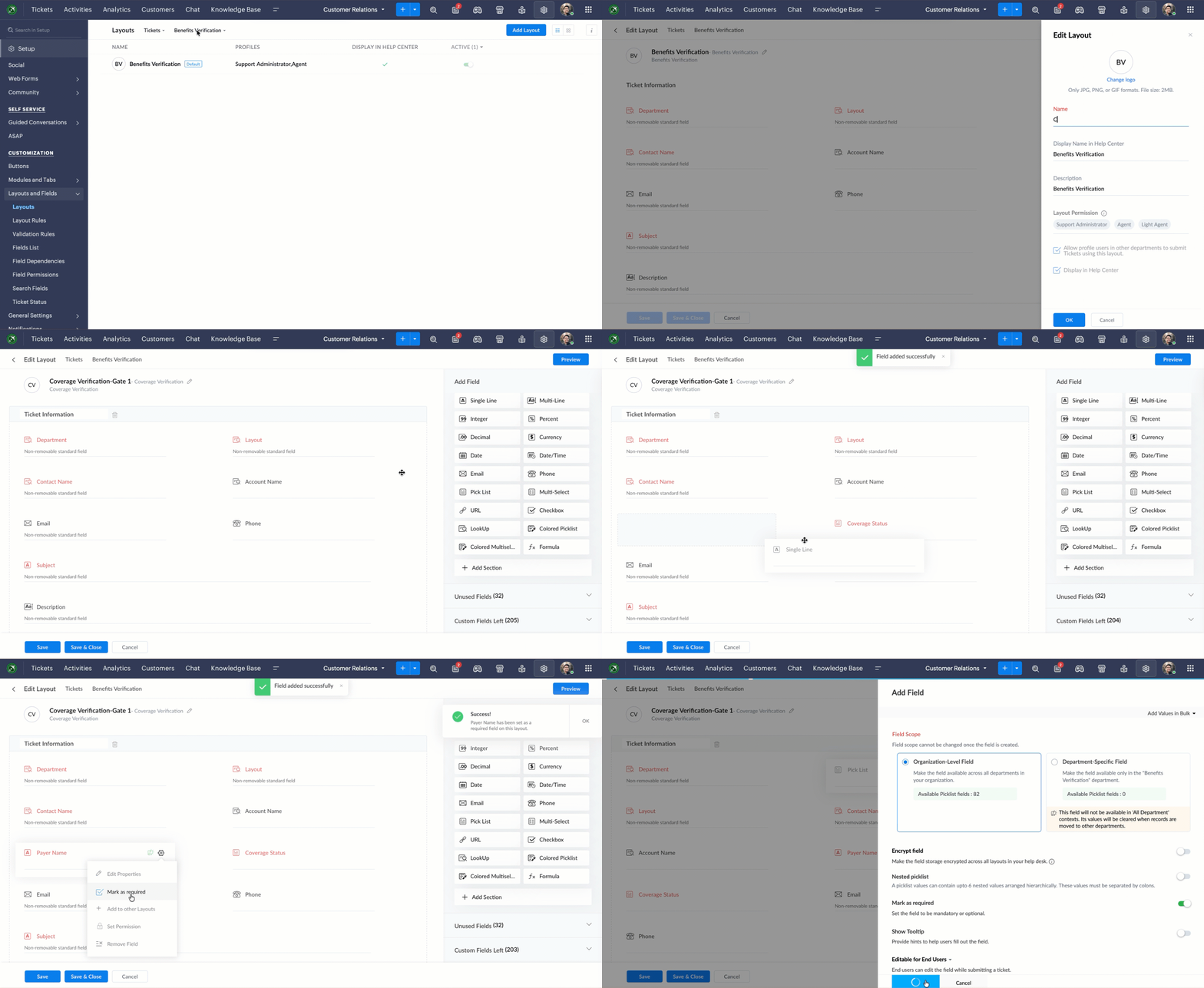
- Navigate to Setup → Customization → Layouts and Fields.
- Under Layouts, select Tickets as the module.
- Select the benefits verification department for which the fields need to be configured.
- Select the required ticket layout or create a new layout.
- In the layout editor, drag and drop the required field type from the Add Field tray.
- In the field properties, enter the field Label such as
- Coverage Status, Payer, Benefit Type, Authorization Status, Drug Name, Facility, Date of Service, Secondary Insurance Status, Validation Failure Reason, Verification Status
- Configure the available values based on the field type.
- Drag and drop the single line field type from the Add Field tray and label the fields as Final Verification Confirmation, Close Benefits Verification and Validation Failure Reason.
- Enable Mark as Required for fields that must be completed before the corresponding validation stage can be completed.
- Add the required fields to the layout and arrange them according to the validation sequence.
- Click Save Layout.
The fields provide the structured information that Blueprint can use to control the movement of the request through the validation process.
Step 4: Configure Assignment Rules for BV requests and exceptions
Assignment Rules can route incoming Benefits Verification requests to the appropriate agents or teams.
For example, standard BV requests can be assigned to the Benefits Verification team, while requests requiring specialized action can be routed to the relevant team.
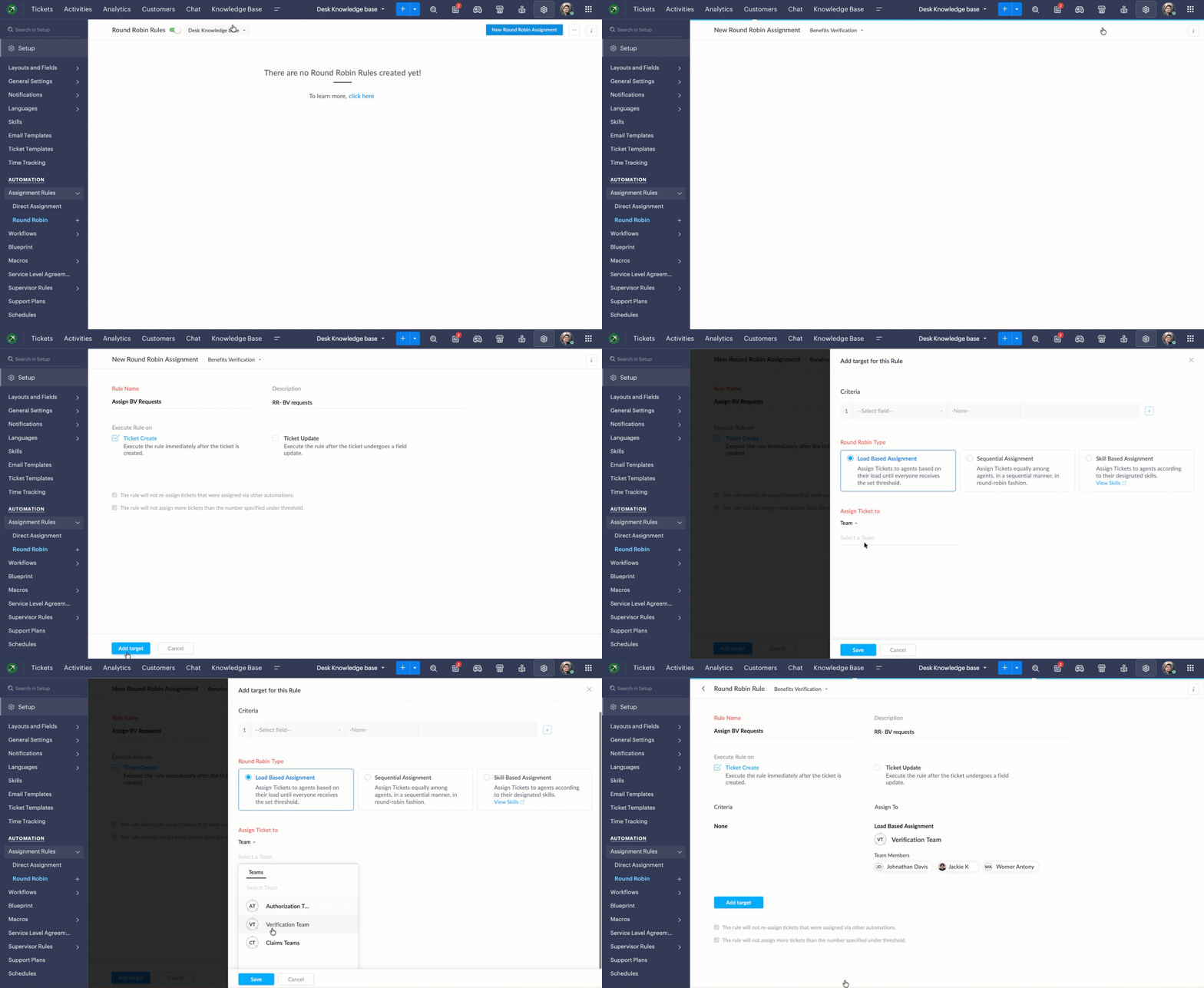
To configure assignment rules :
- Navigate to Setup → Automation → Assignment Rules.
- Select the Round-Robin assignment method.
- Select the Benefits Verification department.
- Create a new assignment rule.
- Enter a rule name such as Assign BV Requests.
- Specify the required execution criteria.
- Under Assign ticket to, select the Benefits Verification Team.
- Configure the required round-robin settings.
- Click Save.
Step 5: Create the BV Blueprint
Blueprint provides the process enforcement required to ensure that a Benefits Verification request cannot be closed before the required validations are completed.
Instead of allowing the request to move directly to Closed, the Blueprint requires it to progress through the defined validation stages.
The process follows:
Request Received → Coverage Verification → Authorization Verification → Secondary Rejection Check → Final Verification → Closed
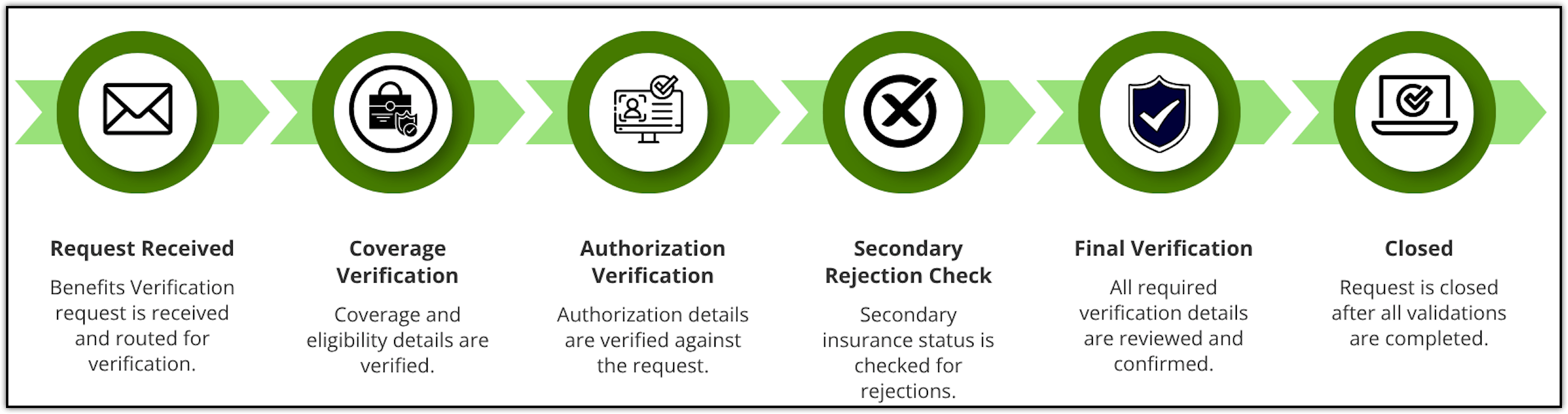
To create the Blueprint:
Navigate to Setup > Automation > Blueprint.
Click Create Blueprint.
Enter Blueprint name: BV Validation Workflow .
Enter a description explaining the validation process.
Select the ticket layout used for Benefits Verification.
Configure the record criteria that determine which tickets enter the Blueprint.
Enable Strict Mode to restrict actions outside configured Blueprint transitions.
Click Next.
Add the required states:
Request Received
Coverage Verification
Authorization Verification
Secondary Rejection Check
Final Verification
Closed
Arrange the states according to the Benefits Verification process.
Create the required transitions and specify their owners.
Configure the Before, During, and After transition actions as required.
Click Save & Complete Blueprint.
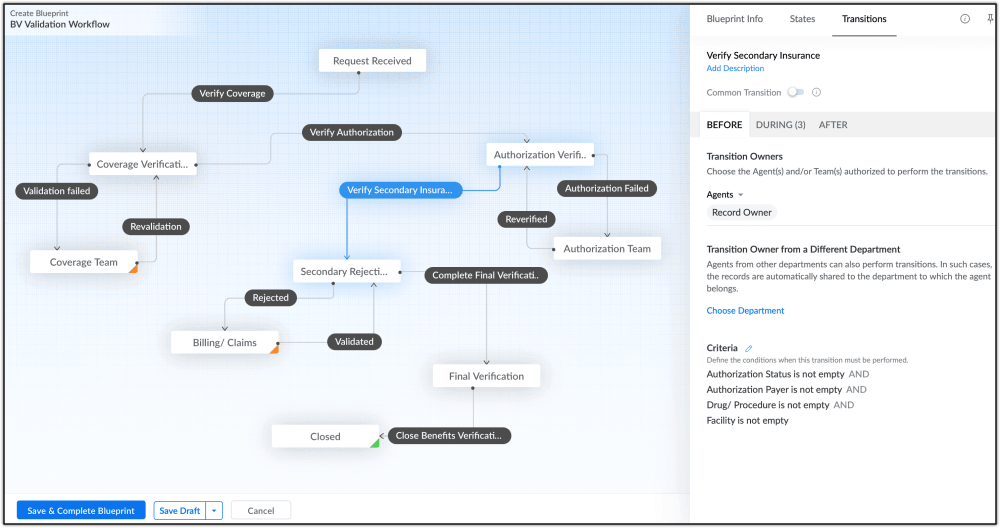
The transition configuration is the key to enforcing each validation gate. Each transition should require the information needed to pass that stage before the request can proceed.
| Purpose | From state | To state | Transition name | Conditions | Before transition | During transition |
| Initiates coverage validation. | Request Received | Coverage Verification | Verify Coverage | Required member and request details must be available. | Assign the record to the appropriate support representative or team. | Add the fields: Coverage Status, Payer, Benefit Type. |
| Moves the request to authorization validation. | Coverage Verification | Authorization Verification | Verify Authorization | Coverage verification must be completed. | Assign the record to the appropriate support representative or team. | Add the fields: Authorization Status, Drug/Procedure, Authorization Payer, Facility, Date of Service. |
| Moves the request to secondary insurance validation. | Authorization Verification | Secondary Rejection Check | Verify Secondary Insurance | Authorization verification must be completed. | Assign the record to the appropriate support representative or team. | Add the fields: Secondary Insurance Status, Rejection Status, Resolution / Action Taken. |
| Provides a final checkpoint before closure. | Secondary Rejection Check | Final Verification | Complete Final Verification | Coverage, authorization, and secondary insurance validations must be completed. | Assign the record to the appropriate support representative or team. | Add Final Verification Confirmation as a mandatory field. Add closing notes or validation remarks, if required. |
| Completes the Benefits Verification request. | Final Verification | Closed | Close Benefits Verification Request | Final verification must be completed and all mandatory closing information must be available. | Assign the record to the appropriate support representative or team. | Add Close Benefits Verification as a mandatory field. Add closing notes or validation remarks, if required. |
Handling validation failures | ||||||
| Handles failed validations and routes requests for corrective action. | Coverage Verification | Validation Failed | Coverage Validation Failed | Coverage validation must have failed and a failure reason must be available. | Assign the record to the appropriate support representative or team. | Add Validation Failure Reason as a mandatory field. |
| Handles failed validations and routes requests for corrective action. | Authorization Verification | Validation Failed | Authorization Validation Failed | Authorization validation must have failed and a failure reason must be available. | Assign the record to the Authorization Team or appropriate owner. | Add Validation Failure Reason as a mandatory field. |
| Handles failed validations and routes requests for corrective action. | Secondary Rejection Check | Validation Failed | Secondary Rejection Validation Failed | An unresolved secondary rejection must be identified. | Assign the record to the Billing/Claims Team or appropriate owner. | Add Validation Failure Reason and required rejection details. |
With these transitions in place, the request must pass the defined validation gates before it reaches the Closed state.
Step 6: Configure SLA and escalation timelines
If Benefits Verification requests have defined response or resolution commitments, configure SLA targets for the department.
To configure an SLA :
- Navigate to Setup → Automation → SLA.
- Select the department as Benefits Verification.
- Click New SLA.
- Enter the SLA Name as BV SLA and add Description.
- Under When do you want to execute the SLA?, select Ticket creation..
- Click Next.
- Click Add Targets.
- Under Select conditions for this Target, define the relevant conditions such as Priority is High
- Under Set the response and resolution time, specify the required response and resolution targets.
- Select the appropriate Operational Hours.
- Configure Response Escalation if overdue responses need to be escalated.
- Configure Resolution Escalation if overdue resolutions need to be escalated.
- Click Save.
The SLA controls response and resolution timelines, while the Blueprint controls whether the request has completed the required validation stages.
Step 7: Create reports and dashboards for BV performance
Reports and dashboards can be used to measure whether the validation process is being followed and whether it is improving operational accuracy.
To create a report:
- Navigate to the Analytics module.
- Click Reports and then Add Report.
- Select Tickets as the module.
- Click Continue.
- Select the required report type.
- Select the relevant fields, such as Ticket ID, Subject, Status, Priority, Created Time, Response Time, Resolution Time, and Ticket Owner.
- Configure aggregations such as Sum or Average where required.
- Apply criteria to filter records by department, date range, priority, or other relevant fields.
- Enter a report name as Overall BV Report and click Save.
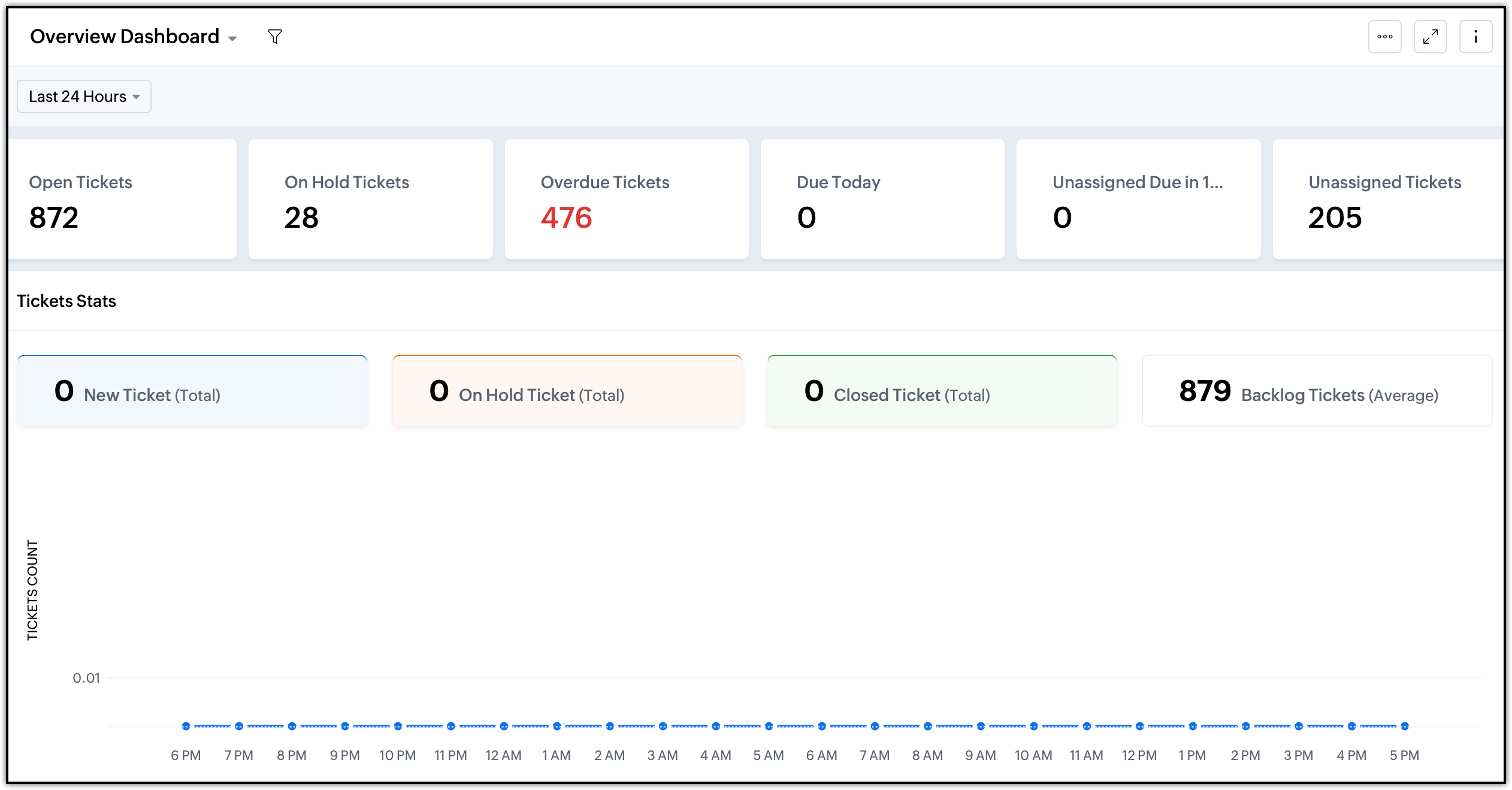
Dashboards can then provide supervisors with a consolidated view of ticket status, SLA performance, and Blueprint activity.
Output
Premature closure: Representatives close Benefits Verification requests before completing all required eligibility, authorization, and claim validations because there is no standardized verification process.
Verification Compliance: Support representatives close Benefits Verification requests before completing all required eligibility, authorization, and claim validations because there is no standardized process to enforcing verification checklist.
Data Consistency: Authorization details such as the drug name, payer, facility, and date of service need to be validated consistently, but the verification status is not always updated in a structured manner.
Downstream Billing Impact: Secondary insurance rejections remain unresolved when a request is closed, creating downstream billing issues and additional follow-up work.
Process Ownership: Requests that fail a validation require corrective action or escalation to another team, but manual routing delays resolution and makes ownership unclear.
Quality Monitoring: Supervisors need a consistent way to review completed requests and identify recurring errorsacross representatives, payers, and facilities.
Performance Visibility: The organization lacks centralized reporting to measure gate compliance, billing error rates, first-pass claim accuracy, secondary rejection resolution, and recurring errors.
- EditionProfessional and above
- Key FeaturesBlueprint
- Profile PermissionTickets and Helpdesk automation