Real-Estate Organization: Centralizes fragmented email support and establishes case management workflows for residents and buyers
Scenario
A fast-growing real estate development organization manages a high volume of customer inquiries from buyers and residents primarily through email. Resident inquiries mostly include maintenance requests, complaints, and property.
With multiple residential projects under active development, the organization receives queries from buyers via email across various touchpoints, including sales, post-sales support, and internal departmental coordination.
The support team operates across 45 users handling both external customer-facing interactions and internal cross-departmental requests. Without a centralized ticketing system, the organization struggles with fragmented email handling, lack of visibility into request status, and inconsistent response times across both internal and external support functions.
Problem
Customer emails are scattered across individual inboxes with no centralized tracking, leading to missed queries, delayed responses, and an inconsistent customer experience across residential project touchpoints.
Internal support requests from various departments (construction, sales, finance, legal) are intermingled with external customer emails, creating confusion around ownership and accountability for each request type.
Manual distribution of requests, causing uneven workload distribution among support representatives and increased first response times.
Without SLA-driven workflows, there is no mechanism to enforce response and resolution timelines, leading to unpredictable service quality and an inability to escalate overdue tickets proactively.
Internal approval processes for cross-departmental requests are handled informally through email threads, resulting in approval bottlenecks, lack of audit trails, and no visibility into the status of pending approvals.
The organization lacks reporting and analytics capabilities to measure support performance, track customer satisfaction, or identify operational bottlenecks across internal and external support functions.
Solution
The solution leverages Zoho Desk's custom ticket fields, department and team-based ownership, assignment rules, Blueprint process enforcement, SLA, workflow automation, and analytics capabilities to establish a controlled Benefits Verification process.
The three validation gates are captured as structured ticket information, while Blueprint controls the sequence in which each gate is completed. Required fields prevent an agent from progressing without recording the necessary verification results, and separate transitions can route failed validations for corrective action or escalation.
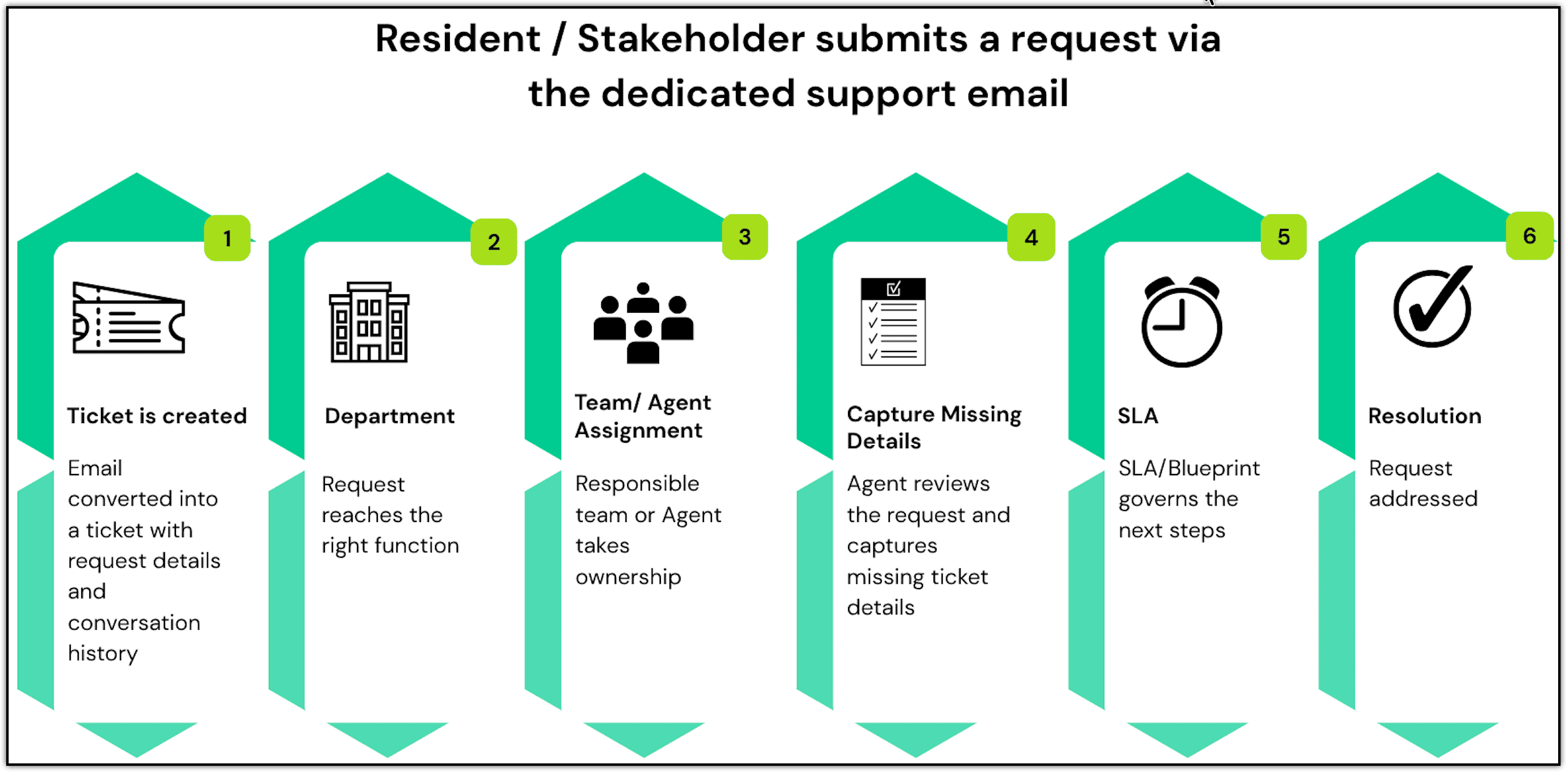
A typical resident or property support request can follow this flow:
Resident/client sends email → Ticket is created in the relevant department → Ticket is assigned to an agent → Agent reviews the request → Agent captures missing ticket details → SLA/Blueprint governs the next steps → Request is resolved
Prerequisites
Before configuring the support process, ensure that the following are configured in Zoho Desk:
- Agents: Add the agents who will handle these requests and associate them with the required departments and teams.
- Business hours: Define the working hours and holidays to be considered when calculating SLA timelines.
- Ticket fields: Identify the information required to process the requests, such as request type, priority, dependent team, or approval status.
Note: The departments, teams, ticket fields, assignment rules, SLA timelines, and workflow stages can vary based on the organization's support process.
Configuration
Step 1 : Department-based segregation for residents and buyers queries
A Department in Zoho Desk is a way to organize support operations based on specific teams, functions, or business areas within an organization.
Creating two separate departments for residents and buyers with different email aliases will ensure the tickets are not mixed up and reach the appropriate team.
Each department operates with its own agents, email aliases, automation rules, SLAs, and workflows.
For example:
| Department | Request Type | Team Assigned | Support email address |
| Residents | Maintenance/Complaint/Property upkeep | Maintenance Team | reach-maintenance@zylkerbuilders.com |
| Buyers | Pending Handover Issues/Property enquiry | Project / Construction Team | support@zylkerbuilders.com |
To configure departments:
Navigate to Setup > Organization > Departments.
In the Department Lists page, click New Department in the upper right corner.
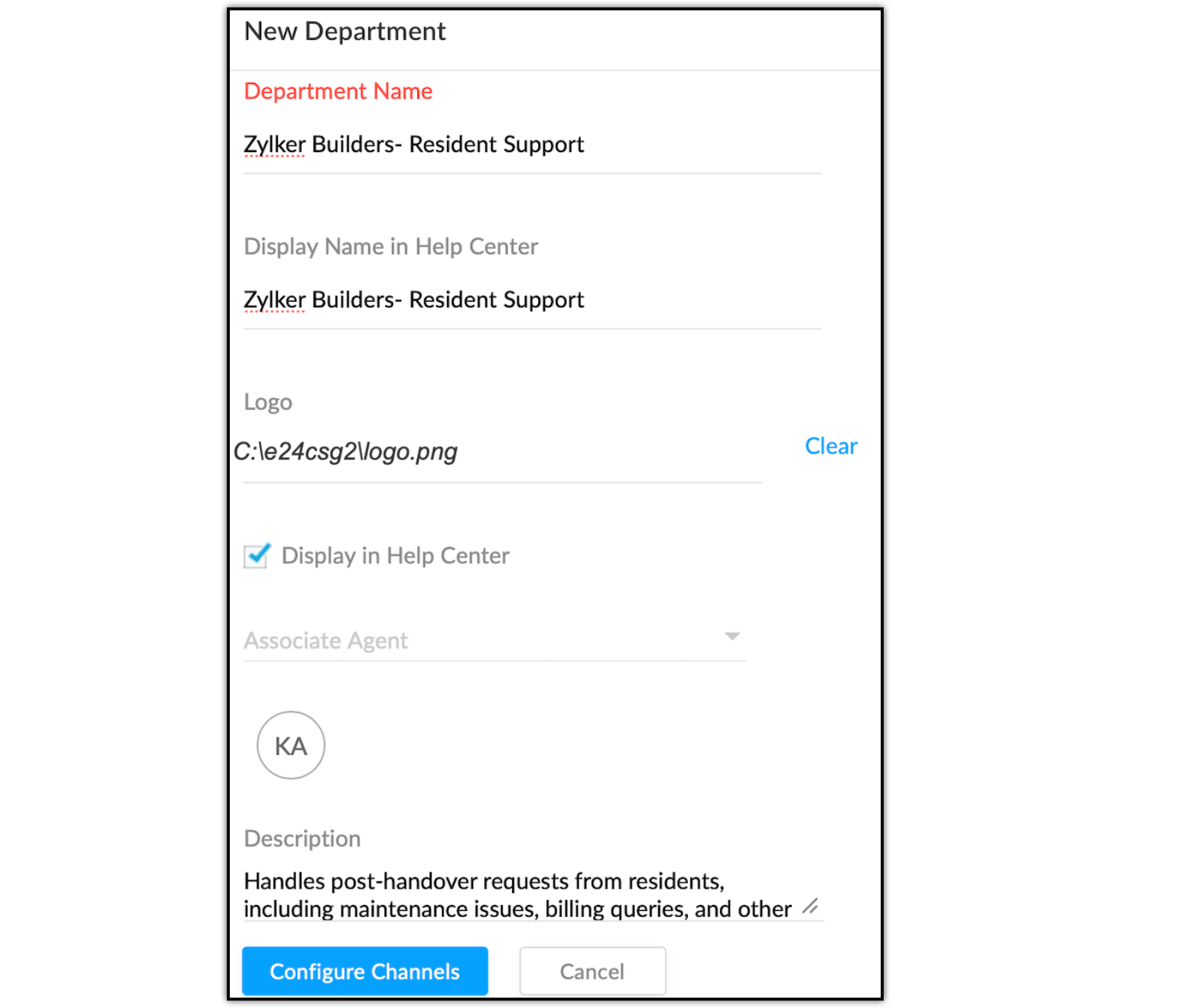
In the Add Department page, enter the following details:
Department Name: Enter the name for maintenance support department as Zylker Resident Requests.
Display Name in Help Center: Enter it exactly as it is should appear for customers in the Help Center.
Logo: Browse and select a logo for the department.
Display in Help Center: Keep this option checked for external-facing departments.
Associate Agents: Add support representatives who will handle tickets in this department.
Description: Enter a description for the department.
Click Configure Channels.
Repeat the above steps to create other support departments, and uncheck Display in Help Center to mark it as a private department for departments that handle internal ticket management.
Click Save.
Step 2: Configuring email-to-ticket conversion and department-level alias
Incoming emails are automatically converted into tickets, while department-level aliases help distinguish resident and pre-handover requests and direct them to the appropriate support team.
To configure:
Navigate to Setup > Channels > Email.
In the Support Email Address page, locate the default support email address mapped to the default department.
To create an email alias for a specific department, click New Support Email Address in the upper right area.
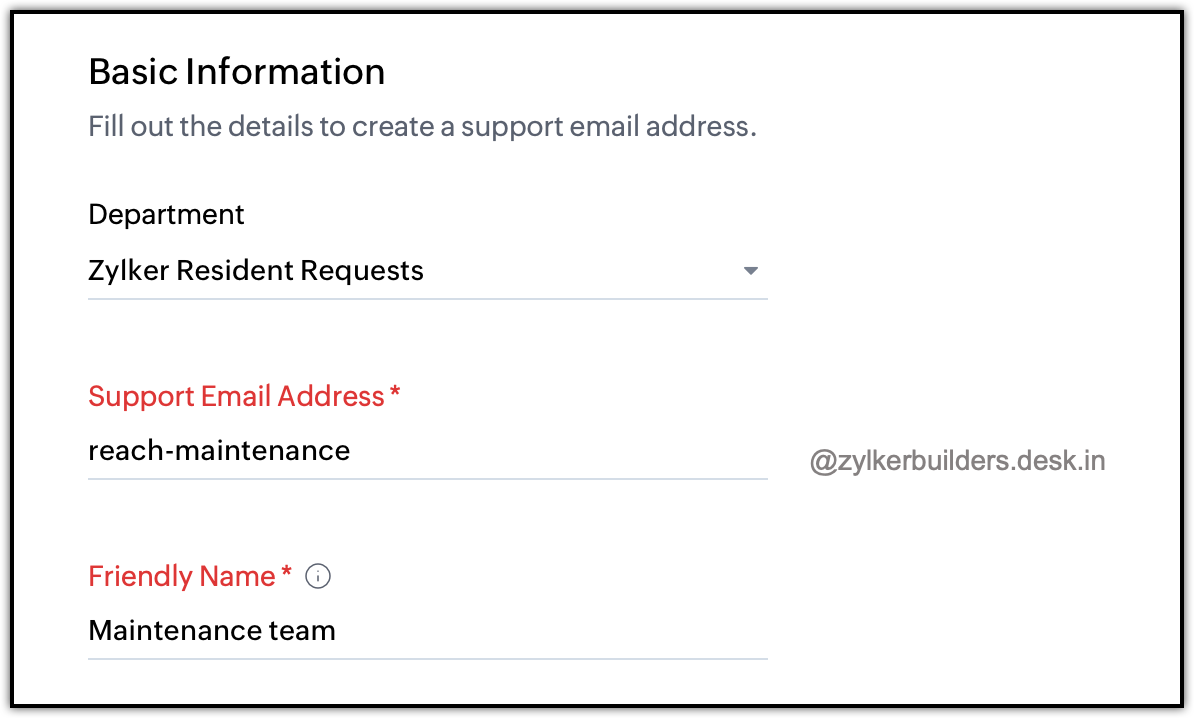
In the Add Support Email window, enter the Address as reach-maintenance@zylkerbuilders.com to receive support tickets for the maintenance department.
Enter the Friendly Name as Resident Requests for the support address.
Click Save.
To map the alias to a specific department, click Edit corresponding to the email alias.
Select the Zylker Resident Requests from the drop-down menu.
Click Save.
Repeat the above steps to create and map additional email aliases for each department (e.g., support@zylkerbuilders.com for the support department, sales@zylkerbuilders.com for the sales function).
Set up email forwarding from the organization's external email addresses to the equivalent Zoho Desk alias addresses to enable automatic email-to-ticket conversion.
Step 3: Layouts and custom fields to capture the required information to about a request
An email can contain enough information to identify the request but not everything the assigned team needs to process it.
For example, a resident may send:
“There is a water leakage in my bathroom. Please send someone to check it.”
The email identifies the issue, but the support team may also need information such as property or project, unit number, request type etc.
After the email is converted into a ticket, the assigned agent can review the request and capture the additional property, unit, and request details required to process it.
To configure layouts and custom fields in Tickets module:
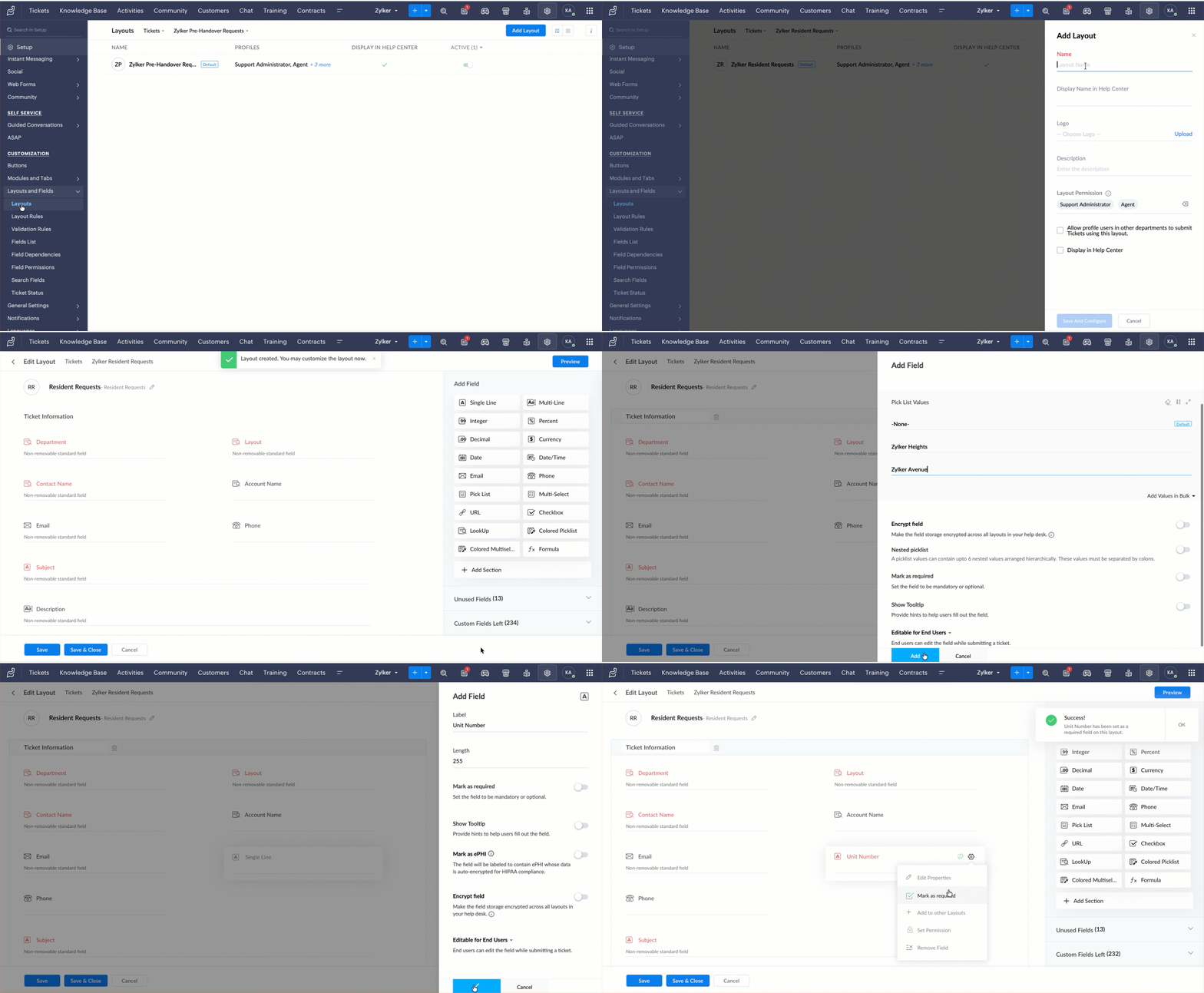
- Go to Setup > Customization > Layout and Fields.
- Under Layouts, select Tickets as the module.
- Select the department for which the fields need to be configured.
- Select the required ticket layout or create a new layout.
- In the layout editor, drag and drop the required field type from the Add Field tray to the appropriate section.
- In the field properties, enter the Label for the field and configure the available options based on the field type.
- For fields that must be completed before a ticket can be processed, enable Mark as Required.
- Add the required fields to the layout and arrange them in the order in which agents are expected to use them.
- Click Save Layout.
Ticket fields can therefore be used to add the operational information that may not be available in the original email.
When structured information needs to be collected before a request enters Desk, a Web Form may be considered.
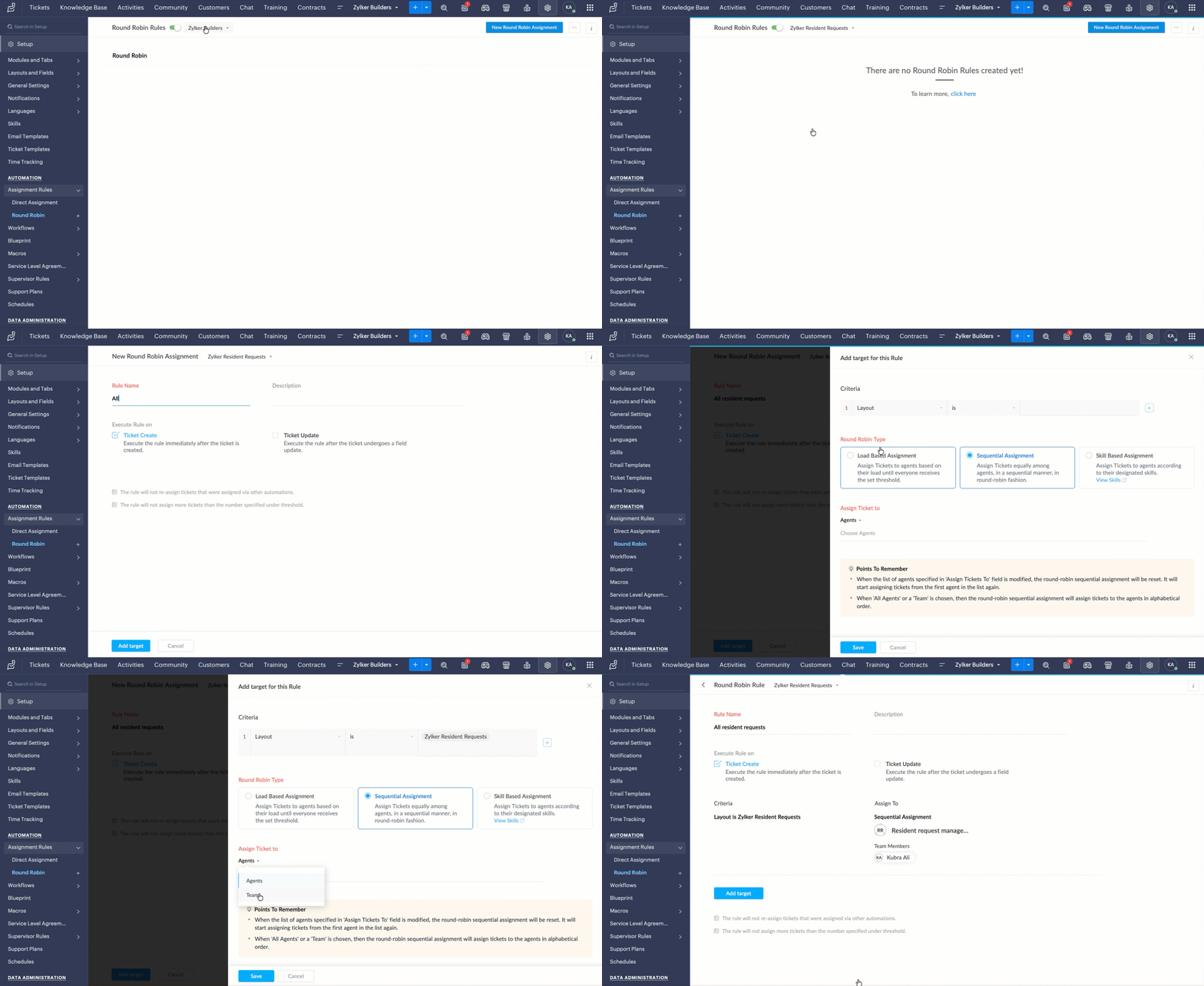
Step 4: Round-Robin assignment to route requests to the appropriate team
Round-robin assignment rule distributes incoming tickets equally among available support reps in each department, preventing workload imbalance and reducing first response time.
To configure assignment rules:
- Navigate to Setup > Automation > Assignment Rule.
- Click Round Robin under the Assignment Rules sub-menu.
- On the Round Robin Rules list page, click New Round Robin Assignment.
- Select the Department as Zylker Resident Requests from the available departments drop-down for which the rule will be created.
- On the New Round Robin Assignment page, enter the Rule Name as Resident Requests.
- Specify the Execution Criteria for the rule by selecting Ticket Creation.
- Click Add Target.
On the Add Target page, complete the following:
- Criteria: Enter criteria for the rule if needed, or leave blank to apply to all tickets.
- Assignment Method: Select Round Robin assignment.
- Assign ticket to: Select the agents or team who should be assigned as the owners of the tickets.
- Click Save.
Repeat the above steps for each department to create department-specific round-robin assignment rules.
Step 5: Creating SLAs with escalation rules
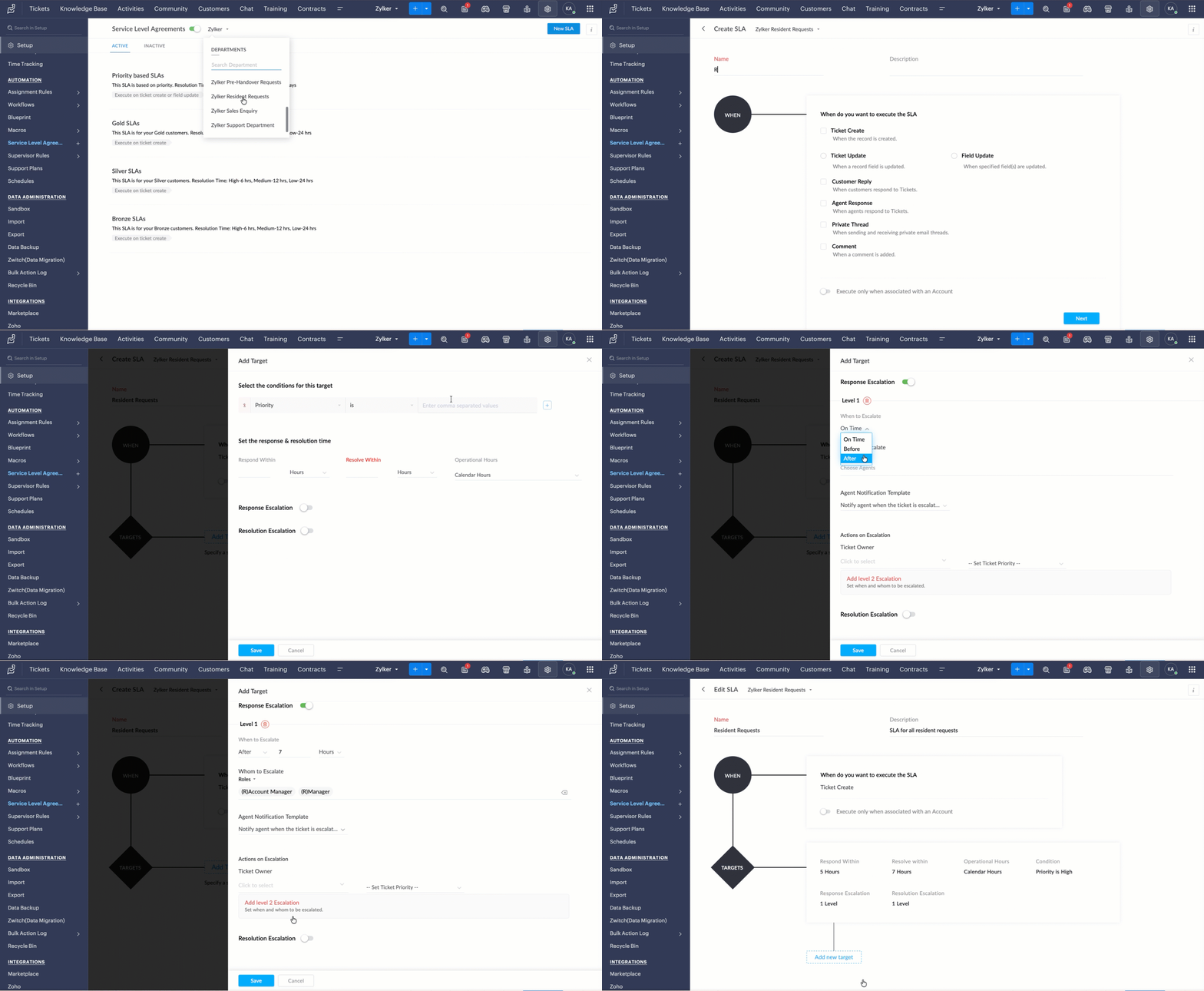
SLAs define the expected response and resolution time for resident requests based on their priority. This helps ensure urgent maintenance issues are addressed faster, while escalation rules notify the appropriate team when a ticket is approaching or exceeding its defined target.
To configure the SLAs:
Navigate to Setup > Automation > SLA.
Click New SLA.
In the Create SLA page, enter the SLA Name as Resident Requests and add Description.
Under When do you want to execute the SLA?, select Ticket creation.
Click Next.
Click Add Targets.
Under Select conditions for this Target, select fields and corresponding values to set criteria (e.g., Priority is High).
Under Set the response and resolution time, enter values for Respond within and Resolve within, and select Minutes, Hours, or Days.
In Operational hours, select Business Hour from the drop-down.
Toggle Response Escalation, and in Level 1 escalation, do the following:
Select When to escalate: Choose Before, On time, or After.
Under Whom to escalate, select the roles, ticket owner, or contacts to be notified.
Select an Agent Notification Template from the drop-down.
Under Actions on Escalation, select an Agent as the new Ticket Owner.
Set the priority of the ticket to High, Medium, or Low.
Click Add Level 2 escalation if a second escalation level is required, and repeat the above sub-steps.
Toggle Resolution Escalation and configure escalation levels following the same steps as response escalation.
Click Save.
Repeat the above steps to create department-specific SLAs with appropriate response and resolution targets.
Step 6: Creating workflow rules for automated notifications
Automated notifications keep residents and support teams informed when specific ticket events or conditions occur. For resident requests, notifications can be triggered by events such as ticket assignment, status changes, or actions that require attention.
To configure:
- Navigate to Setup > Automation > Workflows.
- In the Workflows List page, click Create Rule in the upper-right area.
- In the New Workflow page, under Part 1: Basic Information:
- Select the Module as Tickets from the drop-down list.
- Enter the Rule Name as Inbound resident request.
- Select the Active checkbox.
- Enter the Description for the workflow rule.
- Click Next.
- Under Part 2: Execute On, select Create to execute the rule when tickets are created.
- Click Next.
- Under Part 4: Actions, click the Add icon and select New from the drop-down list corresponding to Alerts.
- In the New Alert window:
- Specify the Name as Ticket assignment for the Alert.
- Choose the Email Template from the drop-down list.
- Specify who should receive the alert by selecting Groups, Roles, or Agents.
- Enable Notify Contact to send the acknowledgement email to the customer.
- Click Save.
- Click Save to save the entire workflow rule.
- Repeat the above steps to create additional workflow rules for triggers such as customer reply, status change, or ticket closure.
Step 7. Creating a blueprint for internal approval workflows
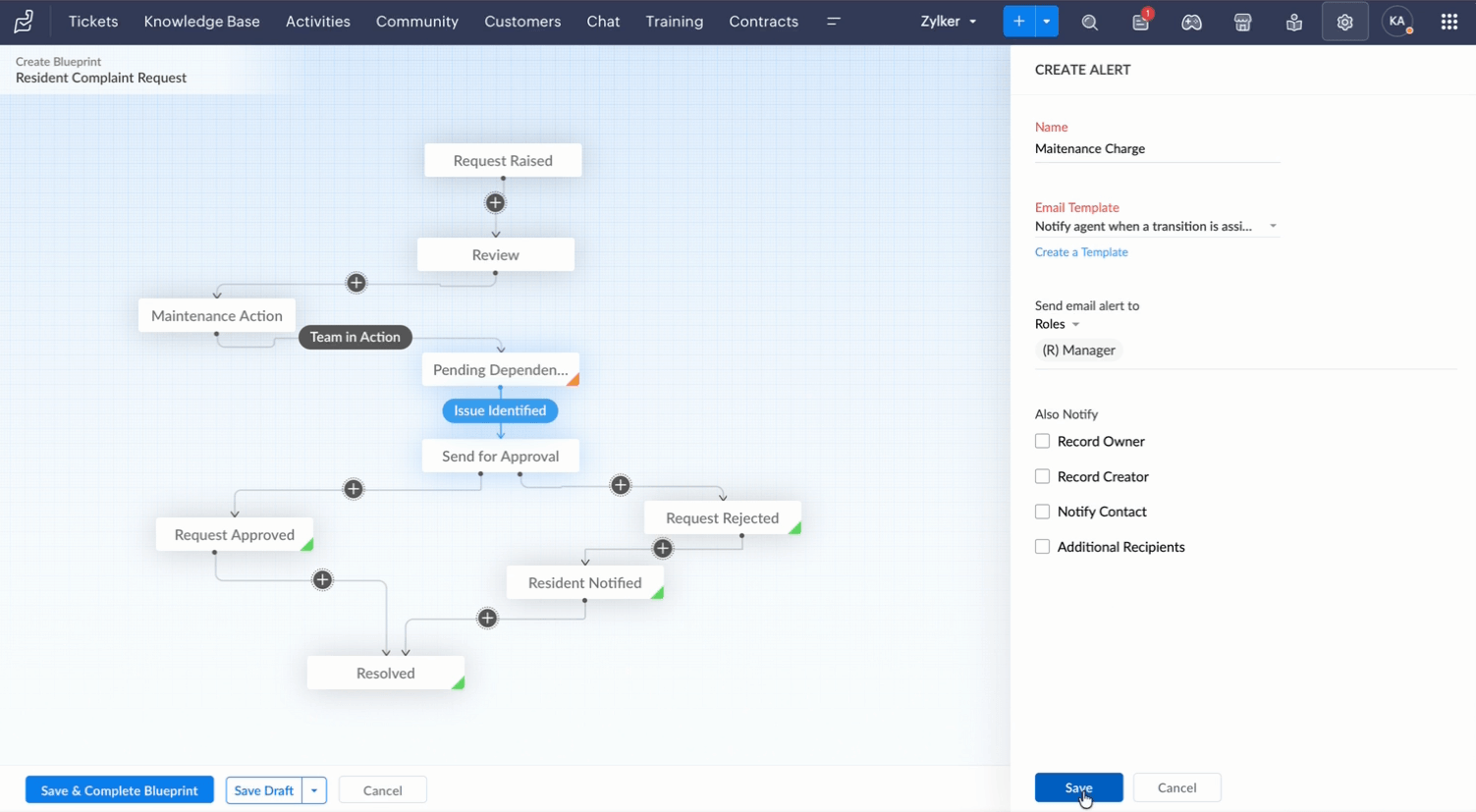
Blueprint enforces a standardized, state-by-state process for internal approval requests. Each approval request follows a predefined sequence of states and transitions, with designated transition owners who are authorized to approve or reject at each stage. Mandatory fields ensure that all required information is captured before a transition can be performed, and state-level SLAs can be applied to prevent approval bottlenecks.
When the request also needs to move through several defined stages, a Blueprint guides the ticket through that process.
A residents request, for example, may require review, maintenance action, a dependency, resident confirmation, and resolution:
Request Raised → Review → Maintenance action → Approval → Resident confirmation → Resolved
Similarly, a buyer request may follow a process such as:
Query raised → Project review → Construction status → Inspection → Approval → Resolved
The stages and transitions can be configured based on the actual process followed by the support team.
To configure a blueprint:
- Navigate to Setup > Automation > Blueprint > Create Blueprint.
- In the Create Blueprint page, enter the blueprint name as Resident complaint request and add description.
- Select a layout that is created in the support department.
- Select the record type.
- Choose Specific records to apply the blueprint to records matching defined criteria, or
- Choose All records to apply the blueprint to all records in the department.
- Select Strict Mode to prevent representatives from editing fields, sending replies, or adding comments outside of a transition.
- Select Is this a continuous Blueprint to automatically trigger the next transition upon completion of the current one.
- Click Next.
- In the Create Blueprint page, drag and drop the required states (e.g., Pending Approval, Under Review, Approved, Rejected).
- In the transition tab, enter the transition name and description.
- Select the transition owner by choosing an agent or team authorized to perform the transition.
- Configure Before, During, and After transition conditions:
- Before: Set mandatory fields that must be completed before the transition can be initiated.
- During: Define field updates or notifications triggered during the transition.
- After: Specify actions such as status updates or alerts triggered after the transition is completed.
- Click Save & Complete Blueprint.
Step 8: Creating custom reports and accessing dashboards
Resident and property support teams can use custom reports and dashboards to monitor ticket volumes, response and resolution times, and request trends. This provides visibility into recurring issues and helps track how effectively resident requests are being handled.
To configure:
- Navigate to the Analytics module.
- Click Reports and then Add Report in the upper-right area.
- Select Tickets as the module for which the report needs to be created.
- Click Continue.
- Select the Report Type (Tabular, Summary, or Matrix) based on the reporting requirement.
- Select the relevant fields to include in the report (for example, Ticket ID, Subject, Status, Priority, Created Time, Response Time, Resolution Time, and Ticket Owner).
- Select the columns to total as Sum, Average, Lowest Value, or Highest Value, based on the reporting requirement.
- Apply Criteria to filter records by department, date range, or priority.
- Enter a report name and click Save.
- To access predefined dashboards, navigate to the Dashboards module.
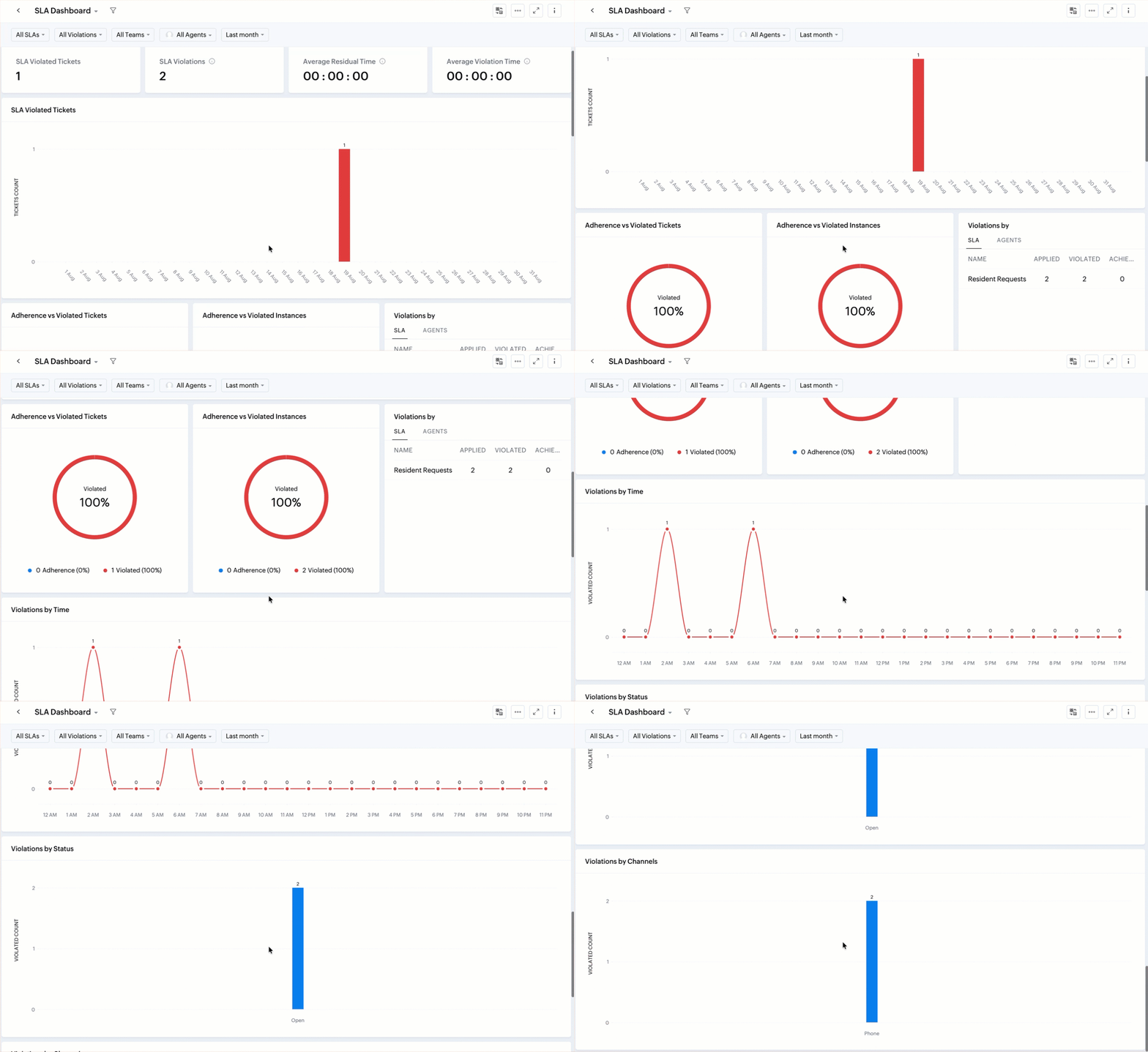
- Select from the available dashboards, including Overview Dashboard, Ticket Status Dashboard, SLA Dashboard, Customer Happiness Dashboard, and Blueprint Dashboard.
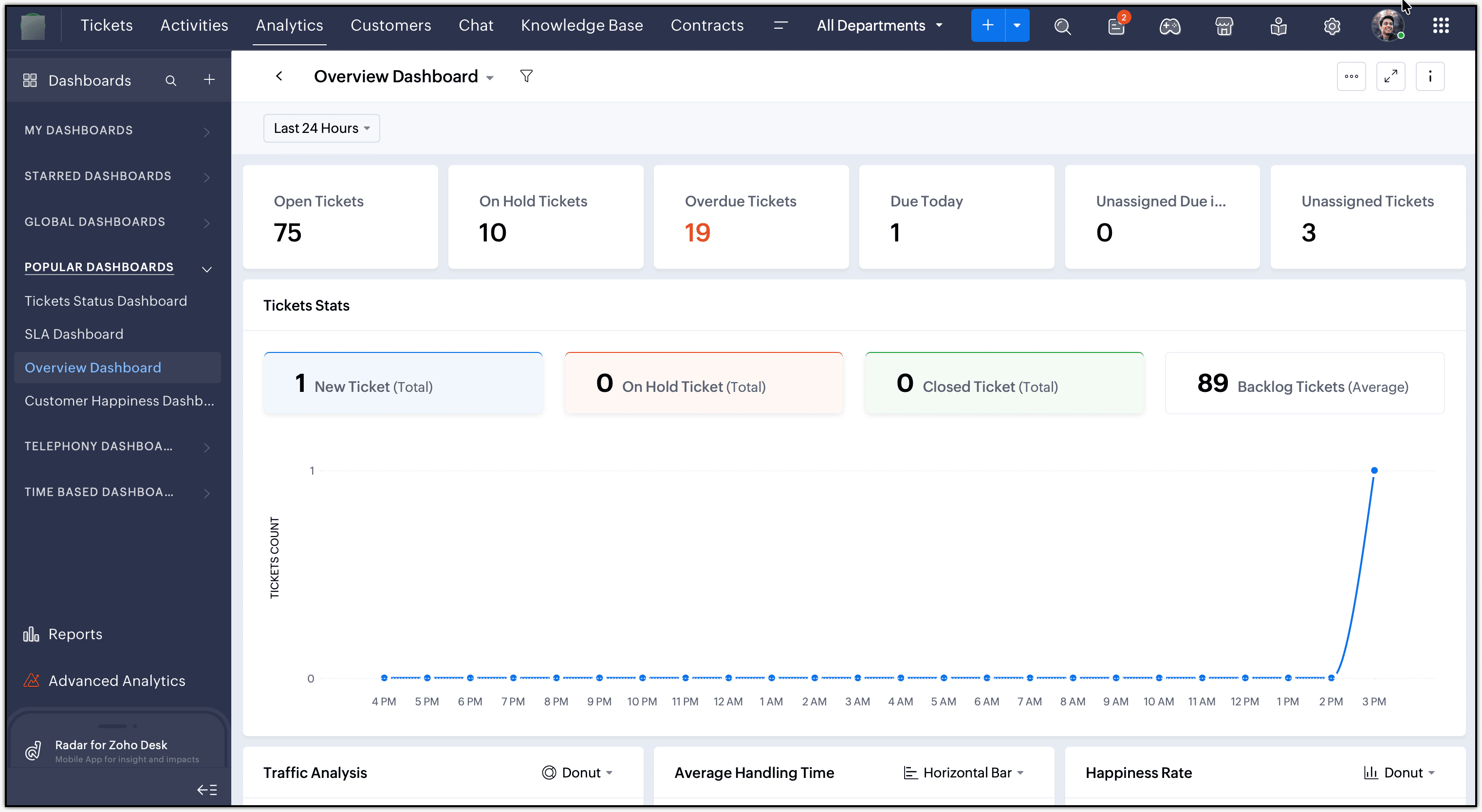
12. Use the Blueprint Dashboard to monitor active Blueprint tickets, SLA-violated states, average time per state, and transition occurrence frequency for internal approval processes.
13. Use the SLA Dashboard to track SLA compliance, violations by channel, and violations by status across departments.
Step 9: Enabling customer happiness ratings
Customer Happiness Ratings help the support team measure how residents perceive the support they receive. Feedback on completed requests can highlight recurring service issues, identify gaps in the support experience, and provide insights for improving resident service.
To configure:
- Navigate to Setup > Organization > Customer Happiness.
- In the Customer Happiness page, click Get Started.
- In the Rating Configuration page, provide the following:
- Rating Question: Enter a question to pose to customers about their satisfaction with the support service.
- Ratings: Configure the rating options (Good, Okay, Bad). Disable the Okay rating if neutral feedback is not desired.
- Add Rating Link: Choose to add the rating link To every response sent or When a ticket is closed.
- Rating Link: Choose to display the rating question alone or with smileys.
- Rating link accessible to: Select Anyone on the internet, Requesters and cc'd users, or End users.
- Display Widget in the Help Center: Enable this option to display overall ratings in the Help Center.
- Show Agent Photo: Enable this option to display the representative's picture in the rating form.
- Reopen Ticket: Choose to reopen a ticket on receiving a negative rating or for all ratings.
- Enable Survey: Select the external-facing departments for which happiness ratings should be enabled.
- Notify Ticket Owner For: Choose to notify ticket owners on receiving negative ratings or all ratings.
- Click Save.
Output
With this structure in place, a resident maintenance complaint and a pre-handover construction query received by email can follow the support process relevant to each request. Each ticket can retain its assigned team, required information, pending dependencies, and next steps in one place.
For example, a maintenance request can remain with the Maintenance team while a replacement part is awaited, while a pre-handover issue can move through project review, construction, inspection, and approval before closure.
This allows the support team to manage the request based on what needs to happen next, rather than continuing to coordinate the entire process through separate email conversations.
- EditionExpress and above
- Key FeaturesWorkflows, Blueprint and SLAs
- Profile PermissionTickets and Helpdesk automation