Standardize ticket creation using custom profile permissions
Scenario
A software-based enterprise manages a multi-tier support structure where customers can create tickets through email, chat, and the customer portal.
Senior support staff and managers also need to create tickets when issues are reported through phone calls, internal teams, or escalations.
Meanwhile, junior support staff, Quality Analysts, and Back-office personnel primarily work on tickets that have already been created and do not initiate new support requests.
To maintain controlled ticket intake, the organization needs to restrict manual ticket creation to authorized support users while allowing other internal users to work on existing tickets.
Problem
In a multi-tier support environment, not every user who works on tickets needs permission to create new ones. When ticket creation is available to all support users, users who are responsible only for reviewing or processing existing tickets may create new records unnecessarily.
This can result in:
- Duplicate tickets for issues that are already being handled.
- Unnecessary tickets being created by users who only need to work on existing cases.
- Incomplete or incorrectly routed requests entering the support queue.
- Additional effort for senior staff to identify and correct tickets that should not have been created.
- Reduced control over who can introduce new records into the support system.
Solution
The organization uses Profile Permissions to control who performs certain actions and who doesn't. A custom profile is created for users who only work on existing tickets but should not create new ones.
The users under this profile can view, add comments, perform blueprint transitions, reply to the customer, share a ticket, etc., but cannot create a ticket, while updating existing tickets is retained.
The senior support staff and managers are given permission to create tickets and also move tickets across departments when necessary. This enables them to quickly route the tickets to the right team.
Configuration
To create a Custom profile
- Navigate to Setup > User Management > Profiles.
- Click New Profile.
In the New Profile page, enter the following details:
• Profile Name: "Restricted Ticket User"
• Clone Profile: "Agent".
• Profile Description: "Profile for users who work on existing tickets but cannot create new ones".
- Click Save.
- In the Profile Information page, under Module Permissions, locate the Tickets module.
- • Uncheck the Create access permission to prevent users assigned to this profile from creating new ticket records.
To associate Users with the Custom Profile and Role
- Navigate to Setup > User Management > Agents.
- In the AgentsList page, select the agents : Edwin
- In the Agent's detail view page, click the Edit icon.
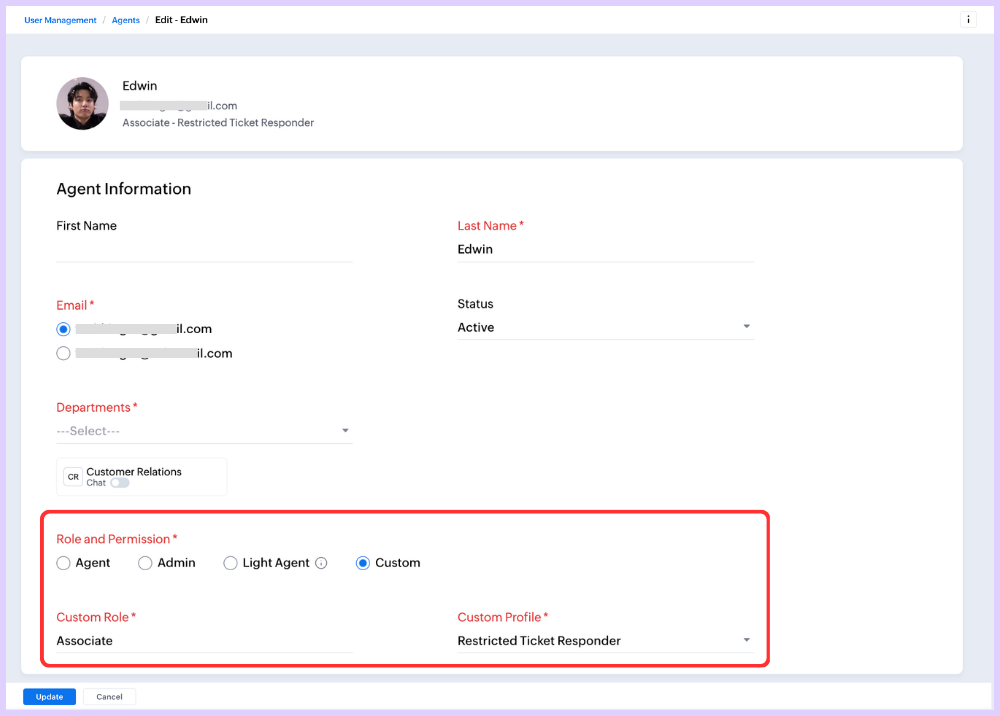
In the Edit Agent Information page, under Roles and Permissions
• Select Custom.
• Select Custom Role and choose "Associate".
• Select Custom Profile and choose "Restricted Ticket User".
- Click Save.
Note: Repeat for each user who should be restricted from creating tickets.
Output
- Only authorized support users were allowed to create tickets, and junior associates, Quality Analysts, and Back-office personnel were responsible for resolving the tickets.
- Unnecessary ticket creation was reduced clearing the database.
- Ticket creation responsibilities were clearly marked across user groups, improving control over new ticket intake.
Read more:
- EditionStandard and above
- Key FeaturesProfiles in User Management
- Profile PermissionTicket - Access Permission