

Integrate Zoho Books with WhatsApp

Using WhatsApp for communication offers an easy way to send messages to your customers and vendors with a personalized touch. By integrating Zoho Books with WhatsApp, you can send notifications for invoices, sales orders, payment receipts, customer statements, quotes, retainer invoices, credit notes, and sales receipts to your customers, and vendor statements to your vendors.
Once you enable WhatsApp in Zoho Books, you need to purchase credits to send notifications to your customers and vendors. Learn more about WhatsApp Instant Messaging (IM) Credits.
Go to Purchases on the left sidebar and select Vendors.
Select the vendor to enable WhatsApp, and in the Details page, click Edit in the top right corner.
- To create a new vendor and enable WhatsApp for them, click + New in the top right corner of the List page and enter the required details.
In the next page, check WhatsApp next to Communication Channels.
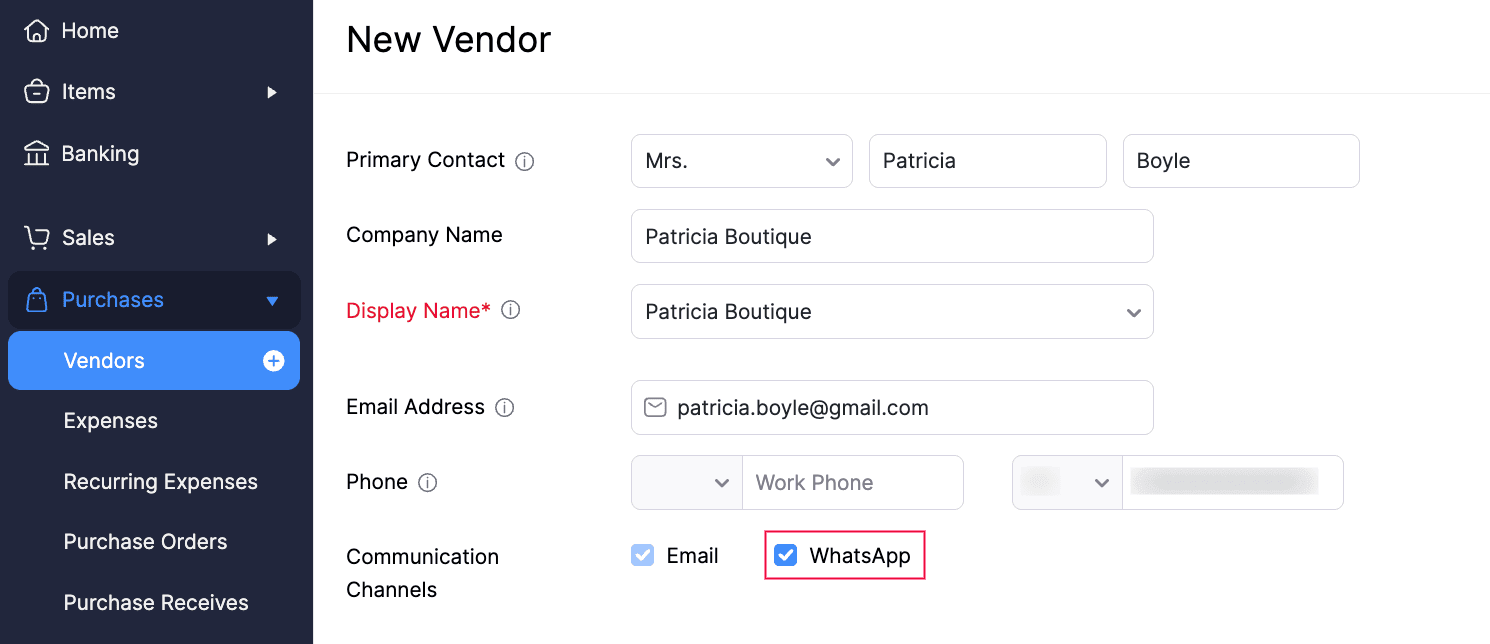
Click Save.
WhatsApp will be enabled for the respective vendor.
You can also enable WhatsApp for vendors in bulk. To do this:
Go to Purchases on the left sidebar and select Vendors.
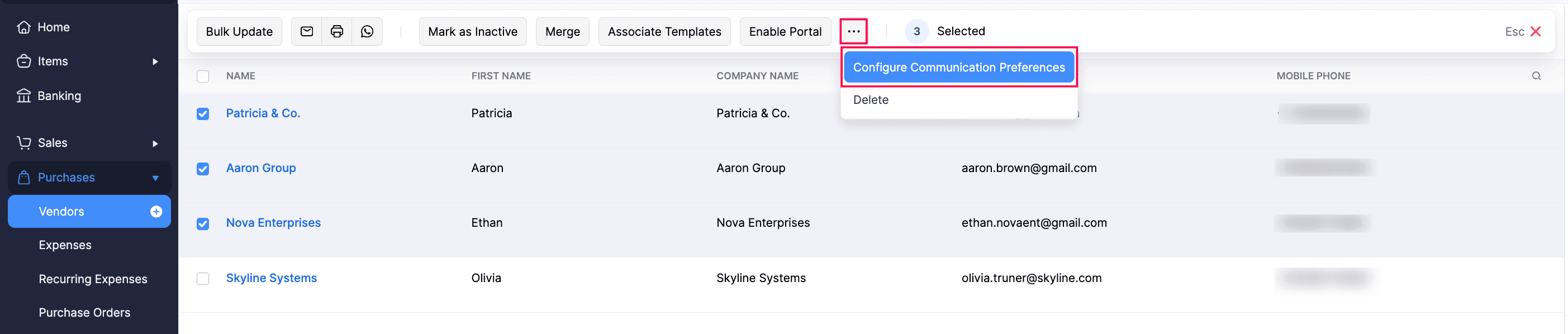
Select the vendors for whom you want to enable WhatsApp.
Click the More icon at the top of the List page and select Configure Communication Preferences from the dropdown.
In the Configure Communication Preferences pop-up, choose if you want to enable WhatsApp only for the vendors as well as their contact persons.
Click Save.
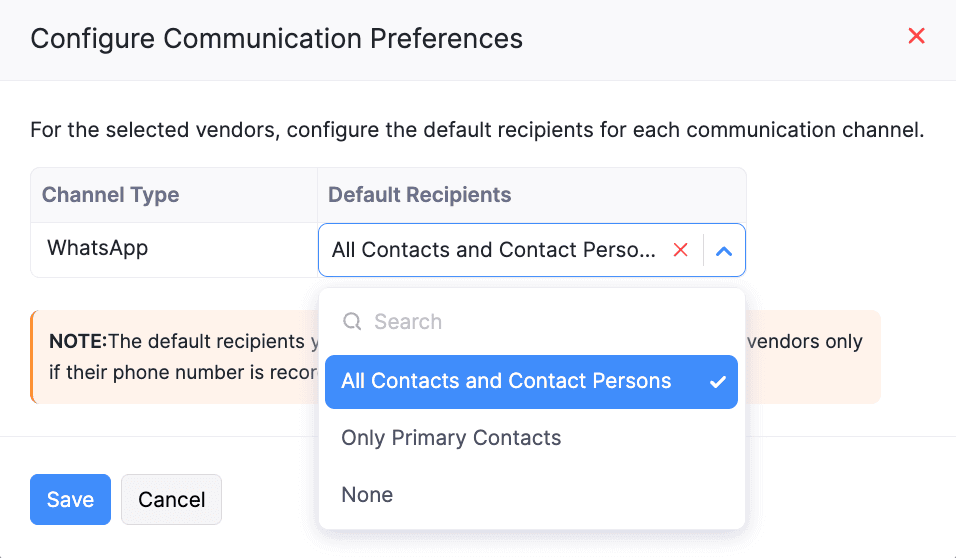
WhatsApp will be enabled for the selected vendors, based on chosen preferences.
Enable WhatsApp for Vendor’s Contact Persons
Once you’ve enabled WhatsApp for your vendors, you can also enable WhatsApp for their contact persons.
Prerequisite:
Ensure that you’ve provided phone numbers for the contact persons with a ‘+’ followed by the country code to enable WhatsApp for them.
To enable WhatsApp for a vendor’s contact person:
Go to Purchases on the left sidebar and select Vendors.
Select the vendor for whose contact persons you want to enable WhatsApp.
In the vendor’s Details page, under Contact Persons, click the Gear icon next to the required contact person, and select Edit from the dropdown.
- To add a new contact person and enable WhatsApp for them, click the Add icon next to Contact Persons.
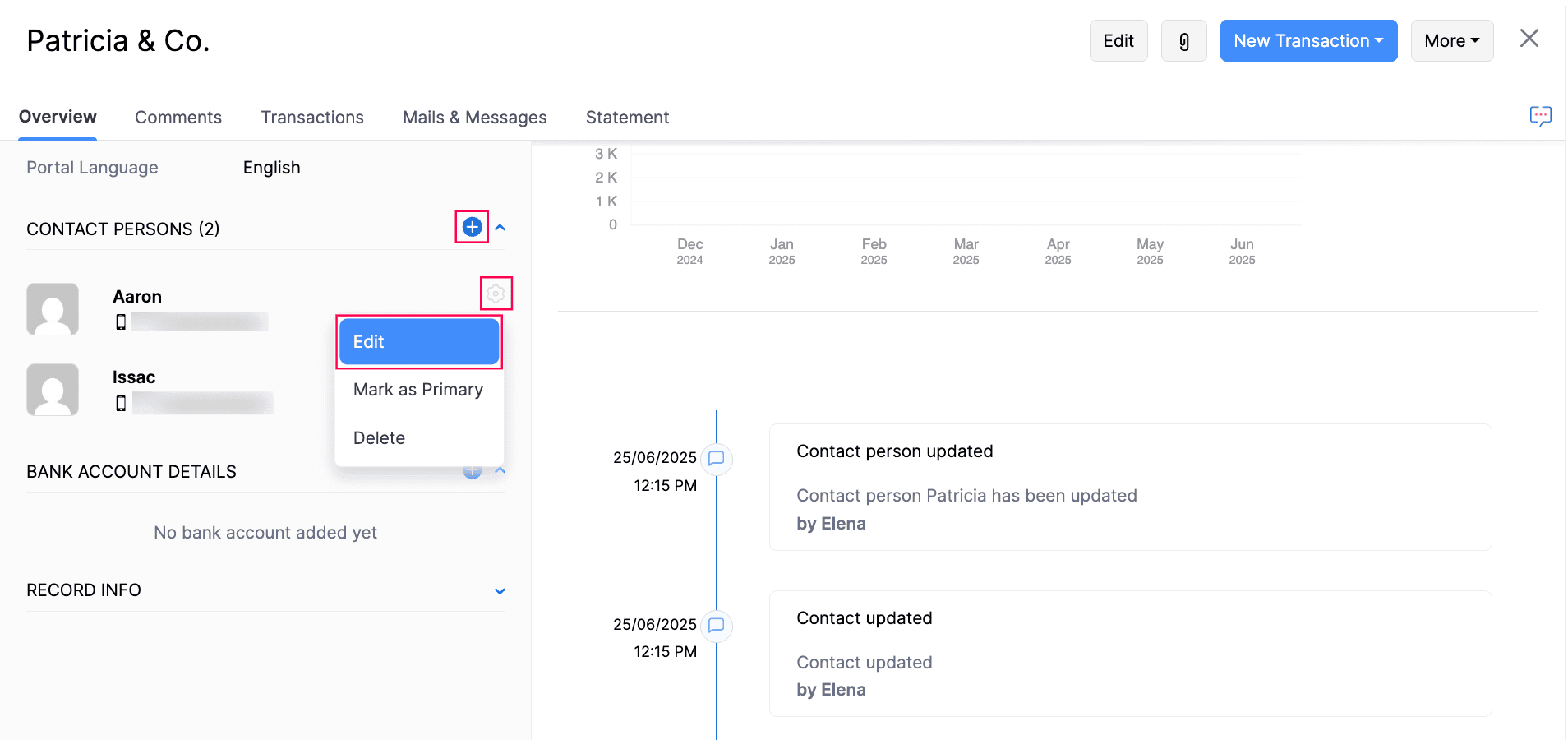
In the following pop-up, check WhatsApp next to Communication Channels.
Click Save.
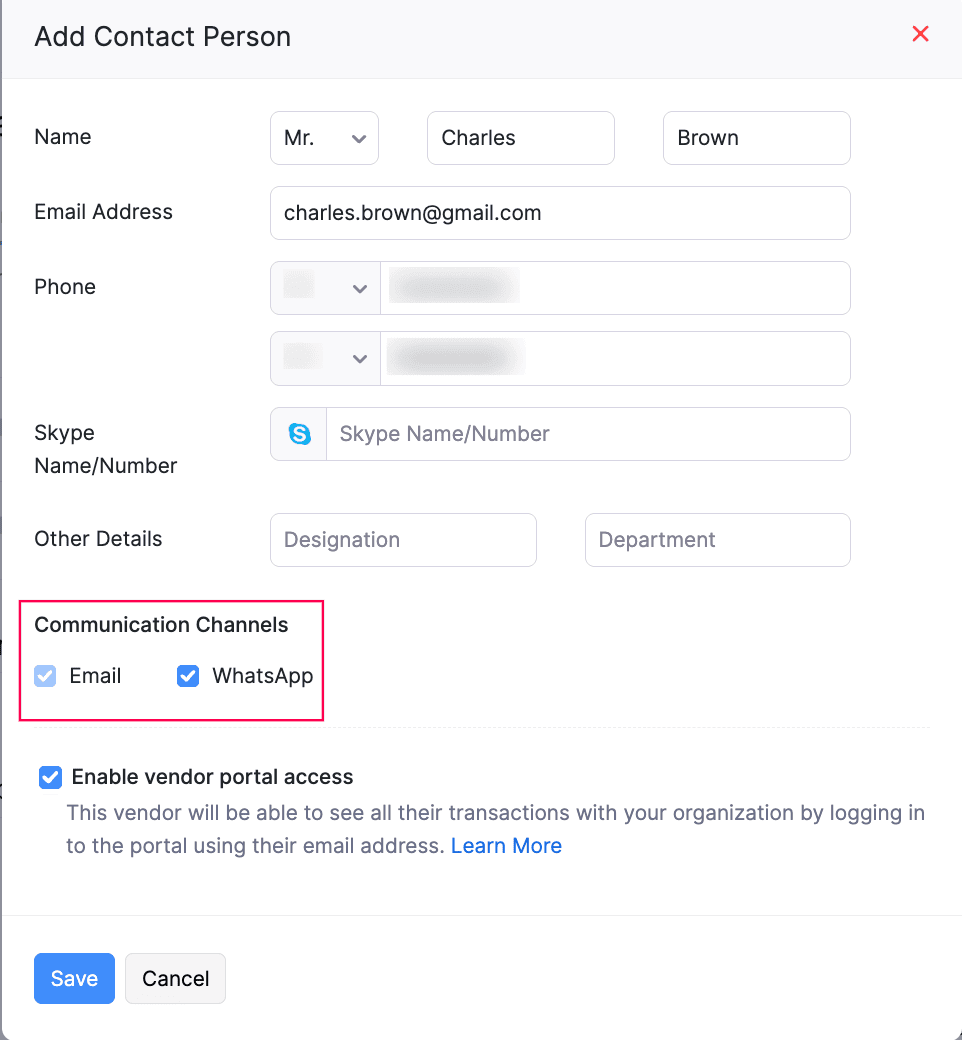
WhatsApp will be enabled for the vendor’s contact persons.
Manage WhatsApp Credits
WhatsApp Instant Messaging (IM) Credits
Once you enable WhatsApp in your Zoho Books organization and create templates, you’ll have to purchase IM (Instant Messaging) credits to send notifications through your WhatsApp Business account. Learn more about how credits work.
Buy IM Credits
To buy WhatsApp IM credits in Zoho Books:
- Go to Settings.
- Select WhatsApp under Integrations and Marketplace.
- Click Buy IM Credits at the top of the WhatsApp configuration page.
- In the Buy IM (Instant Messaging) Credits pop-up, enter the number of IM credits you want to purchase. The price for one IM credit will be displayed next to the field.
- Click Calculate Payment. The total amount (including tax) will be displayed.
- Click Make Payment.
You’ll be redirected to the payment gateway, where you can make payment for the IM credits you want to purchase. Once done, the credits will be added to your organization. You can also buy credits from the Zoho Store.
Note: The amount used to purchase IM credits for WhatsApp may vary, depending on the currency you use for the purchase.
IM Credits Usage Report
In Zoho Books, you can view and keep track of your IM (Instant Messaging) credits usage directly from the Reports module. This helps you monitor and manage your IM credits efficiently.
To view the IM Credits Usage report:
- Go to Reports on the left sidebar.
- Select IM Credits Usage under Activity.
You can view the details of the IM credits you had used for your WhatsApp Business account.
WhatsApp Notifications Report
In Zoho Books, you can view and monitor the WhatsApp notifications you send to your customers and vendors, along with their statuses.
To view the WhatsApp Notifications report:
- Go to Reports on the left sidebar.
- Select WhatsApp Notifications under Activity.
You can view the list of WhatsApp notifications sent to your customers and vendors. To filter this report based on customer and vendor communications:
Go to Reports on the left sidebar.
Select WhatsApp Notifications under Activity.
In the WhatsApp Notifications page, click the Contact Type dropdown at the top of the page, and select if you want to filter the report with Customers, Vendors, or both.
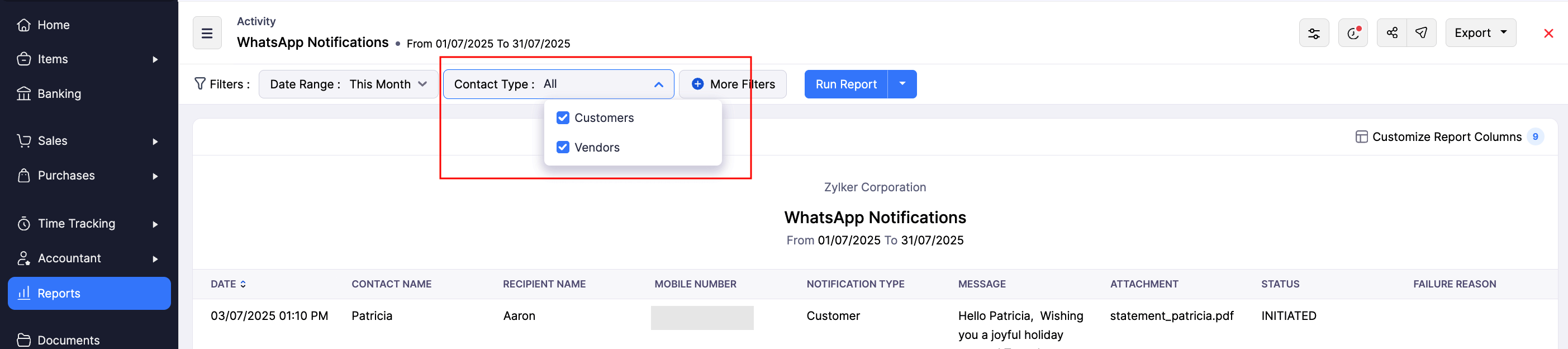
Click Run Report.
The report will be displayed, based on chosen preferences.
To customize this report:
- In the WhatsApp Notifications page, select the Date Range for which you want to generate the customized report.
- Click + More Filters at the top of the page.
- In the dropdown that appears, apply the required filters.
- Click Run Report.
The custom report will be generated, based on chosen preferences. Subsequently, you can view the original report again. You can also schedule, export, or share the custom report.
Send Notifications through WhatsApp
Send Invoice Notifications
Go to Sales and select Invoices.
Click + New at the top-right corner and enter the necessary details.
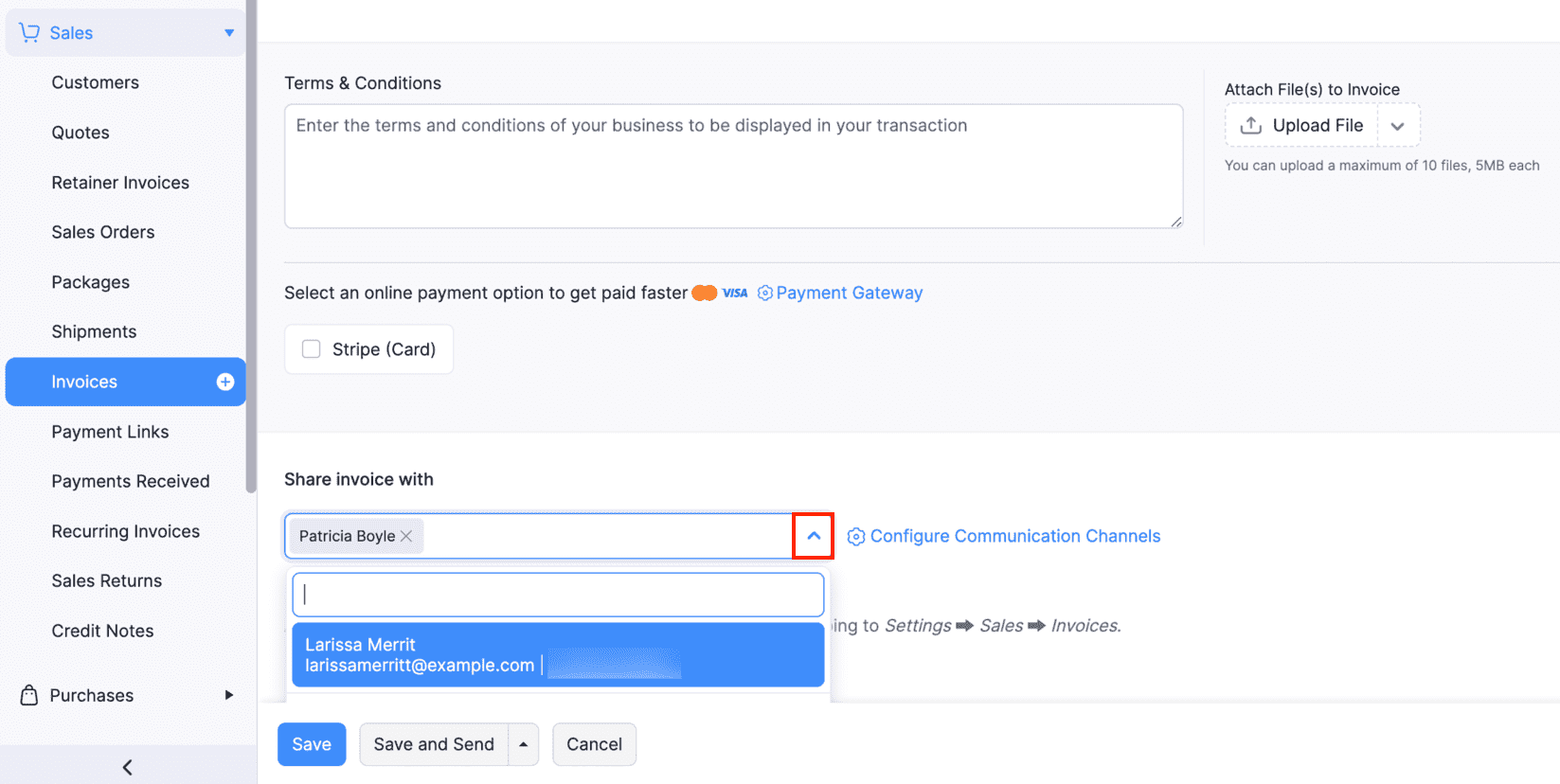
Select the contact persons to whom you want to share the invoice details from the Share invoice with dropdown and click Save and Send.
In the screen that follows, verify the Message Template and Contacts, and click Send.
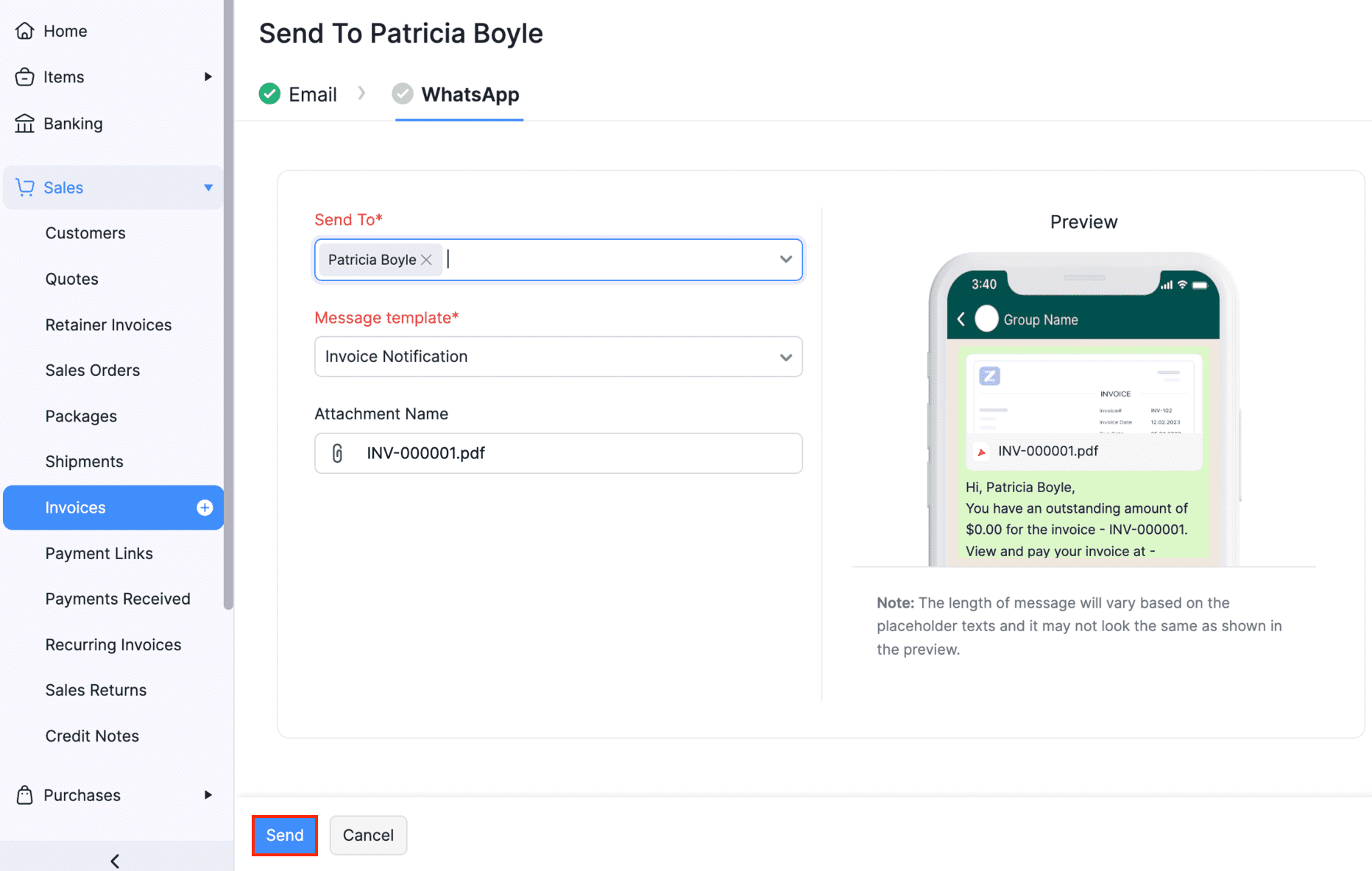
The invoice notification will be sent to the respective contacts.
To send a WhatsApp notification for existing invoices:
Go to Sales and navigate to Invoices.
Select the invoice for which you want to share the invoice details.
Select WhatsApp Message from the Send dropdown.
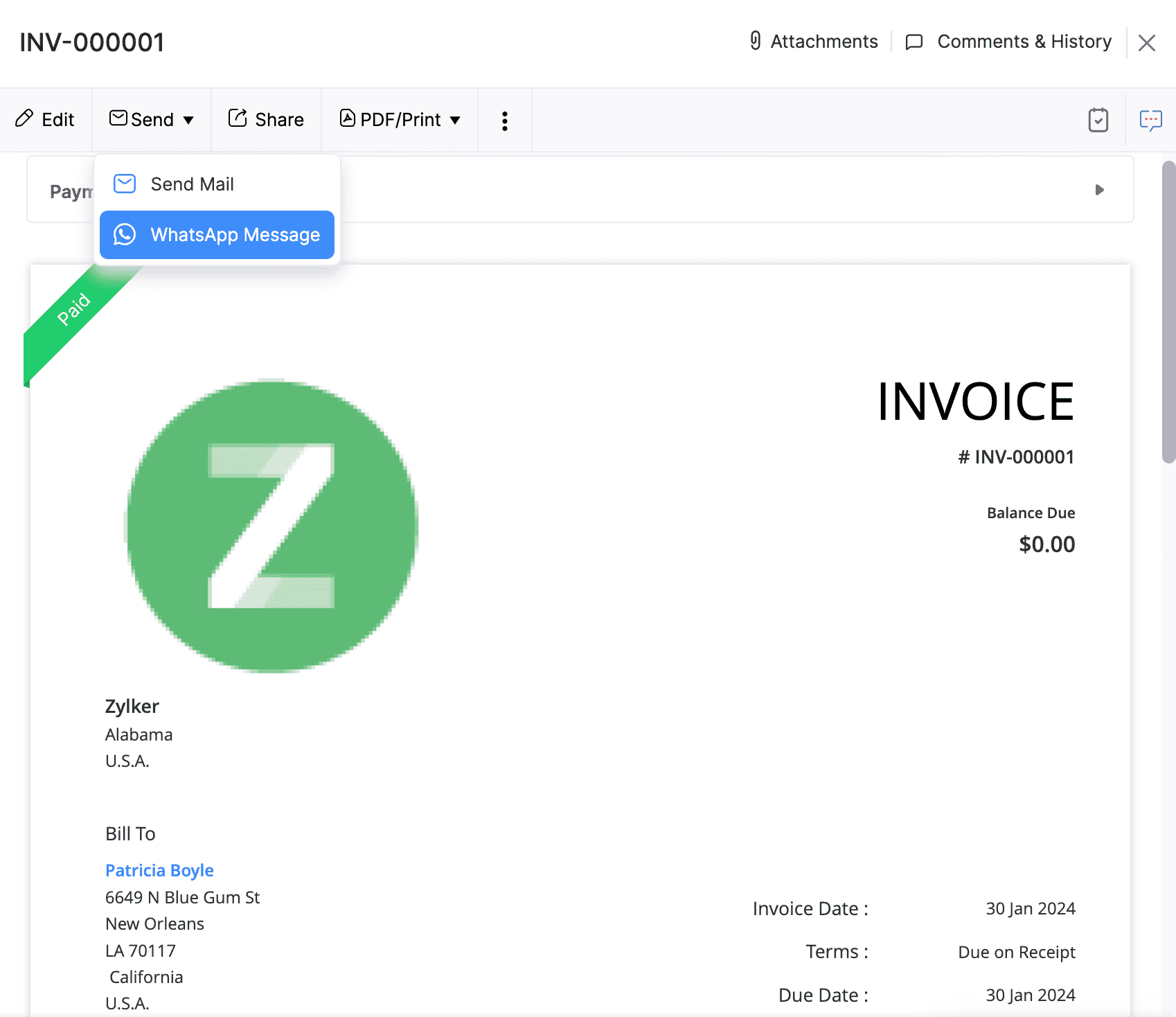
The contact person and the message template will be auto-populated in the following Send WhatsApp Message pop-up.
Click Send.
The invoice details will be sent to the respective contact person via WhatsApp. Similarly, you can send notifications for Sales Orders, Estimates, Retainer Invoices, and Sales Receipts.
Send Reminders on WhatsApp
To send reminders on WhatsApp, you should create a template for Payment Reminders. To do this:
Go to Settings, navigate to Integrations & Marketplace, and click WhatsApp.
Create a template for this module.
Once the template is approved from Meta’s end, slide the toggle button next to WhatsApp Templates for Payment Reminders to enable it.
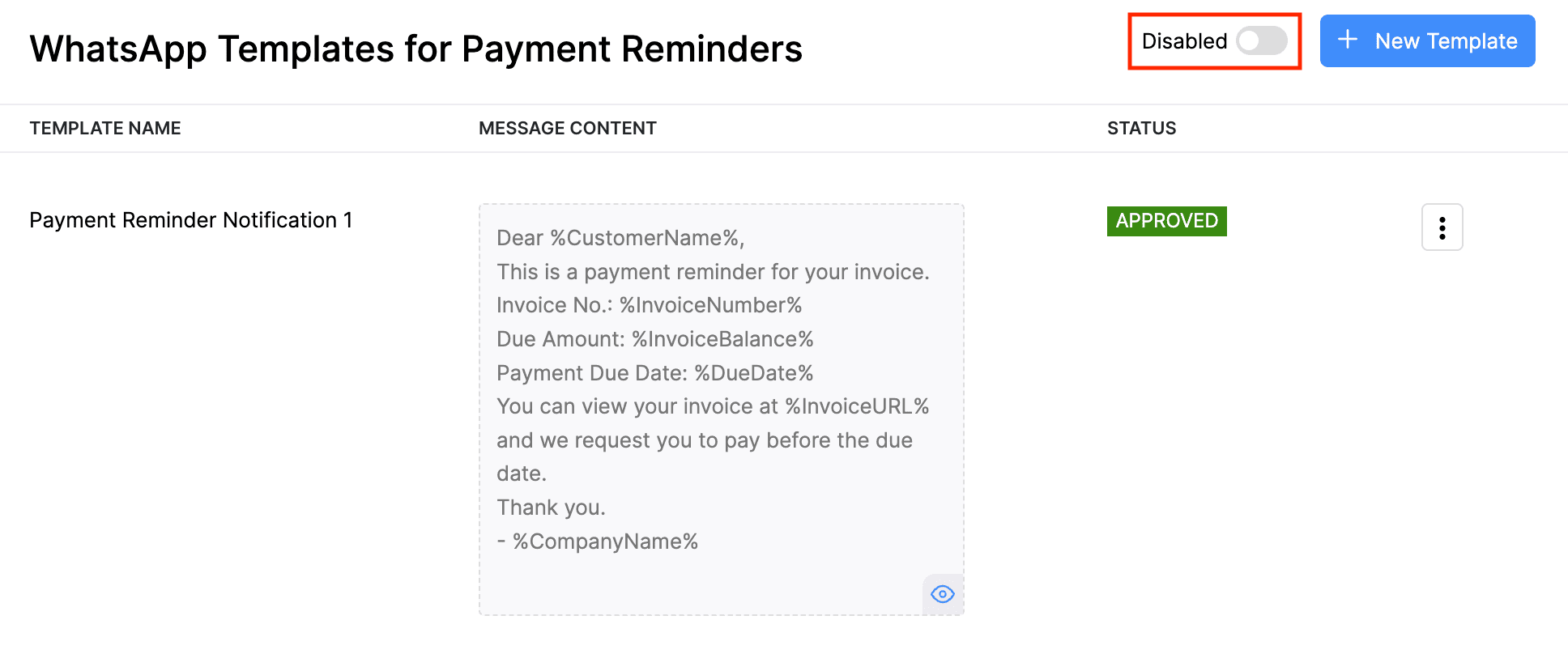
Now you will be able to use this template and send payment reminders on WhatsApp.
To send payment reminders on WhatsApp:
Go to Invoices on the left sidebar.
Select the invoice for which you want to send the Payment Reminder notification.
Click Reminders and select Send WhatsApp Message from the dropdown.
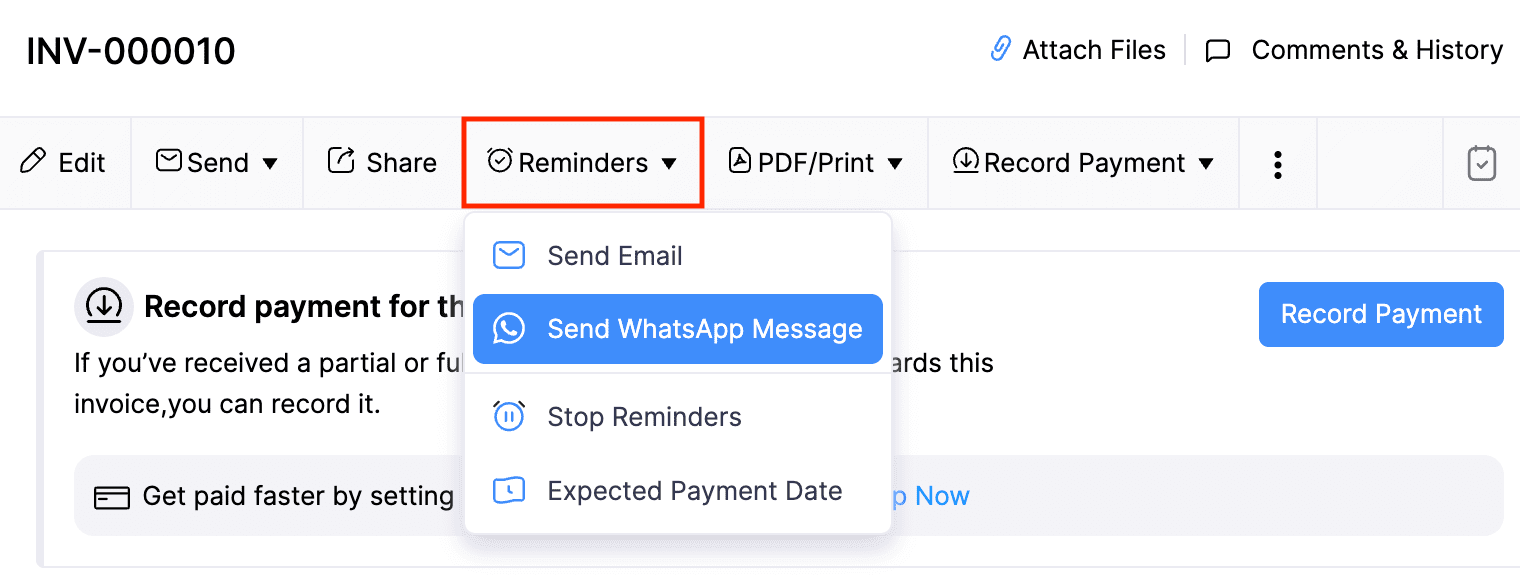
Select the Message Template in the pop-up that follows and click Send.
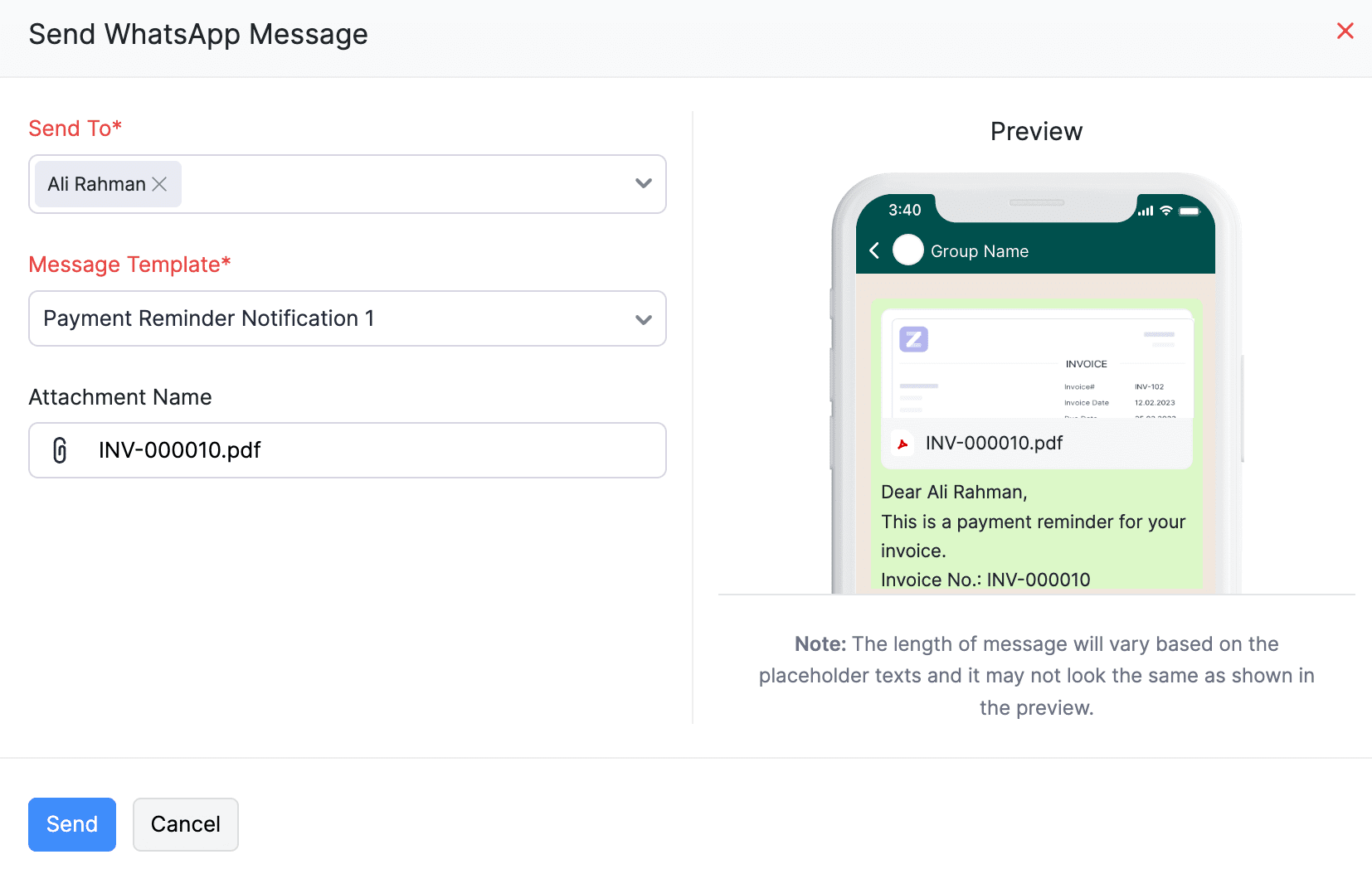
The payment reminder notification will be sent to the customer via WhatsApp.
To send payment reminders in bulk:
Select the overdue invoices.
Click Reminders and select Send WhatsApp Message.
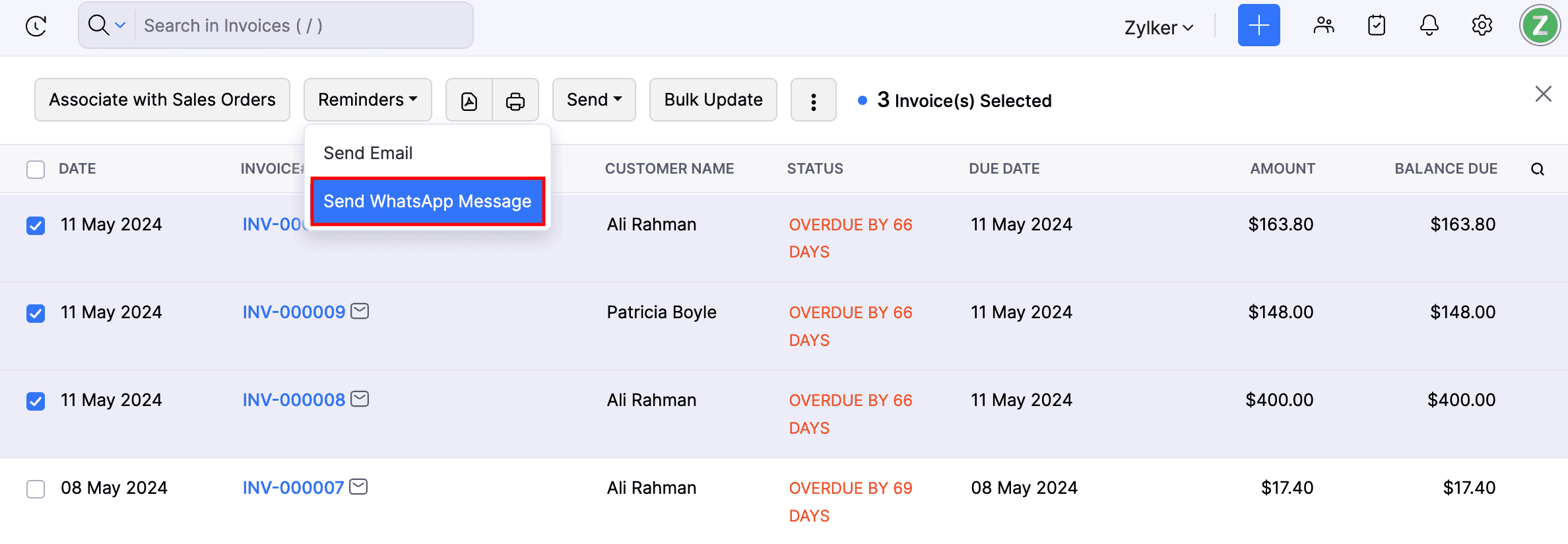
Select the Message Template in the pop-up that follows and click Send.
The payment reminder notifications for the selected overdue invoices will be initiated, and you will be notified once they are sent to the customers.
You can also send automated payment reminder notifications through WhatsApp. Here’s how:
Go to Settings, navigate to Reminders & Notifications, and select Reminders.
In the Automated Reminders section, slide the toggle under the Reminders Based on Due Date section for the reminders that you want to send to your customers.
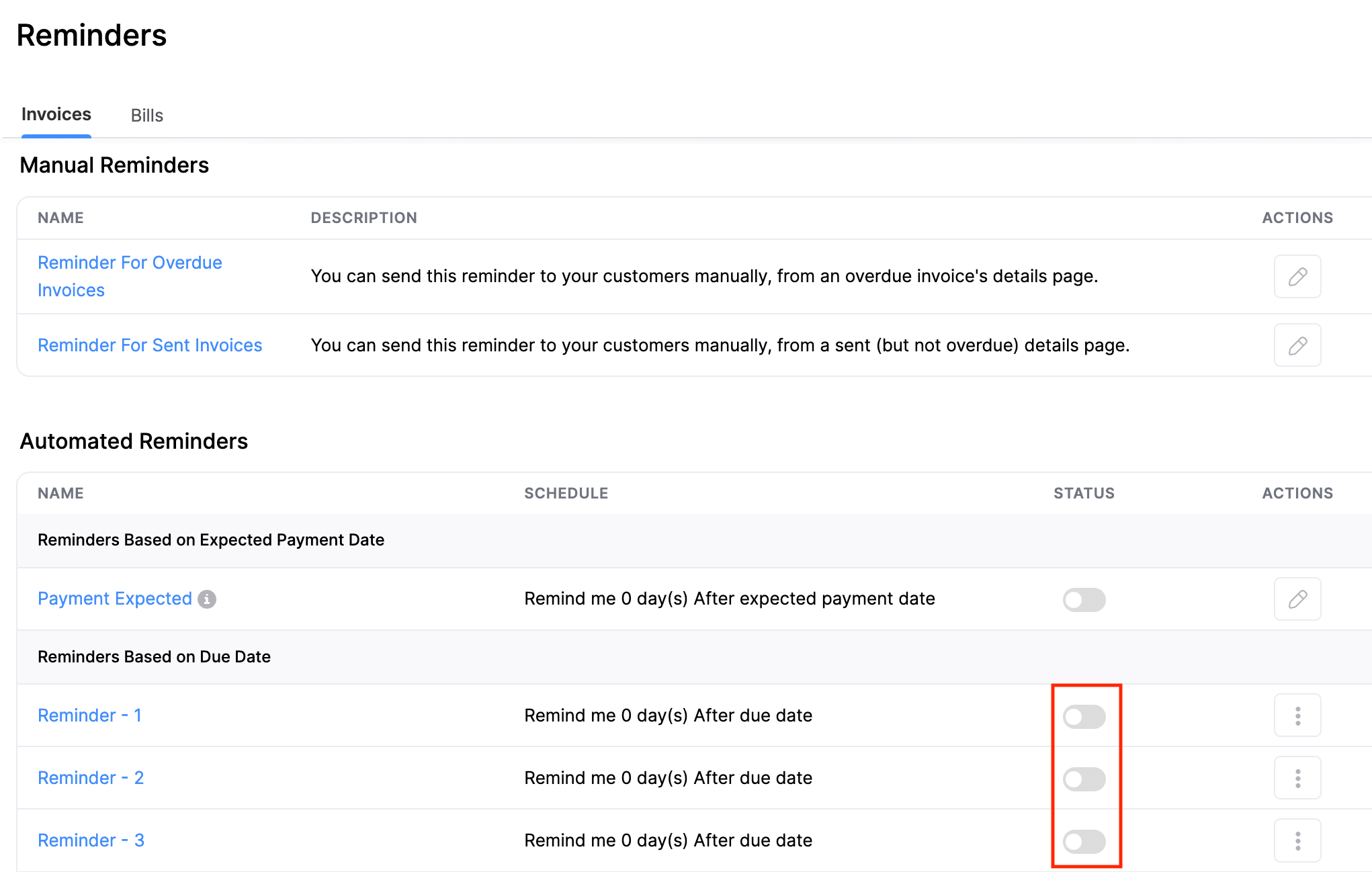
In the next pop-up, switch to the WhatsApp tab.
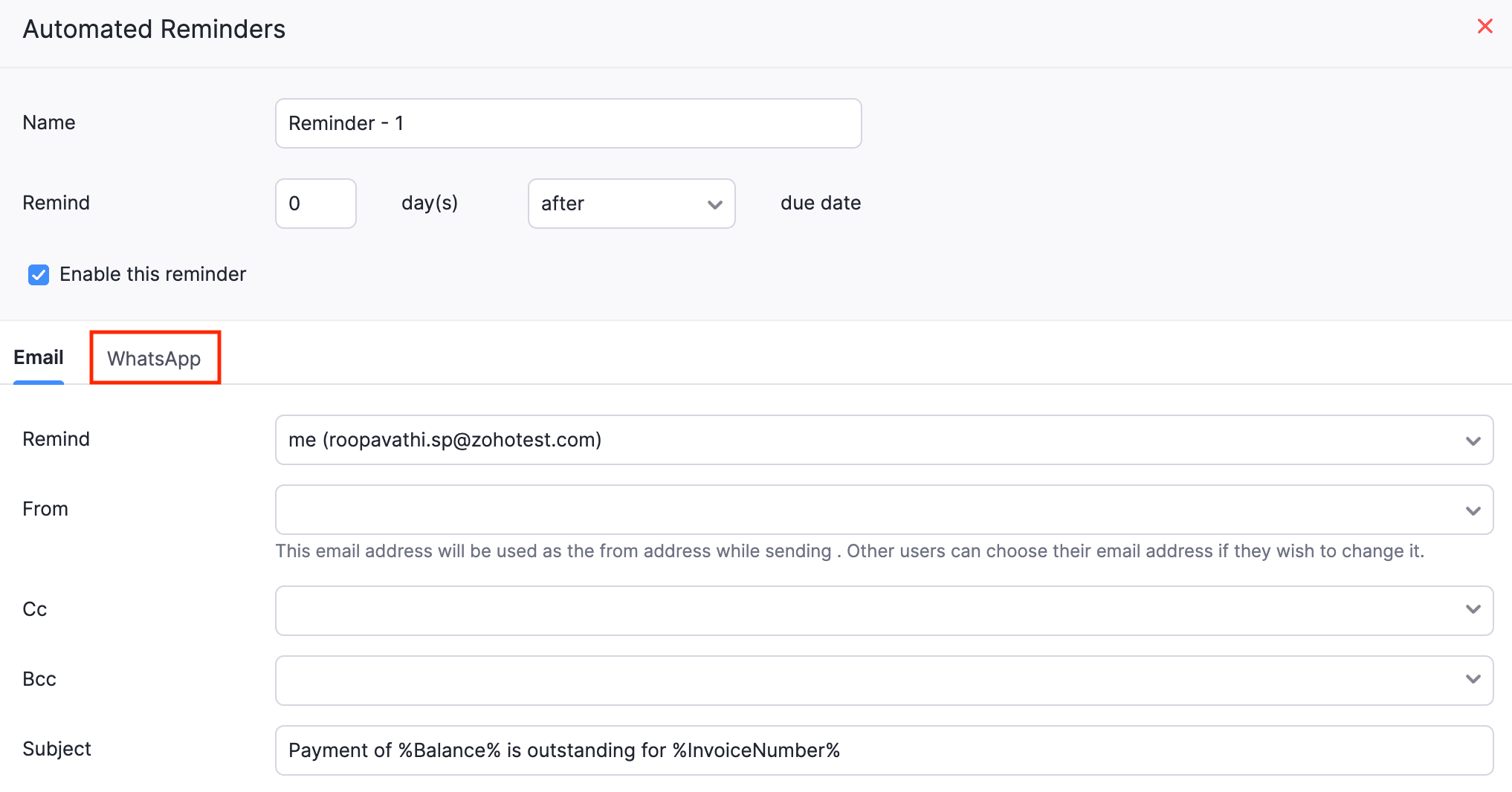
Slide the Enable WhatsApp notification for this reminder toggle.
Select the Message Template for the notification.
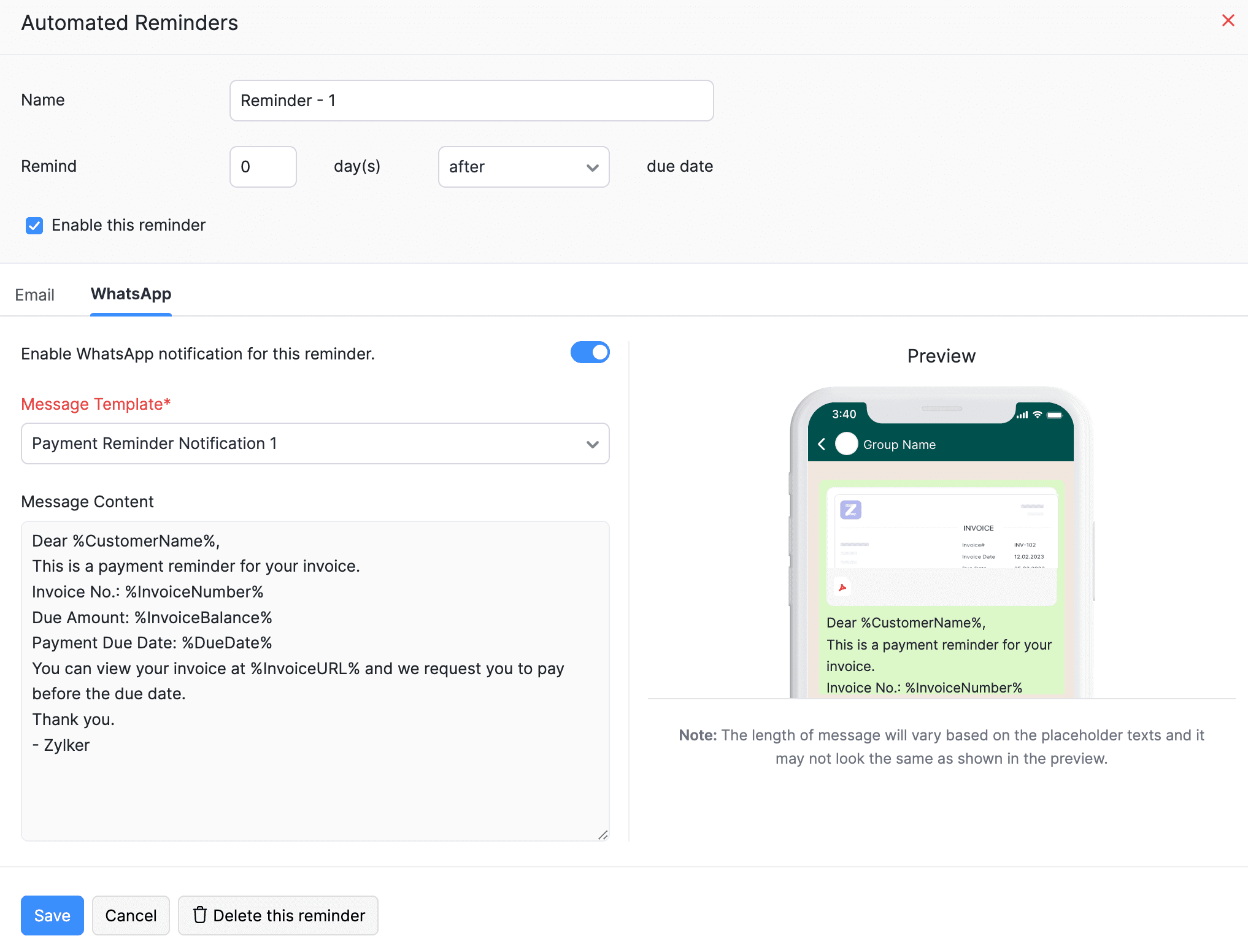
Click Save.
The automated reminders will be sent to the selected customers through WhatsApp.
Note: The Automatic Reminders will be sent to the customers only if WhatsApp Communication Channel is enabled at the customer and transaction level.
Send Payment Receipts
Go to Sales and select Payments Received.
Click New at the top-right corner and enter all the necessary details.
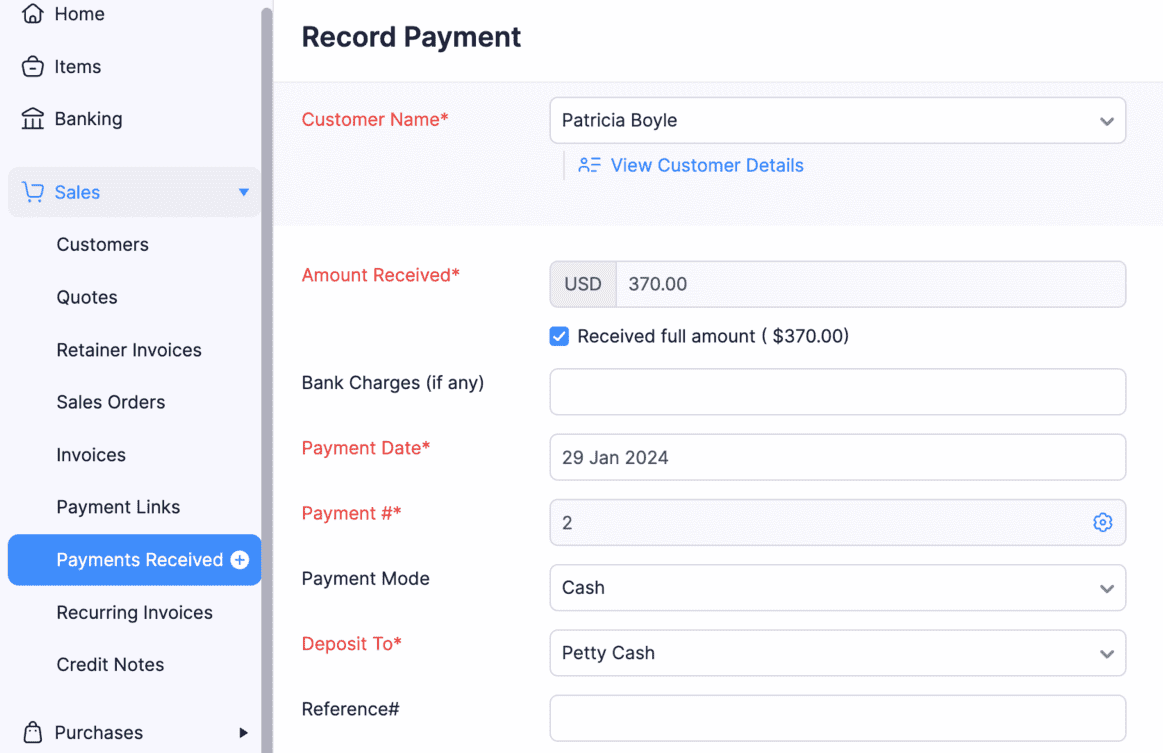
Select the contact person to whom you want to share the payment receipt details from the Share payment receipt with dropdown.
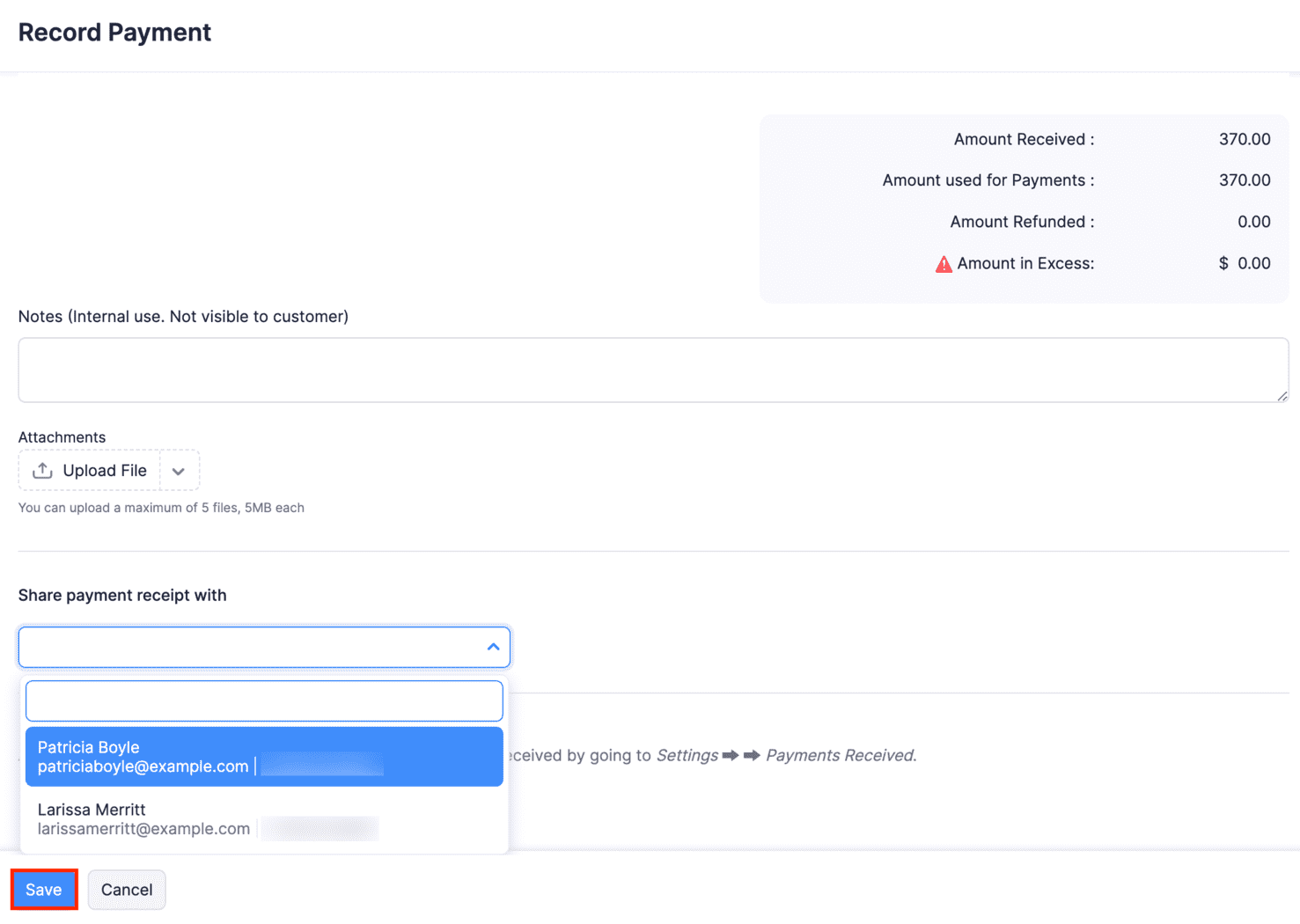
Click Save, and the WhatsApp notification with the payment receipt details of the payment amount and the invoice number will be sent to the respective contact person.
To share existing payment receipts via WhatsApp:
Go to Sales and navigate to Payments Received.
Select the payment for which you want to share the payment receipt.
Click the dropdown next to Send and select WhatsApp Message.
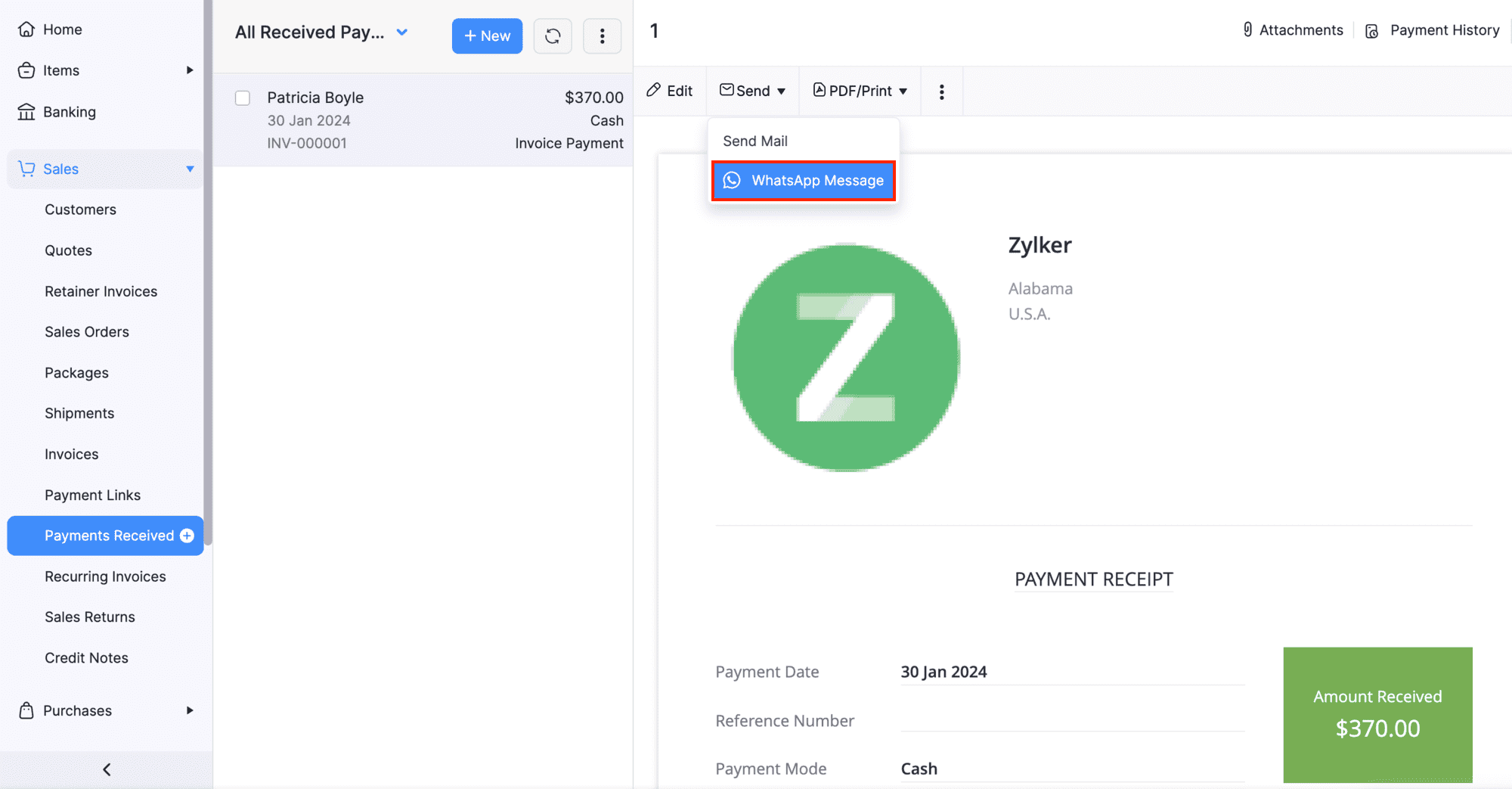
The contact person and the message template will be auto-populated.
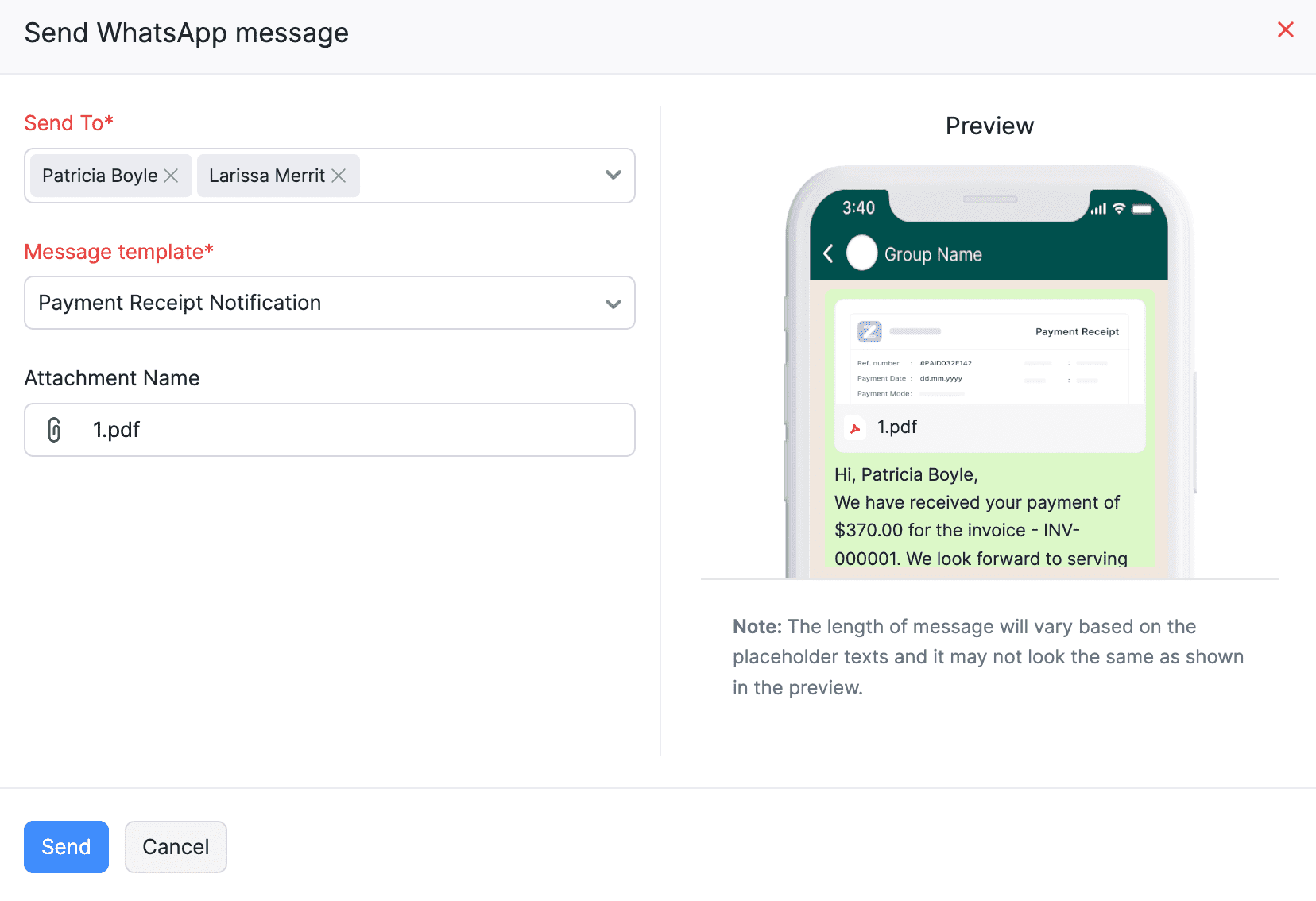
Click Send, and the WhatsApp notification with the payment receipt details will be sent to the respective contact person.
Send Customer Notifications
You can send marketing notifications to your customers regarding promotions, offers or any other informational updates along with the customer statement using this feature.
Go to Sales and navigate to Customers.
Select the customer to whom you want to send the WhatsApp notification.
Click Send dropdown in the Receivables section, and select WhatsApp Message.
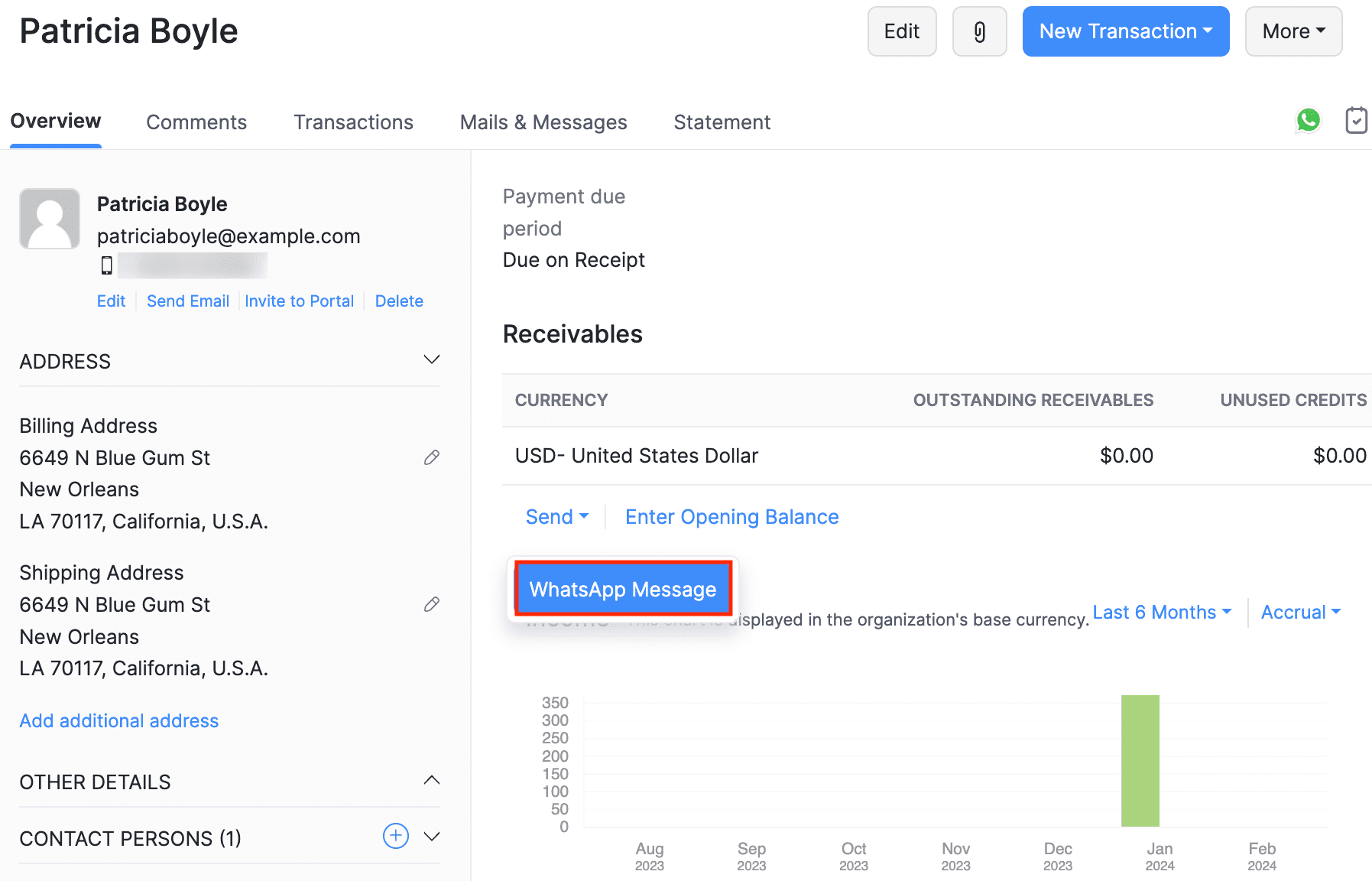
The contact person and the message template will be auto-populated in the following Send WhatsApp Message pop-up.
Click Send, and the WhatsApp notification will be sent to the respective contact person.
To send only the customer statement:
Select a customer and switch to the Statement tab.
Click Share via and select WhatsApp from the dropdown.
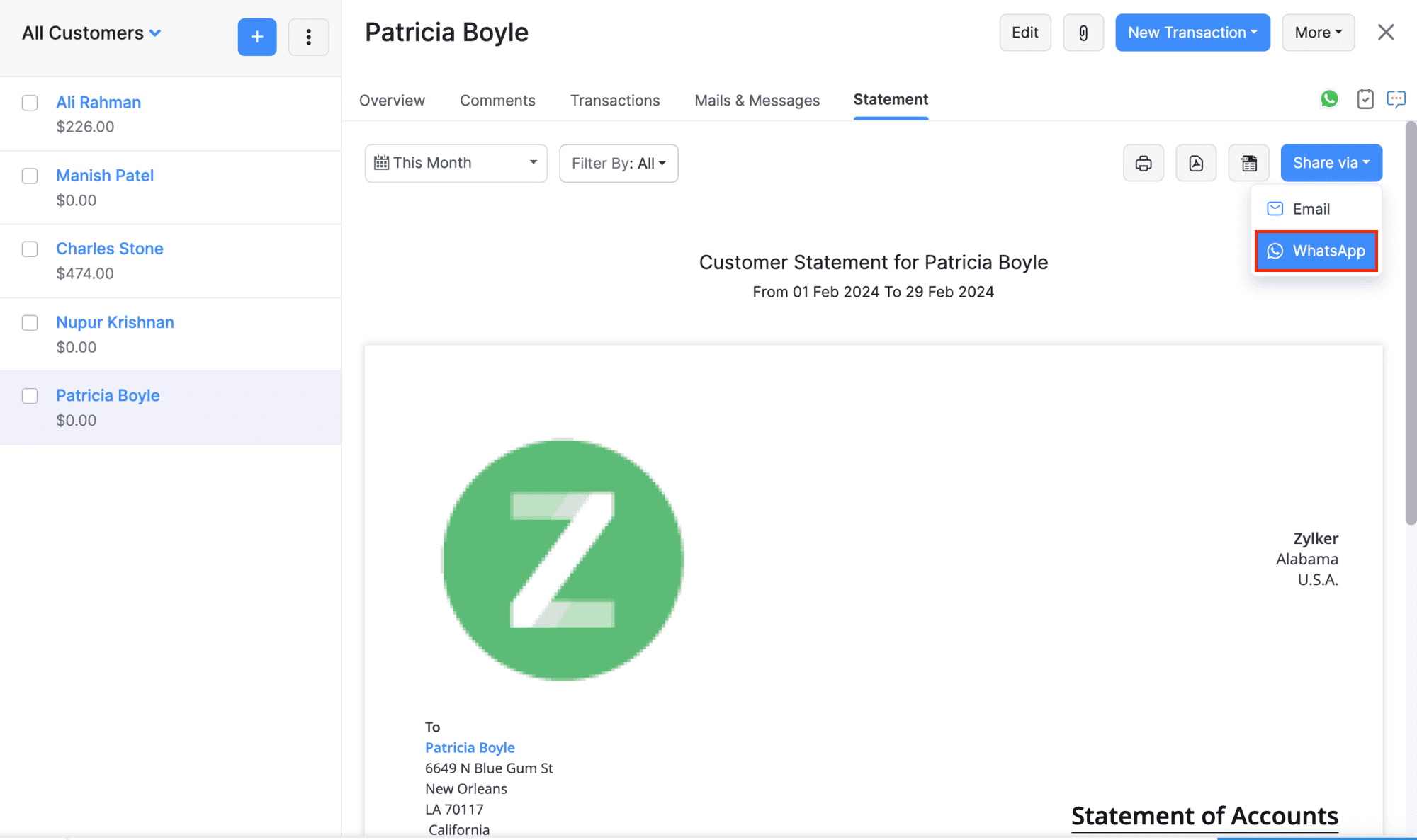
The contact person and the message template will be auto-populated in the following Send WhatsApp Message pop-up. You can also add other contact persons or replace the templates if required.
Click Send.
The customer statement will be sent to the respective contact person.
Sending Bulk WhatsApp Notifications
Zoho Books allows you to send WhatsApp notifications to multiple customers at a time.
Note: The bulk WhatsApp notifications will only be sent to the contacts selected in the particular transaction level.
To send bulk WhatsApp notifications:
Go to Invoices on the left sidebar.
In the list page, select the invoices you want to send through WhatsApp.
Click Send and select WhatsApp Message from the dropdown.
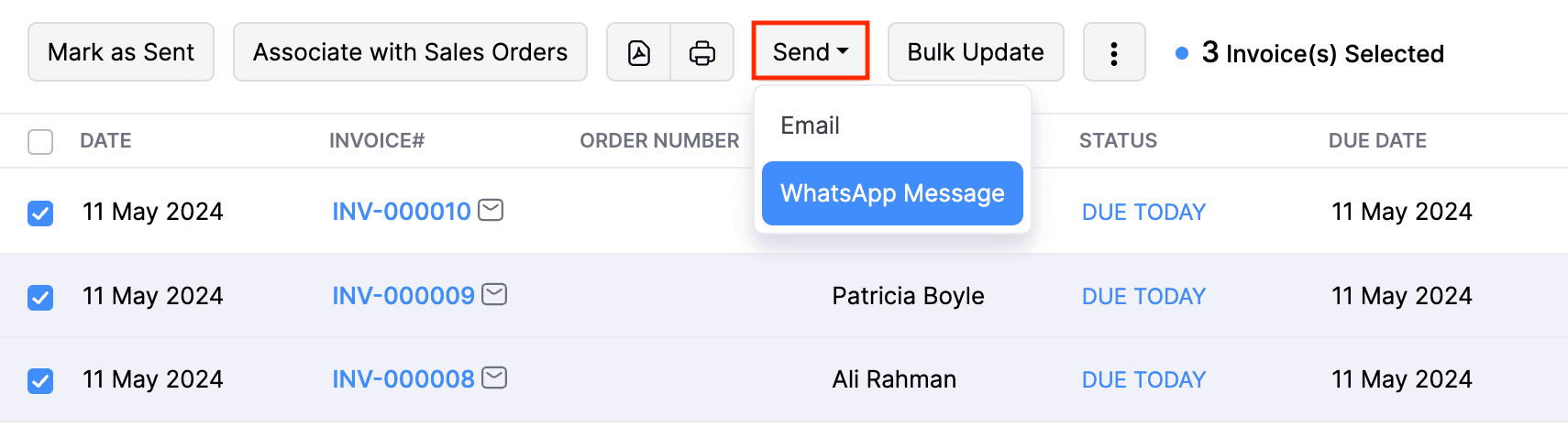
In the next page, choose a Message Template for the notification.
Click Send.
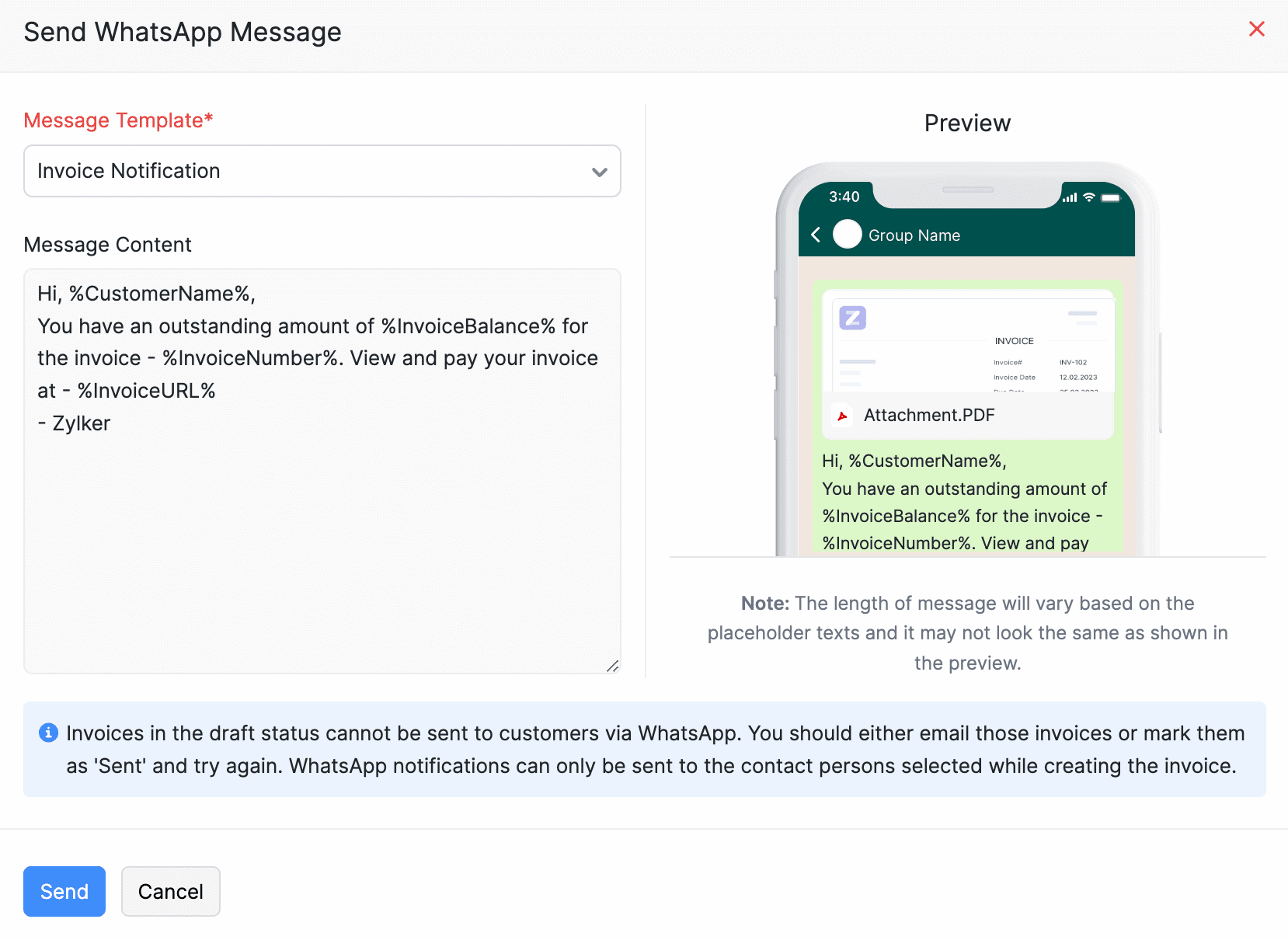
The bulk WhatsApp messages for the selected invoices will be initiated, and you will be notified once they are sent to the customers. Similarly, you can send bulk notifications for Sales Orders, Estimates, Retainer Invoices, and Sales Receipts.
WhatsApp bulk notifications will not be sent if:
- The transactions are in the draft status.
- The WhatsApp communication channel is not enabled at the customer level and the transaction level.
Send Vendor Notifications
Prerequisite:
Before you send WhatsApp notifications to your vendors, ensure that you’ve created templates for them.
Once you’ve created WhatsApp templates for vendors and they are approved by Meta, you can send WhatsApp notifications to your vendors and their contact persons. Here’s how:
Go to Purchases on the left sidebar and select Vendors.
Select the vendor to send WhatsApp notifications.
In the vendor’s Details page, under Payables, click the Send dropdown and select WhatsApp Message.
In the Send WhatsApp Message pop-up, fill in the required details and click Send.
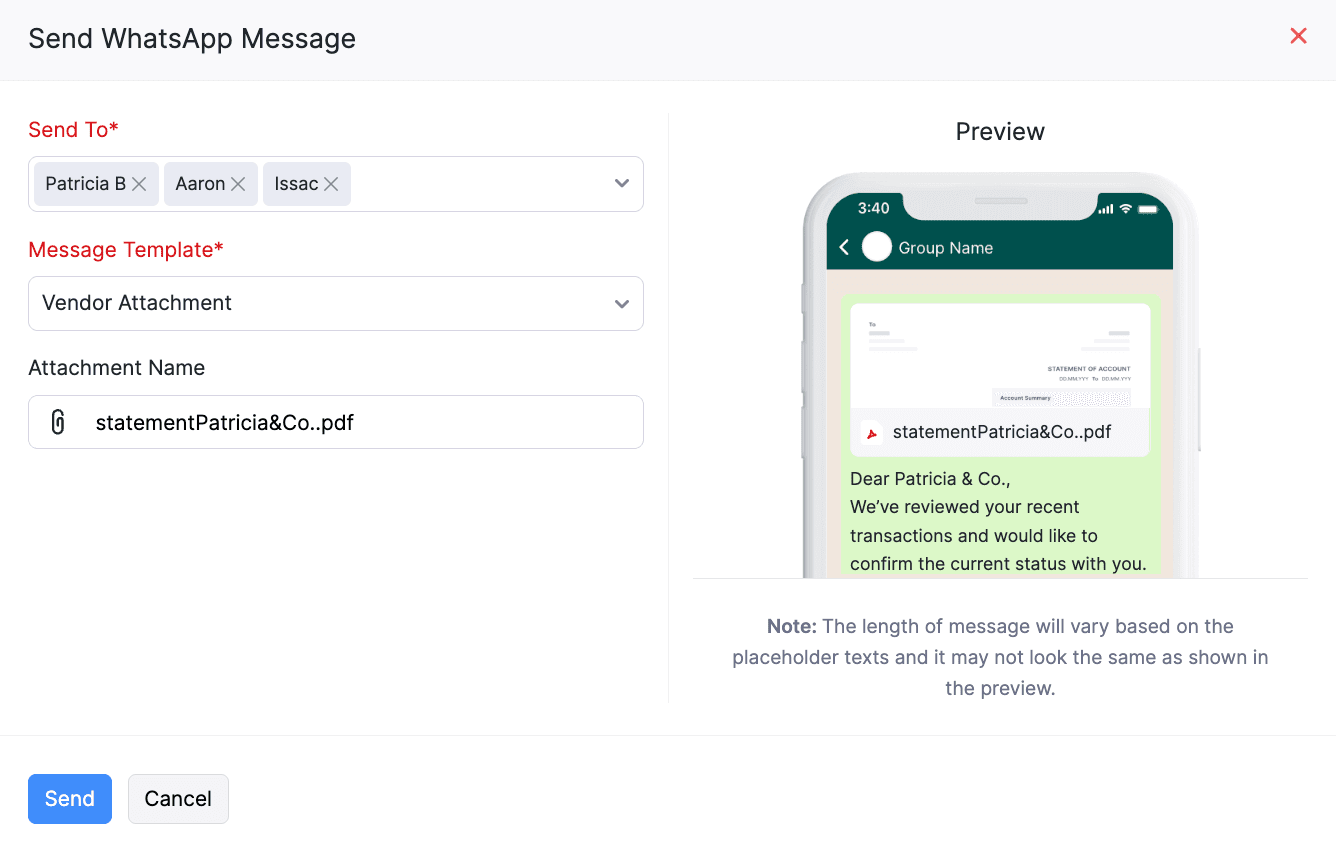
The WhatsApp notification will be sent to the respective contact persons.
To send vendor statements via WhatsApp notifications:
Select a vendor, and in the vendor’s Details page, navigate to the Statement tab.
Click Share via in the top right corner and select WhatsApp in the dropdown.
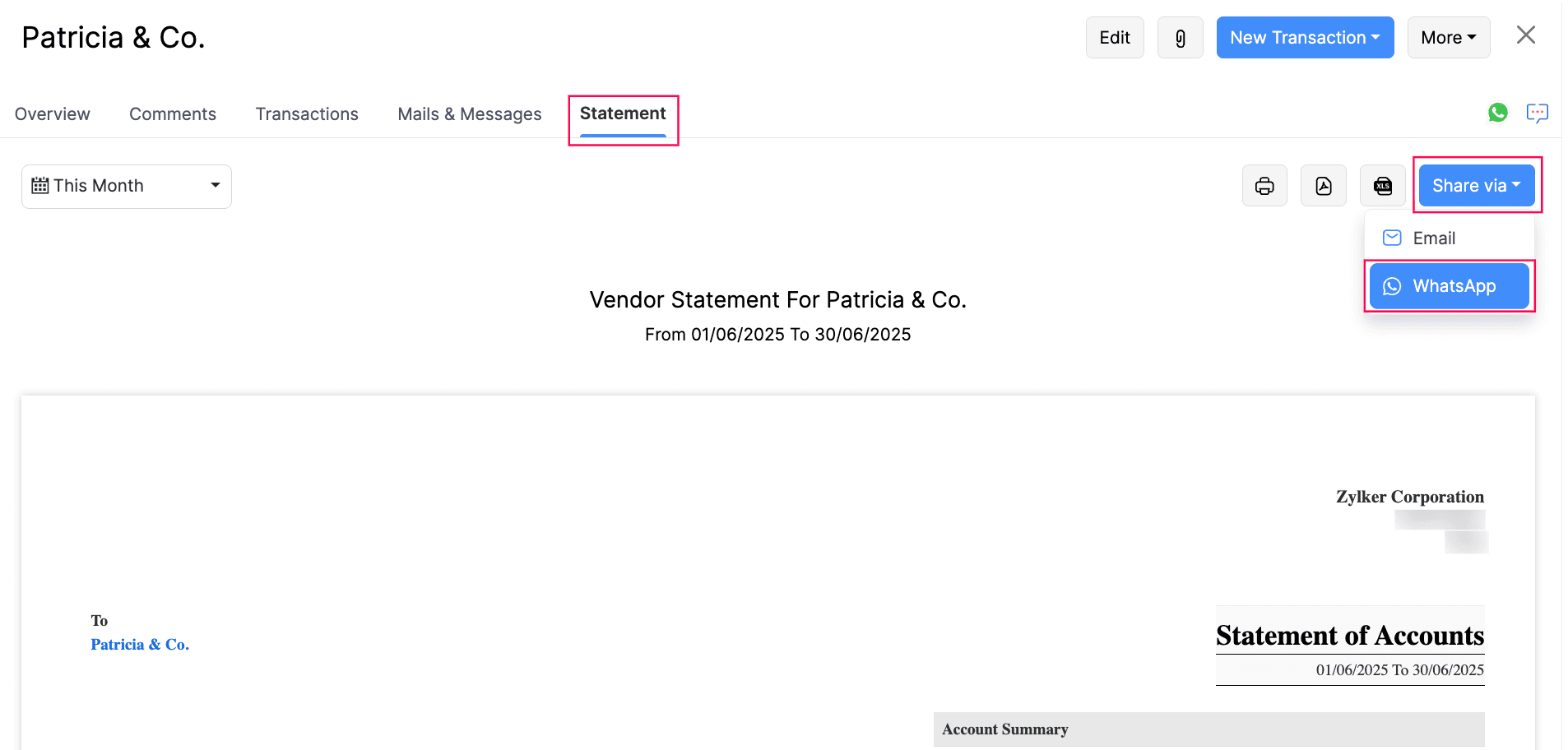
In the Send WhatsApp Message pop-up, fill in the required details and click Send.
The vendor statement will be sent to the respective contact person.
Send Vendor Notifications in Bulk
You can send WhatsApp notifications to your vendors and their contact persons in bulk. Here’s how:
Go to Purchases on the left sidebar and select Vendors.
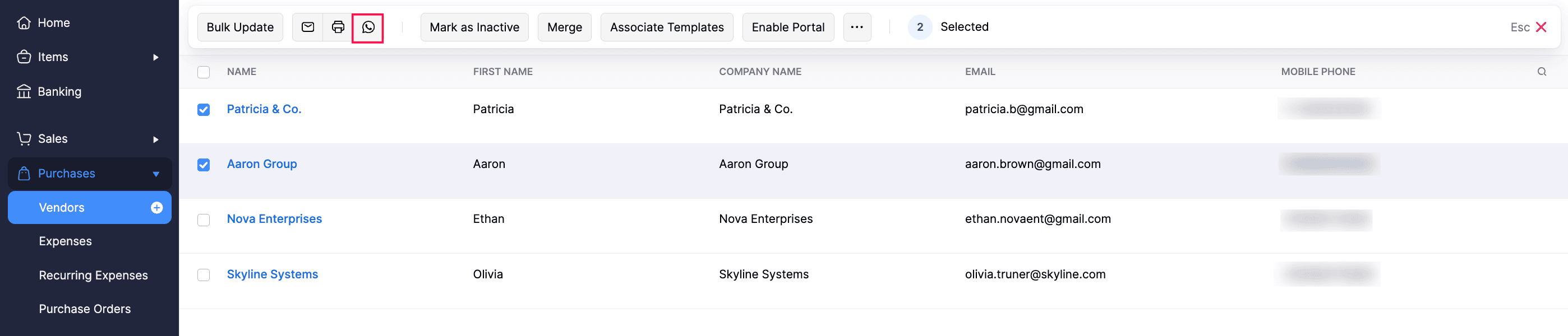
Select the vendors to send WhatsApp notifications, and click the WhatsApp icon at the top of the List page.
In the Send WhatsApp Message pop-up, choose the required Message Template and click Send.
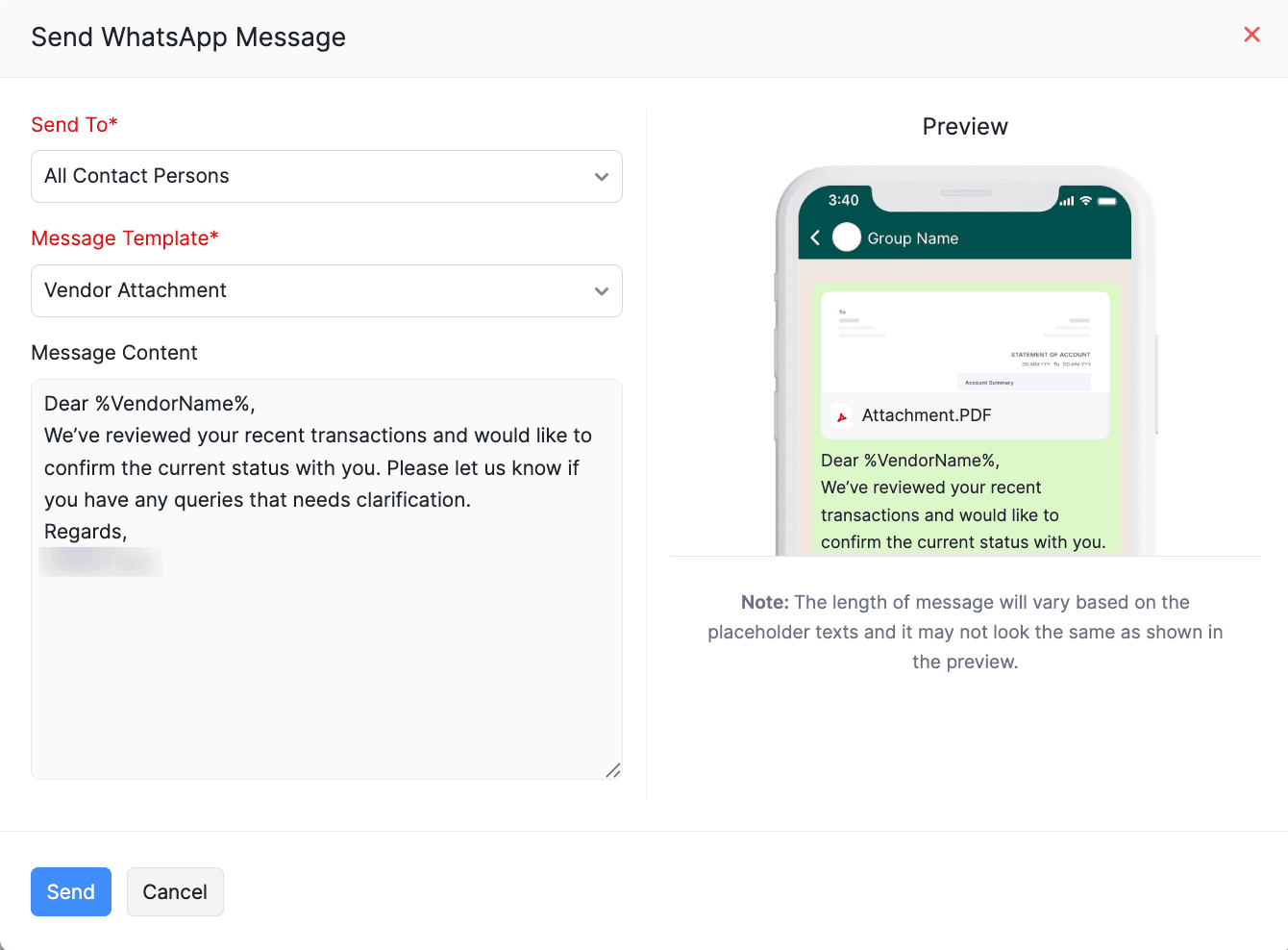
WhatsApp notifications will be sent in bulk for the selected vendors and their contact persons.
View Sent WhatsApp Notifications
You can view the sent WhatsApp notifications at three different levels. Here’s how:
At Transaction Level
Click the respective transaction in the Invoices or any other module.
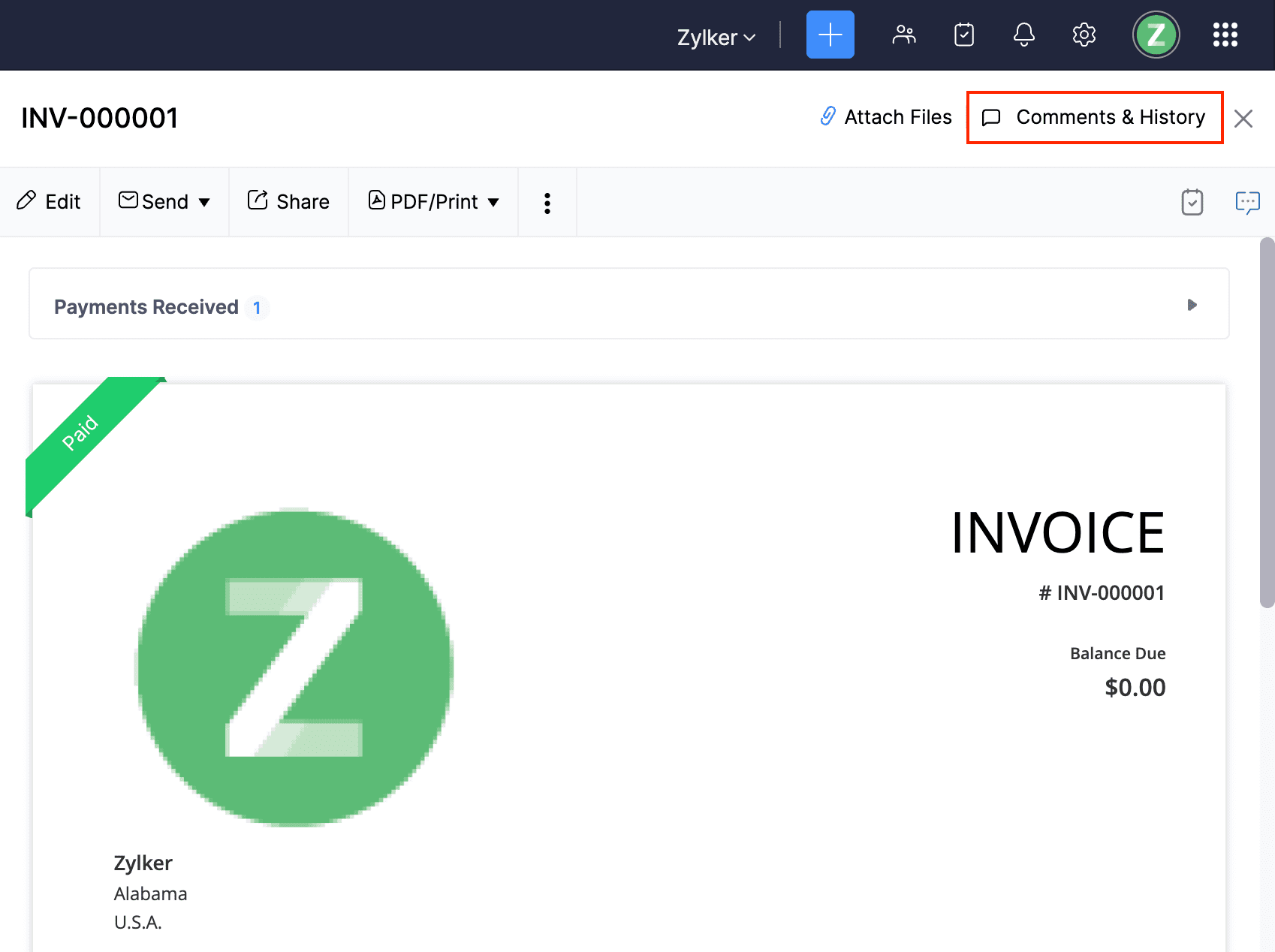
In the details page, click Comments & History at the top-right corner.
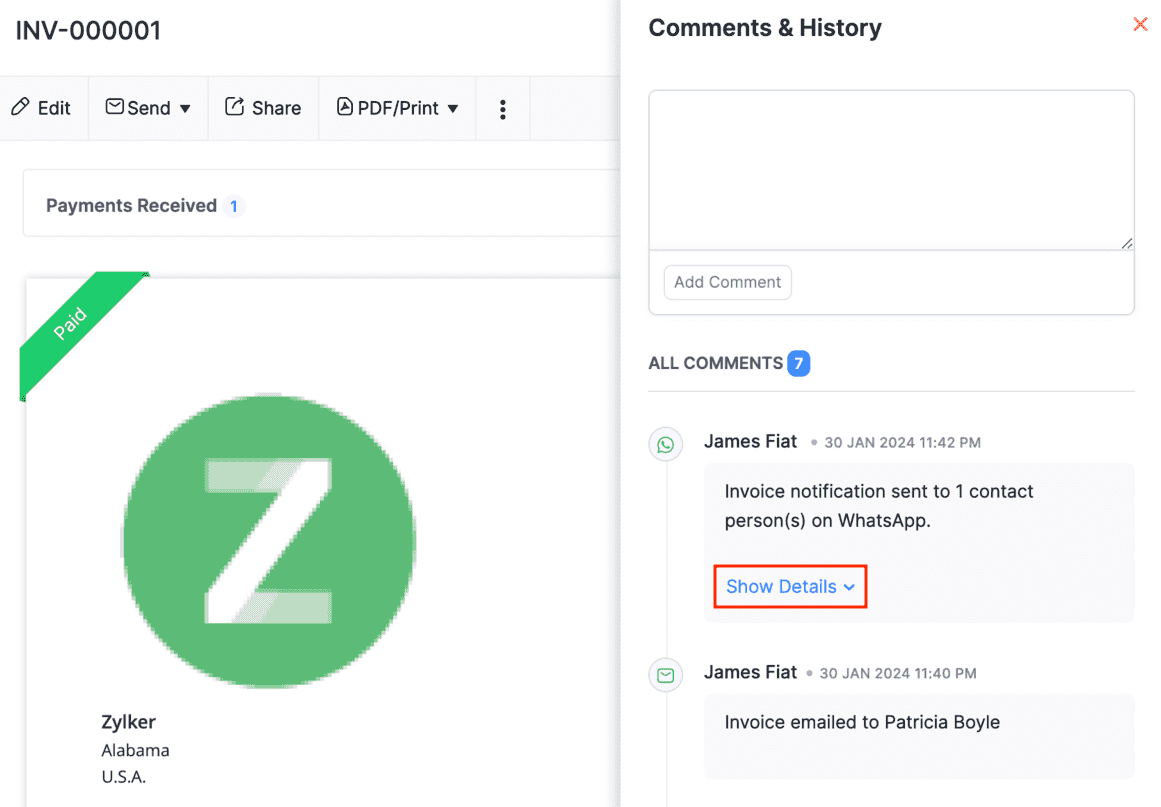
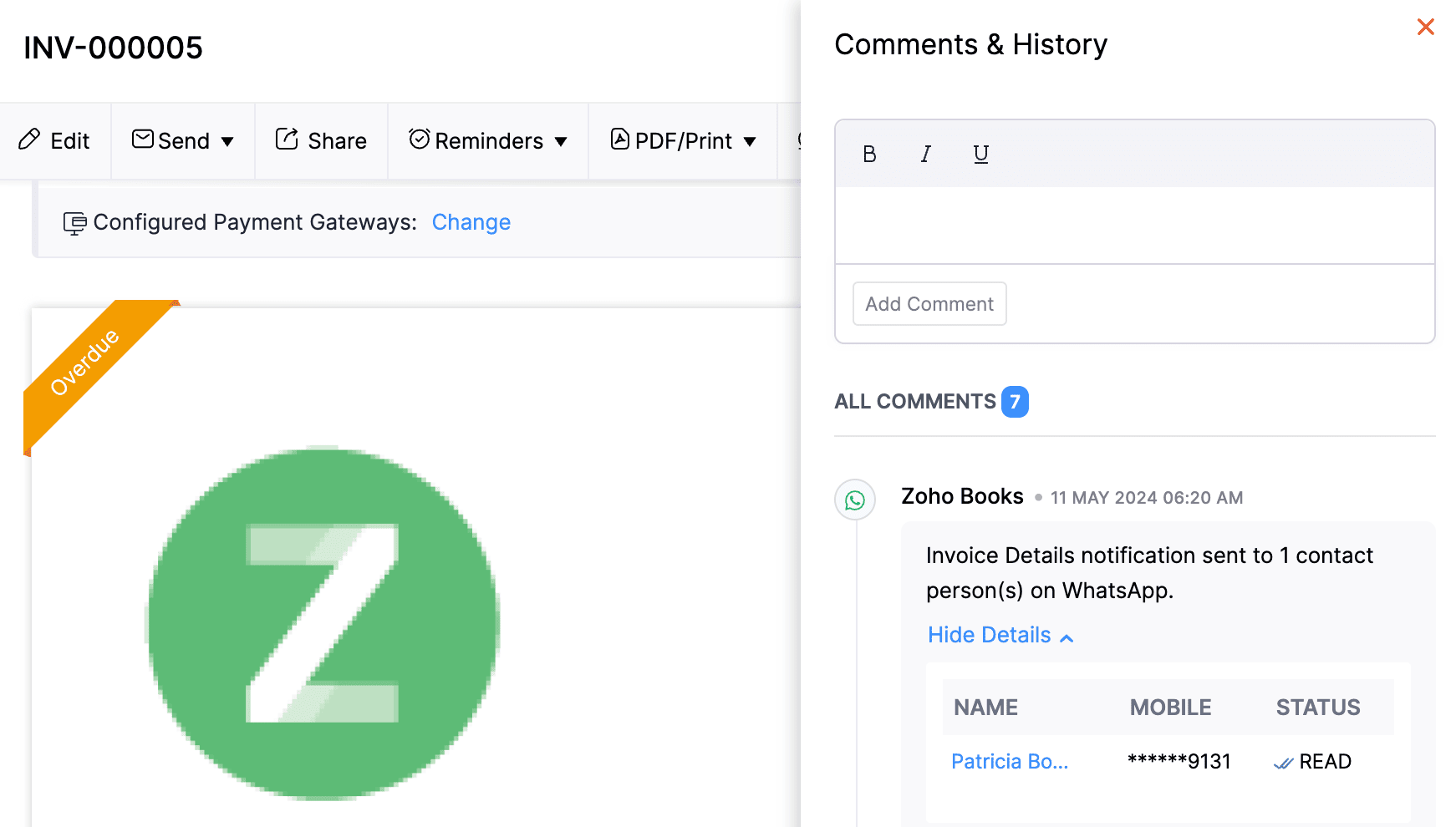
Click Show Details given below the particular notification for which you want to view the customer’s name, phone number, and the status of the WhatsApp message.
Click the customer name in the details table, and you will be redirected to the details page with their WhatsApp chat screen displayed.
The particular notification message will be highlighted, and you can continue chatting with the customer if required.
At Customer and Vendor Levels
Click the customer or vendor whose WhatsApp notification messages you want to view.
Navigate to the Mails & Messages tab.
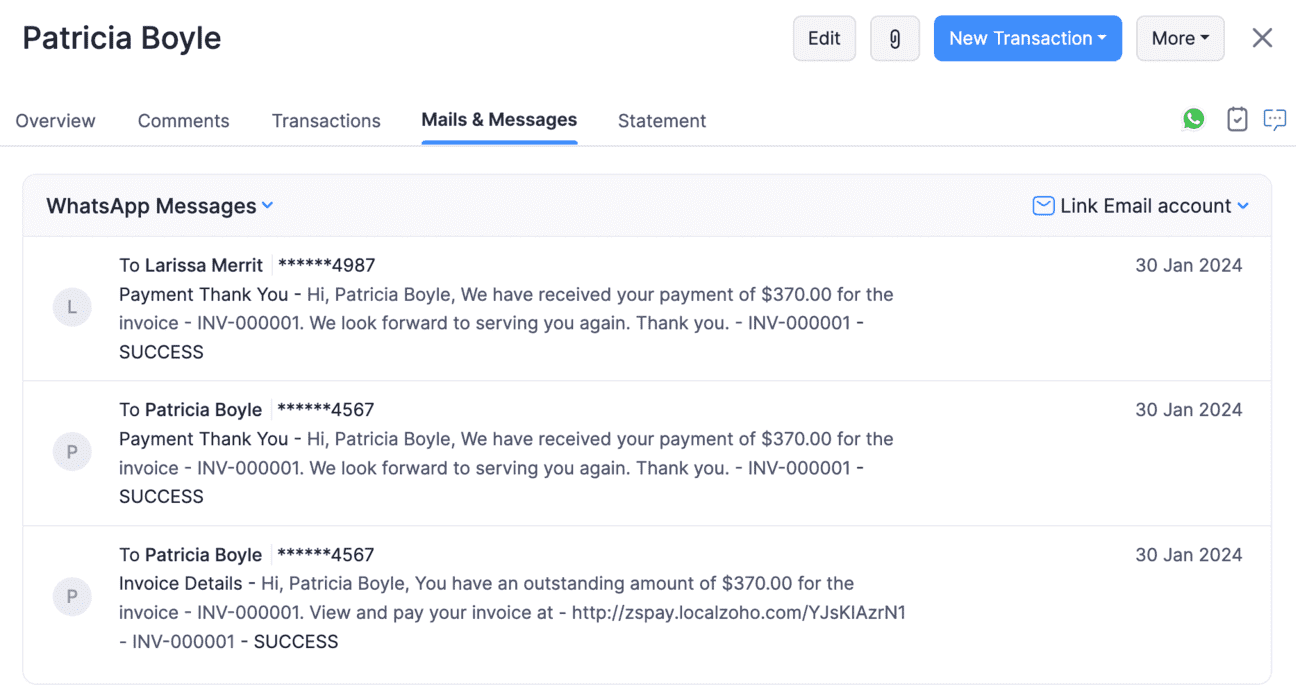
Click the dropdown next to System Mails and select WhatsApp Messages.
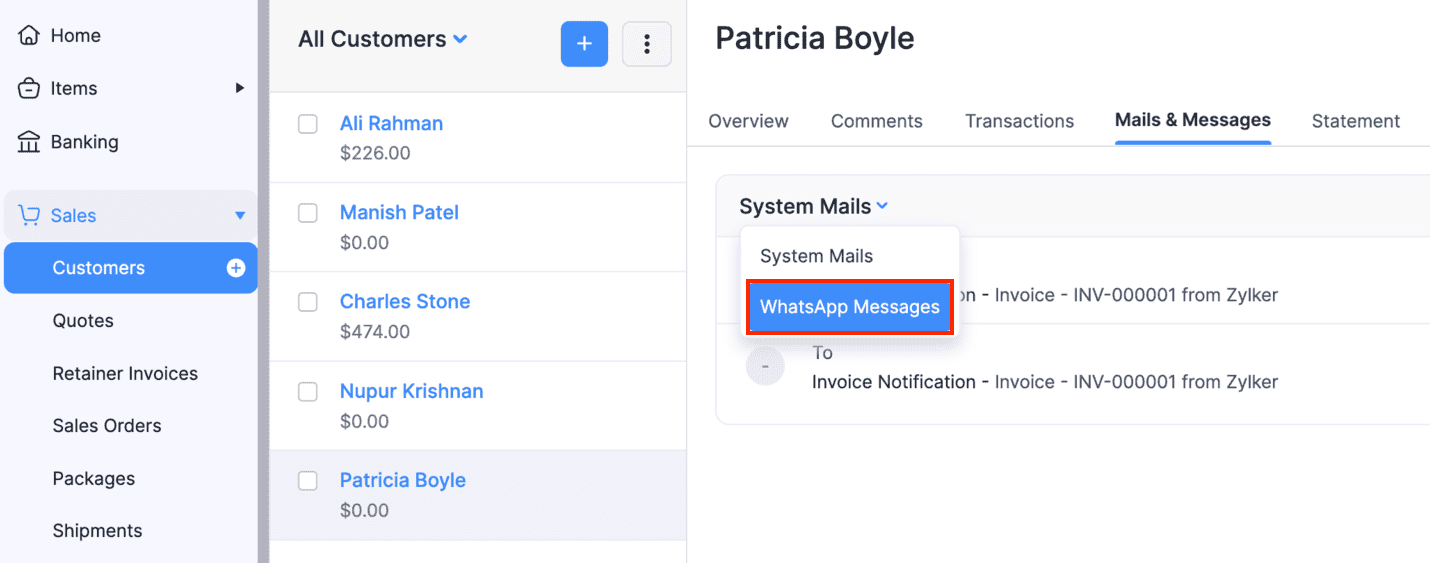
You can view all the WhatsApp notifications and their statuses sent to this customer.
At Organization Level
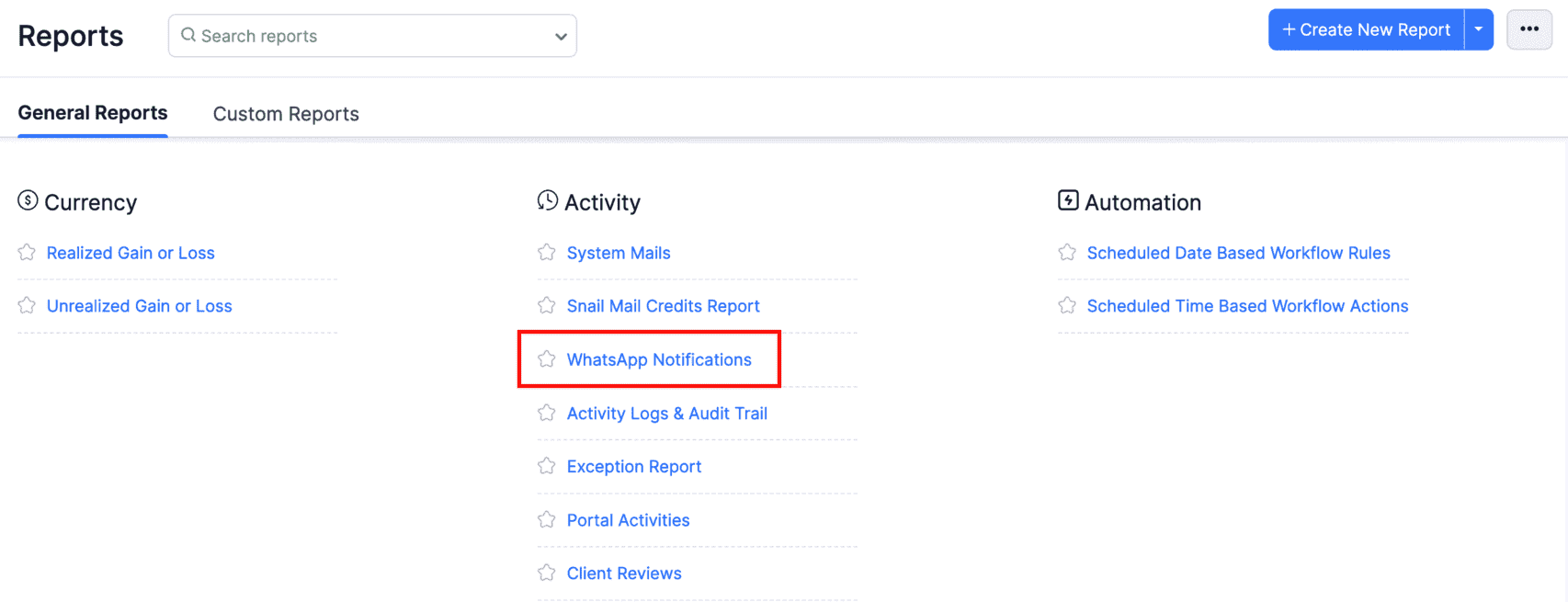
Navigate to Reports on the left sidebar.
Scroll down to Activity and click WhatsApp Notifications.
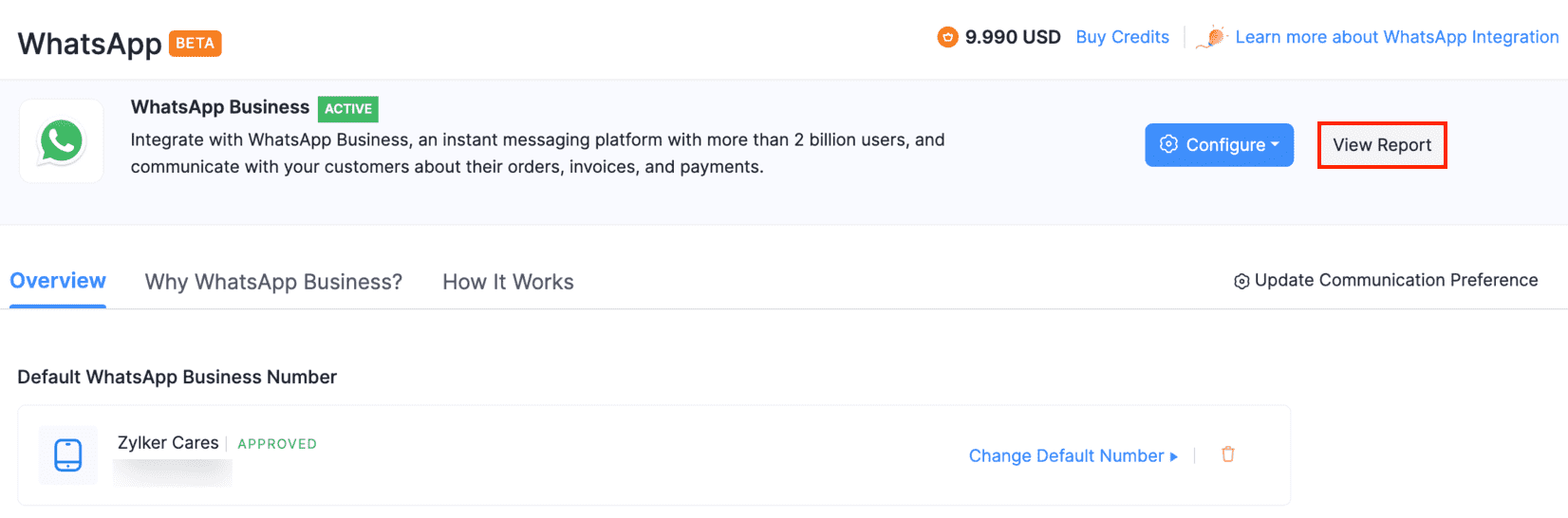
You can also click View Report on the WhatsApp configuration page and view all the WhatsApp notifications sent from your organization.
Get Notified for Incoming WhatsApp Messages
You can get notified in Zoho Books when your customer sends a message on WhatsApp. Here’s how you can enable notifications:
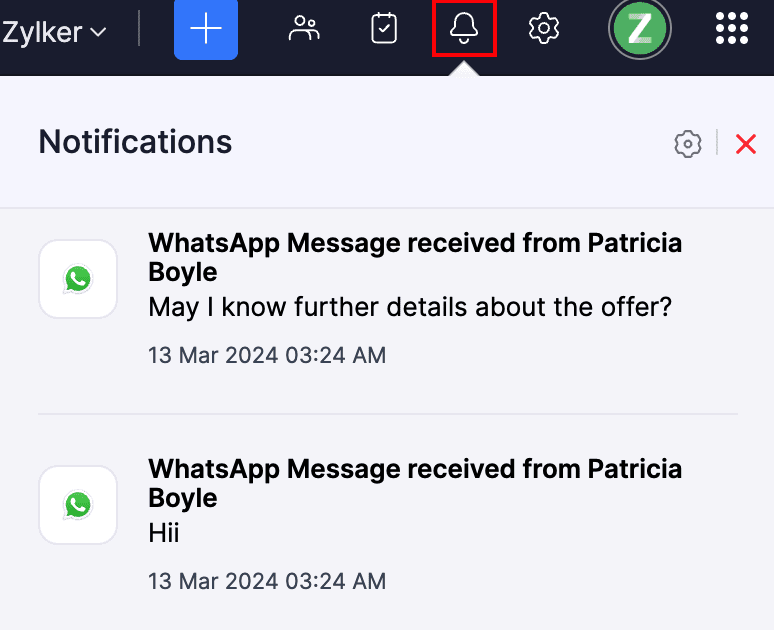
Go to Notifications (Bell icon) at the top-right of Zoho Books.
Click the Gear icon in the Notifications section.
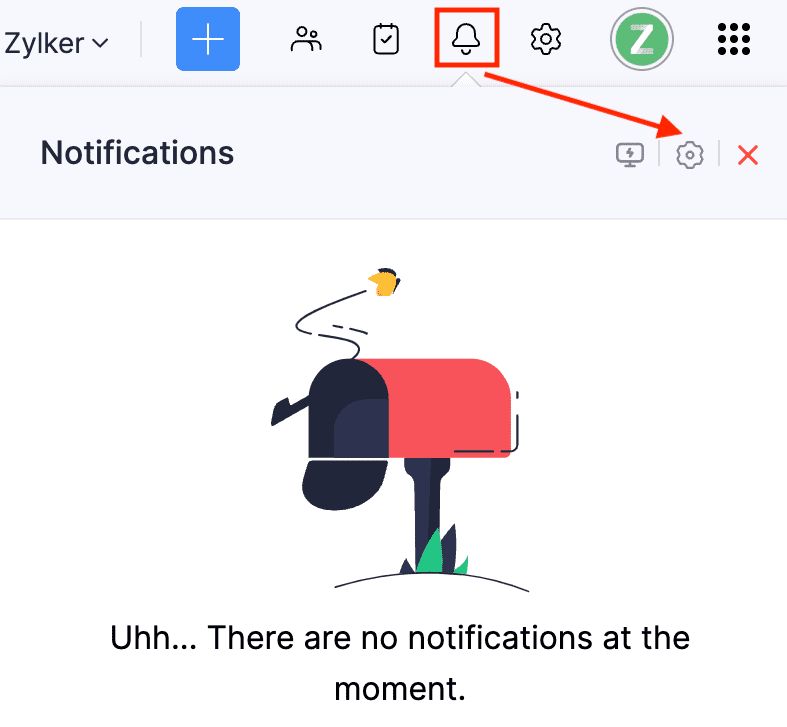
Slide the toggle to enable WhatsApp notifications.
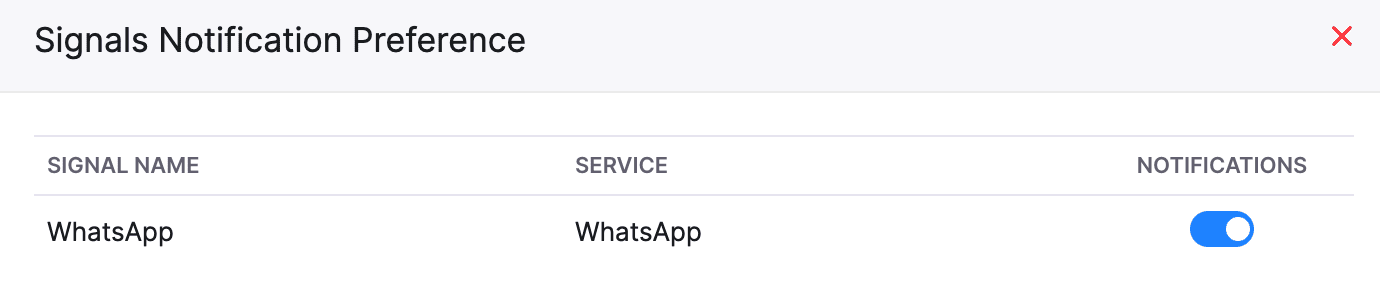
You will now receive notifications in Zoho Books for the incoming WhatsApp messages.
You can view them in the Notifications section at the top of Zoho Books.
Manage User Permissions
If you want the other users in your organization to manage customer and vendor communications, you’ll have to configure necessary permissions for them. Here’s how:
Go to Settings.
Select Roles under Users & Roles.
Click New Role in the top right corner to create a new role, or click Edit to update the existing one to provide permissions.
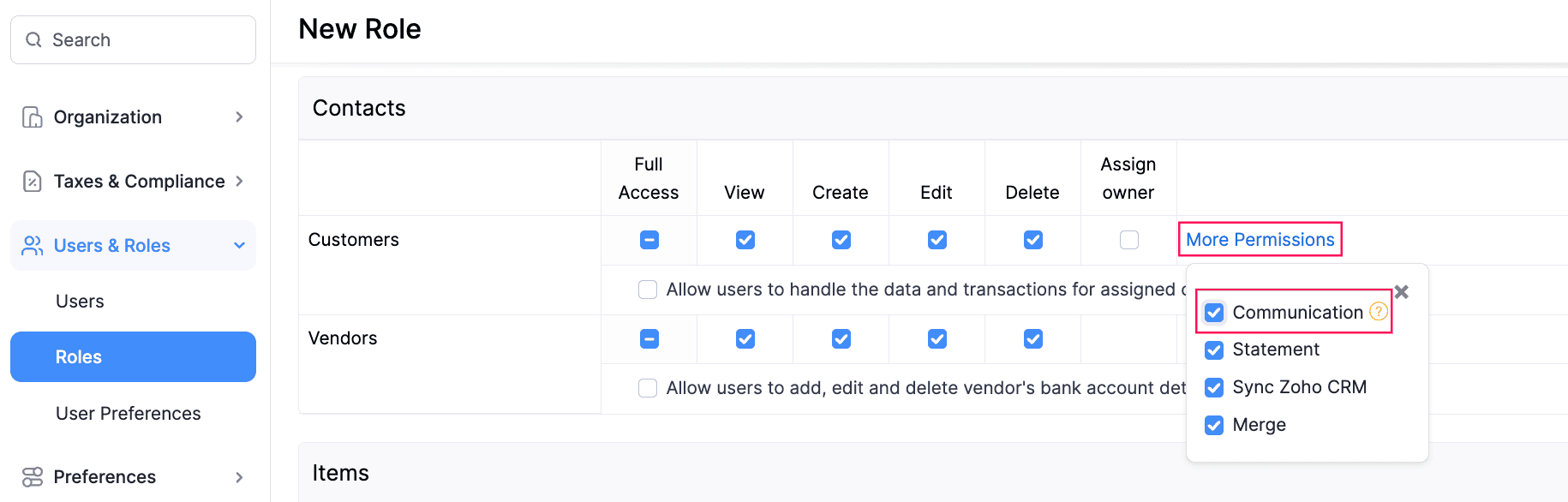
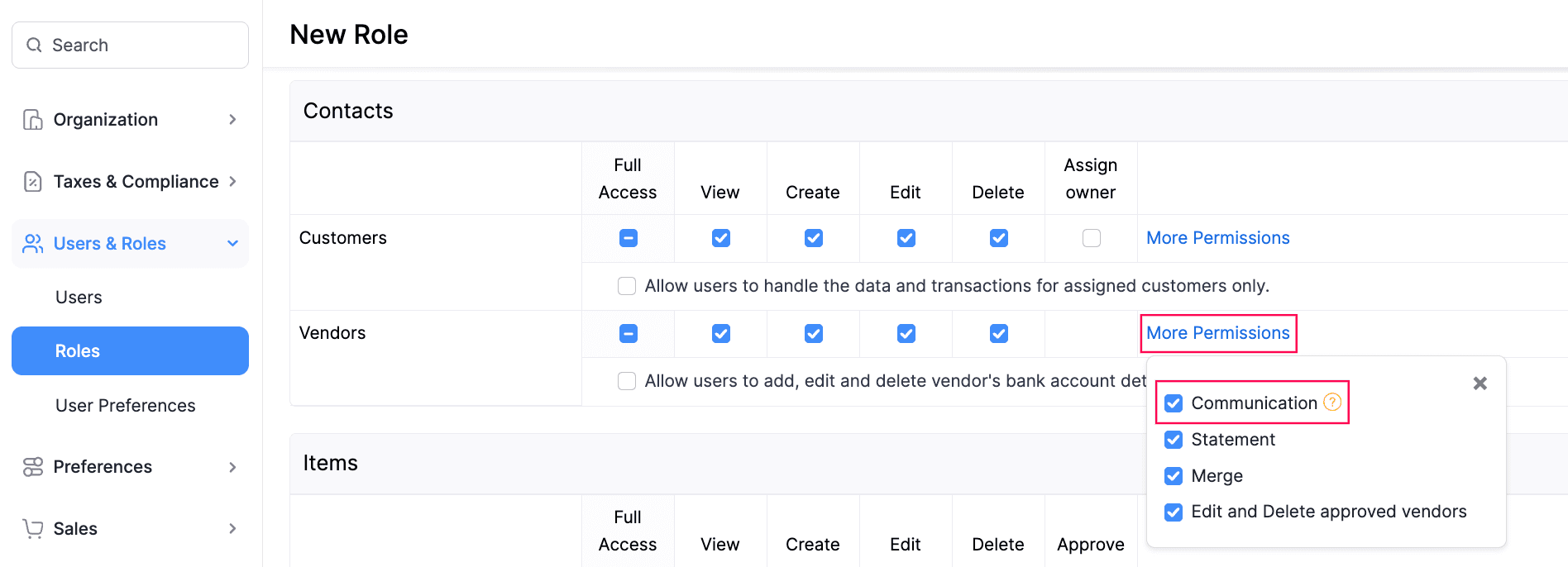
Under Contacts, click More Permissions next to Customers and Vendors, and select Communication from the dropdown.
Click Save.
Once this role is assigned to a user, they will be able to access the WhatsApp chats based on the permissions provided.
Note:
With these permissions, the users can chat with customers and vendors using the WhatsApp Business common chat window.
Chat With Customers and Vendors
To chat with a customer or a vendor via WhatsApp in Zoho Books:
Go to Sales and navigate to Customers. Or, go to Purchases on the left sidebar and select Vendors.
Click the customer or vendor you want to chat with.
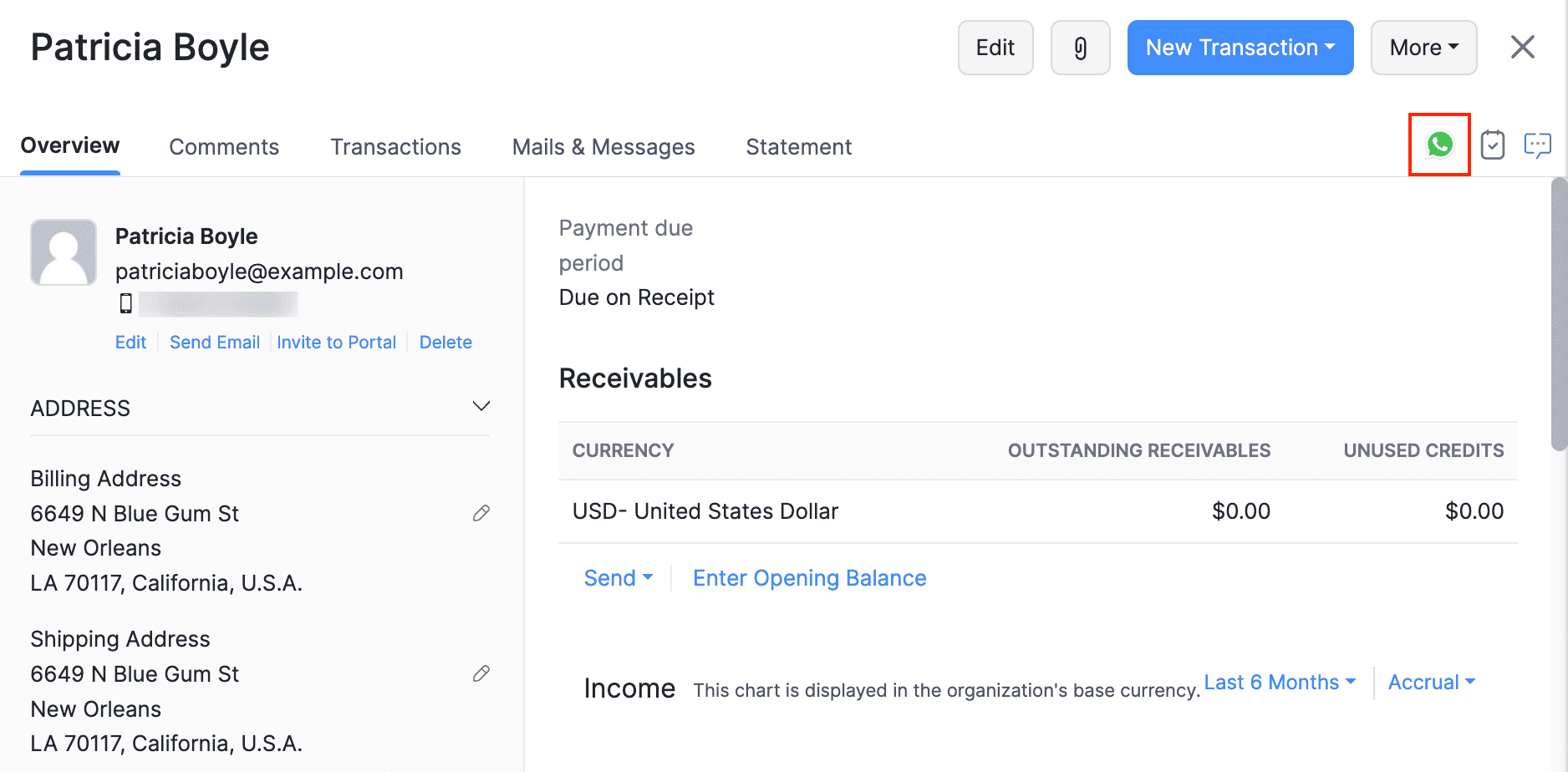
Click WhatsApp at the top right in the Overview section.
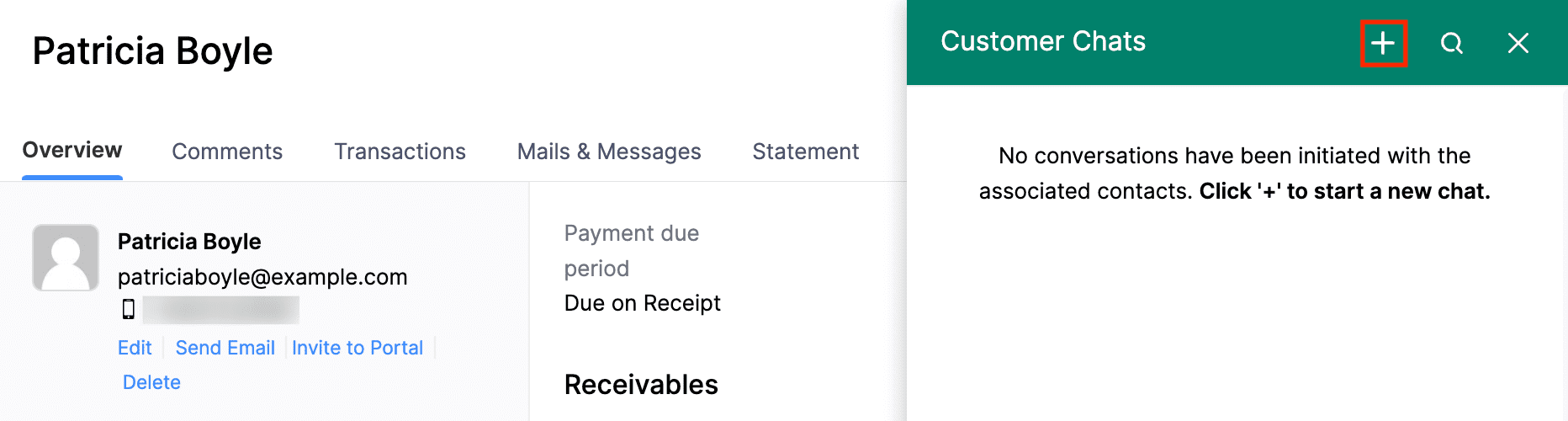
Click ‘+’ to start a new chat.
All the contacts for whom you’ve enabled WhatsApp Notifications will be listed.
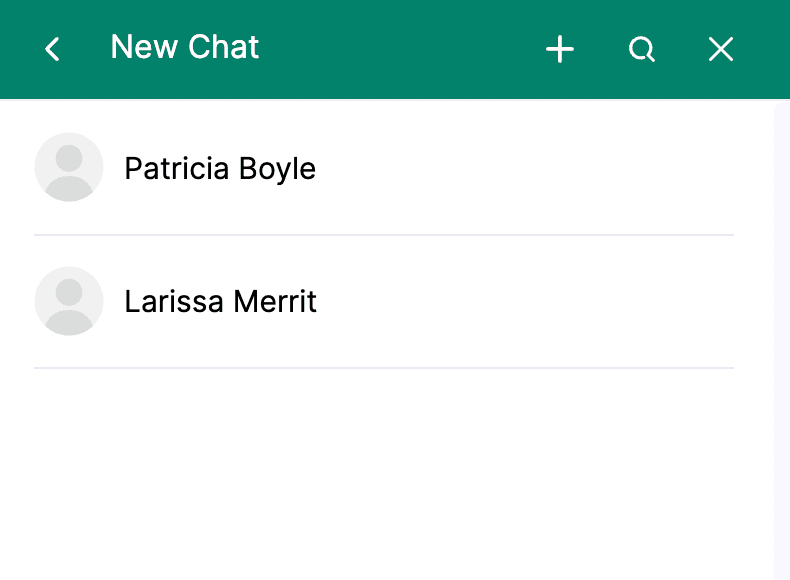
Select the contact with whom you want to chat.
Initiate the chat by sending a notification template.
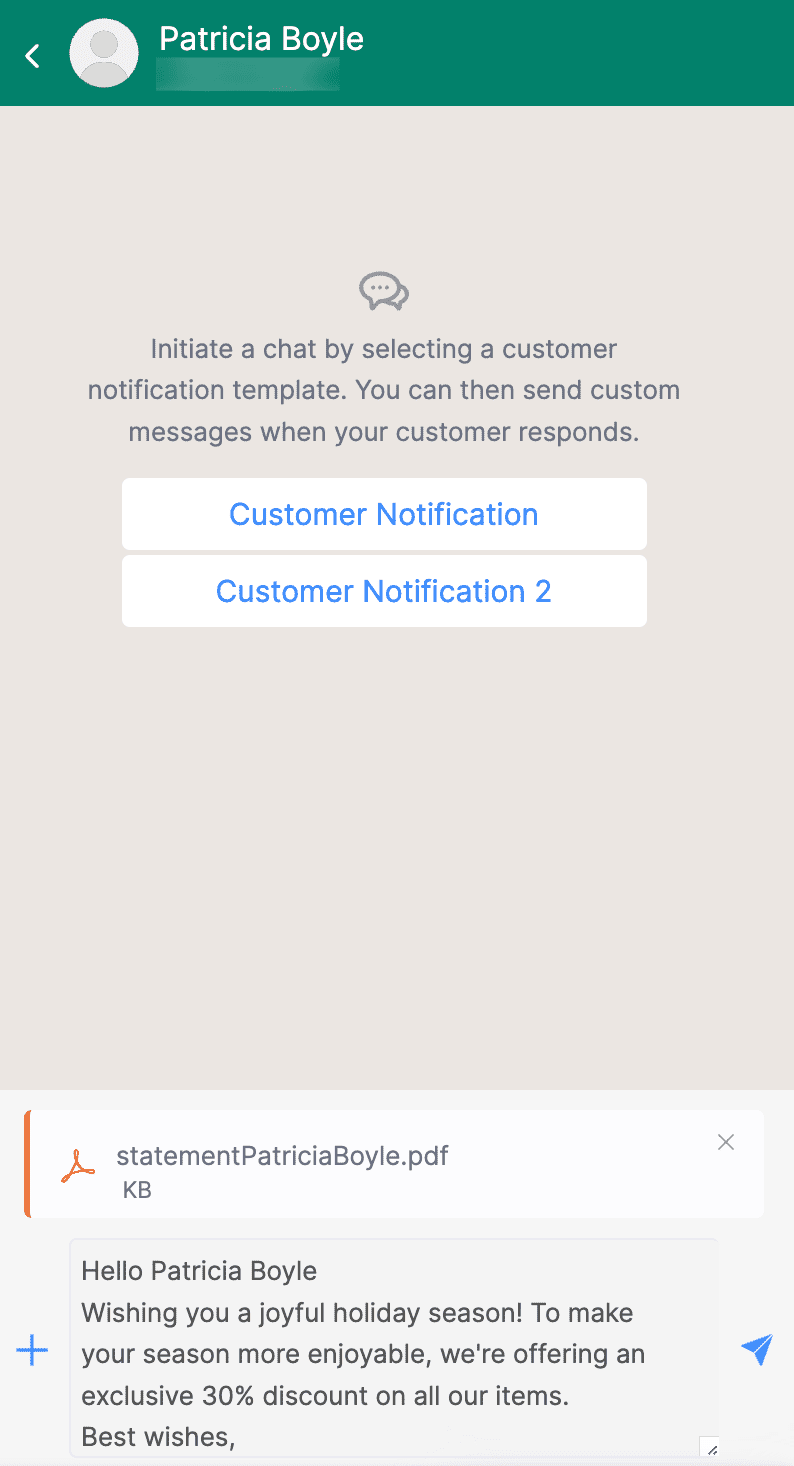
Send replies and attachments to follow up as soon as your customer or vendor responds.
Note:
You can only send predefined notification templates until your customer or vendor responds.
Insight:
You can add an attachment by clicking the + icon. Note that you can only send one attachment at a time, and the supported file formats are JPG, JPEG, PNG (up to 5MB), and PDF (up to 10MB).
- Once the conversation with a customer or a vendor is over, click the More icon at the top-right corner of the chat screen and select End Session.
- Click End Session in the confirmation pop-up that follows.
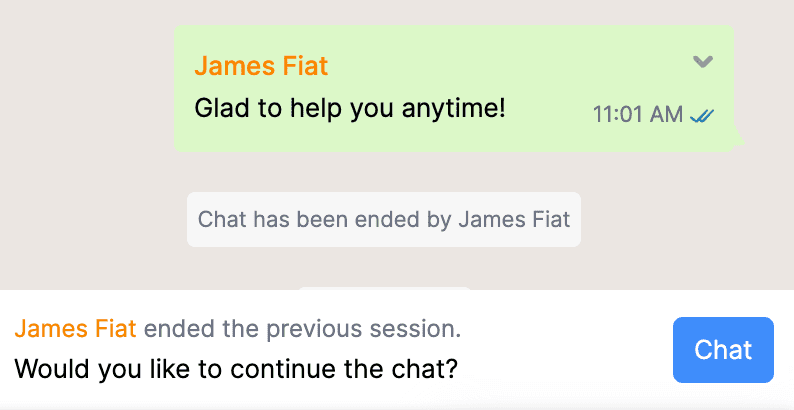
The session will end. You can click Chat to continue if your session has not expired.
Note:
The chat session will expire if there’s no activity for 24 hours** from the last message. Once it has expired, you must reinitiate the conversation by clicking Initiate Chat and sending a notification template as usual.
Take Over Customer and Vendor Chats
The users with the Customer Communication and Vendor Communication permissions can initiate chat with your customers or vendors. However, only one user can chat with your customer or vendor at a time.
Insight:
To enable communication preferences for other users in your organization, go to Settings, select Roles under Users & Roles, and edit the required role.
You can enter the chat if another user is chatting with the customer or vendor, and if they face any queries of your expertise, click Take Over at the bottom of the chat screen.
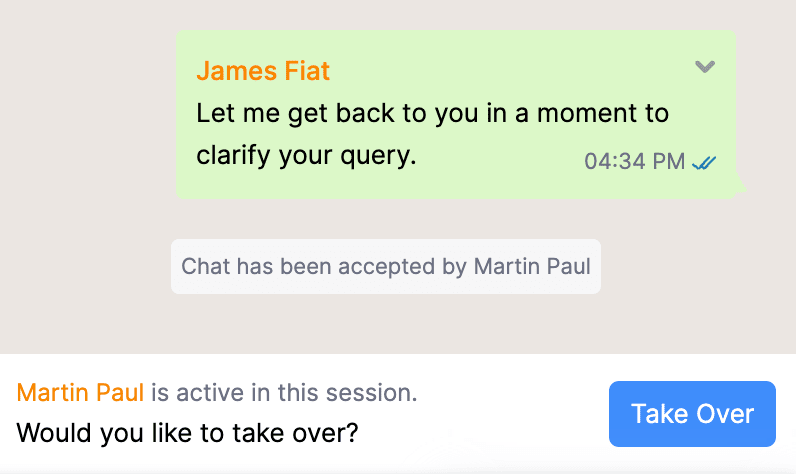
You can now continue to chat with the respective customer or vendor. Other users cannot chat with them until they take over the chat.
Note:
The customer or vendor won’t be notified when a user takes over their chat.
Common Chat Window
You can chat with a customer or vendor from Zoho Books at the organization level using the common chat window.
Click the WhatsApp icon in the top right corner of any page in Zoho Books to open the common chat window. From the All Chats dropdown, select and view Customer Communication or Vendor Communication.
You can also filter chats by selecting the Utility or Marketing category to view the notifications sent to your customers under each category. For vendors, the Utility notifications are displayed by default.
To add an unknown number in the chat window as a customer or contact person:
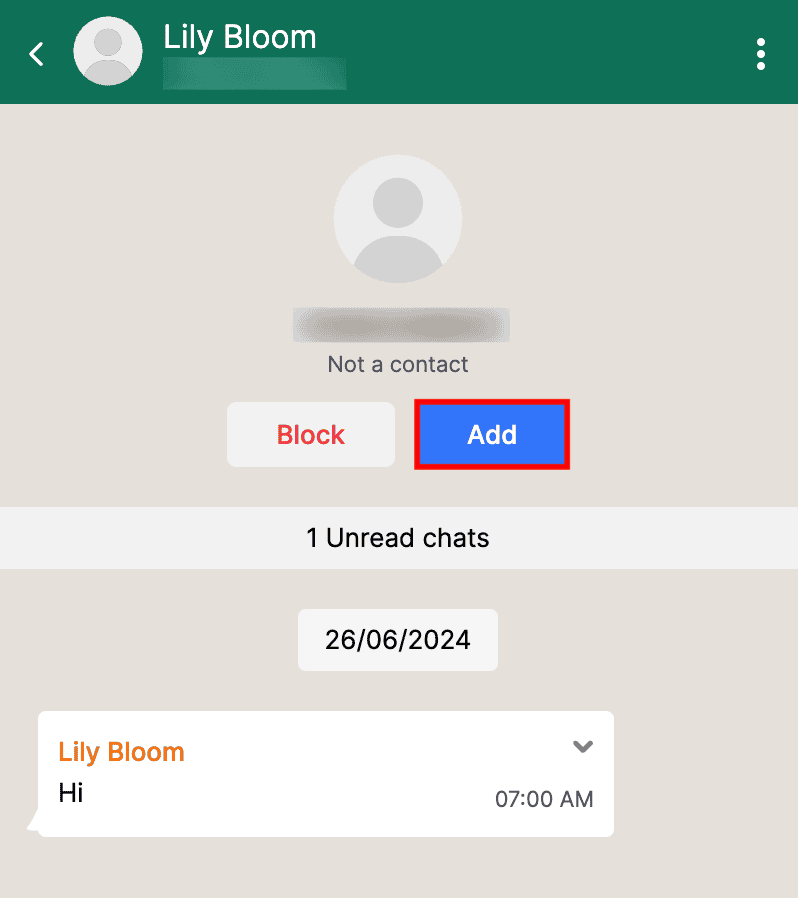
Open the chat of the unknown number that you want to add to you organization and click Add.
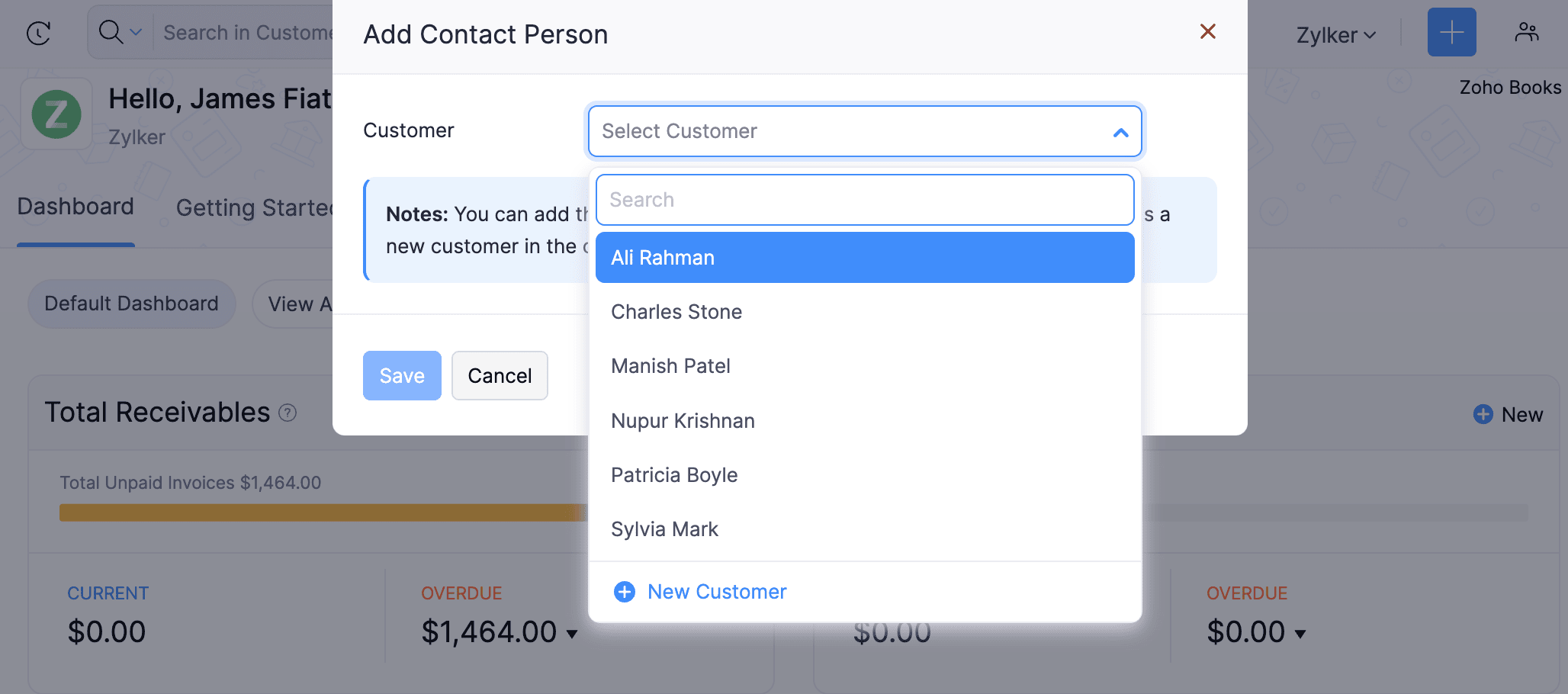
In the pop-up that appears, select if you want to add the unknown number as a contact person to an existing customer, or create a new customer.
Fill in the required details and click Save.
The unknown number will now be a contact person or customer in your organization.
Note: You can only send custom messages to unknown numbers.
Other Actions
Create Workflow Actions
Users can create workflow actions in Zoho Books to automate various tasks. When integrated with WhatsApp, users can create WhatsApp Alerts to notify the customers and vendors.
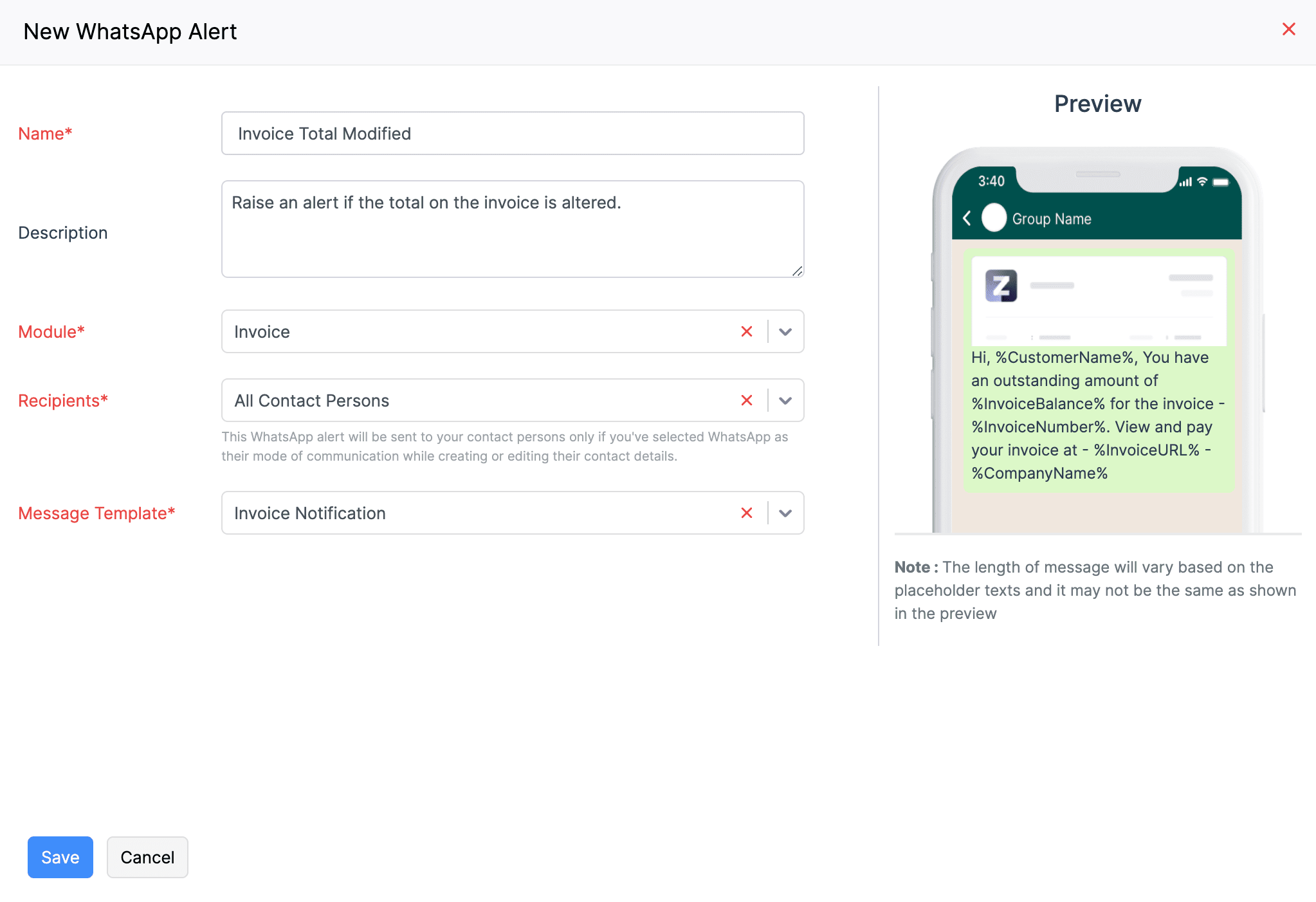
Scenario: Patricia wants to notify her customers via WhatsApp when changes are made to the invoice’s total. To simplify the process, she creates a workflow action to send a WhatsApp alert when the invoice total is modified.
You can create a workflow action for WhatsApp and associate it with a workflow rule or vice-versa. To do this,
Go to Settings, navigate to Automation, and click Workflow Actions.
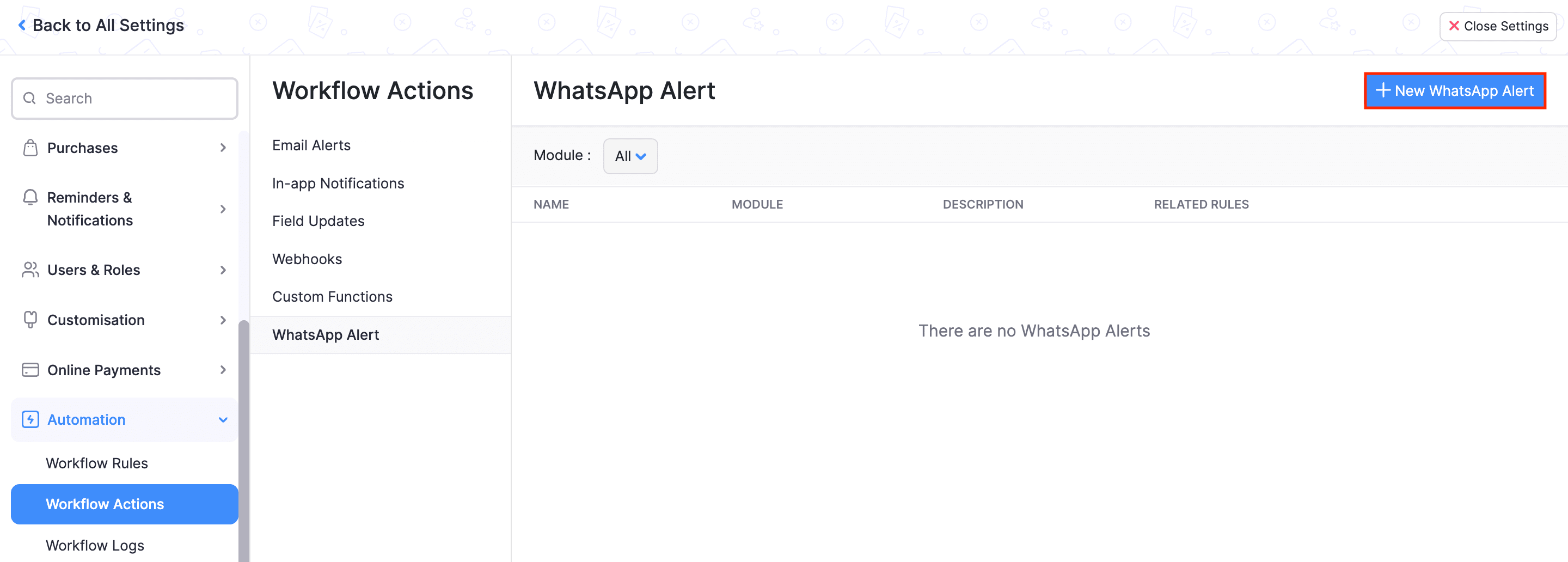
Navigate to WhatsApp Alert under Workflow Actions and click + New WhatsApp Alert.
Enter the necessary details to create a WhatsApp alert and click Save.
Once you create an alert, you can add it to a workflow rule.
Mark WhatsApp Inactive
If you want to disable the WhatsApp integration temporarily, you can mark it as inactive. Here’s how:
Go to Settings, navigate to Integrations & Marketplace and click WhatsApp.
Click Configure and select Mark as Inactive from the dropdown.
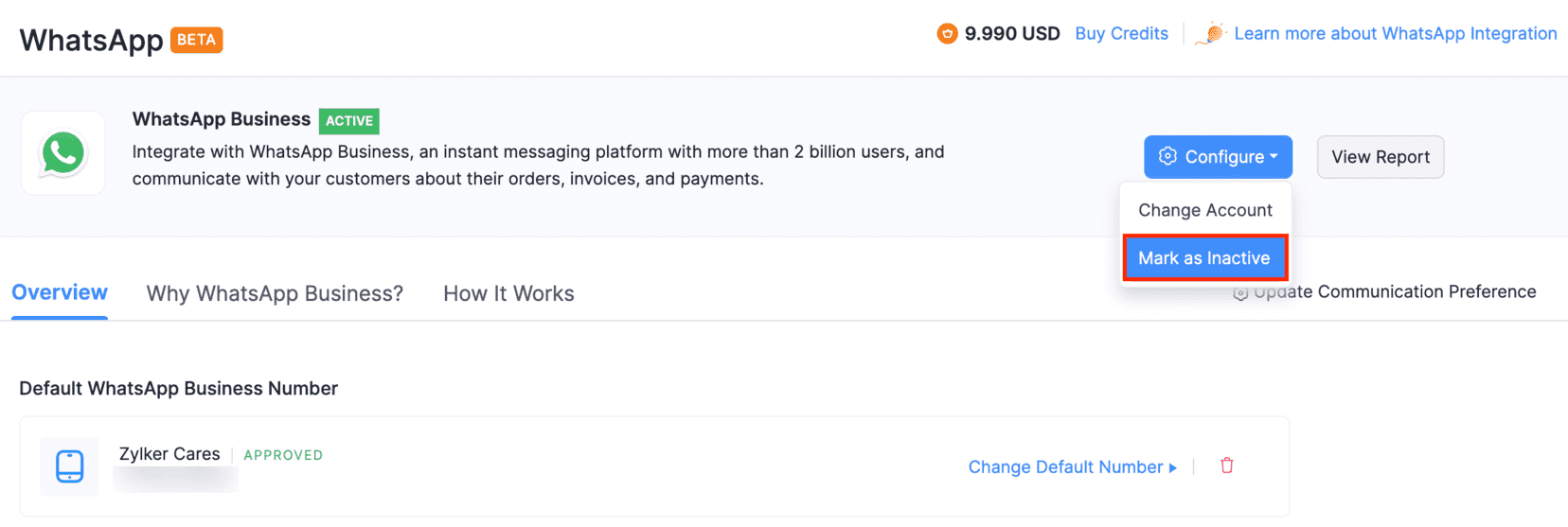
WhatsApp will be disabled for your organization. You can enable this anytime by clicking Mark as Active from the Configure dropdown.
Change Default WhatsApp Number
To change the default WhatsApp number, you must first delete the existing WhatsApp channel. To do this,
Go to Settings, navigate to Integrations & Marketplace, and click WhatsApp.
Click the Delete icon in the Default WhatsApp Business Number section.
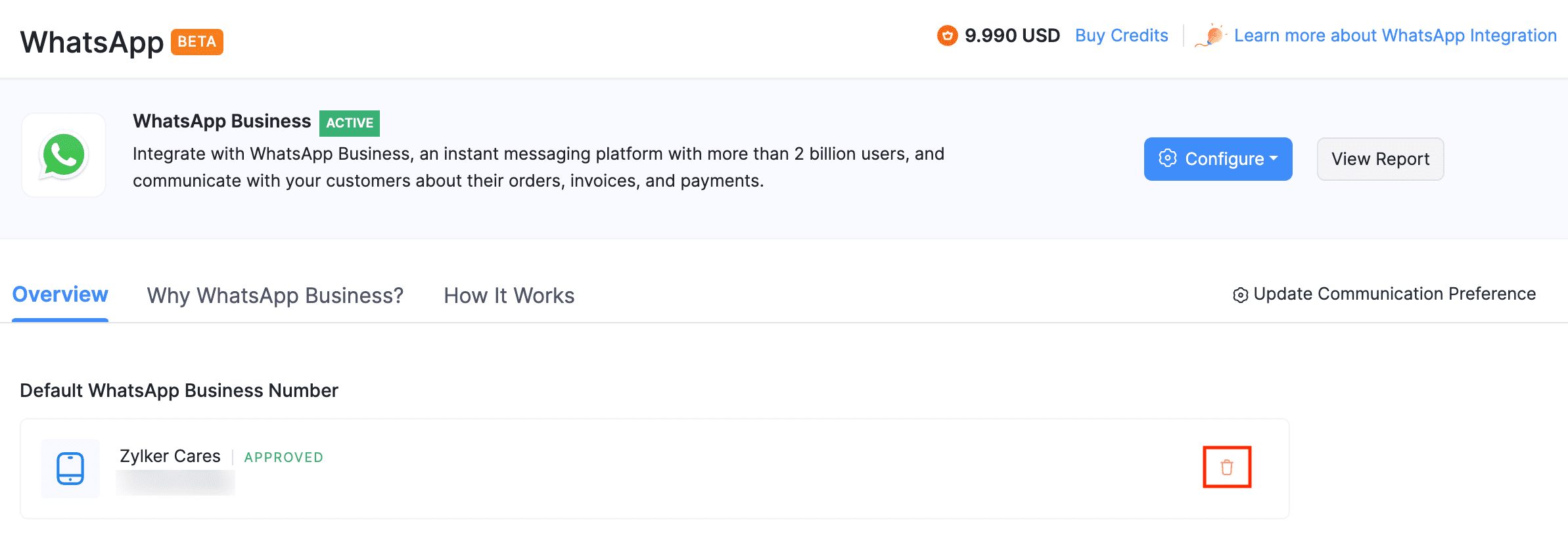
Click Delete in the following confirmation pop-up. The WhatsApp number associated with Zoho Books will be deleted.
Once the existing channel is deleted, you can set up a WhatsApp channel with the new phone number.
To do this,
Click Set Default Number in the Default WhatsApp Business Number section.
Select the number you want to set as the default WhatsApp number from the pop-up that follows and click Continue.
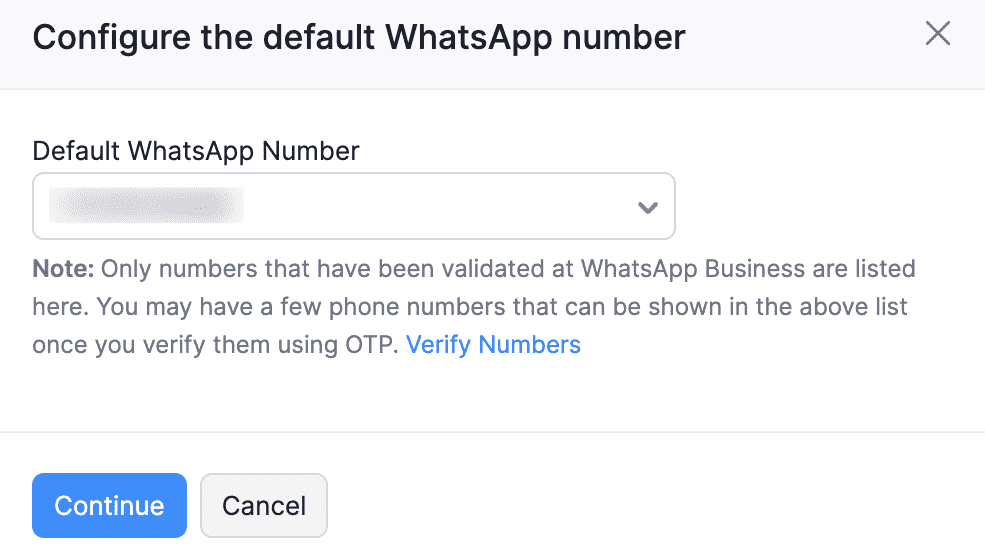
If you haven’t verified the WhatsApp Business number, it will not be listed in the pop-up. In that case, click Verify Numbers.
Select the desired number and click Send OTP to verify the number. You can also choose to get the OTP via call.
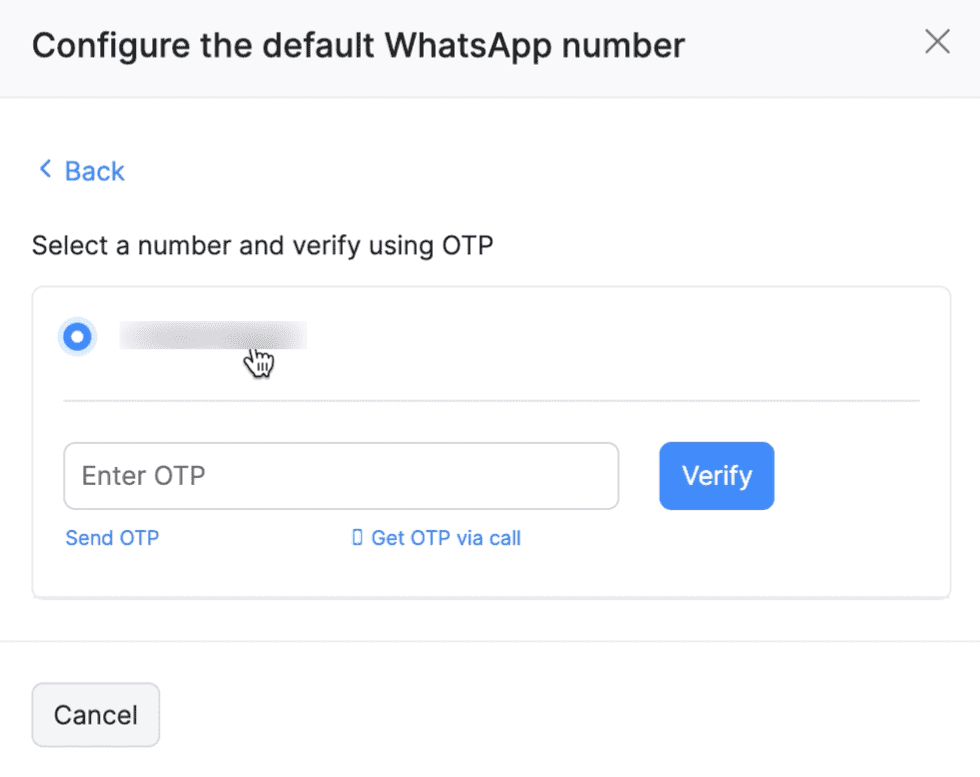
Enter the OTP and click Verify.
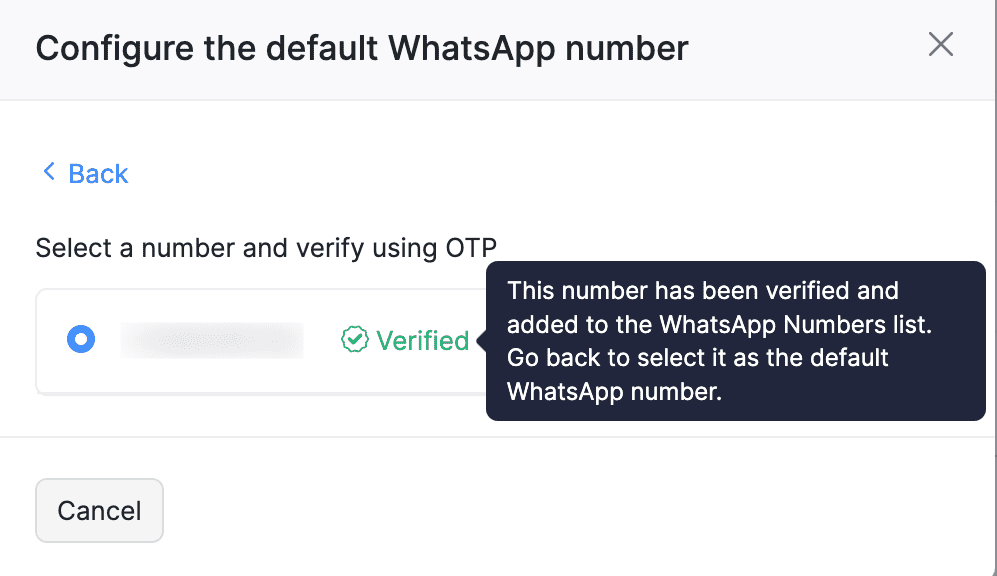
Once verified, click Back and select the number from the Default WhatsApp Number dropdown.
Your default WhatsApp number will be updated.
Change WhatsApp Business Account
You can also change the WhatsApp Business account if you already have an existing account. Here’s how:
Go to Settings, navigate to Integrations & Marketplace and click WhatsApp.
Click Configure and select Change Account from the dropdown.
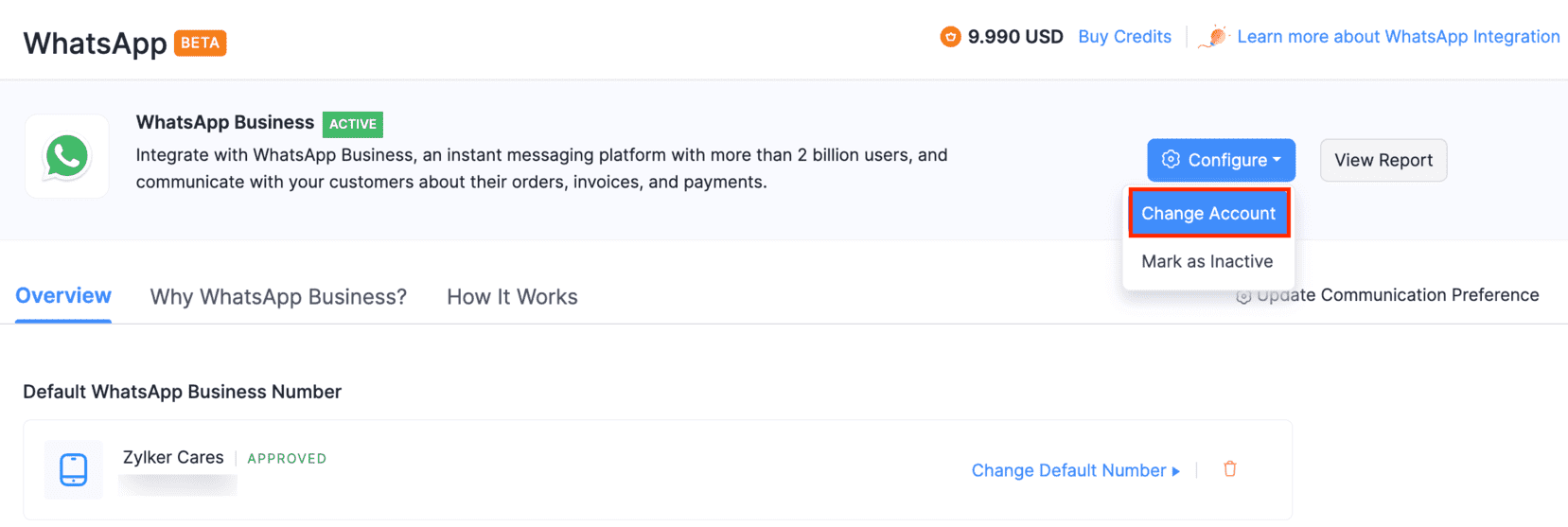
Note: Once you change your WhatsApp Business account, you will not be able to use your existing WhatsApp channel and templates. Therefore, you will be required to delete the templates before proceeding.
Warning: Ensure that you delete the templates from Zoho Books and not from Meta to avoid syncing issues.
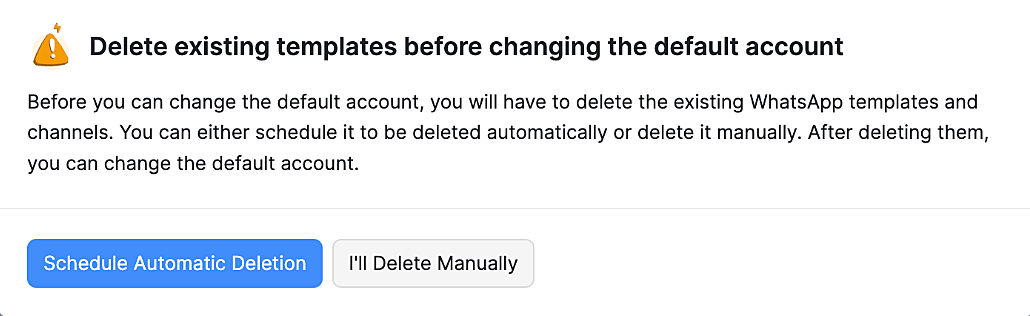
- In the following pop-up, you should delete the existing templates before changing the default account. You can click:
Schedule Automatic Deletion to initiate the automatic deletion process. The time duration for deletion depends on the process at Meta’s end.
I’ll Delete Manually to remove certain templates. Go to each template, click the More icon next to it and select Delete.
Once the deletion process is completed, the status of your WhatsApp Business account will be changed to SETUP PENDING. You can also check whether the number of templates for each module has been changed to 0 to confirm that the deletion process has been completed.
Click Configure, and select Change Account from the dropdown. The Change WhatsApp Business Account pop-up will appear.
- Click Use the existing WhatsApp Business account registered with Zoho and select the account from the dropdown to continue using the existing account. (or)
- Click Create a new WhatsApp Business account with Zoho to create a new WhatsApp Business account.
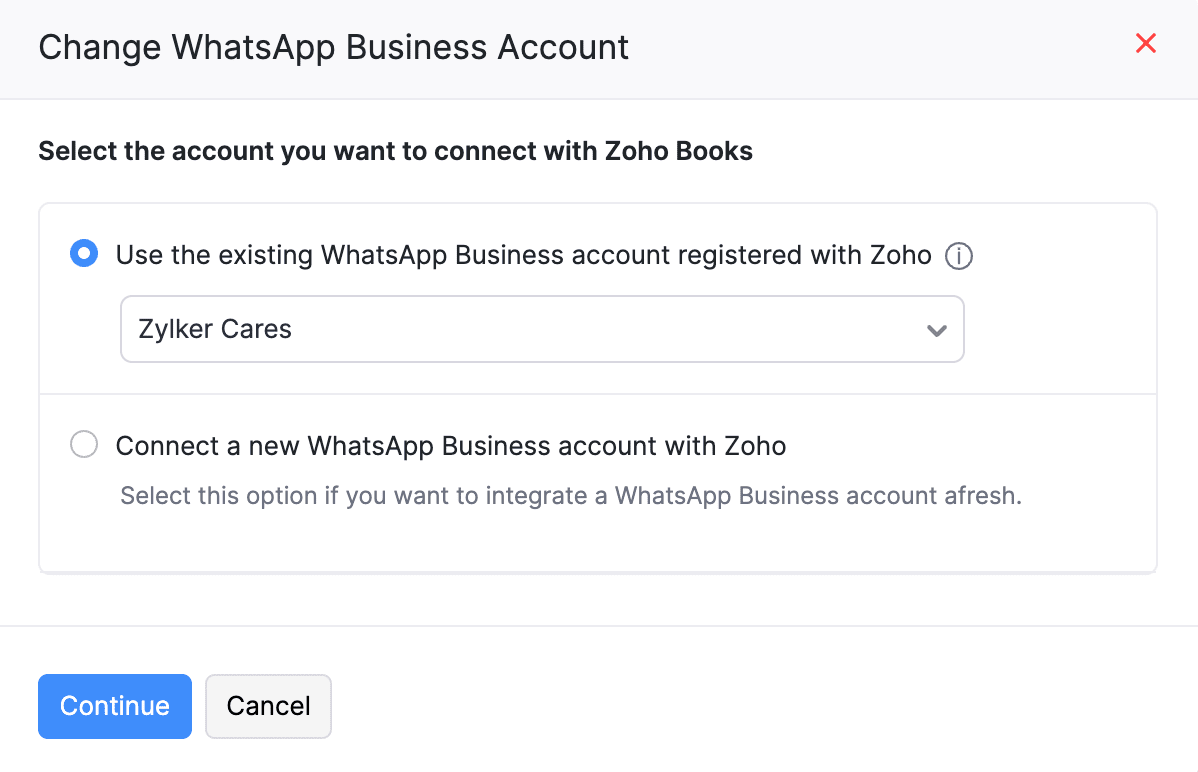
Click Continue.
The WhatsApp Business Account will be changed.
 Yes
Yes