Deploy All Resources
Deploy Command Execution
To deploy your Catalyst project from the CLI to the remote console, execute the following command in your terminal from your project directory:
When you execute this command, it will deploy all deployable resources in your project directory by default. The CLI will consider the project that is active in your working directory. If any project other than the directory’s base project is active in it, the CLI will display a warning informing you of it.
Deploy Functions
The functions are deployed first. The CLI will compile all the Java functions in your project directory before deploying them. The compiled Java class files available in their respective directories. The Node.js functions are deployed directly.

The CLI deploys each function individually. The CLI will display the status of each resource’s deployment individually, indicating if it was successful or a failure.
The Basic I/O and Advanced I/O functions are deployed to the URLs displayed in the terminal, and you can access their endpoints from their URLs. The endpoints of the Cron , Event , and Integration functions are not accessible through URLs, as they are associated with cron jobs, event listeners, or external integrations respectively. The CLI will just display their deployment status.

Deploy Basic Client Applications
The client directory is deployed next. This will generate the URL endpoint of the hosted web client , where you can access the application.
The Basic web client will be deployed straight away.

Deploy Angular Applications
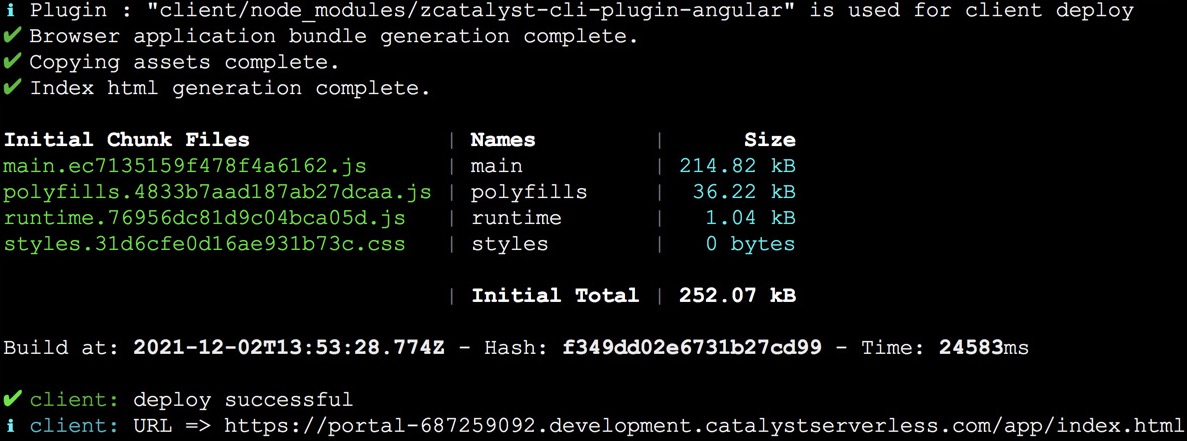
When you deploy an Angular app, the Catalyst plugin for your Angular app, zcatalyst-cli-plugin-angular , which is installed when the Angular app is initialized, will handle the deployment.
The chunk files representing your Angular components and services, such as the polyfills and runtime files, are generated. The build is generated after the chunk files are generated.
Angular applications are compiled and built into an output directory dist/ . This folder will contain all the compiled files of your app, such as the entry point file, stylesheets, and templates of the HTML, CSS, JS or TS types in your app’s source folder, src .
The deployment details will be updated in the workspace configuration file angular.json . These fall under the standard deployment procedure of Angular applications.
The CLI will display the deployment details of your Angular app. The URL endpoint of the deployed web client will be generated and displayed. You can open the application with this URL.
Deploy React Applications
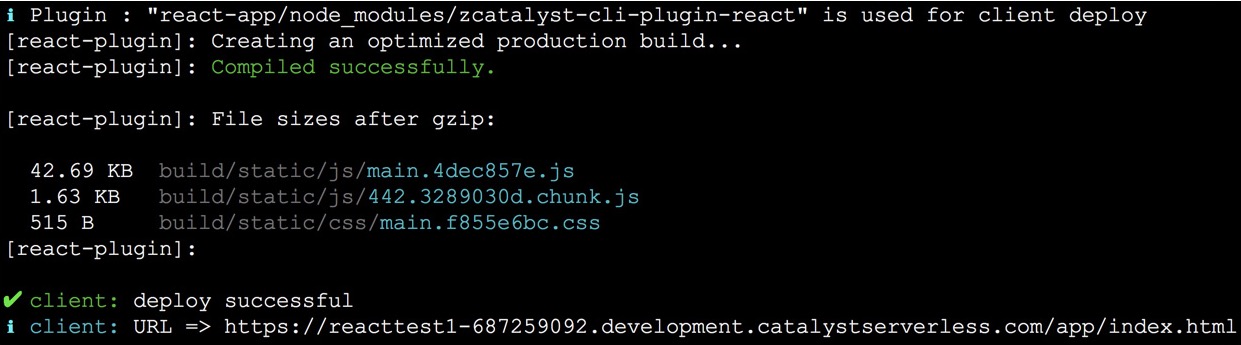
When you deploy a React app, the Catalyst plugin for your React app, zcatalyst-cli-plugin-react , which is installed when the React app is initialized, will handle the deployment.
The plugin will enable the compilation of the React app. React applications are compiled and built into an output directory build/ . This folder will contain all the compiled files your app, such as the HTML, stylesheet, JS and other files in your app’s source folder src . The production-ready build is generated after the compilation.
If you had developed your React app in TypeScript, the code will be transpiled to JavaScript during the compilation. These fall under the standard deployment procedure of React applications.
The CLI will display the deployment details of your React app. The URL endpoint of the deployed web client will be generated and displayed. You can open the application with this URL.
-
The /app/ part in the URL of a Catalyst application indicates the client component. You can view the URLs of your application of both environments from the Environments settings section .
-
If you enter the application’s URL in this format: https://project_domain_name.development.catalystserverless.com, it will automatically redirect you to the application’s homepage that you have configured in the client-package.json file, in the development environment .
Deploy API Gateway
The API Gateway’s JSON file is deployed last. This will update the API definitions in the remote console.

Your project will now be synchronized with your online Catalyst account. You will be able to access the functions, web client, and updated API Gateway definitions that were deployed in the remote console.
Yes
No
Send your feedback to us