Authentication Types
The Catalyst Cloud Scale service offers authentication solutions in three types:
You can implement all of these authentication types in each of your Catalyst application(s) once.
The Authentication Type section enables you to view what authentication types have been enabled, add multiple authentication types and view and edit existing authentication types.
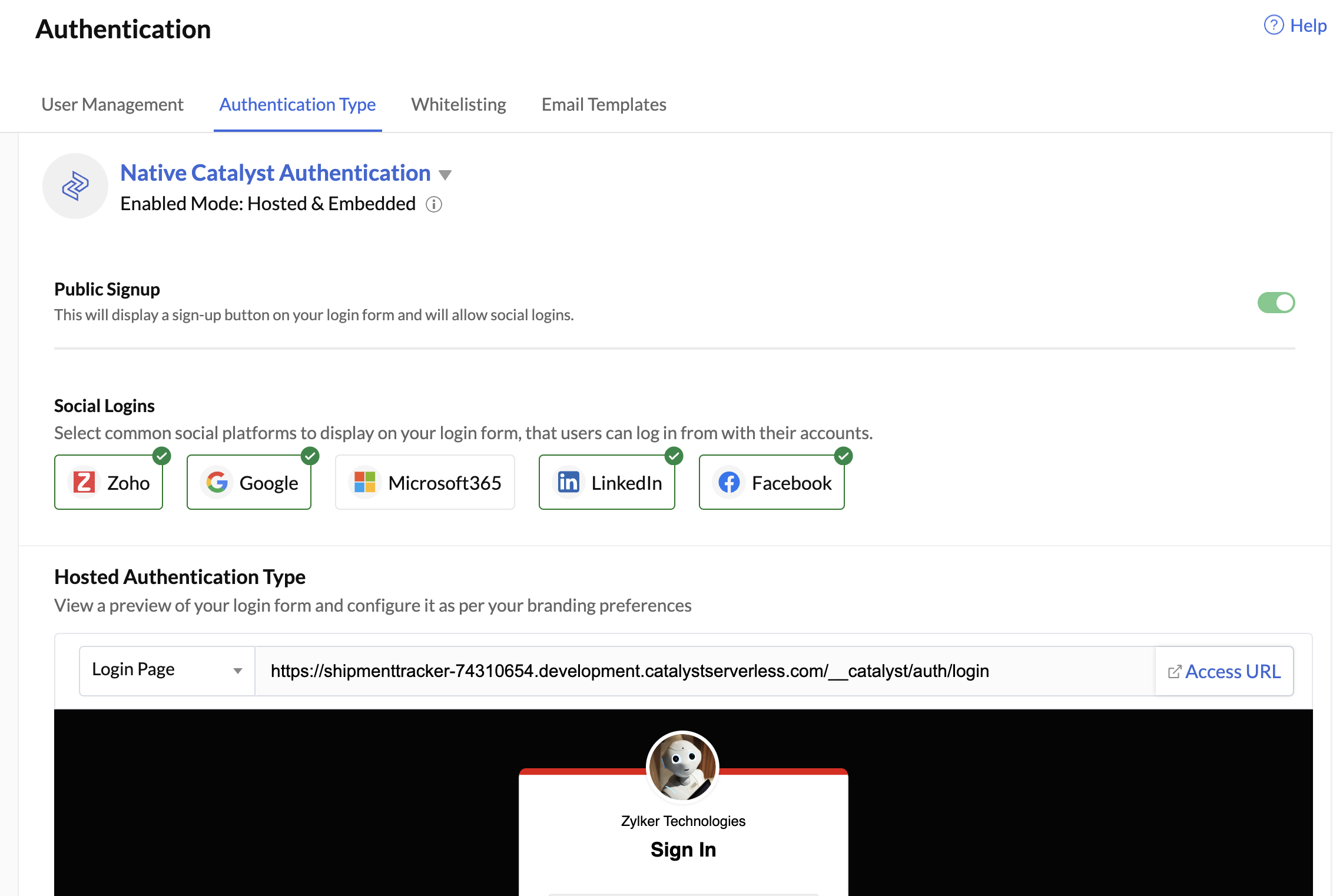
When you complete setting up and enabling each authentication type, you will directed to the Authentication Type section of the console. For instance, consider you have enabled the Hosted Authentication Type , then you will see the following:
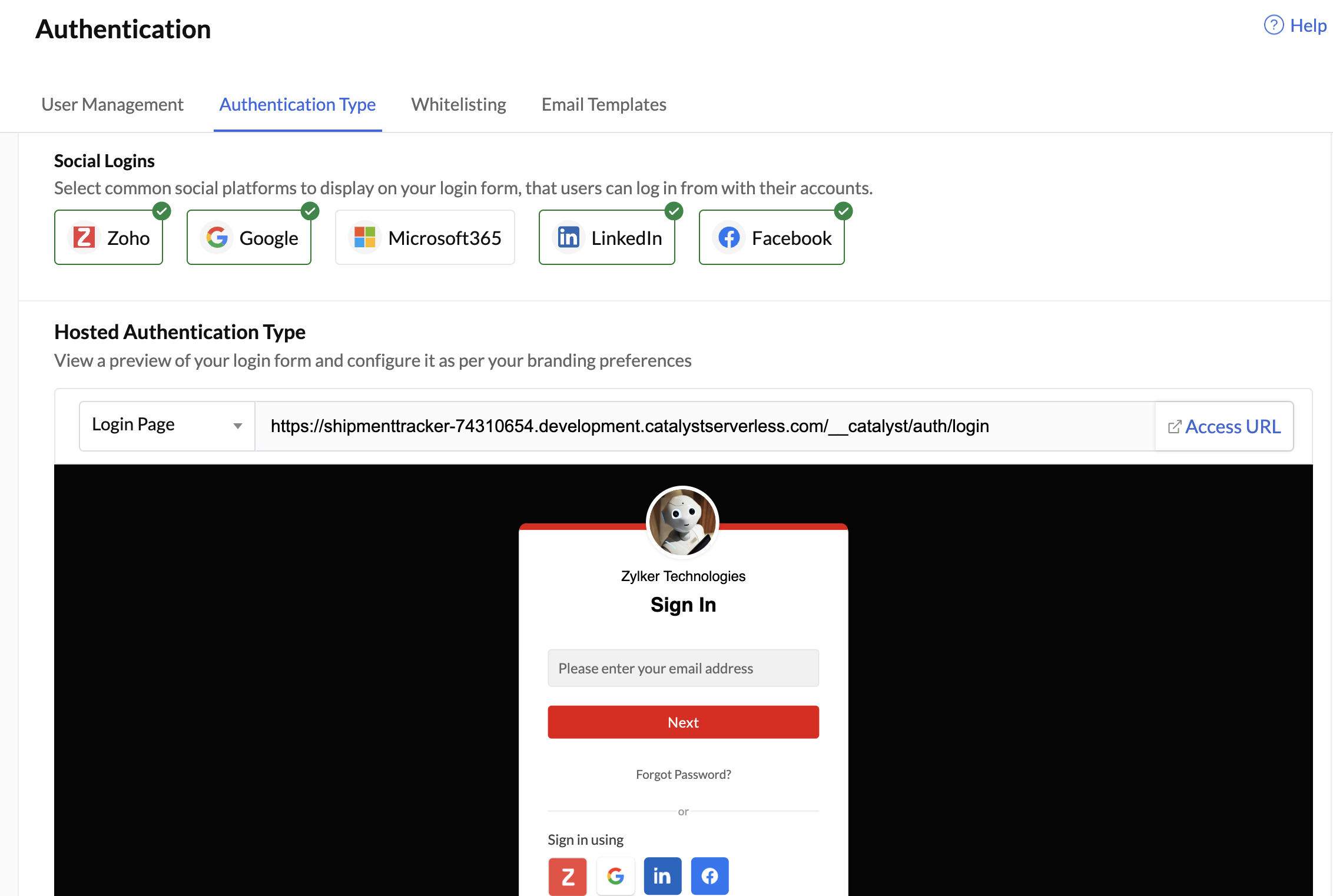
- You will be able to view which authentication type has been currently enabled.
- You will have the option to configure, edit and enable or disable Social Logins of your choice.
- You will be able to view and copy the Login URL.
- You can click Access URL to view the login element as it would appear to the end-user.
- You can click Edit Page to edit the style and functionality of the login page.
Adding More Than One Type of Authentication
- Click Add Authentication to add another authentication type.

-
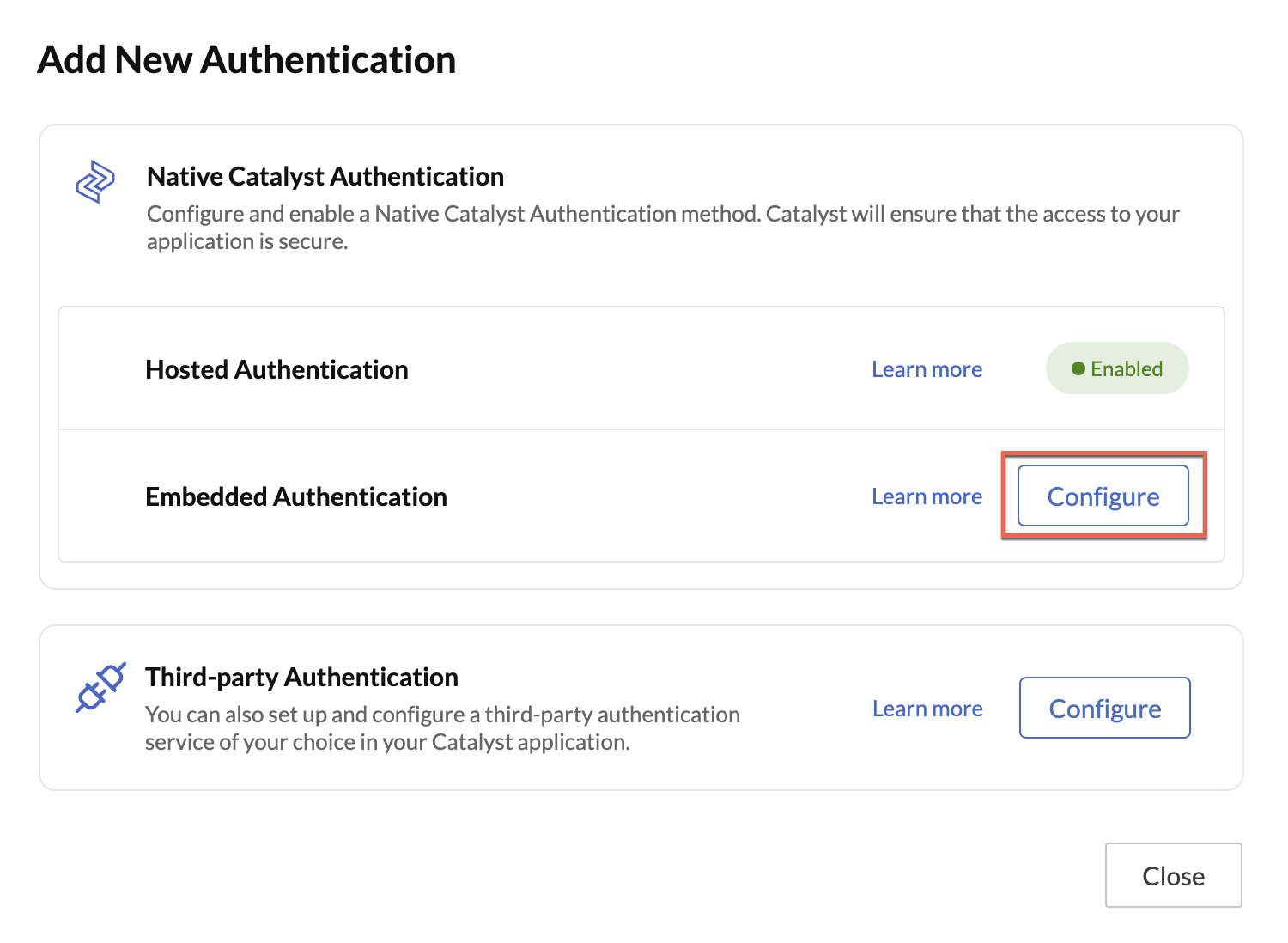
Click Configure option of the authentication type you wish to configure. For instance, click Configure next to Embedded Authentication to set up embedded authentication type. Find out how to enable Embedded Authentication type from here .
-
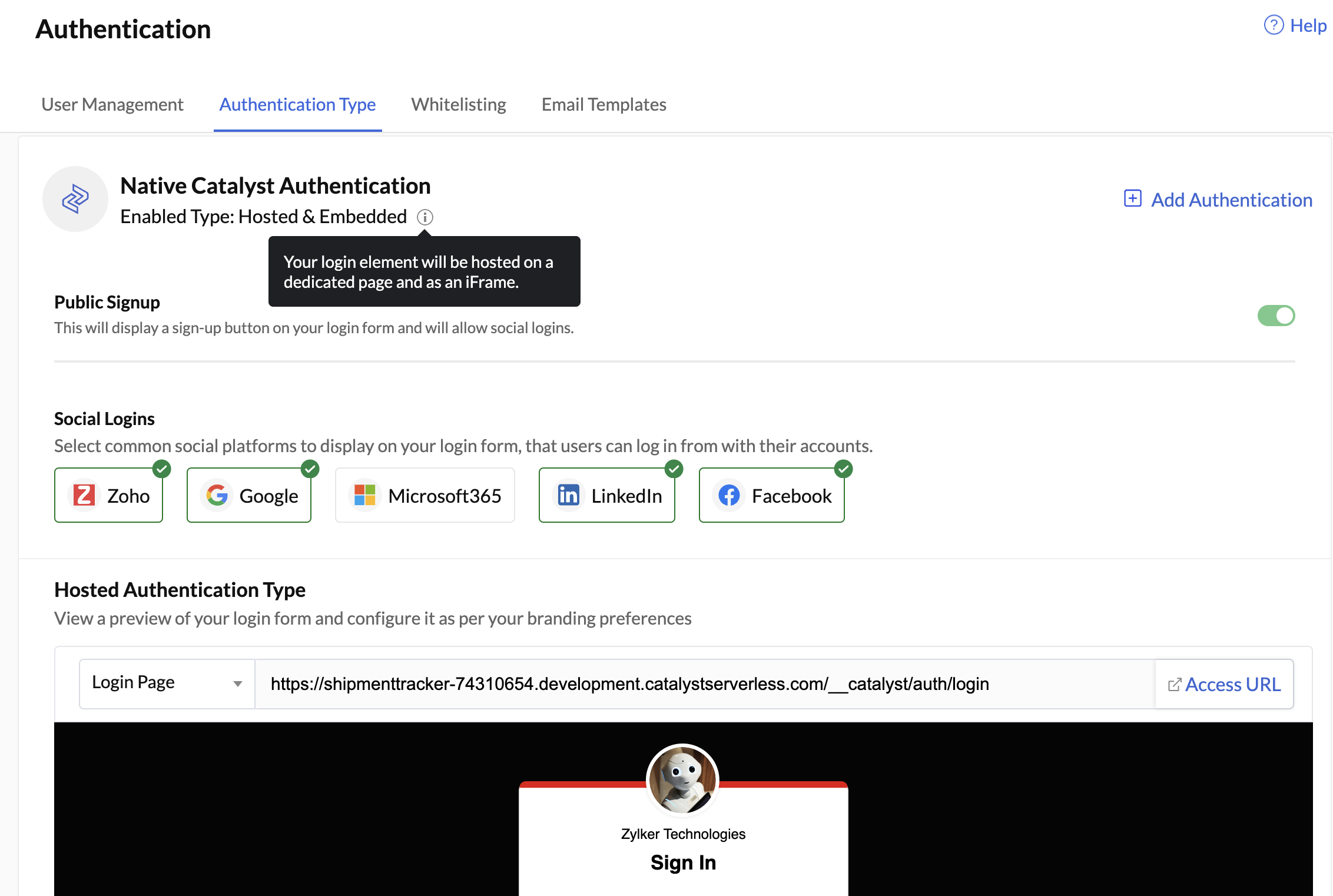
Once you have completed setting up embedded authentication, you will be once again be directed to the Authentication Type section and now you will be able to view in Enabled Type section that both Hosted and Embedded authentication types have been enabled.
-
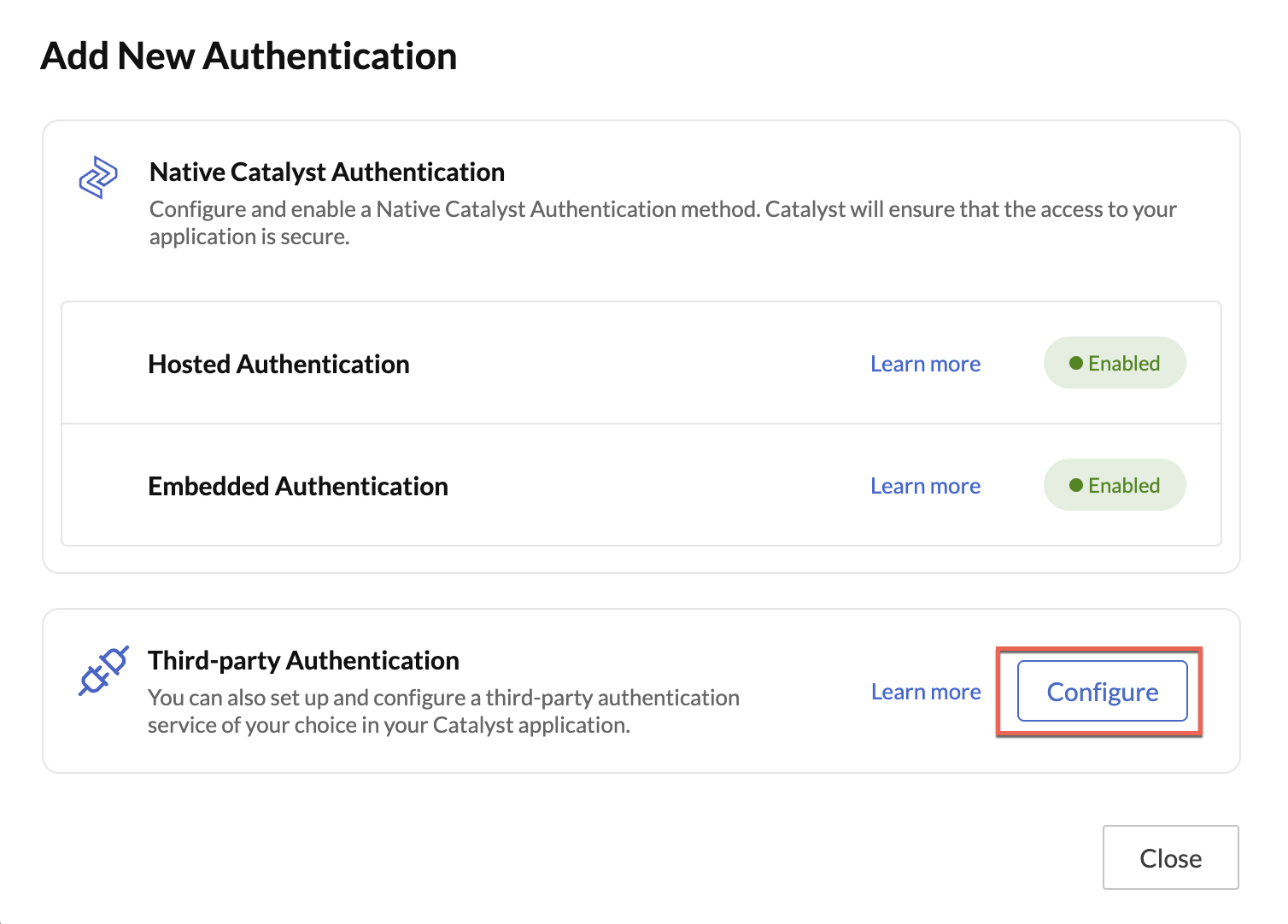
You can click Add Authentication again to set up Third Party Authentication along with the Native Catalyst Authentication types that you have set up.
-
Click Configure next to the Third Party Authentication option to begin set up.
-
Follow the authentication setup steps, to enable third-party authentication on your Catalyst application. You can find out how to set up third-party authentication here .
-
-
Once you complete the set up, you will be directed to the Authentication Types section.

All three authentication types have now been enabled for your Catalyst application.
Managing More Than One Authentication Type
Catalyst ensures that you can enable and manage more than one type of authentication type for your application. However, you will only be able view the configurations of either the Native Catalyst Authentication types or the Third Party Authentication type.
To switch between authentication types:
-
Click the drop-down icon present next to the name of the authentication type and choose which authentication type you would wish to manage.

-
You will be directed to the configurations of the authentication type you selected.
You can switch back to the other type by using the drop-down icon again.
Yes
No
Send your feedback to us