Catalyst Component Event Listener
Introduction
Every Catalyst project contains one component event listener that is created when the project is created. As mentioned in the previous sections, the behaviors and functionalities of the component and custom event listeners vary.
The Catalyst component event listener is used to link a Catalyst component to a target function, and pass the component data to the function when it is invoked.
The following table describes the list of Catalyst components and the event occurrences in them that can be associated with the component event listener:
| Component | Event | Description |
|---|---|---|
| Data Store | Insert Update Delete |
Data is inserted in the associated tables Data is updated in the associated tables Data is deleted from the associated tables |
| Cache | Put | Data is written to the associated Cache segments |
| Authentication | Sign Up Delete |
A user signs up for the application A user is deleted from the application |
| File Store | Upload | A file is uploaded in the associated folders |
| GitHub | Success Failure |
Github deployment is successful Github deployment is a failure |
| Web Client | Hosted | Web client is hosted in the project |
- You can associate the actions of any one component with a particular rule.
- You can associate multiple events in a component with a single rule.
- You can also execute multiple target functions for a rule.
- You will not be able to rename or delete the component event listener. However, you can delete the rules you create in it.
For example, assume that a component event listener’s rule is associated with the Upload file event in three folders: Folder1, Folder2, and Folder3 in the File Store. Its target functions are Function1 and Function2. This means that whenever a file is uploaded to one of these three folders, both Function1 and Function2 are executed.
The data from the event, such as the folder ID, file name, and time of event for all three folders is passed to both Function1 and Function2 in a predefined pattern. The data is always passed to the target function from the event listener in the JSON format.
A sample data pattern is shown in the console when you create a rule. This shows a sample structure of the data that will be passed to the function when the event occurs. The data pattern varies based on the component and the actions that the rule is associated with, because different events will contain different data.
For example, if a rule is associated with an Authentication signup event, the event data would of the following pattern:
        copy


{
    "project_details": {
        "id": 57*************,
        "project_name": "Eventbus"
    },
    "event_bus_details": {
        "name": "Default",
        "id": 57*************
    },
    "data": {
        "platform_type": null,
        "user_details": {
            "email_id": "emma@zylker.com",
            "role_details": {
                "role_name": "App User",
                "role_id": 57*************
            },
            "zaaid": 1002347509,
            "created_time": "Sep 10, 2019 11:47 PM",
            "invited_time": "Sep 10, 2019 11:47 PM",
            "modified_time": "Sep 10, 2019 11:47 PM",
            "user_id": 57*************,
            "is_confirmed": true,
            "last_name": "",
            "first_name": "Amelia Burrows",
            "zuid": 1002342431,
            "status": "ACTIVE"
        },
        "org_id": 1002347509,
        "zaid": 1002345135,
        "redirect_url": null
    },
    "current_project": {
        "id": 57*************,
        "project_name": "Eventbus"
    },
    "action": "SignUp",
    "source": "UserManagement",
    "event_time": 1568139437092
}
The rule passes the user and sign up data, along with the project details, and other meta data about the event. You can code your target function to process the event data however you require.
Let us now work with event listeners in the Catalyst console.
Create a Rule in the Component Event Listener
You can access the Event Listeners component from the Amplify section in your Catalyst project in the console. The Catalyst component event listener will already be present there by default.
To create a rule in the component event listener:
-
Navigate to Event Listeners under Amplify in the console.
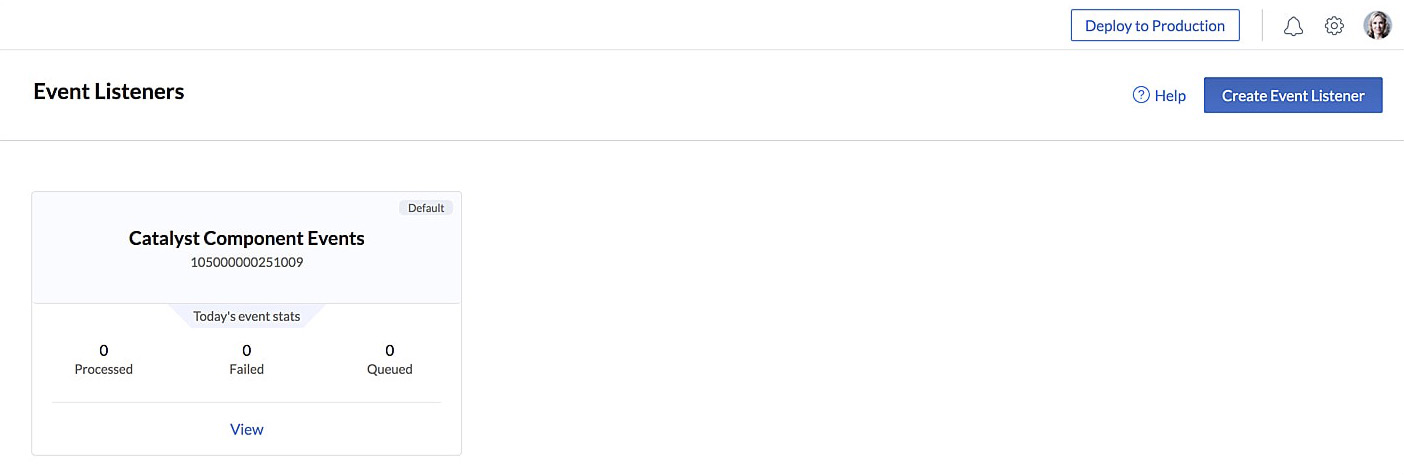
The Event Listeners page will display the Catalyst Component Events tile with the day’s statistics of processed, failed, and queued events -
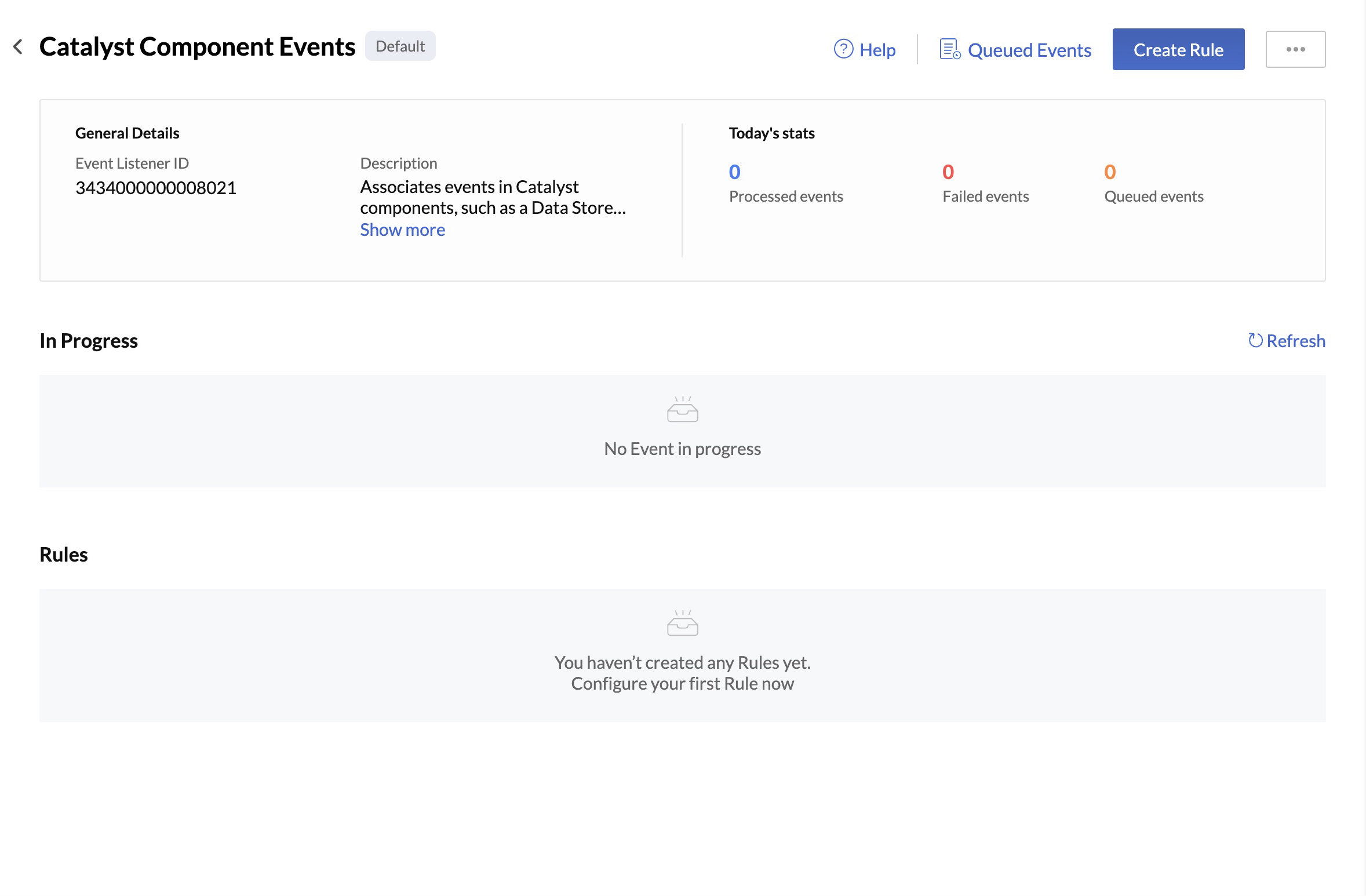
Click View on the event listener’s tile to open it.
-
Click Create Rule.

-
Enter a name and a description for the rule.

-
Select a component from the dropdown list to associate the rule with. When you select a component, the pop-up will display a sample structure of the data that will be passed to the target function. This data pattern varies for each component that you select, as mentioned earlier.
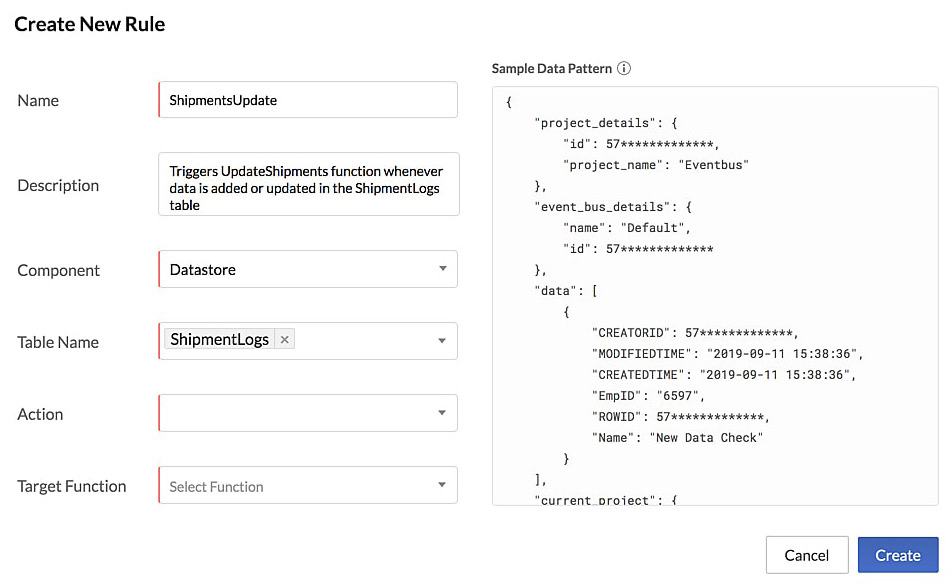
Based on the component that you selected, you might need to provide additional information. For example, if you choose “Data Store”, you can select one or more tables to associate the rule with. -
Select the actions occurring in the component to associate the rule with. These actions also vary based on the component, as discussed earlier.


The rule is now created. You can view a list of all the rules and their details of the component event listeners from its section.

When you click on a rule’s name from the list, you will view the details of the rule and its sample data pattern.
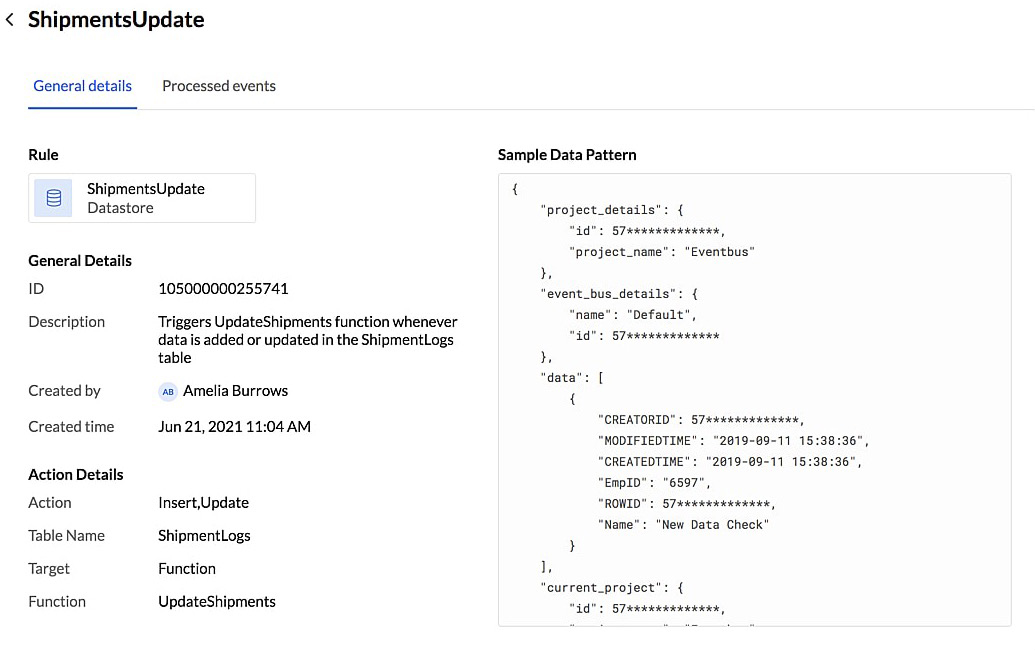
Before we discuss about the Processed Events section displayed here, and the Queued Events section displayed in the Event Listeners page, let’s discuss the custom event listeners.
Configure Alerts for Catalyst Component Listeners
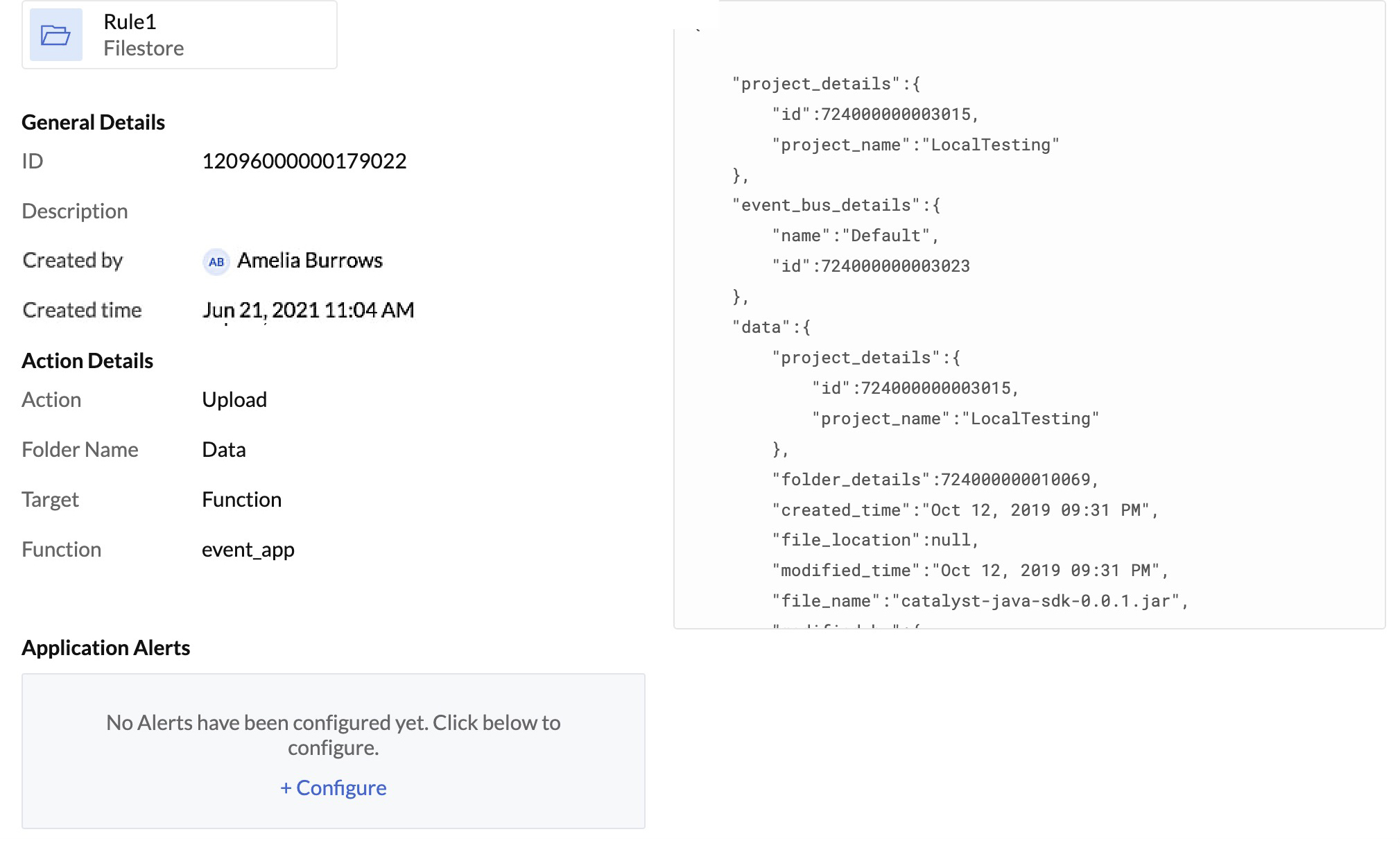
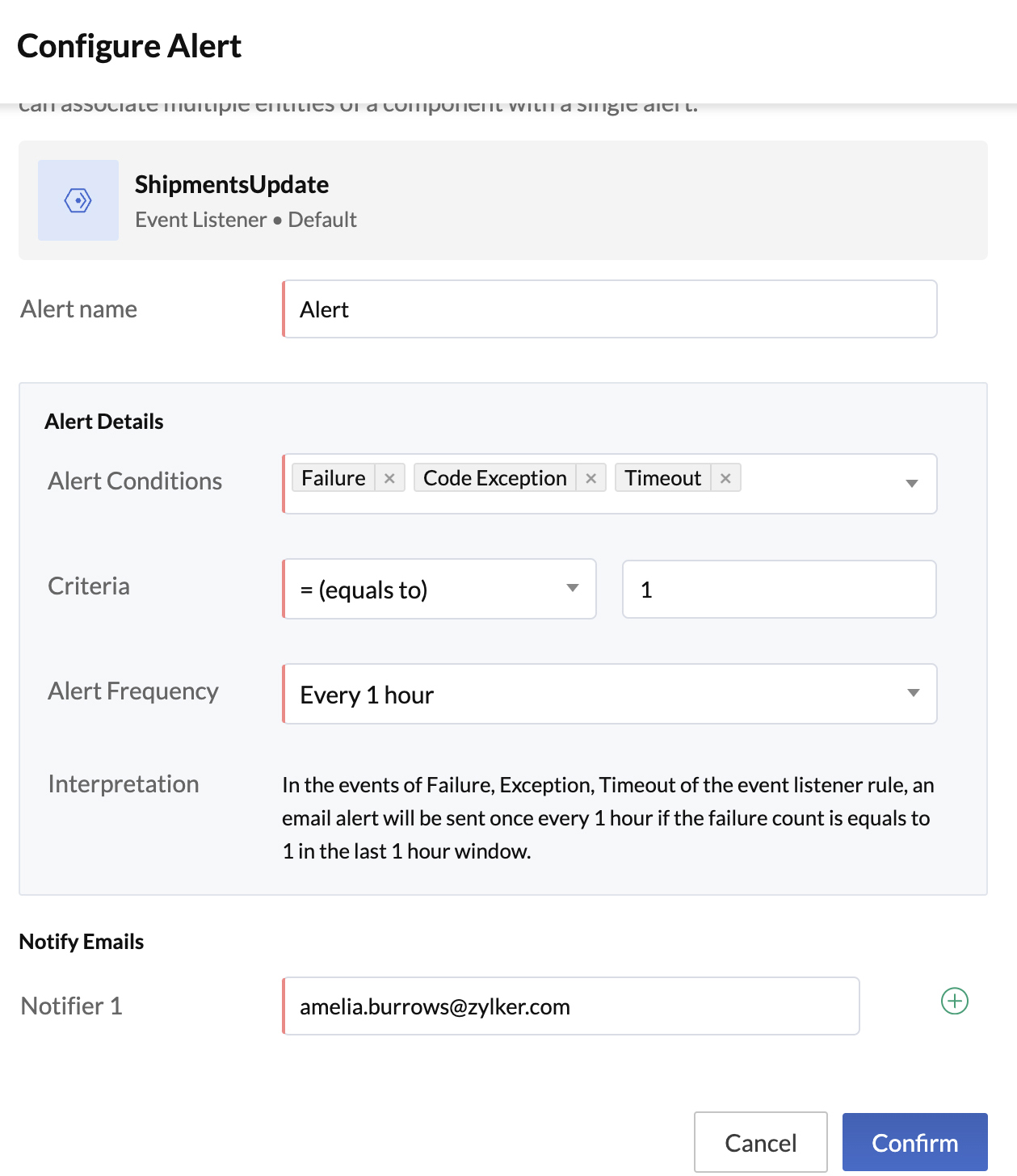
As mentioned earlier , you can configure automatic email alerts to be sent to you if the event listener encounters a failure, code exception or a process timeout. You can configure these alerts in the Event Listeners section directly without having to navigate to the Application Alerts component.
- Click the + Configure button in the event listener’s details section to configure an alert.
- Click Confirm after configuring the alert to enable it.
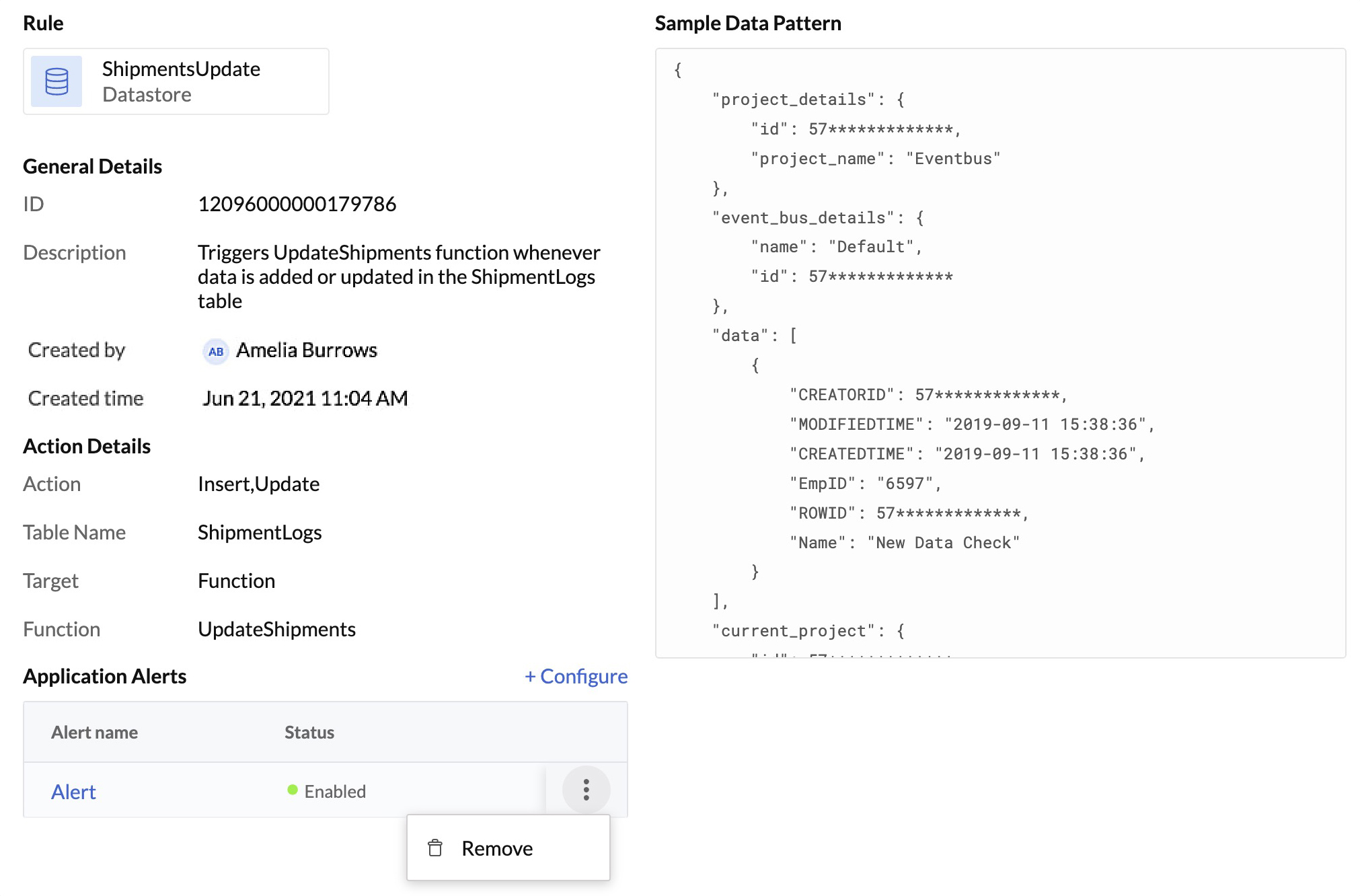
- You can also delete the alert by clicking the ellipsis icon beside the alert status and clicking Remove.
Yes
No
Send your feedback to us