Setting up Your Payment Method in Catalyst
To set up your payment method in Catalyst:
-
Navigate to Settings from the Catalyst console.

-
Click Manage Billing under the Billing section.

This will open the Zoho Catalyst payments portal in a new tab.

Alternatively, when you deploy your Catalyst application to the production environment from the Environments section in the settings, a pop-up window will open asking you to add your payment method. Click Add Card. This will also open the Zoho Catalyst payments portal.
You can learn about the steps involved in this in detail from the Environments help page .
-
Select INR or USD as the currency of payment. If your organization is based in India, select INR. If you reside in any other country, select USD.
-
If you select USD, enter the billing details of your organization.

Choose a payment method. If you click on the Credit Card tab, enter your credit card details. You can add a Visa, Mastercard, or an American Express card.
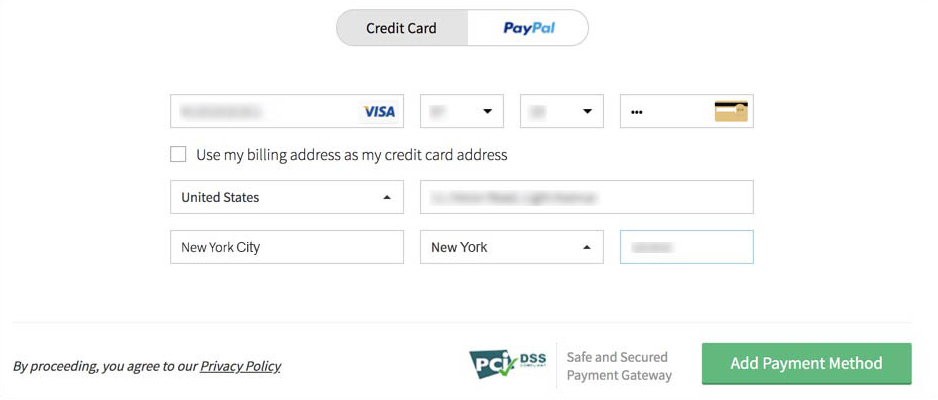
To use PayPal as your payment method, click on the PayPal tab.

-
If you select INR, enter the billing details of your organization.

Provide the information about your GSTIN registration. If you check No, confirm your identity as an individual or a non-registered business.If you check Yes, enter your GSTIN. For information and help regarding GST, you can refer to their official website .

Click Add Payment Method to continue.
-
-
-
If you added your credit card details under USD, your credit card provider will authenticate your identity.
-
If you selected PayPal, login to your PayPal account and associate it with Catalyst.

-
If you selected INR, enter your phone number and your email address in the pop-up window that opens. Click Pay by Card to proceed.

Enter the details of your credit card and click Pay ₹1.
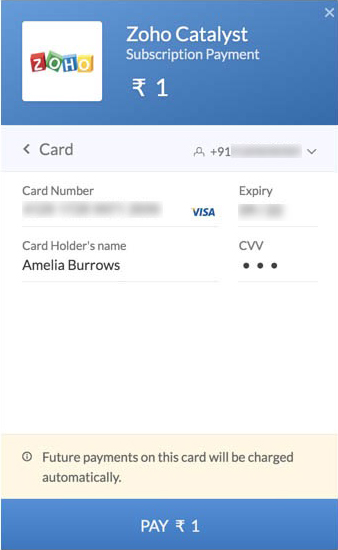
After the authentication check by your credit card’s provider, Catalyst will debit ₹1 to verify the authenticity of your credit card, and the amount will be re-credited to your account again immediately.
-
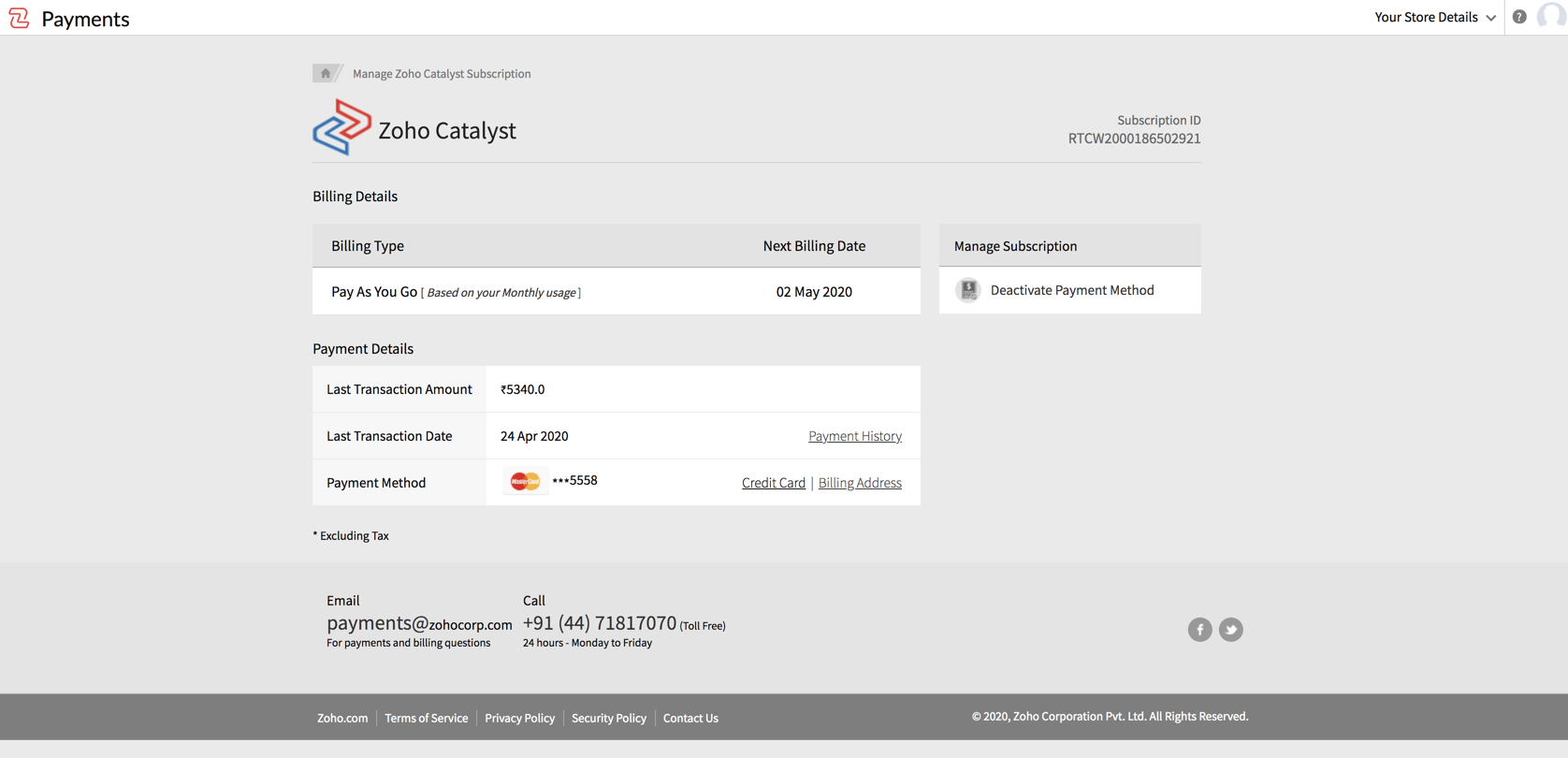
Once your payment setup process is completed, your payment details will be saved in Catalyst. Your bill payment will be initiated using your credit card or PayPal automatically every month. After you authorize the payment, the amount will be debited.
The payments portal will display your card details, payment history, and more. We will learn about the features available in the payments portal later on in this documentation.
Yes
No
Send your feedback to us