Results
The Results section displays a detailed and comprehensive report of all the test plans that were executed.
This shows the results of the automated test plan executions that were scheduled, and the instant runs performed from the Test Plans section. This will not show the results of the live previews executed in the Test Cases section. You can check those results from the respective sections.
Click the Results tab in Automation Testing to access the results.
The Results section displays results in three levels:
All Test Runs
All test runs of all test plans will be displayed in the initial Results page.
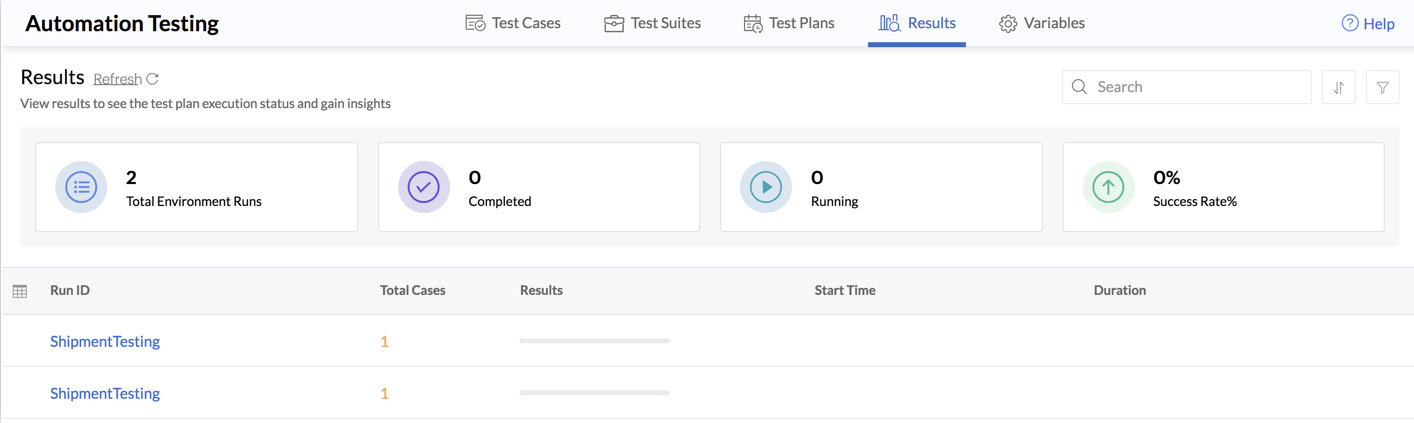
You can view stats such as the number of completed and currently running executions, the overall success rate of all test plan executions, and the number of environments that were involved in the all runs. The last one is based on the environment variables that you select while creating the test plans .
You can find a list of all test runs along with details like their unique Run IDs, number of test cases included in a run, the success percentage of the run, its start time and execution duration.
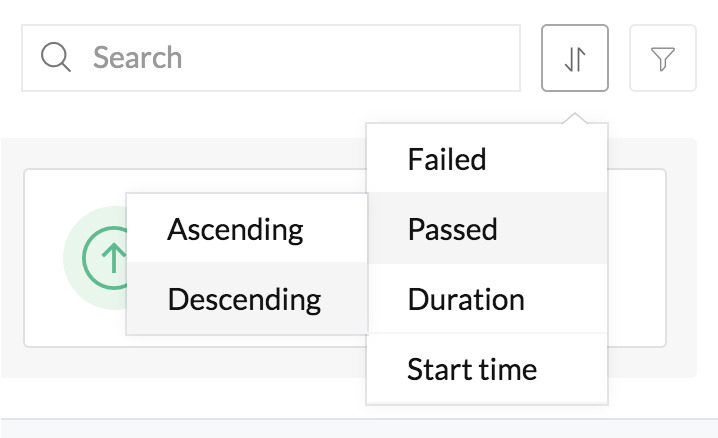
You can sort results based on the criteria shown below, to display runs accordingly.
You can also filter the results by clicking the filter button and selecting various filters.
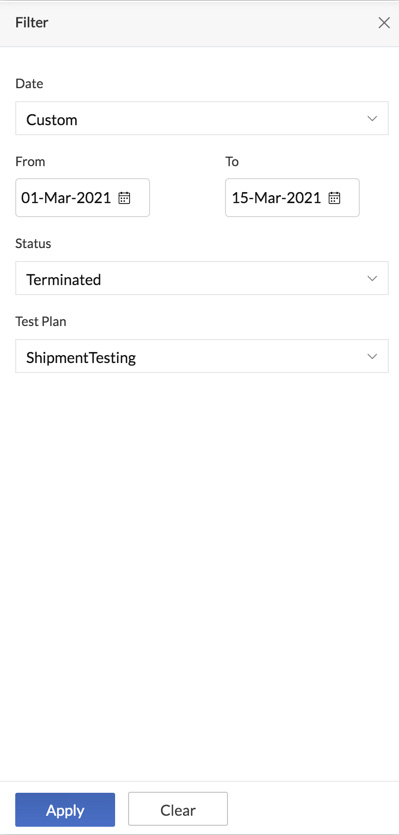
- Date: You can select one of these options for the date filter: Last 24 hours, Last 7 days, Last 1 month, Custom to view results only of that time period. The Custom option enables you select a date window based on your needs.
- Status: You can choose any one of these execution statuses to view relevant results: Completed, Running, Queued, Terminated.
- Test Plan: You can also filter the results based on a specific test plan. All executions of that test plan alone will be displayed.
Click Apply after selecting the filters.
If the results take some time to reflect, click Refresh on the top of this page.
Details of a Particular Test Run
You can open a specific test run from the test runs list to view the details of the test cases included in the test plan. You can view stats like the total number of test cases, number of test cases that are completed, remaining, or inactive, and the overall success rate of that test run.
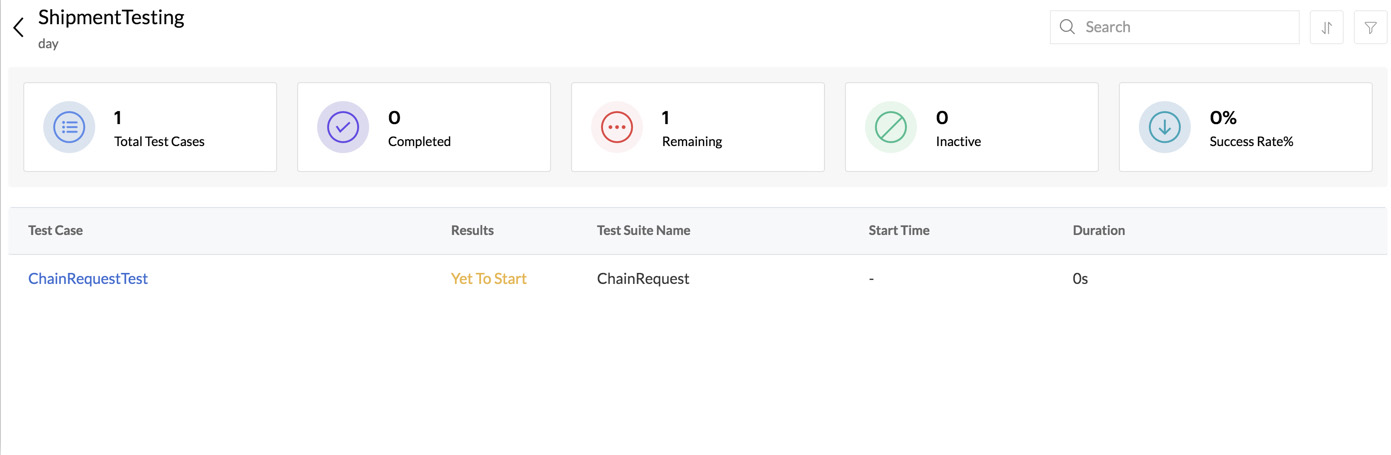
It lists all the test cases that were included in the test plan, along with the overall results and other details of each test case.
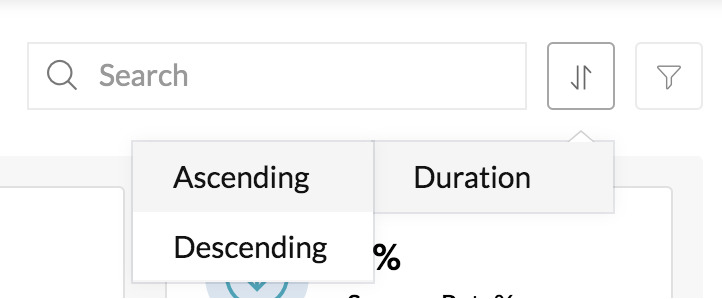
You can also sort the results based on the duration of the test case execution.
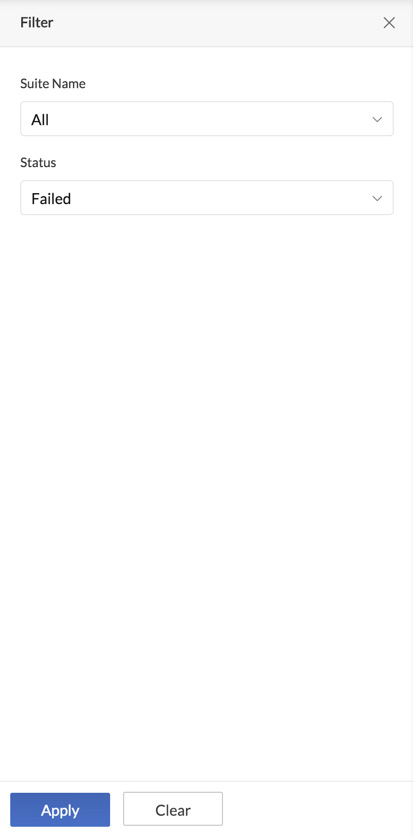
You can filter results by clicking the filter icon and selecting various details. You can view the test cases of a particular suite alone, or test cases that executed with any one of these statuses: Completed, Passed, Failed, Inactive, Remaining. Click Apply after selecting the filters.
Details of a Particular Test Case
You can open a particular test case from the test case list to view the execution details of the individual requests in it. This section provides a summary of the particular test case along with useful statistics such as the overall result and duration of the test case execution, and the overall number of assertions that were passed in the test case.
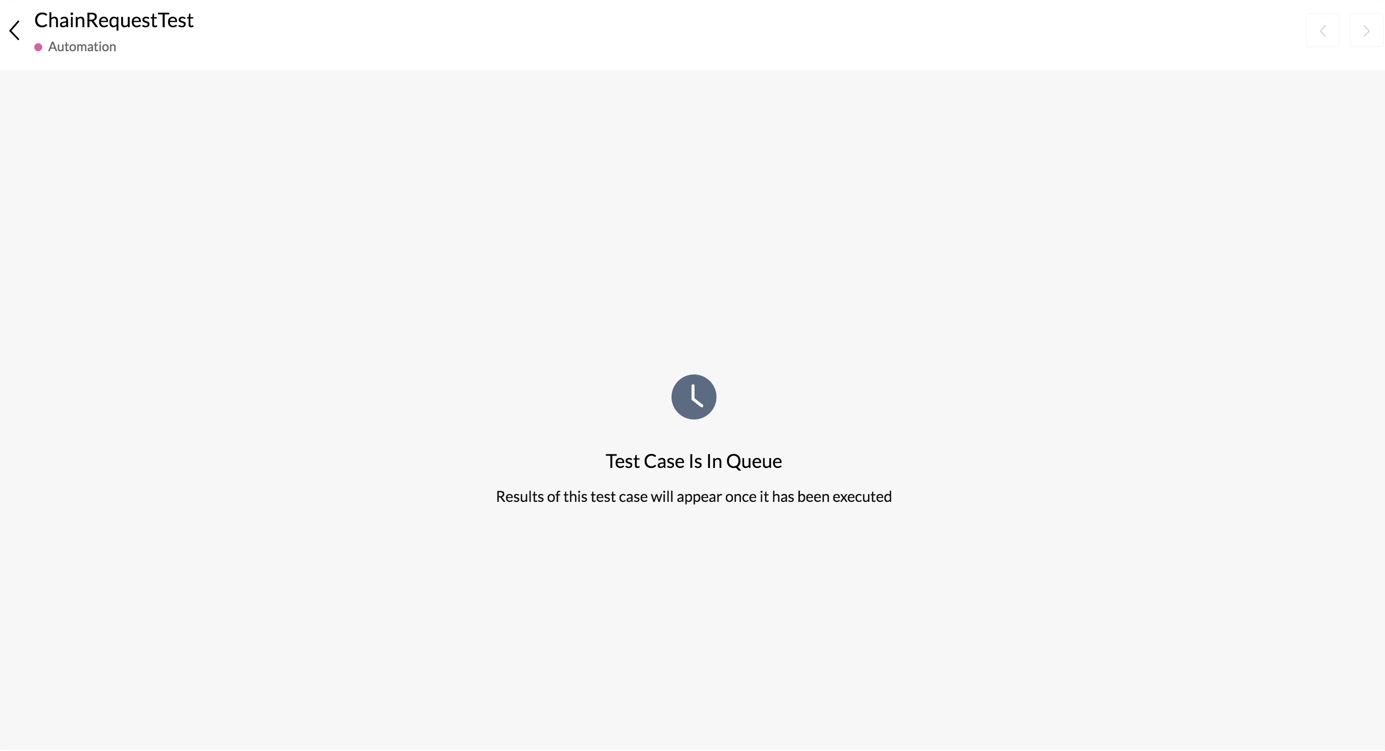
It lists the details of individual requests in the test case, along with the detailed response received for each request. You can expand a request’s section to view the assertions that were passed in that request and the response status code.
The report also shows the response body, the response headers, and the request details. You can view the Response Body in the raw or pretty format by selecting a choice from the drop-down on the right.
Click the Response Headers or Request Details tab to view those information.
This drill down enables you to easily identify the exact request a test case failed on, with the specific reason.
You can navigate to view the details of the next test case using the arrows on the top-right corner.
Yes
No
Send your feedback to us