Catalyst Projects and Organizations
The Index Page
You can begin your Catalyst application development from the Catalyst console. Sign in with your Zoho account, if prompted to do so. You will then be redirected to this index page in the console.
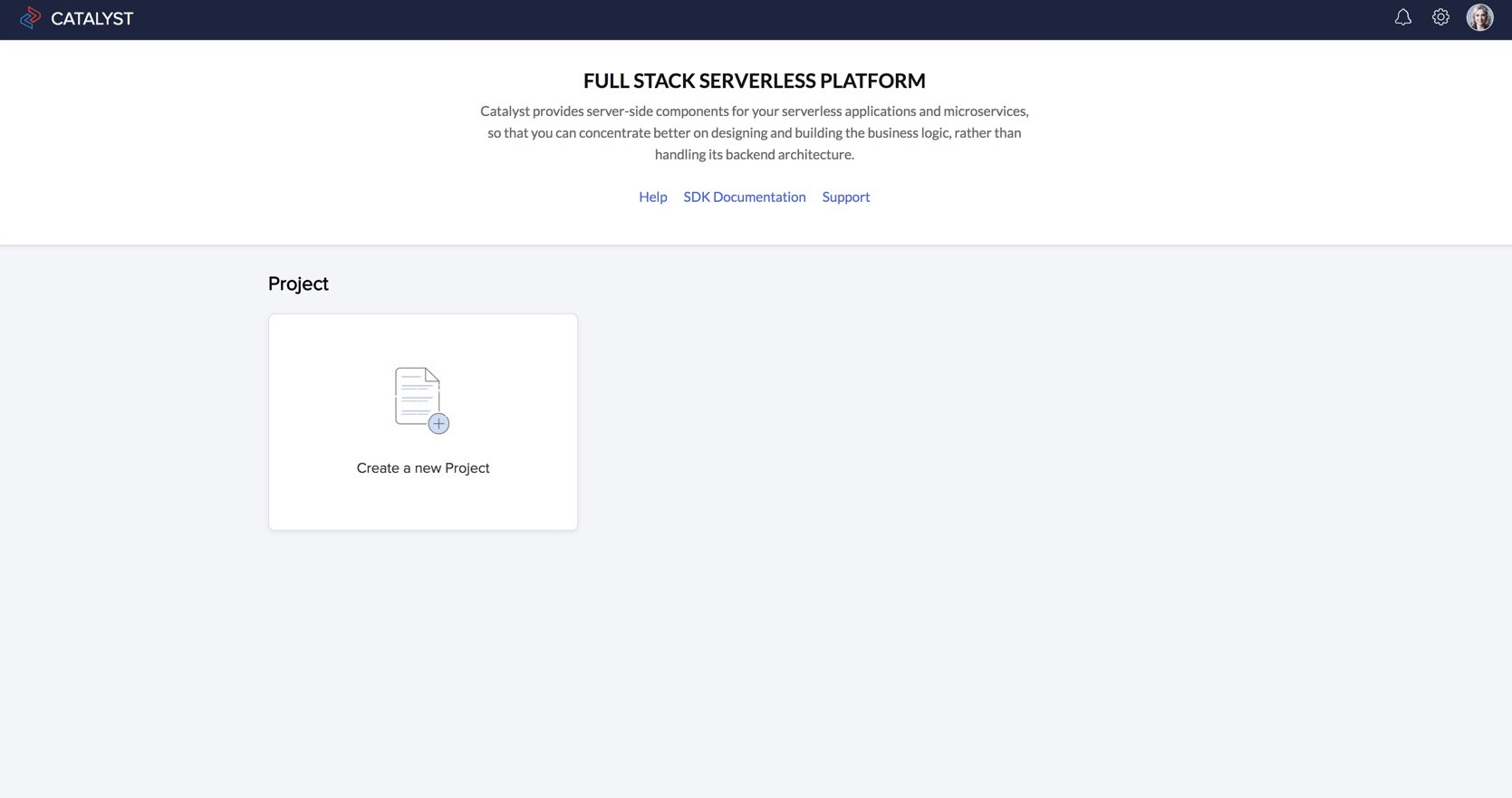
The index page lists all Catalyst projects that you create in your Catalyst account, and enables you to create new projects. The notifications and settings icons in the top-right corner display the notifications and general settings that are common to all your Catalyst projects. You can access the project-specific settings from inside a project.
Catalyst Projects
Before you begin working with Catalyst by creating a project, keep in mind the following points about Catalyst projects:
- You can create one application of each platform in a single Catalyst project. You can create a web app, an Android app, and an iOS app in a single Catalyst project.
- When you create a project, it is not platform-specific. You can download the SDK for a platform and include it in your application building process later.
- All apps in the same project can access the same backend data from the Catalyst components, such as the Data Store, File Store, and functions. The features configured in Catalyst apply to all apps in the same project, and you can view common analytics data. This enables users to access the same data while switching between different platform versions of the app.
- If you intend to build different apps that do not share the same data or functionalities between them, you can create individual projects for them.
- When you create a new project, a unique Project ID and a ZAID will be generated for it. You can view them from the Environments Settings section.
- You can develop and build the apps in your project in the Development environment, then deploy them to Production by deploying your project .
- You can also create a project from the Catalyst CLI by executing catalyst init. However, you cannot create your first ever Catalyst project from the CLI. You can only do that from the console. Refer to the CLI documentation for more information.
Creating a Catalyst Project
Next, let’s create a Catalyst project from the index page in the console:
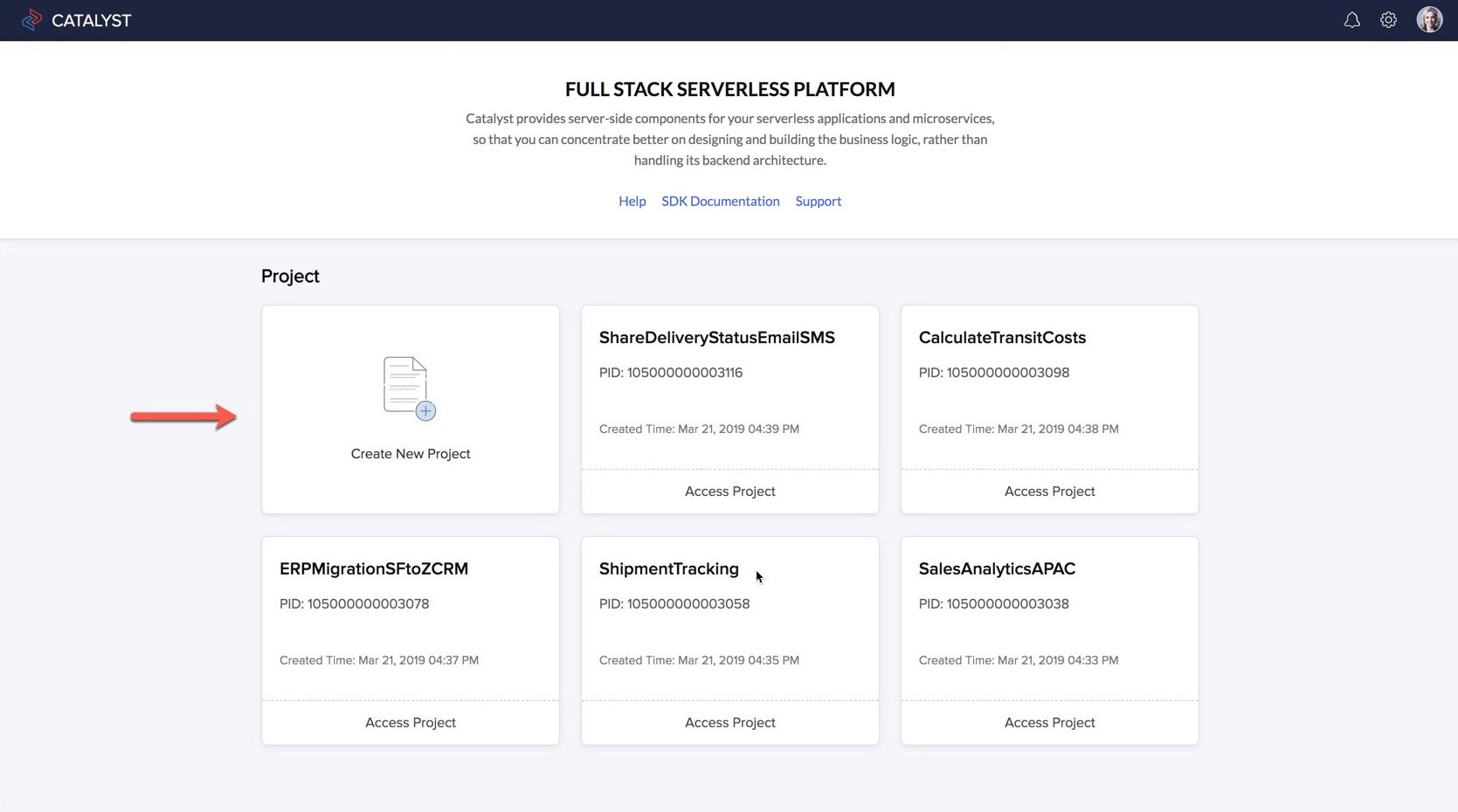
- Click Create a New Project.
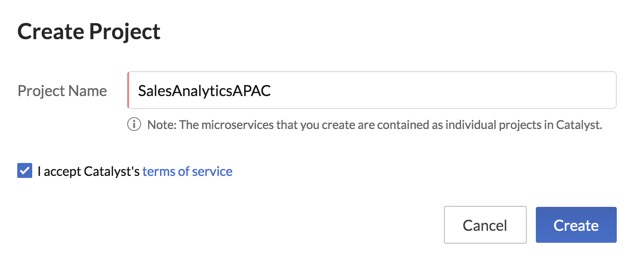
- Enter the project’s name in the pop-up window.
Once your project is created, click Access Project to open it.
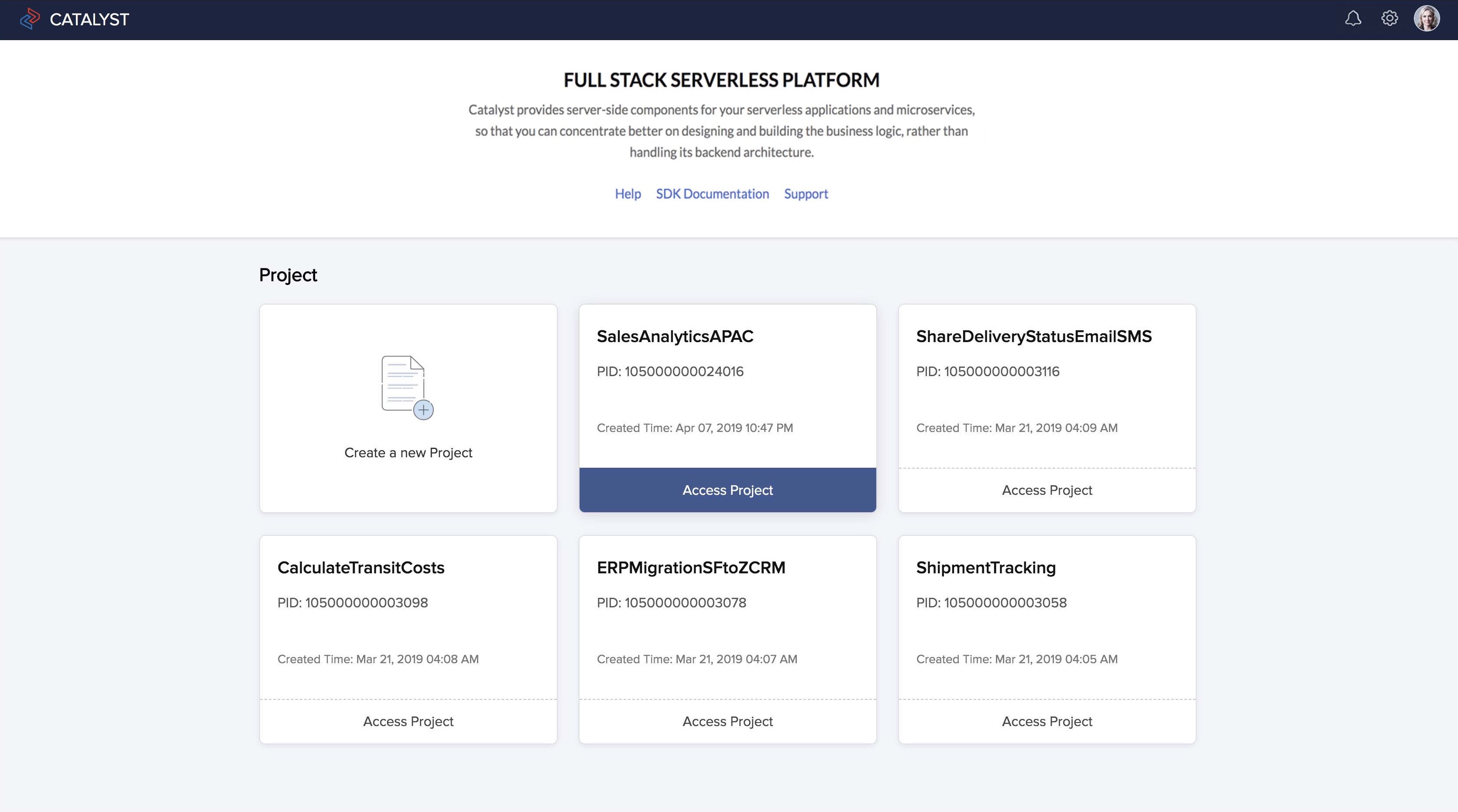
This will redirect you to your project’s page where you can now access your project’s components, settings, and other developer tools.
Catalyst Organizations
Introduction
Catalyst enables you to create and be a part of multiple organizations in your account using the same email address. When you create a new organization in your account, you will be the owner of that org by default. You can create and maintain different sets of projects in each organization that you create.
For example consider a freelance developer who works for multiple clients belonging to different organizations with a different set of customer base, revenue sources, and organizational hierarchy in each of them. In such cases, to manage multiple organizations would be a tedious task, requiring you to log in each time into two different accounts. Catalyst enables you to switch between your organizations with the same Catalyst account and also add collaborators from different organizations contributing to a single project within a particular organization.
Points to remember:
If you create an organization of your own, you will be its owner. You can add collaborators for the projects you create in it, either as admins or project members, and grant permissions for the entire org or for specific projects in it., You can perform these actions for each organization that you create individually.
If you are added to an organization by another org owner or admin, you will be a collaborator in that org, based on the collaborator type (admin or project member) you are added as. The permissions for you to create projects or perform other actions will be based on your collaborator type.
An organization will be referred to by a unique ID automatically generated for it called the Org ID. The org ID will be a part of the console URL used to access that org.
Default Organization
One of the organizations that you are a part of will be the default organization. When you sign up for a Catalyst account for the first time, Catalyst will create an organization and assign you to it, which will be the default. If you create more organizations in your account, you can enable a different org to be the default.
When you make an organization the default, the following actions are observed :
-
Every time you log in to your Catalyst account through the console, CLI, or through other sources, you will be logged in to the default organization.
-
Every time you execute a Catalyst API, it will be executed for a project or a resource in the default organization, unless you explicitly pass the Org ID of another organization to execute it for. You can refer here for details.
Access the Multi-Org Portal
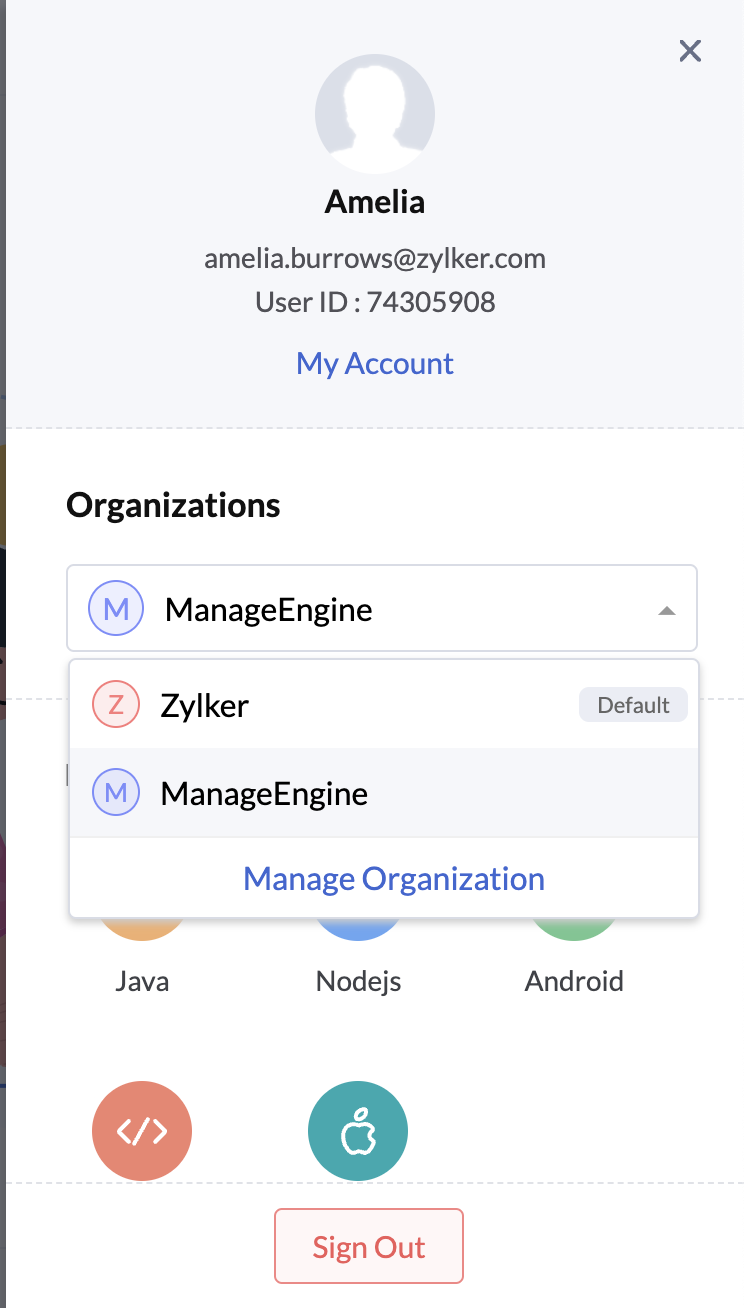
You can access the multi-org work portal in your Catalyst console and manage your organizations by clicking the profile icon on the top left corner.

The organizations drop-down will display the list of organizations you are a part of. Catalyst allows you to easily switch between organizations directly from this drop-down menu. Click Manage Organizations to manage them.
Manage Organizations
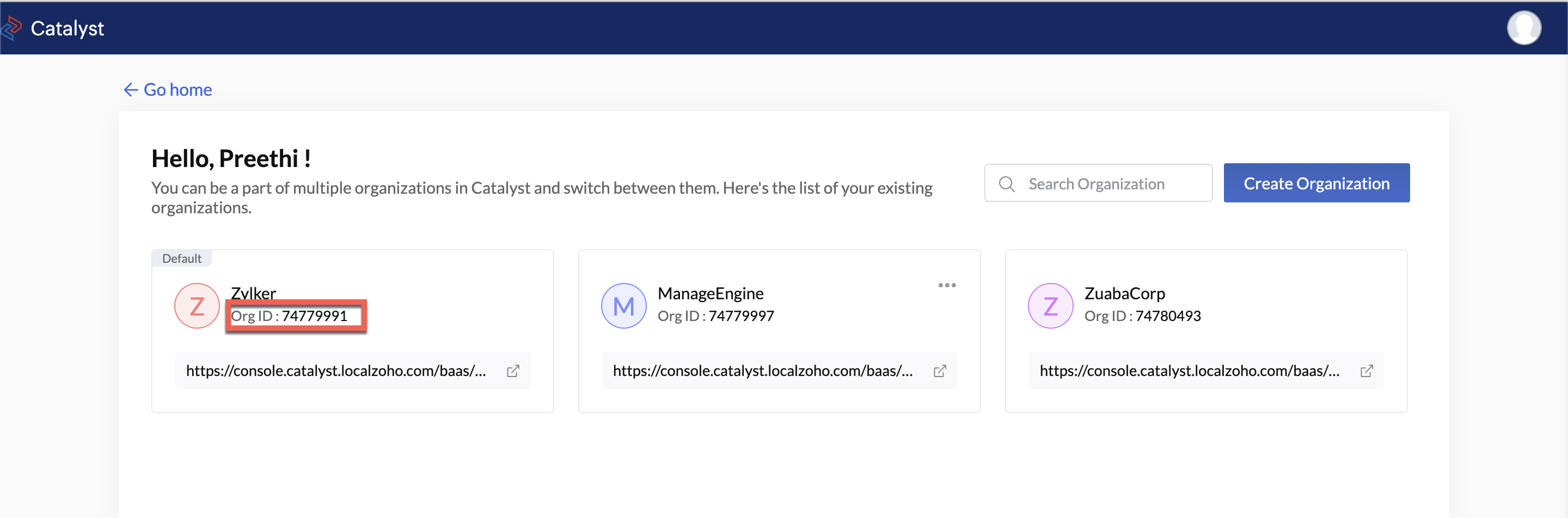
This will open a portal that displays the details of all organizations you have access to, which includes the ones you create and the ones you are added to. You can search for an organization by its name using the search bar.
The portal displays details of an organization, such as its unique org ID and its console URL for easy access.
The URL is in the format of : https://console.catalyst.zoho.com/baas/orgId/index
The org ID of the organization is also included in this URL.
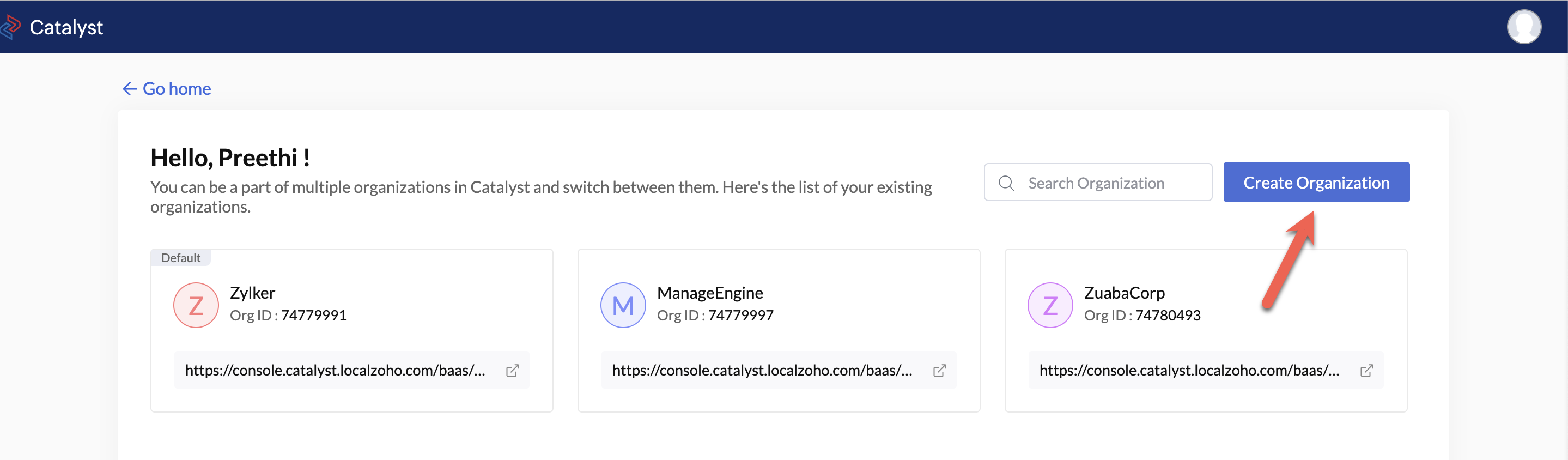
Create a New Organization
- You can create a new organization by clicking Create Organization.
- Provide a name for your organization.You can also enable this organization to be the default, if required.
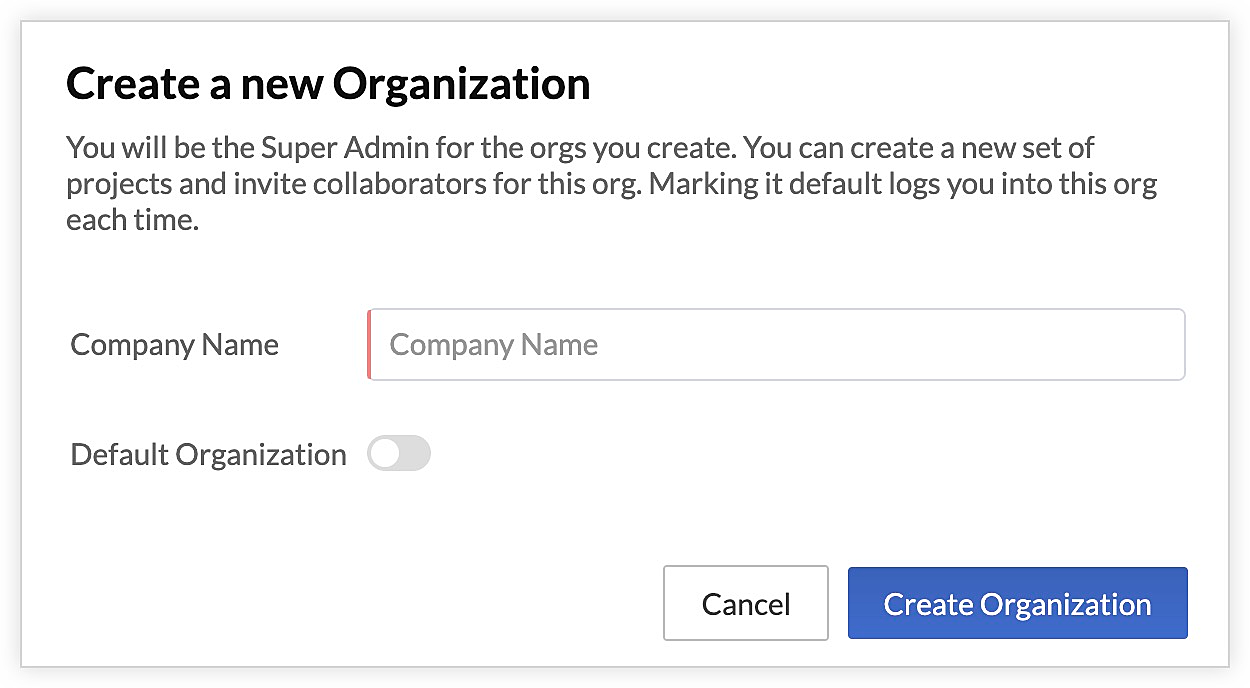
- Click Create Organization.
The organization will be created and displayed in the portal with its corresponding details. You can now create projects, add collaborators, and perform other actions in this org.
Delete Organization
You can only delete the organization from Catalyst if you are its owner. You will not be able to delete an org that you were added to by another org owner.
- Click the ellipsis icon for the org to be deleted from the multi-org work portal.
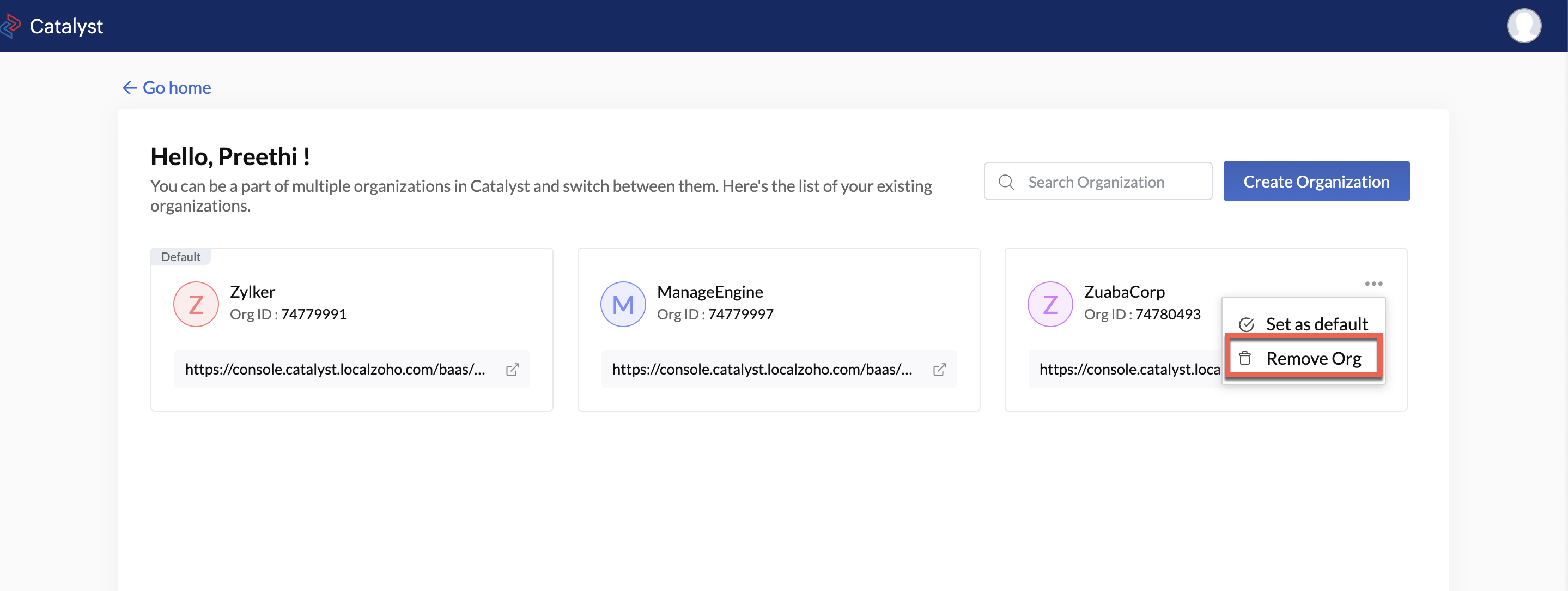
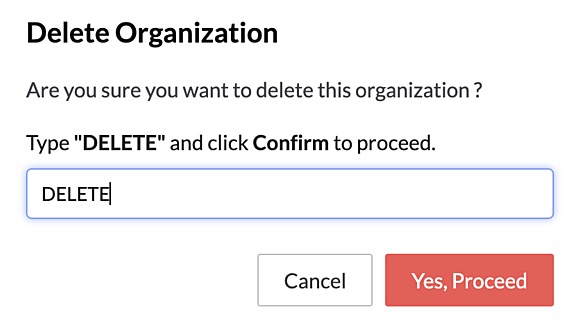
- Click Delete Org to delete the organization permanently from your Catalyst account.
Yes
No
Send your feedback to us