Navigating in the Console
The Dashboard and the Left Menu
After you open your project, you will be redirected to the project’s dashboard. You can access the Catalyst components from the left menu grouped into the following sections: Develop, Compute, Amplify, Discover, Host And Manage.
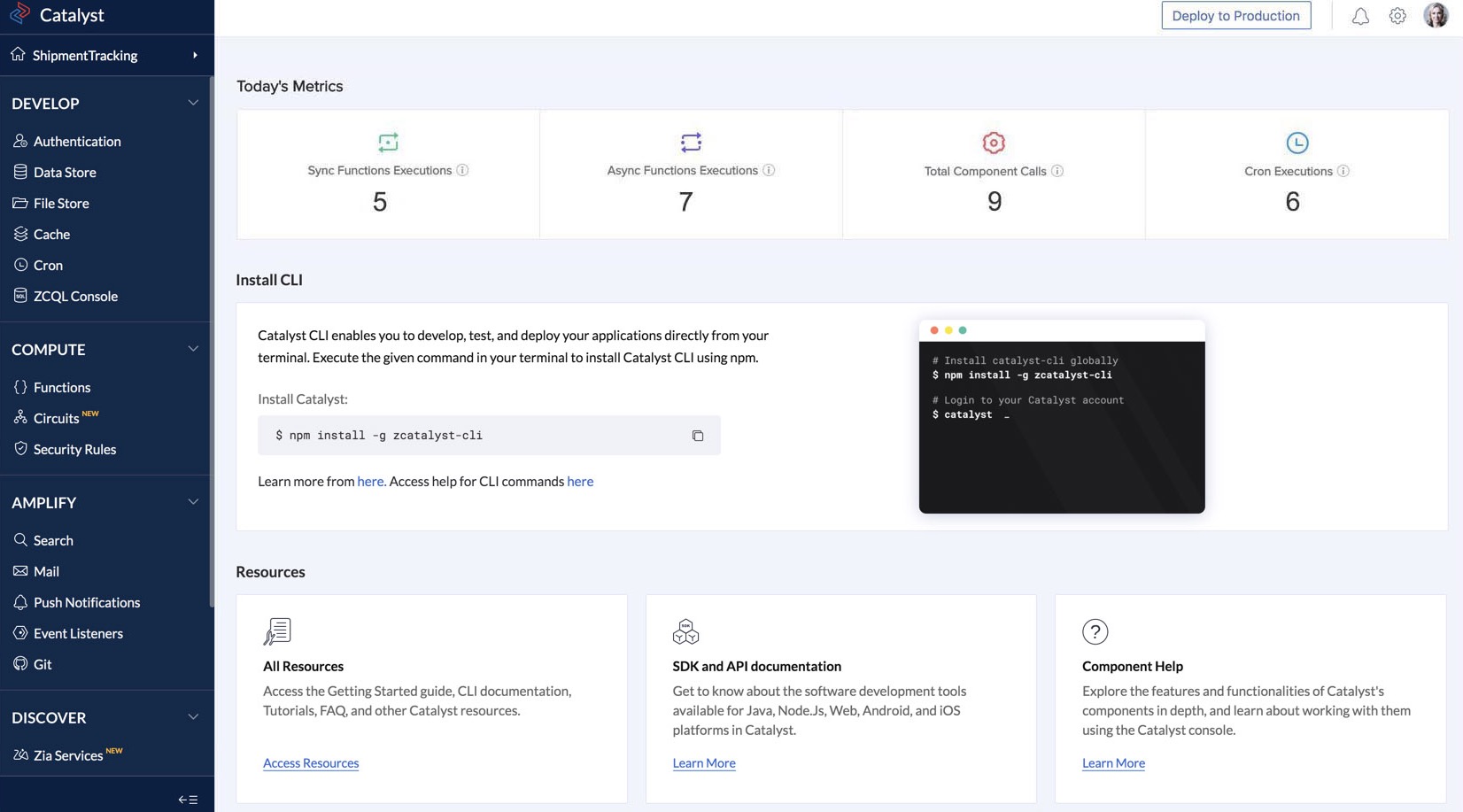
You can click on any of the components to open them, and you can always return to the project’s dashboard by clicking on the project’s name at the top. You can learn about all Catalyst components in detail from the Component Help section in our resources .
You can also navigate to other projects by clicking on the expand button next to your project’s name and opening them.
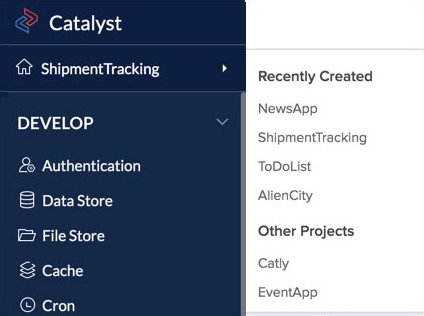
You can return to the index page by clicking on the Catalyst logo at the top.
The project’s dashboard contains Today’s Metrics, Install CLI, and Resources sections.
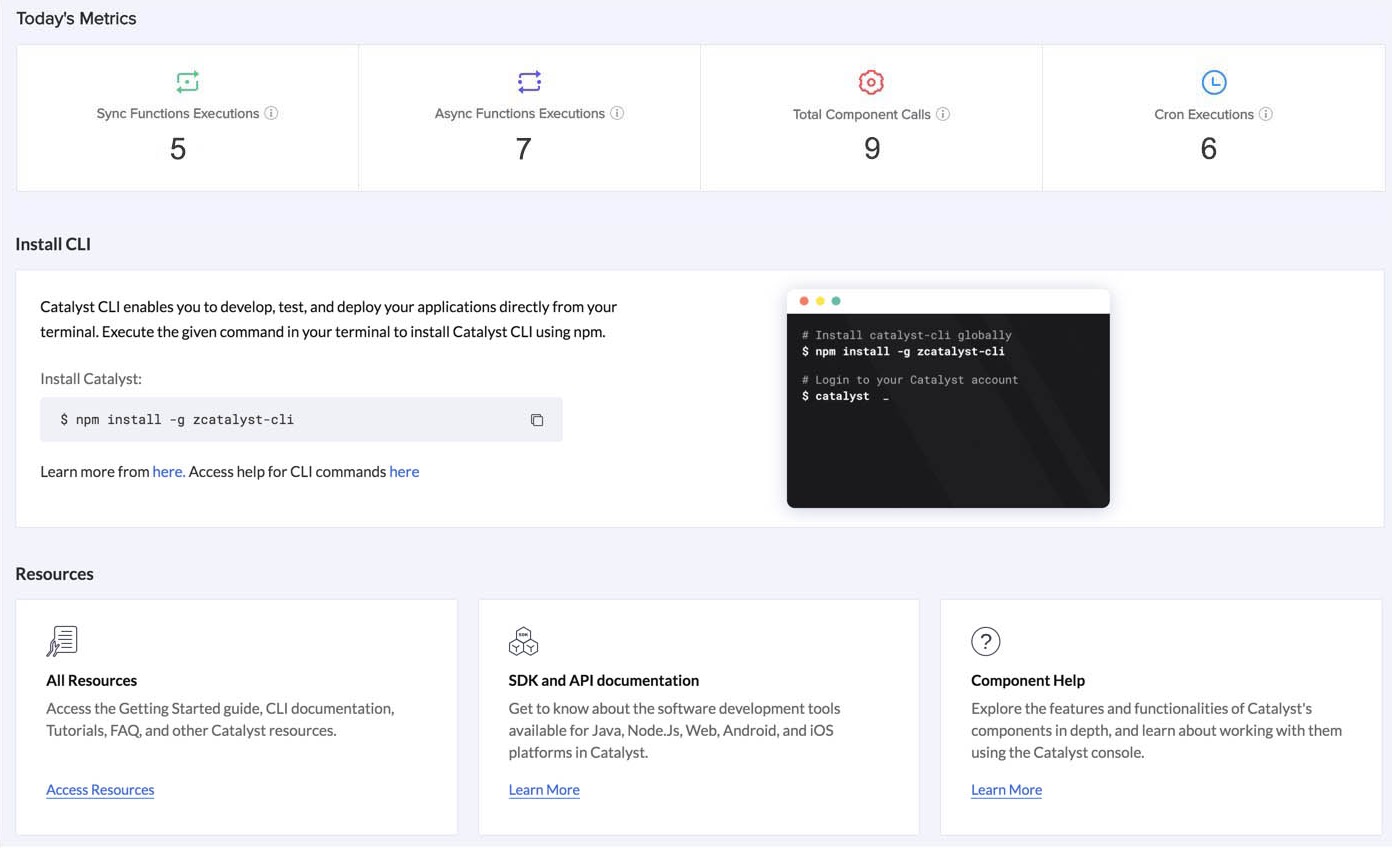
The Today’s Metrics section displays these usage information about your project:
- Sync Functions Executions: Number of synchronous functions that have been executed on the current day.
- Async Functions Executions: Number of asynchronous functions that have been executed on the current day.
- Total Component Calls: Total number of component calls made from functions on the current day.
- Cron Executions: Number of cron jobs executed on the current day.
The Install CLI section provides the terminal command to install Catalyst CLI in your local machine. For more information, refer to the Installing Catalyst CLI help page .
The Top Bar
You can use the environment drop-down list in the top-right corner to switch between the development and production environments in Catalyst. You can learn about using Catalyst in both environments from the Environments help page .
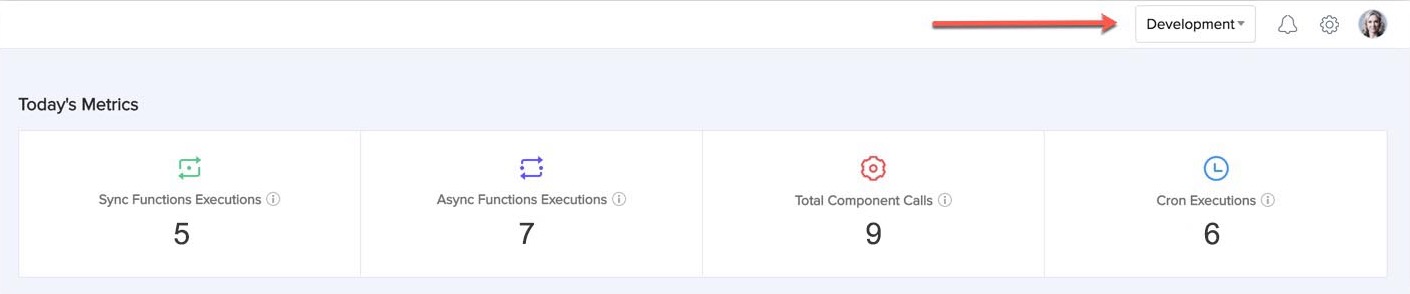
You can find notifications common to all your projects by clicking the notifications icon. You will receive notifications about the status updates of the following events in a project:
-
Enabling the search index for a column in a table in the Data Store
-
Deploying your resources from production to development environment or vice-versa
-
Training an AutoML model
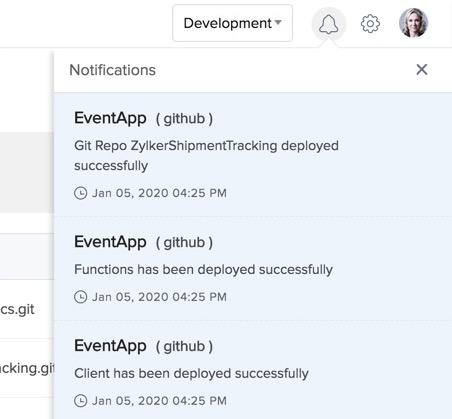
You can customize your Catalyst project features from the settings. We will discuss the settings in the Setting up a Catalyst Project section .
You can access your Zoho user information by clicking on the display picture in your account. You can also find your unique Catalyst user ID here.
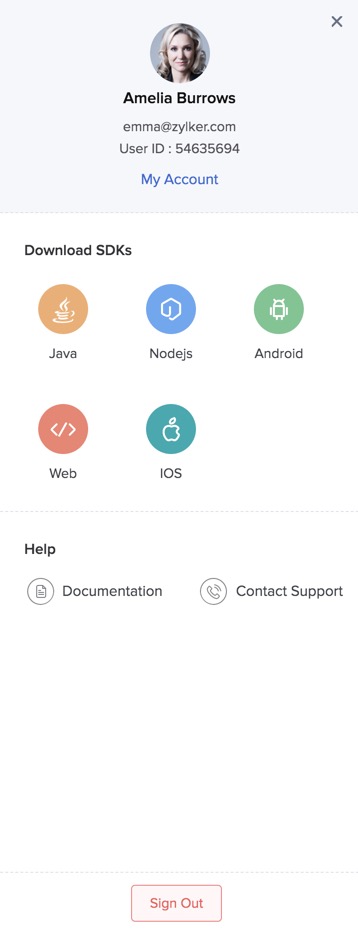
When you click My Account you will be redirected to your Zoho accounts page from where you can customize your Zoho account information.
This menu also contains links to download various SDKs that you can use in your application. Refer to Developer Tools settings section for details, where you can also download the SDKs for your project.
Yes
No
Send your feedback to us