Implementation
This section only covers working with Image Moderation in the Catalyst console. Refer to the SDK and API documentation sections for implementing Image Moderation in your application’s code.
As mentioned earlier, you can access the code templates that will enable you to integrate Image Moderation in your Catalyst application from the console, and also test the feature by uploading images and obtaining the results.
Access Image Moderation
To access Image Moderation in your Catalyst console:
- Navigate to Zia Services under Discover, then click Access Now on the Image Moderation window.

- Click Try a Demo in the Image Moderation feature page.

This will open the Image Moderation feature.
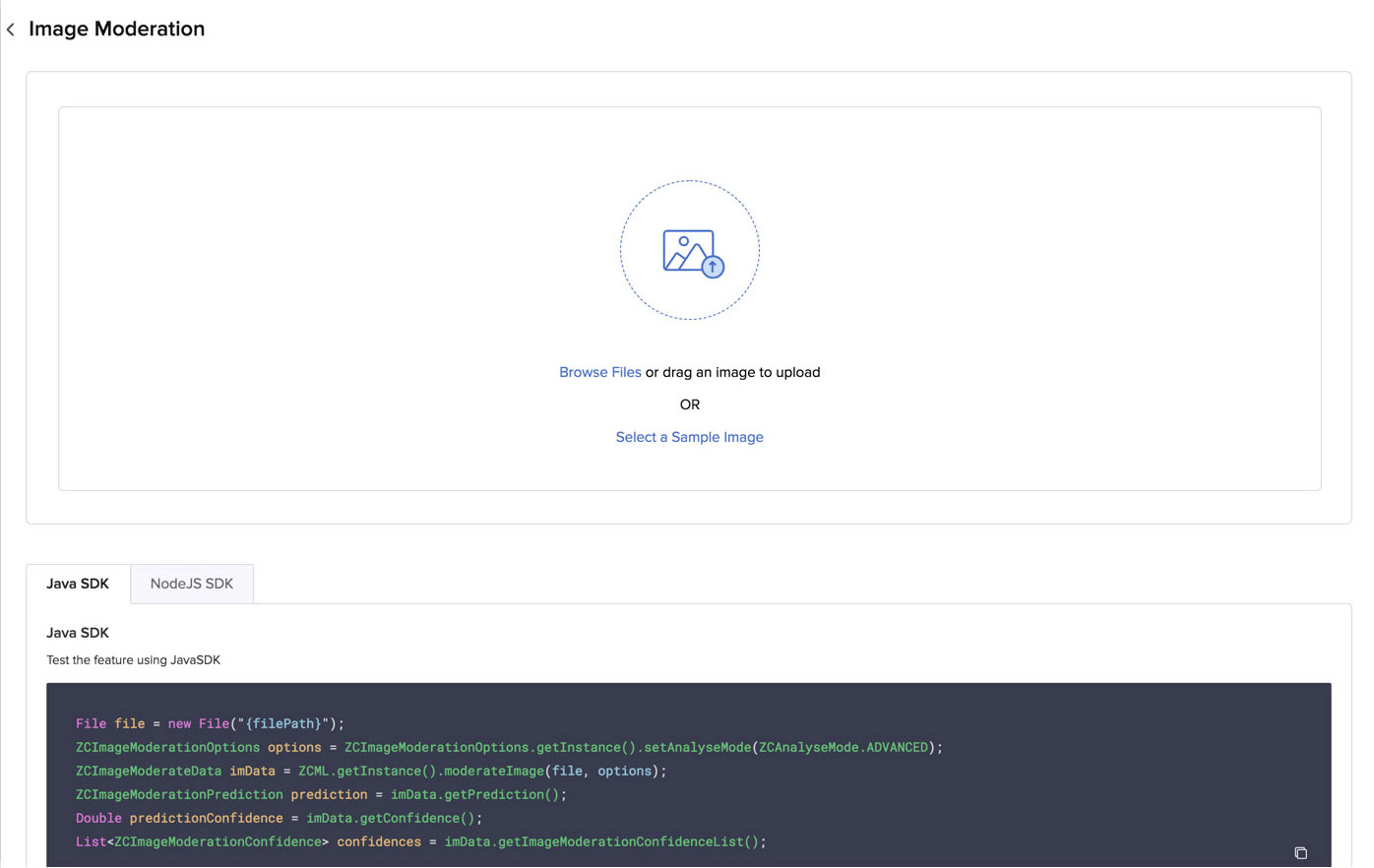
Test Image Moderation in the Catalyst Console
You can test Image Moderation by either selecting a sample image from Catalyst or by uploading your own image.
To scan a sample image and view the result:
- Click Select a Sample Image in the box.
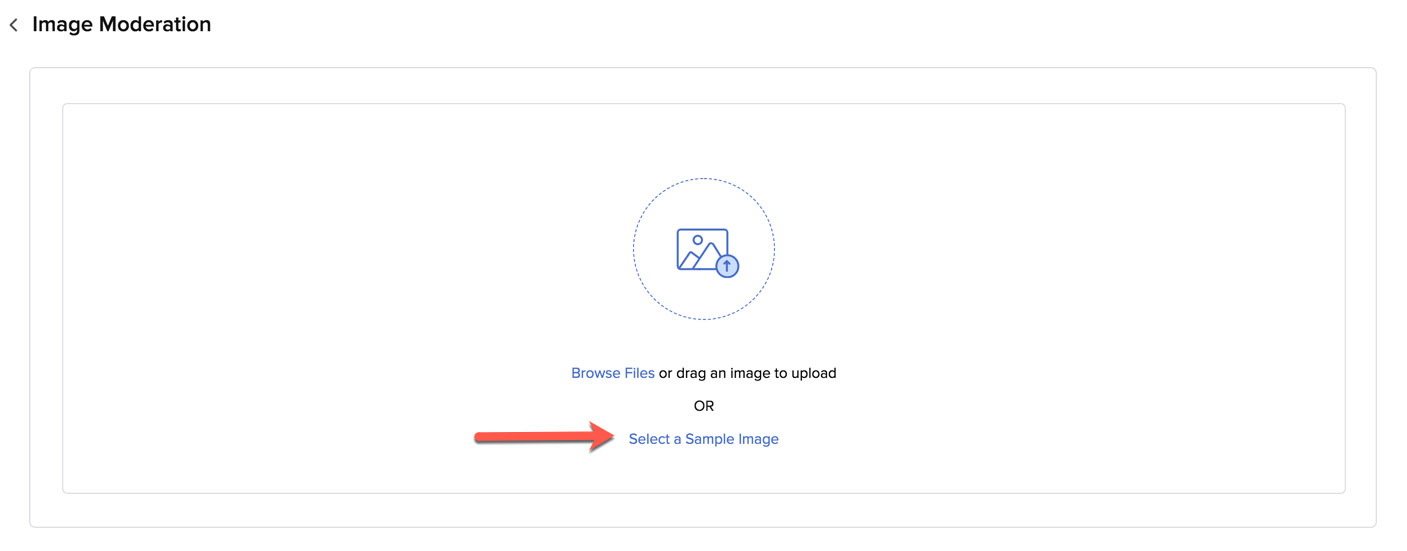
- Select an image from the samples provided.
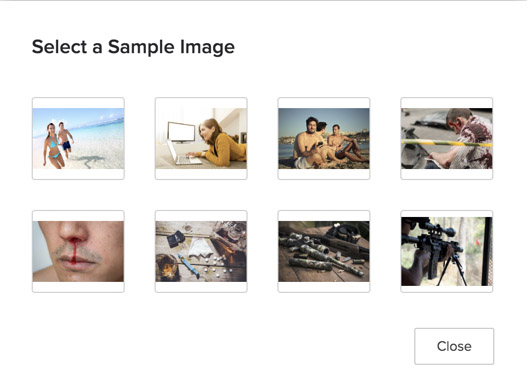
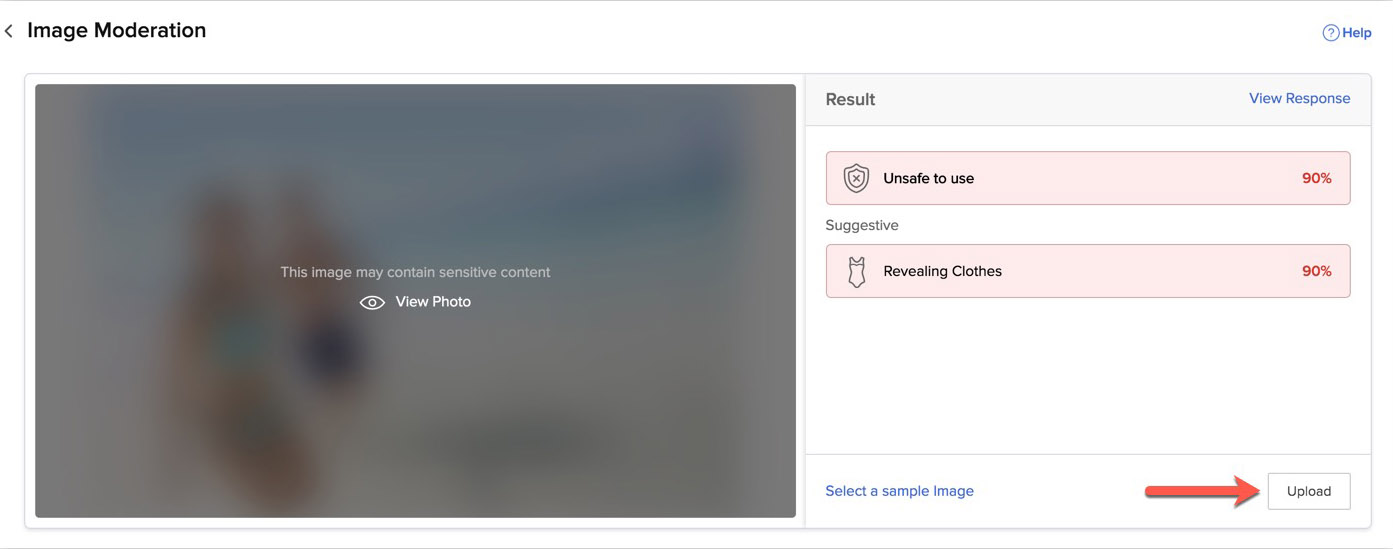
Image Moderation will scan the image for inappropriate content of all criteria in the advanced mode , and display the probability of each detected criteria as percentage values.
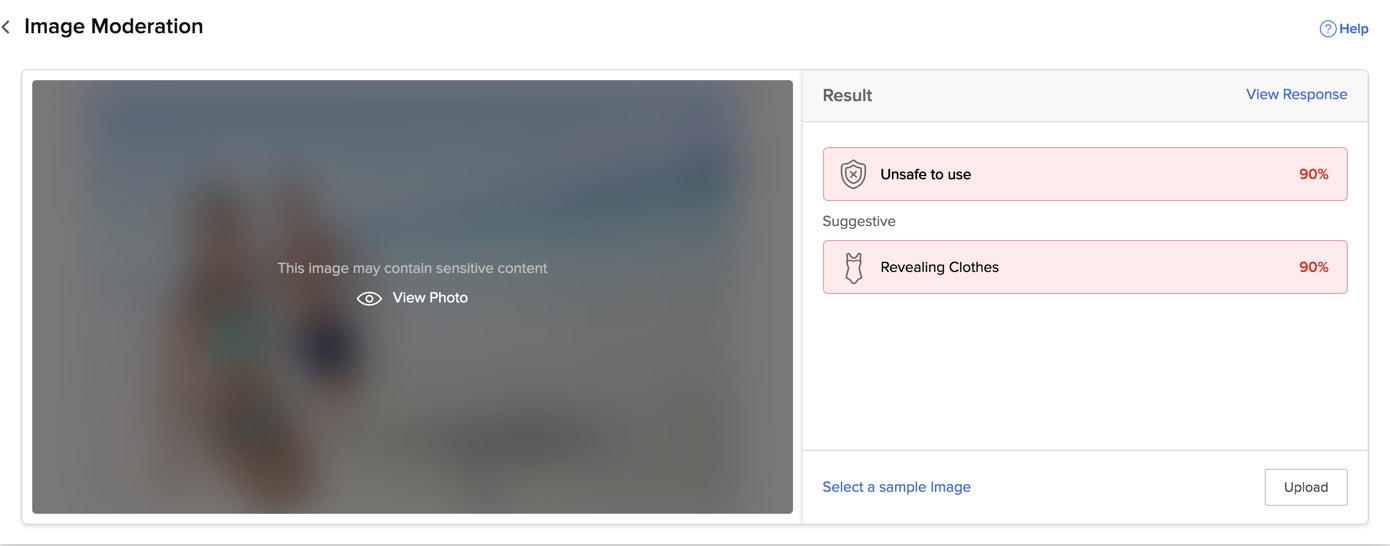
The colors in the response bars indicate the safety of the image in the following way: red indicates that the image is unsafe to use, orange indicates that the image is partially safe to use, and green indicates that the image is safe to use.
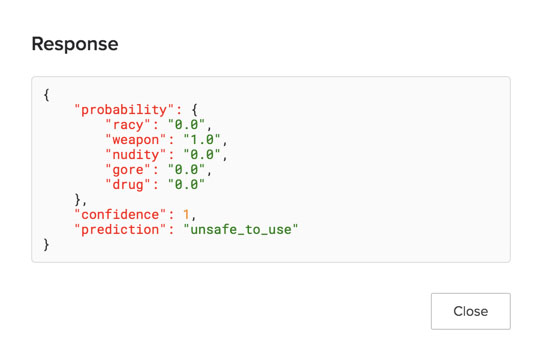
You can also view the complete JSON response, which includes the probability of each detected criteria, the prediction, and its confidence score. Click View Response to view the JSON response .
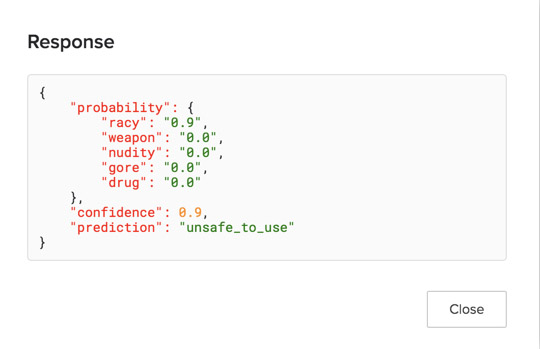
You can refer to the API documentation to view a complete sample JSON response structure for each moderation mode.
To upload your own image and test Image Moderation:
- Click Upload under the Result section.
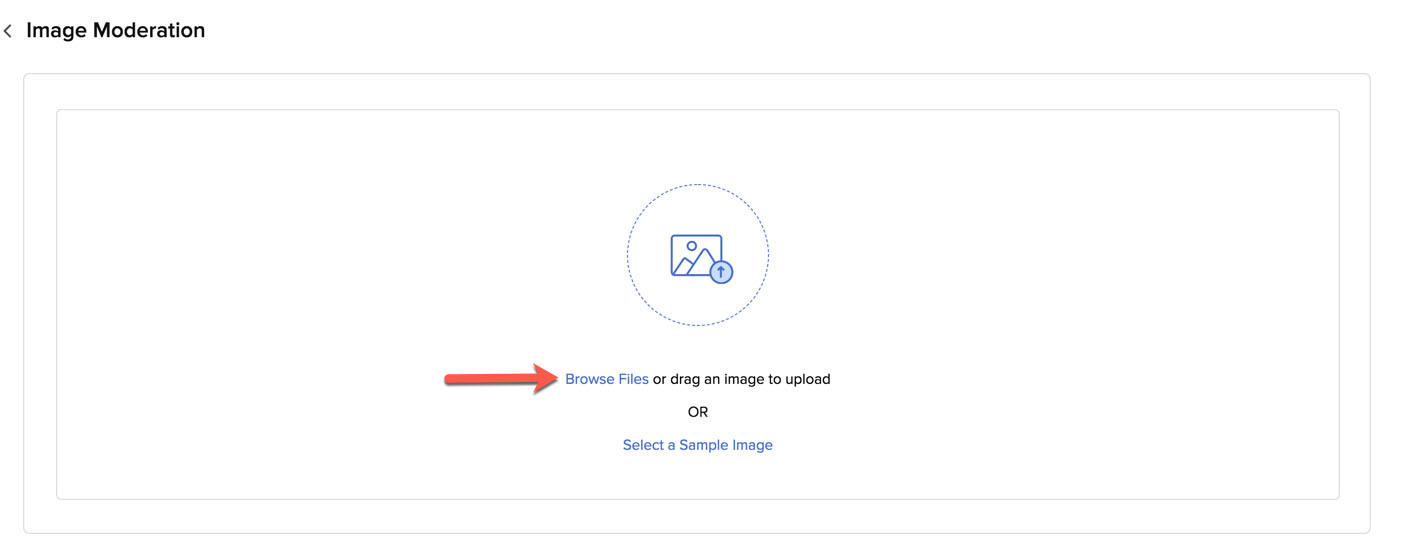
If you’re opening Image Moderation after you have closed it, click Browse Files in this box.
- Upload a file from your local system.

You can click View Photo to uncover the image.
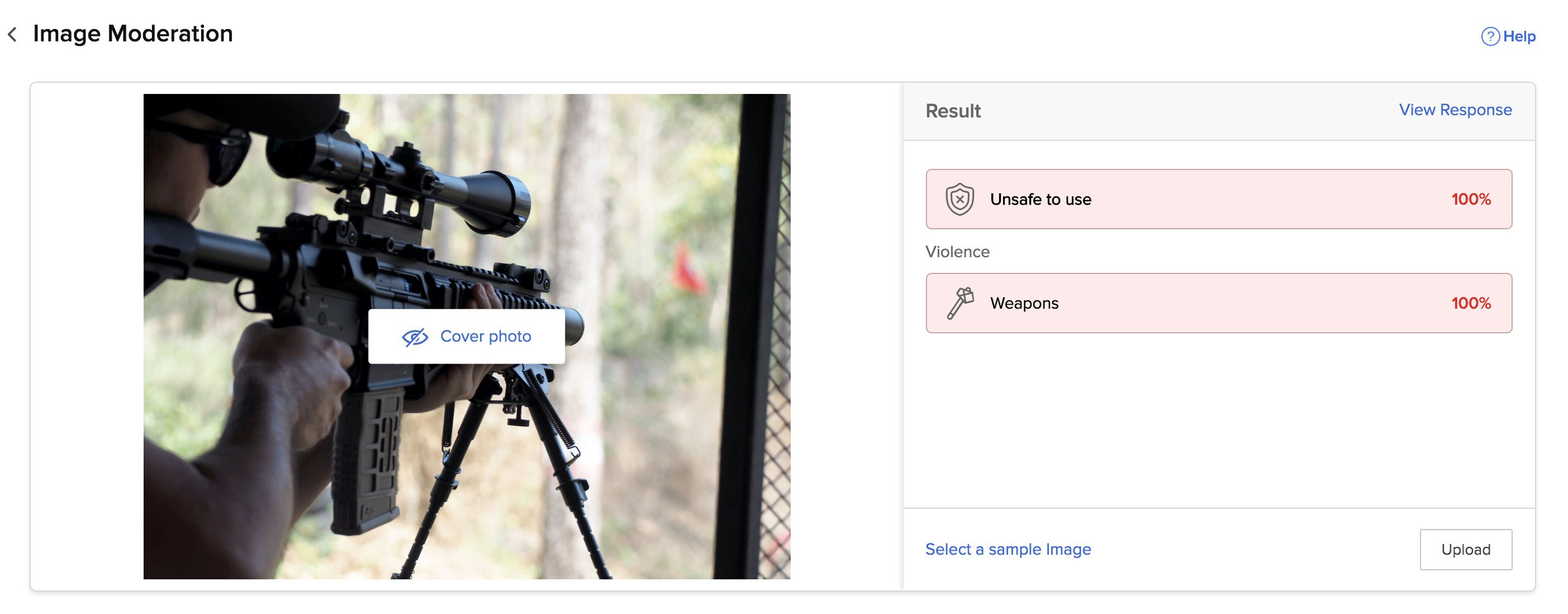
You can view the JSON response as well in the same way.
Access Code Templates for Image Moderation
You can implement Image Moderation in your Catalyst application using the code templates provided by Catalyst for Java and Node.js platforms.
You can access them from the section below the test window. Click either the Java SDK or NodeJS SDK tab, and copy the code using the copy icon. You can paste this code in your web or Android application’s code wherever you require.
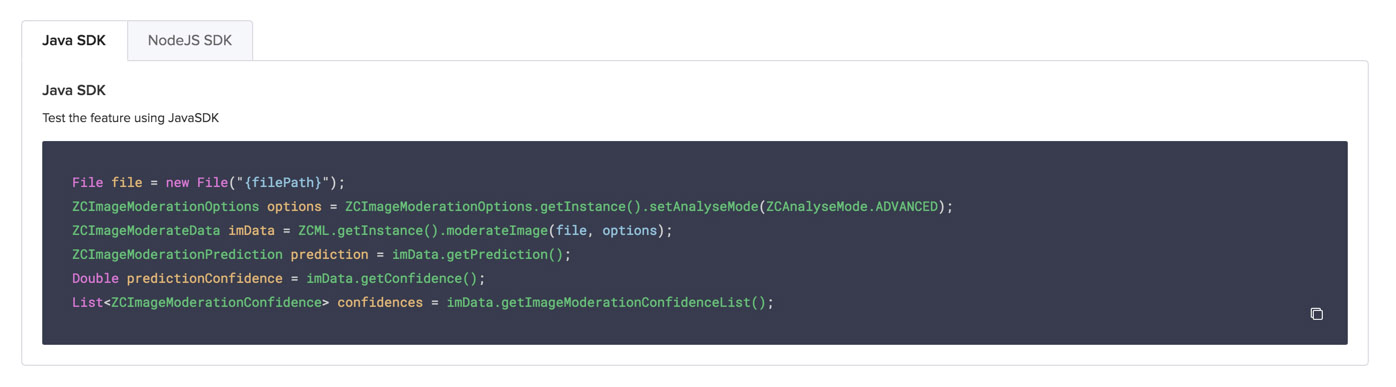
You can process the input file as a new File in Java. The ZCImageModerationOptions module enables you to set the moderation mode as BASIC, MODERATE, or ADVANCED using setAnalyseMode.
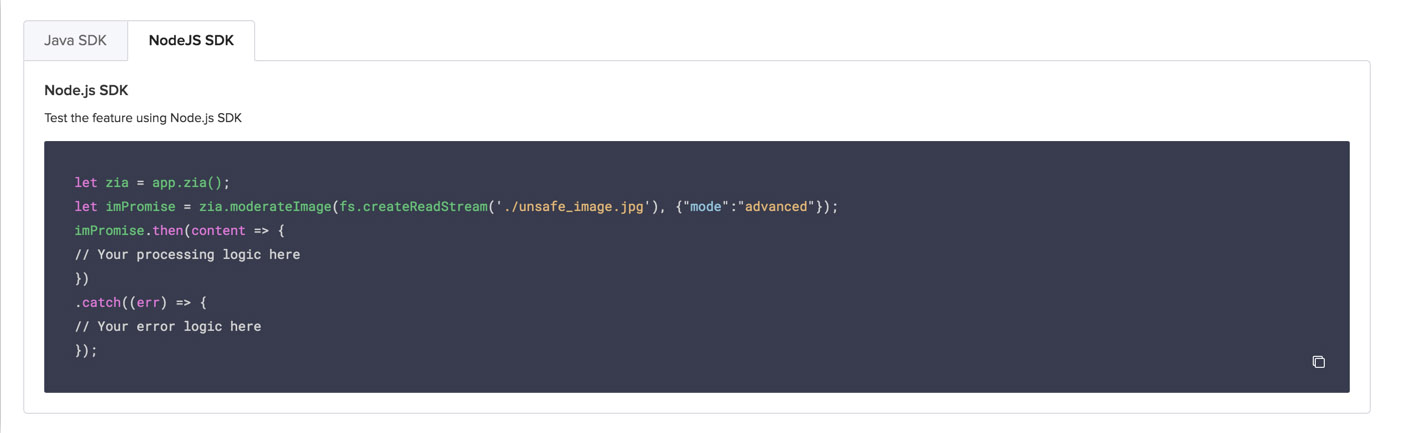
In Node.js, the imPromise object is used to hold the input image file and the moderation mode set for it. You can specify the mode as basic, moderate, or advanced to process the image in required mode.
Yes
No
Send your feedback to us