Implementation
This section only covers working with OCR in the Catalyst console. Refer to the SDK and API documentation sections for implementing Zia OCR in your application’s code.
As mentioned earlier, you can access the code templates that will enable you to integrate OCR in your Catalyst application from the console, and also test the feature by uploading sample images and documents and obtaining the recognized text.
Access Optical Character Recognition
To access Optical Character Recognition in your Catalyst console:
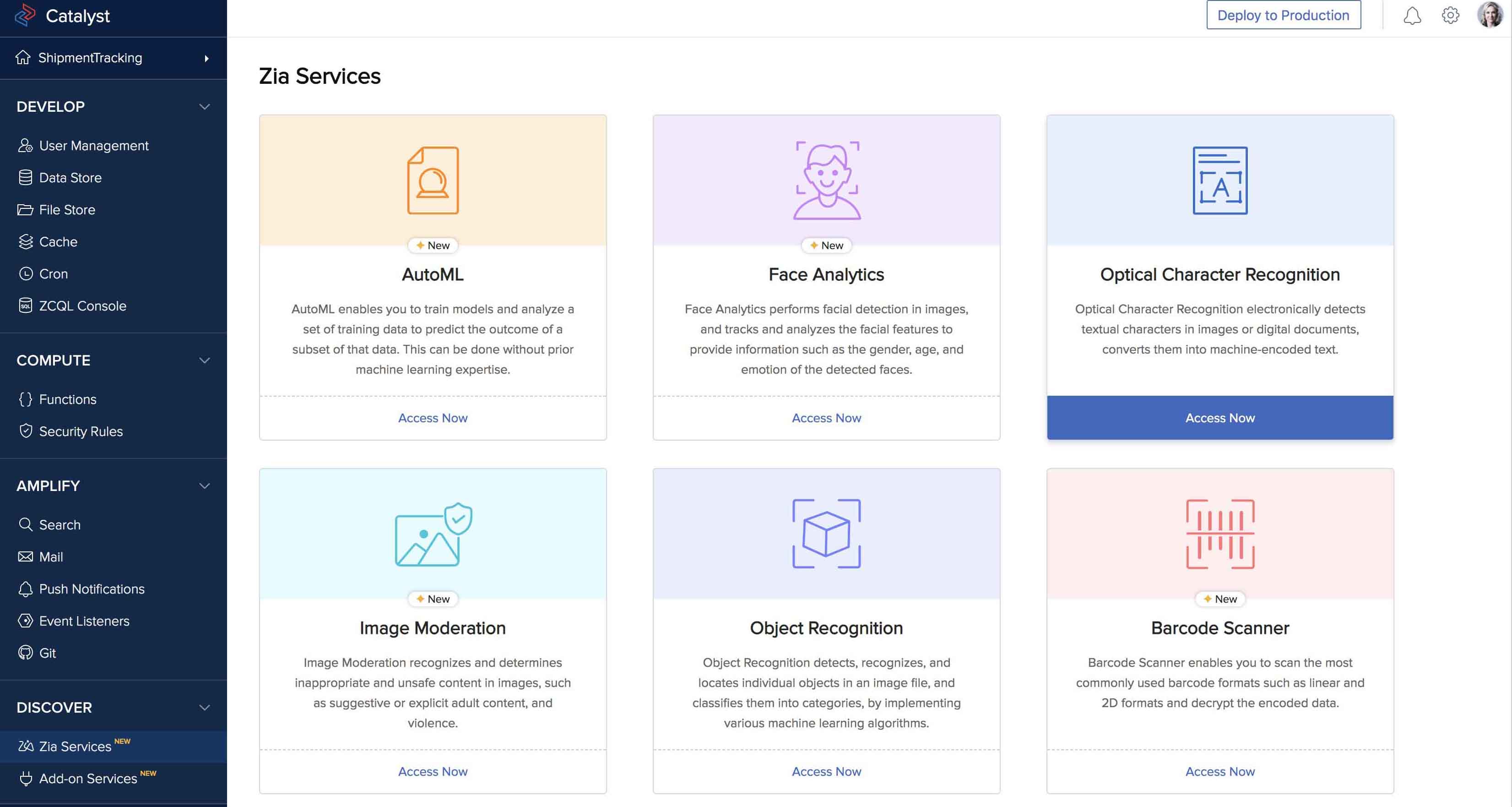
- Navigate to Zia Services under Discover, then click Access Now on the Optical Character Recognition window.
- Click Try a Demo in the Optical Character Recognition feature page.
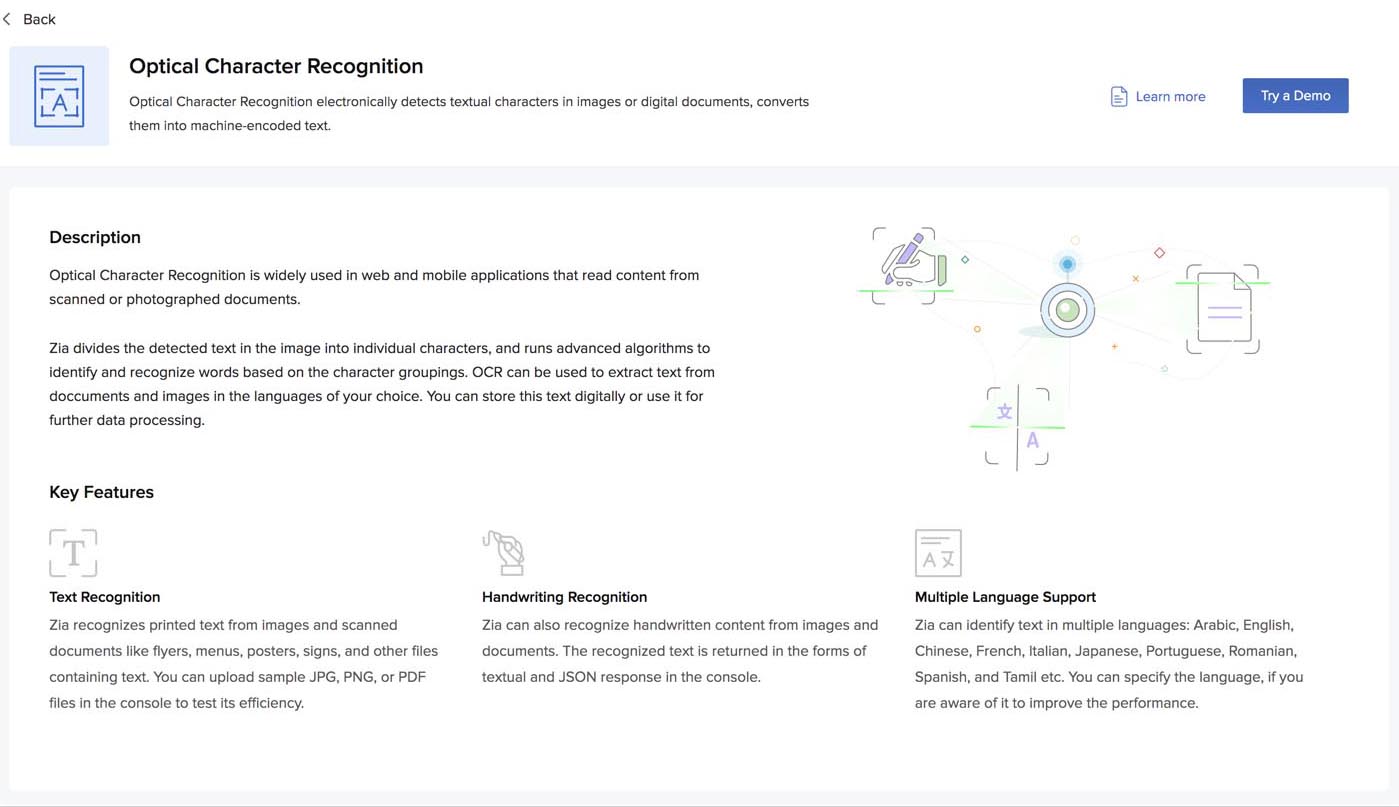
This will open the Optical Character Recognition feature.
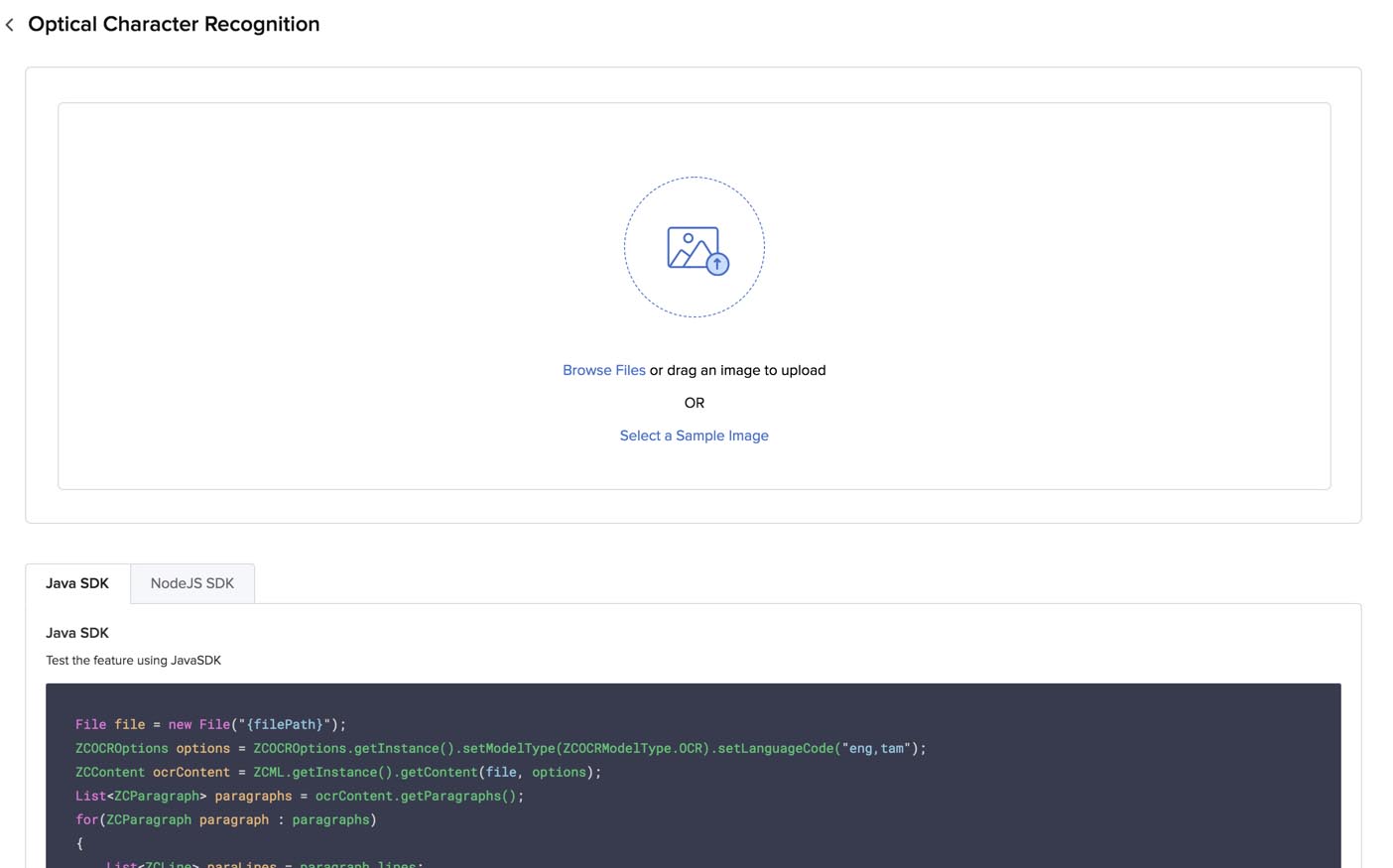
Test Optical Character Recognition in the Catalyst Console
You can test OCR by either selecting a sample image or PDF file from Catalyst or by uploading your own file.
To process a sample file and obtain the results:
- Click Select a Sample Image in the box.
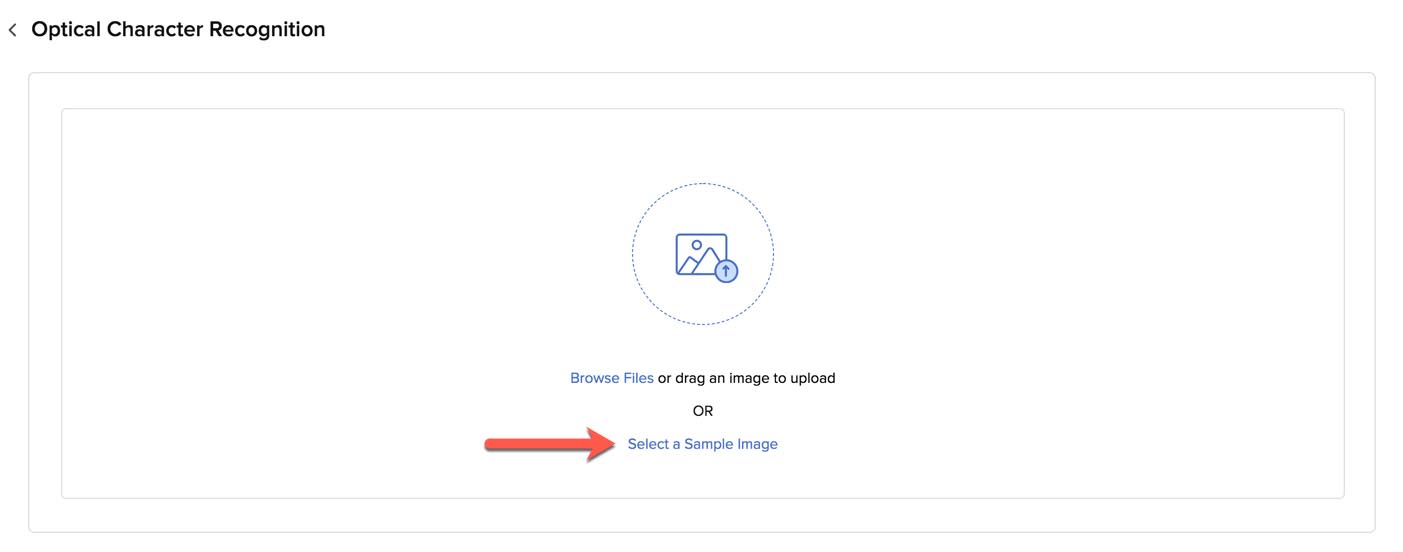
- Select an image or a PDF file from the samples provided.
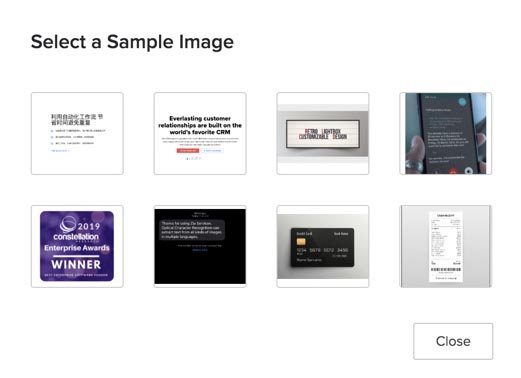
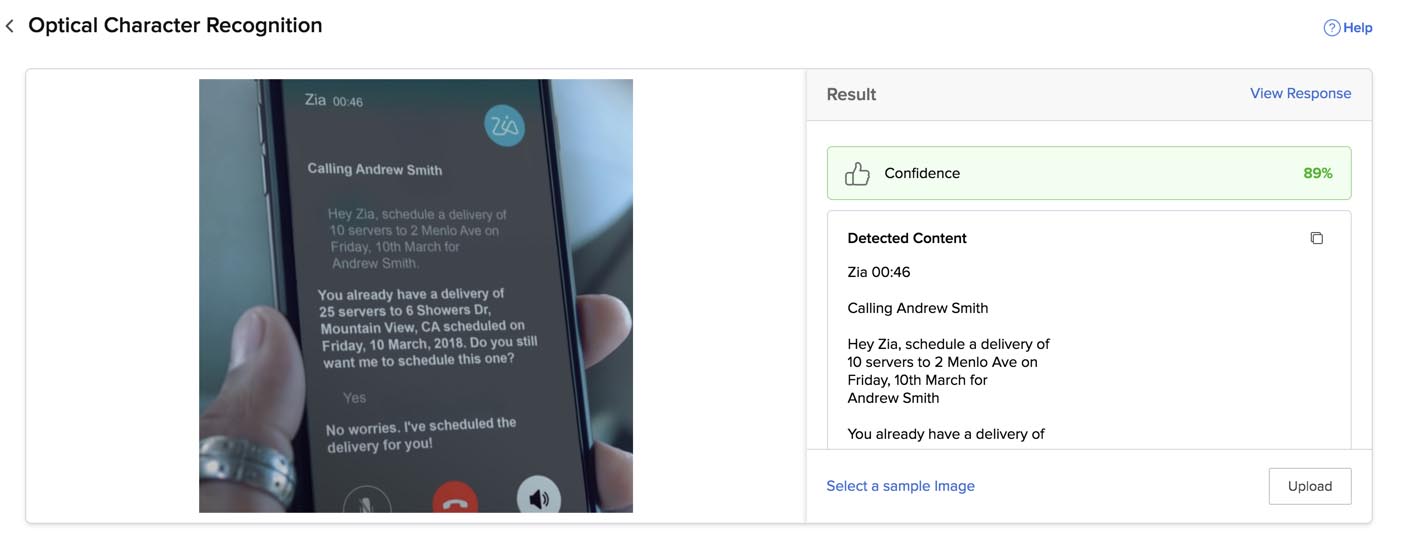
OCR will process the file, detect and identify the textual content in it. Since it is a sample file, the language the text is in and the model type is provided by Catalyst automatically.
The recognized text is displayed in the console under the Result section.
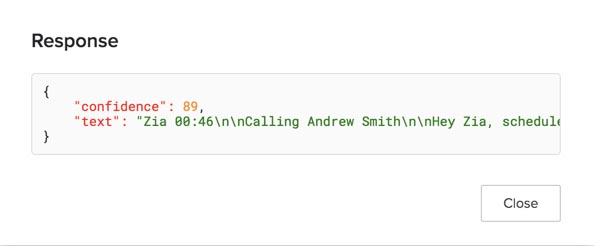
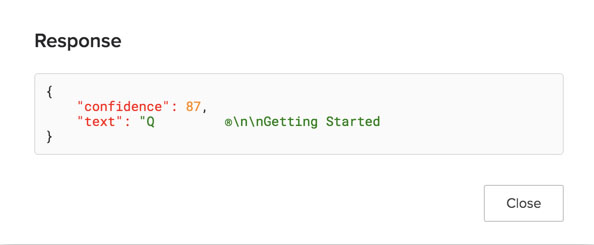
You can view the JSON response by clicking View Response.
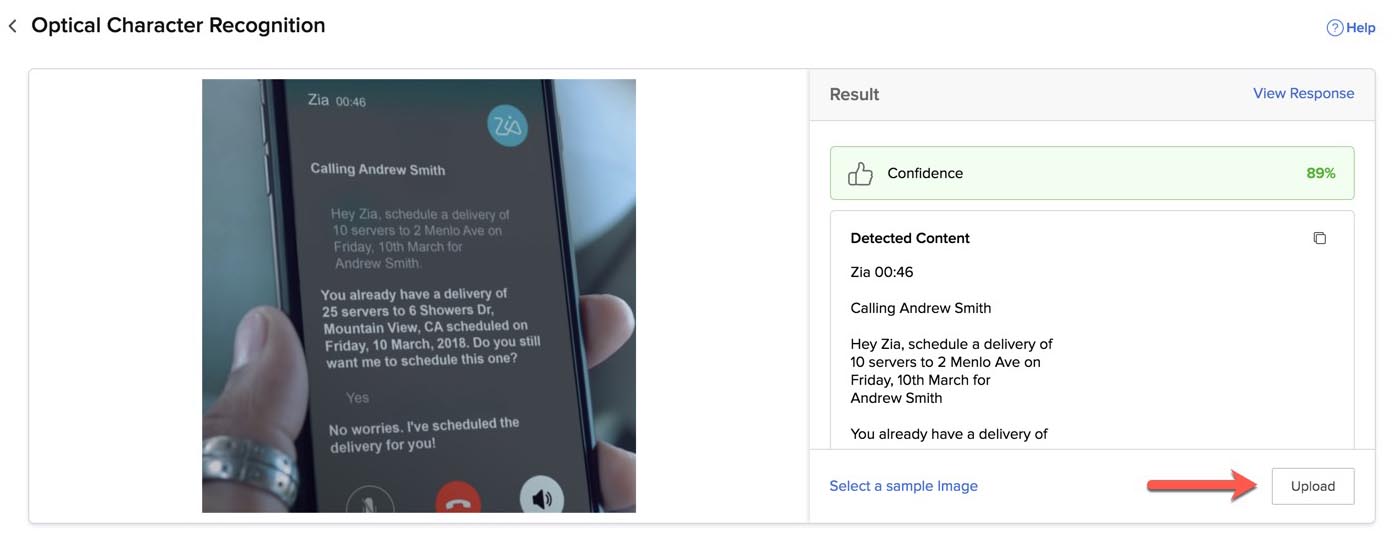
To upload your own image or PDF file with text:
- Click Upload under the Result section.
If you’re opening Optical Character Recognition after you have closed it, click Browse Files in this box.
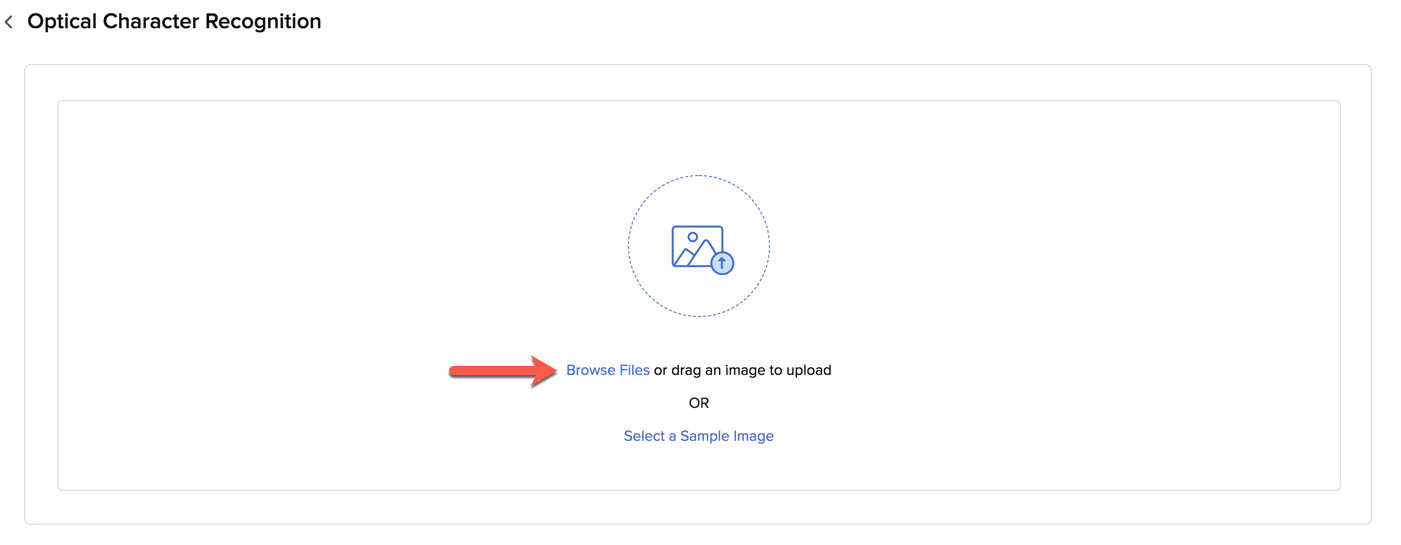
- Upload a file from your local system.
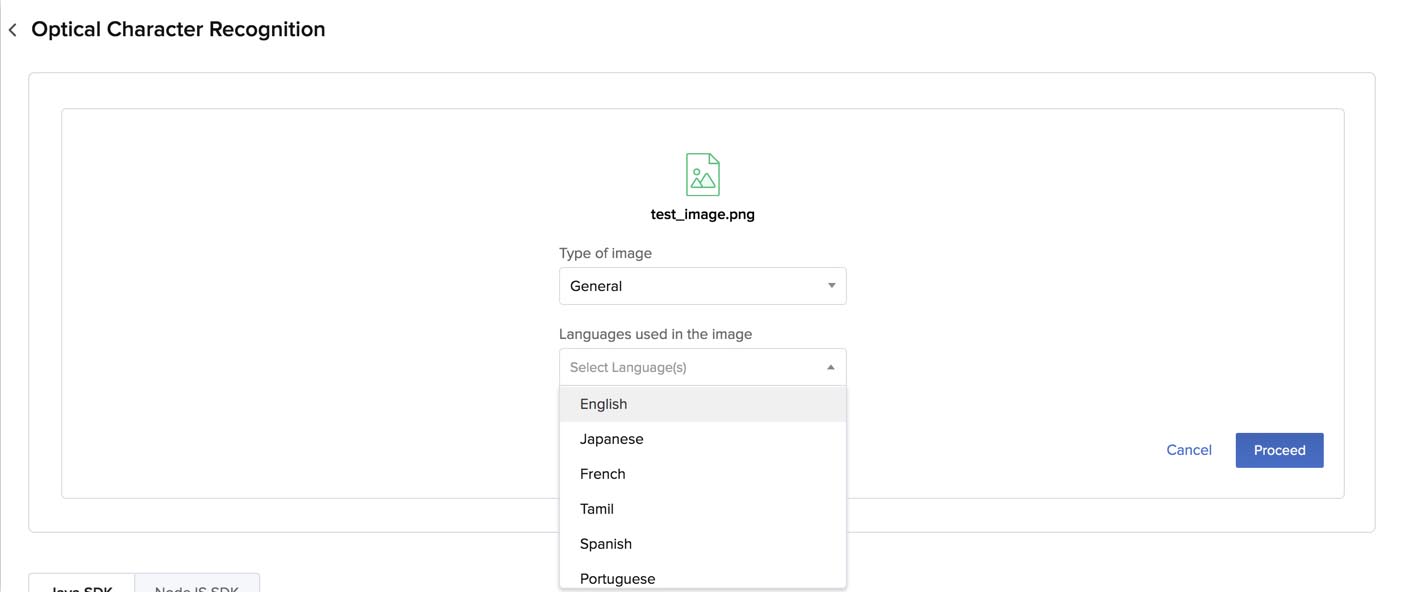
- Click Proceed.
The console will process the file and display the recognized textual content, and the confidence score if it is of the OCR model type. You can copy the recognized text using the copy icon.
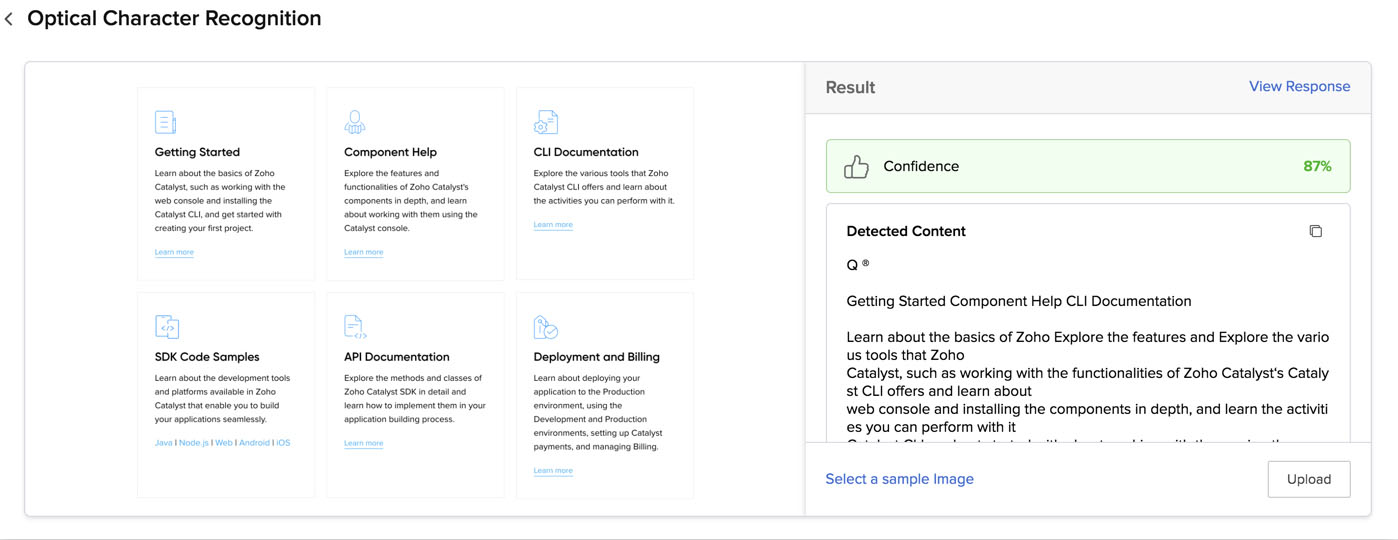
You can check the JSON response in a similar way.
Access Code Templates for Optical Character Recognition
You can implement Optical Character Recognition in your Catalyst application using the code templates provided by Catalyst for Java and Node.js platforms.
You can access them from the section below the test window. Click either the Java SDK or NodeJS SDK tab, and copy the code using the copy icon. You can paste this code in your web or Android application’s code wherever you require.
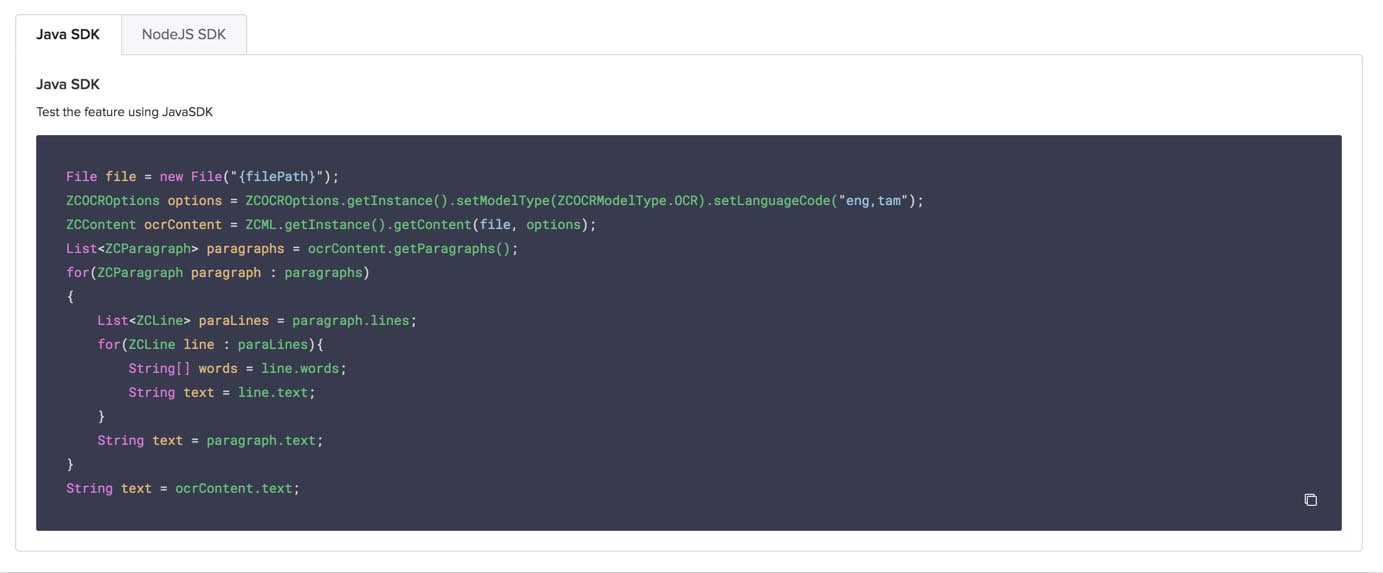
In Java, you can process the input file as a new File, specify the model type using ZCOCRModelType and the languages using setLanguageCode. Refer to the API documentation for the keys of the supported languages and model types.
As mentioned earlier, you can format the JSON response that you receive. The Java code enables you to obtain specific paragraphs, individual lines in a paragraph, or individual words in a line.
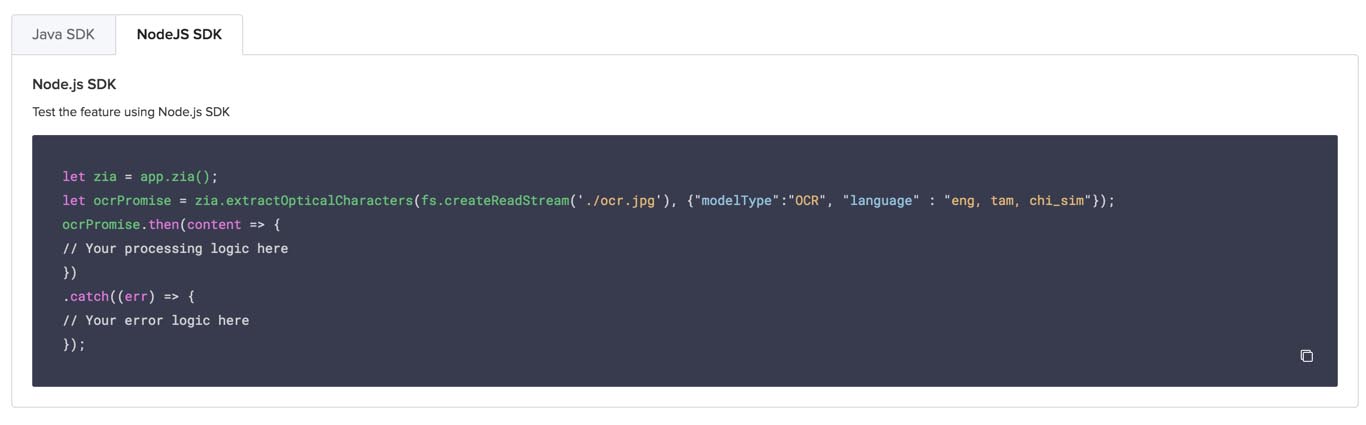
The Node.js code processes the input file as the object ocrPromise. You can provide the input file name, set the model type using modelType, and the languages using language.
Yes
No
Send your feedback to us