Create a flow from the gallery
The gallery is a collection of prebuilt flow templates. You can pick one that suits your requirements and connect your accounts to use it.
- In the My Flows section, click Explore Gallery in the top bar.
- In the gallery, you will find Featured Flows on the right and a list of apps on the left.
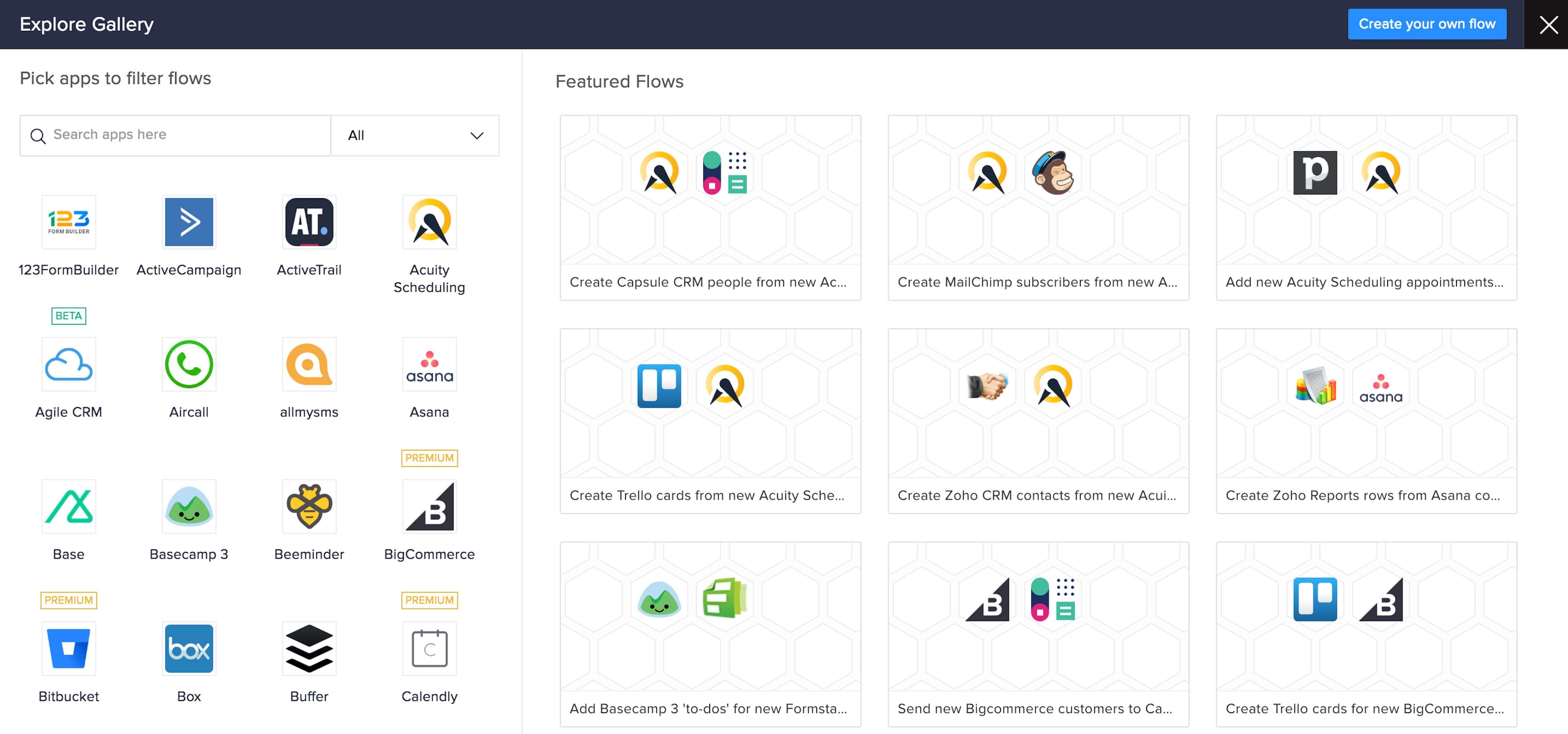
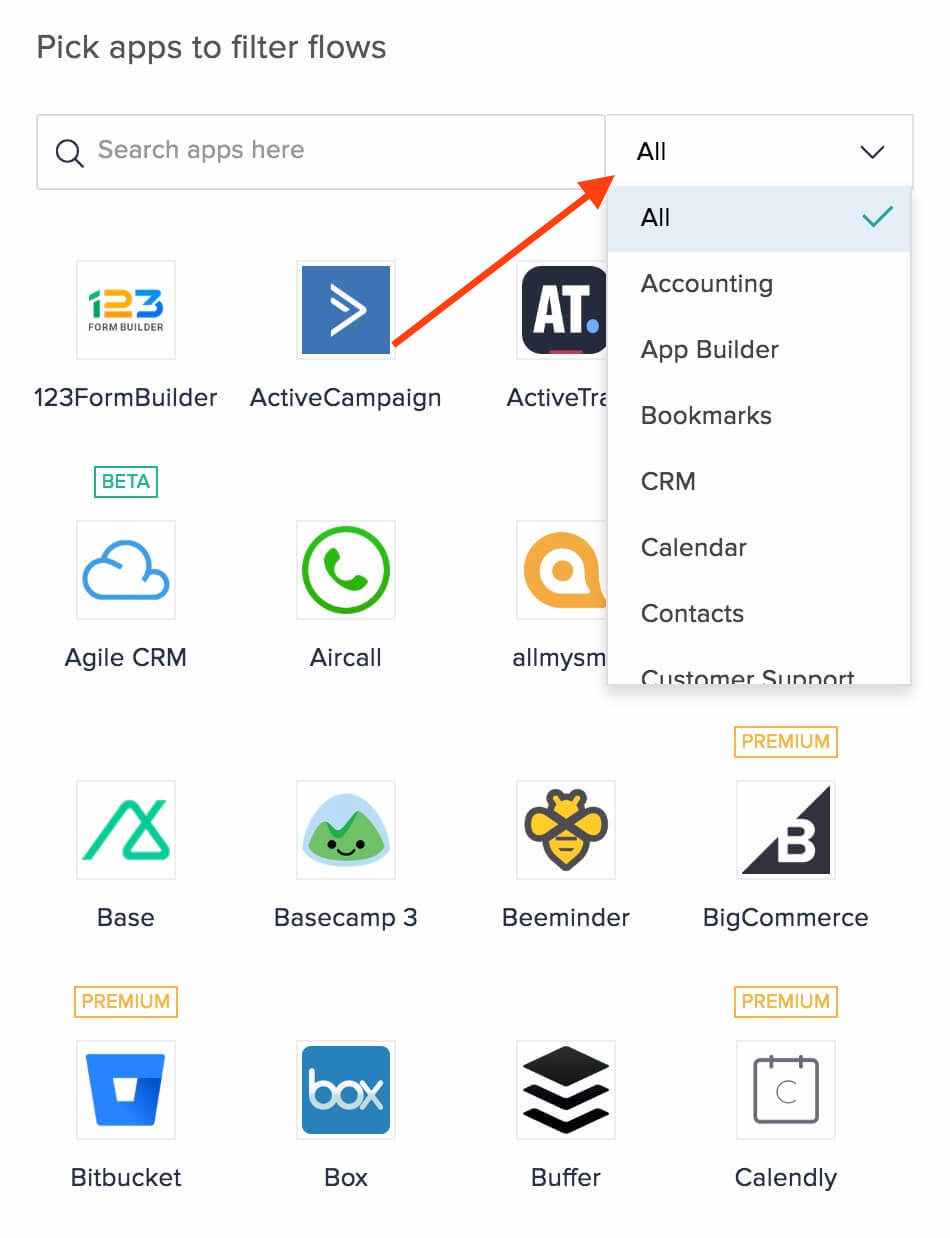
- Pick a flow from the featured list or select the apps you want to use in your flow. You can filter apps by category.
- Once you pick apps, flows containing the apps will appear on the right.
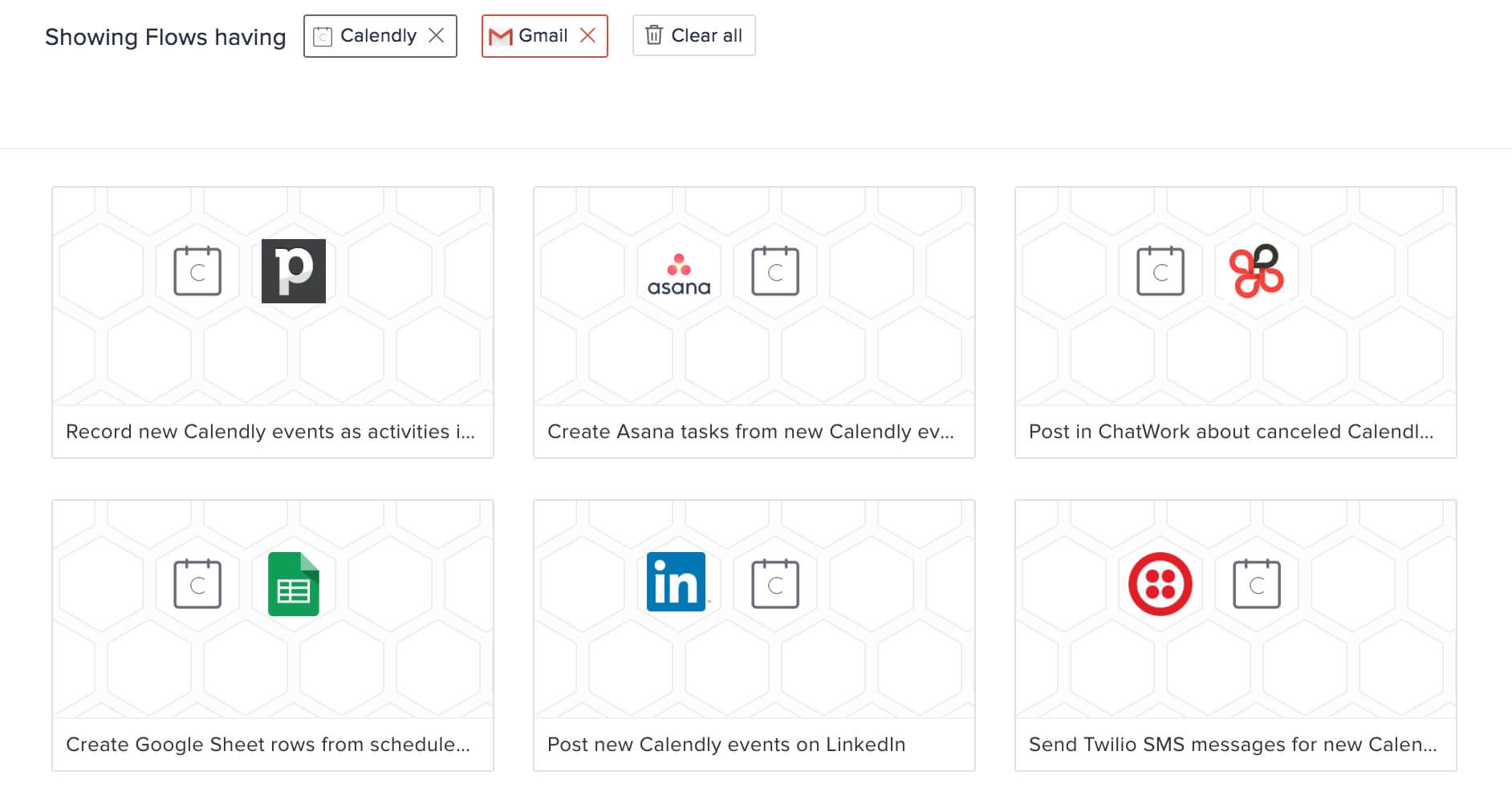
- Hover over the flow to view its description. Click Use this flow to install it into your account.
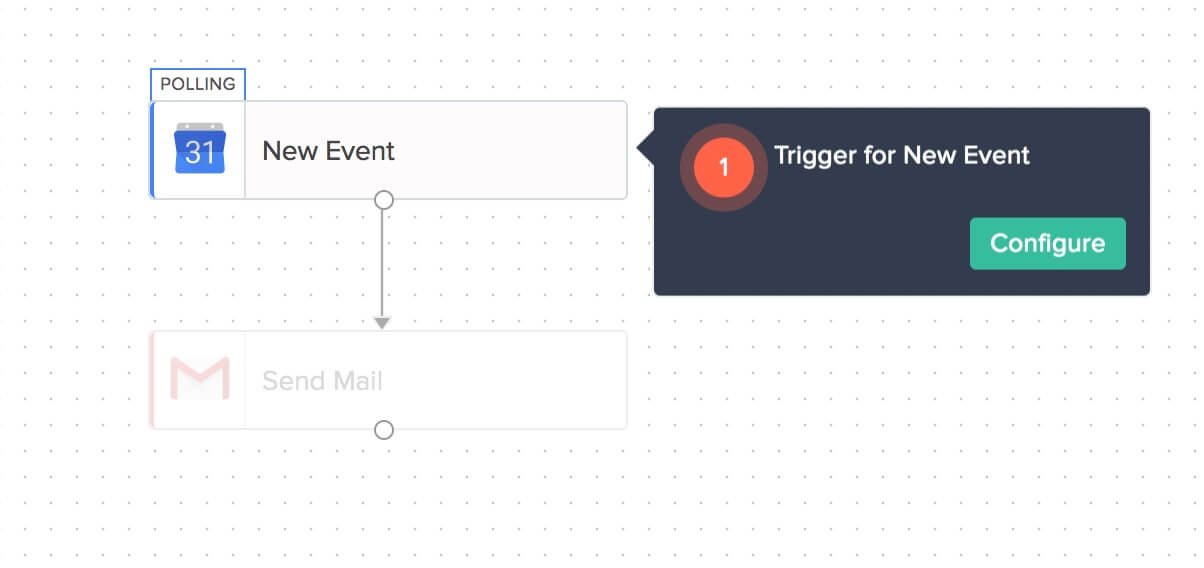
- In the builder, click Configure to set up the trigger. Learn how
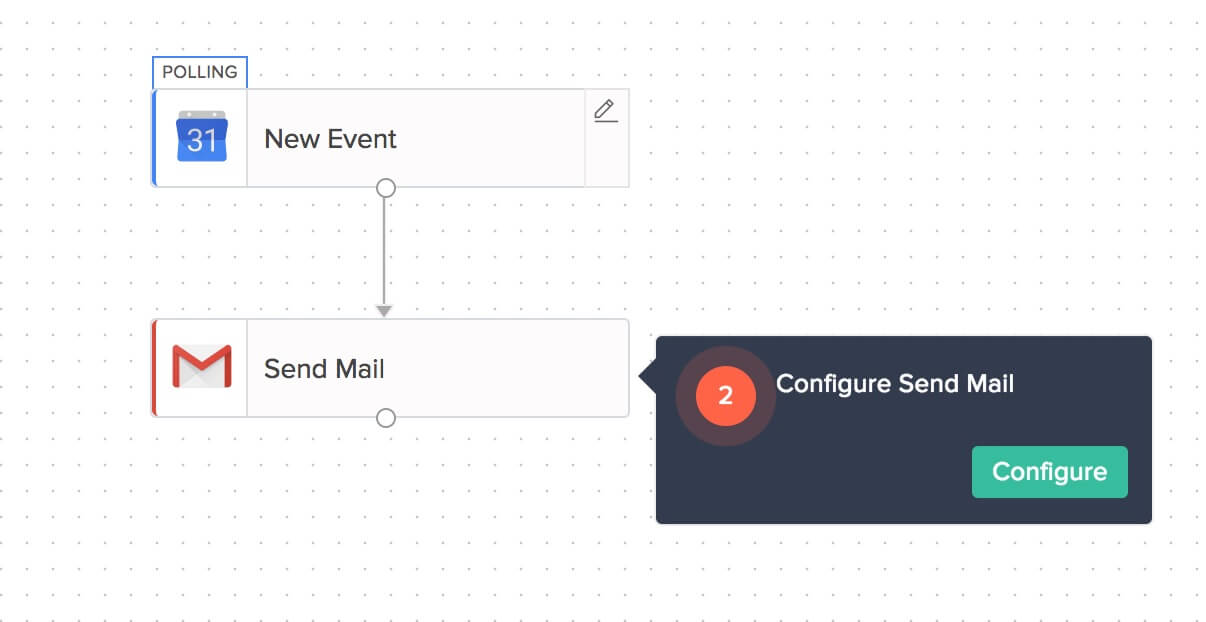
- Click Configure in the action tooltip to set up the action. Learn how
- Click Done.
- You can now add more app actions or logic if needed.
Save
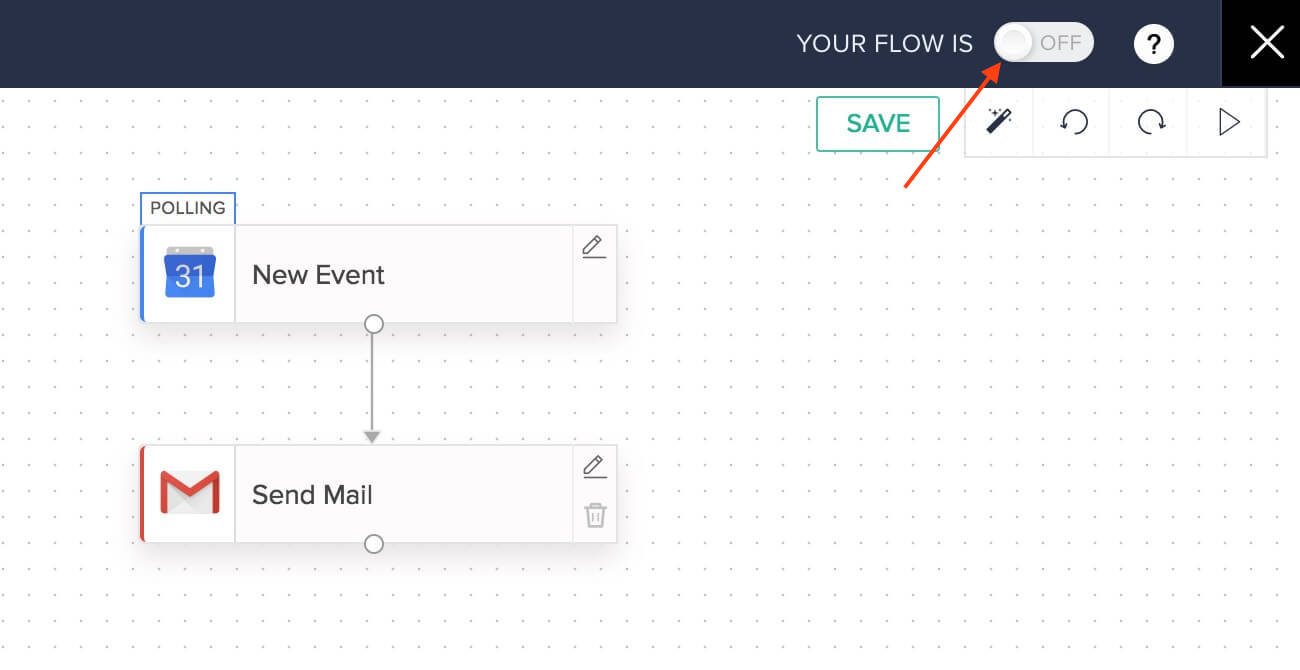
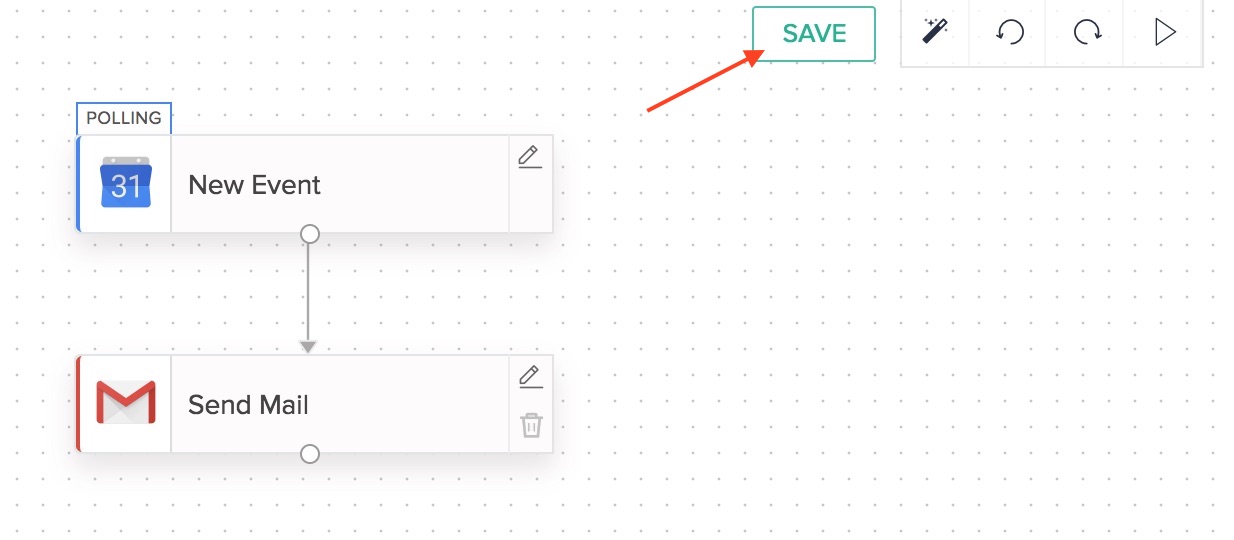
Your flow will be autosaved by default. You can also use the Save button at the top of the screen if required. Until you switch it on at least once, your flow will be saved as a draft.
You won't be able to save your flow if your flow has no actions, or if an action or trigger is not configured completely.
Test and debug
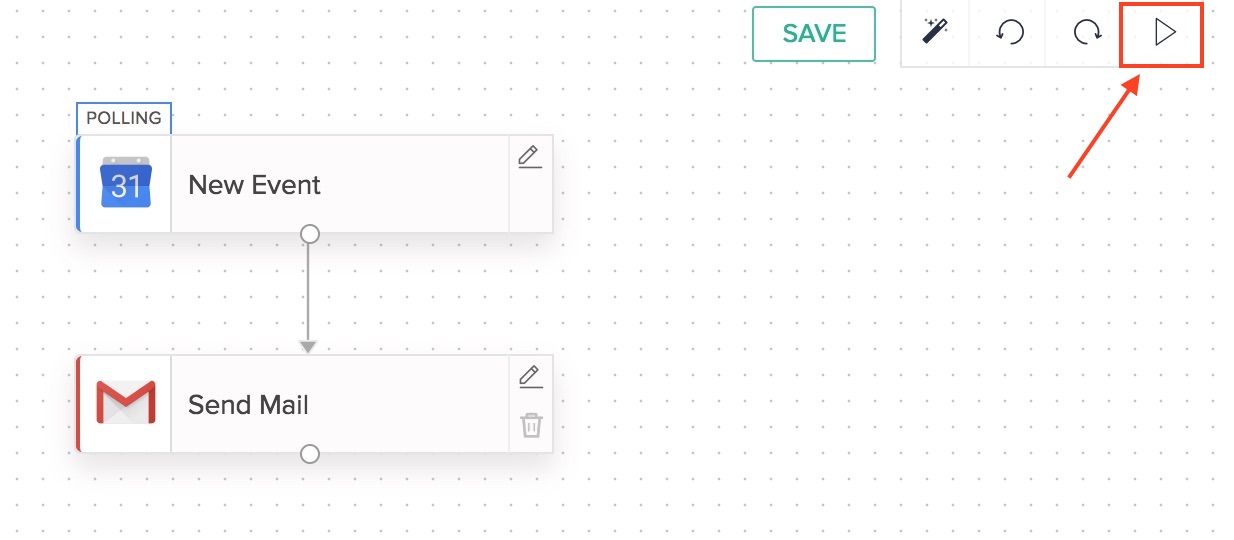
Testing and debugging your flow ensures that it is error-free. This is an optional step to check if the flow is working correctly.
Click the Test & Debug icon. Learn how to test and debug
Switch on
To switch on your flow and let it work with actual data, click the slider at the top.