
Zoho Campaigns Integration
Add your form respondents as contacts to your mailing list in Zoho Campaigns.
Table of contents
Overview
By integrating Forms with Zoho Campaigns, you can directly add your form respondents to a mailing list in Zoho Campaigns. Your mailing list will automatically be updated every time a new form submission comes in. Further, you can distribute forms inside any of your campaigns.
Integration Setup
- Click on the Integrate tab on your form builder.
- Under Zoho Campaigns, click the Integrate button.
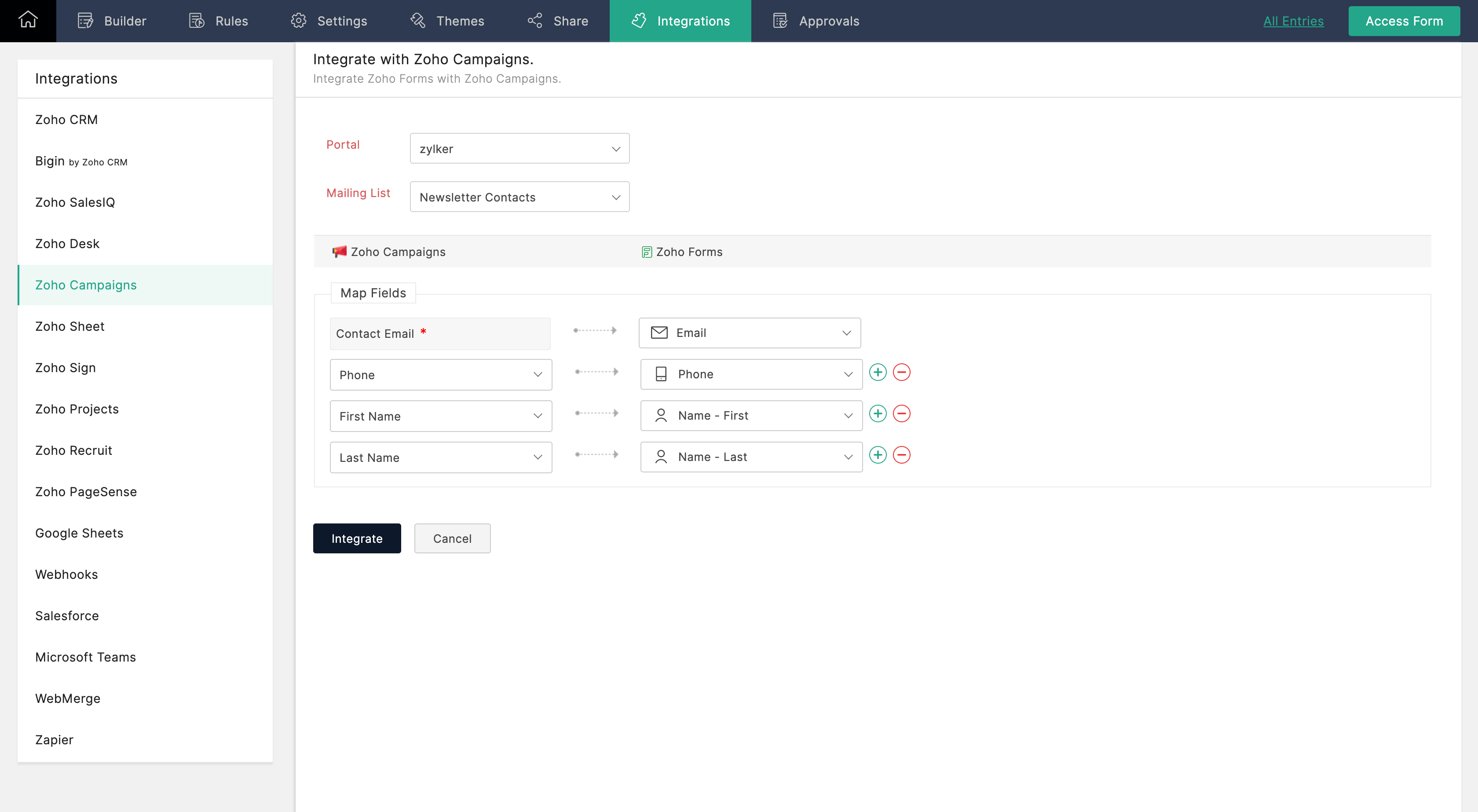
- Choose the required Portal name and Mailing List from the dropdowns.
- If you haven't created any Zoho Campaigns mailing lists yet, you'll be prompted to create one.
- Map your Zoho Campaigns field to the corresponding fields in Zoho Forms.
- Once you're done, click the Integrate button.
- To remove this integration, click the Remove Integration button and confirm.
Supported Field Types
These are the Zoho Forms fields that can be mapped with the respective fields in Zoho Campaigns.
| S. No | Campaigns Field | Supported Form Fields |
| 1 | Text | Single Line, Multi Line, Name, Address, Phone, Email, Website, Unique ID, Dropdown, Radio, Multiple Choice, Checkbox, Matrix Choice, Image choices, Number, Decimal, Currency, Slider, Rating, Formula, Date, Time, Date-Time, Referrer Name, IP Address,Added Email id,Terms & conditions |
| 2 | Text Area | Single Line, Multi Line, Name, Address, Phone, Email, Website, Unique ID, Dropdown, Radio, Multiple Choice, Checkbox, Matrix Choice, Image choices, Number, Decimal, Currency, Slider, Rating, Formula, Date, Time, Date-Time |
| 3 | Integer | Number, Slider, Rating |
| 4 | ||
| 5 | Phone | Single Line, Phone |
| 6 | Pick List | Single Line, Dropdown, Radio, Matrix Choice, Image Choices |
| 7 | Multi Select Picklist | Multiple Choice, Checkbox, Matrix Choice, Image Choices |
| 8 | Date | Date |
| 9 | Date-Time | Date-Time |
| 10 | Decimal | Number, Rating, Slider, Decimal, Formula |
| 11 | Percent | Number, Rating, Slider, Decimal, Formula |
| 12 | Radio Button | Single Line, Dropdown, Radio, Matrix Choice, Image Choices |
| 13 | Long Integer | Number, Slider, Rating |
| 14 | Checkbox | Decision Box |
| 15 | URL | Website |
Set Alert on Integration Failure
Once your integration settings are saved, you can choose to receive an email alert if the integration fails.
To do so,
- Click Set Alert in the top-right corner.
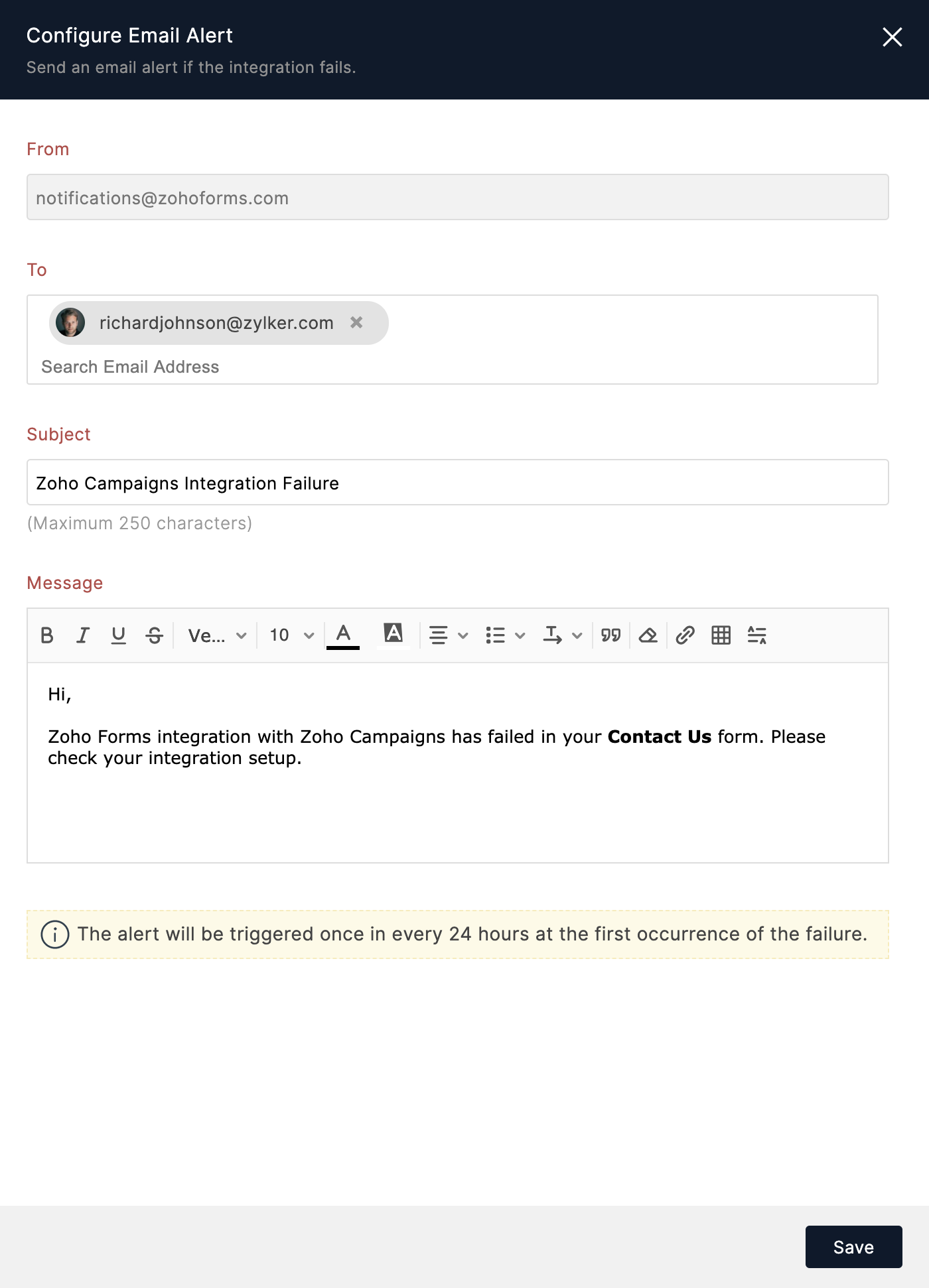
- Configure the email alert template and click Save.
Note:
- The option to set an email alert on integration failure is available only in our paid plans.
- You can send email alerts to a maximum of 5 users within your organization.
- An email alert will be triggered only on the first occurrence of integration failure every 24 hours.