

Add Accounts

In the Banking module, you can add your bank, credit card, and PayPal accounts to Zoho Books. Once added, you can import their feeds either automatically or manually. After importing, you can match the transactions in Zoho Books with your bank transactions. To import feeds, you need to first connect your bank or credit card account to Zoho Books.
To connect your Bank or Credit Card account to Zoho Books:
- Go to Banking on the left sidebar.
- Click Add Bank or Credit Card in the top right corner of the page.
You will be redirected to the Connect and Add Your Bank Accounts or Credit Cards page. Zoho Books can be connected with major banks and credit cards. Sometimes, the bank or credit card you are searching for might not be available. In this case, you can manually add those accounts and import statements.
Add Accounts That Support Automatic Bank Feeds
You can connect your bank accounts to fetch bank feeds using one of our third-party service providers. Zoho Books allows you to choose between two major account information service providers: Yodlee and Token.
To add accounts from banks that support automatic bank feeds:
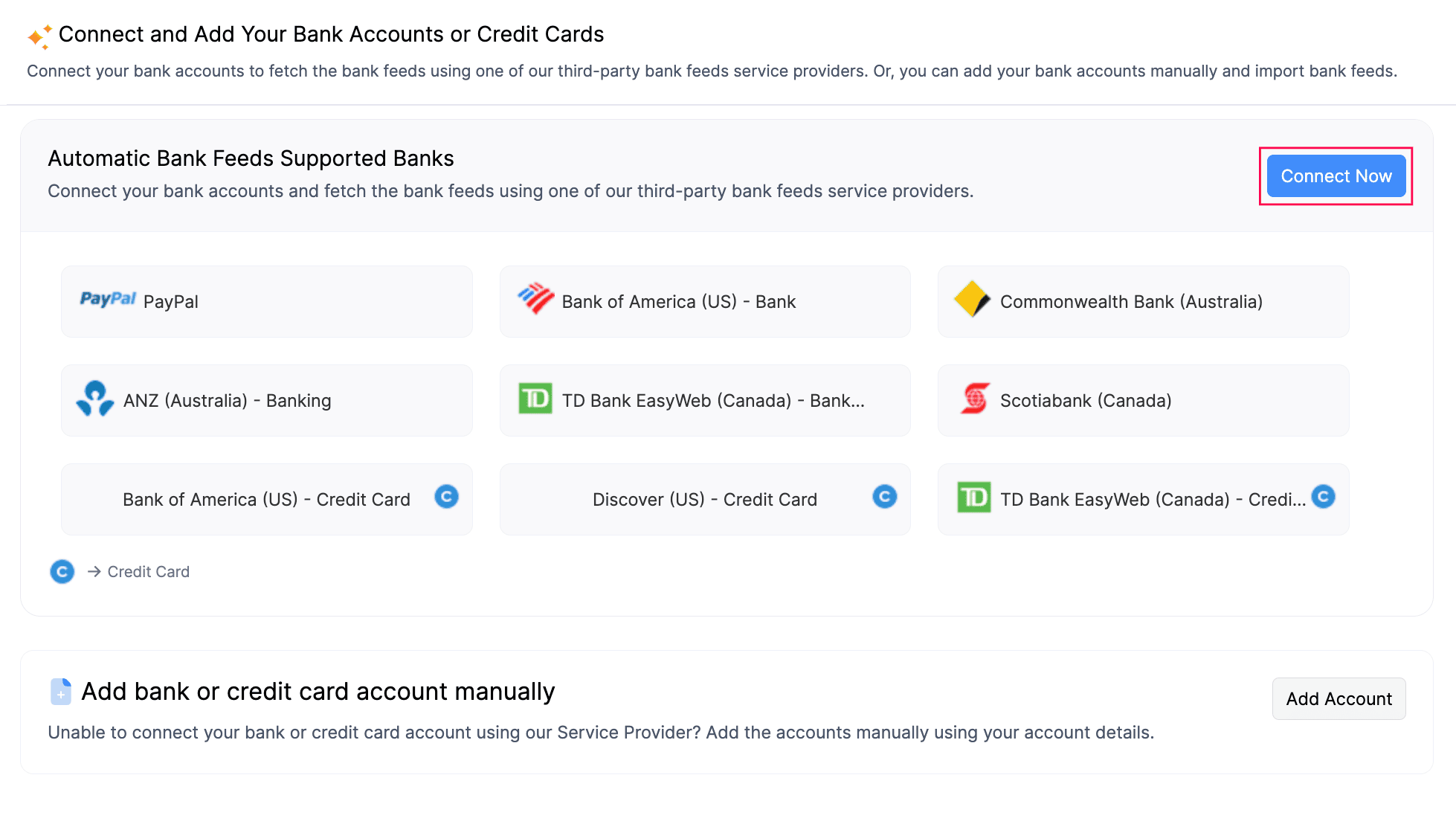
- Click Connect Now in the Connect and Add Your Bank Accounts or Credit Cards page.
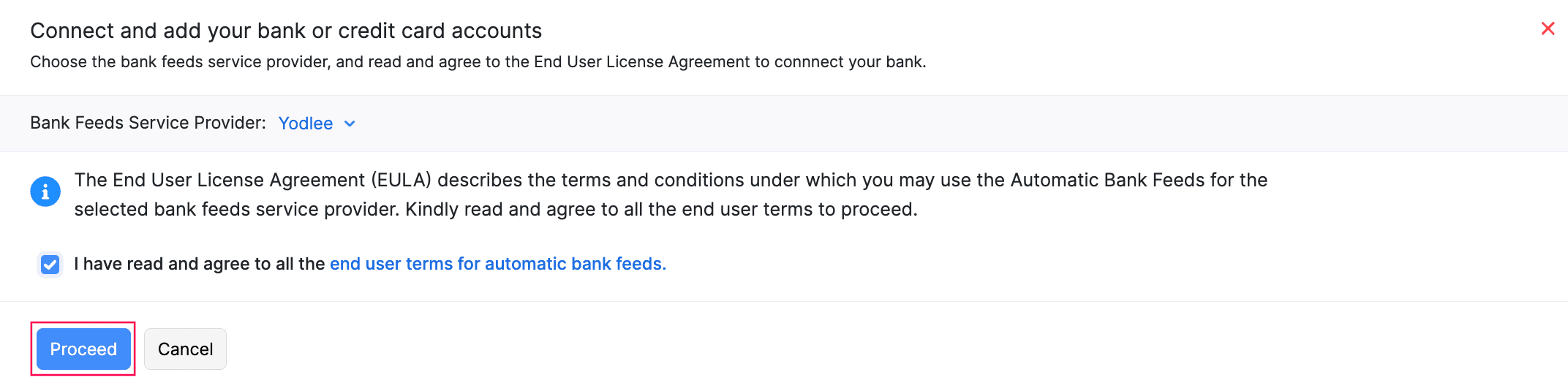
- In the Connect and add your bank or credit card accounts pop-up:
- Click the dropdown next to Bank Feeds Service Provider and select an option.
- Read and agree to the terms and conditions, then check the option I have read and agree to all the end user terms for automatic bank feeds.
- Click Proceed.
- Enter the name of your bank or select one from the list of popular banks.
- Enter the login credentials.
- Select the account that you would like to connect with Zoho Books.
- Select the date from which you want to fetch the transaction history. Transactions from the last 90 days can be fetched into Zoho Books.
- Select the Currency.
- Click Continue.
This will automatically fetch bank feeds into your account. Transactions from the selected date will be imported automatically. For transactions before the selected date (historical transactions), you can import statements manually.
Add Accounts Manually
If you can’t find the bank you want to connect with Zoho Books, you can add the account manually.
To add a bank account manually:
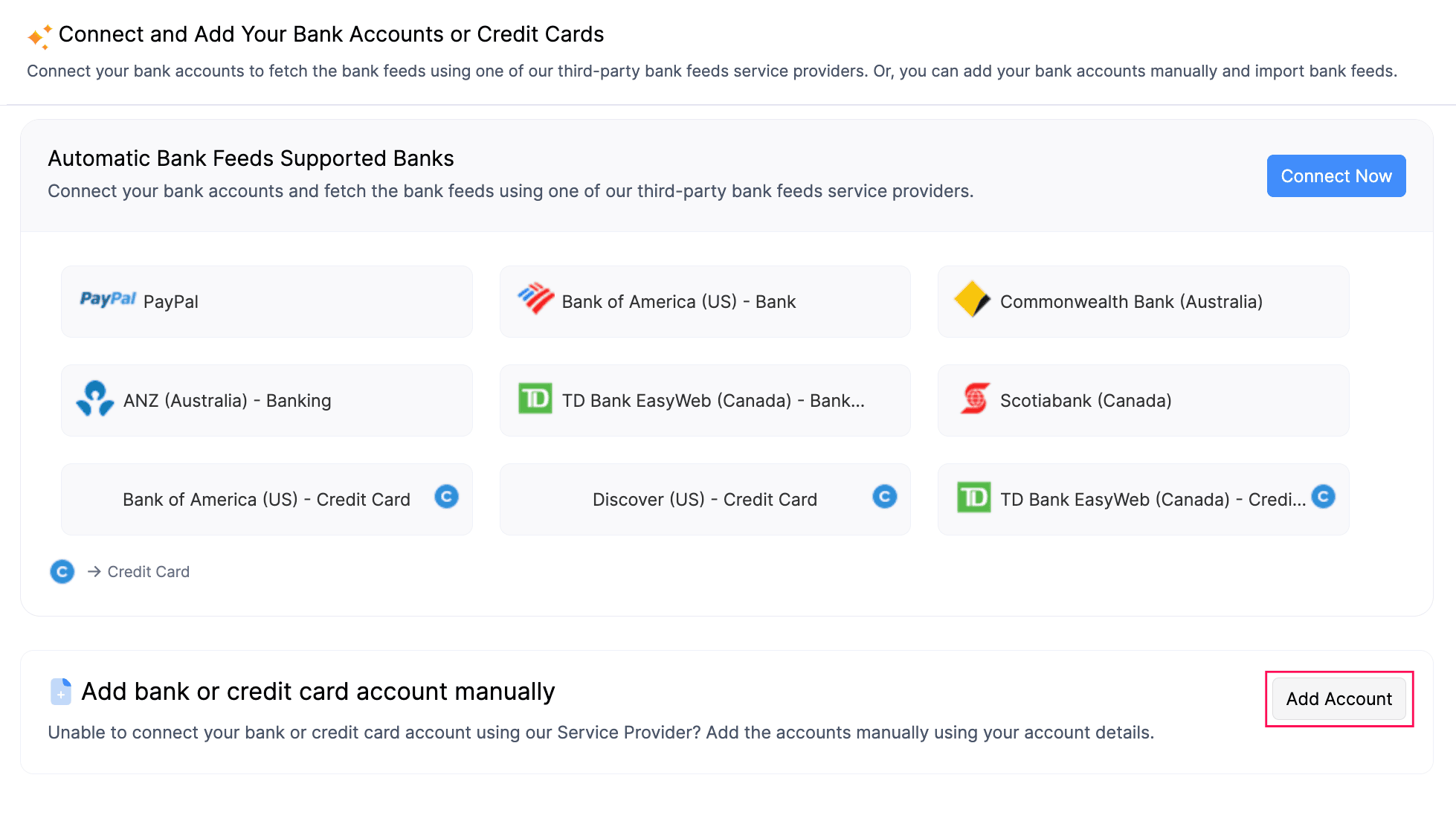
- Click Add Account in the Connect and Add Your Bank Accounts or Credit Cards page.
- In the Add Bank or Credit Card page, fill in the following details:
| Fields | Description |
|---|---|
| Select Account Type | Select Bank as your account type. |
| Account Name | Enter the name of your bank account as it should be displayed. |
| Account Code | A unique code used for identification purposes. |
| Currency | Select the currency in which transactions are handled for this bank account. |
| Account Number | The unique number provided by the bank to identify your account. |
| Bank Name | Enter the name of the bank which maintains the account. |
| Bank Identifier Code | A unique code used to identify the bank, such as IFSC, IBAN, or other bank-specific codes. |
| Location | Associate locations for which users can create, edit and delete transactions under this account. |
| Users | Associate users who can access the bank account. |
- Click Save.
If you can’t find the bank you want to connect with Zoho Books, you can add the account manually.
To add a credit card account manually:
- Click Add Account in the Connect and Add Your Bank Accounts or Credit Cards page.
- In the Add Bank or Credit Card page, fill in the following details:
| Fields | Description |
|---|---|
| Select Account Type | Select Credit Card as your account type. |
| Account Name | Enter the name of your bank account as it should be displayed. |
| Account Code | A unique code used for identification purposes. |
| Currency | Select the currency in which transactions are handled for this bank account. |
| Bank Name | Enter the name of the bank which maintains the account. |
| Users | Associate users who can access the bank account. |
- Click Save.
Add PayPal Account
You can also connect with your PayPal account to fetch automatic feeds into your Zoho Books.
- Go to the Banking on the left sidebar
- Click Add Bank or Credit Card.
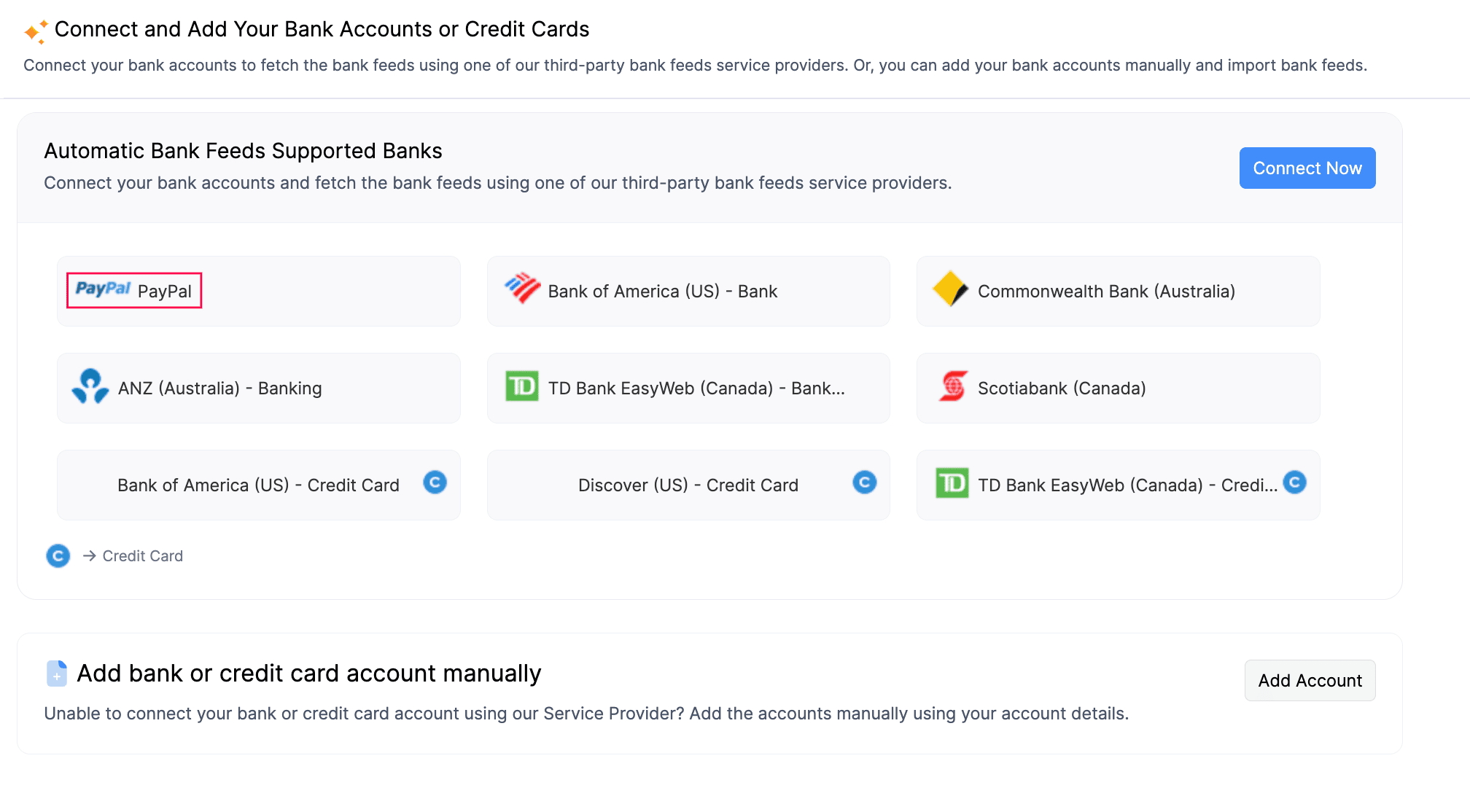
- Select Paypal listed under popular banks.
- In the Proceed to PayPal pop-up, choose the account type as Bank Account or Credit Card and click Yes, configure bank account in the confirmation pop-up.
You will be redirected to the PayPal login page.
- Enter your credentials to authorise the connection between PayPal and Zoho Books. After signing in, you will see a message indicating that the integration with Zoho Books was successful.
- Click Go Back to Zoho to return to your Zoho Books account.
You will be redirected to Zoho Books, where the Add PayPal Currency page will open. Enter the following details:
| Fields | Description |
|---|---|
| Download transaction history from | Enter a date within the past 90 days to import feeds from PayPal. If no date is specified, transaction history for the past 90 days will be fetched by default. |
| Currency | Select the currencies in PayPal that you want to track in Zoho Books. |
| Associate Bank Account | You can associate your PayPal currencies with an existing bank account or choose to create a new account for the currency. |
- To add more currencies, click Add new currency.
- Click Save.
Remove Currency
If you have stopped receiving payments in a particular currency or have set up an incorrect currency, you can remove that currency feed from PayPal.
Warning: Make sure you deactivate your PayPal feed before removing a currency. Removing all currencies will remove the PayPal integration.
To remove your currency:
- Go to the Banking on the left sidebar
- Click Add Bank or Credit Card.
- Select Paypal listed under popular banks.
- Click the Remove icon next to the currency you want to remove.
- Click OK.
The currency will be removed.
 Yes
Yes