

Collecting Retainer from Estimate
- Retainer Information in Estimate
- Collecting Retainer from Client Portal
- Collecting Offline Retainer Payments
Retainer Information in Estimate
As a business owner, you tend to send a quote or an estimate to your customers on the product or service you will be providing them. When your customers are satisfied with the quote, the estimate is accepted and you start working on the project. Majority of the businesses collect a retainer or advance payment after the estimate is accepted. Click here to learn more about Estimates.
In Zoho Books, collecting advance payments has been made easier. You can now collect the retainer amount as soon as your customer is happy about the estimate.
When the Retainer Invoices module is enabled in Zoho Books, a section on retainer amount to be collected will be available in the Estimate module.
When the option Create a retainer invoice for this estimate automatically is selected, a field to enter the percentage of amount to be collected as retainer appears in the estimate module.
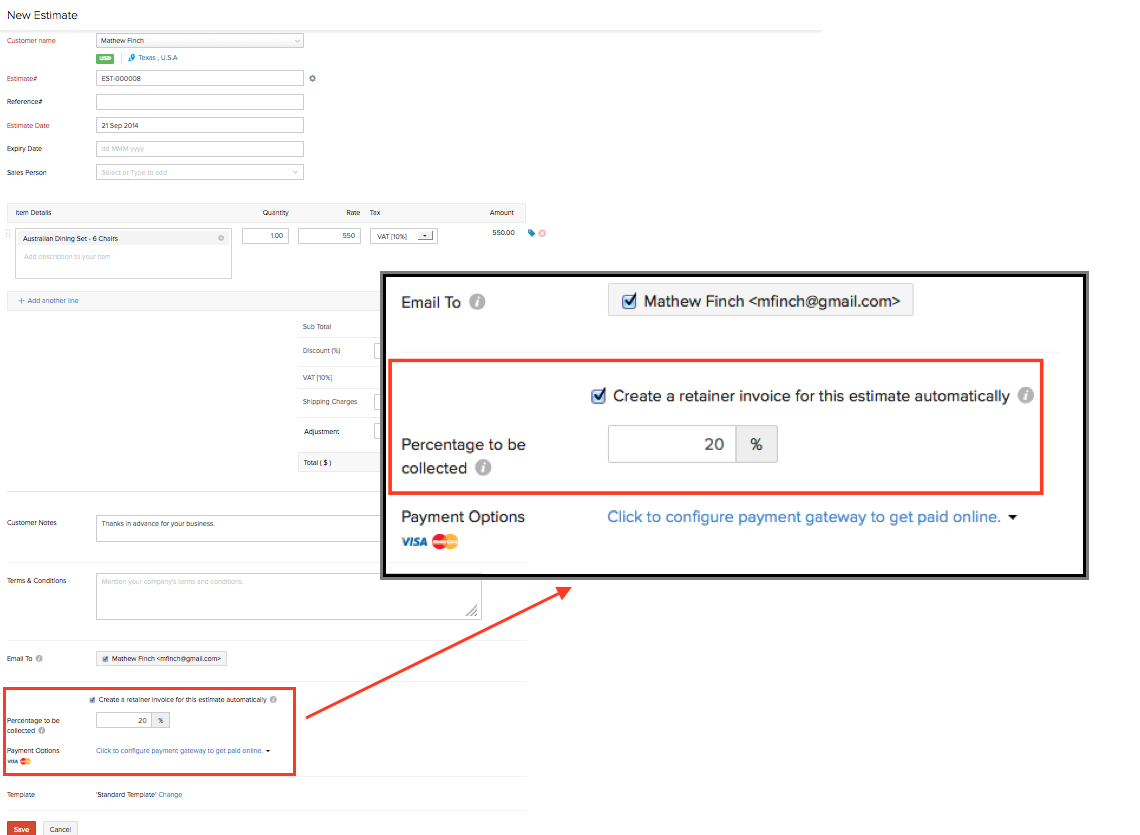
Now, your customer will receive the estimate where they can make payment for the retainer through Client Portal. Click here to learn more about Client Portal.
Collecting Retainer from Client Portal
When your customer enters the client portal to check the estimate you have sent, they will be able to accept on agreeing with the quote. As you have requested them to pay a retainer amount for the estimate, they have the option to make payment for the retainer though client portal.
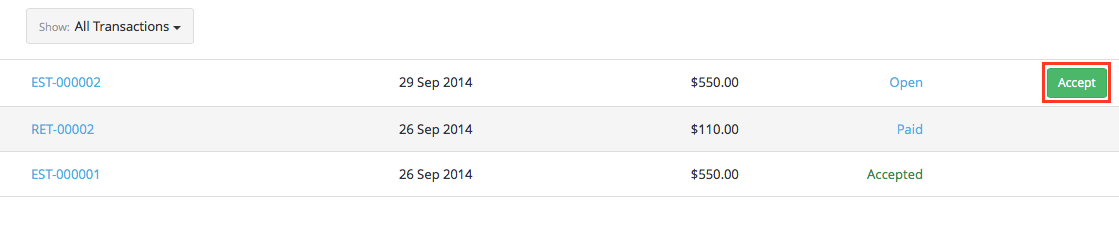
- Once your customer accepts the estimate from the Transactions window in client portal, they would be notified about the retainer amount to be paid.
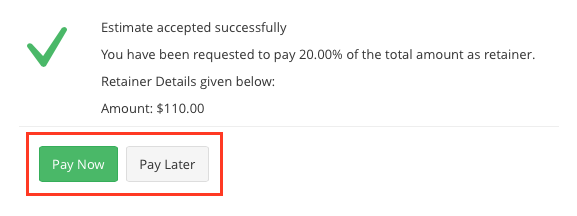
- The retainer amount can be paid by the customer at the time of accepting the estimate or later.
As soon as the estimate is accepted, a retainer invoice for the customer is automatically created in Zoho Books.
Collecting Offline Retainer Payments
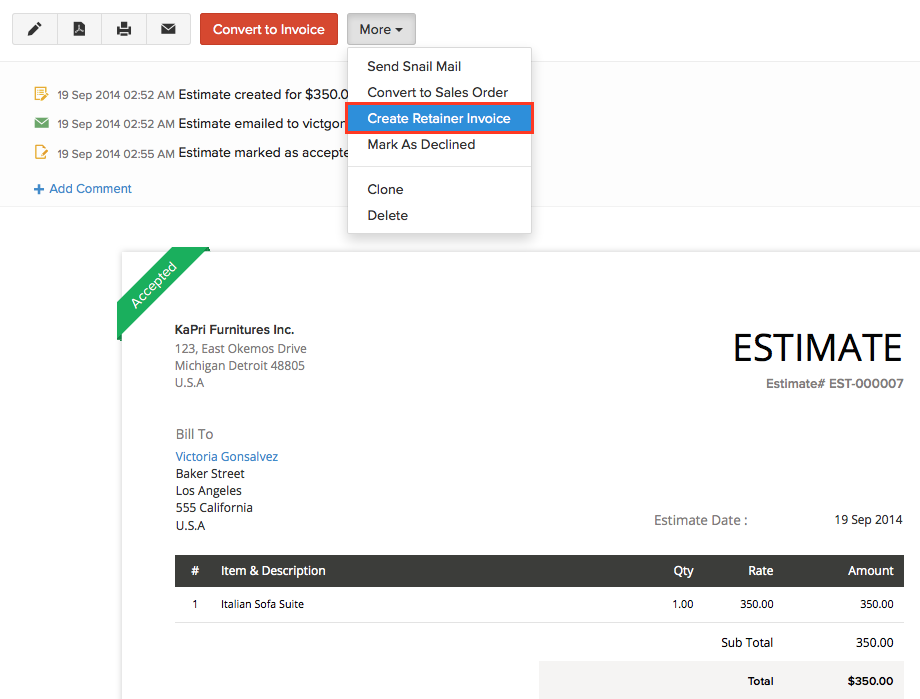
In some cases, customers would like to make the advance payment in person or through an offline method such as a bank transfer for the estimate you sent them. In this case, you can always mark the estimate in Zoho Books as Accepted and create a retainer invoice for the offline advance payment made.
Navigate to Create Retainer Invoice option from the More drop down.
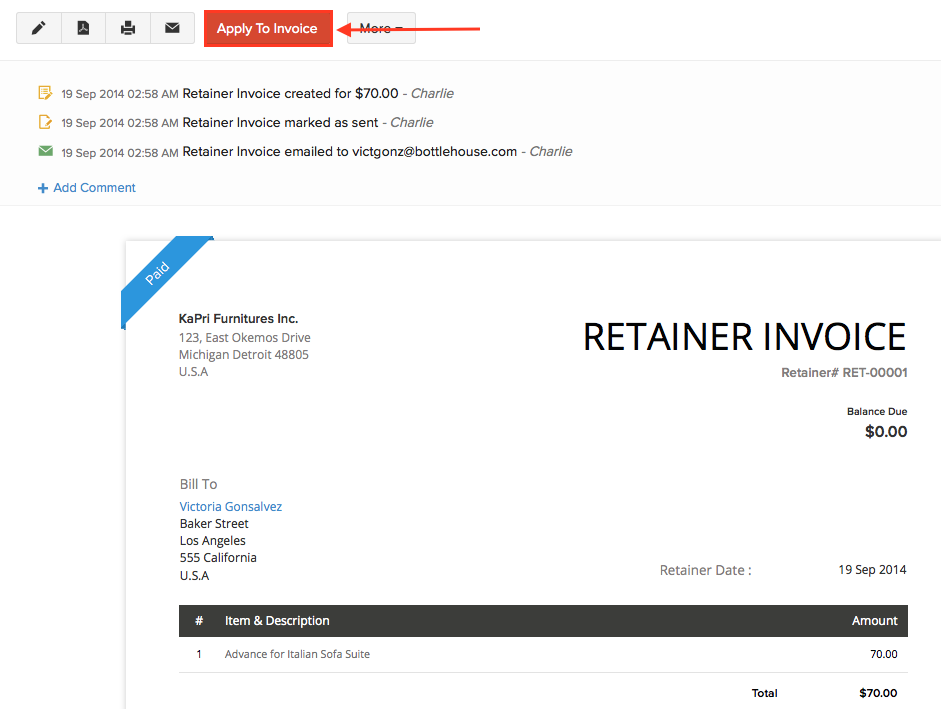
This can be later applied to invoices by selecting the Apply to Invoices option from the retainer invoice created.
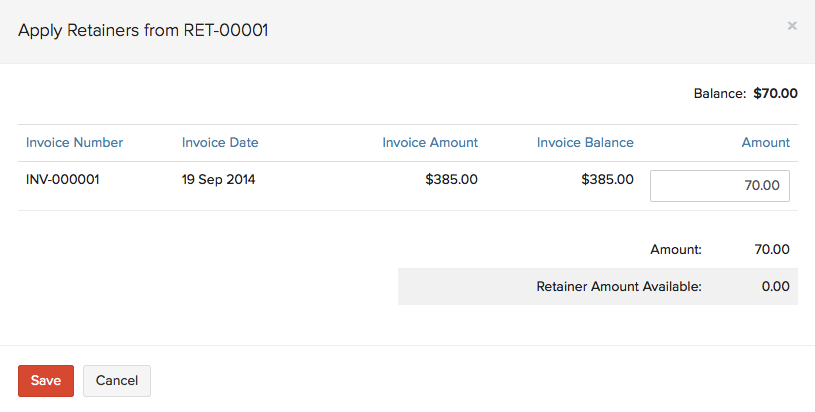
When the Apply to Invoice option is selected, Zoho Books displays you the pending invoice which is created for that customer.
Enter the retainer amount that should be applied for the invoice, and the invoice will be updated with the balance amount to be paid by the customer.
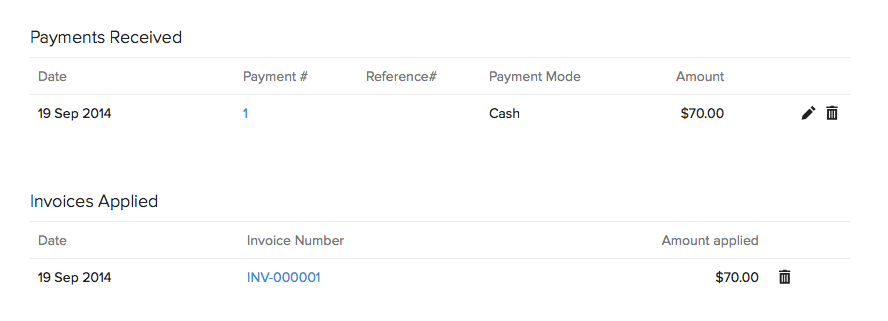
You can also have a quick view of the retainer transaction summary just below the selected retainer invoice.
Payments Received denotes the retainer amount paid by the customer.
Invoices Applied denotes the invoices to which the retainer amount was applied. You can always edit or delete the transaction from the icons present next to the entry.
Recording Offline Retainer Payment
Back to Retainer Invoice Overview
 Yes
No
Yes
No
 Thank you for your feedback!