

Associating Retainer to Invoice
When the product is ready to be delivered or if a service is rendered, you would create an invoice to collect the payments from your customer. The advance payment collected before starting the project can be applied to the invoices you create. This will adjust the invoice so that the customer will only have to pay the remaining amount.
Applying Retainer to Multiple Invoices
In a business there are cases where the customer would have paid a one time advance for multiple services, which can be later adjusted with future invoices.
In such cases,
- Create a retainer invoice for the advance payment made and save it.
- Create invoices for different services provided or products delivered for various instances.
- Select the Apply to Invoice option from the retainer invoice created and Zoho Books will display the list of pending invoices for the customer.
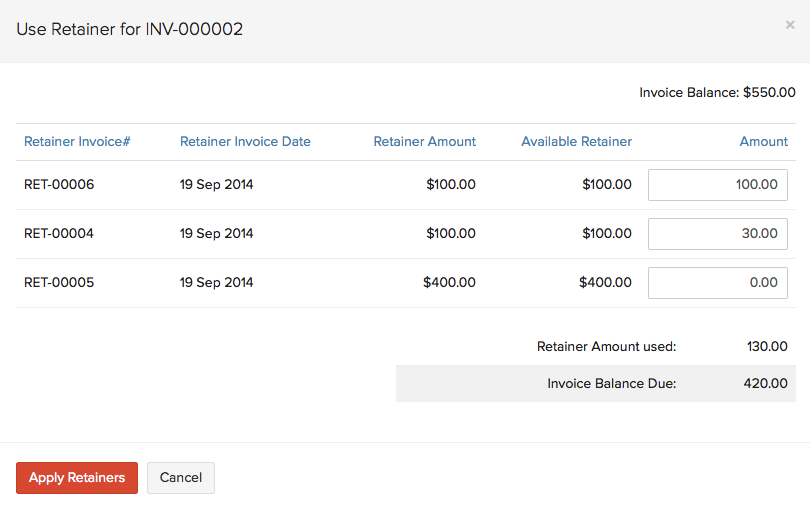
- You can select to apply the retainer partially or fully on the invoices displayed.
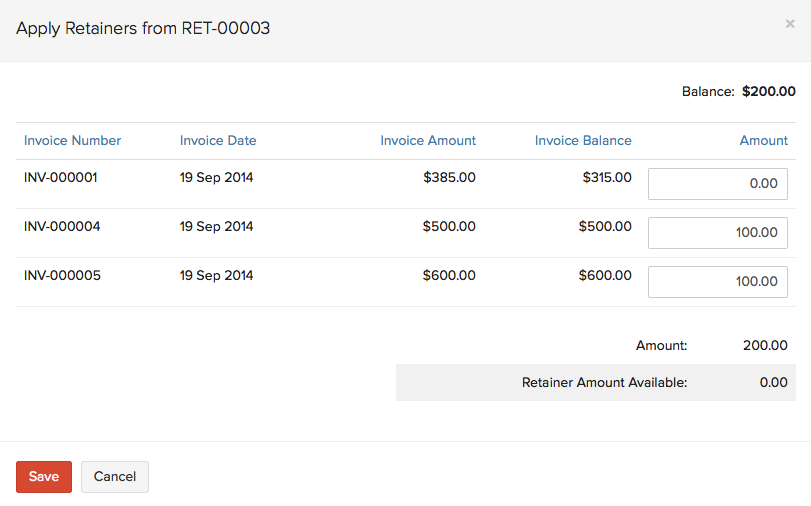
| Fields | Description |
|---|---|
| Balance | The amount collected from your customer as retainer. |
| Invoice Amount | The total invoice amount raised for the customer. |
| Invoice Balance | The final amount to be paid after deducting advance payments. |
| Amount | The amount to be applied from the Balance available. |
| Retainer Amount Available | Available retainer after the Balance is applied for invoices. |
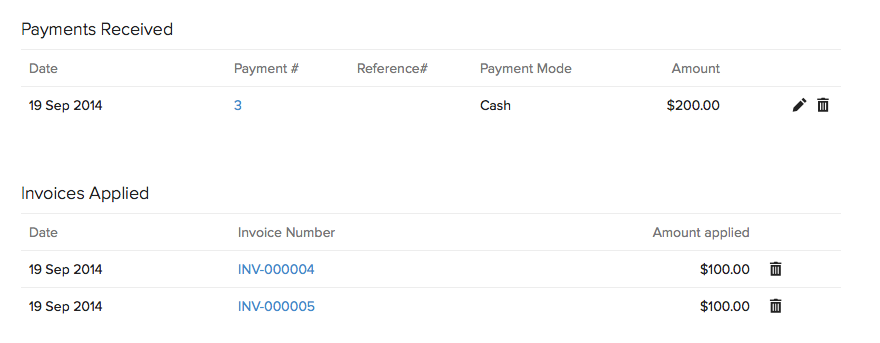
All the retainer transaction details will be displayed for a quick view at the bottom of the selected retainer invoice. You can always edit or delete the transaction from the icons present next to the entry.
Using Multiple Retainers to Invoice
Sometimes there might be multiple retainers collected from your customer which are not yet used, but were accumulated to be used for future purposes. Your customer might wish to use these unused retainers for a pending invoice or for a future invoice.
In such cases,
- Navigate to the pending invoice from the invoice module, or create a new invoice and save it as draft.
- If the customer has unused retainers, a notification will be displayed in the invoice window as Retainers Available with the retainer amount that was collected from the customer.
- Click on Click here to apply the unused retainers of the customer on their invoice.
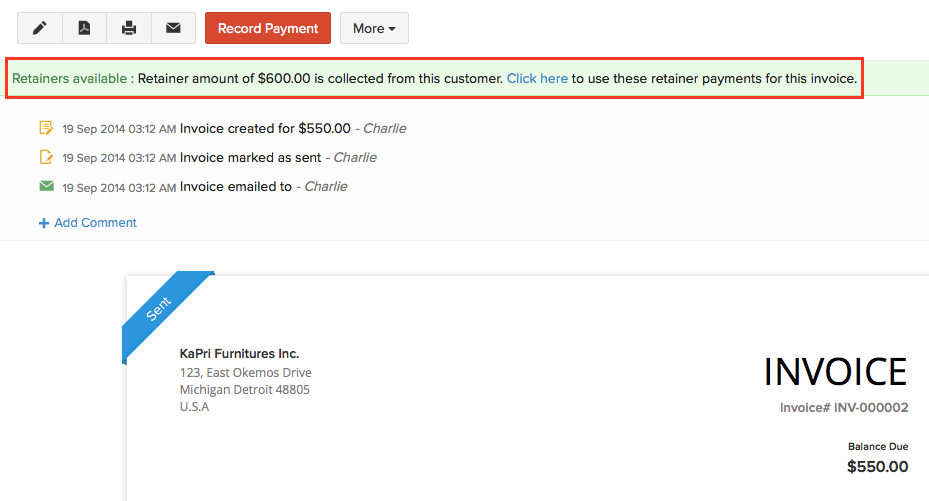
- Unused retainers can also be used by navigating to the Use Retainers under the More drop down.
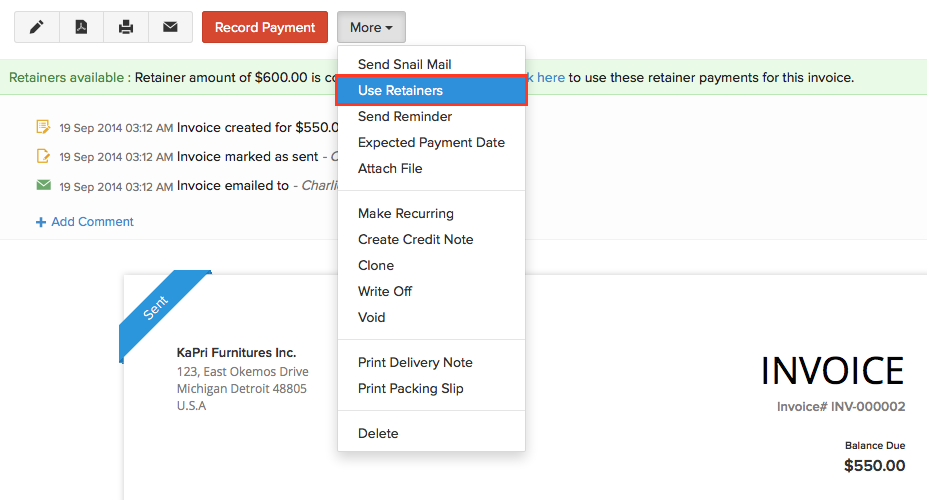
- Apply the retainers partially or fully from multiple retainers towards the invoice.
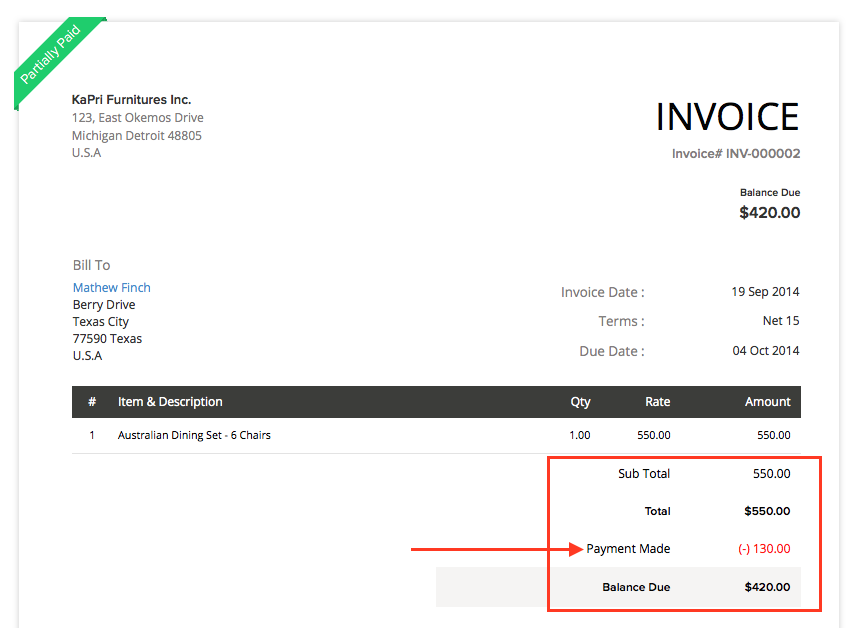
- Once the retainers are applied towards the invoice, the adjustments are then updated in the invoice.
Retainer Invoice in Projects
Back to Retainer Invoice Overview
 Yes
No
Yes
No
 Thank you for your feedback!