Archive Folder in Zoho Mail
Over time, your email folders may become cluttered with a large number of messages, making it difficult to manage your mailbox efficiently. Archiving emails helps you move emails that you don't need in your regular folders to a separate Archive folder. Archive folder also helps you access your archived emails, when you configure your Zoho Mail account as a POP/IMAP account in other email clients.
You can archive emails manually or use custom archive policies to automatically archive emails based on specific conditions. The Archive folder also makes it easy to access your archived emails when you configure your Zoho Mail account as a POP/IMAP account in other email clients.
Note
- Single Folder Archival is being released in a phased manner and will initially be enabled by default only for new users.
- If Single Folder Archival is not enabled for your account, you can manually configure it from Zoho Mail Settings.
What is Single Folder Archival
Single Folder Archival stores all archived emails in a single folder instead of keeping archived emails associated with individual folders. 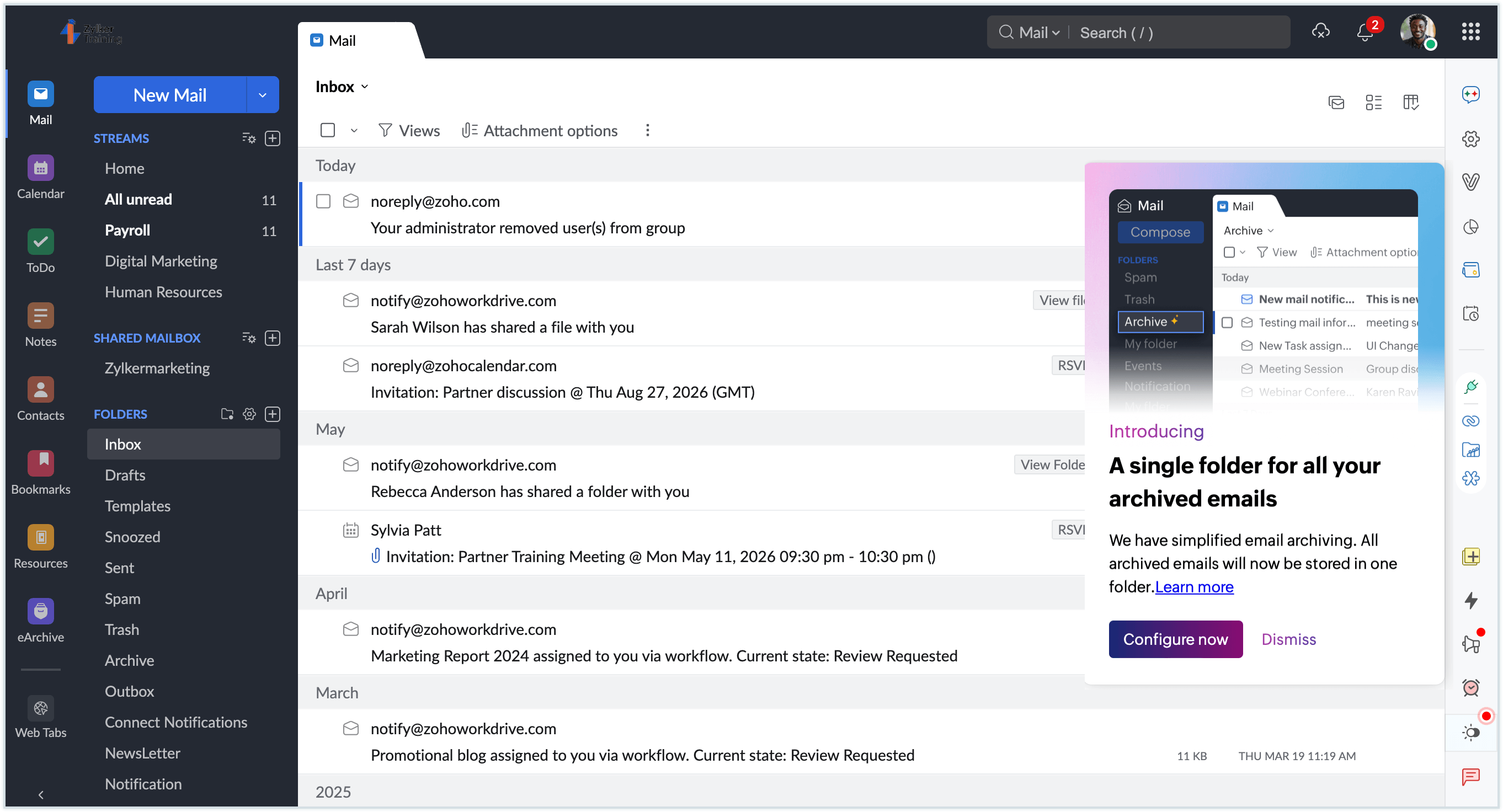
If Single Folder Archival is not enabled by default for your account, you can configure it manually. During this process, you can migrate your existing archived emails from their respective folders to the new Archive folder.
After the archive migration is completed, the following changes will take effect:
- A new Archive folder will be created and listed under Folders.
- All newly archived emails will be stored in the Archive folder.
- Default Archive Policies will be removed. Only Custom Archive Policies will be available, allowing you to define your own archiving conditions.
- The folder-specific View archived option will be removed.
- The All archived view in the left pane will be removed. You can access all archived emails from the Archive folder.
Configure Single Folder Archival for your account
Note
- The option to manually configure Single Folder Archival is being rolled out in phases. If you do not see the option yet, it will be available for your account soon.
- Migration to Single Folder Archival is permanent and cannot be reverted. See what's changing after the migration?
To manually configure Single Folder Archival for your account:
- Log in to Zoho Mail.
- Navigate to Settings > Archive Policy.
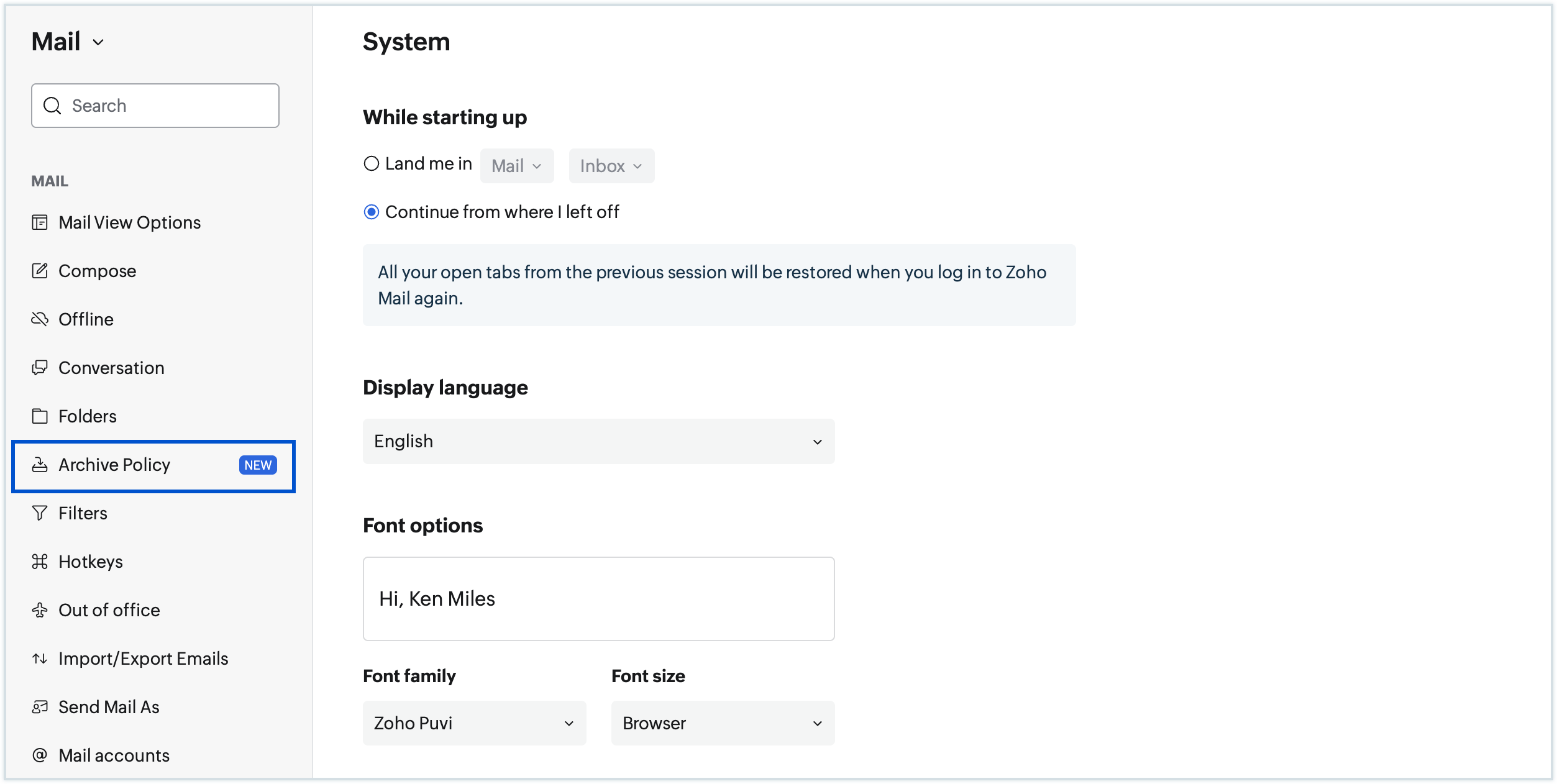
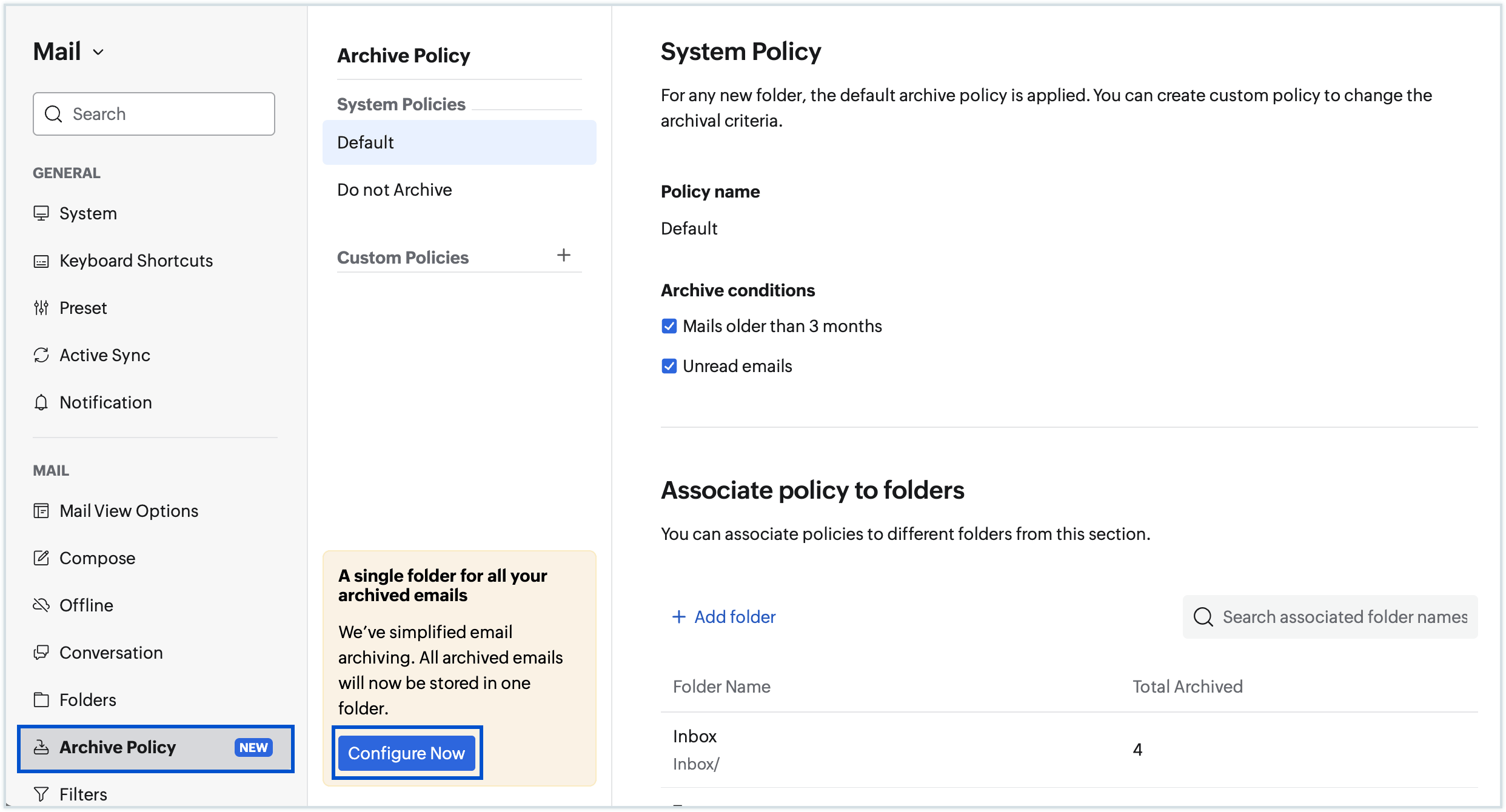
- Locate the option to configure the new Single Folder Archival flow at the lower-left corner of the Archive Policy page.
- Click the Configure Now button.
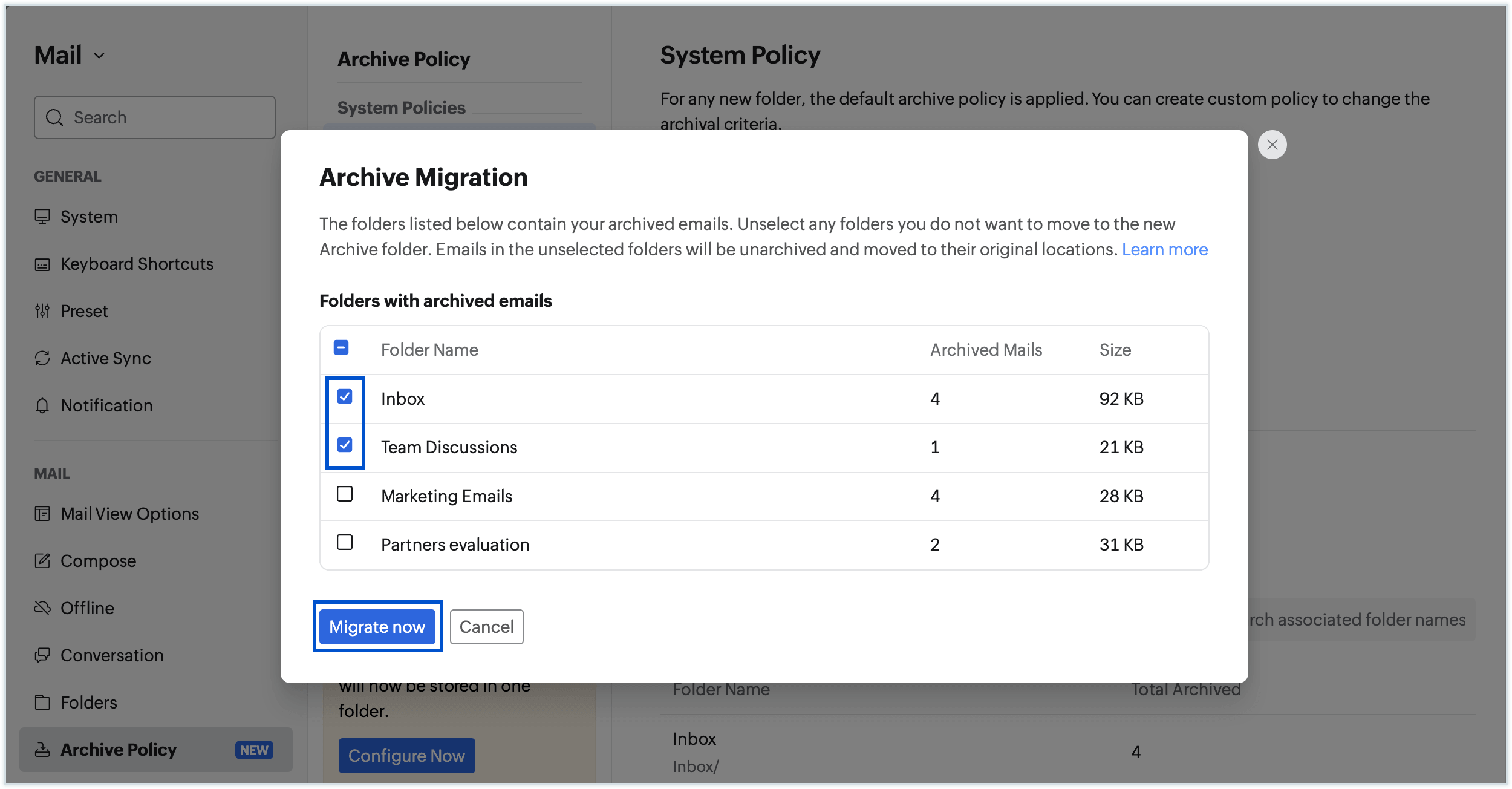
- The archive migration pop-up displays the folders that contain previously archived emails.
All folders containing archived emails are selected by default. Unselect any folder whose archived emails you do not want to move to the Archive folder.
Note
- Archived emails from unselected folders will be unarchived and restored to their respective mailbox folders.
- If no folders are selected, no emails will be moved to the Archive folder. Only the Archive folder will be created, and all previously archived emails will be unarchived and restored to their respective mailbox folders.
- Once done, click Migrate Now.
- The total number of emails to be moved into the Archive folder is displayed.
- Confirm your action by selecting Start Migration.
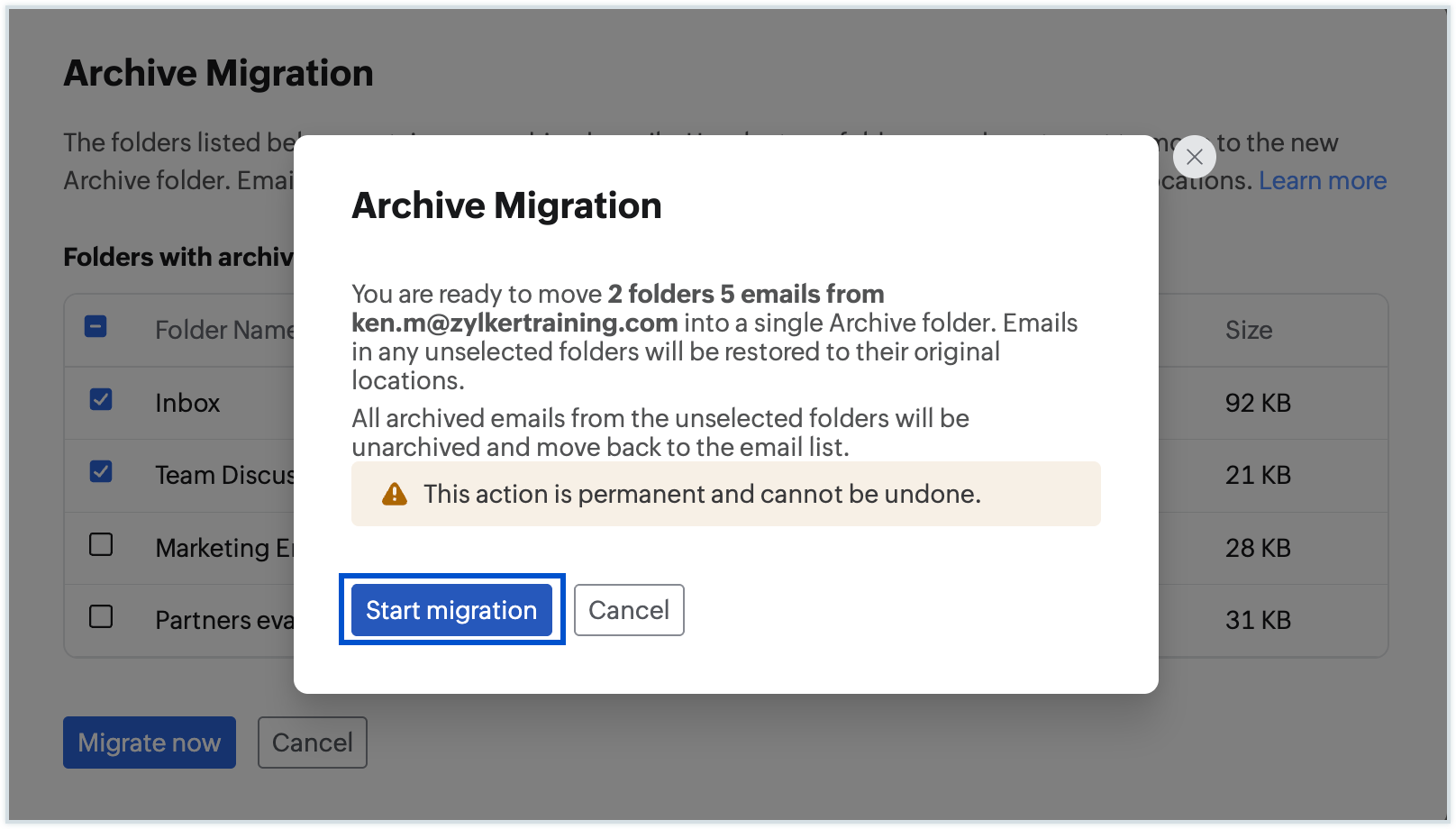
Once the migration is complete, a new Archive folder will be created, and, all previously archived emails from selected folders will be migrated to the centralized Archive Folder.
How to Archive emails
To archive emails, select the emails you want to archive from the mail listing and click on the Archive option in the top pane. This action removes the emails from the listing and moves them to the Archivefolder by default. The Archive action does not reduce the used storage of your account, as the emails still remain in your account. 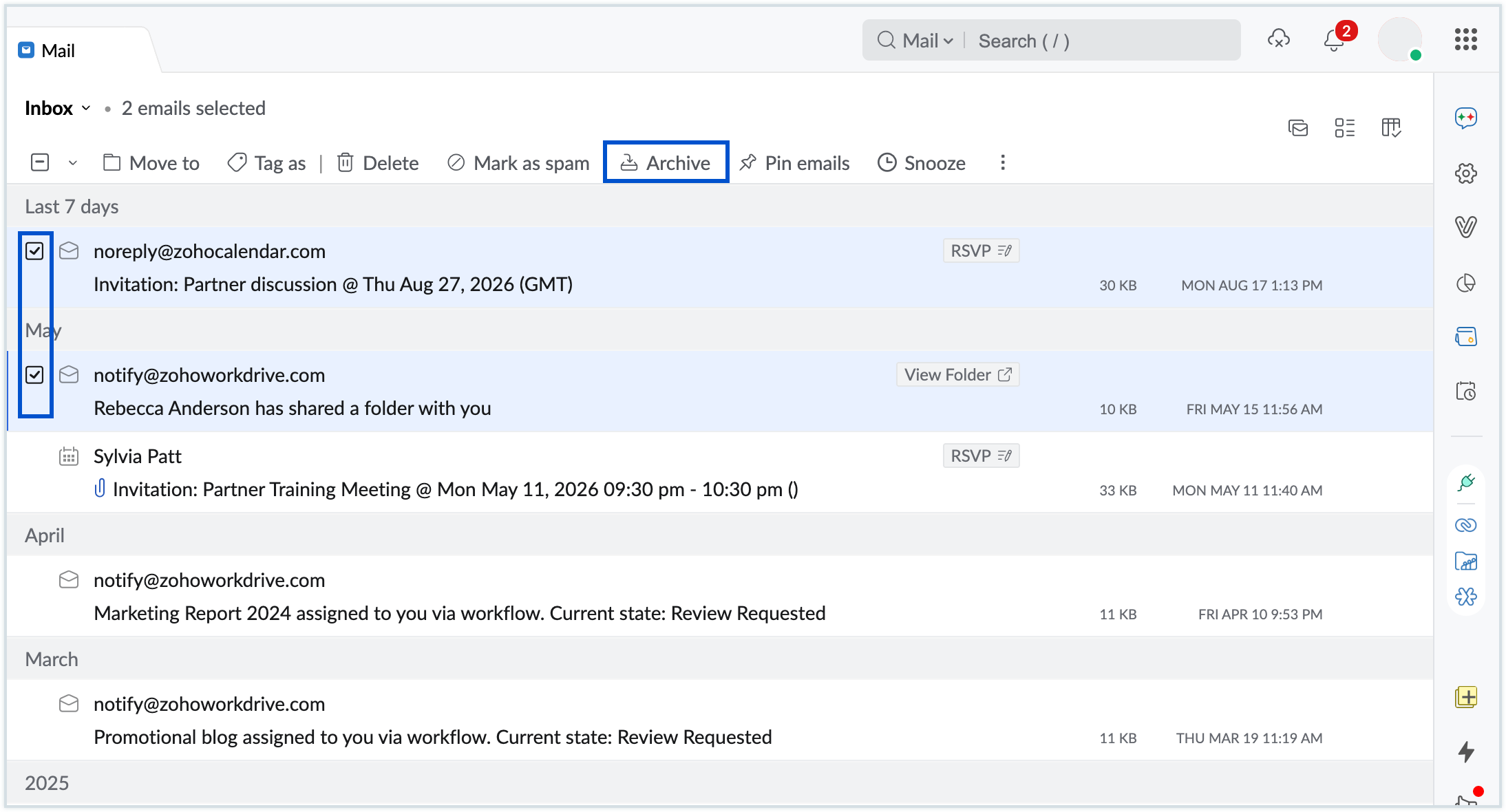
All archived emails can be accessed from the Archivefolder in the left pane.
How to Unarchive emails
To unarchive emails, follow the steps below:
- Log in to Zoho Mail.
- Select the Archivefolder from the left pane. All the archived emails will be listed here.
- Choose the emails you want to unarchive using the selection box.
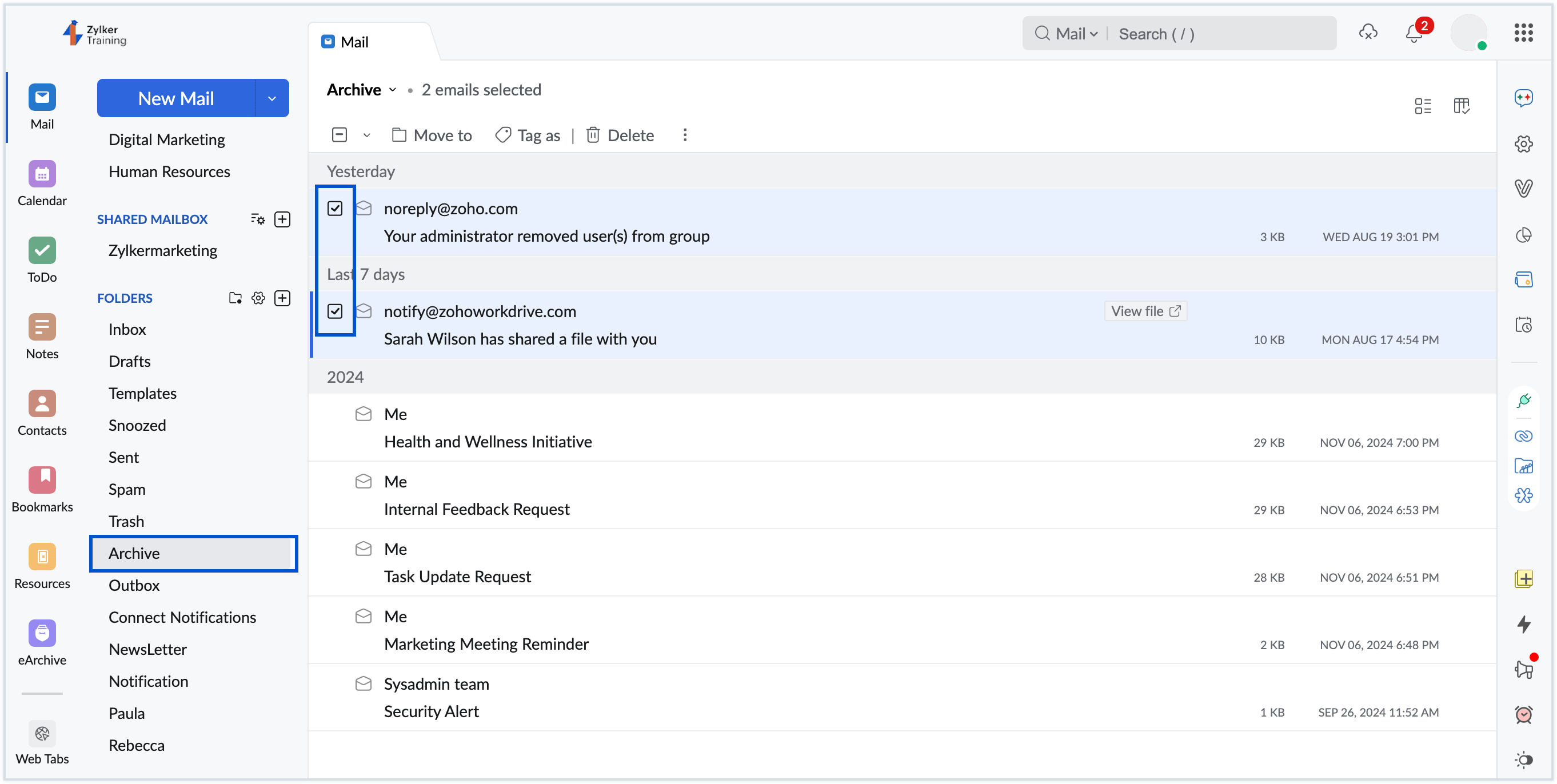
- Click on the Move to option in the top menu.
- Select the folder where you want the unarchived emails to be moved.
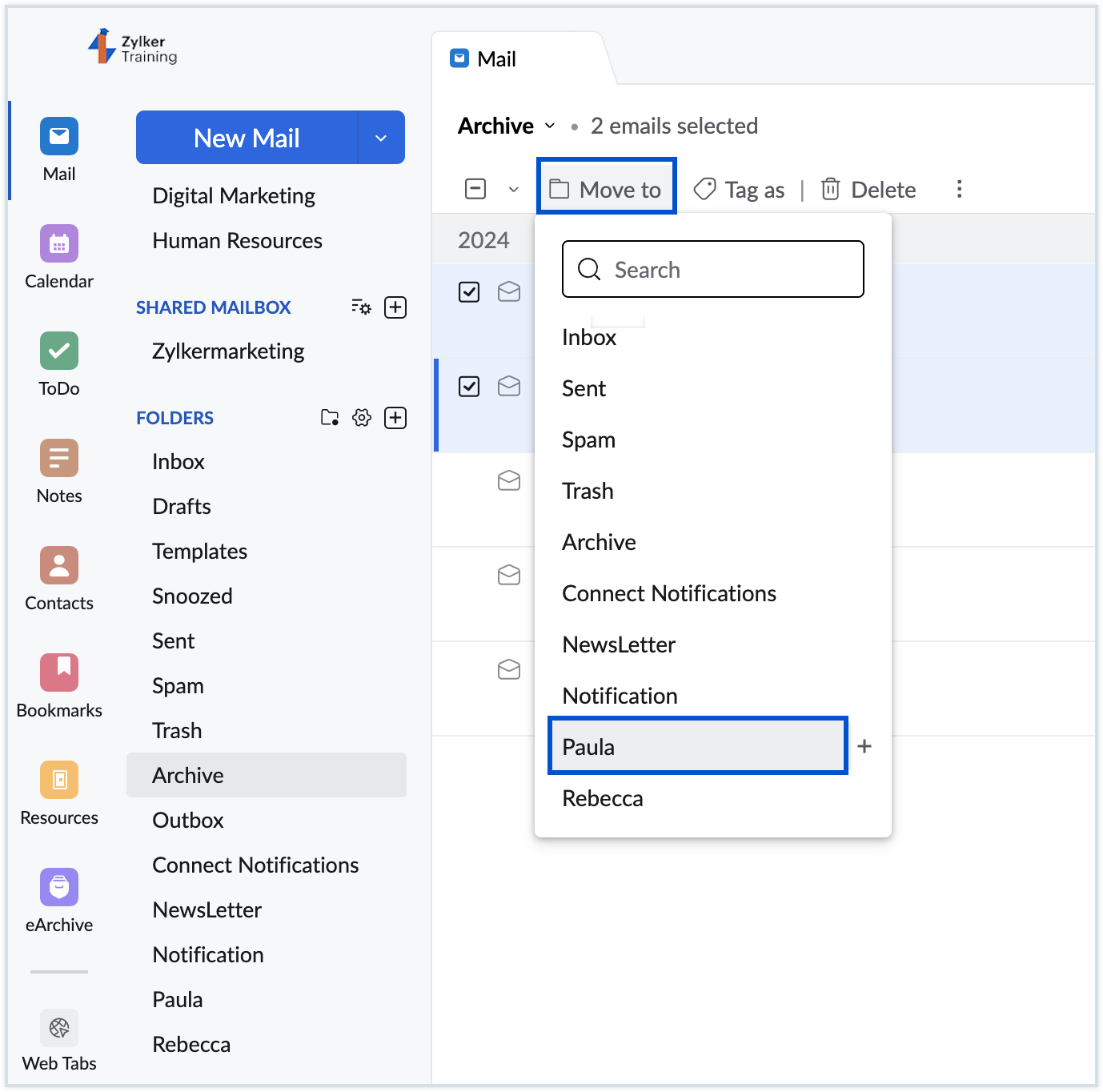
Once done, all the selected emails will be moved from the Archive folder to the specified folders.
Create Sub folder
You can create Subfolders within the Archive folder to organize your archived emails into specific categories. This makes it easier to group related emails, keep your archived messages organzied, and quickly access them when needed.
You can create multiple subfolders based on your requirements and manage your archived emails more efficiently. To create subfolders, follow the steps mentioned below:
- Log in to Zoho Mail.
- In the left pane, hover over the Archive folder.
- Right click on the folder.
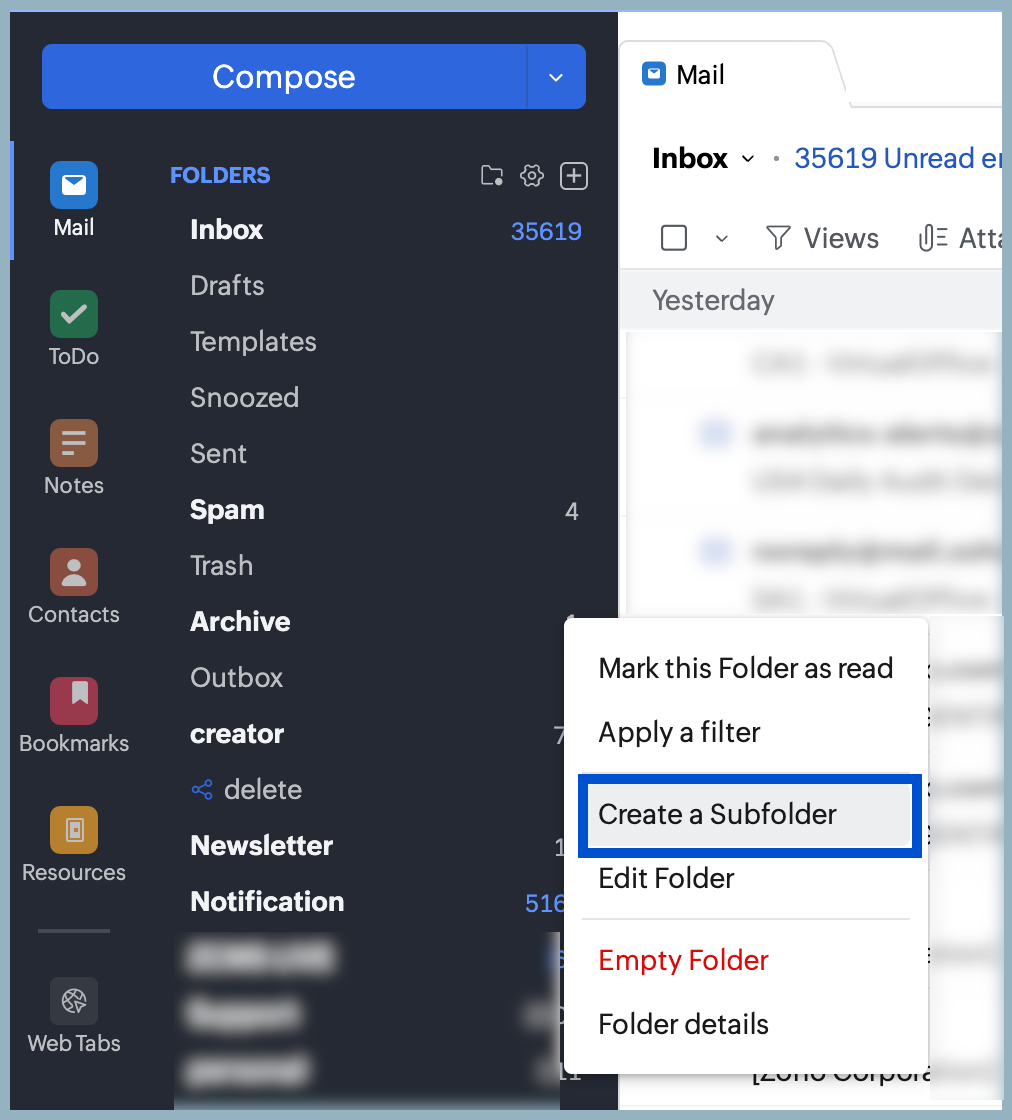
- Select the Create a Subfolder option.
- Enter the folder name. The subfolder will be automatically placed under the Archive folder.
- Click on the 'Notify me of new emails' checkbox to be notified when new emails are archived in subfolder.
- Select the 'View in IMAP Client' checkbox to access the subfolder and its archived emails through an IMAP client.
The newly created subfolder will be listed under the Archive folder in the left pane.
Archive Policy
Archive Policies in Zoho Mail enable automated email archiving based on specific criteria, such as the date, or number of emails. These policies are particularly beneficial for maintaining a well-organized inbox and folders without the need for manual effort.
Emails are archived according to the Archive Policy configured in your Zoho Mail account. Once archived, the emails are moved to a dedicated Archive Folder, which can be accessed from the left pane in your mailbox. While you have the option to manually archive individual messages or entire folders, archiving does not reduce the storage space used by your mailbox.
Custom Archive Policy
With Custom Archive Policy, you can create your own conditions for automatically archiving emails.
To create a Custom Archive Policy:
- Log in to Zoho Mail.
- Navigate to Settings > Archive Policy.
- Click Add icon next to Custom Policies, to create a new policy with custom values.
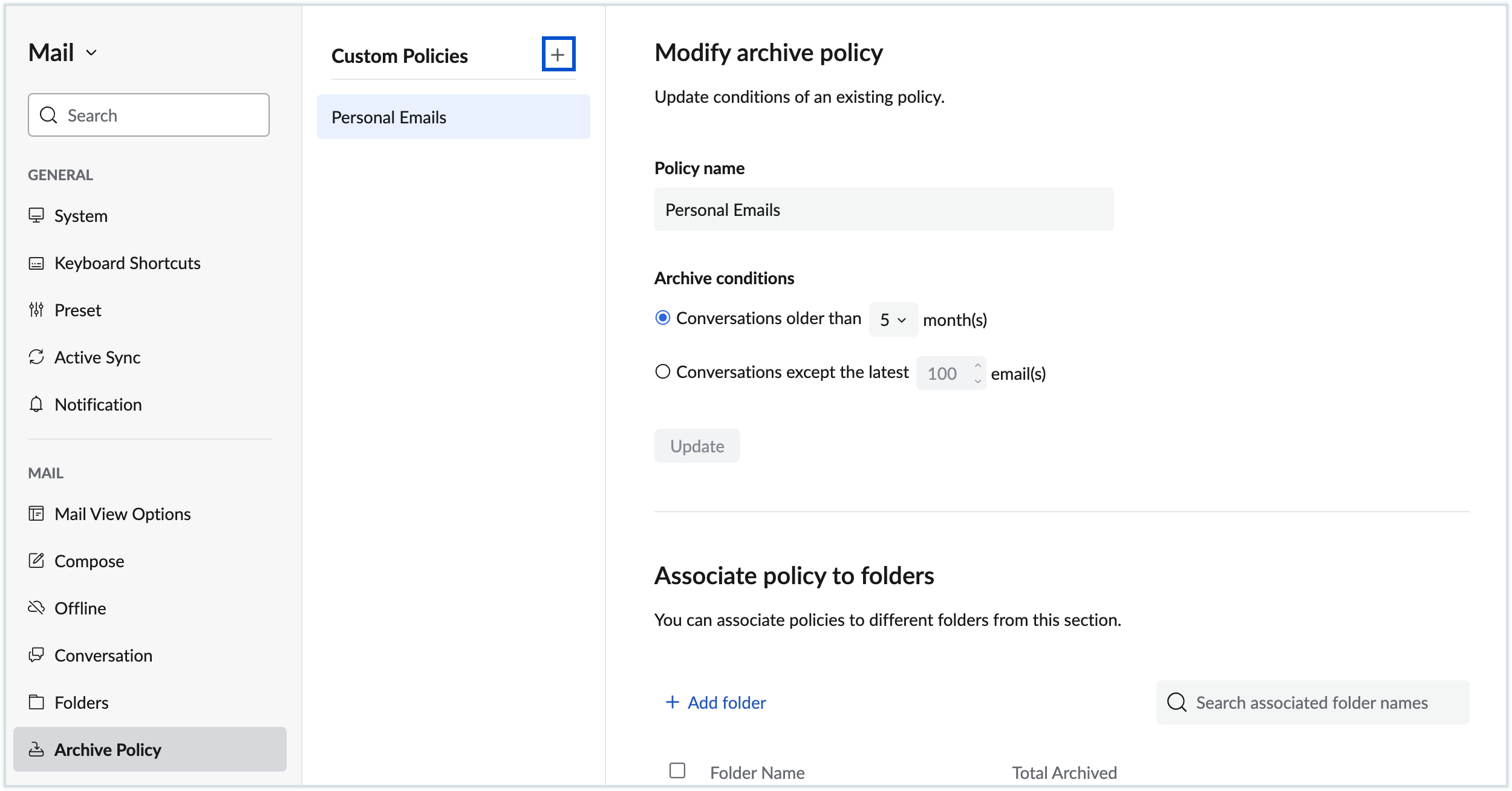
- Provide a Name for your custom policy.
- Select an appropriate archive condition from the options provided:
- Emails older than _ months : Choose this option to archive emails that you received before 'n' months, where n is the number chosen.
- Emails except the latest _ messages - This option is to archive emails based on count. You can choose to retain 'n' number of messages that you recently received in a folder and archive the rest of the emails.
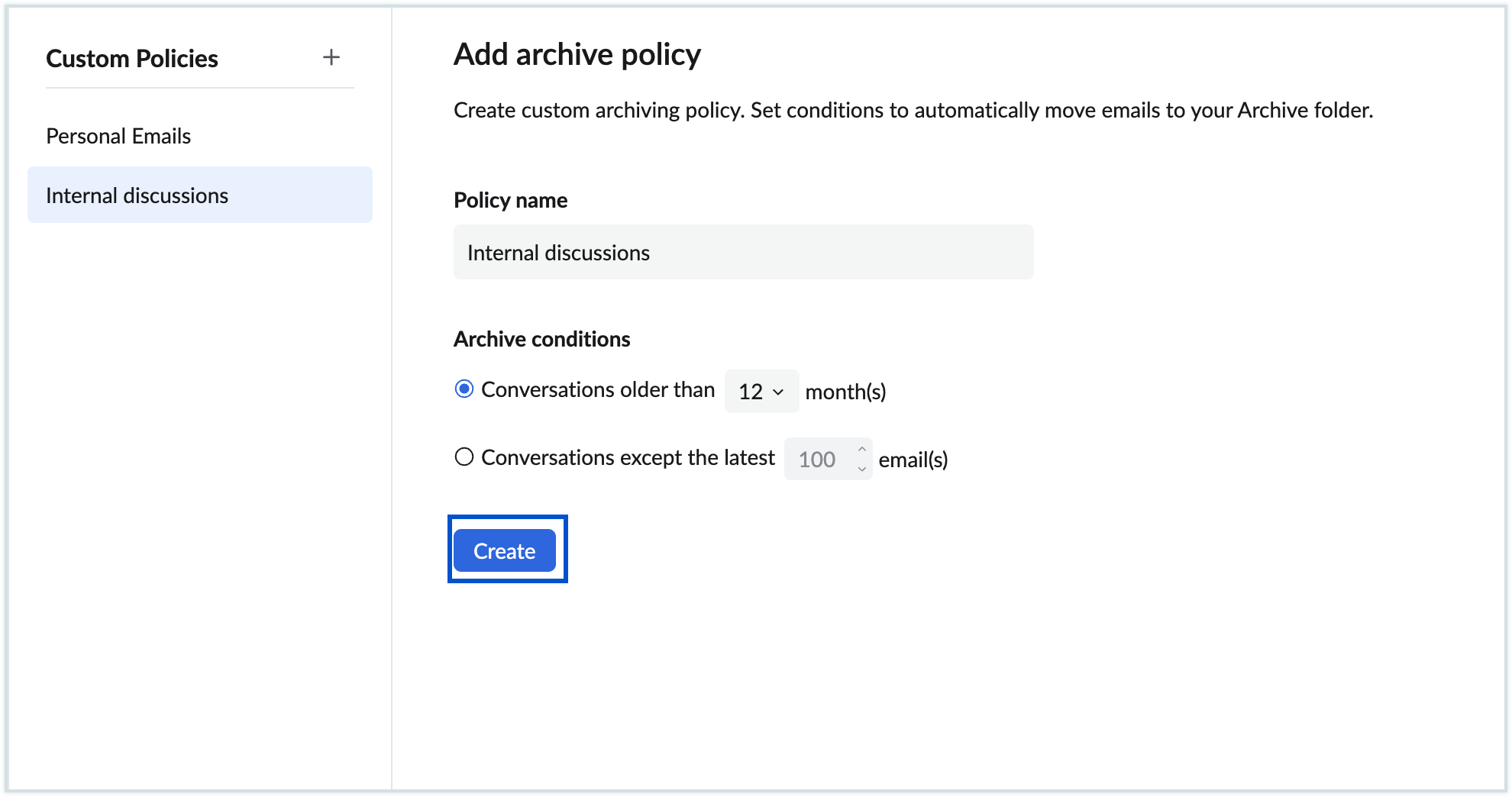
- After you choose your archive condition, click Create.
- Once done, click Add folder to select the folders you want to associate with this custom policy.
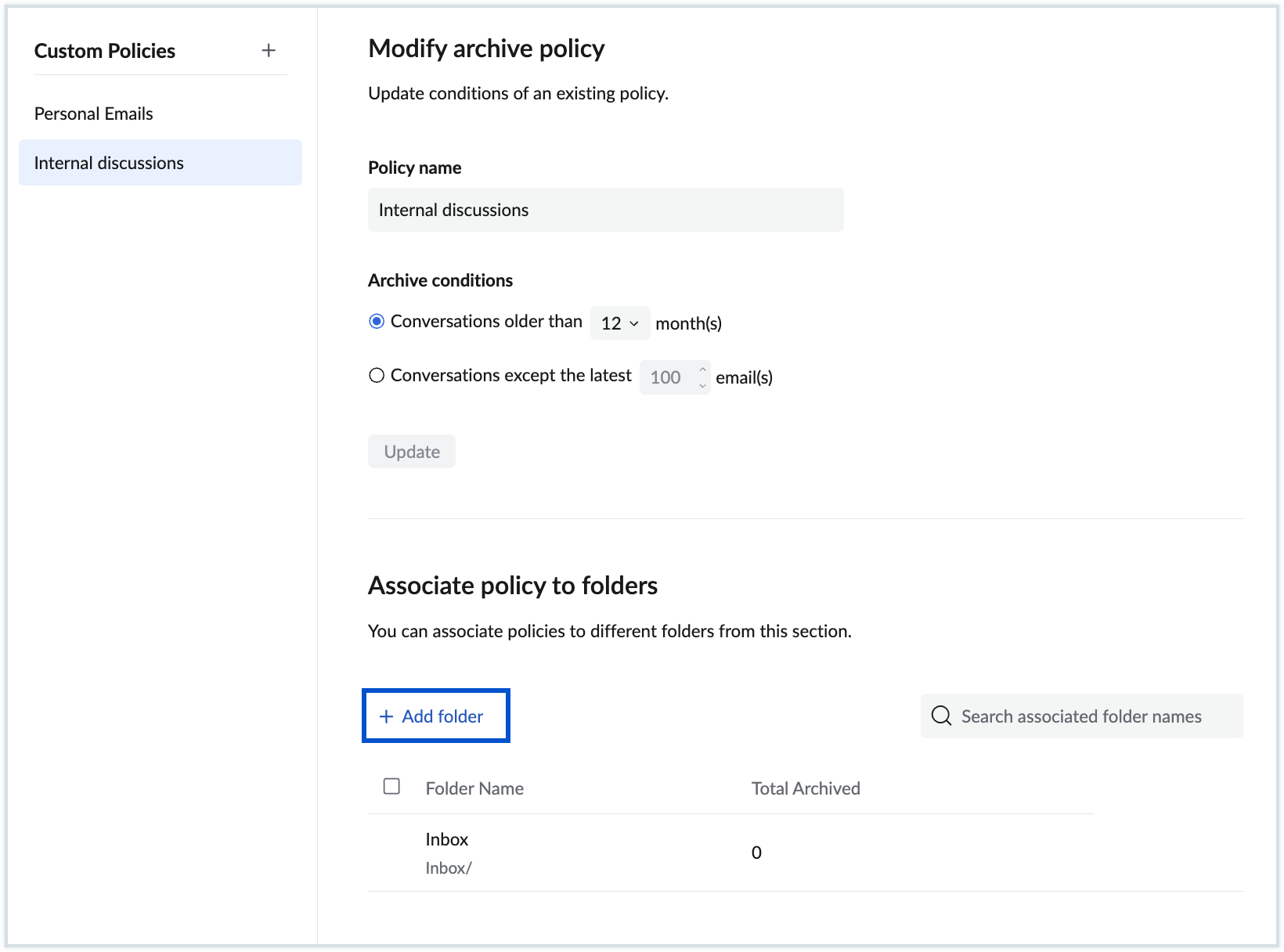
- To remove a folder from the policy, hover over the folder name and click the Delete icon.
You can add or remove folders from a custom archive policy at any time based on your requirements. Emails in the associated folders will be archived automatically according to the conditions configured for the policy.
Frequently asked questions
Why should I switch to Single Folder Archival?
Single Folder Archival provides a centralized way to access and manage your archived emails. It also makes archived emails easier to access through POP/IMAP email clients, where emails archived within individual folders may be harder to locate.
Single Folder Archival is enabled by default for all new users. For existing users who are using folder-wise archival, it is recommended to migrate to the single folder archival for a simpler and more centralized way to manage archived emails.
What is the difference between the previous archive process and Single Folder Archival?
In the previous archive process, emails were archived within their respective folders and could be viewed using the View archived option. With Single Folder Archival, all archived emails are stored in a single Archivefolder, making them easier to access and manage.
Does archiving emails reduce my mailbox storage?
No. Archiving only moves emails to the Archivefolder. The emails remain in your account and continue to use mailbox storage.
Does migrating to Single Folder Archival affect my existing archived emails?
Yes. During migration, you can choose which folders' existing archived emails you want to move to the Archivefolder. Emails from unselected folders will be unarchived and restored to their original folders.
Can I undo the migration to Single Folder Archival?
No. Migration to Single Folder Archival is permanent and cannot be reverted.
What happens to archived emails in folders I don't select during migration?
Archived emails from unselected folders will be unarchived and restored to their respective mailbox folders.
What happens if I don't select any folders during migration?
The Archivefolder will still be created, but none of your existing archived emails will be moved to it. Previously archived emails will be unarchived and restored to their respective mailbox folders.
Where can I find my archived emails after migration?
All archived emails are available in the Archivefolder in the left pane.
What happens to newly archived emails after migration?
All newly archived emails will be moved to the Archivefolder.
Can I create my own archive conditions?
Yes. You can create Custom Archive Policies and define conditions based on the age or number of emails you want to archive.
Can I access my archived emails through POP/IMAP?
Yes. When you configure your Zoho Mail account as a POP/IMAP account in another email client, you can access your archived emails from the Archive folder.