Sending email
One of the most basic functions of an email service is sending emails. Zoho Mail provides rich text format editors for sending properly formatted emails. The recipients of the email can be picked from contacts.
Zoho Mail is explicitly built for businesses and helps with sending business emails and normal correspondences. However, as per the policy, Zoho Mail cannot be used to send mass emails or marketing emails to unknown senders.
Email Composer
Click the New Mail button in the left pane, to open the Zoho Mail composer, with Rich Text Formatting options. The composer opens in a tab, where you can draft your email. You can choose the inline editor or the new window option to reply to/forward emails from the Settings. The default settings for the Composer can be customized from the Compose Settings.
The composer includes the following:
- From: The From address can be selected from the drop-down which contains the main email address of your account, your email aliases, and the external email addresses configured. The corresponding Display name will also be displayed next to the selected email address. You can also configure an external email address as a From Address.
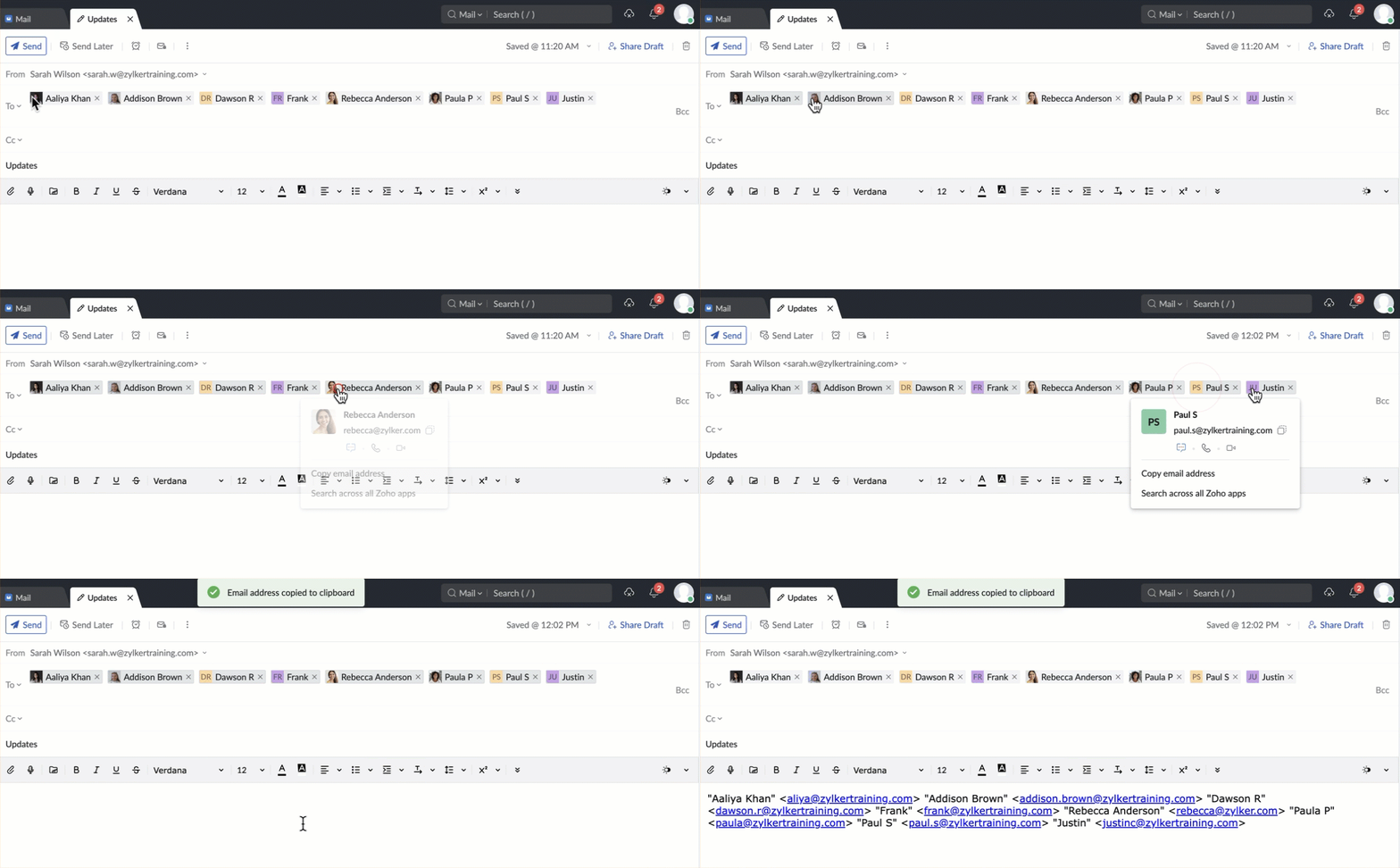
- To: Specify the direct recipients of the email here. The organization's email addresses will be available from AutoFill. Click the To field, to open the address book and choose an email address from the address book. You can copy bulk recipient addresses from the 'To' field if necessary all at once. To do so, hold down the Shift key while selecting the email addresses, then simply copy and paste them as required.
- Cc (Carbon Copy): Specify the recipients to whom the email should be copied. When you add an email address in Cc, other recipients will be able to view the addresses.
- Bcc: (Blind Carbon Copy): Specify the recipients to whom the email should be copied, without exposing the email addresses to others. The other recipients will not know about the email addresses in Bcc.
- Subject: Title or a Short Summary of the contents of the email
Navigate the Compose Page using Keyboard Shortcuts
Here's how to easily navigate the Compose page using your keyboard:
You can use the Tab key to access the icons on the Compose page and the Arrow keys to open the drop-down menu. Click the blank space next to the icon in the header of the compose page, and then use these keys to navigate the compose page.
How do I compose and send a new email in Zoho Mail?
- Web
- Android
- iOS
To compose and send a new email:
- Login to Zoho Mail
- Click on the New Mail button in the left pane of your Mailbox.
- In the Zoho Mail compose that opens, enter the required details like To, CC, Subject, and email content.
- Format your email content using the rich formatting options.
- Add attachments, if required.
- Insert a template and signature, if required.
- Insert images, if required.
- Click the Send button in the top left corner of your composer.
The email will be sent to the recipient. You can find this email in your Sent folder.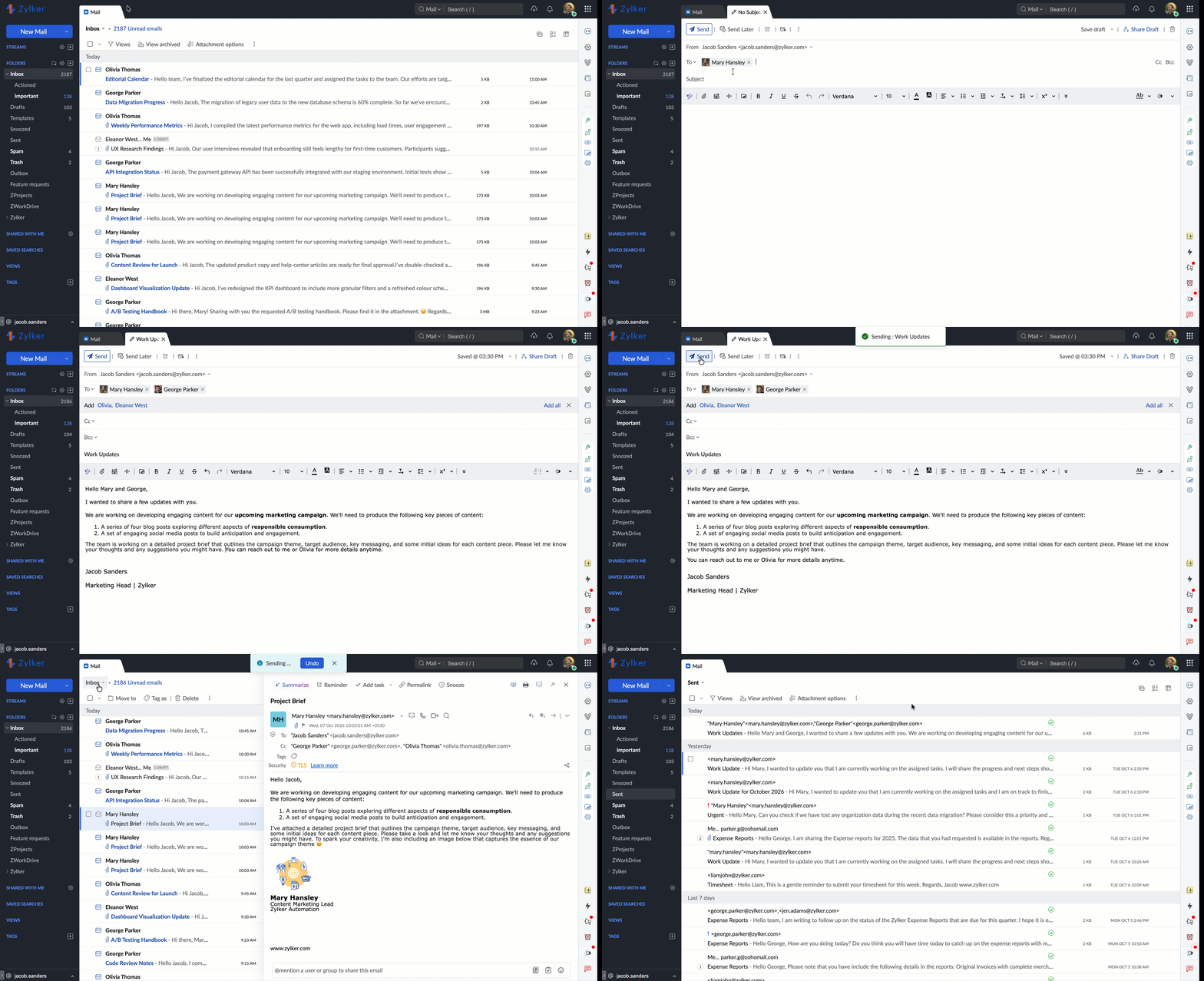
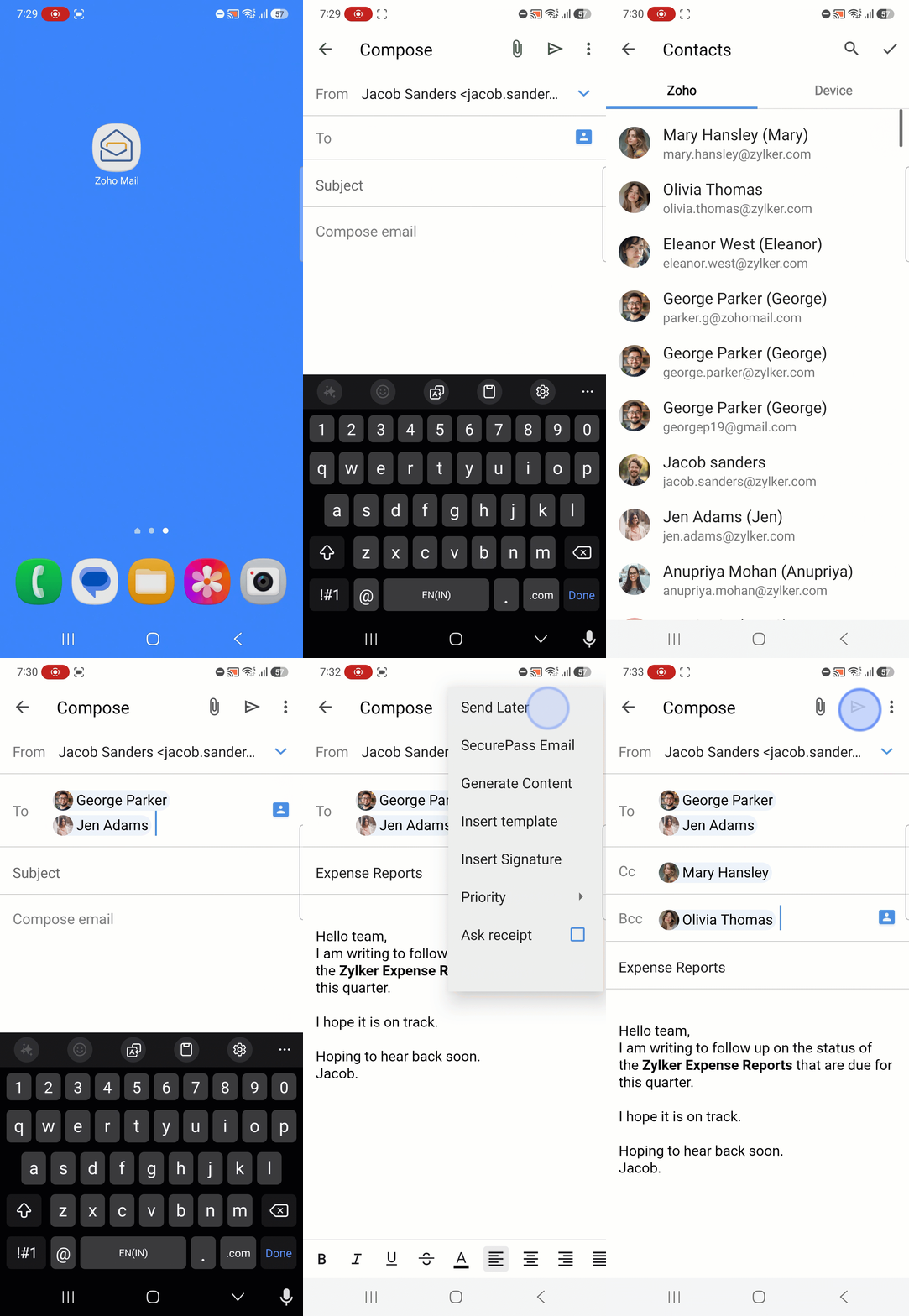
To compose and send a new email on Zoho Mail Android app :
- Open the Zoho Mail mobile app.
- Navigate to the Email module.
- In the Email module, tap the Compose icon at the bottom-right corner of the screen.
- Fill in the required email fields, such as To and Subject.
- You can either type in the email addresses or choose the desired recipient from the suggestions.
- Tap the Contact icon in the To field to add your Zoho contacts and device contacts as recipients.
- Tap the More options at the top-right of the screen and tap Add Cc/Bcc from the menu options.
- Draft and format the email content.
- Tap the Send icon.
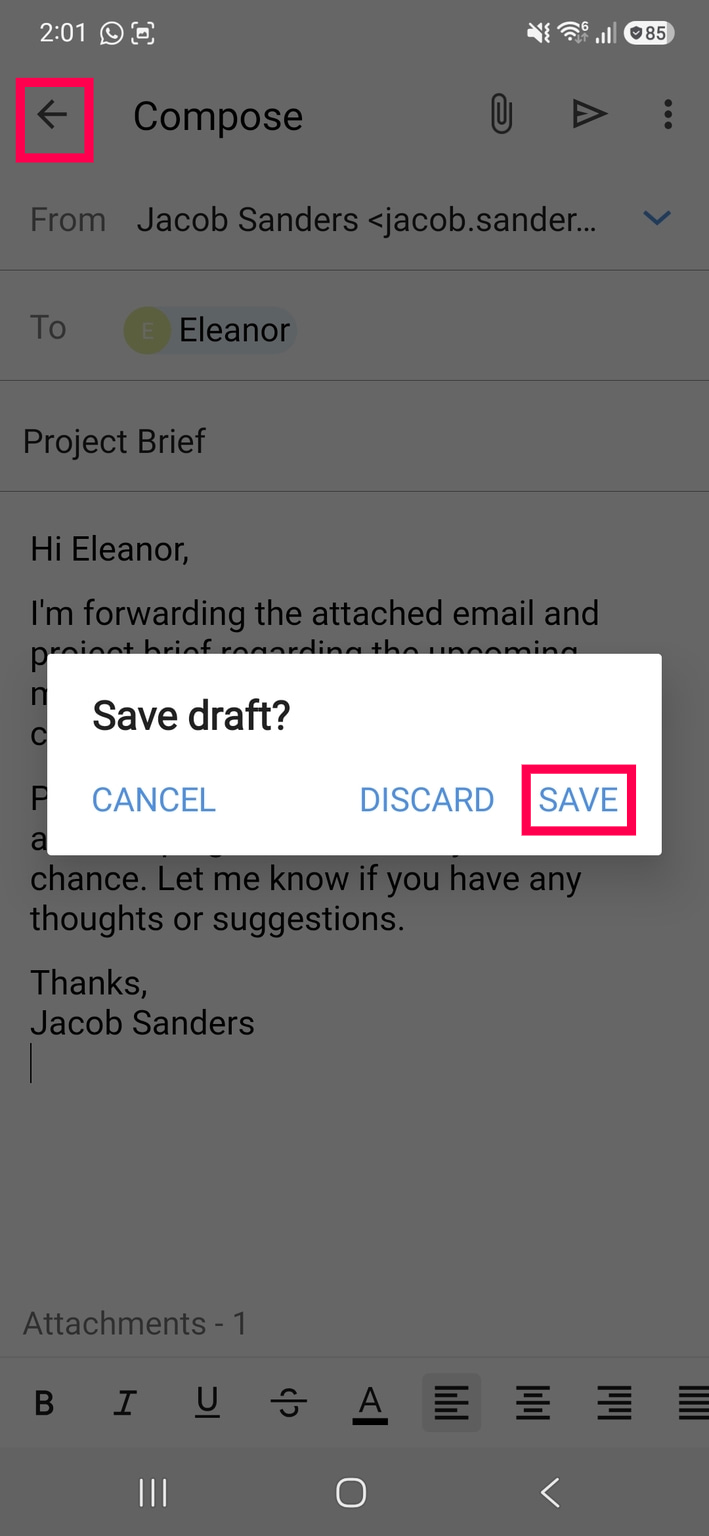
Note: To save an email draft, tap the Back icon at the top-left corner, and choose Save in the Save Draft alert that appears.
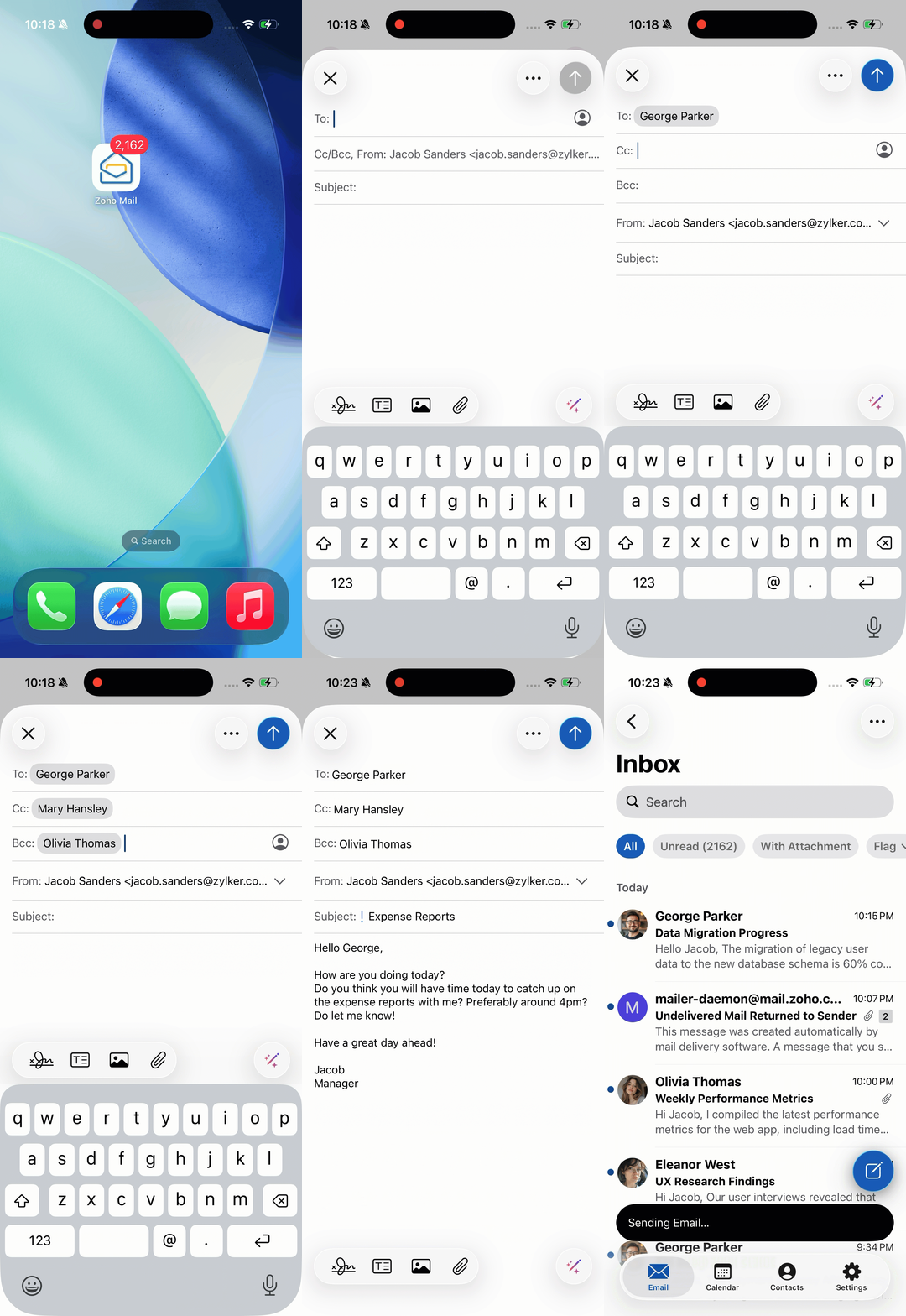
To compose and send a new email on Zoho Mail iOS app:
- Open the Zoho Mail mobile app.
- Navigate to the Email module.
- In the Email module, tap the Compose icon at the bottom-right corner of the screen.
- Fill in the required email fields, such as To and Subject.
- You can either type in the email addresses or choose the desired recipient from the suggestions.
- Tap the Contact icon in the To field to add your Zoho contacts and device contacts as recipients.
- Tap Cc and Bcc in the From field to add recipients as Cc and Bcc.
- Draft the email content.
- Tap the Send icon.
Notes: To save an email draft, tap Cancel, then choose Save Draft. 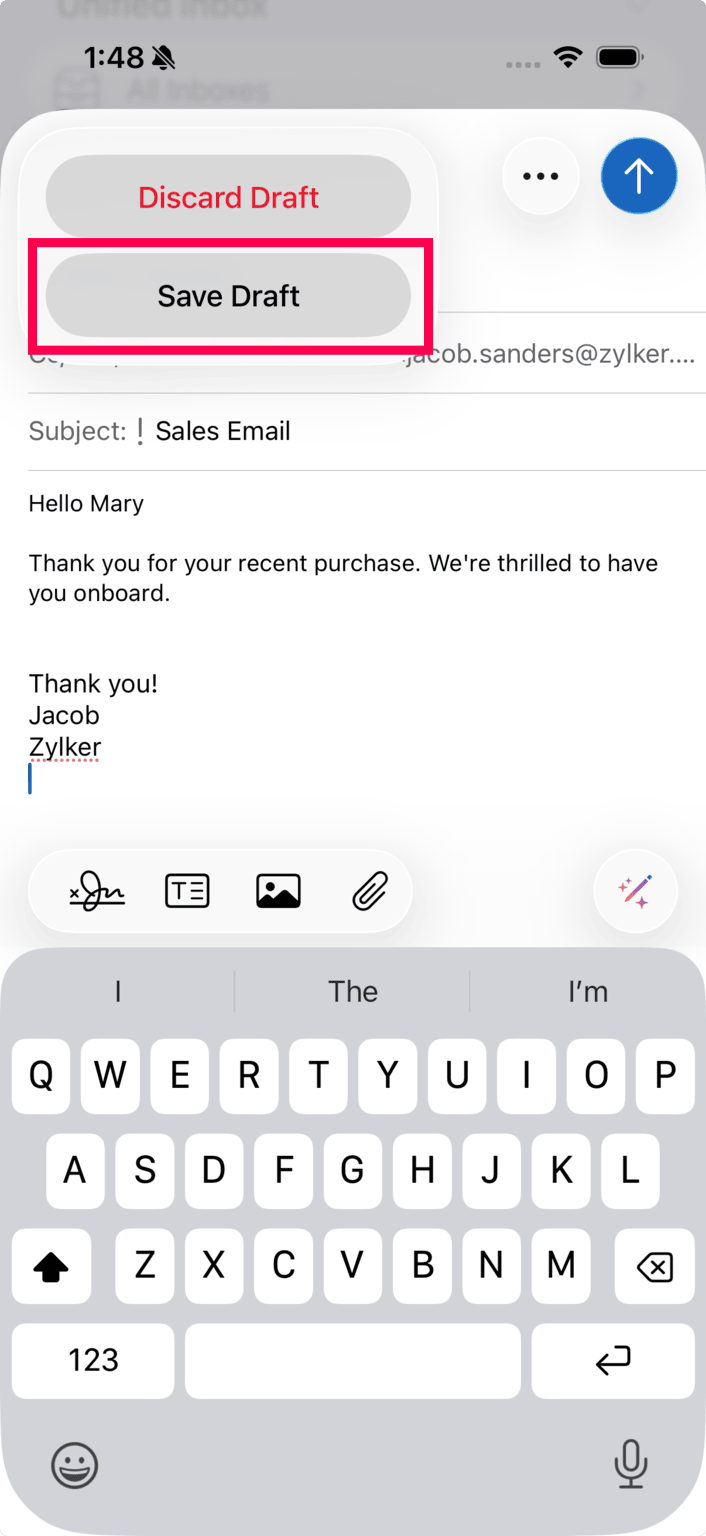
Format Mail Content using rich text editor
Zoho Mail provides a WYSIWYG (What You See Is What You Get) editor, which provides options to send a richly formatted email with images, tables, hyperlinks, and even smileys. The formatting options allow you to personalize the layout and your email. Apart from formatting options, the toolbar also contains a built-in Spell-checker helps you to perform a spell check in your outgoing emails, across multiple languages. You can also choose the encoding for the outgoing email. It is recommended that you use UTF-8 for outgoing emails, as it is capable of encoding all characters in Unicode. The rich text editor is also available in the Zoho Mail Android app.
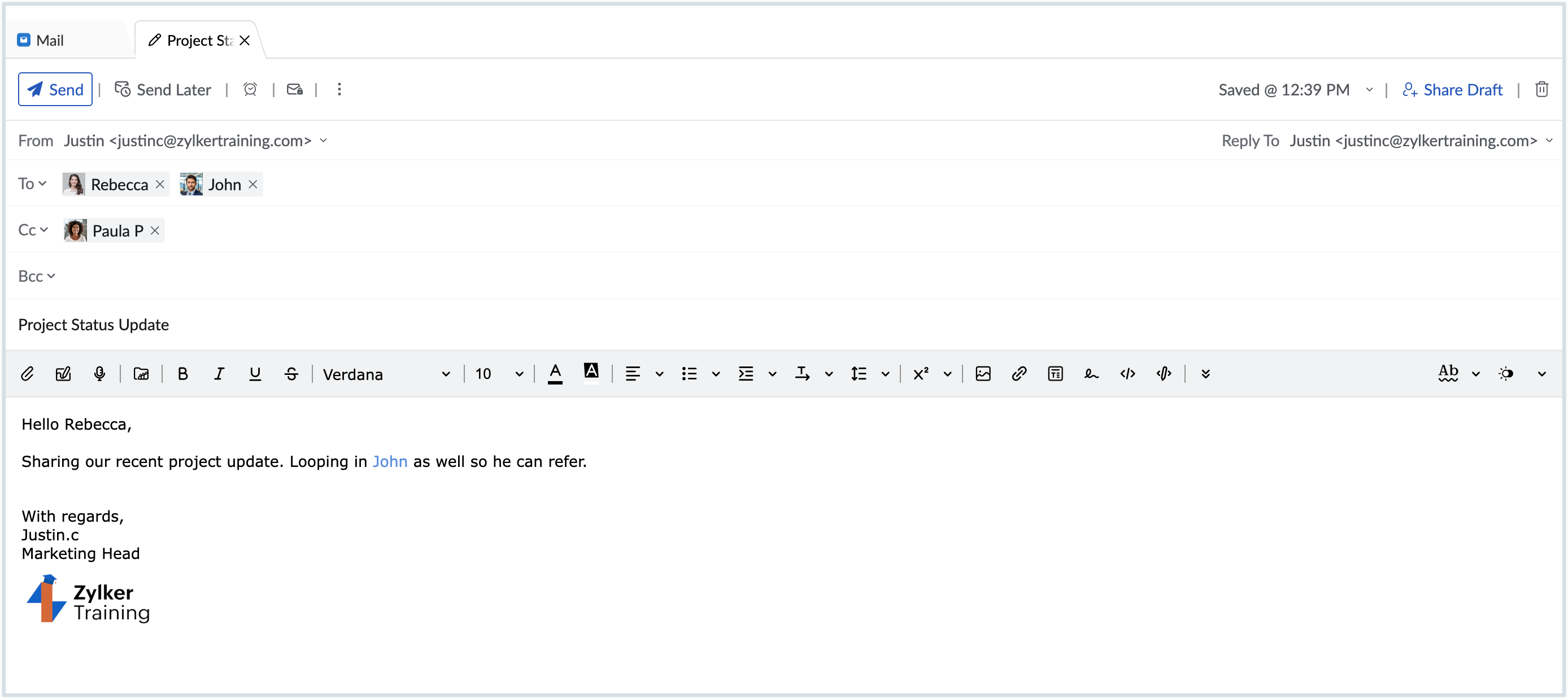
Here is a list of formatting options available in the Rich Text mode:
- Bold
- Italics
- Underline
Strike through- Font Face Options
- Font Size Options
- Font Color Options
- Background Color for text (Text highlight)
- Alignment Options
- List Options
- Indentation for text and Lists
- Line Spacing
- Superscript
- Subscript
- Text Direction
- Quote
- Remove formatting
- Format painter
Other than the formatting options available, you can also insert the following in your emails:
- Hyperlinks - Directs a selected portion of the text to the linked URL or email address.
- Images - Inserts images either from the disk storage or directly from the web.
- Signatures - Inserts the selected signature in the composer.
- HTML - Provides options to enter content in HTML format, which will be reflected in the compose window.
- Tables - Inserts tables according to the customizations provided.
- Horizontal Separators - Inserts a horizontal line between text.
- Smiley - Inserts the selected smileys from the list of options.
List Options
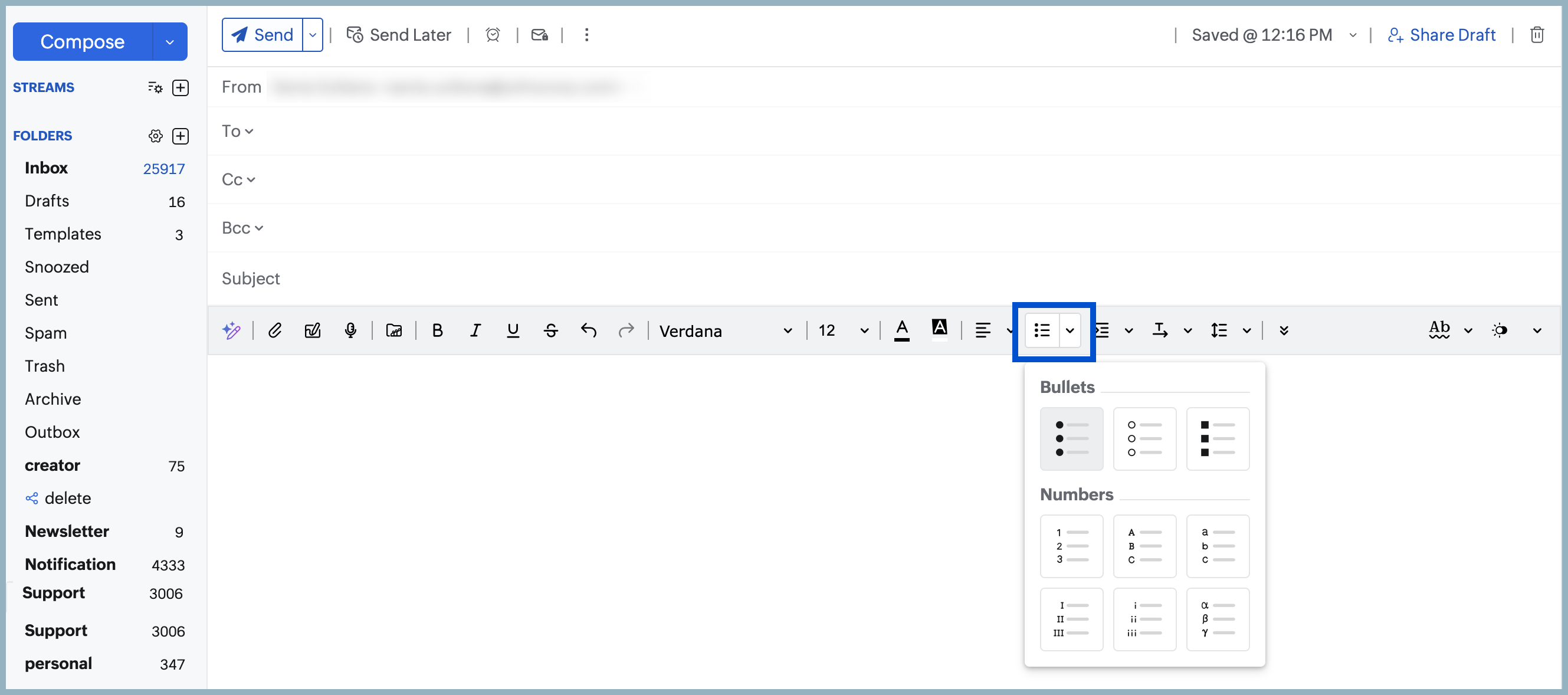
Using list options, you can organize your content in a clear and structured way. The list options allow you to create bulleted and numbered lists, helping you present information in a simple and easy-to-read format while composing emails.
Indentation
Indentation helps you format your content in a hierarchical way by creating multiple levels within your text. It allows you to organize related points under main items, making the content more structured and easier to understand. You can use formats such as upper and lower cases (A, a), Roman numerals (I, i), and Greek letters (α) to clearly represent different levels of information.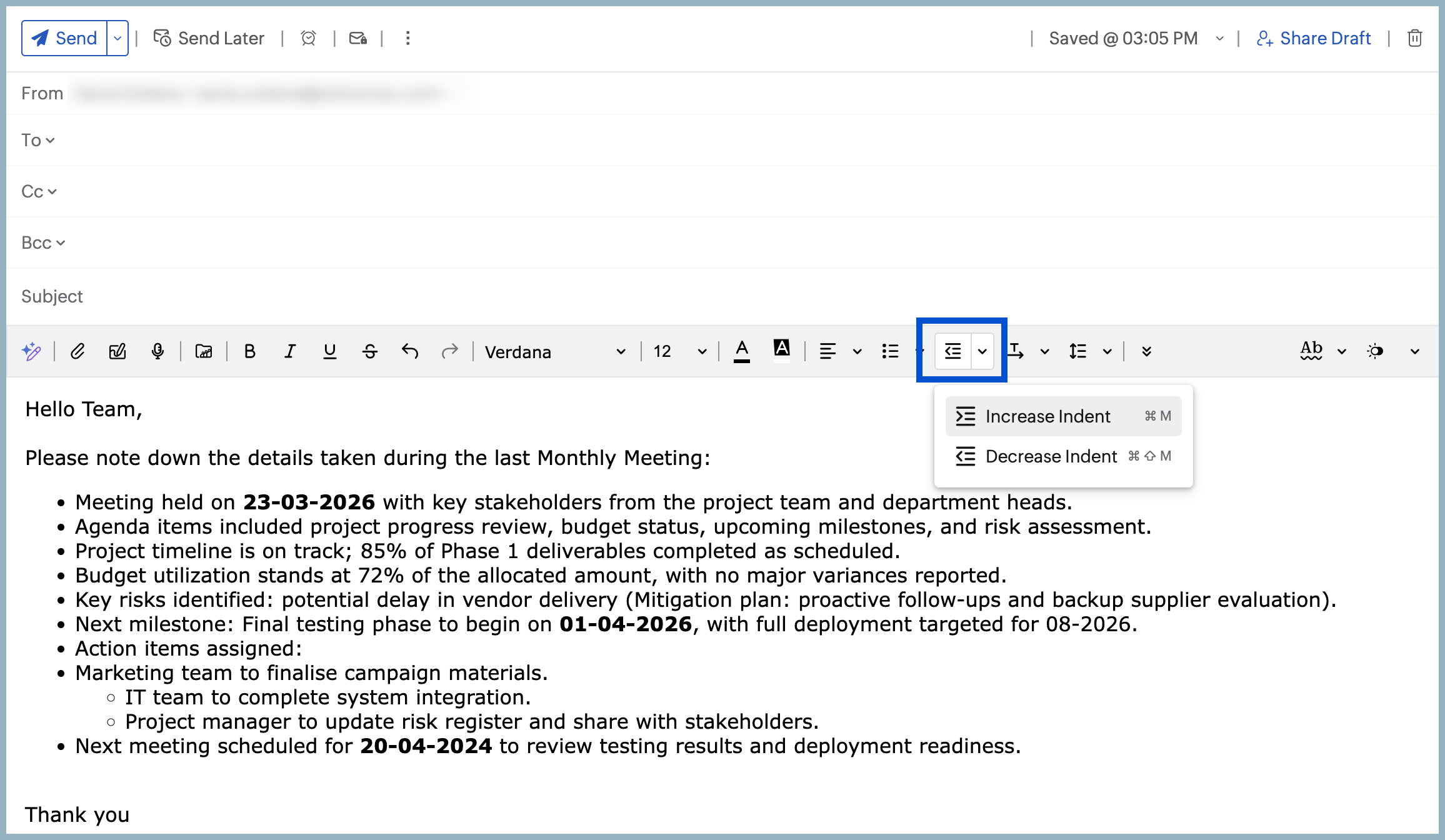
Undo and Redo
Zoho Mail provides Undo and Redo options in the compose window to help you easily correct or restore changes while drafting emails. If you make an accidental edit, you can use Undo to revert to the last action. Similarly, Redo allows you to re-apply an action that was undone. These options make it easier to edit your content and ensure a better email drafting experience.
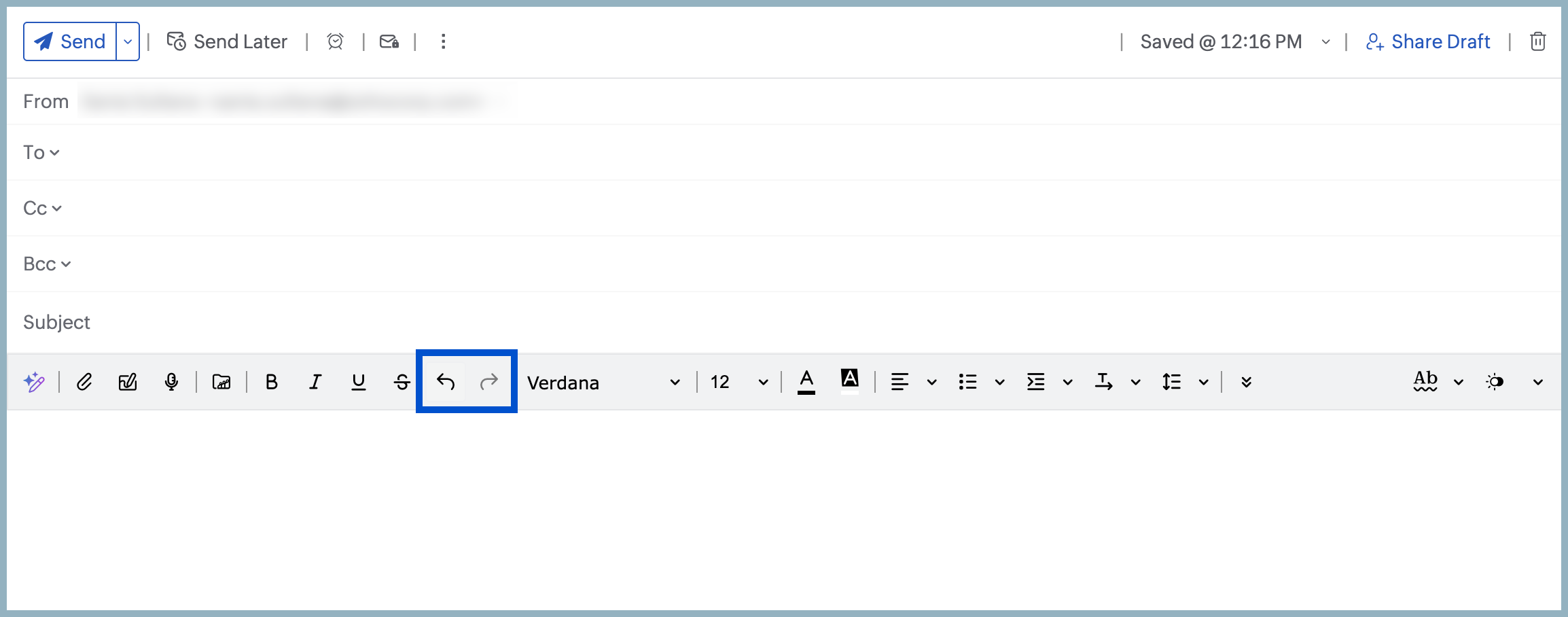
The Undo and Redo options remain available even when you switch between other compose templates, such as Gmail, Yahoo, and Outlook.
Voice Recording
Audio messages are a step ahead of text messages and it adds a personal touch to the recipients. Gone are the days when you had to record audio on your computer and then attach it to an email. Zoho Mail's Record audio feature in the Compose mail window allows users to send voice messages with ease. Follow these steps to send a voice message as an attachment:
- Log in to Zoho Mail.
- Select New Mail, click the Record audio button from the compose mail window and follow the on-screen instructions.
- If necessary, you can Pause the recording in between and continue from where you left off.
- Once you are done, click the Stop button to complete the audio.
- Click Attach recording, Rename the file to your preference and hit the Send button. Recipients can listen to the audio directly from the web browser by clicking on the Play button.

Note:
Users can see the recording size at the time of recording the audio and after attaching it. However, below are a few points to remember when you record voice messages:
- The maximum permissible attachment size depends on the settings configured by your administrator.
- A minimum of 2MB is required before you can record an audio message.
- The audio size cannot be 0KB even if the message is too short.
Switch between plain and rich text editor modes
A plain text email is one that contains only the content of the email, without any formatting such as Bold, Italics etc. You can choose the Plain Text option to send an email without any formatting. Click the drop-down in the right corner of the composer, and choose Plain text mode.
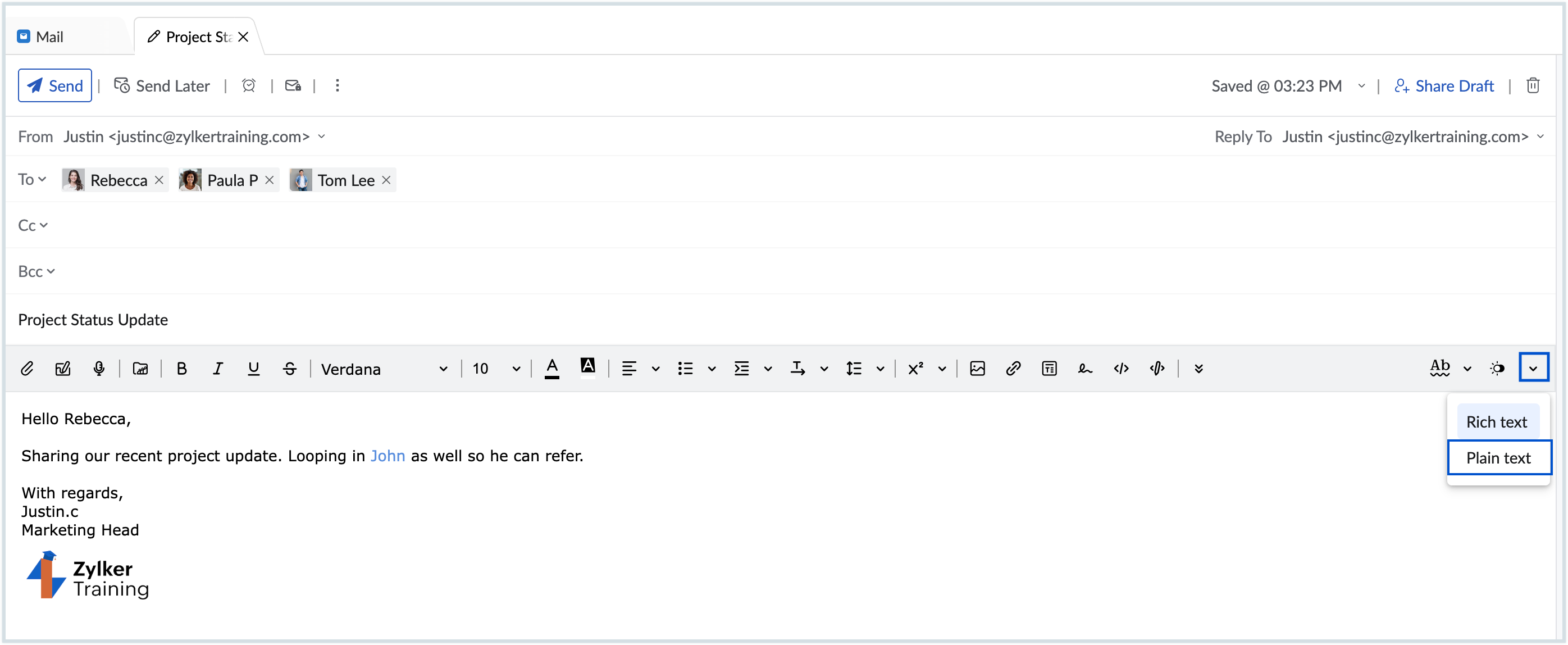
The system will request confirmation for converting Rich Text to Plain text. On confirming, the formatting toolbar will be hidden and you will see only the spell check icon. Any formatting changes made to the content and signatures will be lost along with any media or table inserted. These formatting changes will also be reflected when you save the email as a draft or template. Hence, the message will be sent as a plain text email.
To revert to the Rich Text mode, click the same drop-down and choose Rich Text mode. Now you will be able to format the text that you've inserted, add tables, images etc. Even if you revert to Rich Text Mode, the prior formatting will not be restored.
Enhanced Spell check and Composer language
Zoho Mail has an inbuilt enhanced spell checker to correct your spelling and grammar errors on the go. After composing your email, click the Spell check icon. The misspelled words or grammar errors in your email content will be highlighted. Click the highlighted words to see a list of possible words with the nearest spelling or alternative words. You can also add a word to your custom dictionary by clicking the Add to dictionary icon so that it doesn't get flagged the next time you spell-check an email.
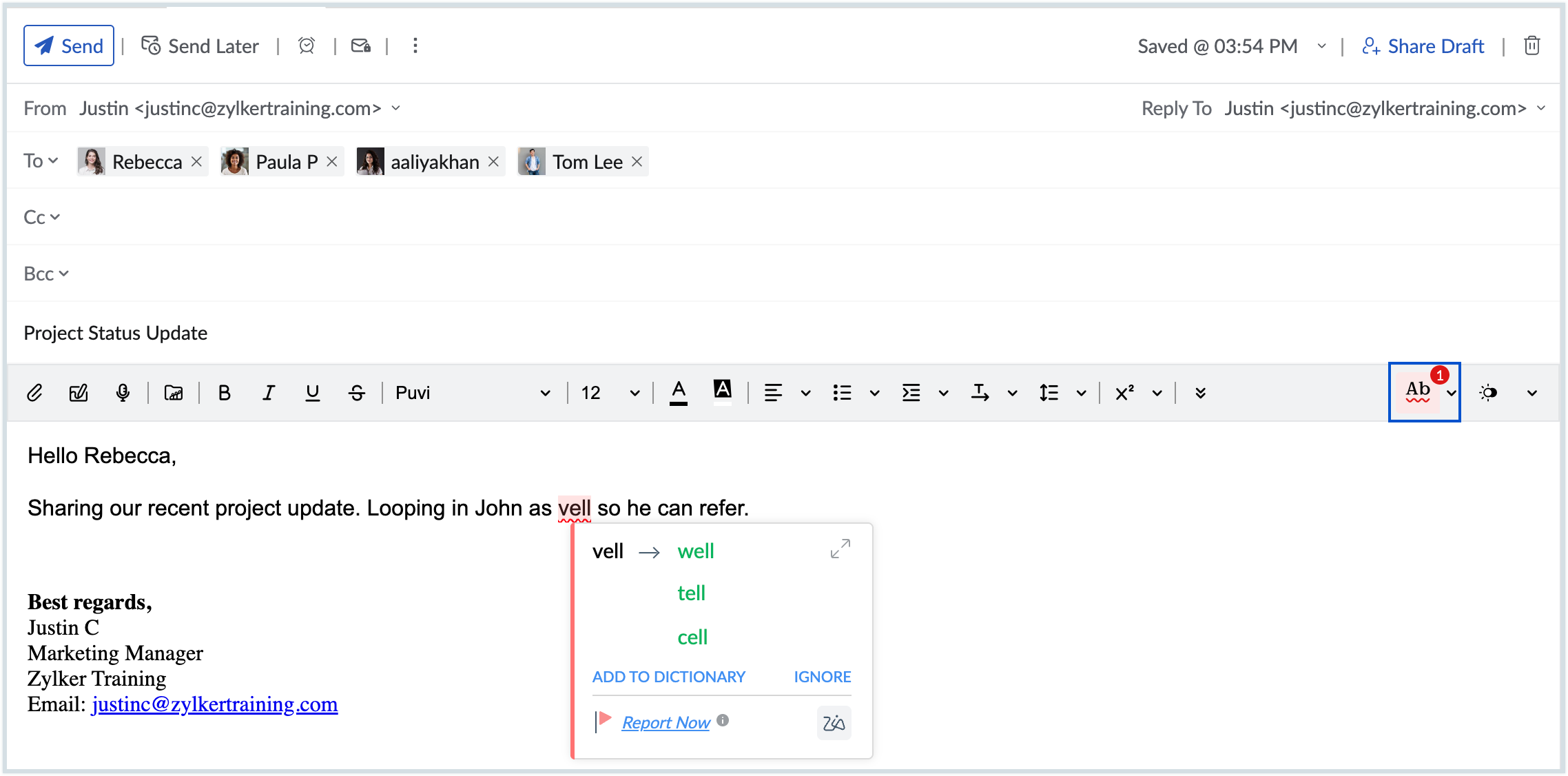
If you click the drop-down next to the Spell check icon, you will be shown a list of languages that you can choose from. This primarily means the language against which your email content will be checked for validation during a spell check. It does not refer to the language you can compose the email in. For example, if you've chosen English (US) from the composer language listing, the email content will be checked with an American English dictionary, and relevant spelling and grammar suggestions will be provided.
The language your email is composed in depends on the keyboard you use, and not on any of Zoho Mail's settings.
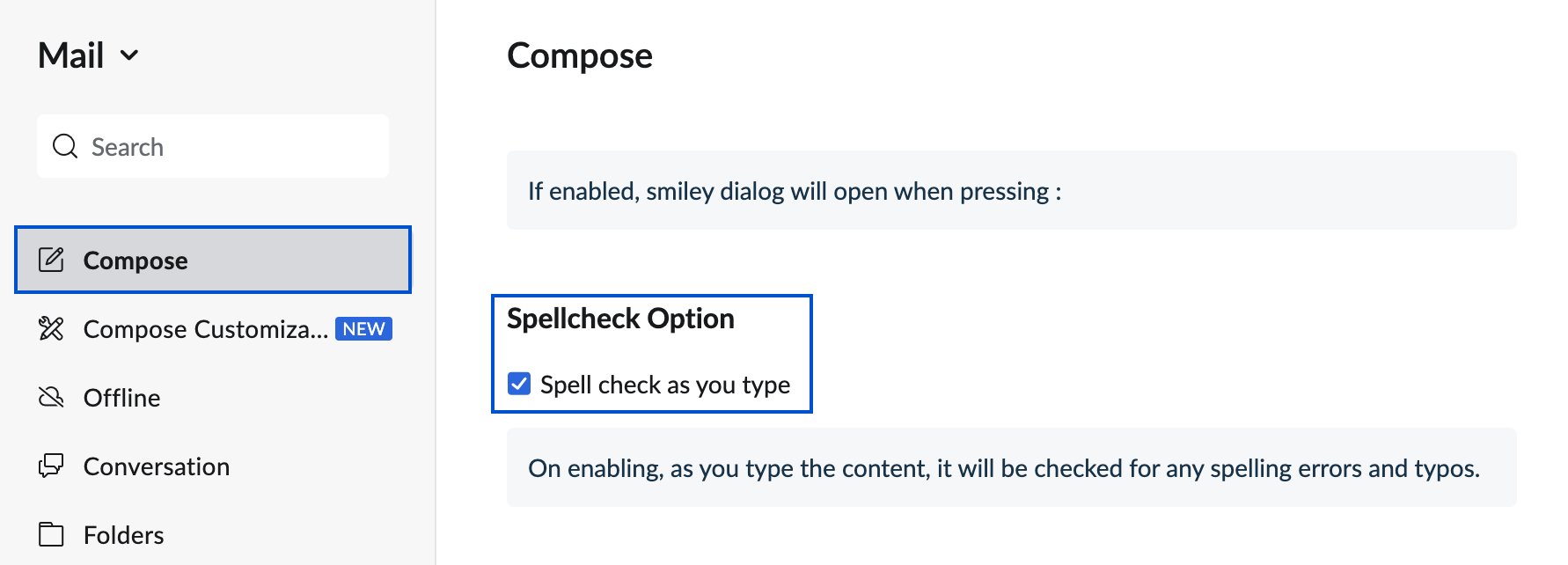
The Auto-spell check option can also be enabled in settings. You can use this to check your spelling as you type. To enable this option, navigate to Settings > Compose > Spellcheck option. Select the Spellcheck as you type check-box.
Note:
The auto-spell check option is available only to users who have subscribed to one of our paid plans.
More email sending options
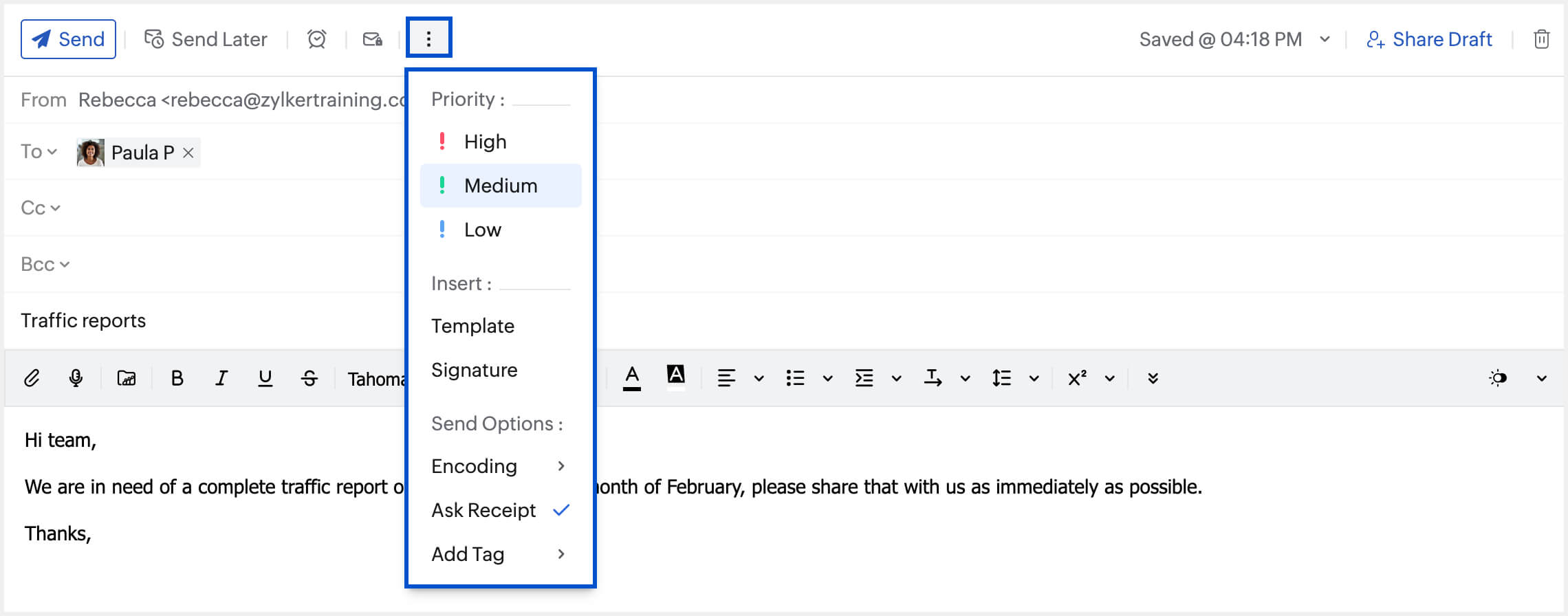
While composing an email you can also set certain preferences in the compose window before you send the email. You can set the priority for the email, insert a signature/template, change the encoding format, and ask for read receipts from the recipient end.
Set email priority
- Web
- Android
- iOS
You can set the email priority to High/Medium/Low. This will help the recipient classify those emails that need to be attended to immediately, and prioritize them accordingly. To set a priority for the email:
- Log in to Zoho Mail.
- Click the New Mail button from the top-left corner.
- In the Compose window, click the More Options icon on the top of the window.
- Select the level of priority you want to assign. The available options are High, Medium, and Low.
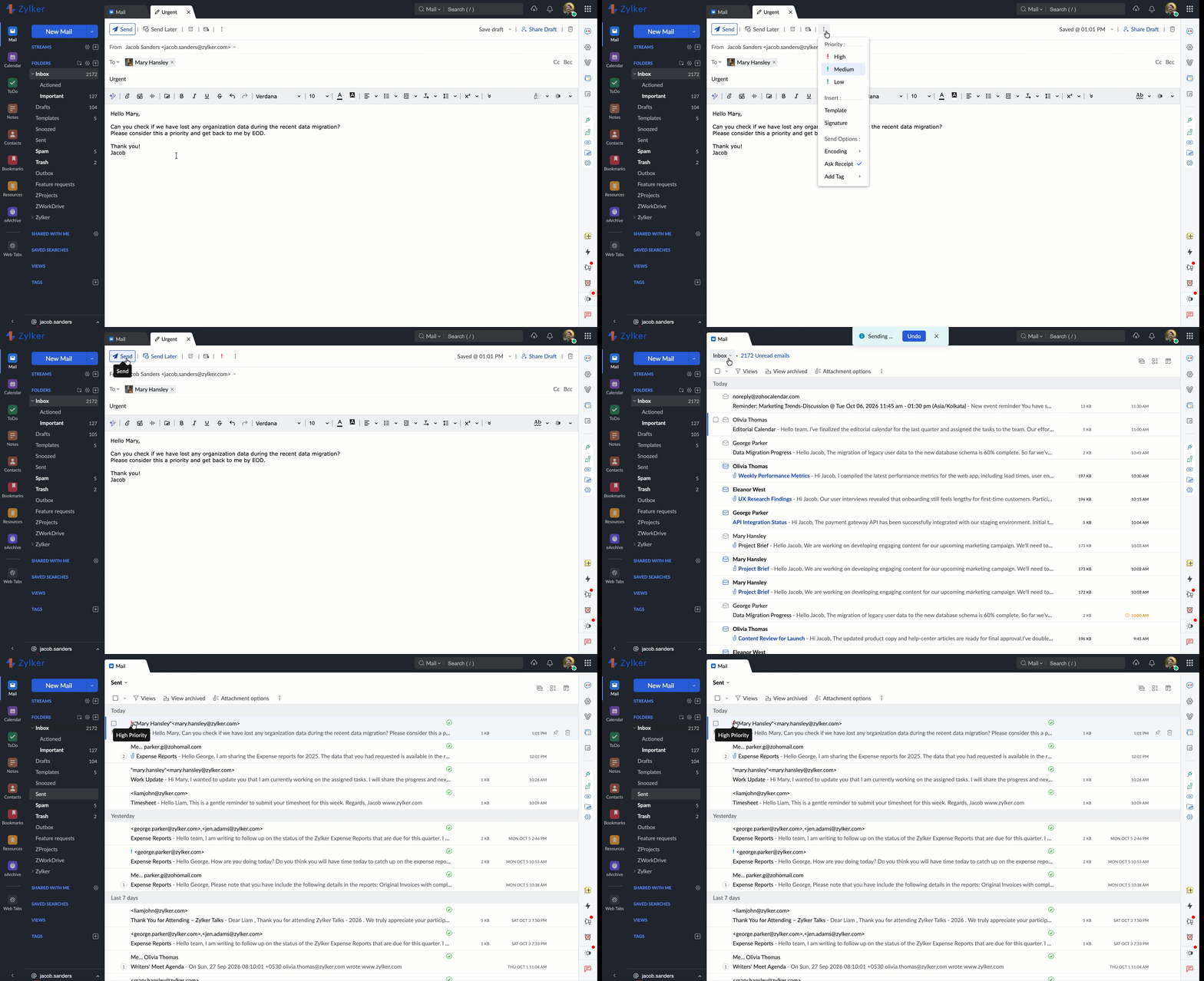
The selected priority will be displayed next to the More Options, you can click it to update the priority level.
By default the email priority is set as Medium. To set a priority for the email:
- Open the Zoho Mail mobile app.
- Navigate to the Email module.
- In the Email module, tap the Compose icon at the bottom-right corner of the screen.
- Tap the More Options icon at the top-right corner of the screen.
- Tap Priority.
- Choose between High, Medium, and Low.
The selected priority is indicated in the Subject field.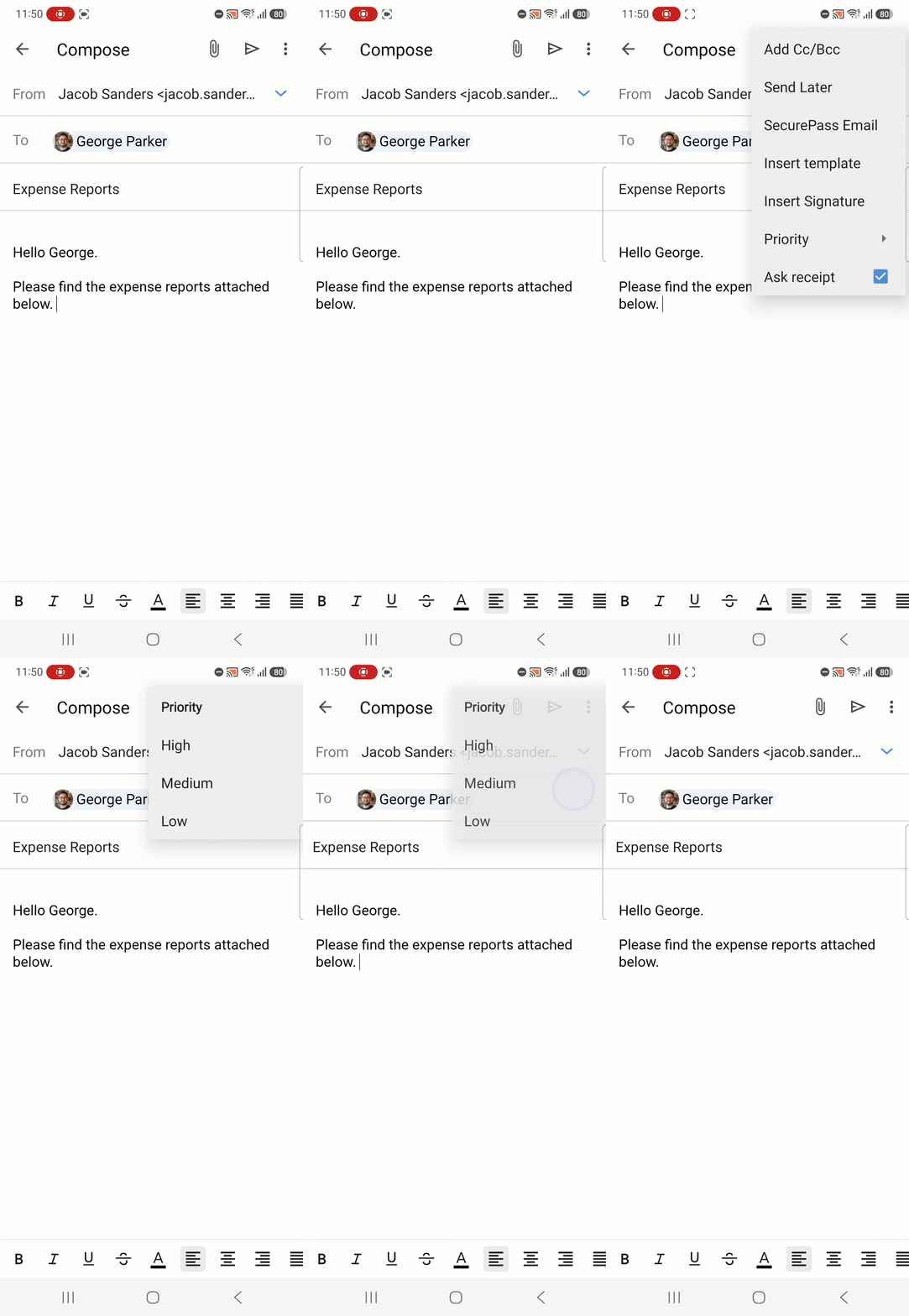
By default the email priority is set as Medium. To set a priority for the email:
- Open the Zoho Mail mobile app.
- Navigate to the Email module.
- In the Email module, tap the Compose icon at the bottom-right corner of the screen.
- Tap the More Options icon at the top-right corner of the app.
- Tap Set Priority.
- Choose between High, Medium, and Low.
The selected priority is indicated in the Subject field.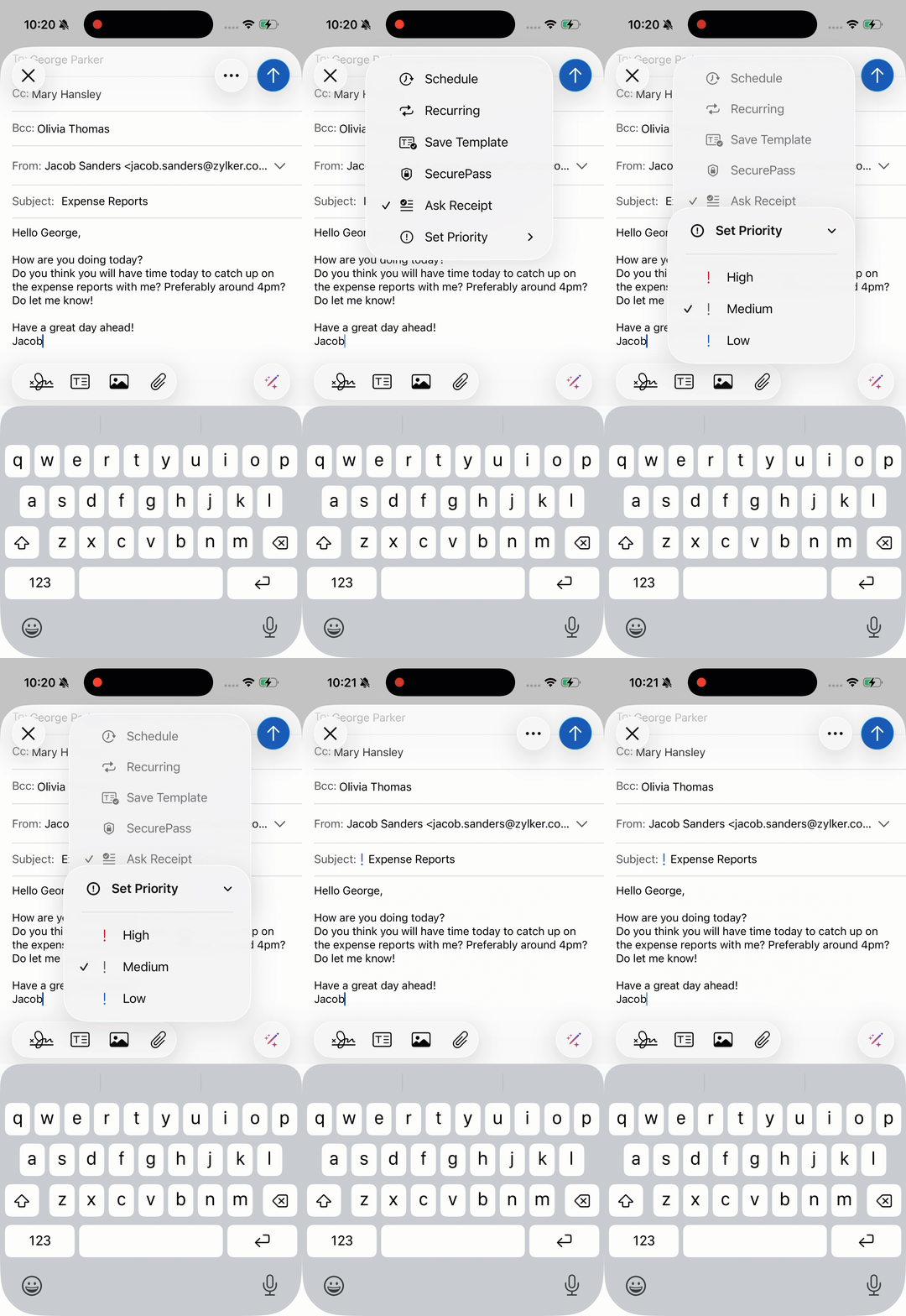
Insert Templates
You can use templates to save time while drafting emails and maintain consistency in your business communication. Zoho Mail allows you to insert your saved templates into the email body. You can also create new templates from the Templates folder. Learn more about using templates here.
Insert Signature
An email signature adds a hint of professionalism to the email while also communicating contextual information like designation, department, and organization. It helps the recipient understand the senders role and reason for sending the email. Zoho Mail allows you to insert existing signatures or create a new signature while composing an email. You can configure other preferences regarding email signatures from Mail settings.
- Web
- Android
- iOS
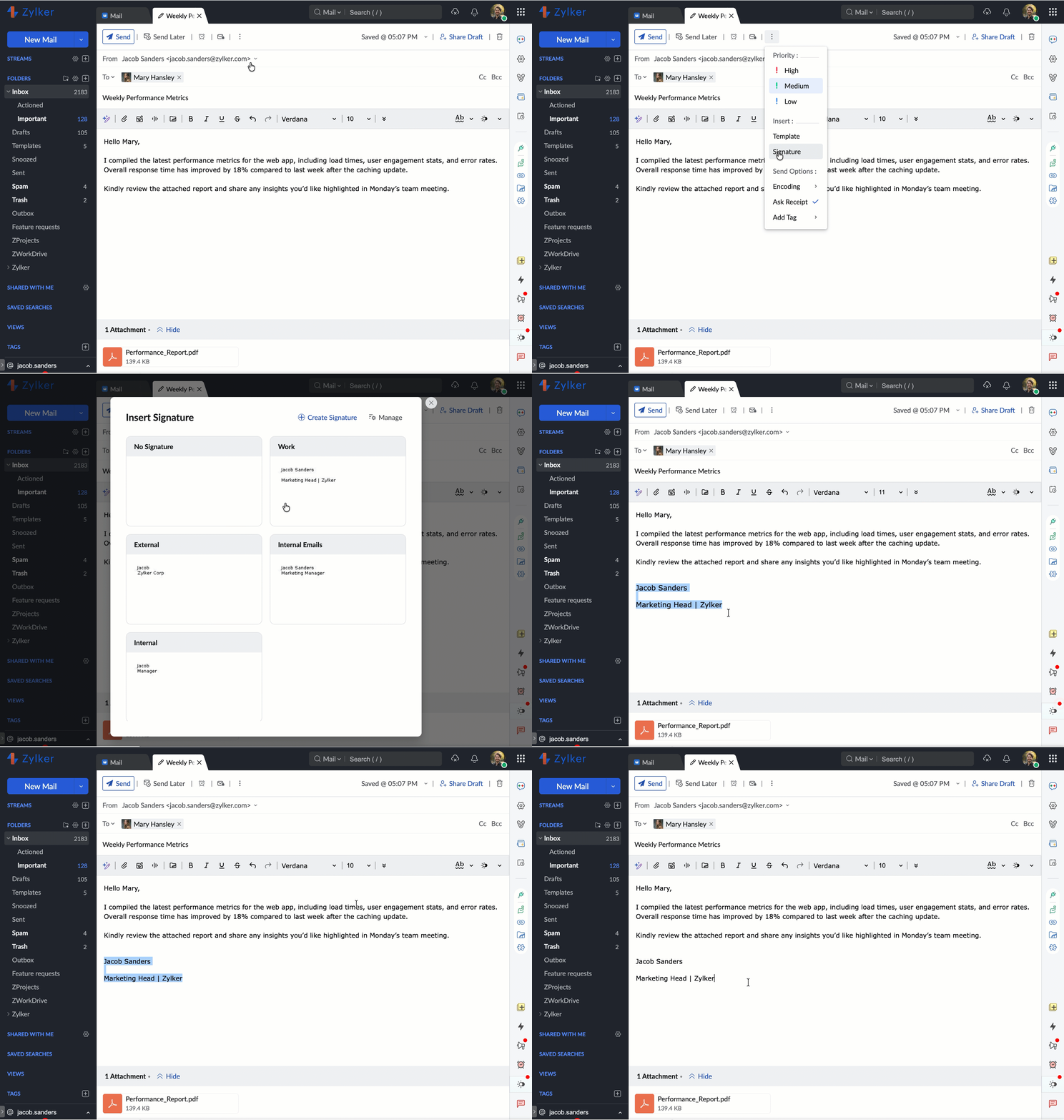
To insert a signature to your email:
- Log in to Zoho Mail.
- Click the New Mail button from the top-left corner.
- In the Compose window, click the More Options icon on the top of the window.
- Click Signature, under the Insert section.
- Select a signature from the Insert Signature window that opens.
The signature will appear in the compose page and you can format it signature to match the rest of the email if required.
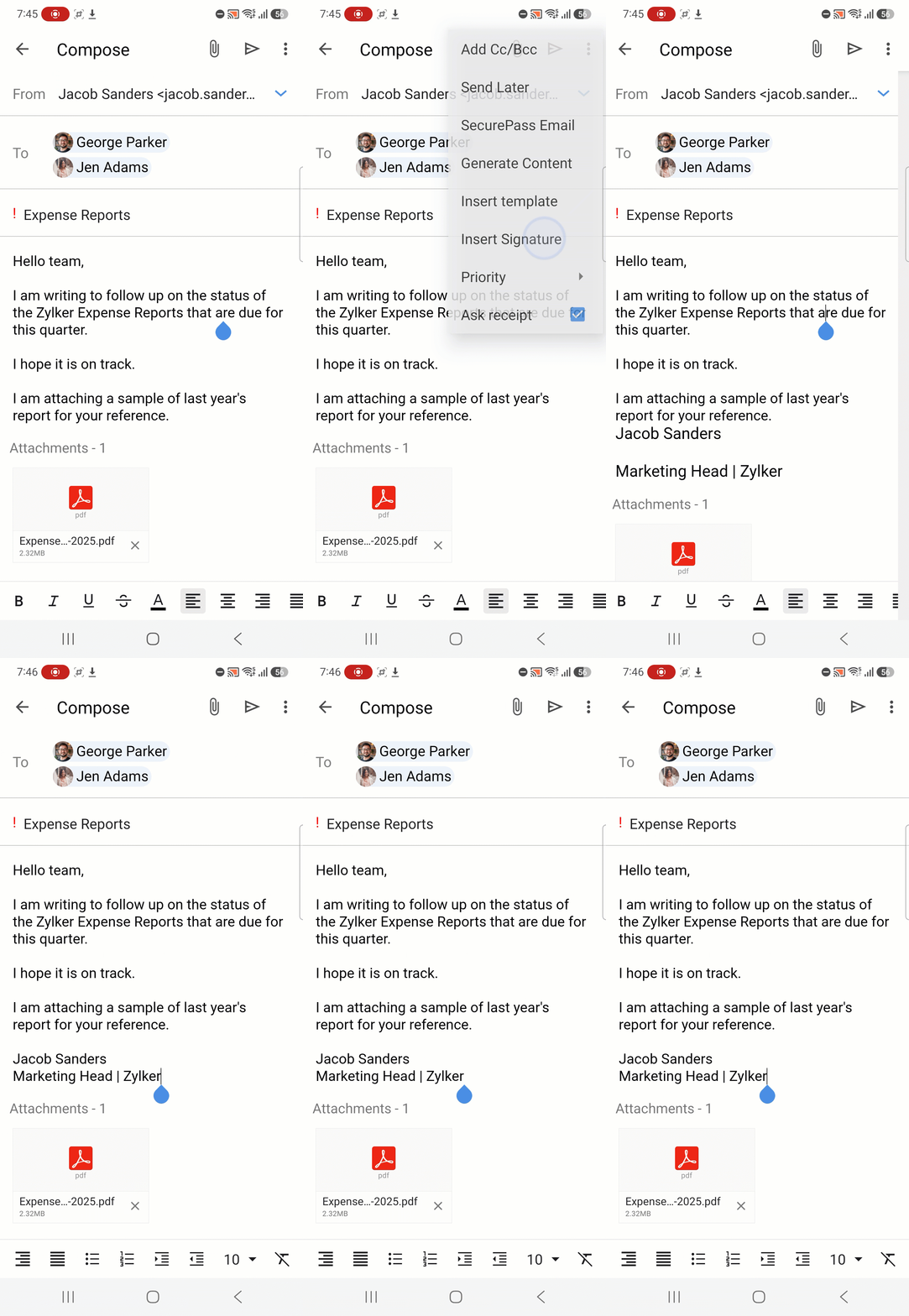
To insert a signature to your email:
- Open the Zoho Mail mobile app.
- Navigate to the Email module.
- In the Email module, tap the Compose icon at the bottom-right corner.
- Tap the More Options icon.
- Tap Insert Signature.
- Choose the desired signature.
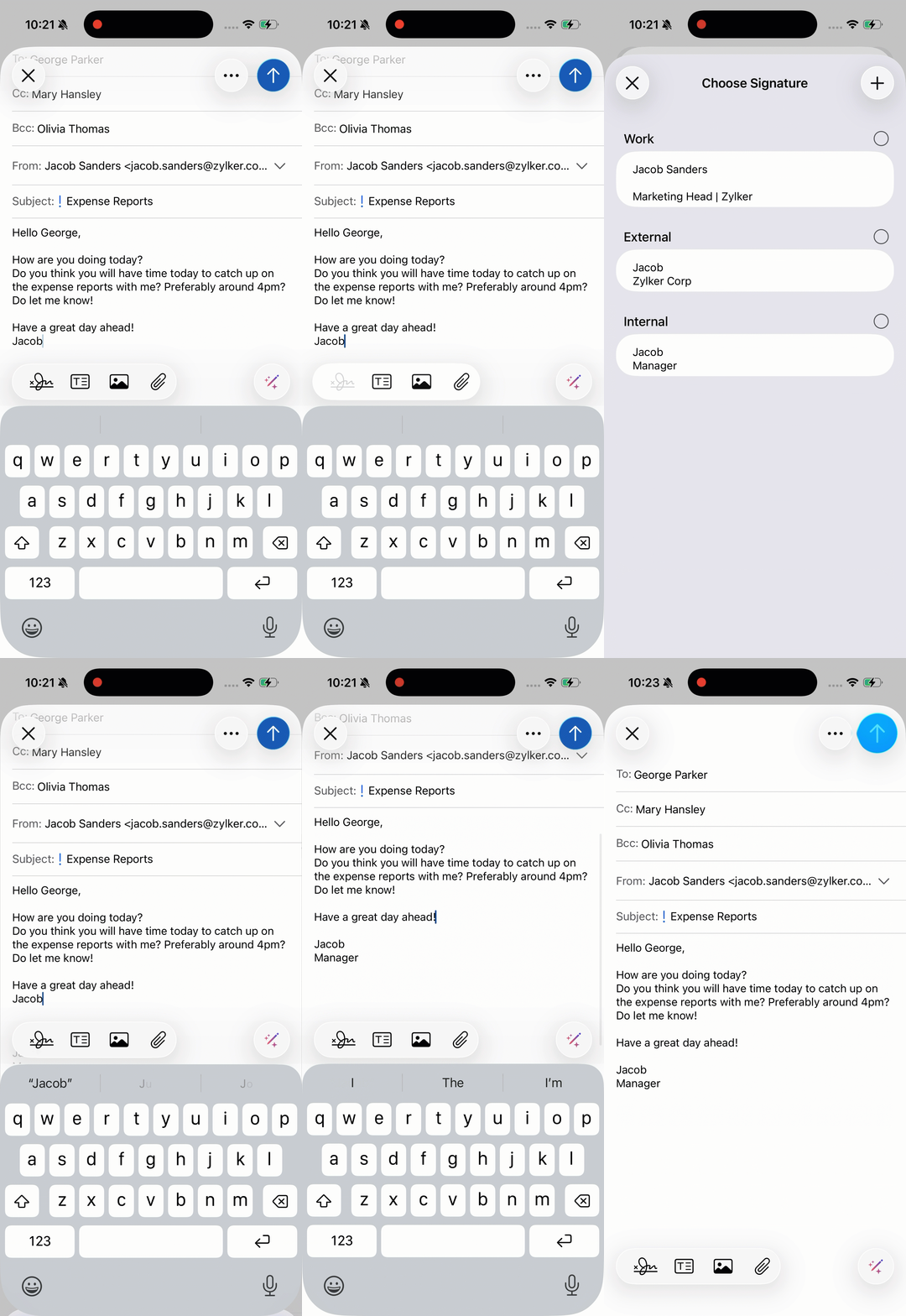
To insert a signature to your email:
- Open the Zoho Mail mobile app.
- Navigate to the Email module.
- In the Email module, tap the Compose icon at the bottom-right corner.
- Tap the Signature icon located at the bottom.
- Choose the desired signature.
Create a new Signature while composing an email
- Web
- iOS
If you do not want to use any of the existing signatures, you can create a new signature directly from your compose page. To create a new signature while composing an email:
- Log in to Zoho Mail.
- Click the New Mail button from the top-left corner.
- In the Compose window, click the More Options icon on the top of the window.
- Click Signature, under the Insert section.
- Click Create Signature at the top of Insert Signature window.
- Enter the signature name and description.
- Configure other preferences for the signature like position, associated From address and more.
- Click Save and Insert.
The signature will be inserted in the compose page.
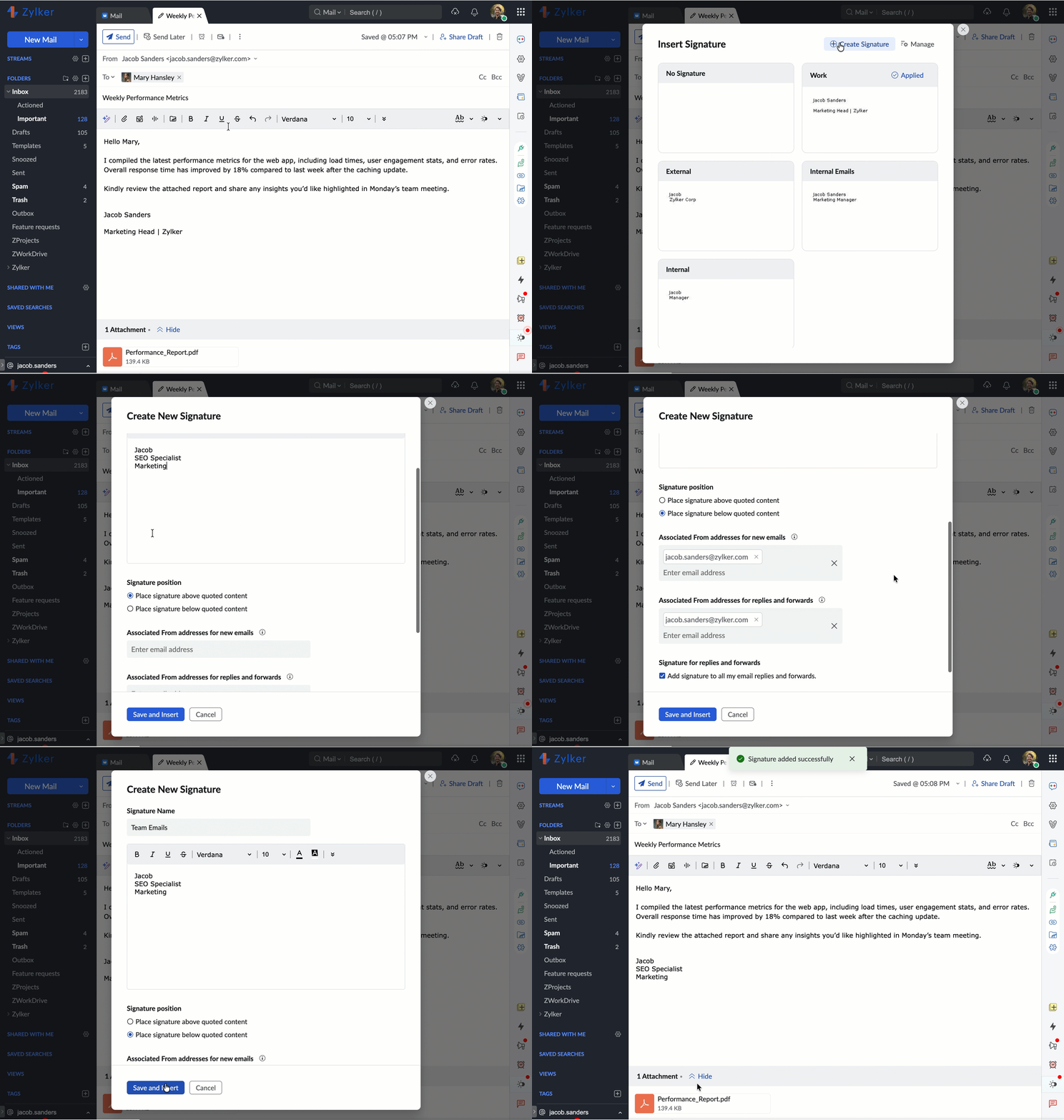
To create a new signature while composing an email:
- Open the Zoho Mail mobile app.
- Navigate to the Email module.
- In the Email module, tap the Compose icon at the bottom-right corner.
- Tap the Signature icon located at the bottom.
- Tap the plus icon located at the top-right corner.
- Enter the name and details of the signature.
- Select whether the signature should appear above or below the quoted text in emails.
- Tap the tick icon located at the top-right corner.
- Tap the newly created signature from the Choose Signature page.
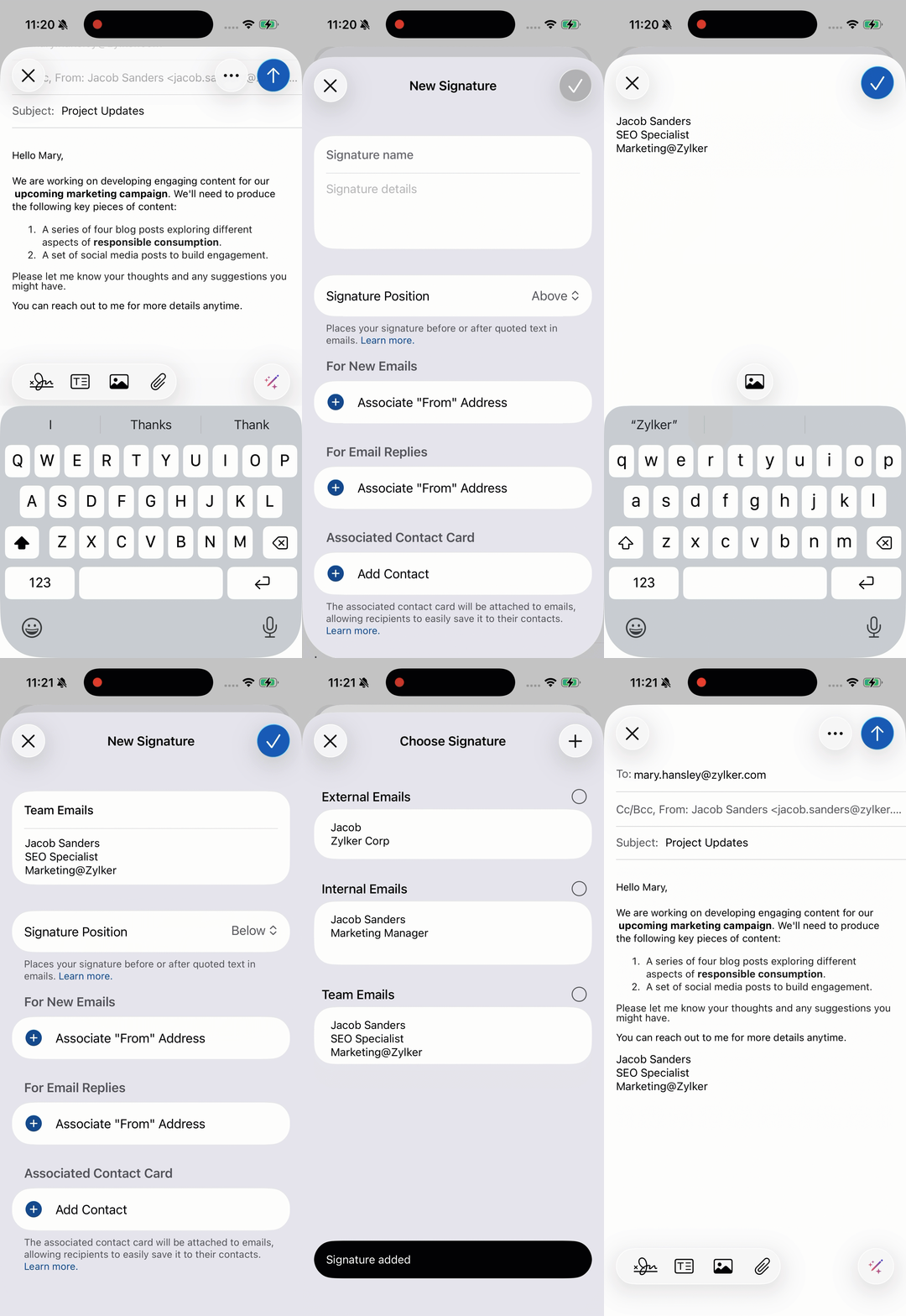
Note: Creating a new signature while composing an email is yet to be supported in the Zoho Mail Android app and will be available in future updates.
Select Email Encoding option
You have multiple email encoding options in Zoho Mail. If you want a specific email to be sent with a different encoding, you can choose the required option from the Options menu. This will be applied only to the current email. The encoding format selected in the Settings will only be applied to the other emails. 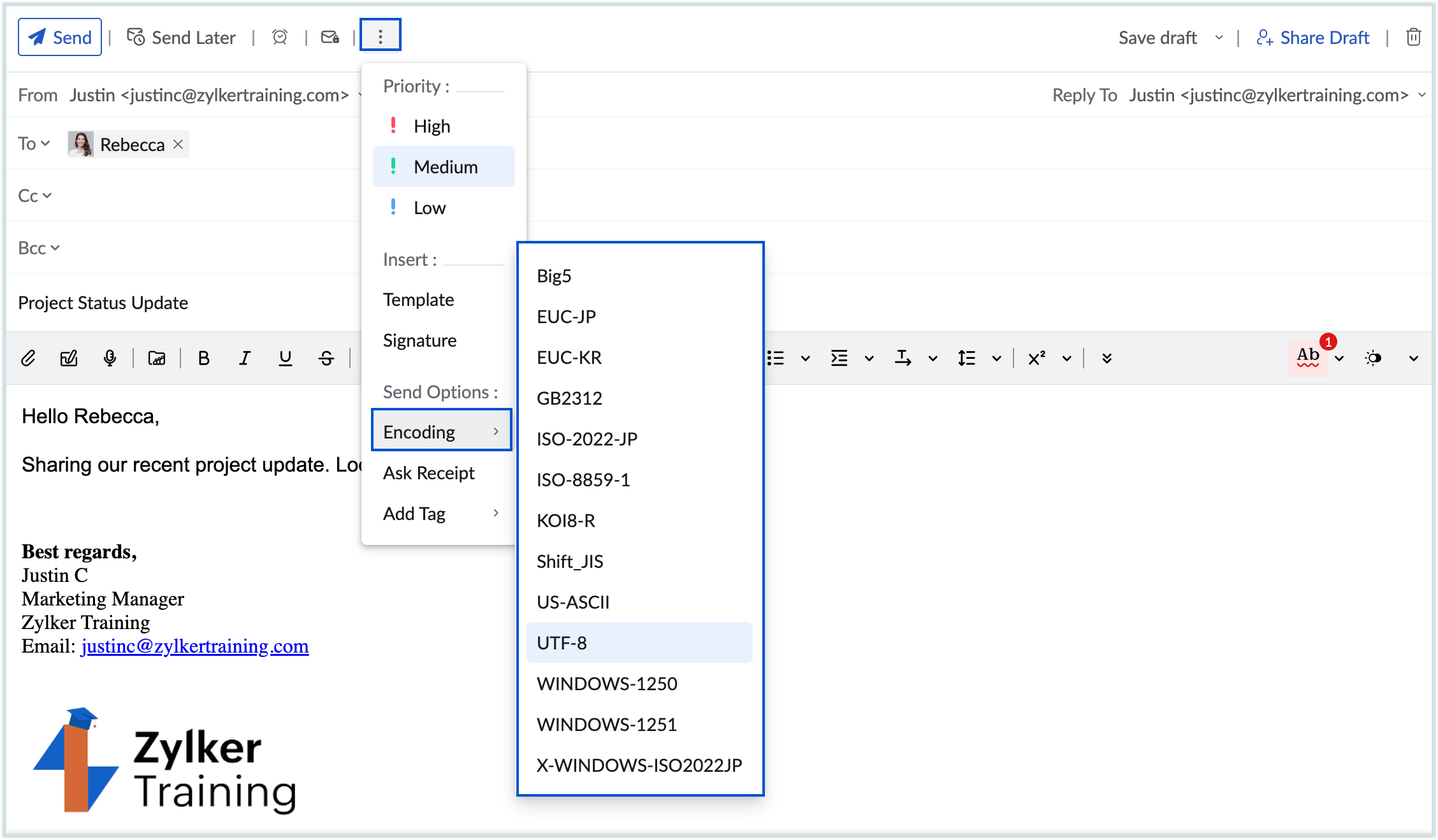
Ask Read Receipt
- Web
- Android
- iOS
When you send certain emails, you might need an acknowledgment to know whether the recipient has read the email. In such cases, you can use the Ask Receipt feature. To ask for read receipts:
- Log in to Zoho Mail.
- Click the New Mail button from the top-left corner.
- In the Compose window, click the More Options icon on the top of the window.
- Select Ask Receipt.
Based on the recipient's Read Receipt settings, you will be notified whether the email has been read or not.
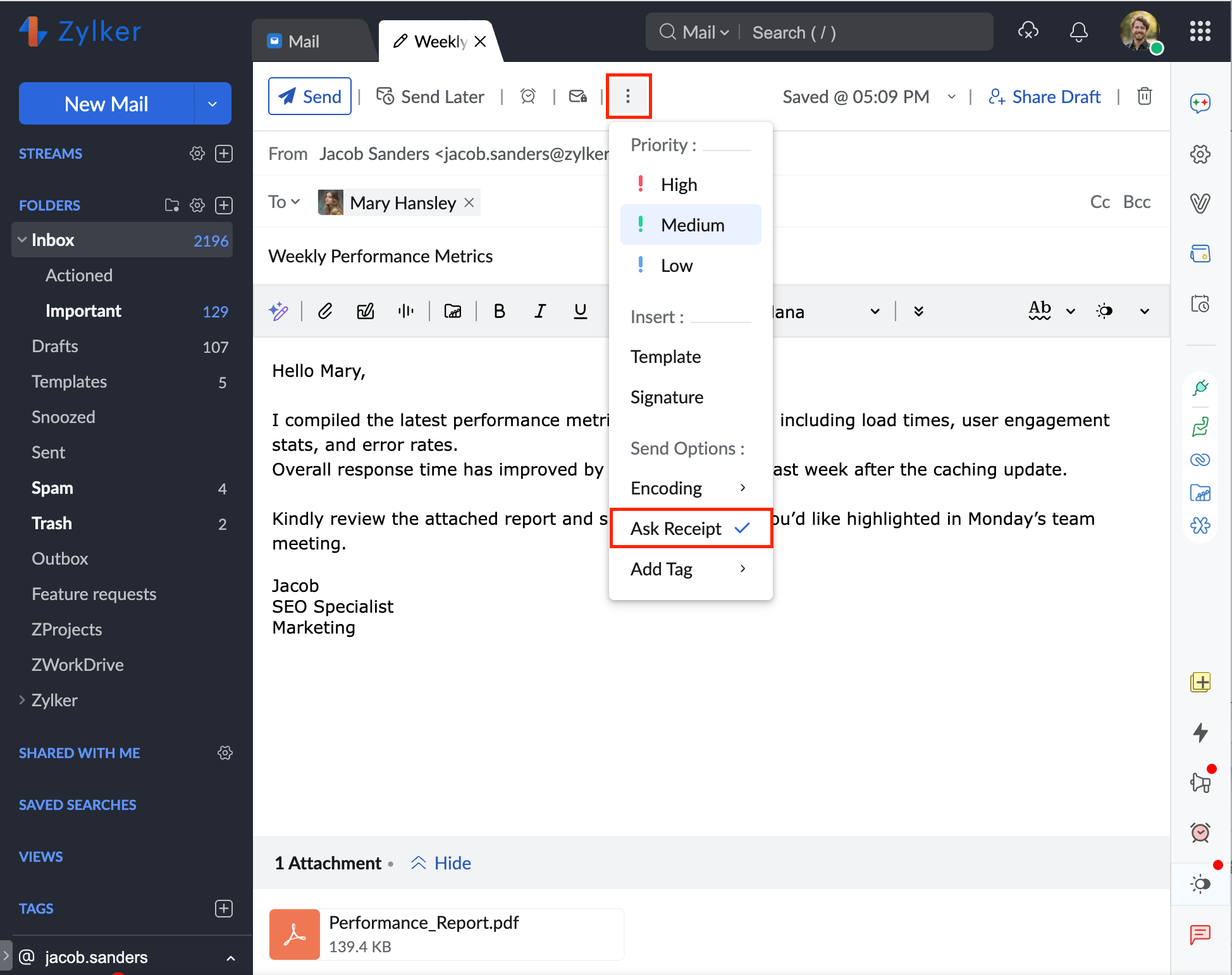
If the recipient sends a read receipt, a new conversation gets created in the relevant email. Expand your conversation by clicking the number to view the time at which your email was read.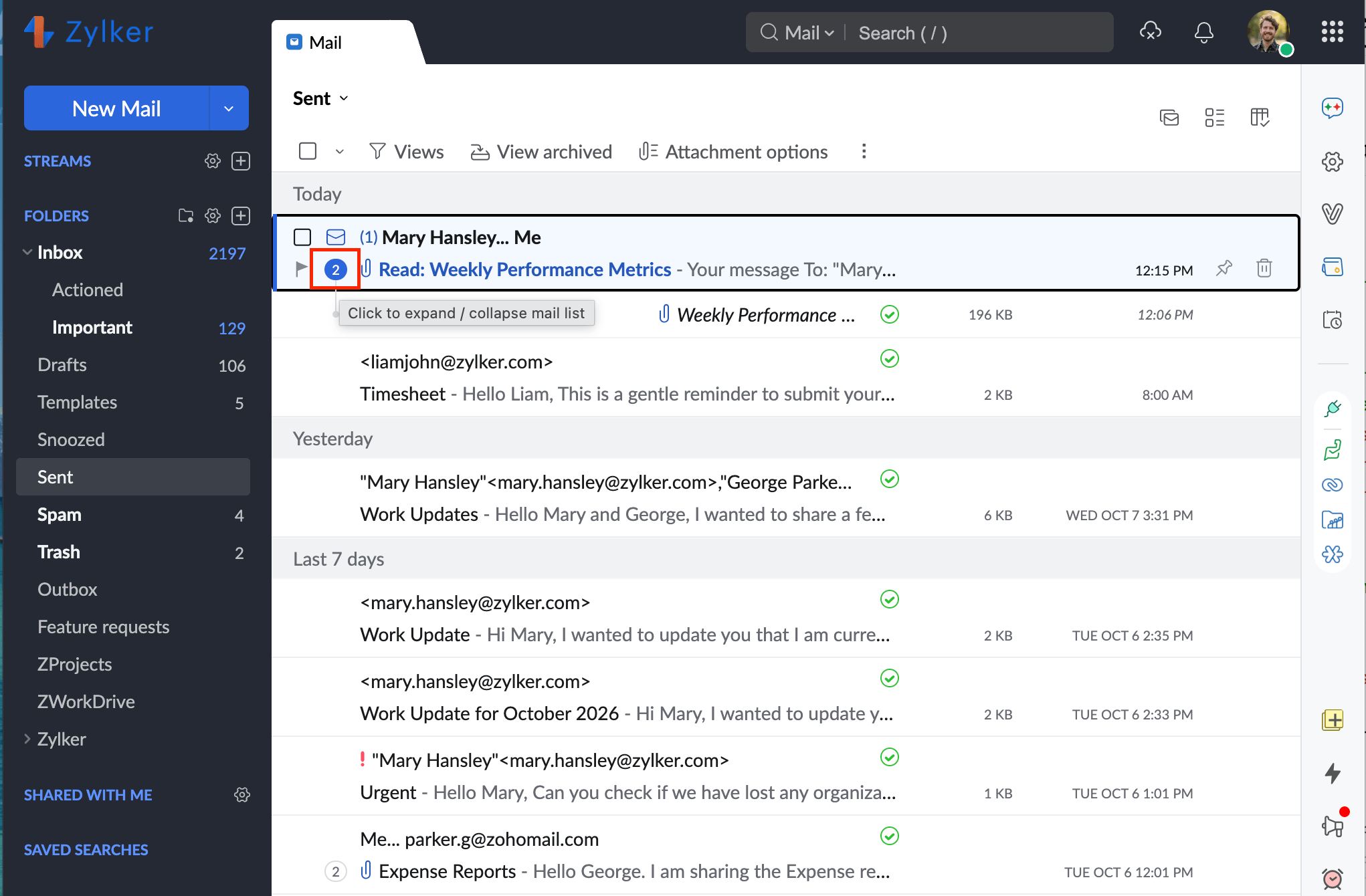
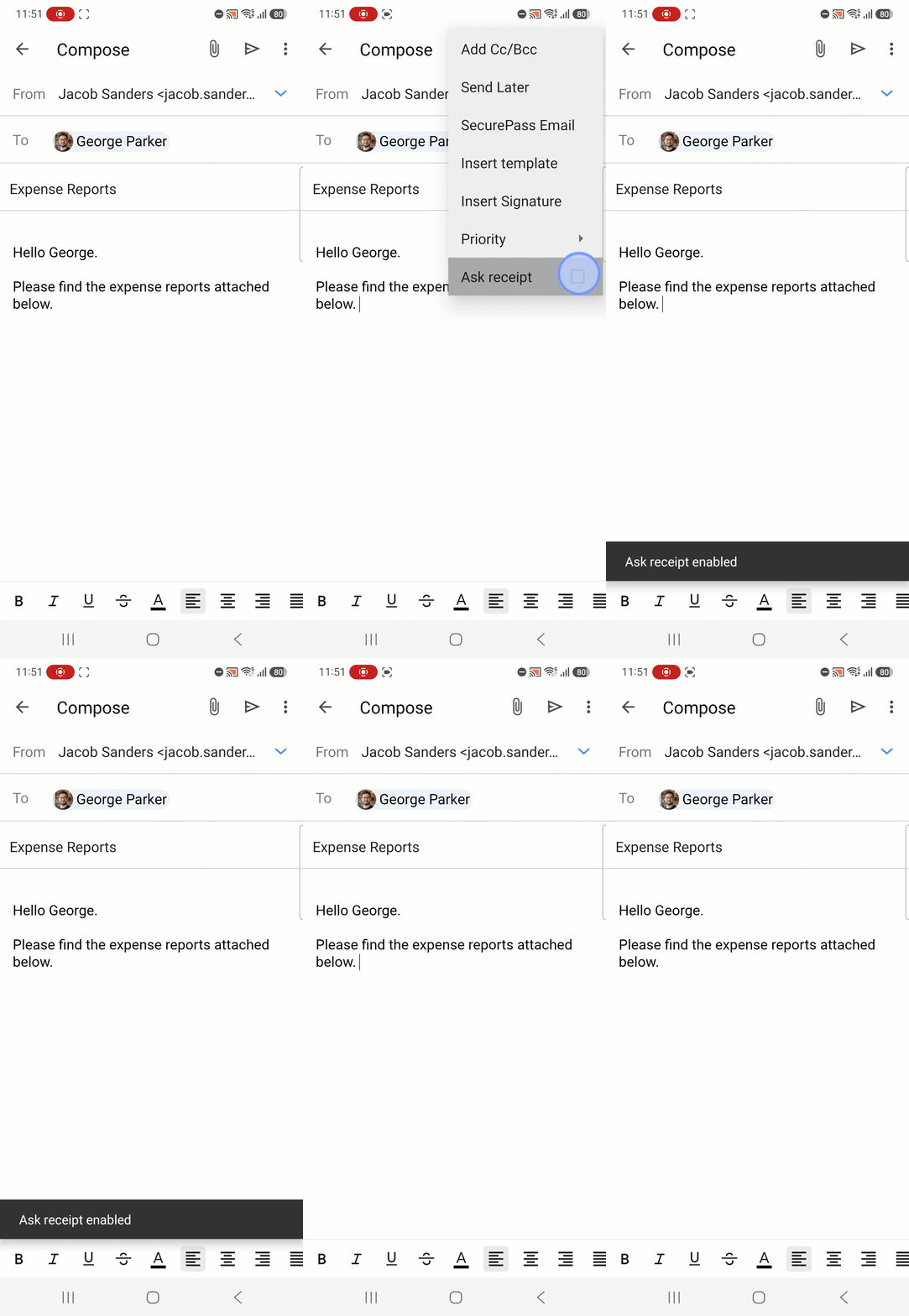
To ask for a read receipt while sending emails:
- Open the Zoho Mail mobile app.
- Navigate to the Email module.
- In the Email module, tap the Compose icon at the bottom-right corner.
- Tap the More Options icon.
- Tap Ask Receipt.
Based on the recipient's Read Receipt settings, you will be notified whether the email has been read or not.
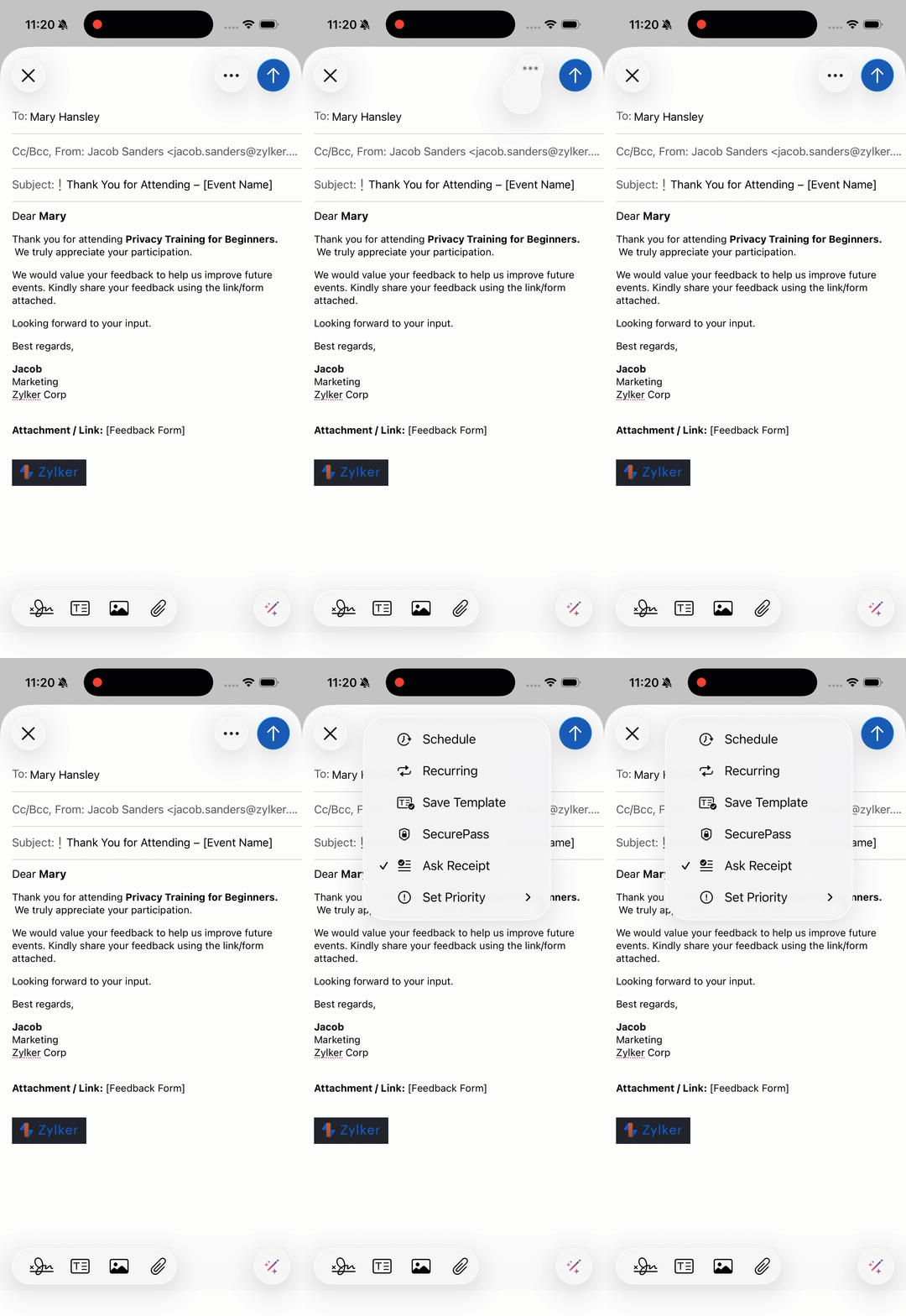
To ask for a read receipt while sending emails:
- Open the Zoho Mail mobile app.
- Navigate to the Email module.
- In the Email module, tap the Compose icon at the bottom-right corner.
- Tap the More Options icon.
- Tap Ask Receipt.
Based on the recipient's Read Receipt settings, you will be notified whether the email has been read or not.
Configure Read Receipt Settings
You can choose the default behavior for the email which requests you for a 'Read Receipt' by following the below steps.
- Log in to Zoho Mail
- Click the Settingsicon.
- Go to Mail View Options.
- Locate Read Receipt.
- Select Always Send to always send a Read Receipt acknowledgment to the sender.
- Select Never Send to never send a Read Receipt acknowledgment to the sender.
- Select Ask me to ask for confirmation before sending a Read Receipt acknowledgment to the sender.
Add Tag
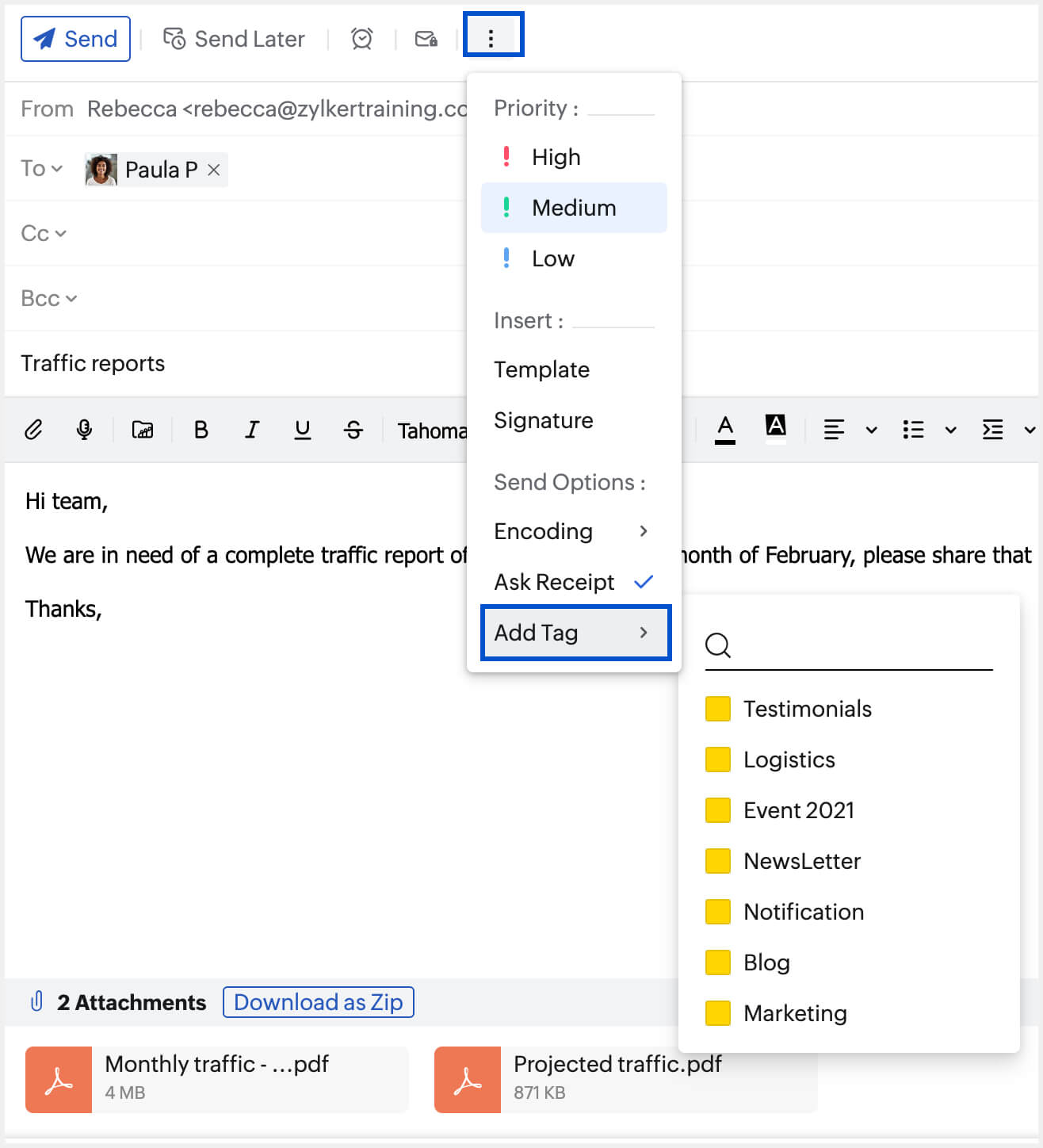
You can add tags to the email you compose and the chosen tags will be added to the email once you send it. You can access the emails based on the particular tag by navigating to the Tags section on the left menu and choosing the tag from the listing.
To add tags, click on the More options icon on top of the email composer. Choose the Add tag option from the menu and select the tags you want to add to the email.
Include Attachments
This option will only be available in the More Options list if you are replying to an email. By selecting this option, you can include the attachments from the original email in your email.
Note:
You can set more preferences for your email composer from the Compose Settings page.
Compose Settings
Editor Mode
The Rich Text editor is enabled by default to all in Zoho Mail. You can change the editor mode from in the Compose settings.
Go to Settings >> Compose >> Editor Mode and select your preferred editor mode.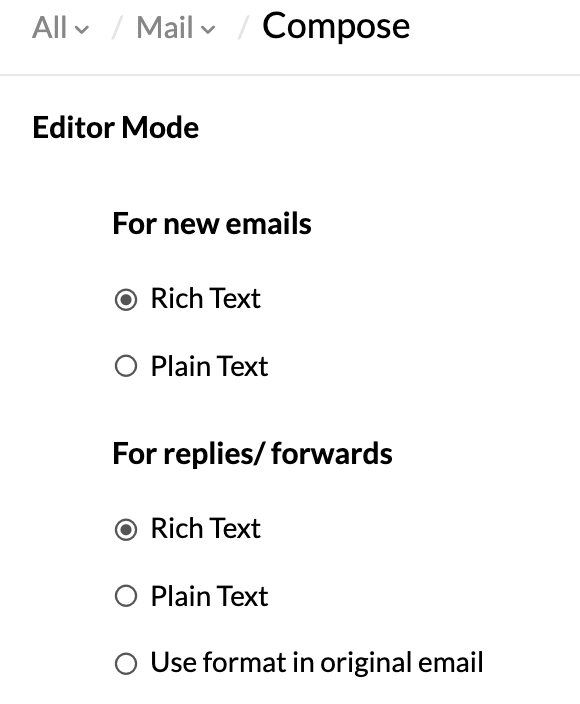
Please note that while you have chosen your preferred editor mode in the Compose Settings, you will still have the option to choose the other mode for individual emails using the drop-down box in the Mail Composer.
Text direction
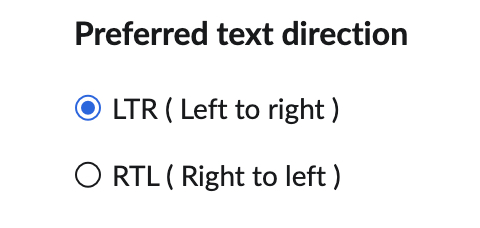
You can choose your preferred direction of text input from your compose settings in Zoho Mail. By default, the text is entered in the left to right direction. However, you can change this in Settings >> Compose >> Preferred text direction >> Right to left.
Undo Send
You can undo sending an email by enabling the Undo Send setting
Refer to the video below to know more about Undo Send:
- Log in to Zoho Mail
- Click the Settingsicon.
- Go to Compose Options.
- Under Undo Interval, set the duration for which you want the Undo option to be displayed after sending an email.
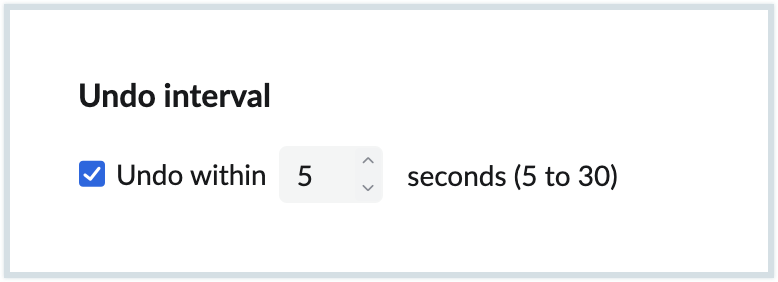
Once the setting is enabled, you will be able to view the Undo Send option while sending emails. On clicking send on an email, you will be able to view the Undo Send option as a banner for the selected duration. Once you click on Undo in the banner, the email will not be sent. This email will be saved as a draft for you to edit and resend if required.

Edit as new
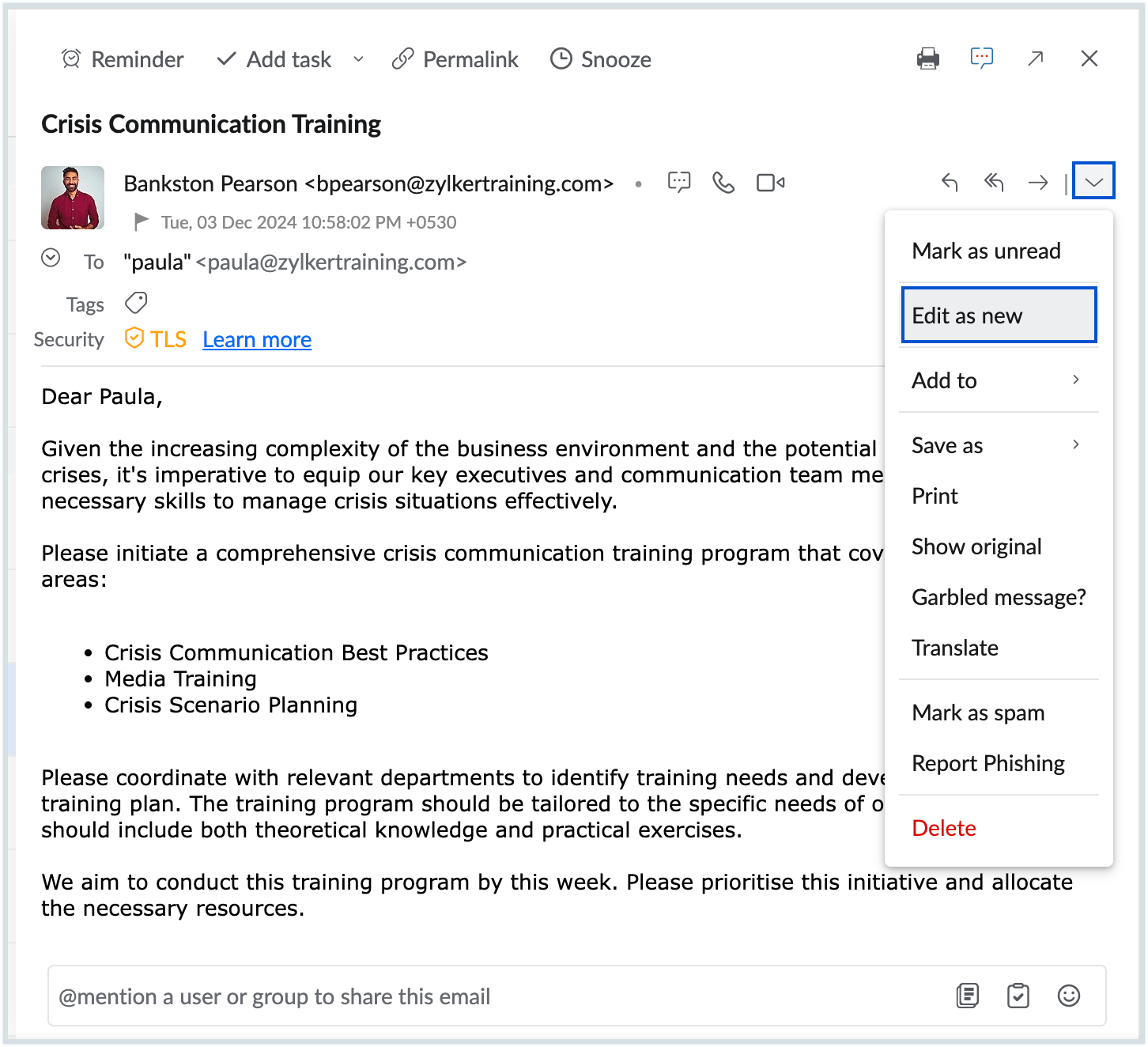
In certain circumstances you might want to send an email to two or more customers, but with certain changes in the email content. In such cases, you can make use of the Edit as new option. Open the email that you'd like to send to a new recipient with edits, click the More option icon, and select Edit as new from the listing. The same email will open in the email composer window. You can now make the essential edits and send the email.
Autofill/ Address Book in Compose
Autofill Contacts
When you compose an email, if you start typing the recipient name/ email address in To/ Cc/ Bcc fields, all the matching contacts (Mail Contacts and CRM Contacts) will be listed in the Autofill dropdown. You can choose the corresponding contacts from the list. The email addresses of your contacts from Personal/ Group and Organization contacts will be listed in this Autofill dropdown. CRM contacts in the autofill drop-down are denoted with the CRM icon next to them.
Similarly, if you start typing any particular category name, you can select from among the matching categories that are listed in the Autofill drop-down. All the contacts associated with that category will be automatically added as recipients.
Address Book
Adding recipient in Compose
Further, to view and select the contacts from the Address book, click the To/ Cc/ Bcc links in the respective fields. The 'Address Book' pops up with your contact details. You can directly select from the listed contacts, or use the 'Search contact' option to search and select the corresponding recipients from the address book. Click the relevant contacts, to add them as recipients.
Using the drop-down on the left top corner of the 'Address book', you can choose to view "All Contacts" or the contacts associated with any of the Personal, Groups, or Organization Contacts category. You can select the desired contacts from the chosen list or use the 'Select All' checkbox to add all the contacts in that category as recipients.
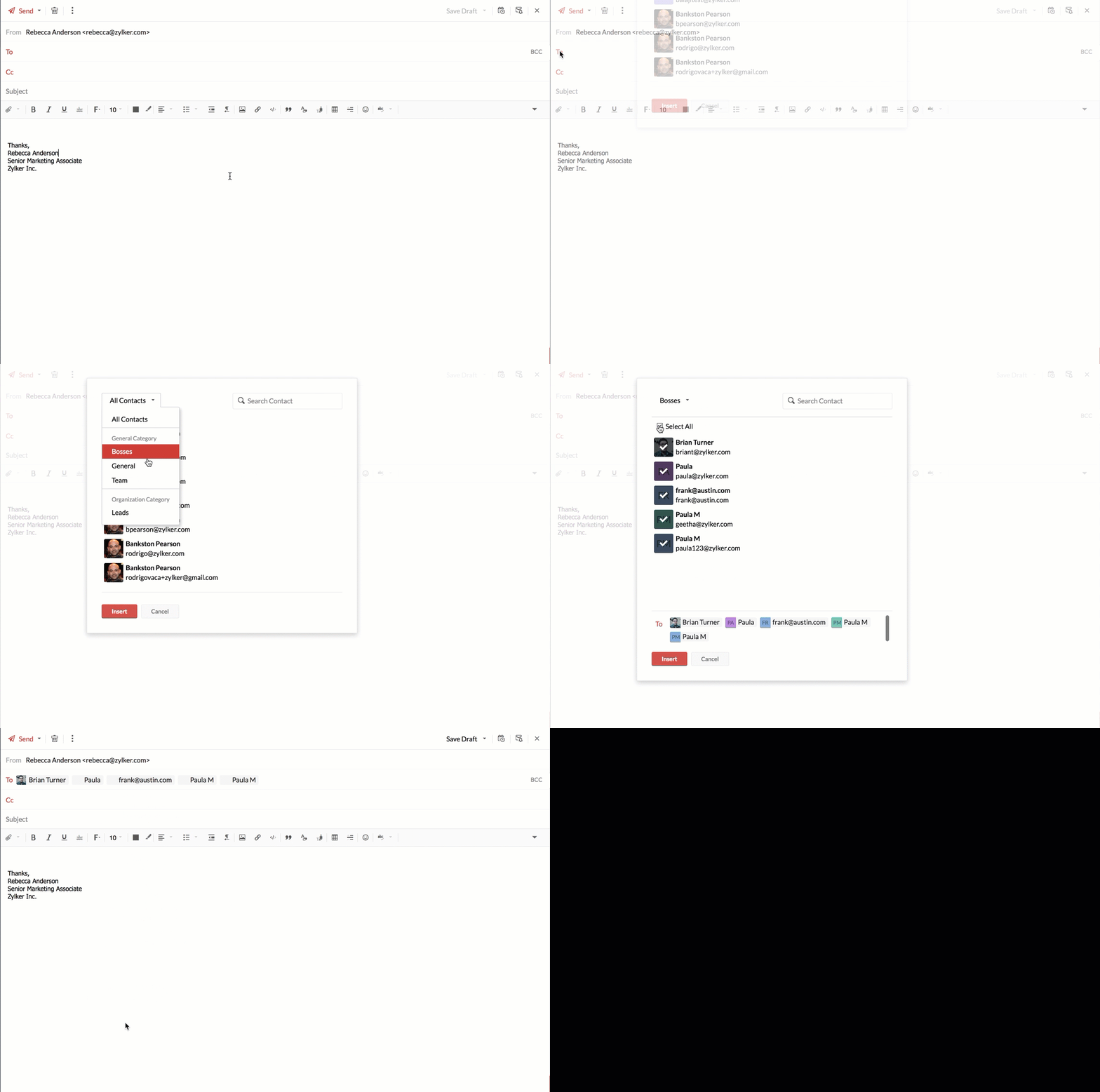
The selected contacts will be displayed below the address book. You can remove them from here if needed. Finally, select the Insert option to insert the selected contacts in the corresponding field.
Contact Suggestions
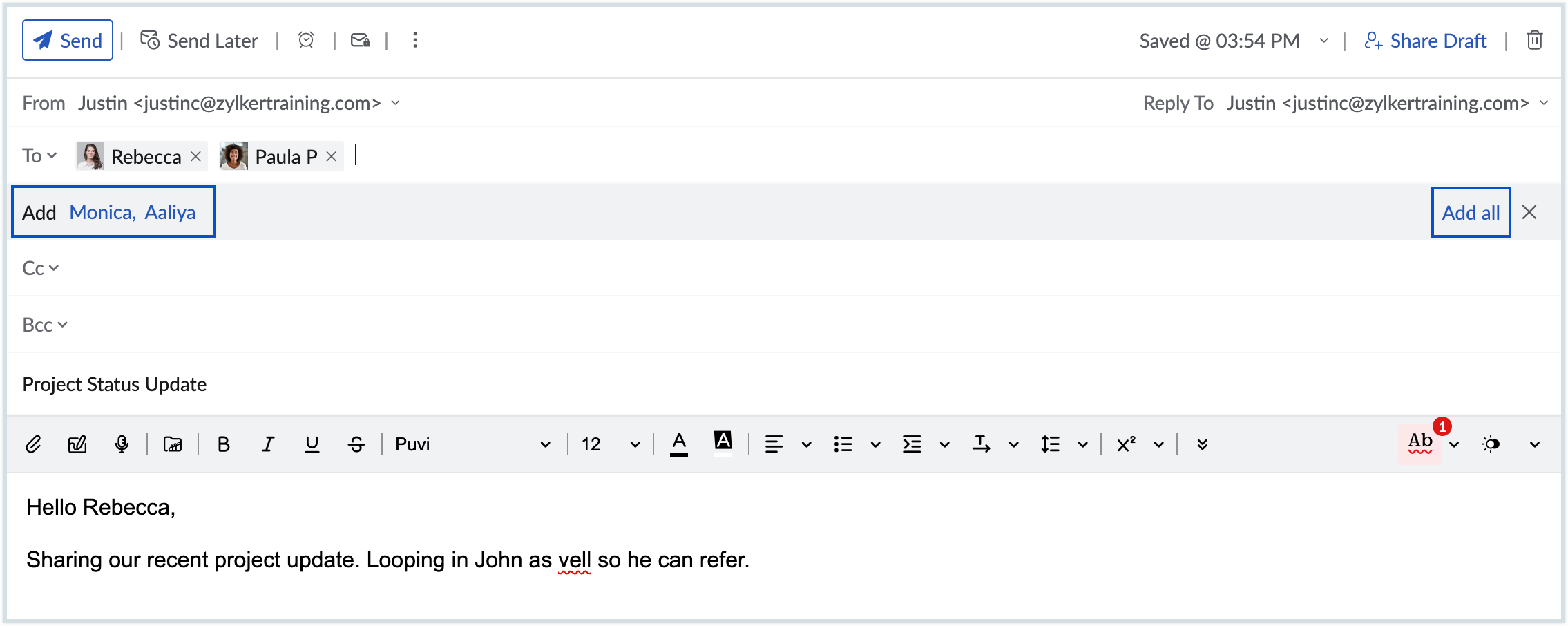
Contact Suggestions are prompted when the same set of recipients are repeated in multiple emails. If you add more than two recipients in the 'TO' field of an outgoing email, the next time you compose an email with any two of those contacts, a contact suggestion bar will appear. This bar lists the contacts that are often emailed alongside the entered contacts. You can click on the individual contacts to add them as recipients or click on the Add All option to include all the suggestions as recipients.
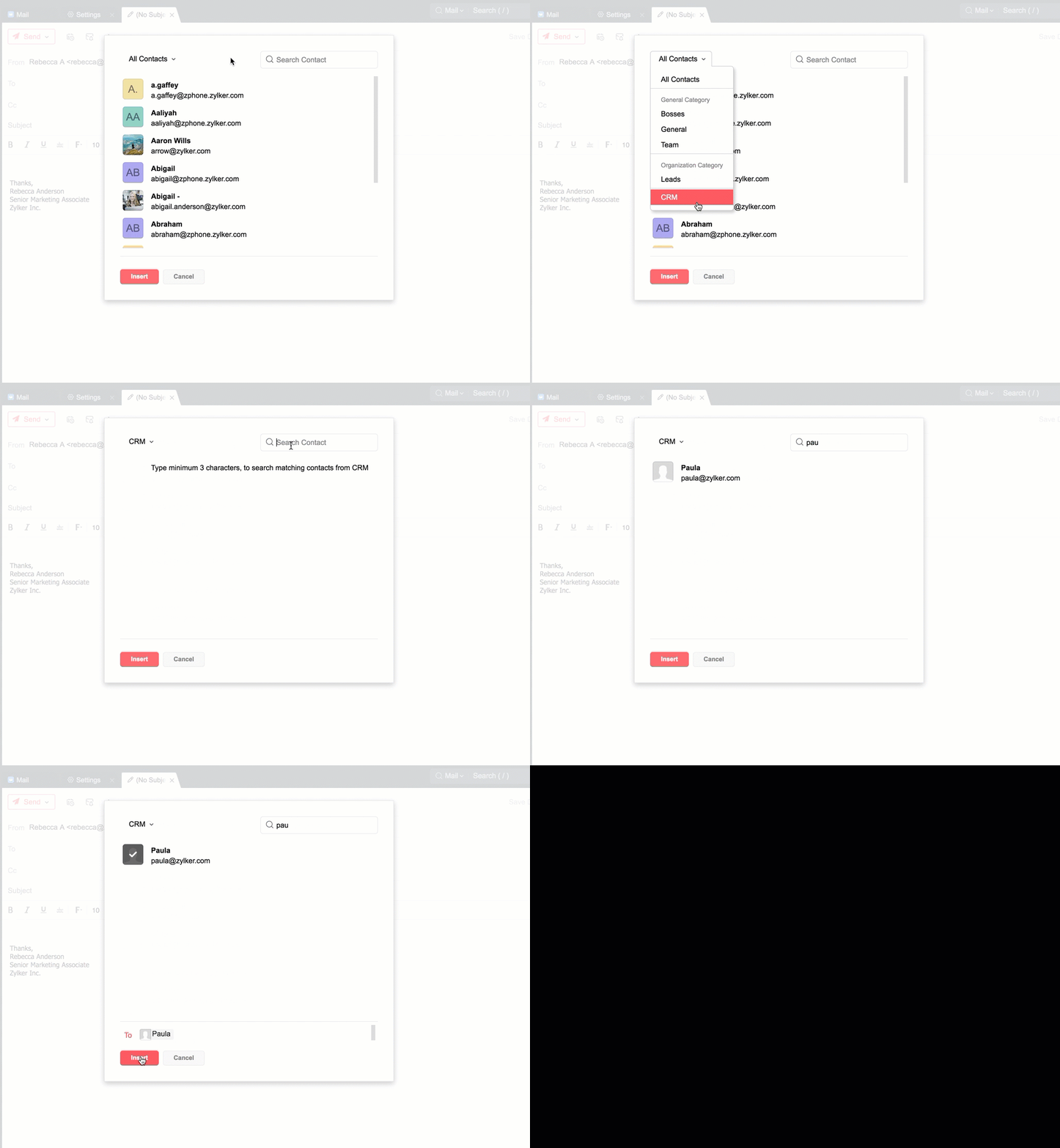
You can also view your CRM contacts from the address book and add them as recipients. Click on the "All Contacts" drop down and scroll to the bottom. Click on the CRM option. You can search for your CRM contacts here.
Creating Category
You can create contact categories directly from the address book. This way you can easily add a group of contacts as recipients.
- Open the Address book from the Compose window.
- Select a minimum of 4 contacts from your listing.
- Click on the Create category option that appears below the selected list.
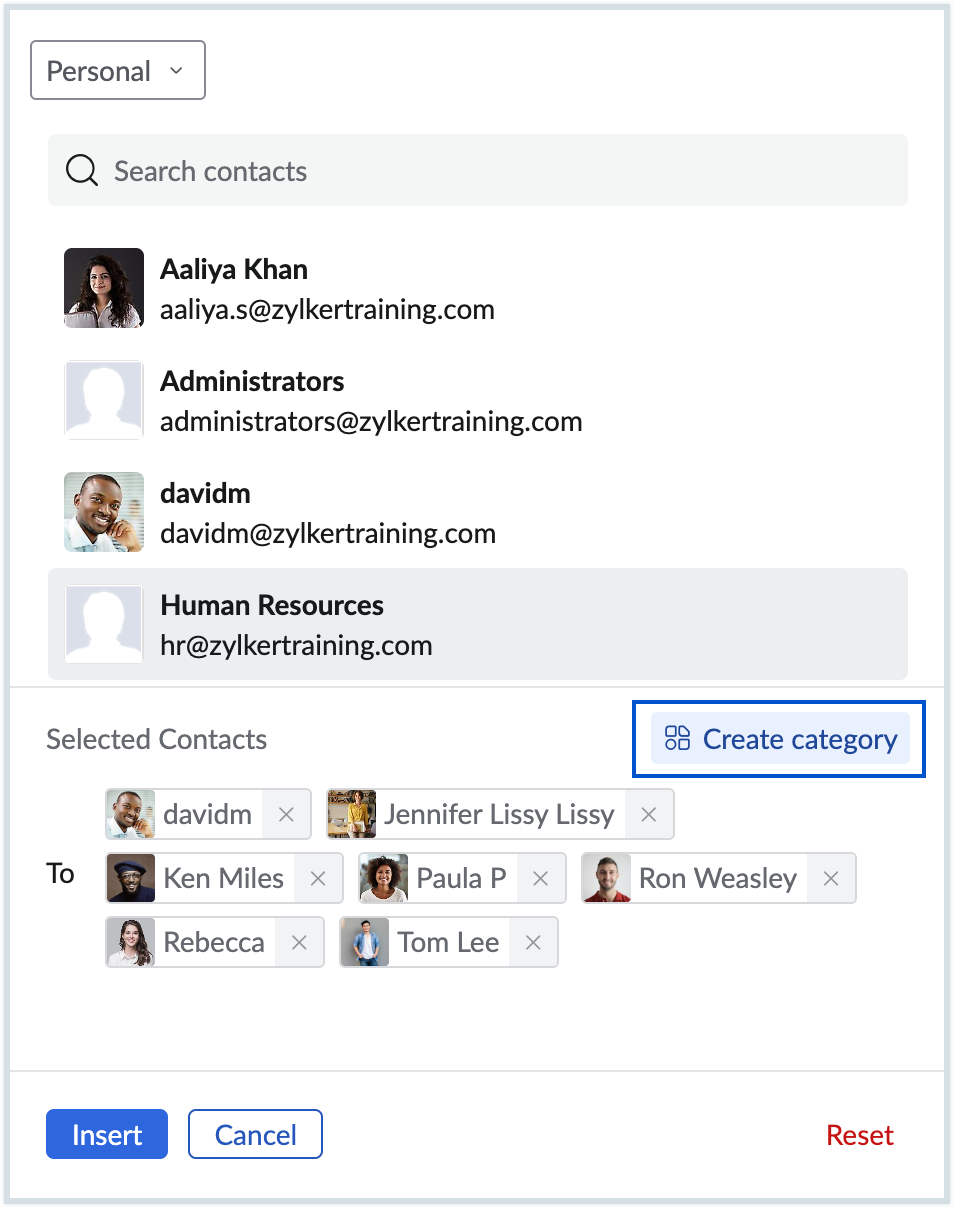
- Enter the desired name for the category and save.
A contact category with the entered details is now created.
@mention Contacts
When you compose an email, directly @mention the users in the content of the email, to automatically add them to the recipient list. You can either compose a new email or you can @mention the users in the replies or forwards to automatically add them to the list of recipients. 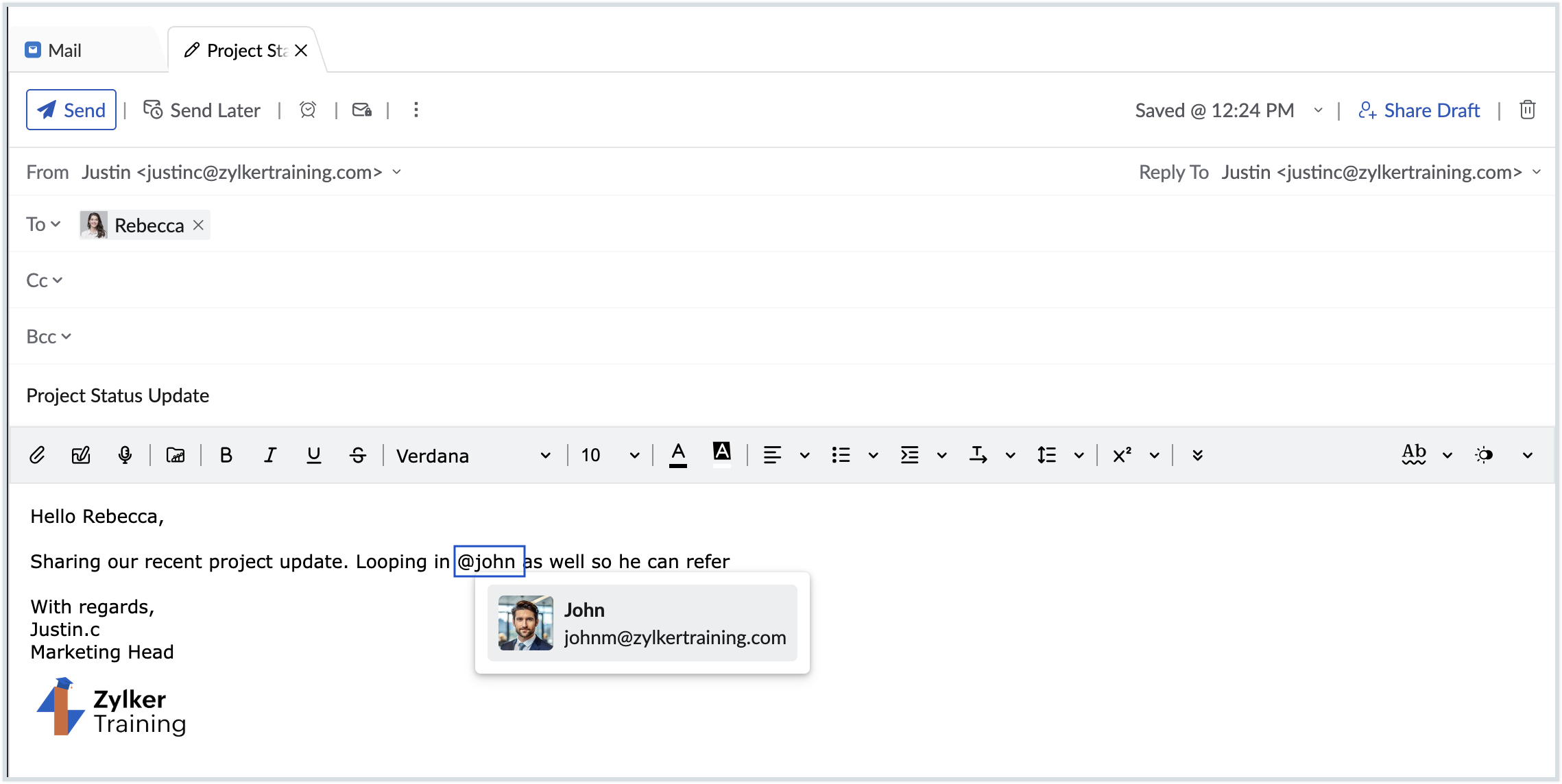
Empty Sent
To delete all the emails or the specific emails you want to from your Sent folder,
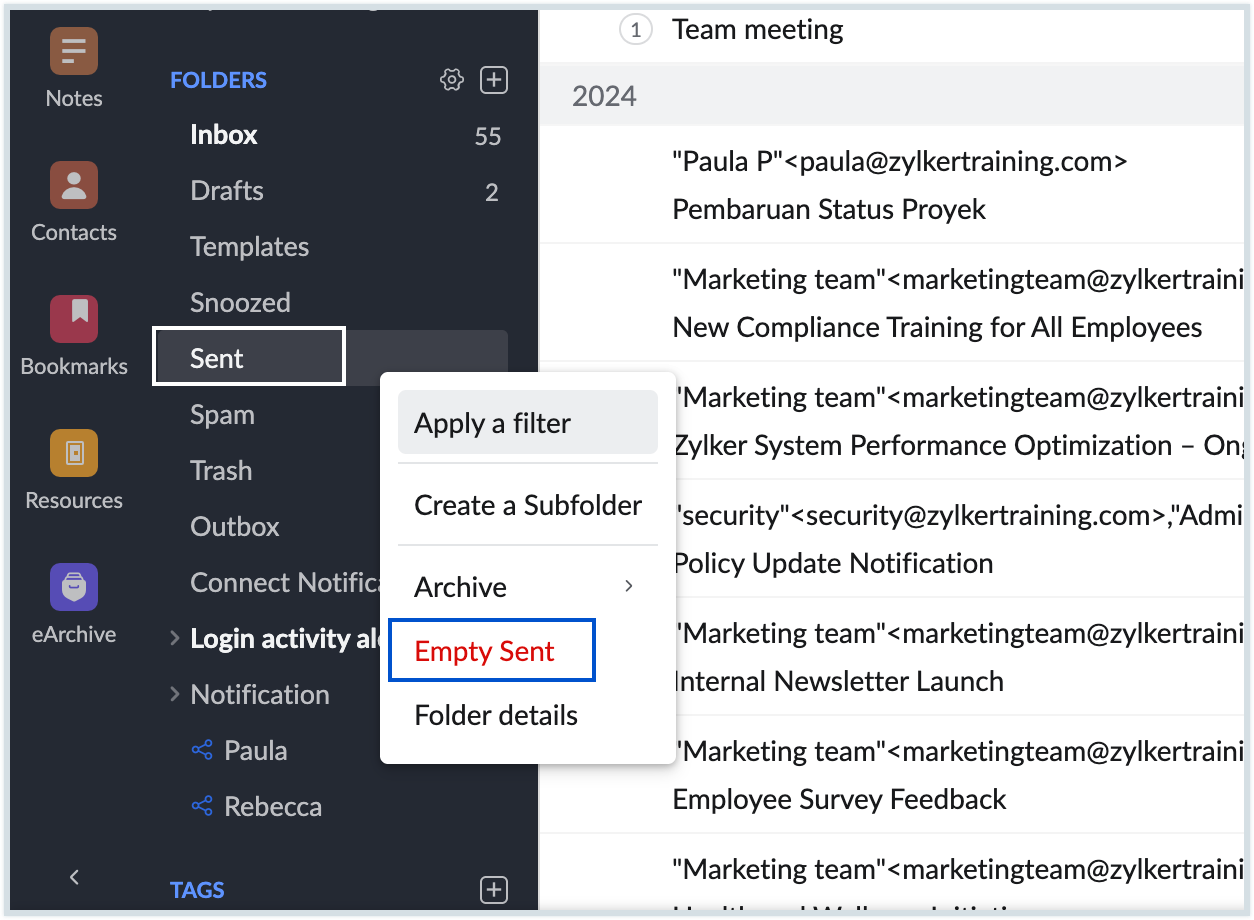
- Right-click on the Sent folder and select Empty Sent.
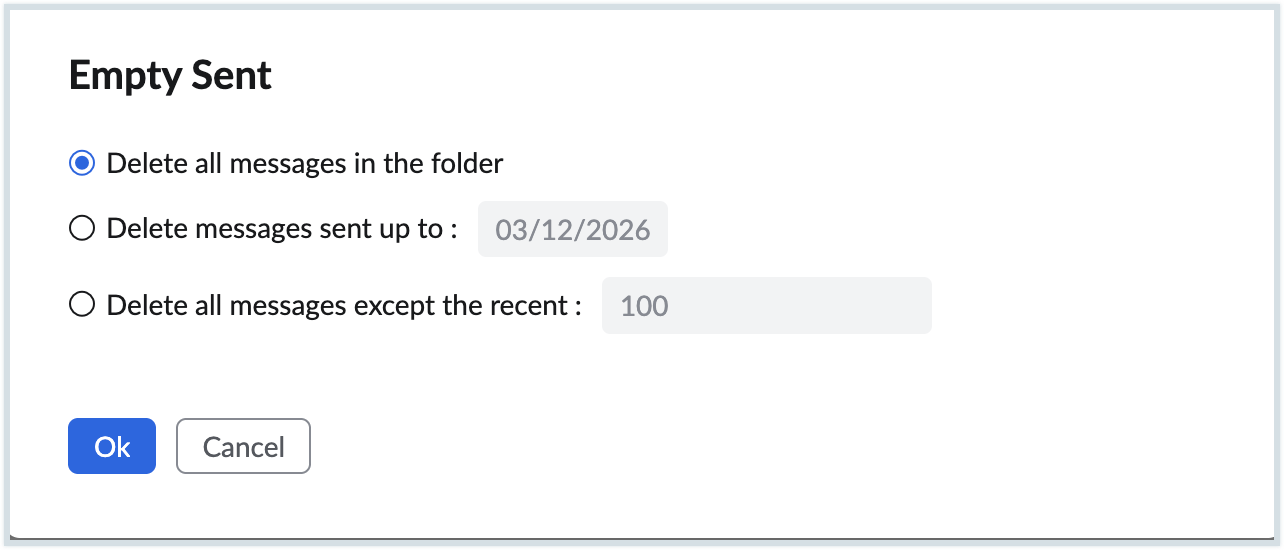
- A pop-up window with the delete options will open. You can choose to,
- Delete all messages in the folder
- Delete messages that were sent up to a particular date
- Delete all messages except a certain number of recently sent emails
- You can also choose to Include archived emails during deletion option if you want to include the emails you archived from the sent folder.
- After selecting the option of your preference, click Ok.