

Create & Send Retainer Invoices
In this page, you will learn about:
Status of a Retainer Invoice
A retainer invoice in Zoho Books will have any one of the following statuses after creation:
| Status | Description |
|---|---|
| Draft | Retainer Invoices when created will be in Draft status before being sent to the customer. |
| Sent | Retainer Invoices once sent to the customers will be changed to the Sent status. |
| Paid | Once you record payment for the retainer invoice, its status will change to Paid. |
| Partially Drawn | When you use a part of the retainer amount towards an invoice, the status of the retainer invoice will change to Partially Drawn. |
| Drawn | When the full retainer amount is used towards an invoice, the status of the retainer invoice will change to Drawn. |
Enabling Retainer Invoices
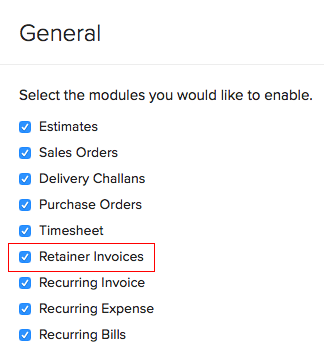
To enable retainer invoices in Zoho Books:
- Click the Gear icon in the top right corner of the page.
- Select Preferences.
- Under Select the modules you would like to enable, check the box Retainer Invoices.
- Upon checking the box, a drop down of accounts will appear to record the retainer invoice. As this will be recorded under a liability, in general, it is preferred to select Unearned Revenue.
- Click Save.
Creating a New Retainer Invoice
To create a new retainer invoice:
- Go to the Sales module on the left sidebar.
- Select Retainer Invoices.
- Click the + New button in the top right corner of the page.
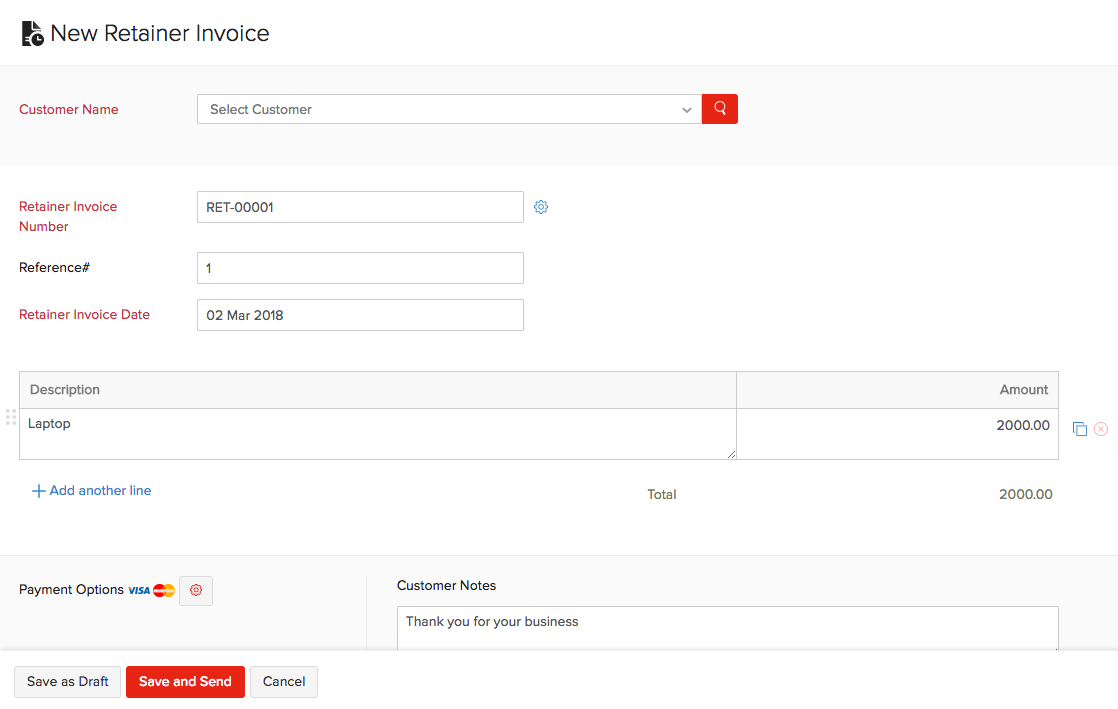
- Fill in the New Retainer Invoice page.
- Click Save as Draft or Save and Send.
| Fields | Description |
|---|---|
| Customer Name | Select the customer for whom you will be creating the retainer invoice. |
| Retainer Invoice Number | This number is auto-generated. You can manually set it by clicking the Gear icon next to it. |
| Reference# | Enter a reference number (optional). |
| Reference Invoice Date | Date on which you create the retainer invoice. |
| Description | Enter the product for which you are creating the retainer invoice. |
| Amount | Enter the retainer invoice amount. |
| Customer Notes | Enter notes relating to the retainer invoice which will be displayed on the invoice when sent to the customer. |
| Payment Options | Select the payment option that should be used for charging the customer or for the customer to make payment for the retainer invoice. |
| Terms & Conditions | Customize the terms & conditions section that will be displayed on the retainer invoice. |
| Template | You can change the Template of the invoice, by clicking the Pencil icon. |
See Also:
Collecting Retainer Payments from Estimate
Back to Retainer Invoice Overview
 Yes
No
Yes
No
 Thank you for your feedback!