

Retainer Invoice in Projects
Sometimes, you would need to collect advance payments from customers for a project that you are working on for them. You can create retainer invoices for these projects as well. Let’s see
- You can raise a retainer invoice to your customer from the projects module.
- you can create an invoice after completion of the project and apply the retainer collected to the invoice.
In this page, you will learn about:
Creating Retainer Invoices for Projects
Before creating a retainer, create a new project or select the project you are already working on.
- Go to the Timesheet module on the left sidebar.
- Select the project for which you want to create the retainer invoice.
- Click the + New Transaction button in the top right corner of the page.
- Select Create Retainer Invoice.

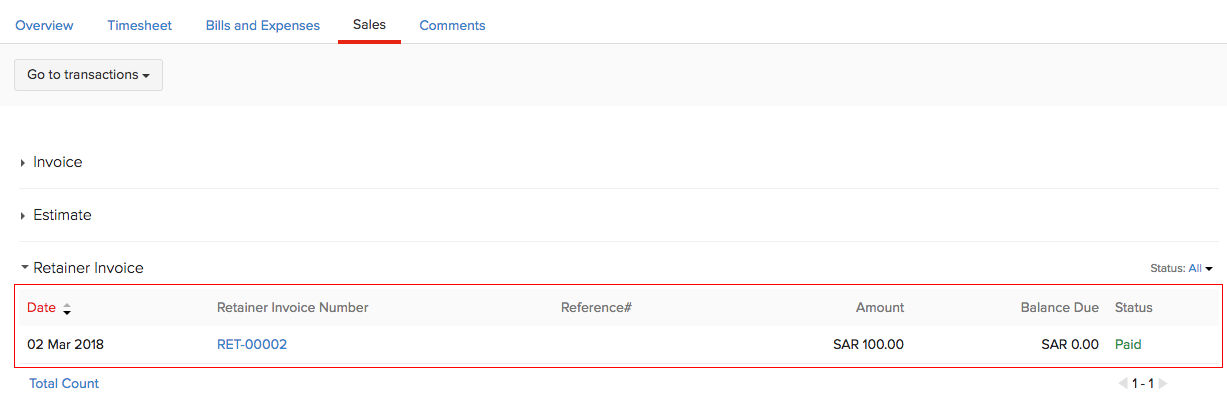
After you finish creating the retainer invoice, you can find the retainer invoice created in the Retainer Invoices module under Sales.
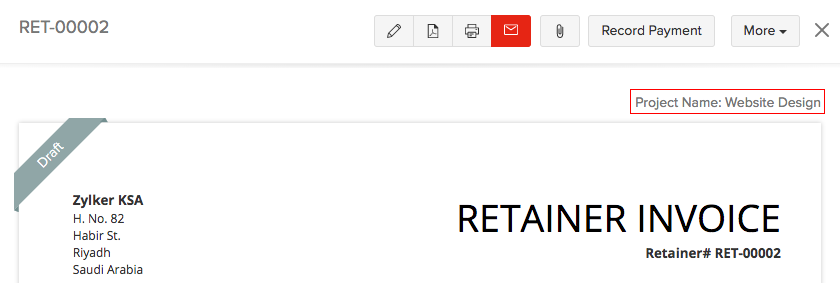
A notification about the retainer invoice will also be displayed under the Retainer Invoices notification tab in your project window.
Applying Advance Payments to Invoice
After completion of the project, an invoice should be sent to your customer for collecting the payment. Here you can create an invoice from the project module and apply the retainer collected to the invoice:
- Go to the Timesheet module on the left sidebar.
- Select the project for which you want to create the invoice.
- Click the + New Transaction button in the top right corner of the page.
- Select Create Invoice.

- Check the box Would you like to apply the retainers collected to the invoice so that the retainer collected for the project will be applied to the invoice being created.
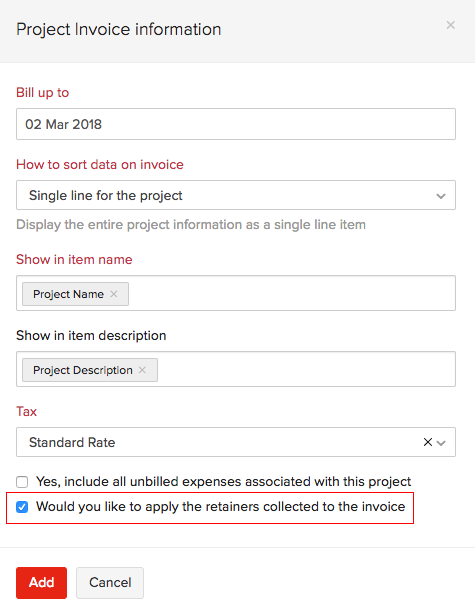
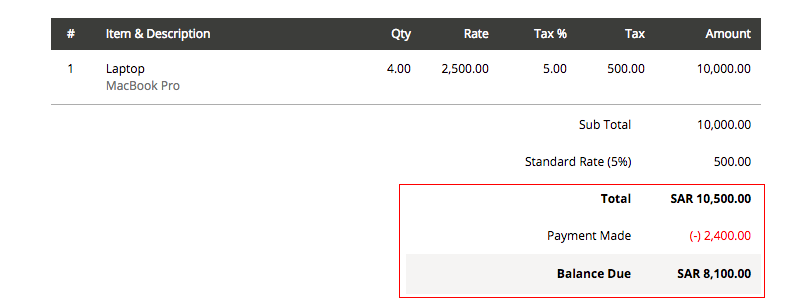
- As soon as you finish creating the invoice, Zoho Books will automatically create an invoice with the retainer adjustment in the Invoices module.
See Also:
Refunds
Back to Retainer Invoice Overview
 Yes
No
Yes
No
 Thank you for your feedback!