


Approving Trips
Approve Trip
Every approver receives a notification when a trip is submitted to them. Approvers can scrutinize the submitted trips and approve them.
To approve a trip:
- Go to Approvals on the left sidebar. All the trips, reports, advances, and purchase requests that are waiting for your approval will be listed in the Pending Approval tab.
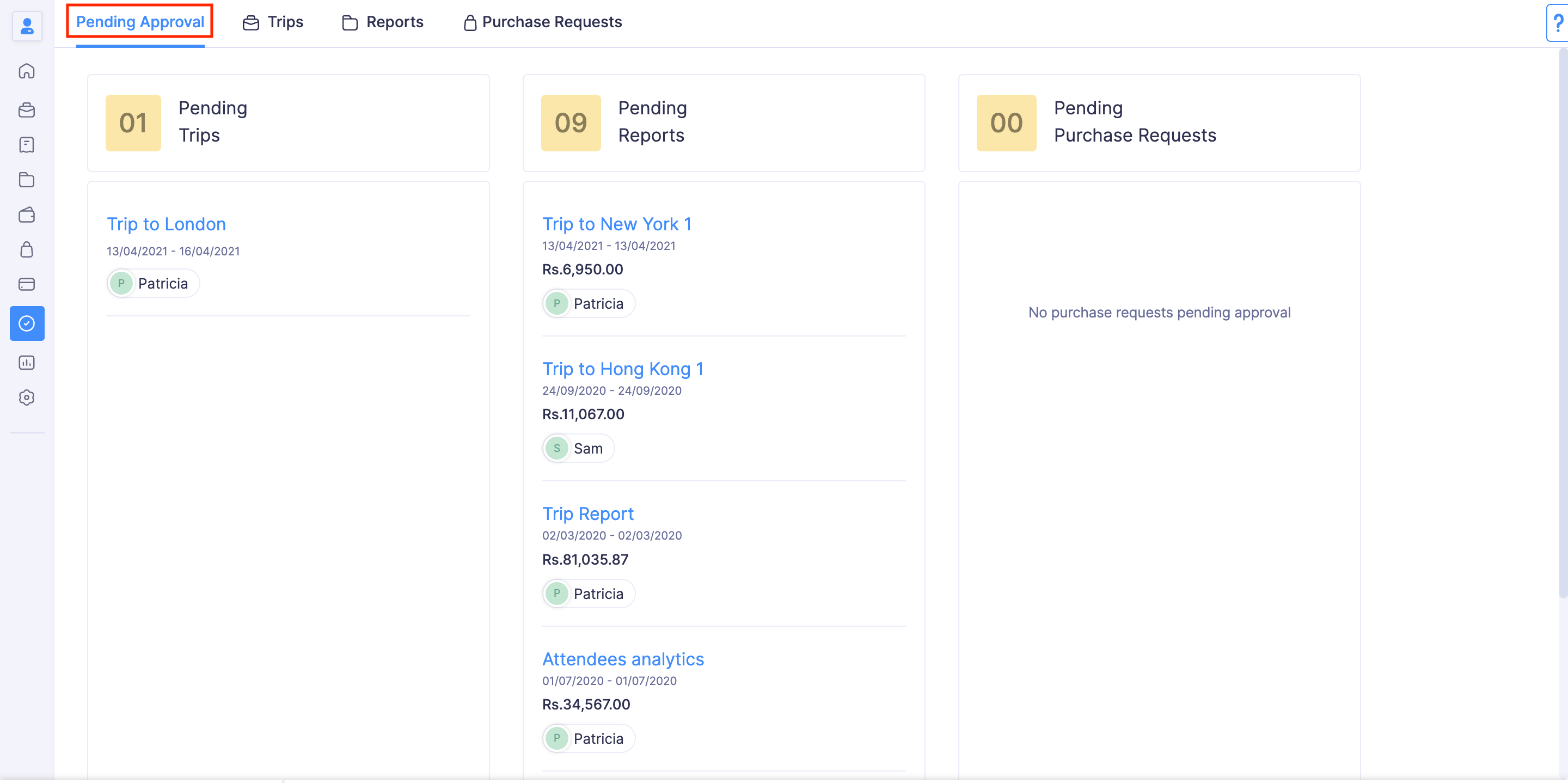
- If you want to view only the list of trips that are submitted to you for approval, navigate to the Trips tab.
- Click the trip you would like to consider for approval.
- Verify the details of the trip, and add comments, if necessary. The submitter will be notified about your comments and it will be shown in the trip under the Comments & History section.
- If you’ve reviewed the trip, click Approve at the top right side of the page. The transaction will be approved and a notification will be sent to the submitter.
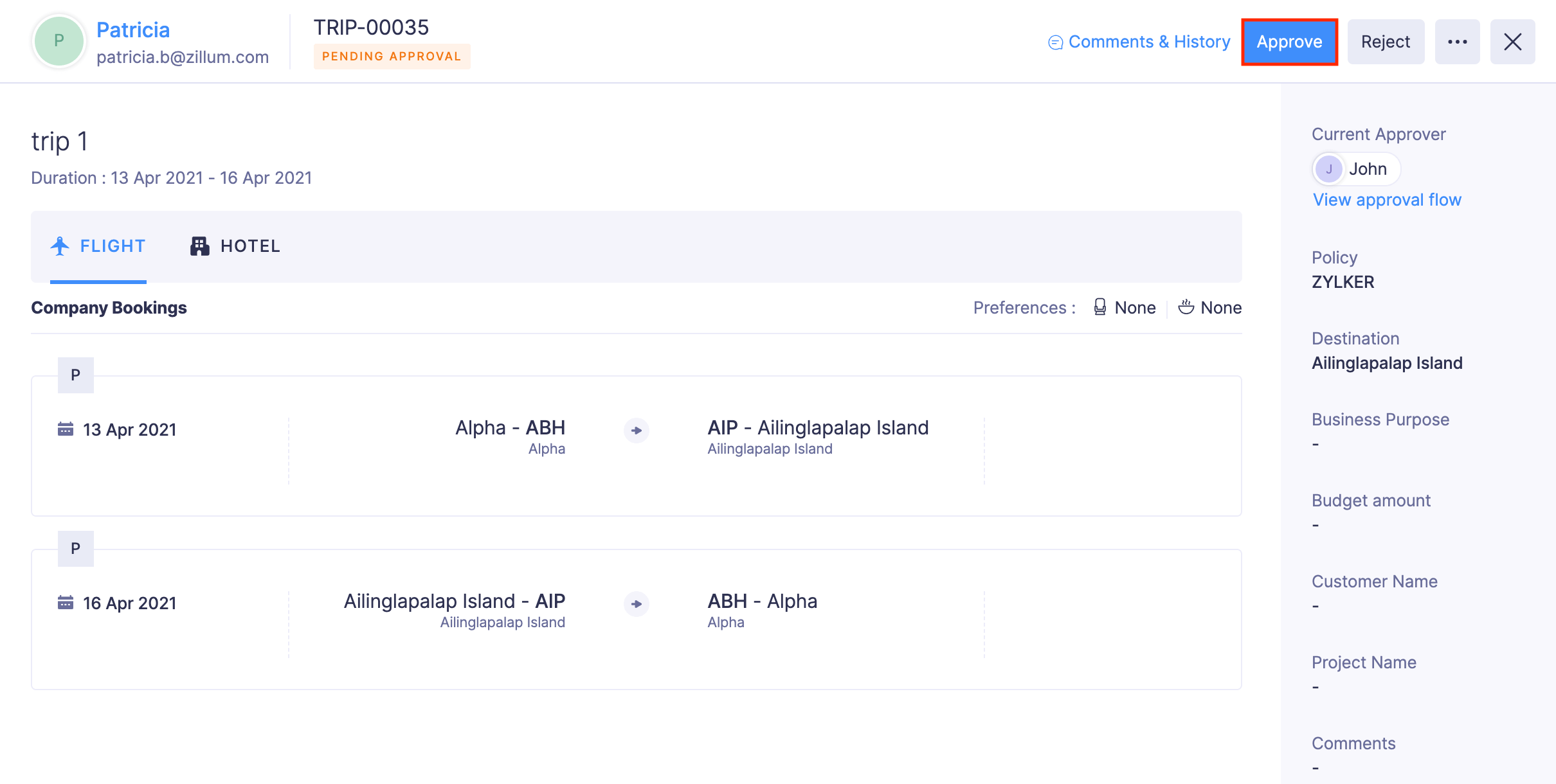
If a transaction has policy violations, you can choose to approve the trip or add comments, reject the trip and ask the submitter to re-submit it after resolving the violations.
Note: Approvers can also approve a trip that was already rejected. To approve a rejected trip: Open the trip in Rejected status > Click Approve at the top right corner > Confirm your action by clicking Approve in the pop-up.
Reject Trip
The approver can choose to reject a trip if the budget amount or the trip itinerary does not comply with the organization’s policy. Once the approver rejects a trip, the submitter of the trip will receive a notification. The submitter can then resolve the violation or the comment on their trip and re-submit the trip for approval.
To reject a trip:
- Go to Approvals on the left sidebar.
- All the trips, reports, advances, and purchase requests that are waiting for your approval will be listed in the Pending Approval tab.
- If you want to view only the list of trips that are submitted to you for approval, navigate to the Trips tab.
- Click the trip you would like to consider for approval.
- Verify the details of the trip, and add comments, if necessary in the Comments & History section. The submitter will be notified about your comments and it will be shown to them.
- If you’ve reviewed the trip, click Reject at the top right side of the page.
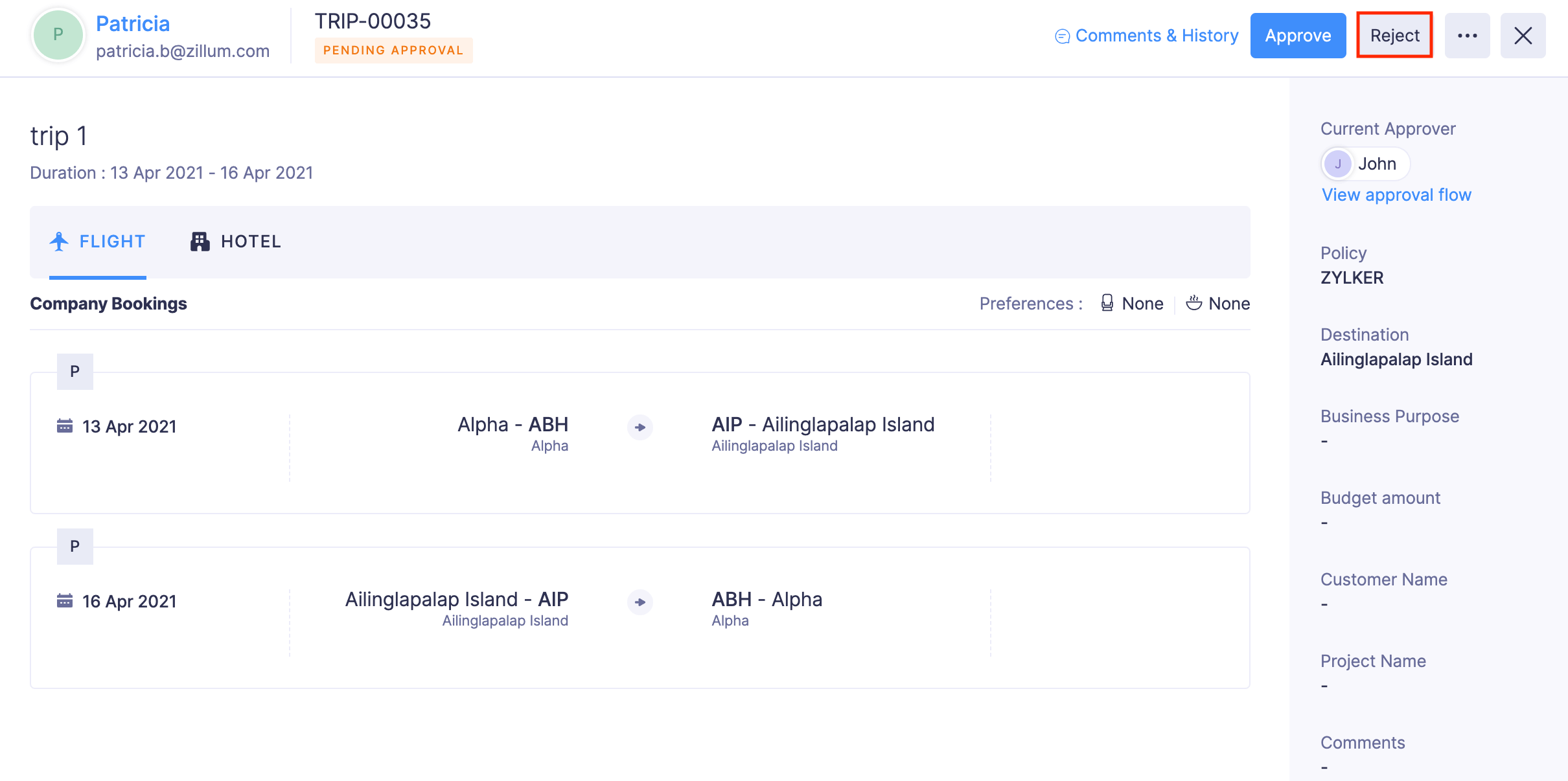
- Provide a reason for rejecting the trip and click Confirm. The trip will be rejected.
Note: Approvers can revoke the approval of a trip by rejecting it. To reject an approved trip: Open the trip in Approved status > Click Reject at the top right corner > Specify a reason for rejecting the trip and click Confirm in the pop-up.
Update the Submitted Trips
You can make changes to the trips that are submitted to you for approval by updating them.
Prerequisites: You cannot update Closed and Canceled trips.
To update the submitted trips:
- Go to Approvals in the left sidebar.
- Navigate to Trips tab and select the trip you want to update.
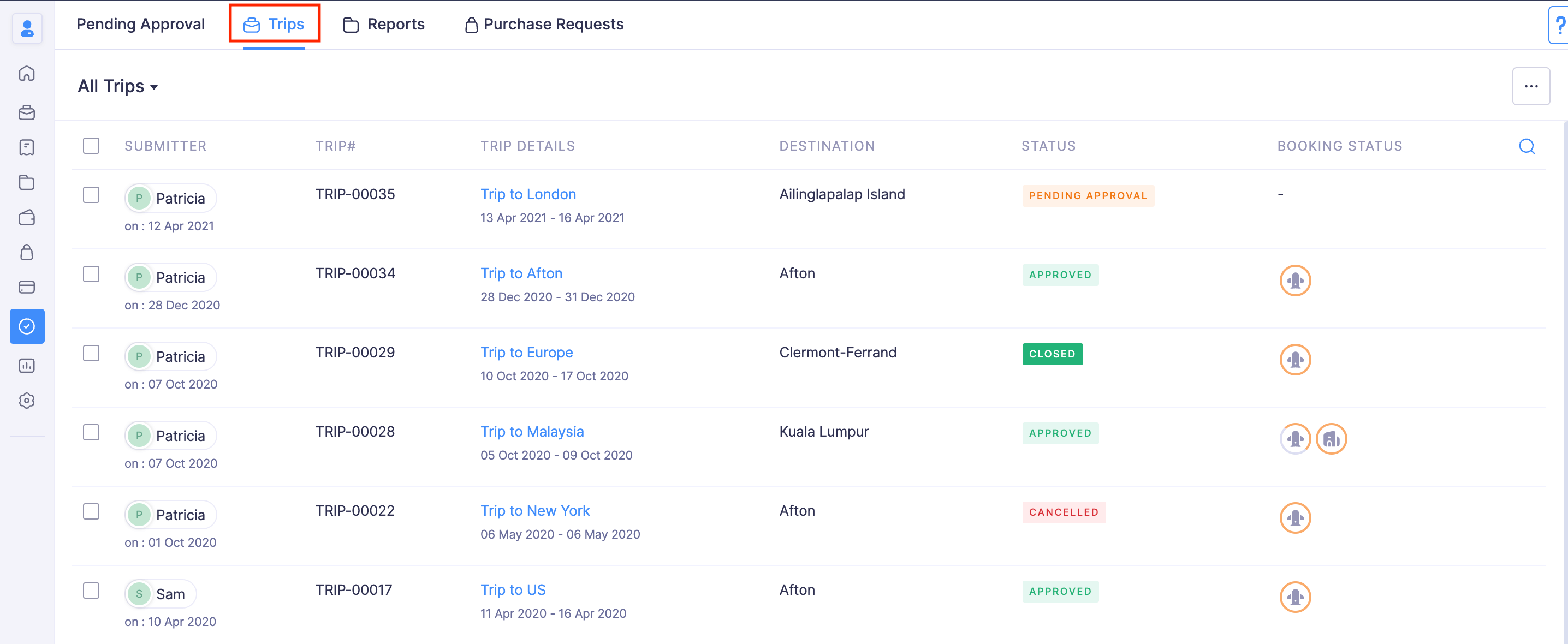
- Click the More icon at the top right corner of the page.
- Click Update.
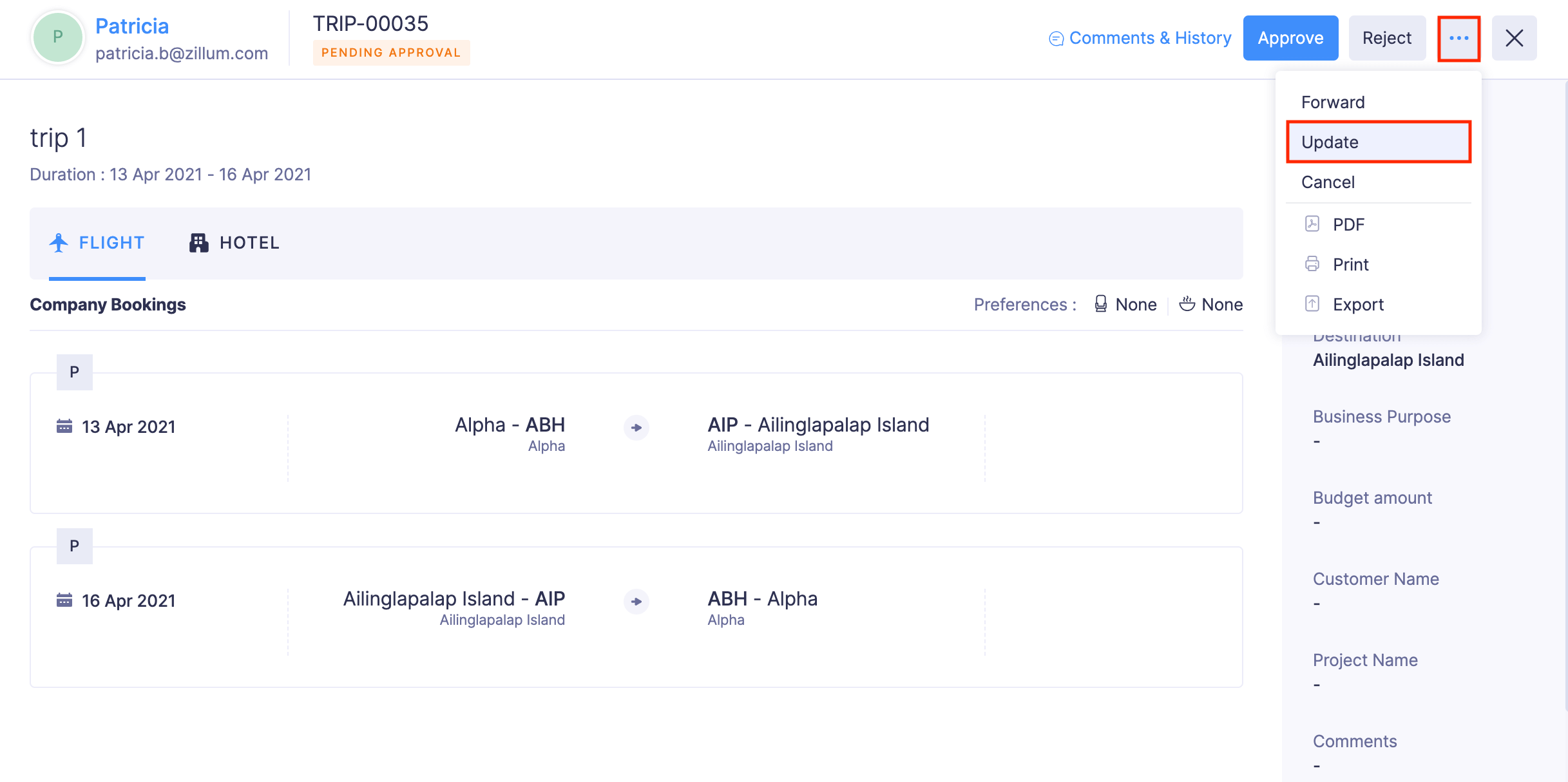
- Make the necessary changes and click Update. Your trip itinerary will be updated with the changes you’ve made.