It's been an exciting time for Zoho Flow, as we continue enhancing the platform for teams building integrations and automations. In this update, we're introducing four important features designed to make your workflows clearer, more organized, and easier to maintain:
- Notes
- If-Else
- Tags
- Custom Notifications
Notes
Have you ever opened a workflow that you built awhile back and wondered why a particular step or configuration was added? As workflows grow more complex, it can be difficult to remember the purpose behind every step, especially when you revisit them later or when multiple people work on the same flow. With Notes, you can now add short explanations directly into the builder to document the reason and logic behind each step.
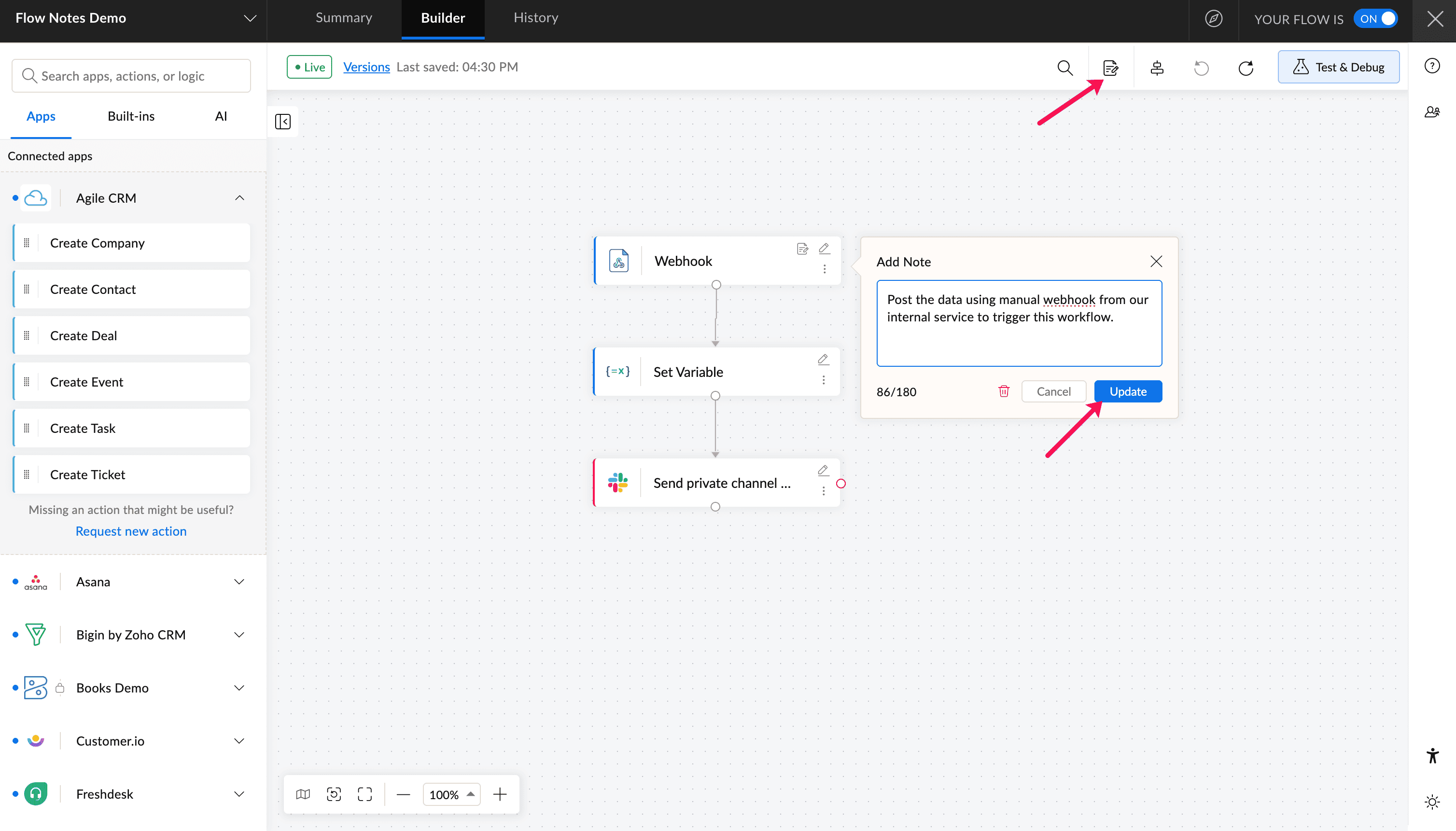
Notes are automatically numbered based on the step they're attached to. You can edit or delete them at any time, and each note supports up to 180 characters, making it easier for adding brief explanations.
If-Else block
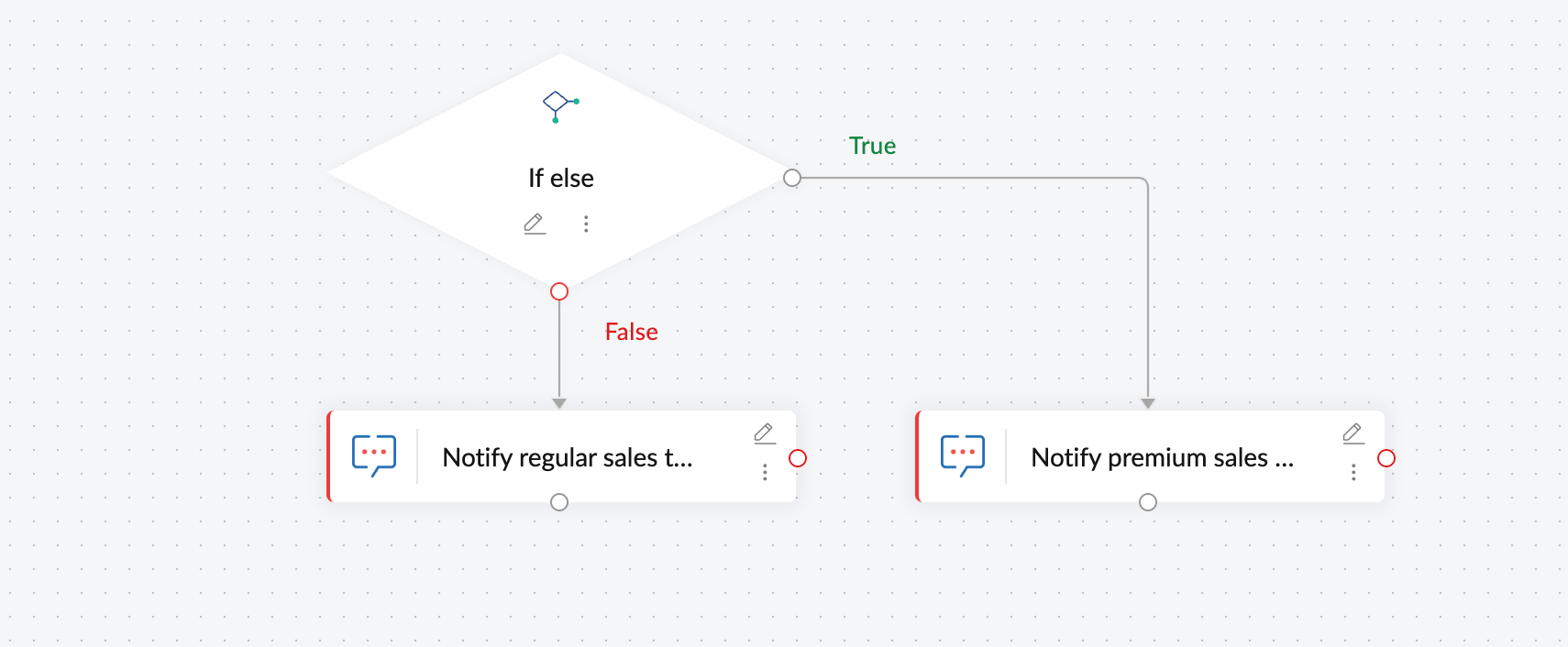
The If-Else block works similar to the Decision block in Zoho Flow, but with a simpler structure. Instead of supporting multiple branches, it evaluates a set of conditions and routes the workflow into one of two possible paths:
- True path if conditions are met
- False path if conditions are not met
For example, in a sales workflow, you might want to route high-value deals differently from the other deals. You could configure an If-Else block to check whether the deal value is greater than $10,000. If the condition is true, the workflow could notify the premium sales team. If the condition is false, it could notify the regular sales team.
You can also create more detailed logic by adding multiple conditions and condition groups. For instance, you may want the workflow to continue only when the deal value is greater than $10,000 and the company size is above 100 people.
Conditions can be combined using AND or OR operations to create the logic you need. Once the conditions are configured, you can add the corresponding actions to the true and false paths to decide how the flow should proceed. This helps simplify decision-making in workflows while keeping automation logic clear and easy to manage.
Tags
As your organization grows and builds more workflows, keeping them organized can be challenging. With Tags, you can categorize and quickly locate flows and folders to make them easier to find and manage.
Tags help you group workflows by project, team, environment, or priority. For example, you can tag your flows with labels like marketing, finance, or support, making it easy to identify and manage them at a glance.
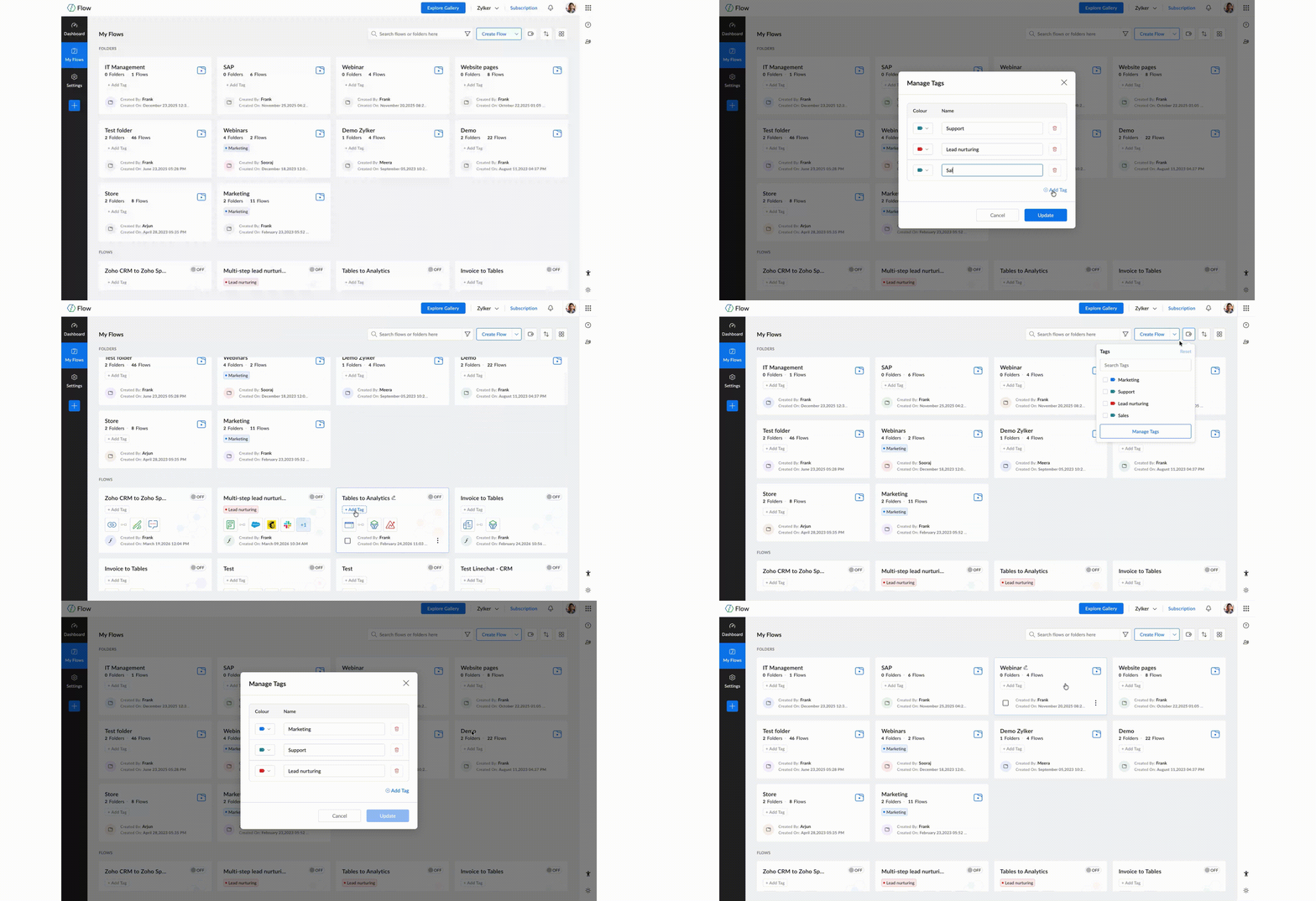
You can assign one or more tags to a flow or folder from the My Flows page. If the tag you need doesn’t exist, admins or organization owners can create a new one with a custom name and color.
Tags also simplify searching. Using the Tag filter, you can quickly view flows and folders associated with specific tags, helping you navigate large workspaces more efficiently. Admins can manage tags from the Manage Tags window, where they can edit, update, or delete tags if needed.
Custom Notifications
When your organization manages a large number of workflows, it can be challenging to track the ones that matter most. Custom Notifications help you stay on top of critical workflows by alerting you to important events and failures in real time.
For instance, by default, email notifications are sent when a flow fails 3 and 10 consecutive times, and the flow is automatically switched off after 20 consecutive failures. These emails are sent to the flow owner, with the organization owner and admins cc'd.
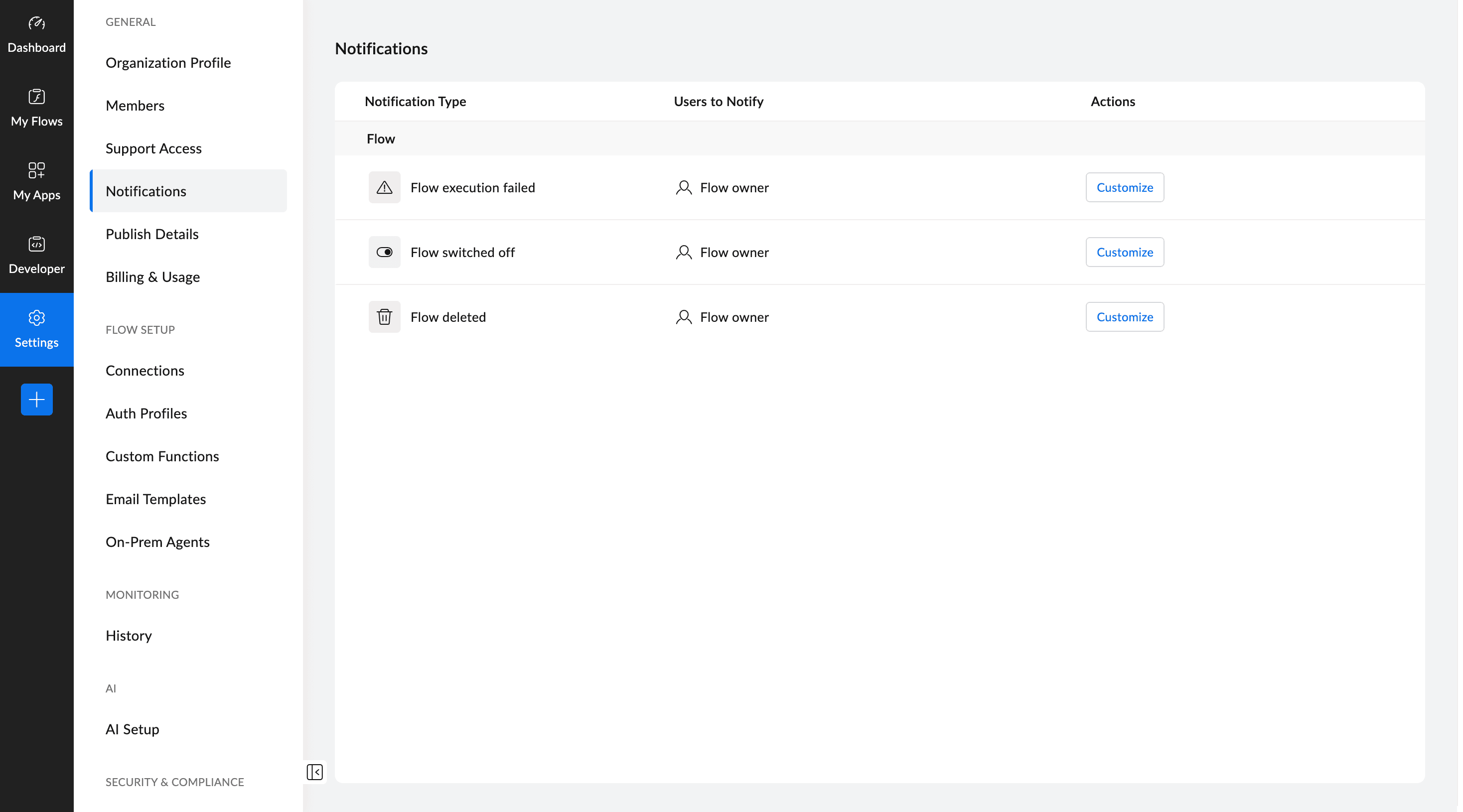
With Custom Notifications, you can go a step further and decide who should be notified, when alerts should be sent (for events like flow failure, flow switched off, or flow deletion), and whether notifications should be enabled or disabled for each case. This gives teams the flexibility to decide the right people to be notified, reducing noise for unimportant workflows.
And that's a wrap on these new enhancements! We hope these improvements will make it easier to manage and monitor your workflows in Zoho Flow. We’re building Zoho Flow with you in mind, and your feedback continues to shape what comes next. Keep exploring these new additions and let us know how they’re working for your team. If you need any assistance, feel free to reach out to us at support@zohoflow.com. We’ll be happy to help!

Comments