Connect Zoho Meeting with Zoho Notebook and never take meeting notes manually again

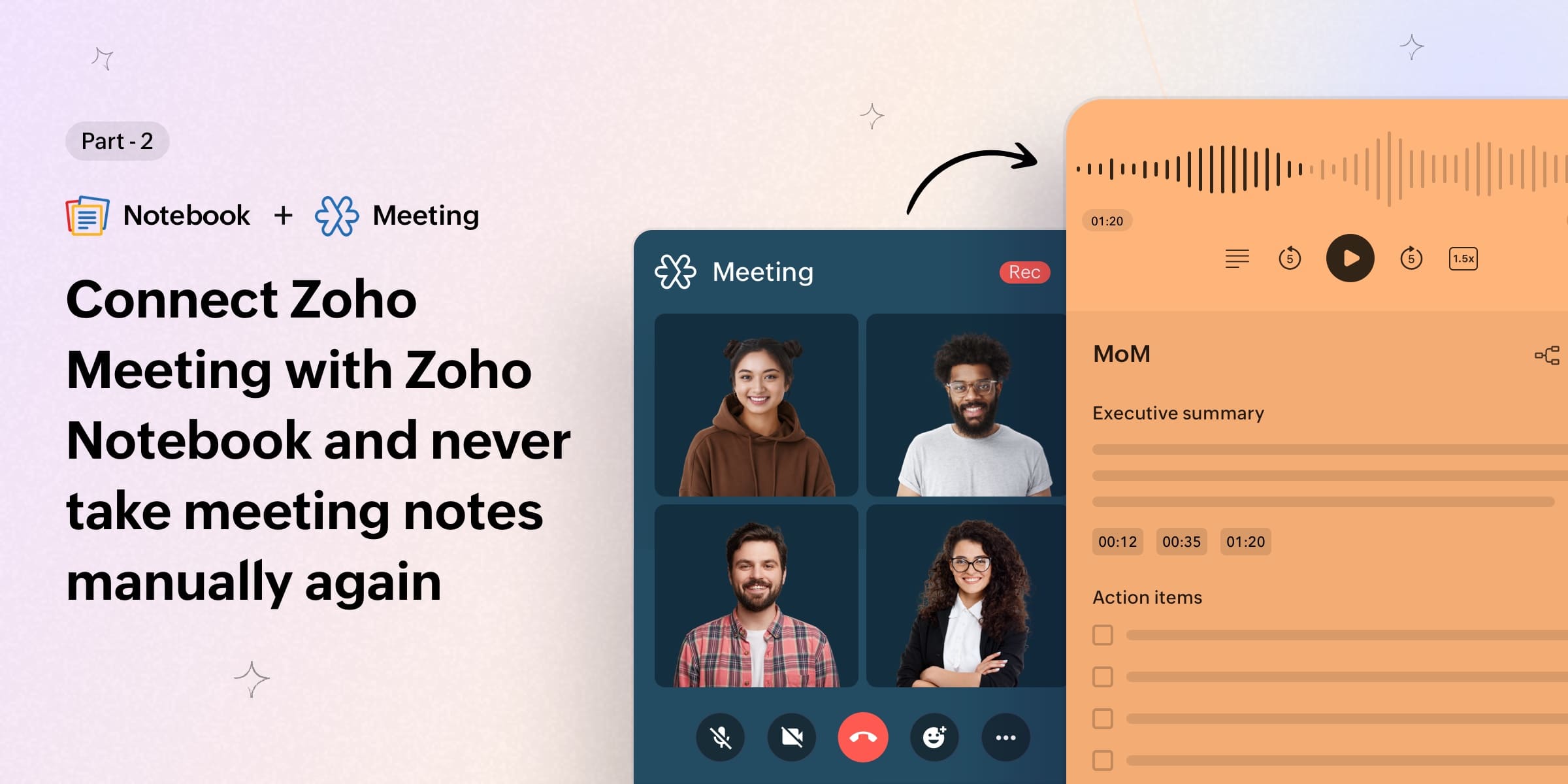
Zoho Meeting isn't just for one kind of conversation; it's for a team sync on Monday, a product demo on Tuesday, a webinar on Thursday, and an onboarding session somewhere in between. Each one has its own context, its own audience, and its own set of things that actually matter.
The hard part isn't showing up to all of them; it's holding on to what came out of them.
Zoho Notebook now connects directly with Zoho Meeting. Every session you record automatically lands in your Notebook as a structured, searchable transcript—ready before you even open your follow-up email.
What happens after a Zoho Meeting ends
Once you turn on Auto Transcribe in Notebook and connect Zoho Meeting under Settings → Notebook AI → Integrations, the whole thing runs on its own.
You run the meeting. You record it. You end the session.
Within the next hour, there's an Audio Card sitting in your Notebook with the full recording and a complete transcript, already structured and ready to read. You'll also get an email with a direct link so you can pull it up, share it with a teammate, or send a recap to someone who missed it.
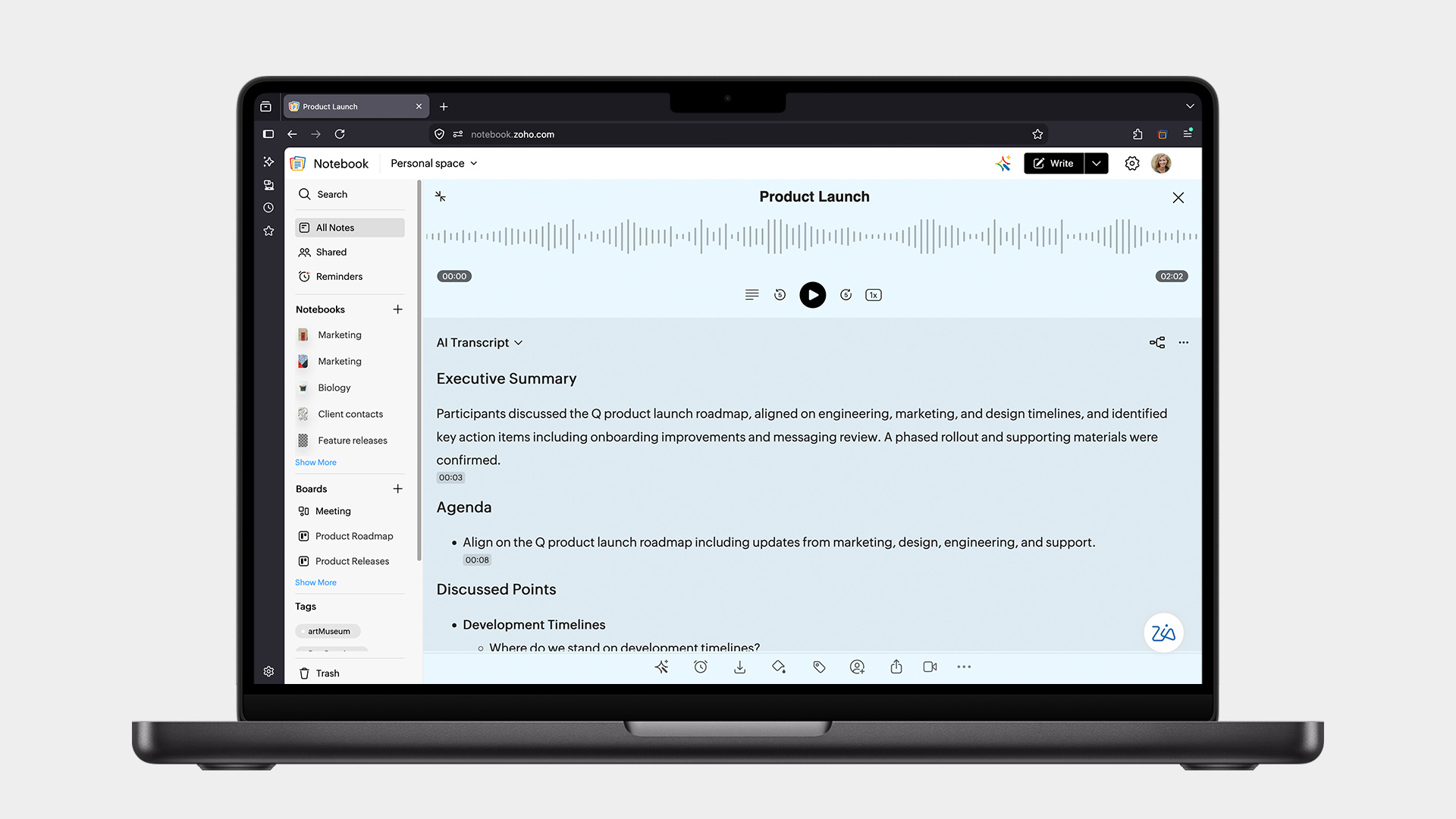
Need it sooner? The Sync Now option in Notebook's AI settings brings it in within minutes, which is useful when you're turning around a follow-up the same day. Know more.
Who feels this the most?
Zoho Meeting is where a lot of high-stakes conversations happen—the ones where getting the details right actually matters.
For sales teams running demos, every prospect brings their own context, concerns, and timeline. When you're running multiple demos per week, the details start to blur across accounts. Having the exact transcript means your follow-up reflects what they actually said. That is a different kind of follow-up—and prospects notice.
For customer success teams, quarterly reviews are full of signals, things the customer flags, priorities that have shifted, and frustrations they mention in passing. The transcript catches all of it—not just the agenda items.
Teams running remote standups and recurring syncs know all too well that when the same group meets every week, it's easy to assume everyone remembers what was decided last time—but they often don't. Having a searchable record of every sync means you spend the meeting moving forward instead of catching up.
Trainers and educators can run sessions on Zoho Meeting for lectures, walkthroughs, and onboarding sessions—situations when the content matters enough to maintain a record of it. Participants can go back to exactly what was covered without re-watching the whole thing.
But it's also for anyone running webinars. The questions your audience asks during a webinar are some of the most honest signals you'll ever get. They tell you what people are confused about, what they care about, and what they want next. Having those captured automatically is more useful than most post-event surveys.
It's more than just a transcript
What shows up in Notebook is not a raw wall of text. Each Meeting recording becomes a structured notecard shaped by whichever template you've set as your default.
Notebook has built-in templates for the most common meeting types, client calls, standups, interviews, and more. Every one of them can be customized, or you can build your own from scratch. Set it as your default once, and every transcript that comes in is already organized the way you want it—automatically.
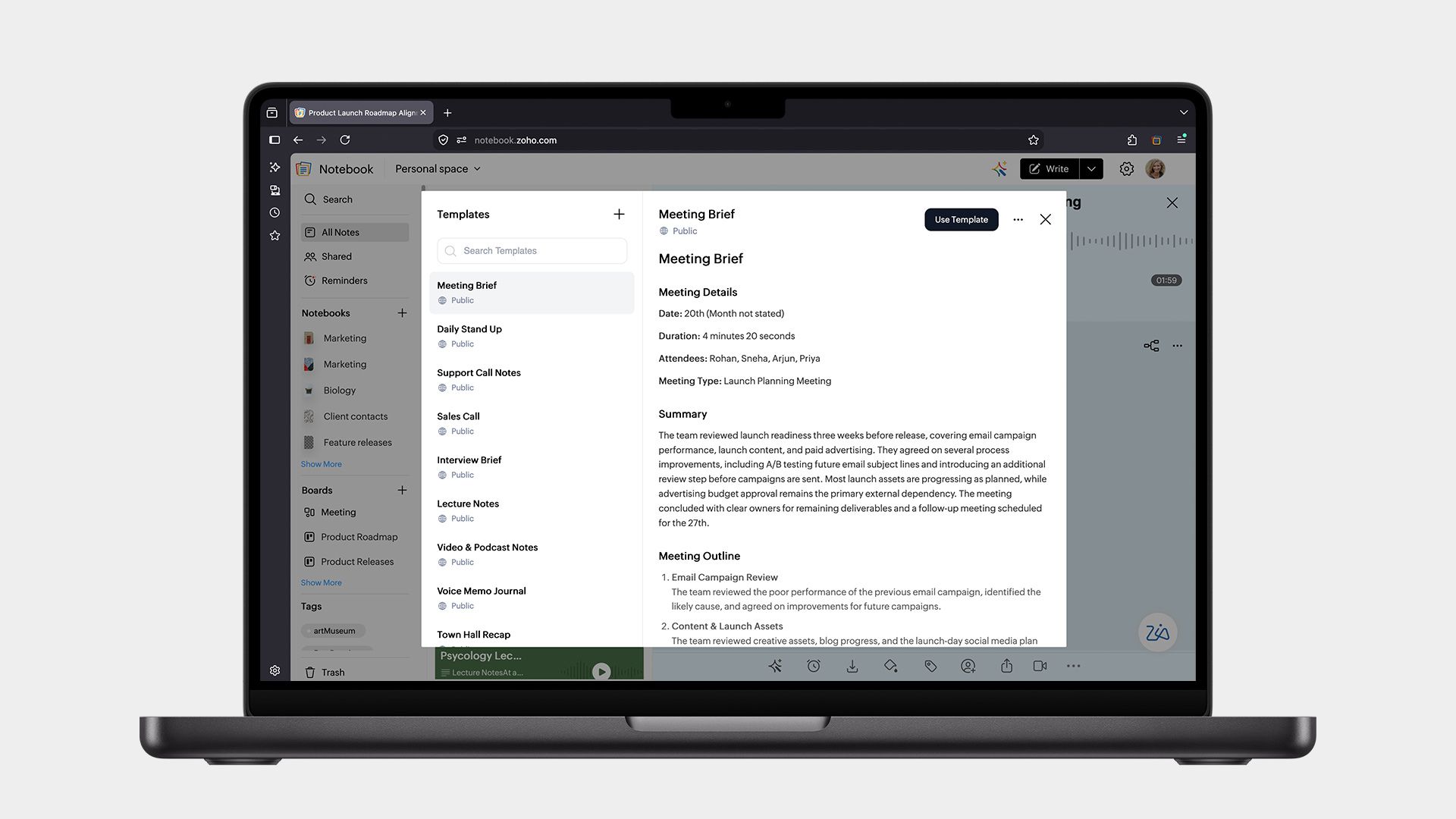
And because it lives in Notebook alongside everything else, it's fully searchable. No digging through a recordings folder; no scrolling back through chat history. You type something someone said, and it comes up.
A few things worth knowing
You need to be the host who starts the recording. The integration pulls recordings you've initiated, so make sure you're the one hitting record on the meetings that matter. Recordings started by someone else will not come through automatically, but you can upload them manually.
Your Zoho Meeting and Notebook accounts need to be under the same Zoho account for the integration to work.
Supported languages right now include English, Spanish, French, German, Italian, Dutch, Russian, and Hindi, with more coming.
The feature is live for Notebook for Business, Pro Plus, and Zoho One users on the web app, with broader platform support on the way. Check out the plans.
Getting started takes under a minute
Open the Zoho Notebook web app. Go to Settings → Notebook AI. Turn on Auto Transcribe. Enable Zoho Meeting under Integrations.
The next meeting you record will find its way into your Notebook on its own, transcribed, structured, and searchable, without you doing anything else after the session ends.
Ready to try it? Set up Zoho Meeting transcription in Notebook.
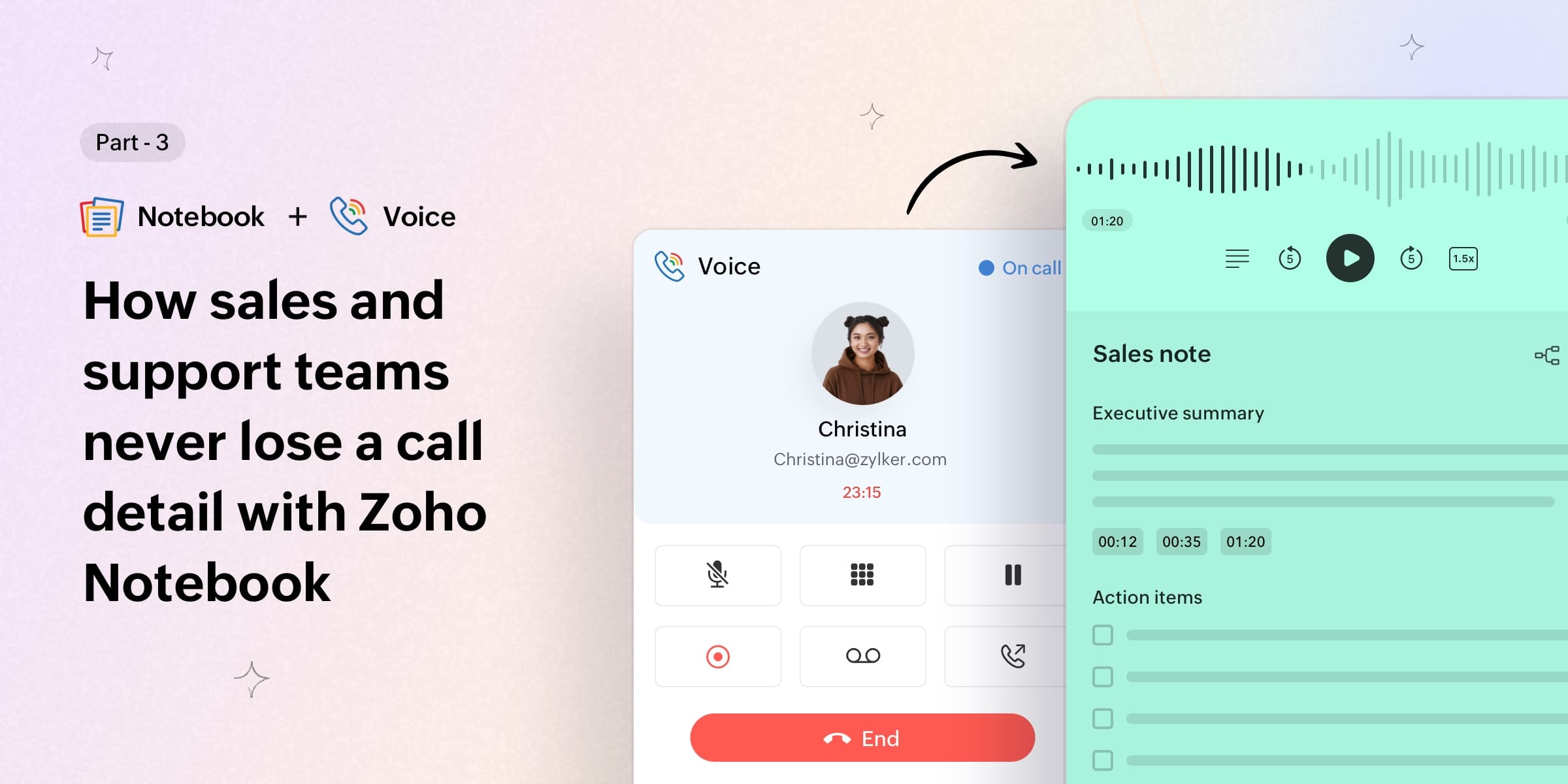
Up next, we'll walk through how the same integration works with Zoho Voice, and what it looks like when your support and sales calls and voice recordings start landing in Notebook automatically. Haven't read the intro yet? Start here. Want to see how it works for Cliq calls? Read here.
Have questions or feedback? We're always happy to hear from you at support@zohonotebook.com.
Happy note-taking!

Comments