Introduction: Zoho Notebook now imports and transcribes your call recordings automatically from Zoho apps

Does your team run on Zoho’s call and meeting apps? That’s where decisions get made, plans come together, and work actually moves forward. But what’s actually captured after everyone hangs up? Somewhere between the call ending and everyone getting back to work, the things that were actually said start to blur. Who said they would handle that? What was the deadline again? Was that decision final or still up for discussion?
The recording has the answers. It always does. But going back to it feels like more work than just asking someone again, so most of the time nobody does.
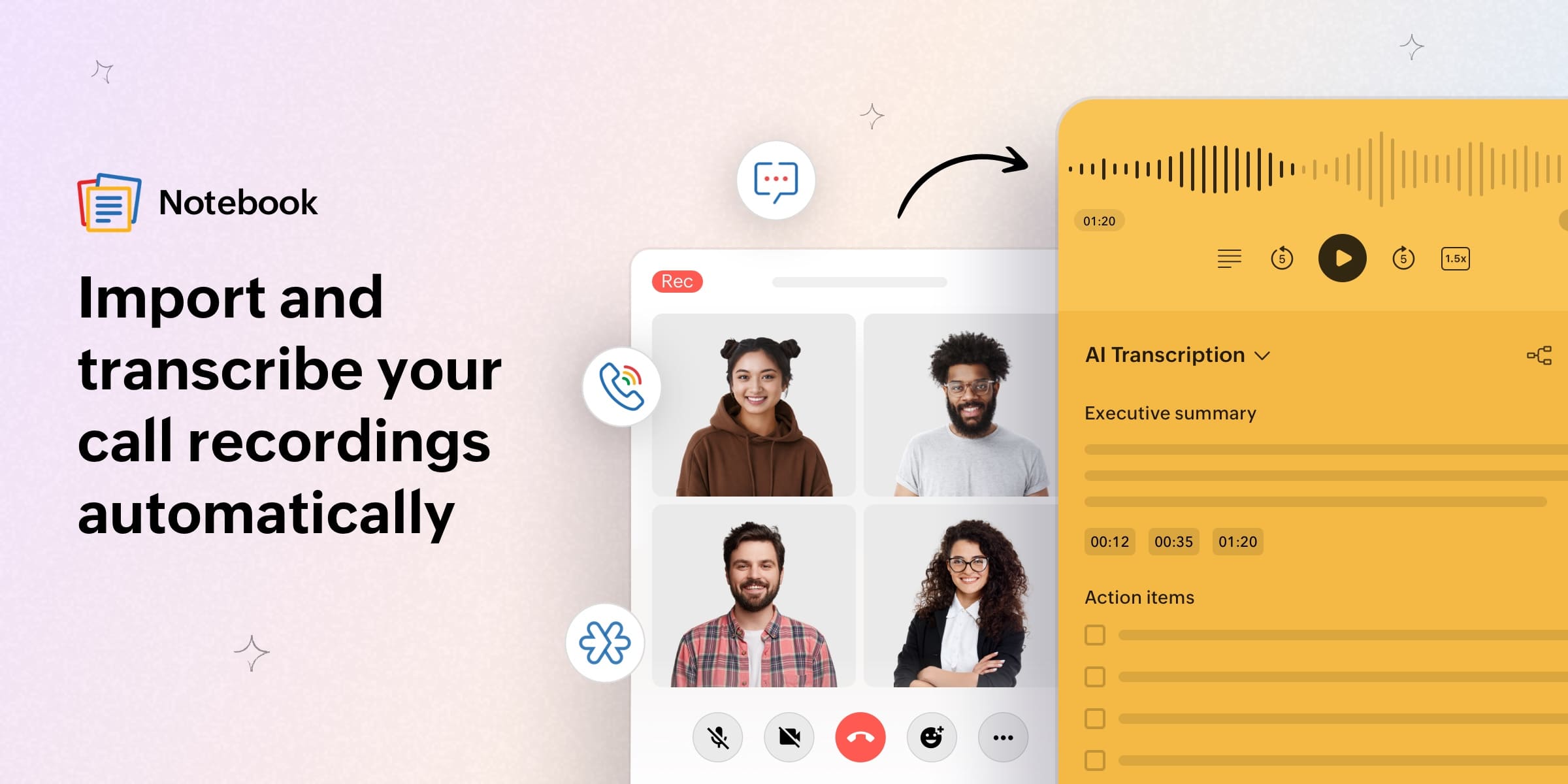
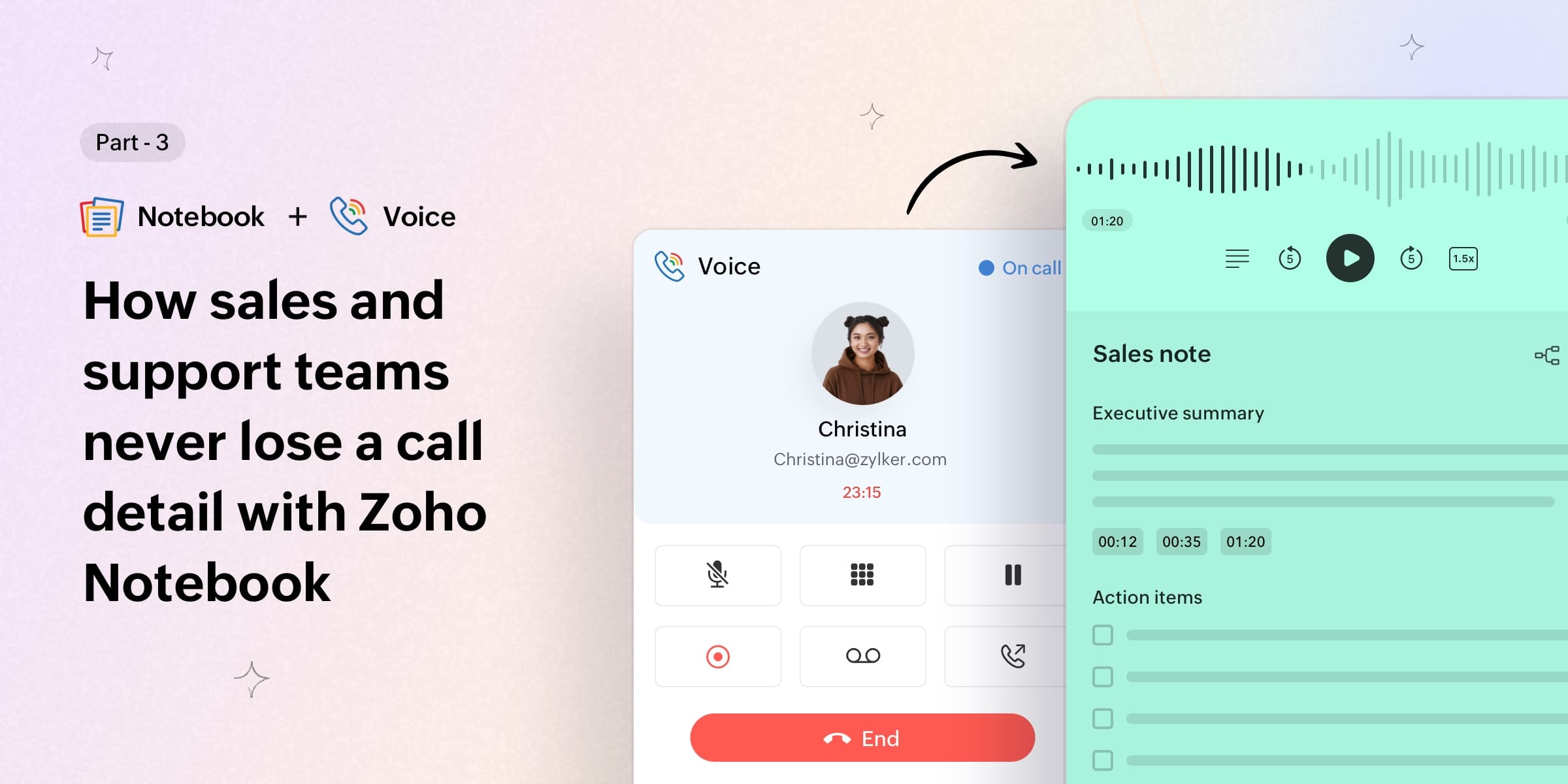
What if Notebook just took care of it all for you? Zoho Notebook can now automatically import recordings from Zoho Cliq, Zoho Meeting, and Zoho Voice, transcribe them, and store everything as an organized, searchable notecard in your Notebook, with zero effort on your end after the call ends.
Here’s everything you need to know, and what’s coming next.
Wait, it does all of that on its own?
Pretty much, yes. Once you enable the integration, Notebook handles everything after the call ends. It checks for new recordings roughly once every hour, creates an Audio Card in your Notebook, generates a full transcript, and sends you an email with a direct link to open and share it.
You stay in the conversation. Notebook handles the documentation.
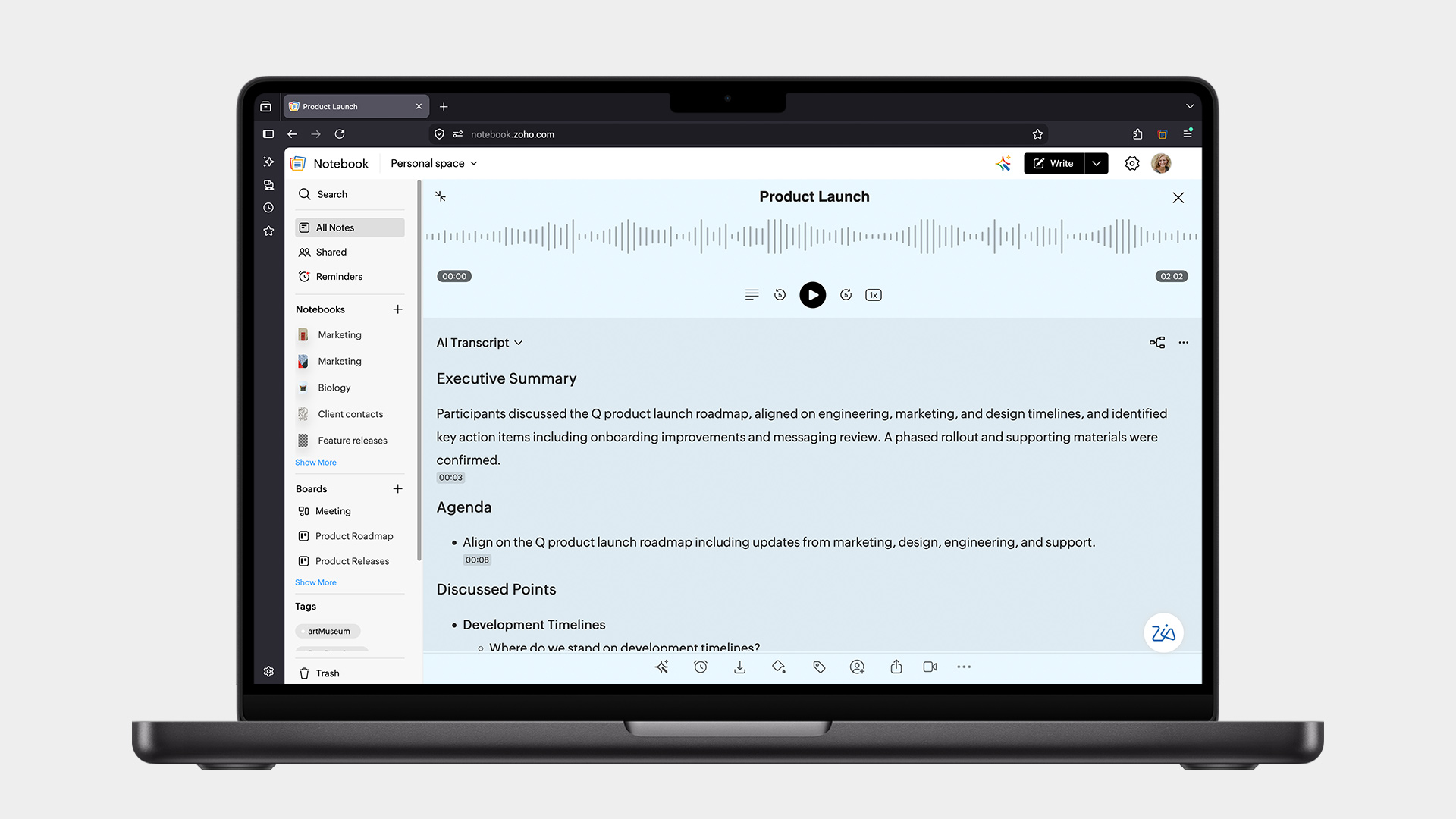
And if you need the recording sooner than the hourly sync, there’s a Sync Now option inside Settings → Notebook AI that gets it into your Notebook within minutes. Read more.
Who actually benefits from this?
The honest answer is anyone whose work lives inside conversations. But here’s how it plays out across different teams.
For people in project management, every sprint call, planning session, and market trends meeting is automatically archived. The “wait, what did we decide?” question has an answer now.
For marketing teams, those campaign brainstorms and creative direction calls are finally documented without someone having to multitask between listening and typing.
For developers and engineers, architectural decisions, technical debates, and bug discussion calls are saved and searchable. Trying to reconstruct a conversation from memory three days later? Never again.
For sales and customer success, you can go back to exactly what a client said, follow up accurately, and keep a reliable record of every conversation that matters.
For HR and people teams, onboarding calls, feedback sessions, and team syncs are stored and easy to reference without anything feeling overly formal.
If something important is said on a call, this makes sure it doesn’t disappear after everyone hangs up.
Customize templates or add your own
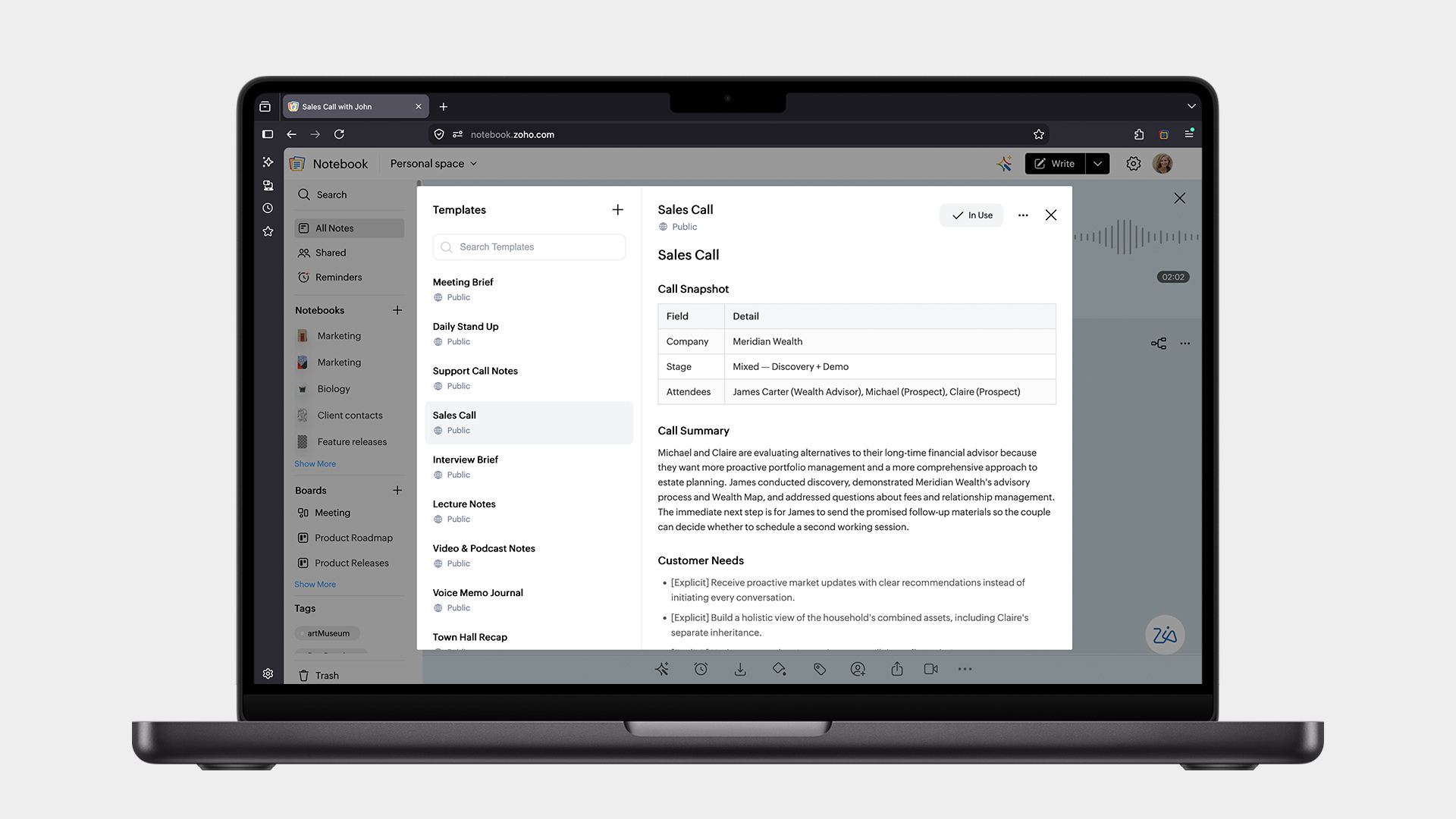
Not every meeting is the same, and your transcripts shouldn’t be either. Notebook includes built-in templates for stand-ups, sales calls, interviews, podcasts, and more. Customize any template to fit your workflow, or build one from scratch. Either way, once you set it as your default, every incoming transcript is automatically structured exactly the way you want it.
A few things worth knowing
Only the recordings you started in the calling/meeting platform are eligible for import, so make sure you’re the one hitting record on calls that matter.
Your Cliq, Meeting, Voice, and Notebook accounts need to be on the same Zoho account to make use of this integration.
Transcription currently supports English, Spanish, French, German, Italian, Dutch, Russian, and Hindi.
The feature is available for Notebook for Business, Pro Plus, and Zoho One users and currently lives on the web app, with broader platform support coming soon.
Getting started takes less than a minute
Open the Zoho Notebook web app, go to Settings → Notebook AI, turn on Auto Transcribe, and enable the app you want (Zoho Cliq/Meeting/Voice) under Integrations.
The next call you record will find its way into your Notebook on its own. And the one after that. And the one after that. Because the real problem was never the recording. It was everything that happened after it.
In the posts ahead, we’ll walk through each service in detail—how the Cliq integration works, what Meeting recordings look like once they land in Notebook, and how Voice calls are handled. Stay tuned for our upcoming posts.
We hope you enjoy using this integration and make the most out of it. Have questions or feedback? We’re always happy to hear from you at support@zohonotebook.com.
Happy note-taking!
Comments