
Zendesk for Zoho BugTracker
Successful project management software helps users effectively track issues. The Zendesk extension for Zoho BugTracker acts as an add-on to the Issues module in Zoho BugTracker. You can associate a ticket from your Zendesk account with an issue in Zoho BugTracker using this extension.
- Installing the Zendesk for Zoho BugTracker extension in your portal
- Associating a Zendesk ticket with an issue or a task in Zoho BugTracker
- Viewing a ticket
- Deleting a ticket
Installing the Zendesk for Zoho BugTracker extension in your portal
- Navigate to
 > Integration > Extensions.
 - Click All on the left panel.
- Click the Zendesk for Zoho BugTracker extension.
- Click Install to proceed to installation.
- Set your preferences under the General section.
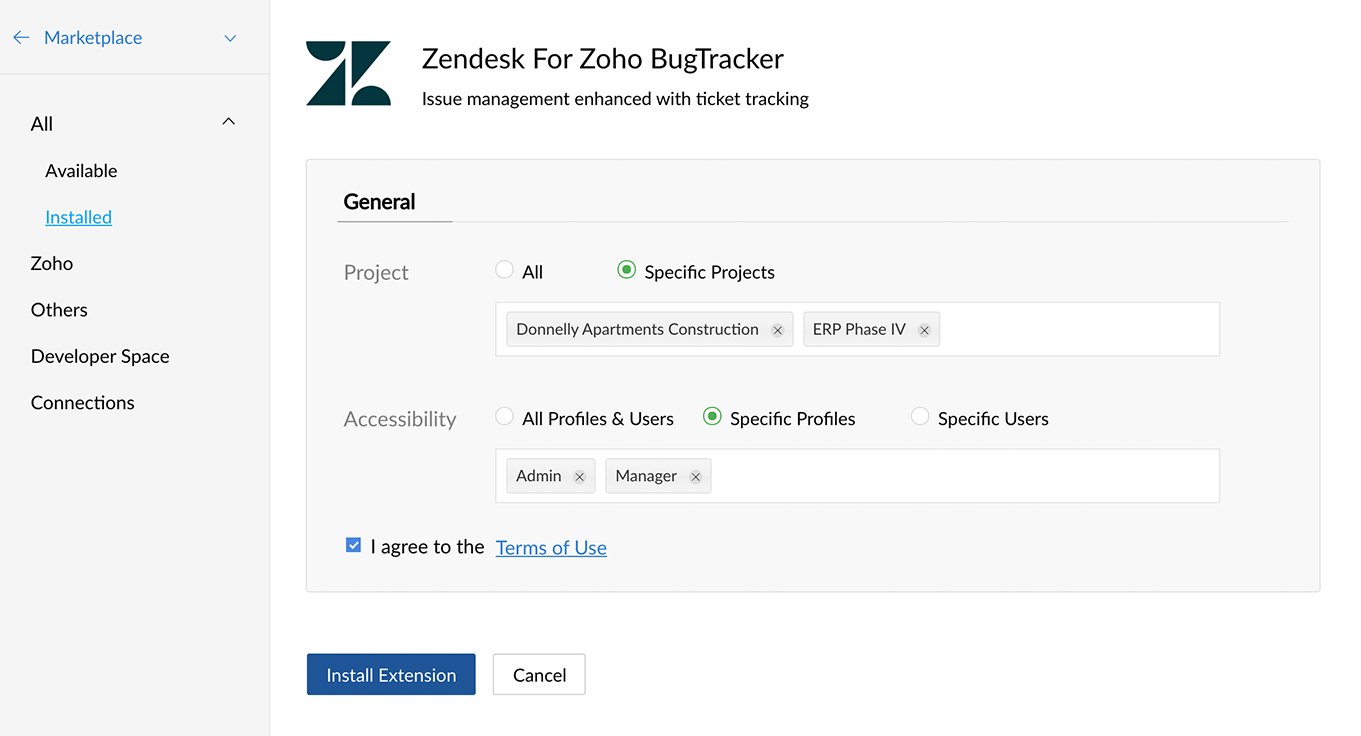
- Choose the profiles and projects where you would like the extension to be shared
- Agree to the Terms of Use.
- Click Install Extension. You will be taken to the configuration settings now.
- Enter your Zendesk domain name and click Save Configuration.
- Navigate to the Connections tab.
- Click Authorize
- Enter the Zendesk sub-domain name.
- Click Save Details
- Sign into your Zendesk account.
- Click Allow to allow Zoho Workflow to access your account.
 > Integration > Extensions.
Associating a Zendesk ticket with an issue or a task in Zoho BugTracker
- Navigate to your project and pick an issue that you want to associate a ticket with.
- Scroll down to the details page and click the Zendesk extension.
- Click Associate Ticket.
- Search for the ticket using the search bar or choose the ticket from the list.
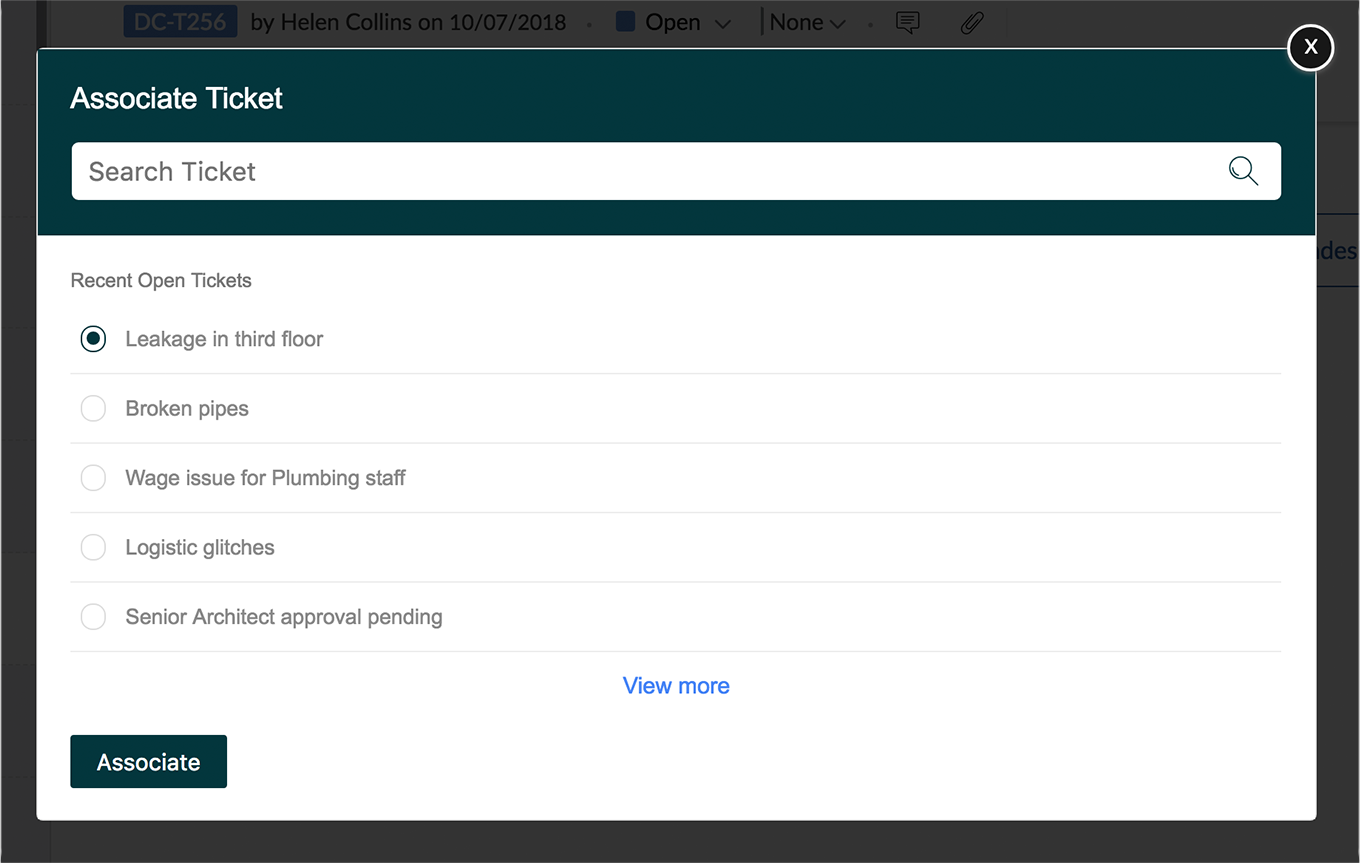
- Click Associate.
Viewing a ticket
- Navigate to the issue that has the associated ticket you want to view.
- Click the Zendesk extension.
- View the ticket details that are associated with the current issue.
- The title, status, and owner of the ticket are displayed here
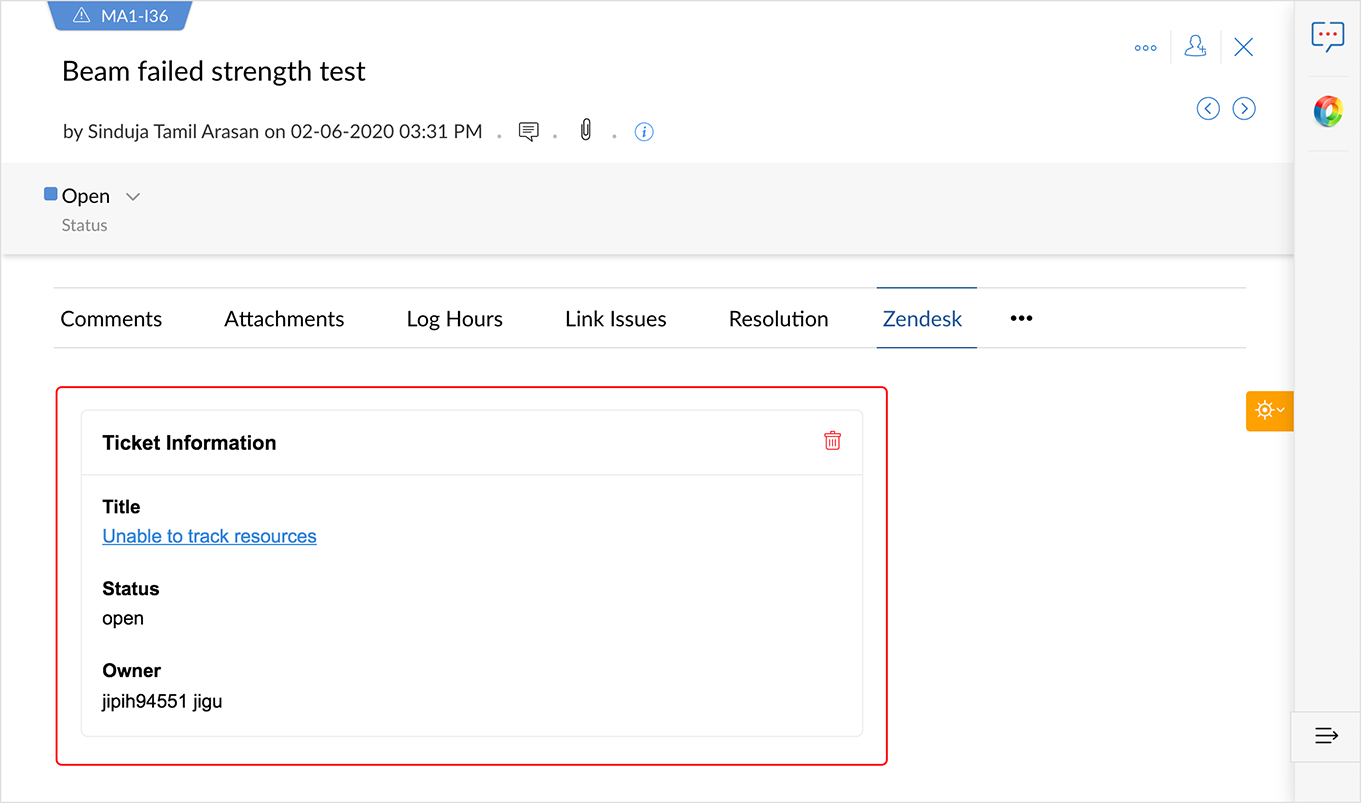
- The title, status, and owner of the ticket are displayed here
Deleting a ticket
- Navigate to the issue that has the associated ticket you want to delete.
- Click the Zendesk extension.
- Hover over the ticket and click the trash icon.
- Click Yes! Delete.