Add new role
A new role for users can be added through the App Settings section of the application.
To add a new role:
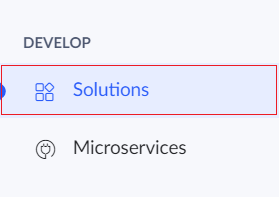
- Click Solutions under the Develop section.
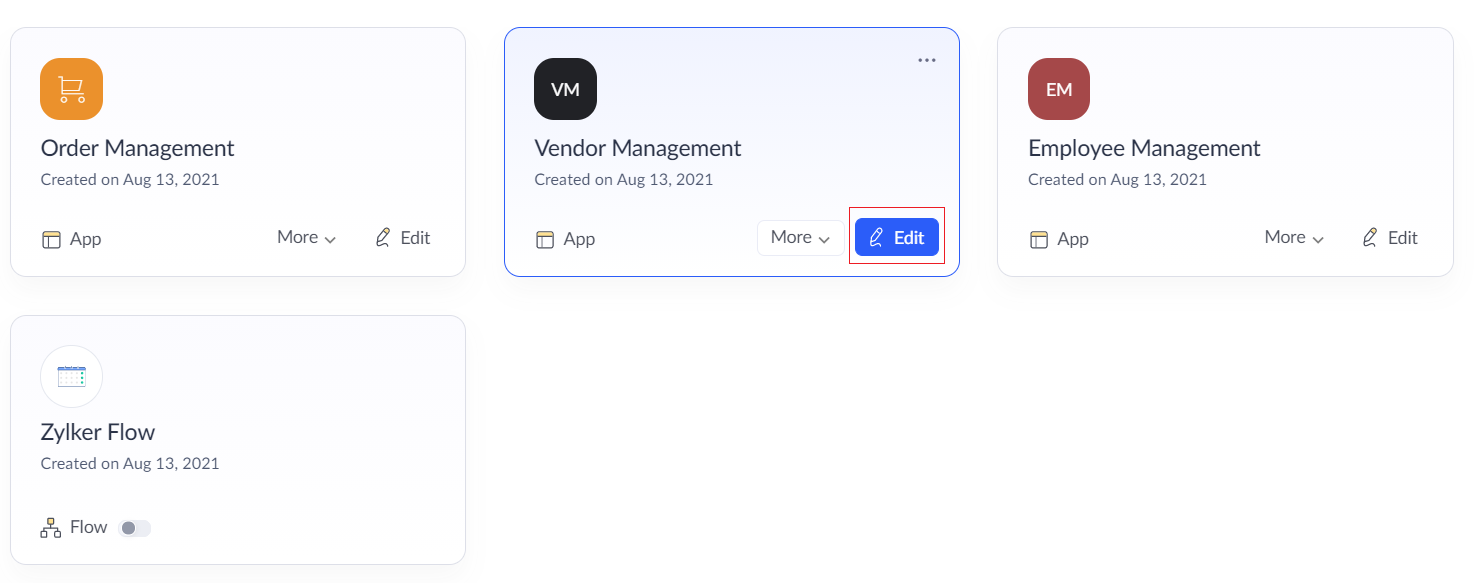
- Click the Edit button on the required application.
- Now the development mode will be displayed. Click on the Settings button on the top of the page.

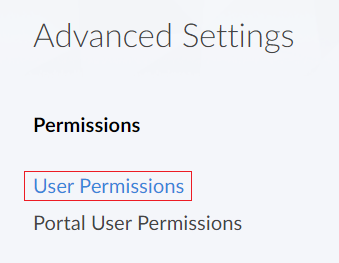
- In Settings page, click on the User Permissions option under Advanced settings section.
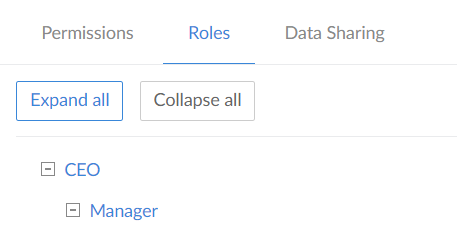
- The User permissions page will be displayed. Click on the Roles section.

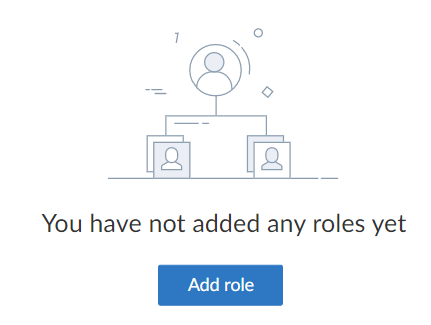
- Click the Add role button.
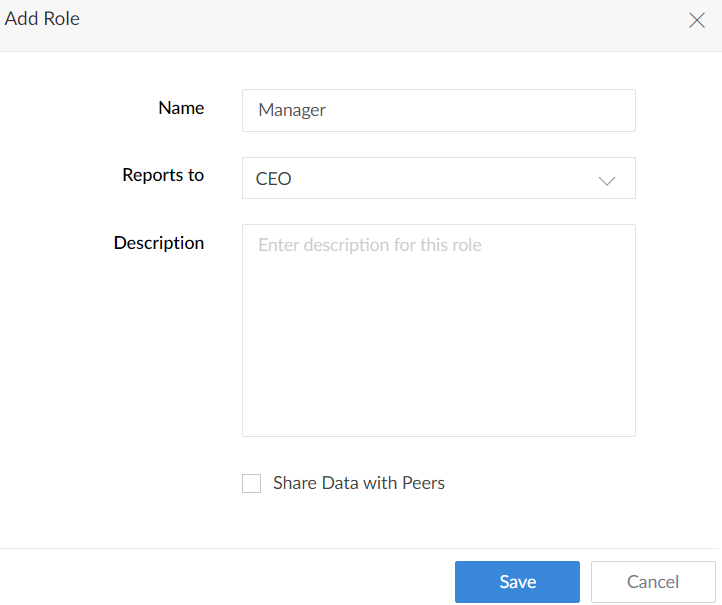
- Enter the Role name, Reports to, and Description. Enabling sharing of data with peers is optional. Click Save.
- The new role will be reflected in the Roles page.