
Manage role hierarchy
The role hierarchy can be configured through the App Settings section of the application.
To manage role hierarchy:
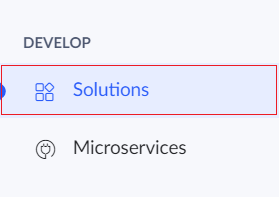
- Click Solutions under the Develop section.
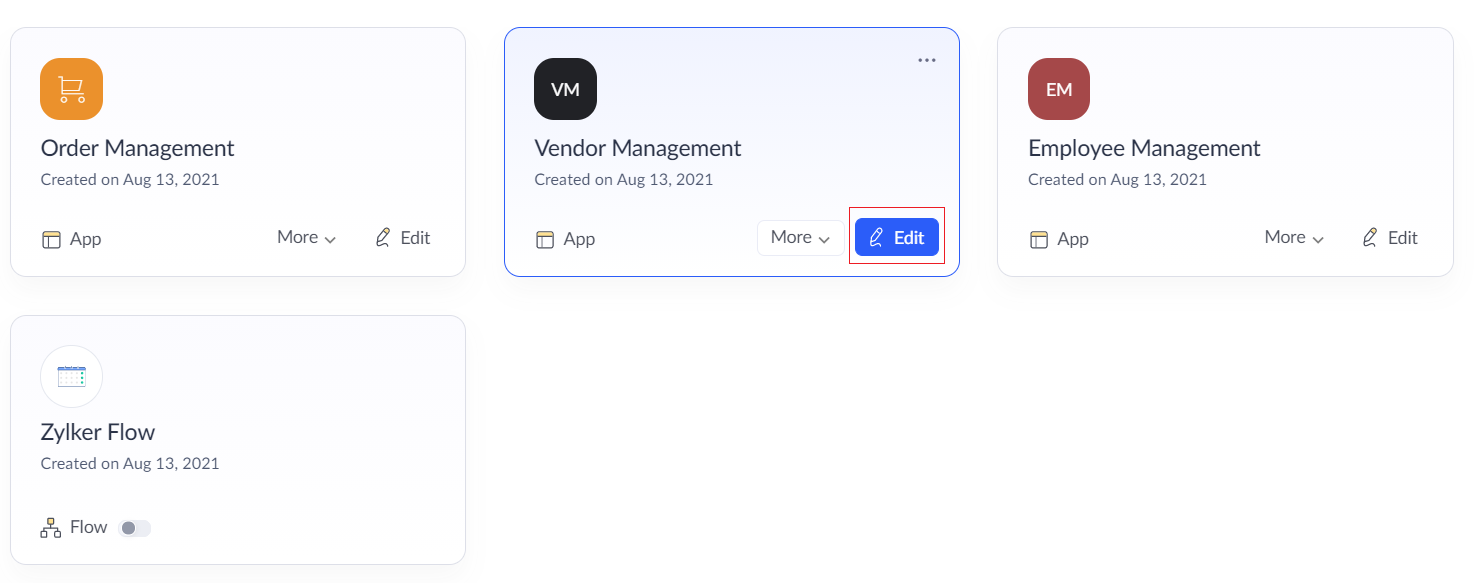
- Click the Edit button on the required application.
- Now the development mode will be displayed. Click on the Settings button on the top of the page.

- In Settings page, click on the User Permissions option under Advanced settings section.
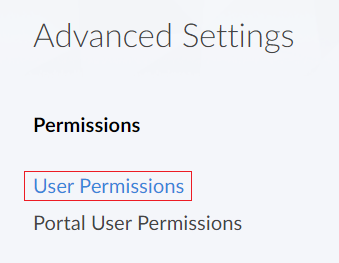
- The User permissions page will be displayed. Click on the Roles section.

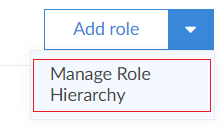
- Now, click on the down button found adjacent to the Add role button. A drop down list will appear. Select Manage role hierarchy option.
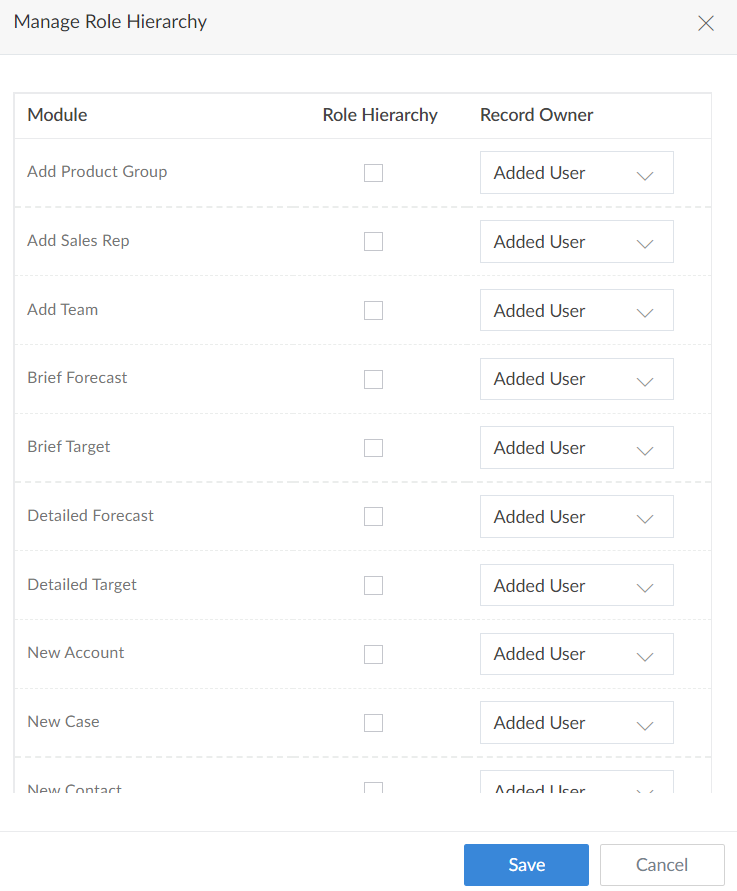
- The Role hierarchy tab will appear. In this tab, configure role hierarchy by choosing the owner of the respective record in each form. Then click Save.
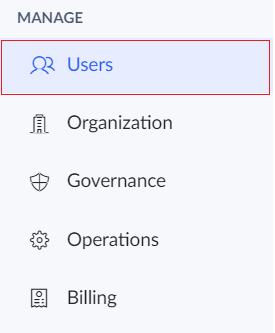
- Now navigate to the Users option under Manage section.
- A list of all the users will be displayed. Click the particular user for whom the role should be assigned.
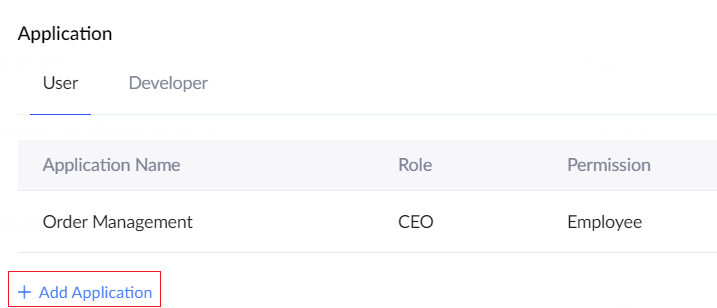
- The user details pane will be displayed. Click Add application.
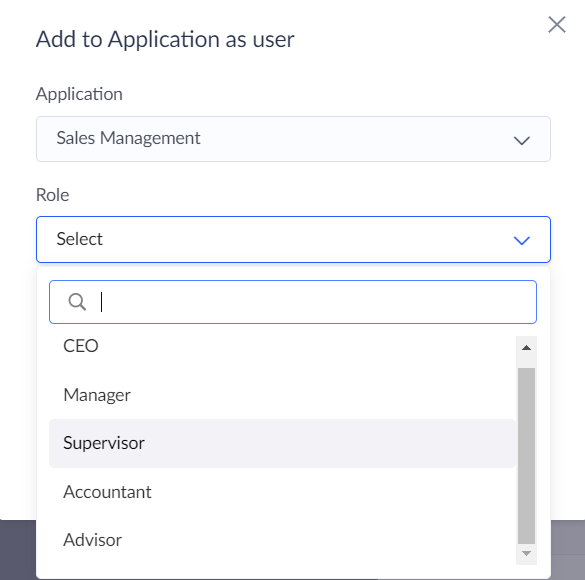
- The Add to application as user popup will be displayed. Select the app to which the roles were added and the role hierarchy was configure. Under the Roles field a drop down containing the list of roles will be shown. Select the role that has to be assigned to the user.
- Click Add. The new role will be assigned to the user.