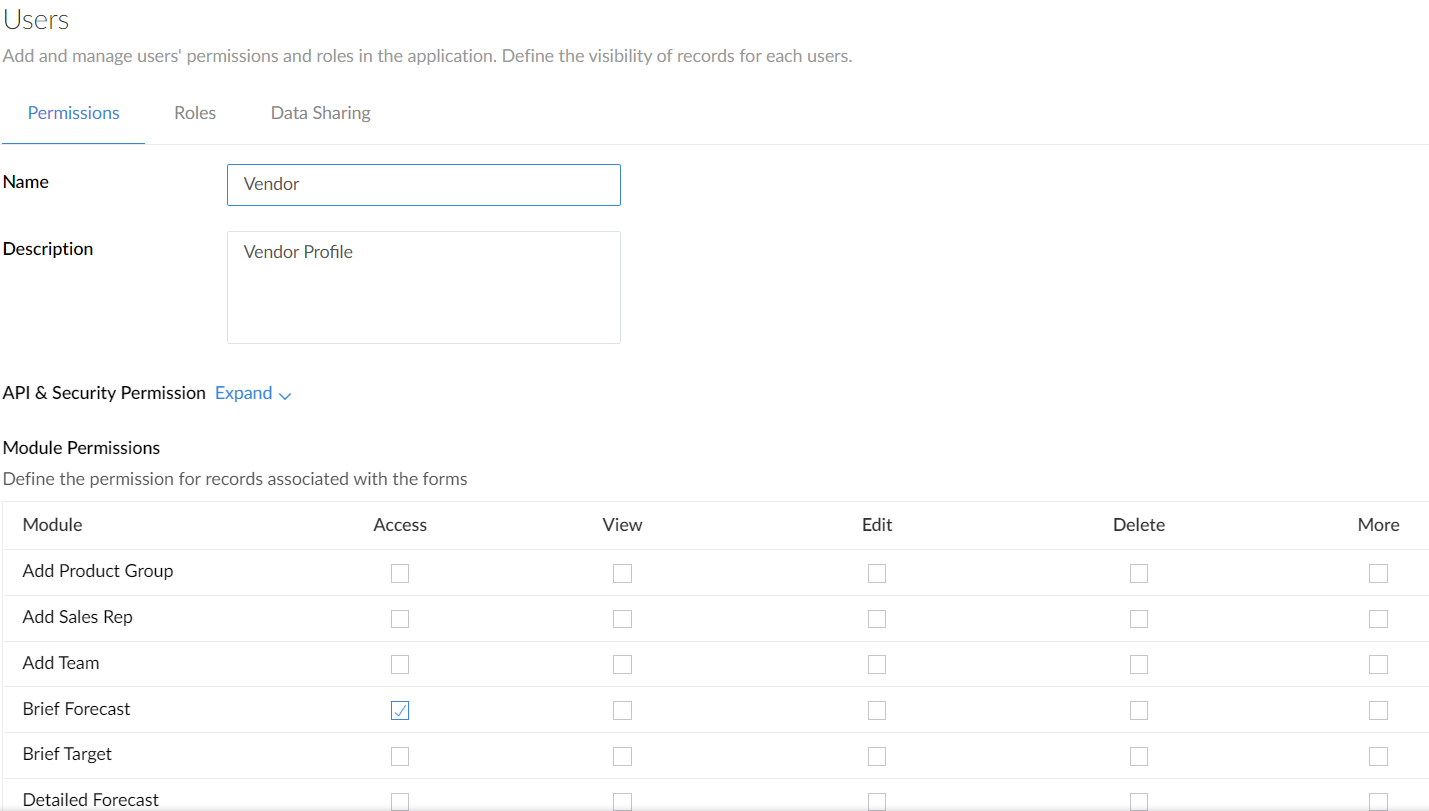
Add user permission
A new user permission can be added through the App Settings section of the application.
To add a permission:
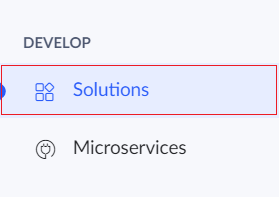
- Click Solutions under the Develop section.
- Click the Edit button on the required application.
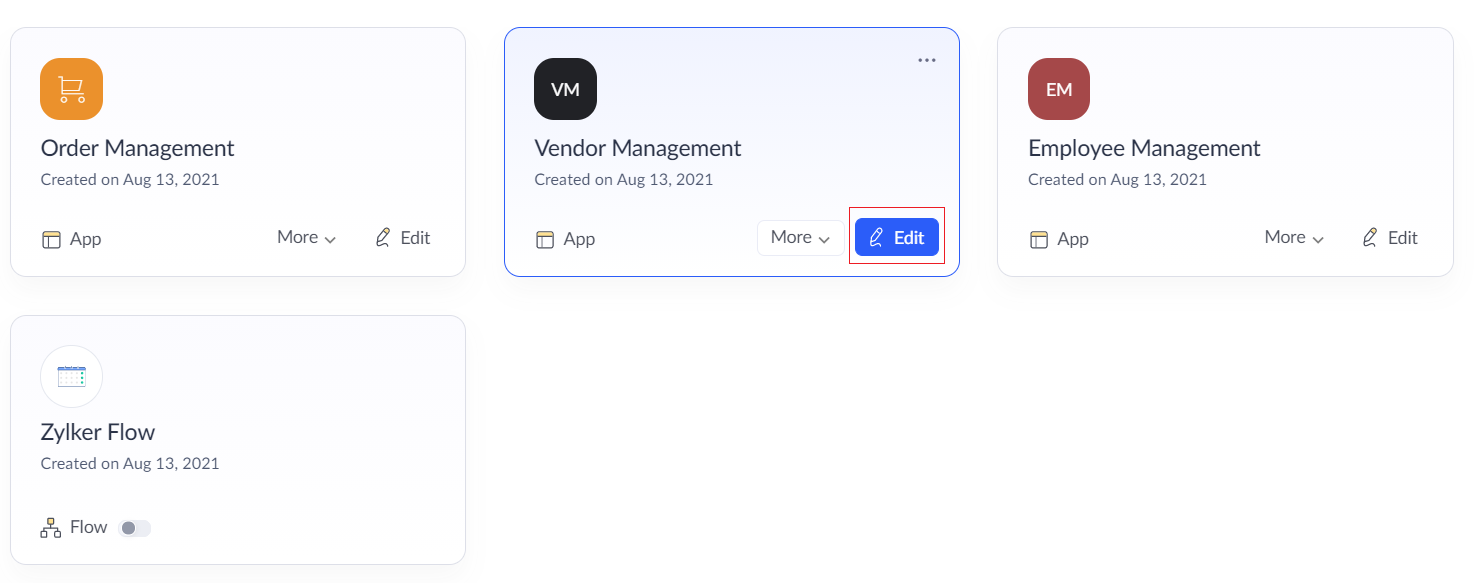
- Now the development mode will be displayed. Click on the Settings button on the top of the page.

- In Settings page, click on the User Permissions option under Advanced settings section.
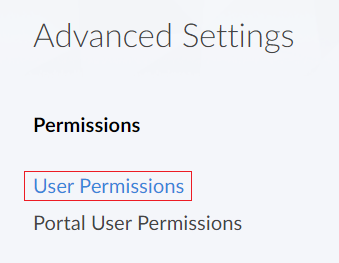
- The User permissions page will be displayed. Click the Add Permission button in the top right corner of the page.
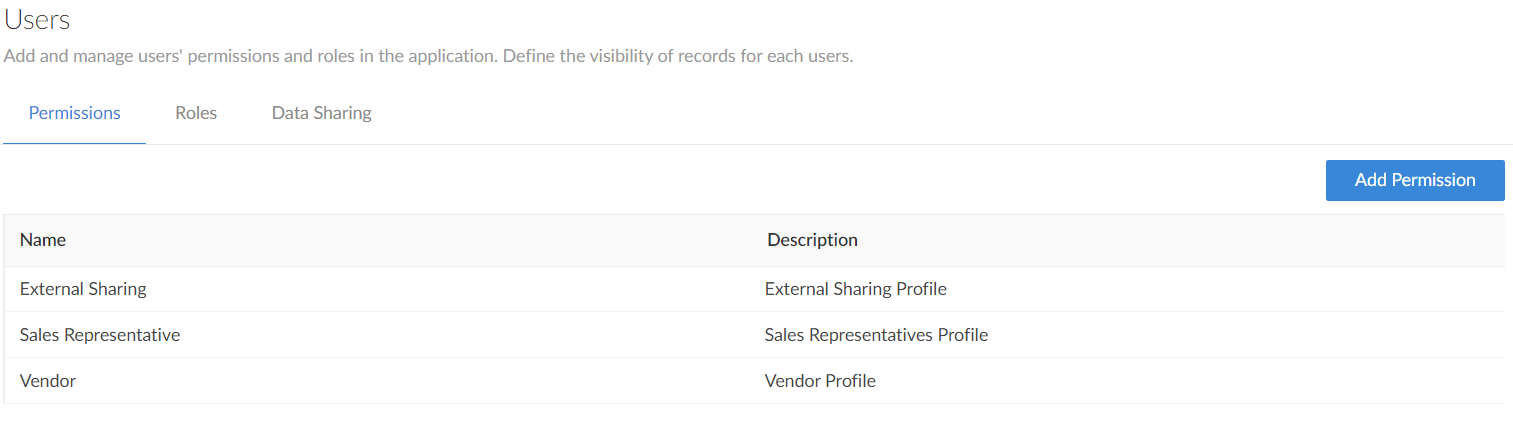
- The Add Permission Set tab will appear.
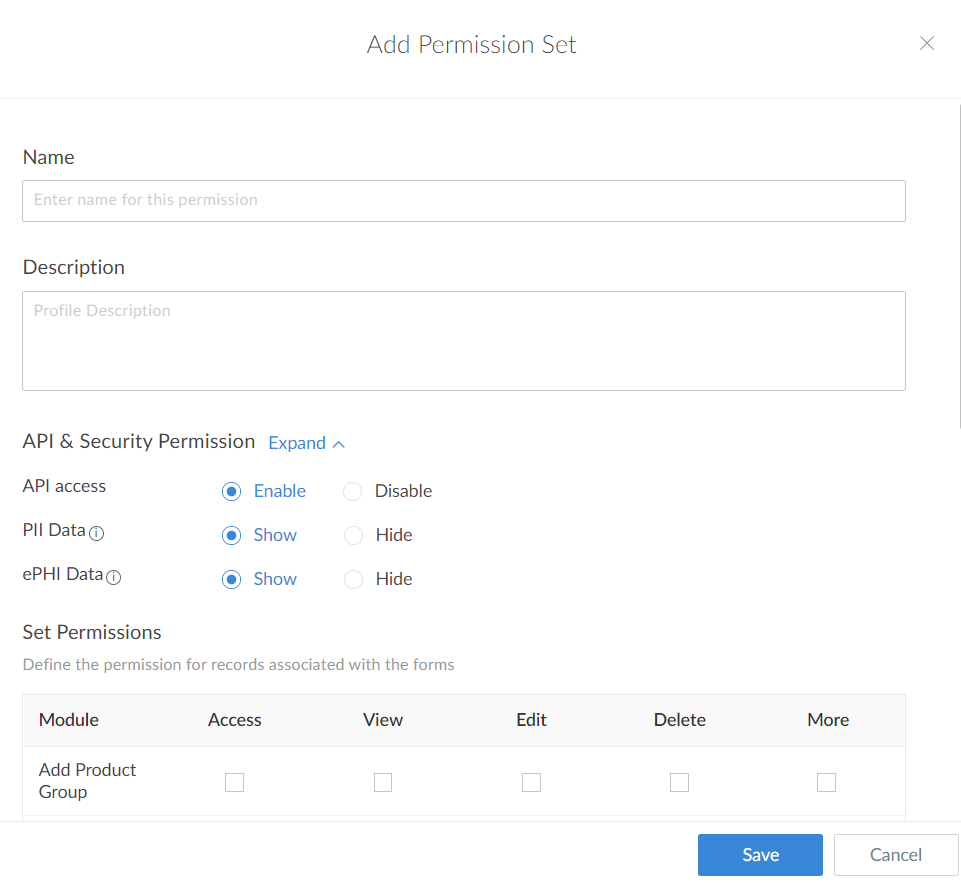
- Type the name for the permission set in the Name field.
- The API access option will enable you to decide whether the users with this permission can use the APIs.

- The PII data option will enable you to decide whether the users with this permission can access Personally Identifiable Information.

- The ePHI data option will enable you to decide whether the users with this permission can access electronic Protected Health Information.

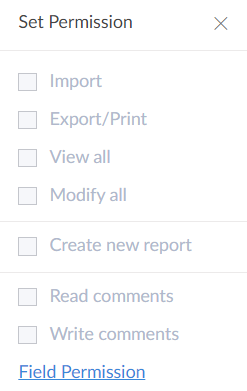
- Under the set permissions, select the required permissions which has to be granted for the different type of users. You can choose Access, View, Edit and Delete options for each module. Other options include Import, Export/Print, View All, Modify All, Create new report, Read Comments and Write Comments.
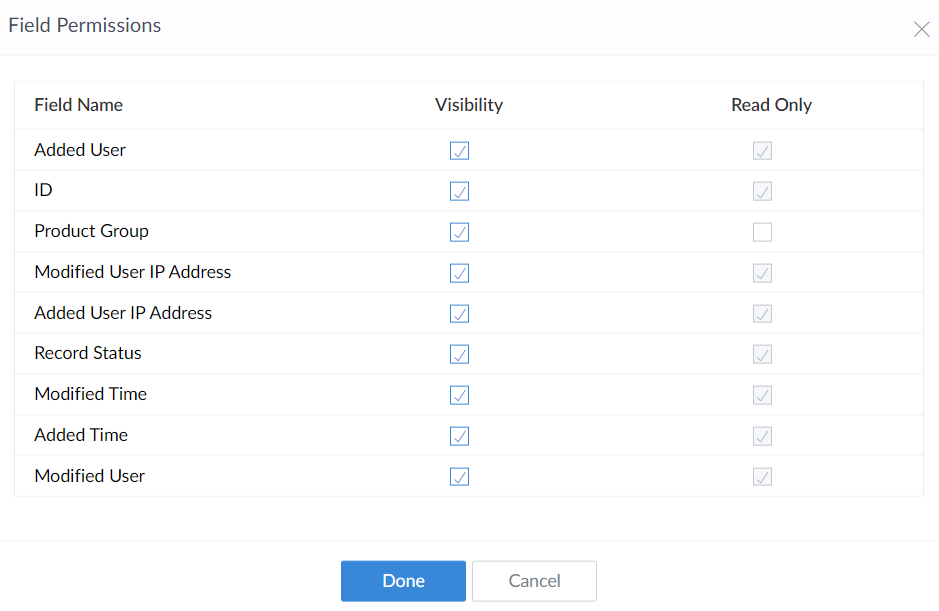
You can also choose the visibility of fields to the users with this permission. To do so, navigate to More -> Field permission and then choose the visibility for required fields. To navigate to field permission:- Click on the More button adjacent to module required.
- Now click on Field permission.
- Choose the visibility of the fields.
- Now click Add. The new permission will be displayed in the list.
To edit a permission:
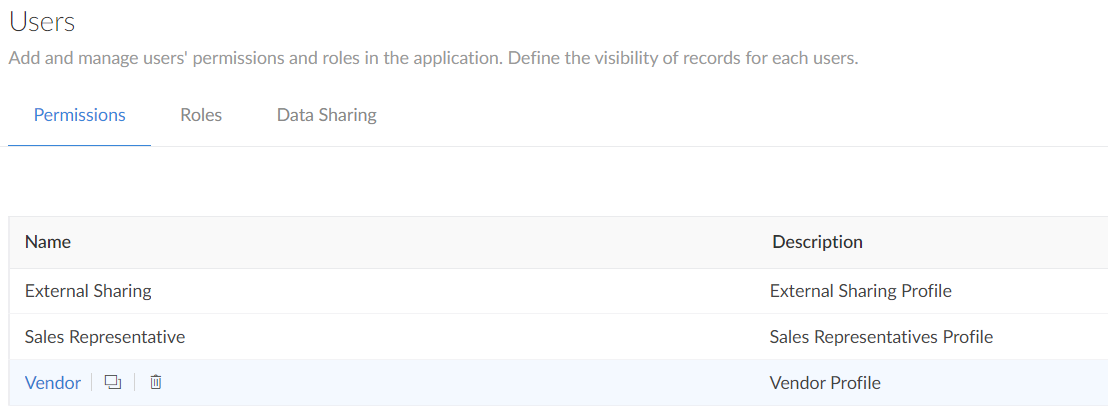
- Navigate to the Permissions tab in the User permissions page
- Click the permission to be edited.
- Make any necessary changes in permissions and click Update.