How to scan a document: A step-by-step guide to intelligent content management
- Last Updated : July 22, 2026
- 476 Views
- 11 Min Read

Document scanning is the process of converting a physical paper document into a digital file using a scanner, multifunction printer, or smartphone. Most scanned business documents are saved as PDFs because PDFs preserve formatting, support multiple pages, and work consistently across devices and operating systems.
The scanning process itself takes only a few seconds. Creating content that people can search, collaborate on, govern, and use across the organization is where the real value begins.
How do you scan a document?
You can scan a document in five steps: position the page, choose the right format, set the resolution, capture the scan, and enable OCR before storing the file in a centralized repository.
Place the document face-down on the scanner glass and align it with the corner guide marks. On a smartphone, open the scanning app and center the page in the camera frame.
Choose the output format. Select PDF for text documents you need to search, archive, share, or combine into a multi-page file. Select JPEG or PNG only when the image itself is the priority.
Set the resolution to 300 DPI for standard office documents. Use 400–600 DPI for fine print and 600 DPI or higher only for engineering drawings, photographs, or archival records.
Initiate the scan. Smartphone scanning apps can detect page edges, correct perspective, improve readability, and remove shadows automatically.
Enable OCR so the file becomes searchable and machine-readable, then upload it to a centralized repository with the appropriate access controls.
How can you scan a document on iPhone or Android?
On iPhone, open Notes, tap the camera icon, and select Scan Documents. iOS applies edge detection and perspective correction and can save multiple pages as a single PDF. On Android, open Google Drive, tap the plus icon, and select Scan.
Microsoft Lens and Adobe Scan provide additional options for mobile capture and OCR. Unlike a standard photograph, a document scanning app identifies page boundaries, corrects distortion, reduces shadows, and produces a clean PDF that is easier to archive, share, and retrieve.
The paper disappeared. The work didn't.
It's 5:45 in the evening. An HR manager is finishing the last task before heading home.
On the desk is a small stack of paperwork collected throughout the day: a signed offer letter, an employee's tax declaration, identity documents, and a confidentiality agreement waiting to be filed.
One by one, the papers disappear into a document scanner. A few seconds later, they reappear as PDFs. The filing tray is empty. The paperwork has been digitized. The office has officially gone paperless.
Or has it?
By the next morning, those same documents had already started moving across the organization. Payroll downloads a copy for salary processing. IT receives another while creating employee accounts. Compliance archives another for future audits. The hiring manager saves another inside the employee's folder.
Before lunchtime, one signed document exists in five different places.
Nobody made a mistake. Everyone simply needed the information.
This is the reality of modern work. Scanning a document no longer marks the end of a process. It is where the real workflow begins.
Whether you are scanning invoices, contracts, receipts, medical records, handwritten notes, or signed agreements, converting paper into a digital file is only the first step. What happens afterward determines whether your organization simply stores information or transforms it into trusted business content.
Key takeaways
Scan most office documents at 300 DPI. Use 600 DPI only for fine print, photographs, engineering drawings, or archival records.
Save text documents as PDFs when you need to search, share, combine, or archive them. Use JPEG or PNG primarily for photographs and visual material.
Enable Optical Character Recognition (OCR) to make scanned text searchable, copyable, and machine-readable.
Use a dedicated scanner for high-volume office work or a smartphone scanning app when you are on the move.
Store scanned content in a centralized workspace where authorized teams can securely access the same information instead of creating duplicate copies.
Scanning is the first step. The real value starts with what happens after the scan.
What resolution should you use?
Document type | Recommended DPI | File-size impact |
Standard office documents | 300 DPI | About 150 KB per page |
Fine print or legal documents | 400–600 DPI | About 400 KB per page |
Photographs | 600–1200 DPI | About 1–5 MB per image |
Archival or preservation records | 600+ DPI | About 1–8 MB per page |
Quick-reference or draft copies | 150–200 DPI | About 50 KB per page |
Why is scanning more than digitizing paper?
Despite decades of digital transformation, paper continues to be part of everyday business. Banks verify identity documents before approving loans. Hospitals collect signed consent forms before treatment. Schools handle admission records every academic year. Manufacturers process delivery receipts from suppliers. Law firms archive executed agreements. Finance teams continue receiving invoices in paper format.
Paper has not disappeared. It has simply become the starting point of a digital workflow.
IDC's Data Age research describes digitization as the integration of intelligent data into the way businesses operate and forecast the Global Datasphere growing from 33 zettabytes in 2018 to 175 zettabytes by 2025. Read the IDC Data Age 2025 research.
That growth helps explain why scanning can no longer be viewed as a small administrative task. Every paper document that becomes digital adds to a much larger content environment that must be organized, governed, and made usable.
The purpose of scanning has changed. Ten years ago, organizations scanned documents to reduce filing cabinets. Today, they scan content to make information available wherever work happens.
That shift may sound subtle, but it changes everything. People no longer expect scanned files to sit inside folders waiting to be opened. They expect information to be searchable, securely accessible, easy to share, governed throughout its lifecycle, and increasingly ready for AI.
Scanning has quietly evolved from an administrative task into the first step of intelligent content management.
What is the best way to scan a document?
Search online for "How do I scan a document?" and you will usually find a list of technical instructions: place the paper on the scanner, choose a resolution, and save the file as a PDF.
Those instructions are correct. They simply do not reflect how scanning happens inside modern organizations.
The best scanning method depends on where work happens.
An accounting team closing the month's books may scan hundreds of supplier invoices using an automatic document feeder, converting stacks of paperwork into digital records within minutes.
A field engineer finishing an inspection can scan a signed service report from a smartphone before leaving the site, allowing head office to begin processing the information immediately.
A university administrator digitizes thousands of application forms, certificates, and recommendation letters during admission season so staff can search student records instead of filing cabinets.
A healthcare receptionist scans consent forms, insurance cards, and referral letters before appointments begin, ensuring every authorized clinician works from the same information throughout the patient's care journey.
Dedicated scanners remain the fastest option for organizations processing high volumes of paperwork, while smartphones have become indispensable for mobile teams working in the field. Unlike a standard photograph, modern scanning applications automatically detect page edges, correct perspective, improve readability, remove shadows, and create clean PDFs that are ready to archive or share.
Different industries. Different documents. The same objective: turn paper into information that people can continue working with.
Which file format should you choose?
Once a document has been scanned, another decision follows: how should it be saved?
For most business content, the answer is straightforward: PDF. It preserves formatting, supports multiple pages, and works consistently across operating systems, making it the preferred format for contracts, invoices, reports, manuals, and business records.
Use PDF for text documents you expect to search, share, combine, or archive. Use JPEG or PNG mainly for photographs and visual material where image quality matters more than document structure or text extraction.
Format | Best use case | Multi-page support | OCR-ready | Typical file size |
Contracts, invoices, reports, forms | Yes | Yes | About 150 KB/page at 300 DPI | |
JPEG | Photographs and visual references | No | Limited | 50–500 KB/image |
PNG | Graphics, screenshots, transparency | No | Yes | 100 KB–2 MB/image |
TIFF | High-resolution archival records | Yes | Yes | 1–8 MB/page |
Choosing the right format is only part of the story. The bigger question is how people will use the information afterward.
Fifteen years ago, someone searched for a filename. Today, they are more likely to search for a contextual detail: an invoice number, a customer name, a purchase date, or a control number for compliance purposes.
People are no longer looking for documents. They are looking for answers. That is why scanning alone is no longer enough.
What happens after the scan?
Scanning creates a digital file. What happens next determines whether that file becomes another forgotten PDF or trusted business content.
Imagine two companies receiving the same signed contract. Both scan it. Both save it as a PDF. From that point onward, their journeys look very different.
Attribute | Manual workflow | Managed workflow |
Storage | Copies emailed to each department | One shared workspace with permissions |
Version control | Tracked manually | Version history maintained automatically |
Search | Limited to filenames or manual review | Full-text retrieval with OCR |
Source of truth | Unclear after copies begin circulating | A current, authoritative record |
Compliance | Manual audit trail and retention | Governance and retention applied consistently |
The first company emails copies between departments. Legal saves one version. Finance downloads another. Operations creates a third. A manager stores another copy before adding comments. Weeks later, someone asks which version is current, and nobody is completely sure.
The second company scans the contract once and stores it in a shared workspace. Sales, legal, finance, and operations all work from the same document with the appropriate permissions. Instead of exchanging files, they share access. The contract remains a single source of truth throughout its lifecycle.
The difference was not the scanner. It was everything that happened after the scan.
Modern organizations no longer measure success by how quickly they digitize paper. They measure success by how easily people can find, trust, and use information across the business.
Scanning creates digital files. Content management turns those files into connected business knowledge.
How does OCR make scanned content searchable?
A scanned PDF may look identical to the original paper document, but to a computer it is often just an image. That is where Optical Character Recognition, or OCR, changes everything.
OCR does not change how the document looks. It changes what you can do with it.
The software recognizes printed text within scanned images and converts it into machine-readable content while preserving the original appearance of the page. Once a document has been processed with OCR, it becomes possible to search, copy, and analyze the content.
Imagine a legal team reviewing contracts signed over the last five years. A customer asks a simple question: “Did our 2022 contract include an automatic renewal clause?” Without OCR, someone opens dozens of PDFs and manually searches page after page. With OCR, they search for a phrase and find the answer in seconds.
The same technology helps finance teams locate invoice numbers, HR departments retrieve employee records, and healthcare providers search patient information without manually opening every document.
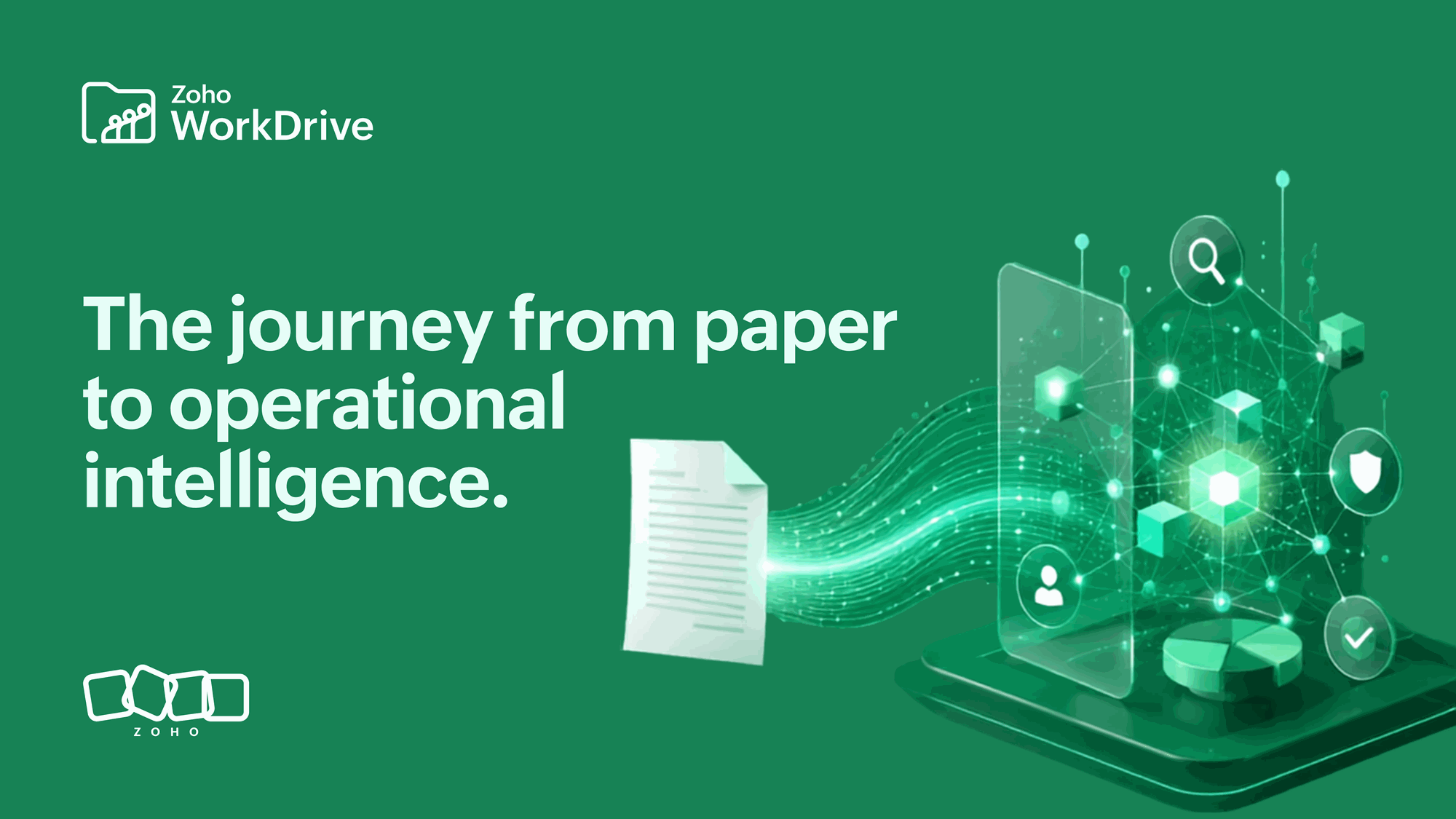
OCR represents the next step in the evolution of scanned content. Scanning creates the document. OCR makes it searchable. Content management provides structure. AI turns that structure into answers. That is how enterprise information evolves.
Why does context matter more than storage?
For years, organizations judged document management systems by how much content they could store. Today, the question is very different.
Can people find what they need? Can they trust that it is the latest version? Can they collaborate without creating duplicate copies? Can information move through approvals, reviews, compliance checks, and business processes without leaving the platform?
Those questions have become far more important than storage capacity.
Saving a purchase agreement as a PDF is most useful when sales, legal, finance, and operations can all reference the same information without wondering whether someone else has a newer copy.
Scanning an employee onboarding form should allow HR, payroll, IT, and compliance teams to securely access the same record throughout the employee lifecycle.
Digitizing inspection reports does not create value unless it provides actionable information to the people making decisions while the work is still happening.
Storing a scanned document is rarely the end of its lifecycle. Documents like contracts, forms, and reports are created to enable future work. That is why modern organizations are shifting their focus from managing files to managing enterprise content.
How does WorkDrive help manage scanned content?
Scanning is only the beginning of a document's lifecycle. Zoho WorkDrive helps organizations manage everything that follows.
Instead of storing scanned files across desktops, inboxes, and disconnected folders, teams organize content in centralized Team Folders where information remains searchable, governed, collaborative, and accessible to the right people.
Metadata-based classification keeps information organized. Granular permissions support secure access. Version history preserves changes over time. Intelligent search helps people find information quickly. Built-in workflows keep work moving without creating unnecessary copies.
The result is not simply fewer PDFs. It is trusted enterprise content that supports everyday work, business processes, and AI-powered experiences.
What is the future of document scanning?
For decades, scanning was measured by one outcome: did the paper become digital? Today, that question is not enough.
Organizations do not struggle to create PDFs. They struggle to organize information, collaborate across teams, maintain governance, and prepare enterprise content for AI.
The future of scanning is not about replacing paper. It is about removing friction.
A signed contract should be available to every authorized stakeholder without creating duplicate copies. An invoice should move through approvals without being downloaded and emailed multiple times. An inspection report should reach decision-makers while work is still happening. A patient record should remain securely accessible throughout the entire care journey.
Scanning is still the first step, but the real value comes from what happens next.
When scanned content is organized, searchable, governed, and connected to everyday work, it stops being another digital file. It becomes part of the organization's knowledge.
Not from paper to PDF—from paper to intelligent content.
Conclusion
Paper documents helped organizations record information. Scanning helped them digitize it. OCR made that information searchable. Content management connected it to people and processes. Artificial intelligence is now helping organizations understand it.
Each stage builds on the one before it. Scanning remains essential because every intelligent workflow begins with trustworthy content. But scanning is no longer the destination. It is the foundation for everything that follows.
That is also why governance matters. The NIST AI Risk Management Framework treats trustworthiness as a core consideration in how AI systems are designed, developed, deployed, and evaluated. For enterprise content, trustworthy AI starts with trustworthy information—and trustworthy information starts with a scanning and content management process that is consistent, searchable, and governed from day one.
The future of document management is not about creating better PDFs. It is about building better knowledge. That is the difference between going paperless and building an intelligent content management system.
Frequently asked questions
How do I scan a document?
You can scan a document using a dedicated flatbed scanner, a multifunction printer, or a smartphone scanning app. Place the document, select PDF as the output format, set the resolution to 300 DPI for standard documents, initiate the scan, and save the result to your content management system. Smartphone apps such as Apple Notes, Google Drive, Microsoft Lens, and Adobe Scan handle edge detection and perspective correction automatically.
Can I scan documents with my phone?
Yes. On iPhone, open Notes, tap the camera icon, and select Scan Documents. On Android, open Google Drive and tap the plus icon, then Scan. Apps such as Microsoft Lens and Adobe Scan can apply OCR and produce searchable PDFs. Unlike a standard photograph, scanning apps detect page edges, correct perspective, reduce shadows, and produce clean PDFs suitable for business use.
What is the best format for scanned documents?
PDF is the preferred format for most business documents because it preserves formatting, supports multiple pages, and works consistently across devices and operating systems. JPEG and PNG are better suited to photographs or images where visual detail matters more than text extraction. For a document you need to search, archive, combine, or share, PDF is the best default.
What is OCR?
Optical Character Recognition, or OCR, converts scanned images into searchable, machine-readable text. This allows users to search for words, copy text, retrieve information, and analyze scanned documents without manually reading every page. OCR does not change how the document looks—it changes what you can do with it.
What resolution should I use for scanning?
For most office documents, including contracts, invoices, forms, and letters, 300 DPI provides the best balance between readability and file size. Use 400–600 DPI for fine print or small text. Use 600 DPI or higher only for engineering drawings, photographs, historical archives, or records requiring exceptional detail.
What is the difference between scanning a document and taking a photo of it?
A photograph captures everything visible to the camera, including shadows, distortion, and background detail. A document scanning app is designed specifically for paper records: it detects page edges, corrects perspective, reduces shadows, and produces a clean, flat PDF. Scanning apps generally create more legible and consistent results for text documents.
Where should scanned documents be stored?
Scanned documents are most valuable when stored in a centralized content management platform such as Zoho WorkDrive, where authorized users can securely access, search, collaborate on, and govern information throughout its lifecycle. Centralized storage supports full-text search, version control, granular permissions, auditability, and retention policies that are difficult to maintain when files remain in personal folders or email attachments.