How to migrate from Microsoft OneDrive to Zoho WorkDrive
- Last Updated : October 21, 2026
- 4 Views
- 6 Min Read

Planning to move your business files from Microsoft OneDrive to Zoho WorkDrive? With employees storing documents, spreadsheets, presentations, and project files across different OneDrive accounts, migrating everything to a new platform requires some planning.
You may have files that belong to individual employees, documents shared across departments, and important business information stored in accounts that are no longer actively used. It's important tounderstand what files can be migrated, where they'll be stored, and who will have access to them afterward.
Zoho WorkDrive offers a built-in migration tool to transfer files from OneDrive without downloading and uploading them individually.
Understand which OneDrive files can be migrated
Not everything you access in OneDrive is necessarily stored in your account. You may have documents under My Files, folders shared by colleagues, or files accessed through SharePoint libraries.
WorkDrive's migration tool transfers files and folders from My Files in OneDrive to My Folders in WorkDrive. Content under Shared with you and SharePoint shared libraries isn't included.
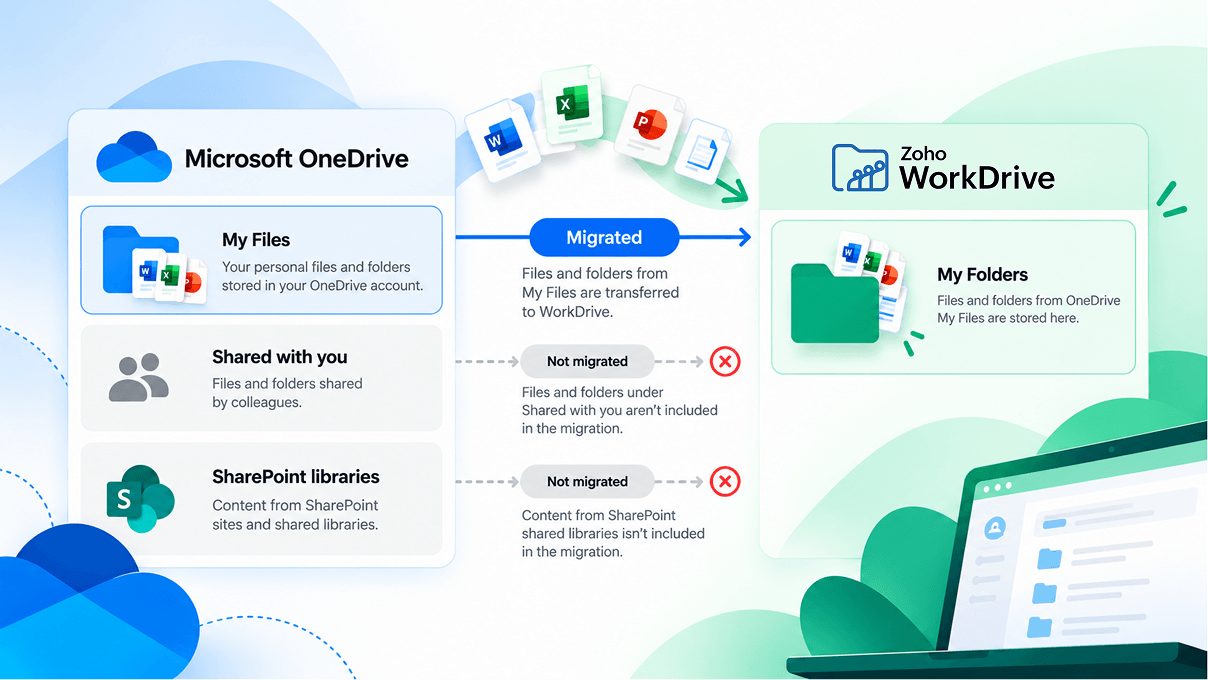
Say your marketing team regularly works with campaign assets shared by the design department. Although employees can access these files through OneDrive, they won't be transferred with their accounts unless the content is stored under My Files in an account included in the migration.
Before migrating, ask employees to review their OneDrive folders and identify important shared resources. Pay particular attention to documents that multiple departments rely on, as these may need a separate migration or reorganization plan.
Map users and review file ownership
Have employees changed their email addresses or moved to a new company domain? You can still migrate their OneDrive files to the correct WorkDrive accounts.
Each OneDrive user needs a corresponding active WorkDrive account. During migration, administrators can map Microsoft accounts to their respective WorkDrive users, even when the email addresses differ.
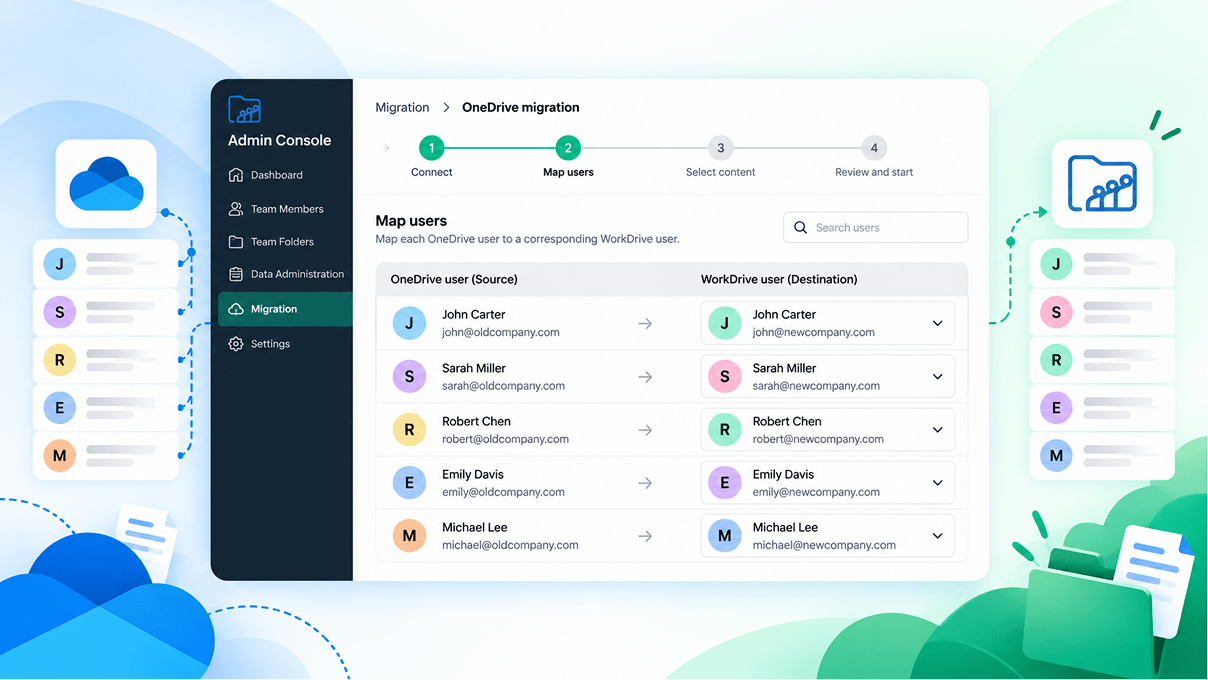
For instance, an employee using john@oldcompany.com in OneDrive may now use john@newcompany.com in WorkDrive. Mapping these accounts ensures that the employee's files are transferred to the intended destination.
However, each OneDrive account must be mapped to one WorkDrive user. You can't combine multiple OneDrive accounts into a single WorkDrive account or distribute one account's files among several users through the migration tool.
What about files belonging to former employees?
Important proposals, contracts, and project documents may still be stored in accounts belonging to people who have left the organization. Depending on Microsoft's retention settings, administrators may be able to recover or transfer this content before migration.
Documents that an entire department relies on may be better organized in shared team spaces after migration, so access doesn't depend on one employee's account.
Plan how shared files and permissions will work
Your employees may have spent years sharing OneDrive files with colleagues, clients, and external partners. However, internal and external sharing permissions can't be retained during migration. Files are transferred to the mapped users' My Folders, and access must be configured again where needed.
Consider a sales manager who maintains customer proposals and contracts in OneDrive. Several team members may have access to these documents, while external customers can view specific files. After migration, the manager will need to set up the appropriate access in WorkDrive.
Rather than recreating every old permission, take the opportunity to review who needs access to what. Employees may have changed roles, projects may have ended, and external collaborators may no longer require access to certain documents.
For departmental content, WorkDrive Team Folders provide a shared space where authorized members can access and manage files based on their roles. Individual working documents can remain in My Folders, while files used by an entire team can be organized separately.
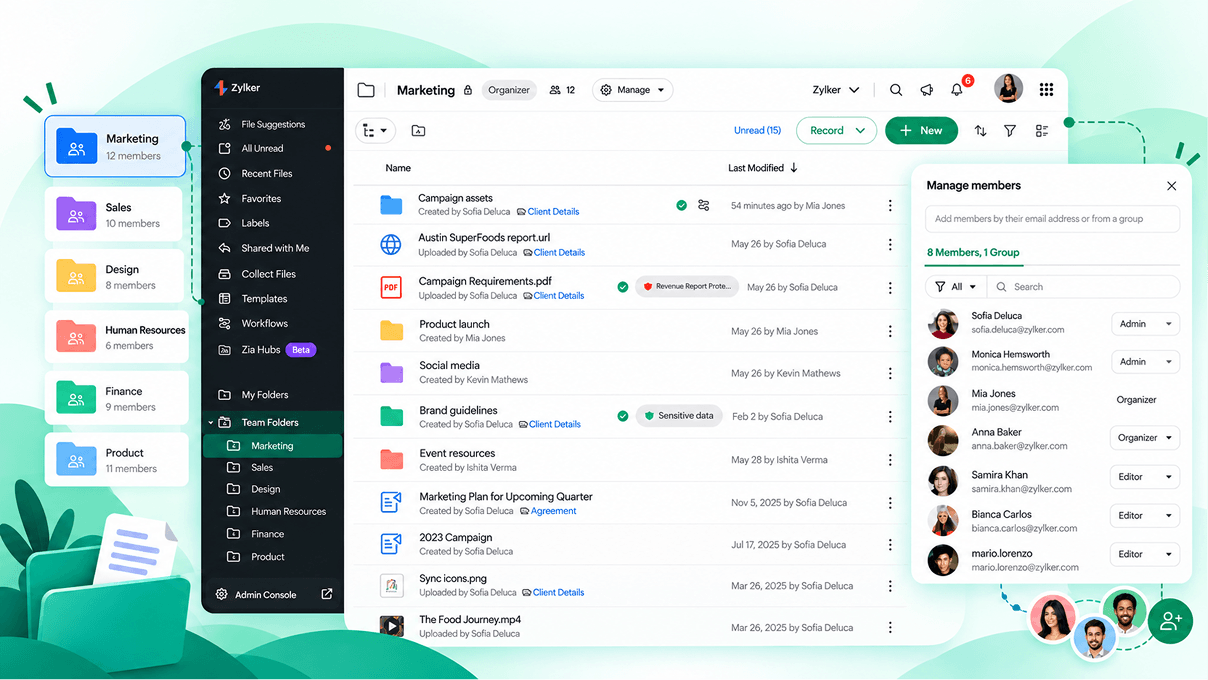
You can also use WorkDrive's file-sharing capabilities to provide access to colleagues and external collaborators where needed.
Check file formats, versions, and migration limitations
Working with Word documents, Excel spreadsheets, and PowerPoint presentations? You don't have to convert them before moving to WorkDrive.
Supported Microsoft Office files retain their original formats during migration. Employees can continue working with these files in WorkDrive or convert them to Zoho Writer, Zoho Sheet, and Zoho Show when needed.
OneNote files, content in the Recycle Bin, and individual files larger than 25 GB aren't supported. The migration also transfers only the latest version of each file, so previous versions won't be available in WorkDrive.
Links stored in OneDrive are also migrated, but they won't work directly in WorkDrive. If your teams rely on these links to access important resources, they'll need to review them after migration.
Created and modified timestamps are retained, but the original last-modified user information isn't. Instead, WorkDrive displays the file creator as the last person who modified the file.
These differences matter when employees depend on historical information. For example, your finance team may need earlier versions of spreadsheets for audits, while project managers may maintain important meeting records in OneNote.
If these records are essential to your business, make arrangements to preserve them separately before migrating.
Prepare your accounts and schedule the migration
WorkDrive connects to OneDrive through a Microsoft Azure application. Administrators need the appropriate Microsoft permissions to authorize the connection and map users to their WorkDrive accounts.
The migration tool supports selected Microsoft 365 and Office 365 business and enterprise plans. Personal Microsoft 365 subscriptions and OneDrive for Business Plan 1 aren't supported.
On the WorkDrive side, make sure your organization has an eligible plan and that the users being migrated have active accounts. If migration access isn't available in the Admin Console, you can request it from the Migration section.
Each user can only be migrated once per service, so it's important to plan when employees should stop adding or updating files in OneDrive. For teams working on active projects, communicate a clear cutover date and let everyone know when to start using WorkDrive. Any files added to OneDrive after a user's migration will need to be handled separately.
For the actual setup, authentication, user mapping, and execution steps, follow the OneDrive to Zoho WorkDrive migration guide.
Review and validate your migrated files
Once the migration finishes, start with the reports available in the WorkDrive Admin Console. These show which files and folders were transferred successfully, which items failed, and how much data was migrated.
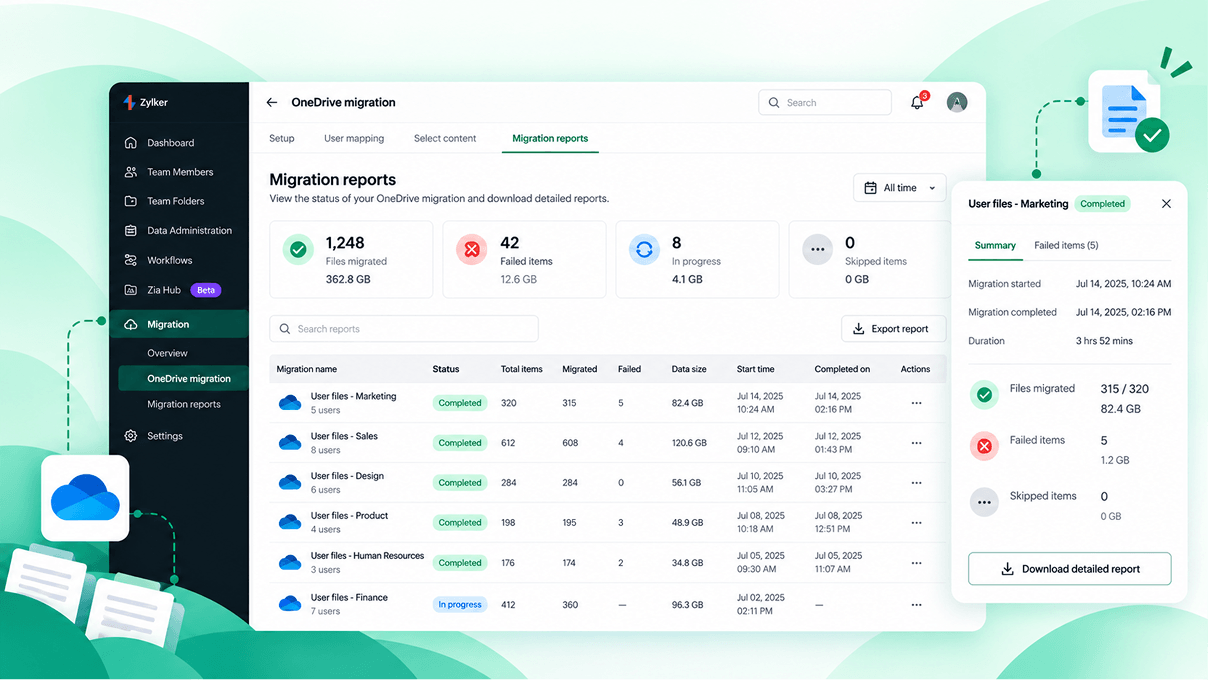
If something didn't transfer, review the reported reason. Supported failed items can be retried, while other files may need to be downloaded from OneDrive and uploaded manually.
Next, involve employees in checking their files. Ask them to open important documents, verify folder structures, and confirm that the files they need are available in the expected locations.
Check that departmental documents are in the right folders and that team members have the appropriate permissions. For documents shared with clients or external partners, verify that the necessary access has been configured again.
You should also review any files that were excluded because of format, size, or version limitations. Compare the migration reports with your original file inventory to identify anything that still needs attention.
WorkDrive doesn't delete your original OneDrive files during migration, so the source content remains available for verification.
Once the necessary files have been checked and access has been configured, employees can begin working from WorkDrive.
Make the move with a clear plan
Your employees have spent years creating, organizing, and sharing files in OneDrive. A little preparation can help them pick up where they left off when those files move to WorkDrive.
You can also use this opportunity to rethink how your business files are organized. Keep individual working documents in My Folders, move departmental content into Team Folders where appropriate, and review who needs access to important files.
Ready to get started? Explore Zoho WorkDrive and plan your migration.
Frequently asked questions
Can I migrate all my OneDrive files to Zoho WorkDrive?
No. WorkDrive migrates supported files and folders from OneDrive's My Files. Content under Shared with you, SharePoint shared libraries, OneNote files, Recycle Bin content, and individual files larger than 25 GB aren't included.
Will my OneDrive sharing permissions be retained?
No. Internal and external sharing permissions aren't retained. You'll need to configure access again in WorkDrive after migration.
Can I migrate files belonging to former employees?
Depending on Microsoft's retention settings, administrators may be able to recover or transfer files belonging to former employees. Review these accounts before migration to avoid leaving important business content behind.
Can I migrate additional files later?
Users who weren't included in an earlier migration can be migrated separately. However, each user can only be migrated once per service, so new files added to an already migrated user's OneDrive account can't be transferred through another migration run.
Will migrating to WorkDrive delete my original OneDrive files?
No. The migration doesn't delete your original OneDrive files. They remain available for reference and validation.