Automating Slack notifications for better team communication
- Last Updated : February 19, 2026
- 709 Views
- 6 Min Read
Summary:
- Managing Slack notifications manually across multiple apps can be time-consuming and lead to missed updates.
- Automating Slack workflows with an iPaaS platform like Zoho Flow helps in notifying the right people at the right time.
- Automation assists with everyday business events like new leads, order cancellations, failed payments, and a lot more.
Introduction
With more than 47 million users every day, Slack is clearly the preferred tool for businesses. In fact, 77% of Fortune 100 companies choose Slack over other communication tools for it's reliability and robust features.
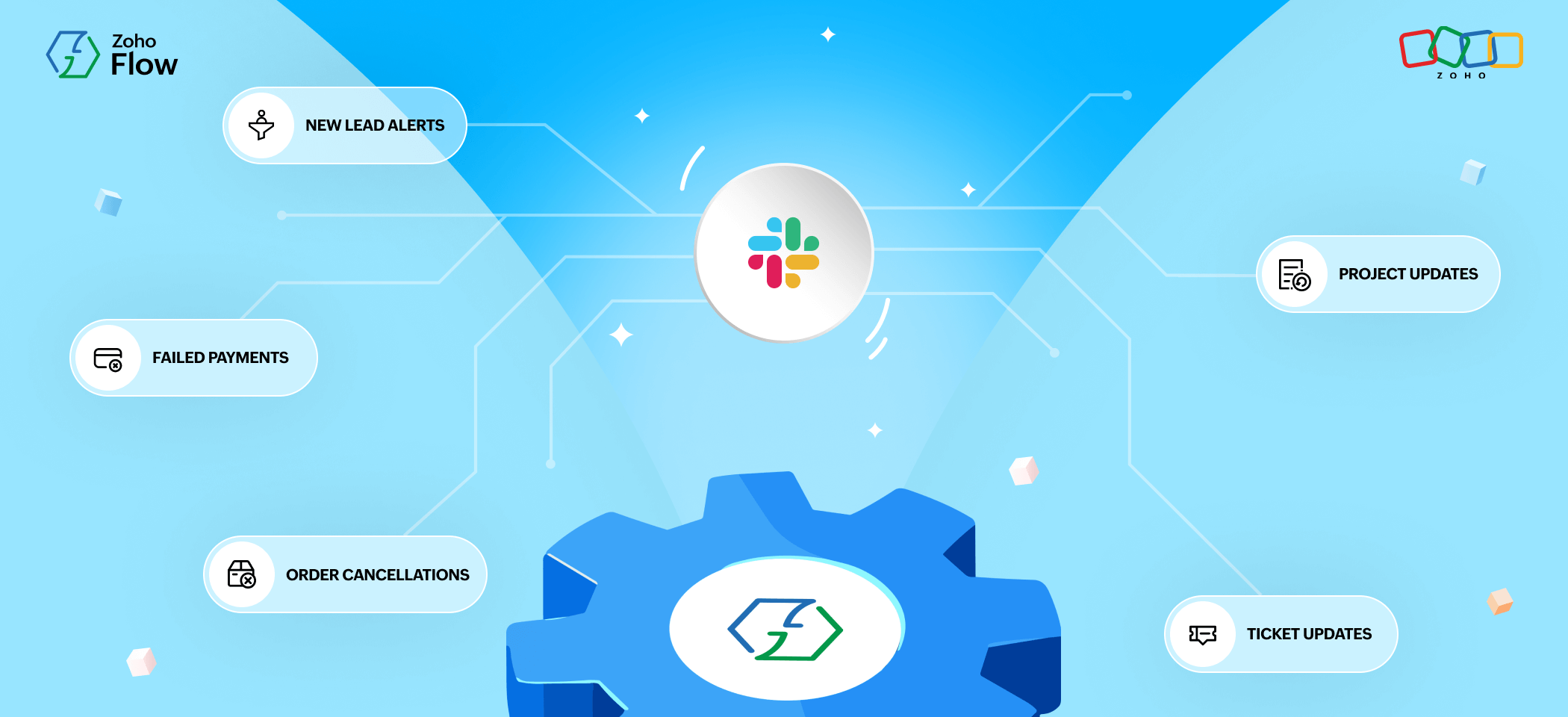
But as more teams rely on Slack, the number of notifications handled manually keeps increasing. New leads, support tickets, failed payments, order cancellations—someone needs to keep track of all of it to communicate it to the respective teams.
To avoid this problem, there's a handy solution: automation. Instead of depending on someone to post each update, you can set up workflows that send timely notifications automatically. By choosing the right integration platform for your organization, you can integrate your tech stack and automate your Slack workflows effectively.
Step-by-step guide to automate Slack notifications
Here's a step-by-step explanation of how you can automate your Slack workflows in an automation platform like Zoho Flow.
1. Create a new flow
Log in to your Zoho Flow account and click Create Flow. You can start creating a flow from scratch or use a prebuilt template.
2. Choose the trigger app
Select the trigger app from the app gallery. This could be Slack itself or any other app that you want to use to kickstart your workflow.
3. Configure the trigger event
Once you select the app, choose the specific event that should start the workflow. For example, a new lead added to your CRM or a new ticket created in Zoho Desk can be the trigger event.
4. Choose the action app
Choose the action app that you want to add after the trigger. Navigate to the left panel and search for the app (can be Slack or any other app).
5. Configure the action event
You'll then get a list of actions from that particular app to choose from. Select the specific action that you want and drag and drop it into the builder page. You can then map data from the trigger.
6. Add logic elements (optional)
You can also add logic elements like set variable, delay, and decisions if needed in your workflow.
7. Test flow and go live
Finally, test the flow with sample data, check the results, and then switch it on to make it live.
Automating Slack notifications for everyday business scenarios
New lead alerts
Businesses receive leads from multiple sources every day and it's important to not miss them amid other priorities. Getting notified about new leads can help you stay updated.
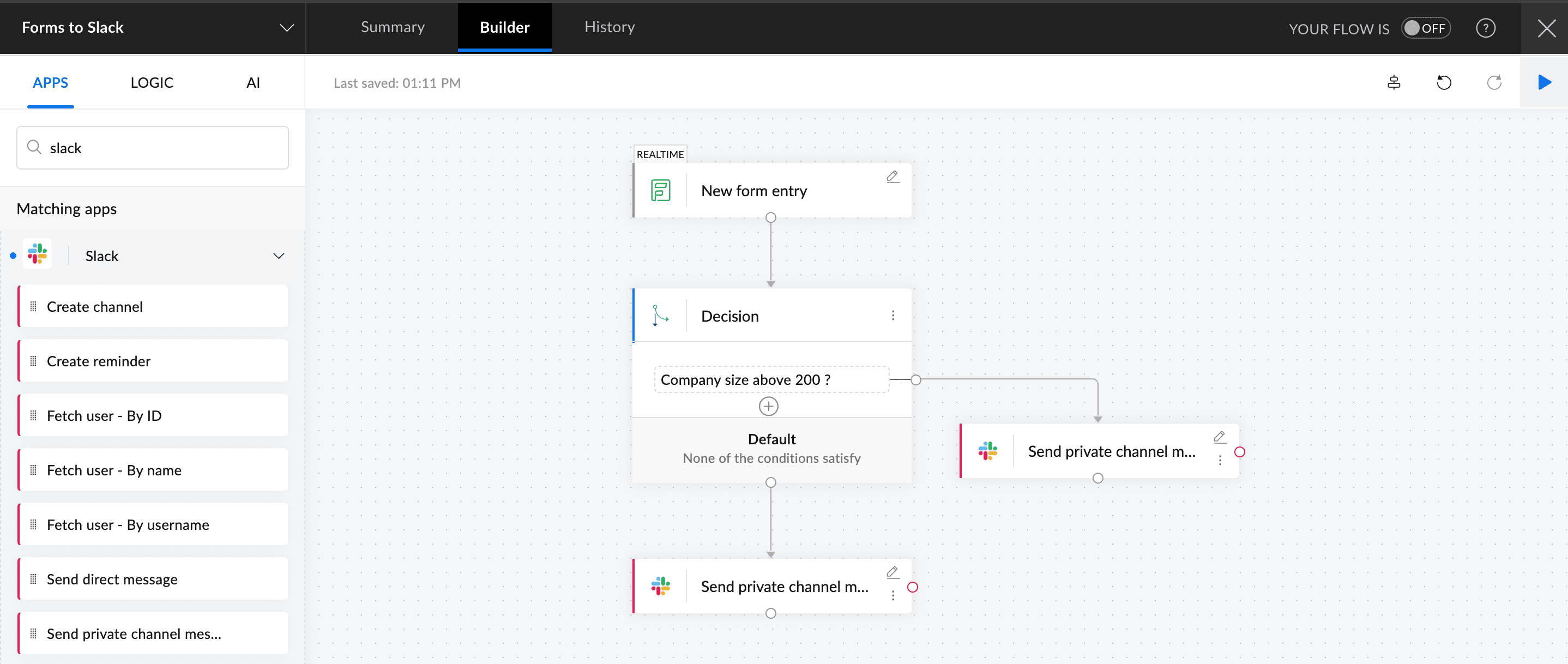
For example, whenever a lead fills out a form via Zoho Forms on your website, the event acts as the trigger in Zoho Flow. The system automatically sends a notification to the particular Slack channel, such as #sales_leads, with the relevant information about the lead. The Slack message can include the lead name, company, email address, lead source, and any other details.
With this automation, sales reps no longer have to check form submissions several times a day. Rather, they receive real-time updates in Slack, speeding up follow-ups and increasing lead conversions.
You can also add conditional logic to prioritize high potential leads. For example, if your form includes Company size field, the system can evaluate this data using a decision block. When a new form entry is submitted, the workflow checks the company size and routes the lead accordingly. If the company size exceeds 200 employees, the lead will be considered high priority and will be routed to the #high_priority_leads channel in Slack. If it's below 200 employees, the lead will be routed to the #sales_leads channel. This way you can easily filter and direct Slack notifications based on your business requirements.
Support ticket updates
Your support team might be receiving huge numbers of tickets on a daily basis, and it's time-consuming to switch between platforms and check each one of them. By connecting your help desk applications with Slack, your team can quickly receive notifications about important tickets, updated ones, and ones that need special attention. For example, when a ticket is marked as high priority in Zoho Desk, Zoho Flow can immediately send the ticket to a dedicated channel like #urgent_support.
Internal announcements
As your teams grow, a lot of internal announcements can easily get lost in Slack channels. This can lead to major updates going unnoticed, causing operational difficulties. Setting a curated process and sharing only the important announcements in Slack will help in preventing message overload.
Employees can use a tool like Notion to submit announcement requests rather than posting announcements in Slack manually each time. This submission acts as a trigger, with the workflow sending the request to the appropriate reviewer in Slack for approval. Once approved, the system automatically posts the announcement to a designated Slack channel, such as #company_announcements.
By doing this you can ensure only relevant and approved updates reach your team. This approach was successfully implemented by Relay using Zoho Flow.
Task and project updates
Project teams often use multiple project management tools to track tasks and milestones. Important updates like task assignments, upcoming deadlines, and other bottlenecks need the team's attention to keep everyone on the same page. Connecting your project management tools with Slack keeps you informed about which stage your projects are in and what needs to be done.
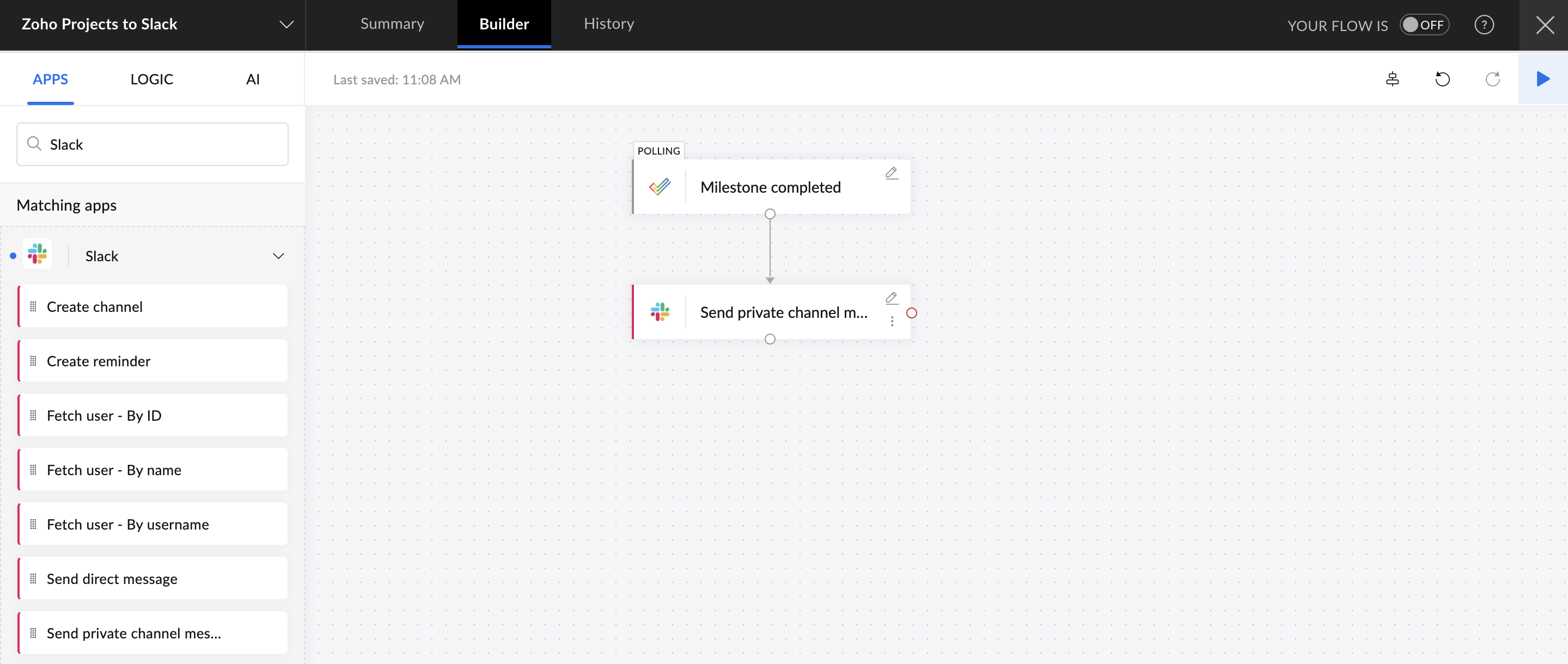
For instance, when a task is marked as completed, the system can notify the project manager via Slack automatically. When a project milestone is completed in Zoho Projects, Zoho Flow can send an automated message to the designated channel so that the entire team will be aware of the progress.
Notifying key sales events
Your sales teams handle demo bookings, deal closings, client interactions, and lot more, which can make it easy to miss critical updates. Automated Slack notifications can keep you posted instantly on key sales events like new deals or proposal acceptances.
For example, when a new deal is created or a client accepts a proposal, the system can trigger an instant Slack message to notify the team about the event. Here's how Spaghetti Agency implemented this using Zoho Flow.
"When a client accepts a proposal on Better Proposals, it drops a message into the right Slack channel. It also marks that opportunity as 'won' in the pipeline… That speed of response—enabled through the Slack message—makes that possible."
– Graham Todd, Director of Operations and Sales, Spaghetti Agency
Order cancellation alerts
Ecommerce and order management teams deal with hundreds of orders every day, and cancellations can be common. Manually tracking cancellations is a tiring and drawn out process. With Slack notifications, you can alert the right team members in real time, which helps in adjusting stock and processing refunds immediately.
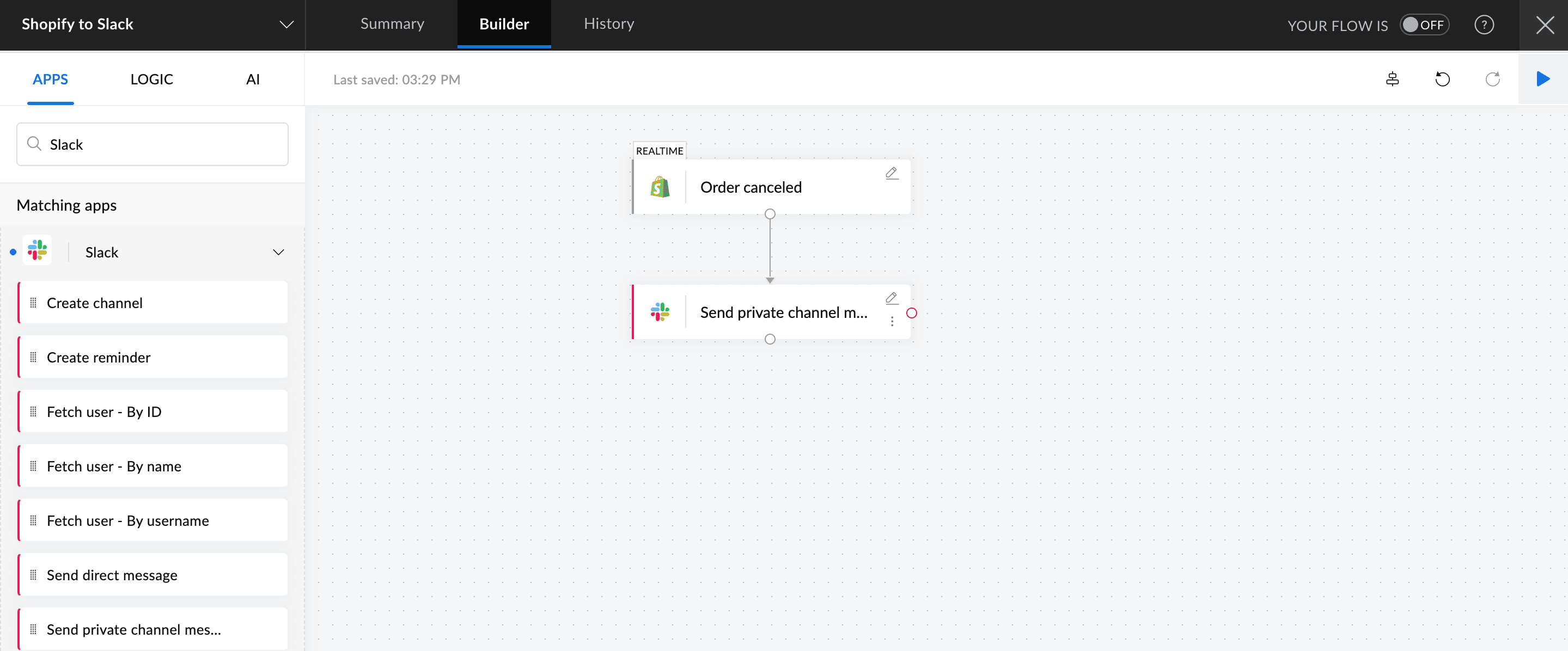
For instance, when a textile order gets cancelled on an ecommerce platform like Shopify, Zoho Flow can send out a Slack message in the #textile_order_cancellation channel. The message can include information like order details, customer info, and the reason, helping your team take immediate action.
Failed payment updates
Finance and operations teams dealing with payments regularly face failed transactions. And as your business grows, the number of payments failing will likely increase, making it harder to track manually. By setting up an automated workflow, your team can get instant alerts any time a payment fails.
For example, whenever a payment fails in a payment gateway like PayPal, the workflow can send an instant Slack notification to the #finance_alerts channel and also notify the finance head. This helps in solving payment issues before they escalate further.
Automating your Slack workflows will help you see a considerable improvement in team collaboration, regardless of how big your company is. With a well-structured integration platform like Zoho Flow, you can easily connect your apps and send intelligent notifications. Now with new AI capabilities you can generate smart responses with natural language prompts, prioritize urgent alerts, and enable smart channel routing.
 Gayathri Babu
Content writer for Zoho Flow. Passionate about creating engaging content that truly resonates with the readers.