8 project management workflows worth automating in 2026
- Last Updated : September 1, 2026
- 2.1K Views
- 7 Min Read
Key takeaways
- Manual hand-offs between project management and other apps slow teams down and are easy to forget.
- Common project management workflows, from ticket tracking to client invoicing, can be automated without writing any code.
- AI steps powered by Zia, Zoho Flow's AI assistant, can make workflows smarter, turning raw system events into readable summaries and structured task descriptions.
Your project management app is where all your team's tasks are tracked, and where the conversations and collaboration needed to get work done actually happen. But as teams grow and add on more tools, keeping everything coordinated across apps becomes its own job.
In this article, we'll go through some workflows that can be automated so that manual processes associated with project management can be substantially streamlined. This is especially relevant for modern teams that run on a mix of SaaS apps, where data and updates are scattered across multiple tools.
Zoho Flow lets you connect your project management app to the other tools your team uses, so these hand-offs happen on their own. Below are eight workflows worth setting up, along with notes on where AI and advanced logic can make them more useful.
1. Get smart notifications when tasks are created or updated
Learn about new tasks, or any other update that happens in your project management app, immediately, right from your chat app. This way you get a quick picture of what's going on, without having to log in to your project management app just to check for updates. You can configure a workflow so that every time an event triggers in your project management app, a notification is displayed in your chat app.
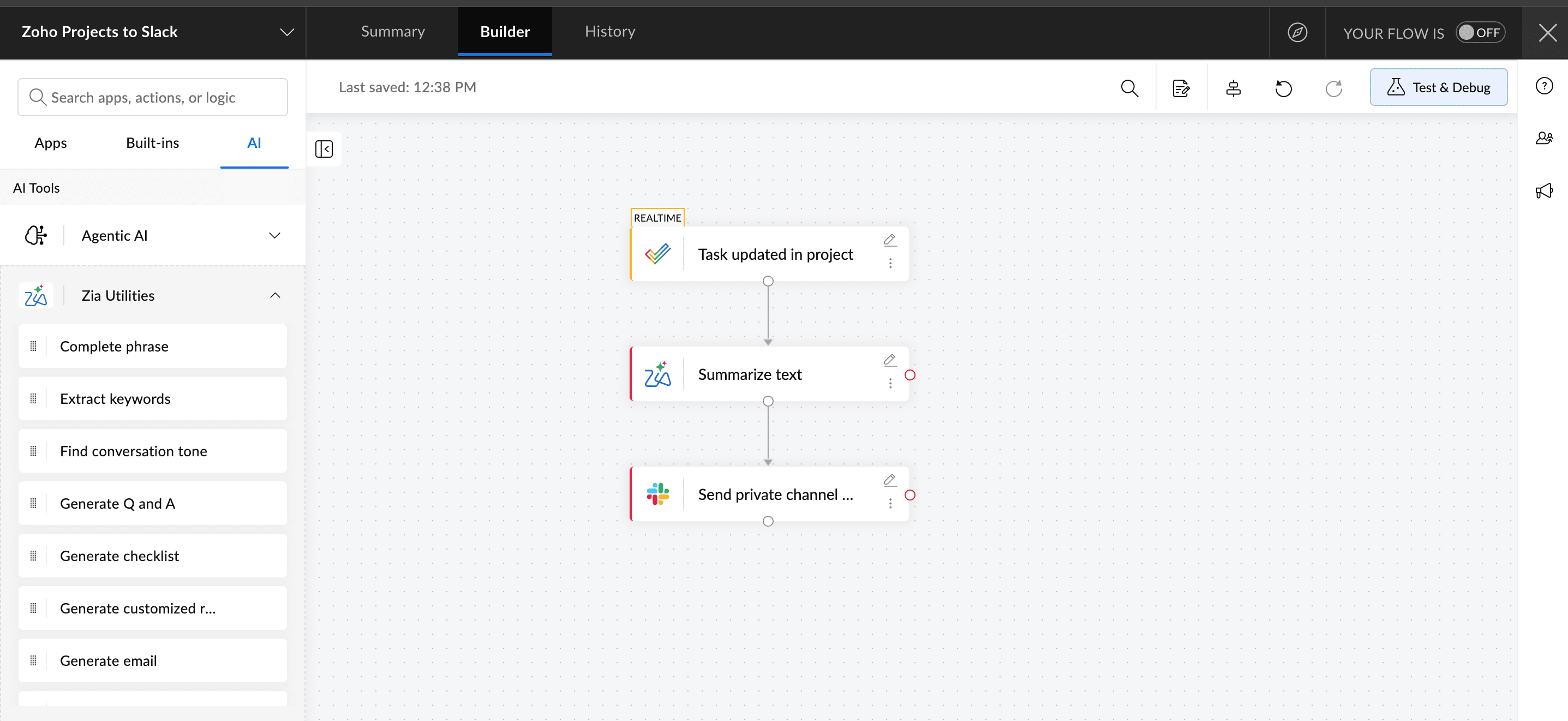
If you want to go a step further, add Zia, Zoho Flow's AI assistant, to summarize the update before sending it. Instead of forwarding a raw event like "Task #247 status changed", you can summarize the details and give more context in the chat message. For example, "The homepage redesign task moved to Review. Assigned to Priya. Due this Friday".
Whenever a task status gets updated in Zoho Projects, add an AI step to summarize the task and send that as a message to your team's Slack channel.
2. Create a project automatically when a deal closes in your CRM
When a deal is marked as "closed-won" in your CRM, someone needs to create a project, assign team members, and set up the initial tasks. Usually this means logging in to another tool and doing it by hand, often hours or days after the deal was actually closed.
With Zoho Flow, you can set up a workflow so that when a deal is closed in HubSpot, a project is automatically created in Trello with the client name, deal value, and expected close date already filled in. A project will be created before anyone even thinks about it.
3. Turn support tickets into tracked tasks
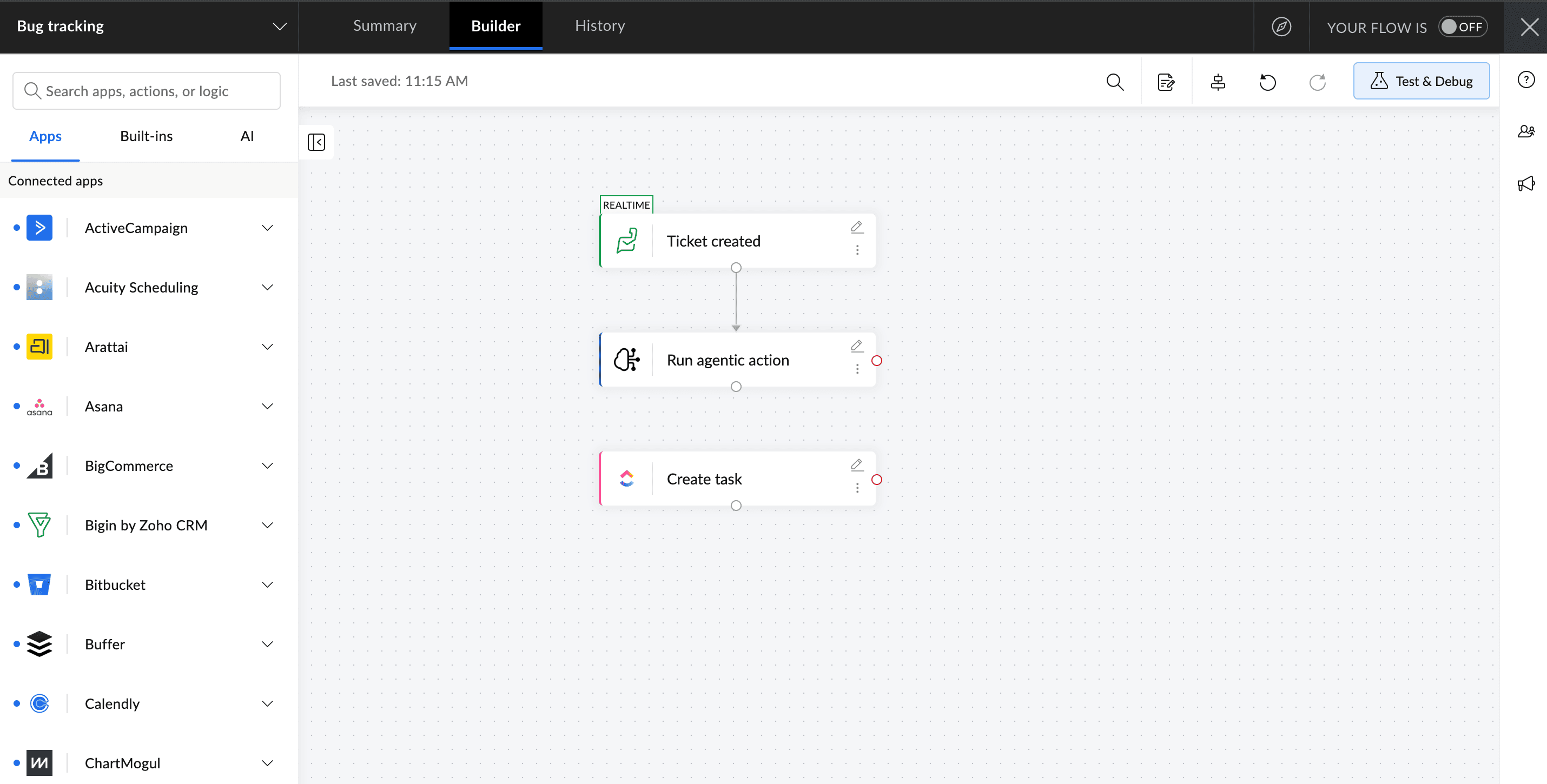
When a customer reports an issue that turns out to be a bug or a feature gap, someone needs to take that ticket and turn it into a task in your project management app. If this is done manually, it gets forgotten—or it gets done inconsistently, with different people writing descriptions in different ways.
Connect Zoho Desk to your project management app in Zoho Flow. When a ticket comes in, add an agentic action step where Zia reads the ticket content and decides what to do next. If it's a genuine bug or product issue, a task is automatically created in ClickUp with the ticket details. If it's a general query, it stays in Zoho Desk for the support team to handle. Your dev team only sees tickets that actually need their attention.
4. Convert form entries into project actions automatically
Forms are incredibly versatile. They're used to collect all kinds of different information from customers, leads, and even employees inside an organization, among many other use cases. Sometimes, you may find yourself in a situation where you want to act on every form response without doing it manually.
Take this scenario: When a freelancer fills out your intake form in Zoho Forms with their details and area of work, Zoho Flow can automatically add them to the relevant project in Zoho Sprints. The project manager doesn't have to review the form and set up access separately. The moment the form is submitted, the right person is already in the right project and ready to be assigned work.
5. Invoice clients when a project is completed
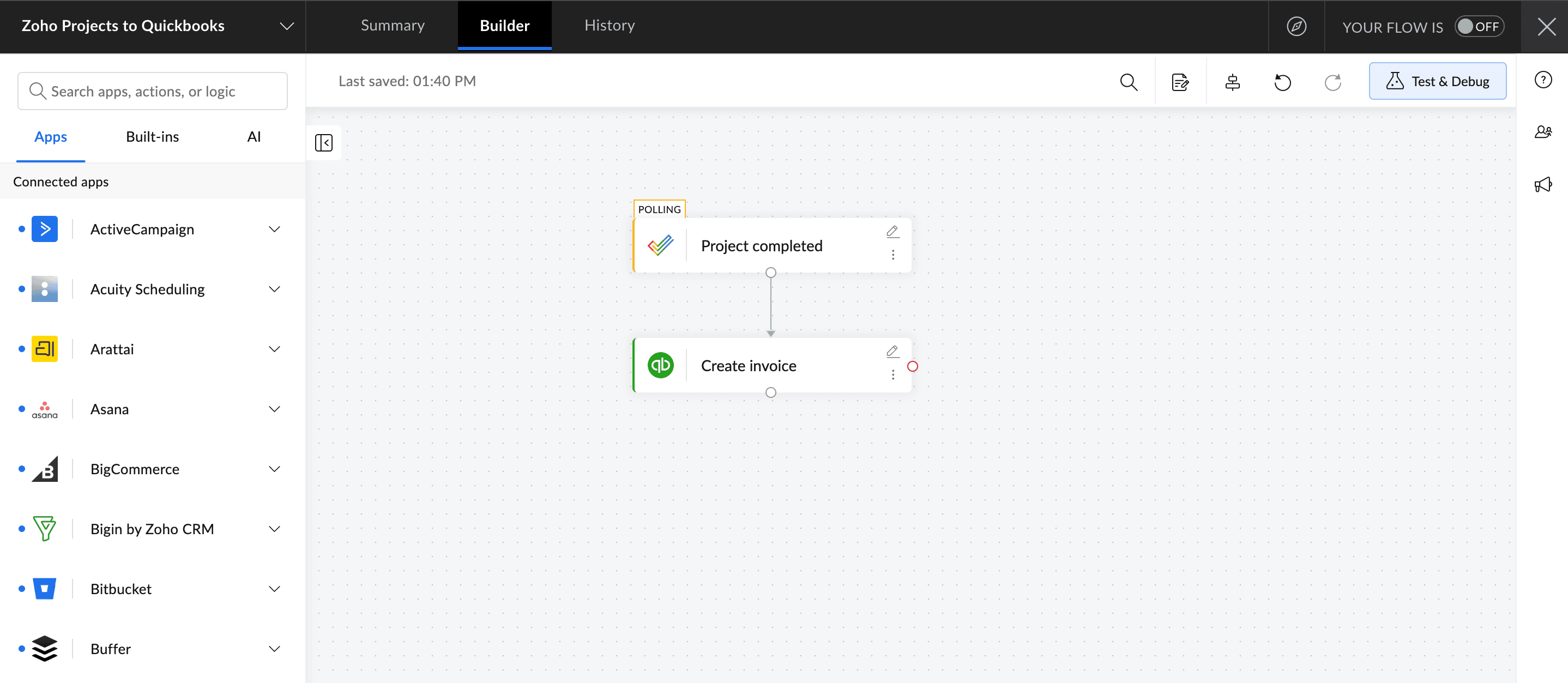
Whenever a project is completed, you'll need to invoice the client. But with this workflow, you won't have to do it manually. Every time a project is marked as completed in Zoho Projects, you can automatically create an invoice in QuickBooks for that client, so it is ready to review and send without any manual data entry.
6. Export completed tasks to a client-facing spreadsheet
Say you want to share a spreadsheet with your client showing all the work completed on their project. Adding tasks manually takes a lot of time, and you need to be careful not to add the wrong one. However, when you're using an integration platform, you can create a workflow so that every time a task is marked as completed, it's automatically copied to the desired spreadsheet.
Just set up a Zoho Flow workflow so that when a task is marked as complete in Asana, a new row is added to Google Sheets or Zoho Sheet with the task name, assignee, completion date, and any other relevant details already mapped across. Now your client always has an up to date view of completed work without anyone on your team doing it manually.
7. Add calendar events as project events
When someone schedules a meeting, a review session, or a deadline on the calendar, that event sometimes also needs to be visible in your project management app so it shows up in sprint planning or project views.
Connect Google Calendar or Zoho Calendar to your project management app in Zoho Flow. When a new event is created (or an existing one is updated), a corresponding event is created in your tracker with the title, date, and description.
This is particularly useful for client-facing work where external meetings, deliverable dates, and review cycles all need to be visible to the broader team, not just the person who accepted the calendar invite.
8. Track new incidents as tasks
When an incident is reported in your incident management application, you'll want to find out why it happened and what needs to be done, so that it doesn't happen in the future. You can do this by tracking every incident as a task in your project management application.
Every time an incident is reported in PagerDuty or Freshservice, it's automatically added as a task in your project management app with the incident details already filled in. For high-severity incidents, you can add a parallel step in Zoho Flow to send a message to a dedicated Zoho Cliq or Teams channel, so the right people are aware and can act immediately.
While these workflows are some of the most common ones, you can always use Zoho Flow to build custom workflows tailored to the apps and processes your team runs on. If you need any help getting started, reach out to us at support@zohoflow.com.
Related reading
- Maximize project and task management efficiency using automation
- What is an integration platform and how does it work?
- 9 ways to automate Zoho Projects with other apps using Zoho Flow
Frequently asked questions
1. Do I need coding skills to set up these workflows in Zoho Flow?
No. Zoho Flow is a no-code platform. You set up workflows using a drag-and-drop builder by selecting a trigger, adding actions, and configuring the fields. The AI steps, webhook triggers, and subflows are all configurable through the same interface without writing any code.
2. What is the difference between built-in automations in my project management app and using Zoho Flow?
Built-in automations work within a single app: for example, automatically assigning a task when it moves to a certain status. Zoho Flow connects multiple apps together, so you can trigger actions across tools your project management app doesn't natively talk to, like your CRM, invoicing software, or support desk.
3. Will automating project management workflows replace project managers?
No. Automation handles the repetitive coordination work so project managers can focus on decisions, relationships, and problem-solving that actually require human judgment. Things like stakeholder communication, risk assessment, and team dynamics are not something automation replaces.
4. How many apps can Zoho Flow connect to?
Zoho Flow let's you connect to 1,000+ apps, including popular project management tools like Asana, Trello, ClickUp, Monday, and Zoho Projects, as well as CRMs, support desks, invoicing tools, spreadsheets, and calendar apps. If an app isn't in the gallery, you can connect it using a webhook trigger.
5. Is it safe to automate business-critical workflows?
Yes, as long as you build in the right checkpoints. With Zoho Flow, you control exactly what actions are available and what triggers them. For high-stakes workflows like invoicing or approvals, it's always worth adding a manual review step before the final action runs, rather than letting the automation complete the entire process on its own.
6. How secure is my data when using an automation platform?
Zoho Flow runs on Zoho's infrastructure, which is built around a comprehensive set of security and compliance standards. Zoho holds ISO/IEC 27001 certification for information security management across all its cloud services, ISO/IEC 27701 for privacy management, and ISO/IEC 27017 for cloud-specific security controls. It's also SOC 2 Type II compliant, and adheres to GDPR and CCPA requirements.
On the data side, all information is encrypted in transit using TLS and at rest using 256-bit AES encryption. Each customer's data is logically separated from other customers, and Zoho does not sell user data to third parties. You can find the full list of Zoho's compliance certifications at zoho.com/compliance.html.
 Karthick
Content Marketer for Zoho Flow. Passionate about helping businesses make better use of technology.