From migration to automation: Smart solutions to supercharge your Zoho Mail workflows
- Last Updated : June 29, 2026
- 693 Views
- 6 Min Read

Summary:
- Once you migrate to Zoho Mail, automation helps you organize daily email tasks and reduce manual workload.
- Automated workflows ensure your CRM, projects, HR, finance, meetings, and orders stay in sync with your inbox.
With your entire tech stack connected, you'll get a unified, error-free, highly efficient email experience.
Are you someone who recently migrated from Gmail or Outlook to Zoho Mail? If so, this article will help you learn to use Zoho Mail efficiently, unlocking its full potential.
Many individuals and organizations are switching to Zoho Mail for its security, privacy, and seamless collaboration features. Even government organizations are making this large-scale shift:
"Over the past one year, all 12 lakh e-mail addresses of Central government employees, including those of the Prime Minister’s Office (PMO), have migrated from a National Informatics Centre-based system to a platform developed by Zoho."
- The Hindu
That's a major milestone. But once you migrate to Zoho Mail, the real value lies in how effectively you use it to save time and simplify your daily tasks.
Why automation matters after migration
After migration, many teams still spend time on repetitive email tasks—saving attachments, updating CRMs, or notifying teammates. These small actions may seem minor, but together, they take up a large portion of your day. That's where automation helps—connecting your inbox with other tools in your tech stack to reduce manual work and wasted time.
However, most business apps today offer basic one-step integrations. You can, for example, turn an email into a CRM lead and save its attachments to cloud storage. But real world workflows often involve multiple tools and steps. To manage them, you need a robust integration and automation platform that supports complex custom integrations.
With Zoho Flow, you can automate your workflows by connecting Zoho Mail with your favorite business apps. You can choose from over 1,000 apps available, including both Zoho and third-party options.
Now that you understand the value of automation, let's explore some common email workflows you can automate in Zoho Mail.
Everyday workflows you can automate using Zoho Mail
Connecting your CRM and inbox
You can connect Zoho Mail with popular CRM applications like Hubspot CRM, Zoho CRM, and more to automate your daily workflows. Let's look at how Hubspot CRM and Zoho Mail work together.
Whenever a new deal is created in Hubspot CRM, you can automatically send a follow-up email through Zoho Mail. You can also set up similar automations for other Hubspot activities. For example:
- Create a draft email when a new contact is created.
- Send a task update to a concerned assignee when a new task is created.
- Create a folder inside Zoho Mail when a new company is added.
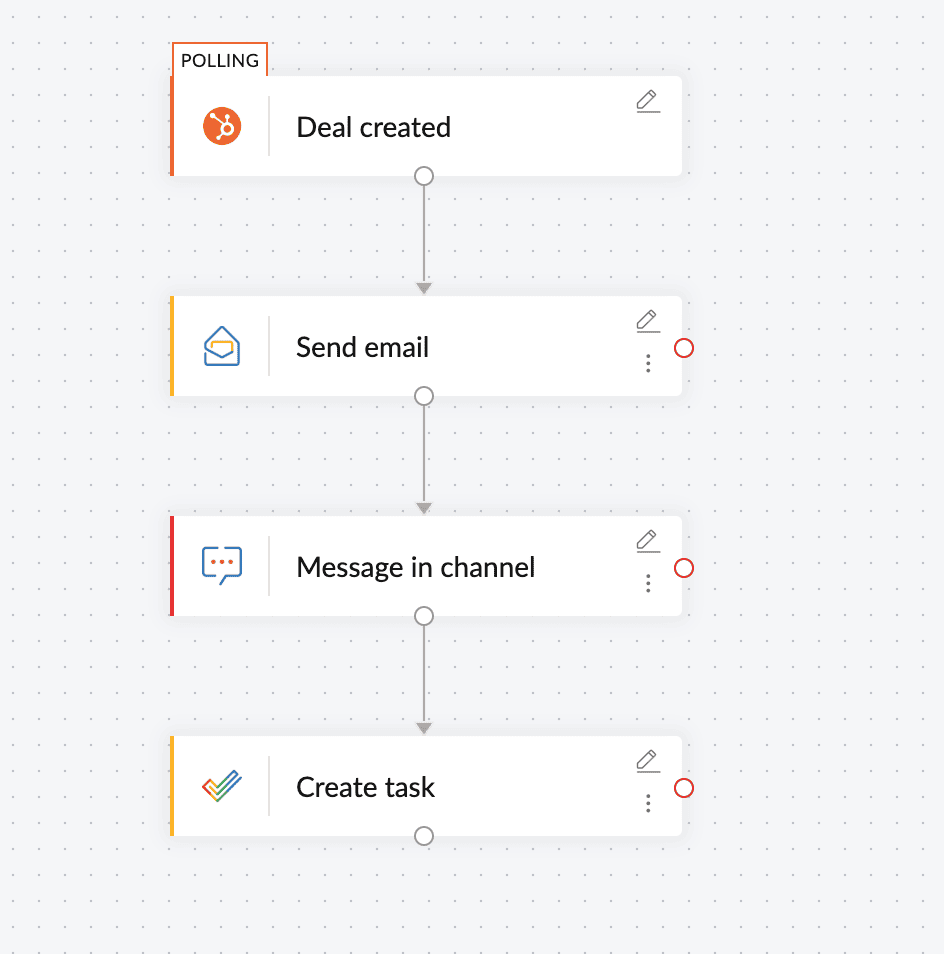
In the above workflow, when a new deal is created in Hubspot CRM, you can automatically send a follow-up email through Zoho Mail, notify your team in a connected channel, and also create a task in your project management tool to track the next steps.
Organizing and managing your email attachments
If you use Zoho WorkDrive or Google Drive to store your documents, integrating it with Zoho Mail can help you automatically notify your team about new file uploads. By setting up automated workflows, your team can track every file that's added.
For instance, when you receive an email with attachments from your client, you can automatically tag the email with the client's name. You can also:
- Send a notification email to the team lead when a new file gets uploaded in WorkDrive.
- Create a note inside Zoho Mail summarizing the details about the file uploaded.
These automations ensure every incoming file is noted and organized, and the right people are notified.
Keeping your meetings and email in sync
You can integrate Zoho Mail with your meeting applications, like Zoho Meeting or GoToWebinar, to automate meeting-related tasks and communication. For example, whenever a new meeting is scheduled, Zoho Mail can automatically send the meeting agenda to the host. You can also:
- Send a quick alert email to a team lead or department head summarizing the meeting topic.
- Store the meeting agenda inside notes in Zoho Mail for the reference of the host.
With these automations you can keep your meetings well-coordinated and send timely updates to the concerned person without manual intervention.
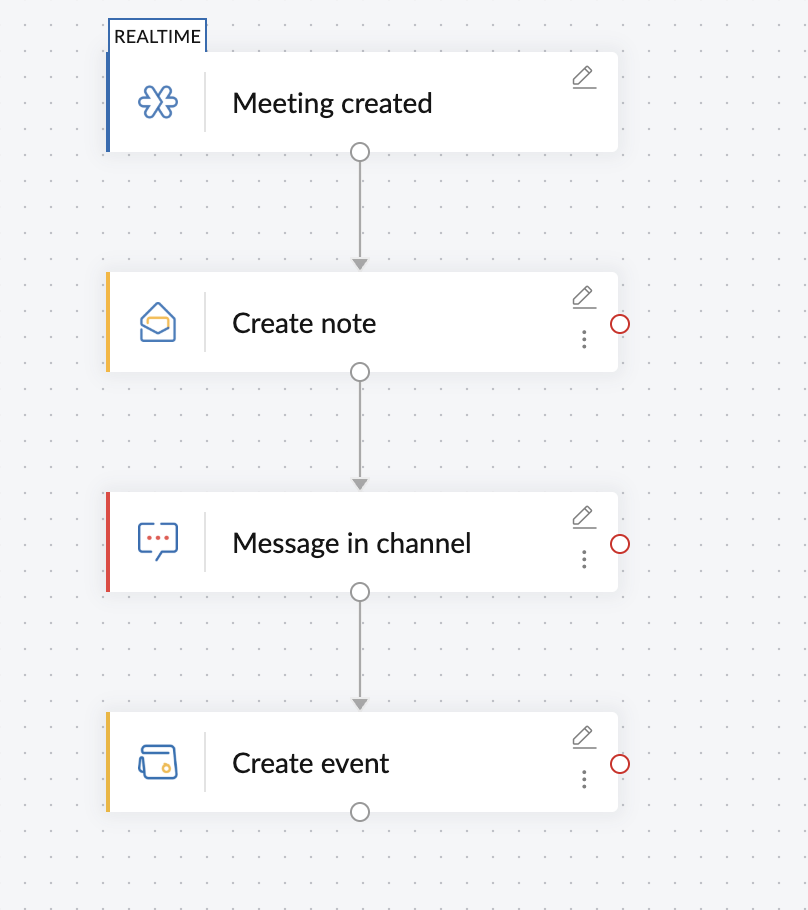
In the workflow shown above, when a new meeting is created in Zoho Meeting, Zoho Flow automatically creates a note in Zoho Mail on the meeting agenda, posts a message in your team's communication channel, and creates an event in Zoho Calendar.
Syncing your HR workflows with your inbox
Whether your HR team handles onboarding, leave approvals, or recruitment, connecting Zoho Mail with your HR tools can simplify the communication. You can ensure your candidates, employees, and HR managers receive timely updates without manually sending emails every time.
For example, when a new candidate gets added to Zoho Recruit, Zoho Mail can automatically send a welcome email with the next steps. You can also:
- Send alert emails to HR managers when emergency leave requests are submitted.
- Add new employees to a group in Zoho Mail when they are onboarded.
Bringing your project updates and email together
If your team uses project management platforms like Zoho Projects or Asana, you can connect it with Zoho Mail to streamline your workflows. For instance, when a high priority task is created in Asana, Zoho Mail can instantly send an email to the project owner. Moreover, you can:
- Notify the project manager when a new project is created.
- Create a task in Zoho Mail when a subtask is created.
- Send a reminder email to the assignee when the task is due soon.
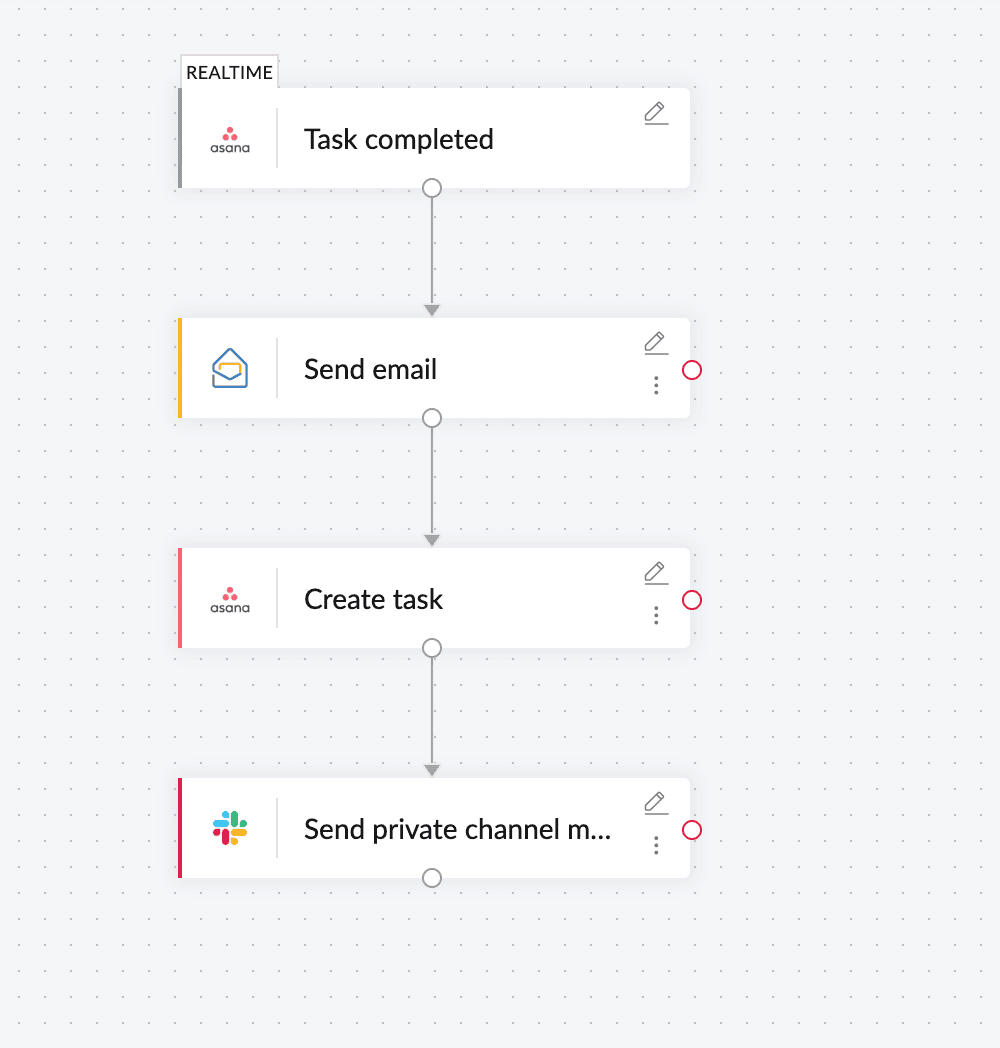
In the illustration above, when a high priority task is completed in Asana, an email is sent automatically to the project manager with the summary of the task details. A new follow-up task is then created in Asana to proceed with the next steps. Moreover, the team is notified about this via Slack.
Streamlining billing- and invoice-related emails
If your team uses apps like Zoho Books or QuickBooks, you can connect them with Zoho Mail to automate billing updates. From sending invoices to making payment reminders, automation will ensure all critical emails are sent at the right time. For instance, when a new invoice gets generated in Zoho Books, Zoho Mail can automatically notify the person in charge. You can also:
- Create notes for invoice summaries in Zoho Mail.
- Follow up with clients who fail to make payments.
- Send customized emails to clients once payment is done.
With this automation, your routine billing tasks can be organized and happen consistently on time.
Combining order management with your inbox
If you're running an online store in Shopify or WooCommerce, integrating them with Zoho Mail will help you automate every order-related email. For example, when a new purchase is made in your online store, Zoho Mail can instantly send a thank-you email to the customer with the delivery details in it. You can also:
Send an email to the dispatch head when an order is ready to be packed.
- Create a task in Zoho Mail for the delivery team when an order is placed.
- Notify the order supervisor when a new order comes in from a customer.
Wrapping up
We hope you now have a clear idea of how automation helps you use Zoho Mail more efficiently. Once your Zoho Mail workflows are automated, your daily tasks that took hours can now be completed in just minutes. Try this out today with Zoho Flow and experience the difference!
Related reading:
- 7 powerful Zoho Mail integration ideas to automate your workflows
- 5 Zoho Campaigns integrations to grow and engage your audience
- 9 ways to automate Zoho Projects with other apps using Zoho Flow
- 6 ways to integrate Zoho Inventory with other applications using Zoho Flow
 Gayathri Babu
Content writer for Zoho Flow. Passionate about creating engaging content that truly resonates with the readers.