
Multi-warehouse Operations
Once you enable multiple warehouses for your organization, you will be able to do warehouse based operations throughout Zoho Inventory. This help module aims to give you an overview of the changes that take place after enabling multi-warehousing and how you can use them.
Items
Item Overview Page
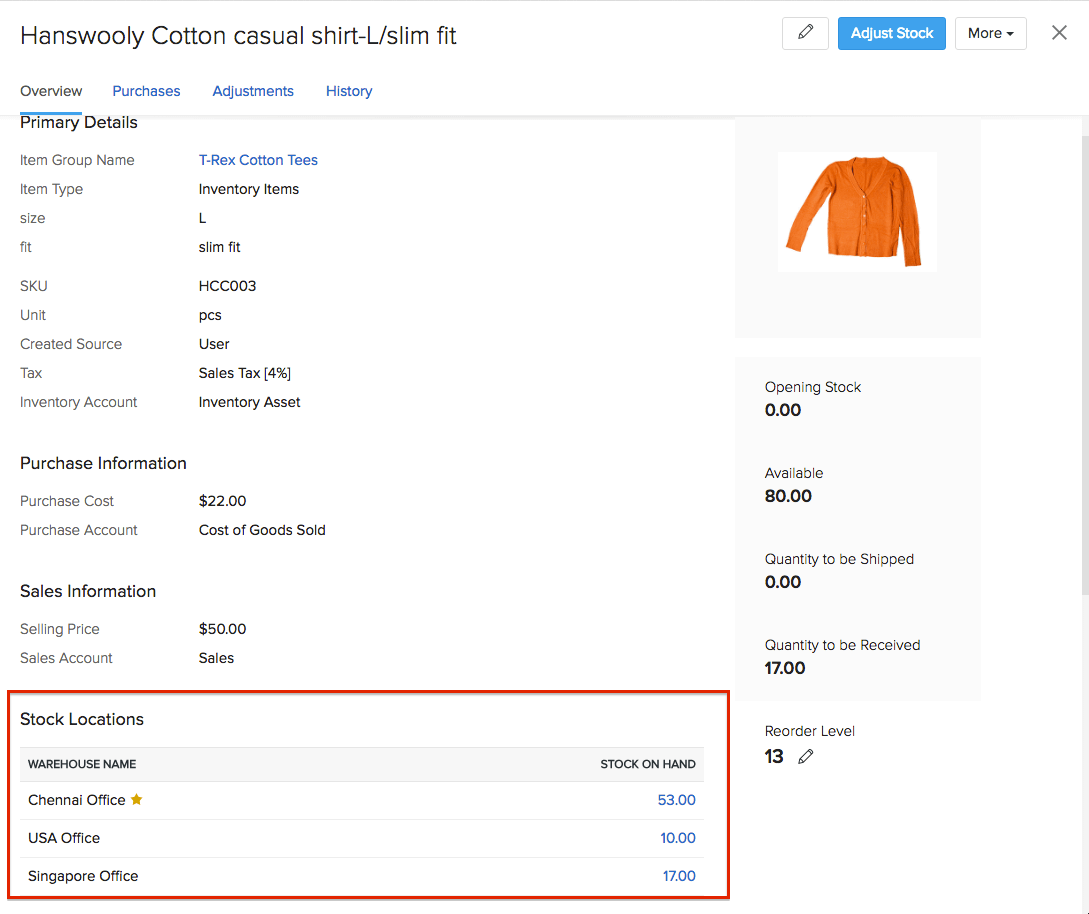
After enabling multiple warehouse management, you will be able to store your and track your items across multiple locations. The item overview page gives you a quick glance at the stock levels present at different locations for a particular item. To view this page,
- Click on the items module in the left pane of Zoho Inventory.
- Select the item of your choice.
- In the overview page, you will be able to see the available stock in multiple warehouses along with other details of the item.
- Note: You can also drill into the inventory details report for any warehouse by clicking on the appropriate stock level from the overview page.
Item Creation
When creating a new item, its stock will always be stored first in the Primary Warehouse. If you need to have the stock in any other warehouse, then you can use a Transfer Order to transfer the stock to the desired warehouse after creating the item.
NOTE:
- To know more about creating a Transfer Order, click here.
- Click here to learn how to create a new item.
Stock Adjustment
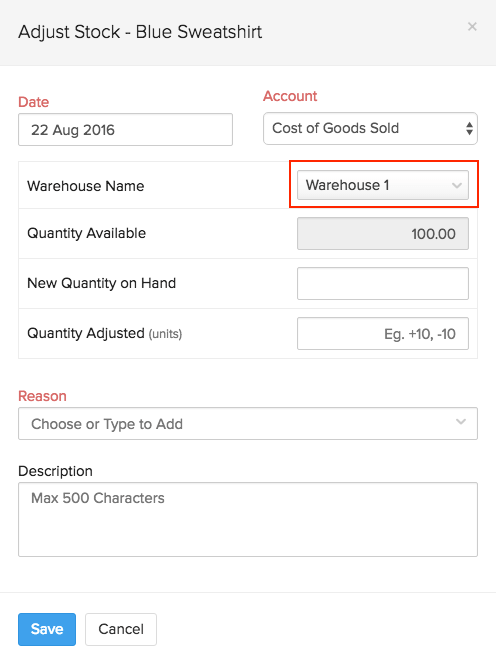
While doing stock adjustments, you will now be able select the warehouse in which you wish to adjust the stock.
NOTE: For a detailed guide on how to do stock adjustments, click here.
Composite Items
Composite Items Overview Page
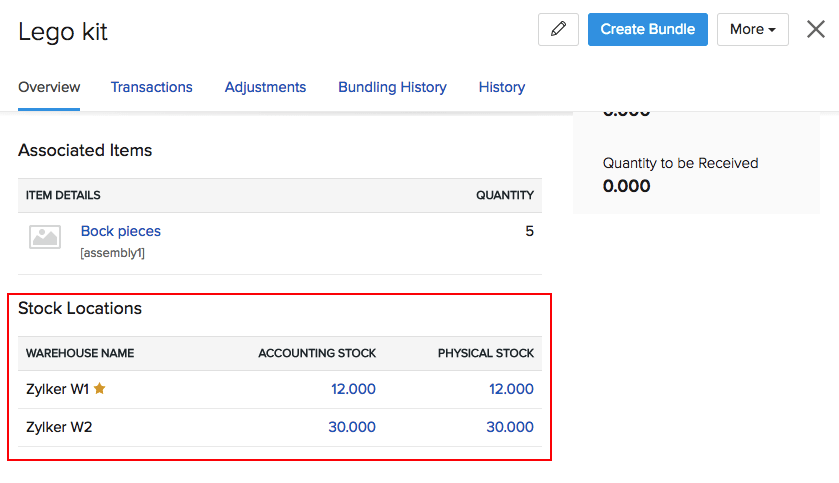
After enabling multiple warehouse management, you will be able to store your and track your composite items across multiple locations. The item overview page gives you a quick glance at the stock levels present at different locations for a particular item. To view this page,
- Click on the Composite Items module under Items in the left pane of Zoho Inventory.
- Select the item of your choice.
- In the overview page, you will be able to see the available stock in multiple warehouses along with other details of the composite item.
- Note: You can also drill into the inventory details report for any warehouse by clicking on the appropriate stock level from the overview page.
Composite item creation
When creating a new item, its stock will always be stored first in the Primary Warehouse. If you need to have the stock in any other warehouse, then you can use a Transfer Order to transfer the stock to the desired warehouse after creating the item.
Note: To know more about creating a Transfer Order, click here. To learn how to create a new composite item Click here.
Stock Adjustment
While doing stock adjustments for composite items, you will now be able select the warehouse in which you wish to adjust the stock.
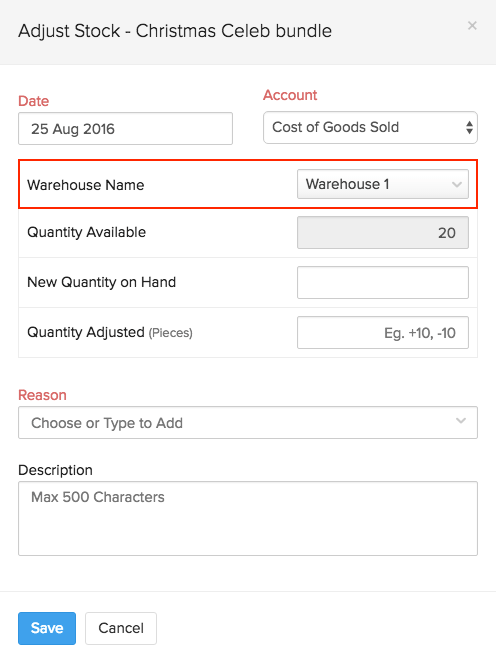
NOTE: For a detailed guide on how to do stock adjustments for composite items, click here.
Bundling
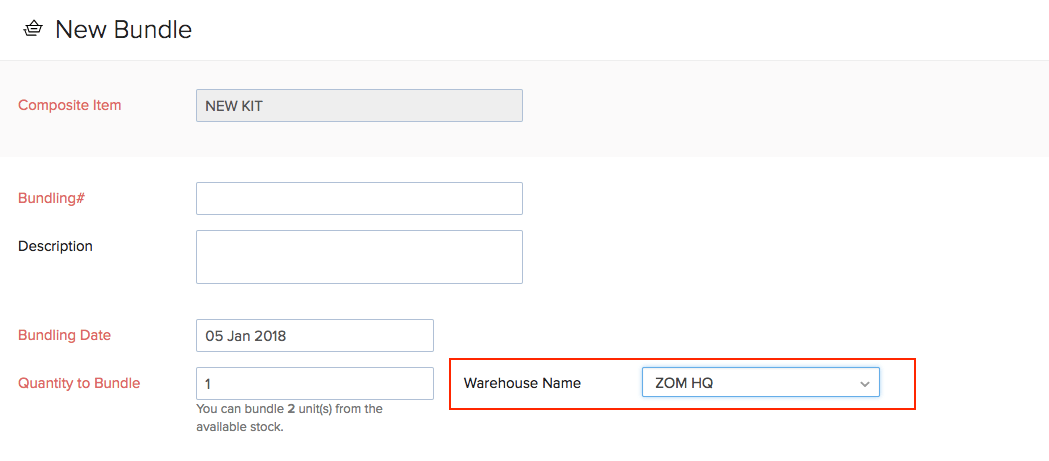
While bundling a composite item, you can select the warehouse within which you wish to perform the bundling operation.
Important Note:
- While bundling, the available quantity of associated items displayed inside this window is equal to the current stock levels of those items within the chosen warehouse.
- To learn more about bundling composite items, click here.
Importing sales & purchase transactions based on location
Once you enable multiple warehouses for your organization, you will be able import your sales orders, invoices, purchase orders and bills based on location. This can be done by specifying the name of the warehouse against every transaction (i.e., every row) under the Warehouse Name column header within the import file.
Purchase Orders
Selecting a preferred warehouse
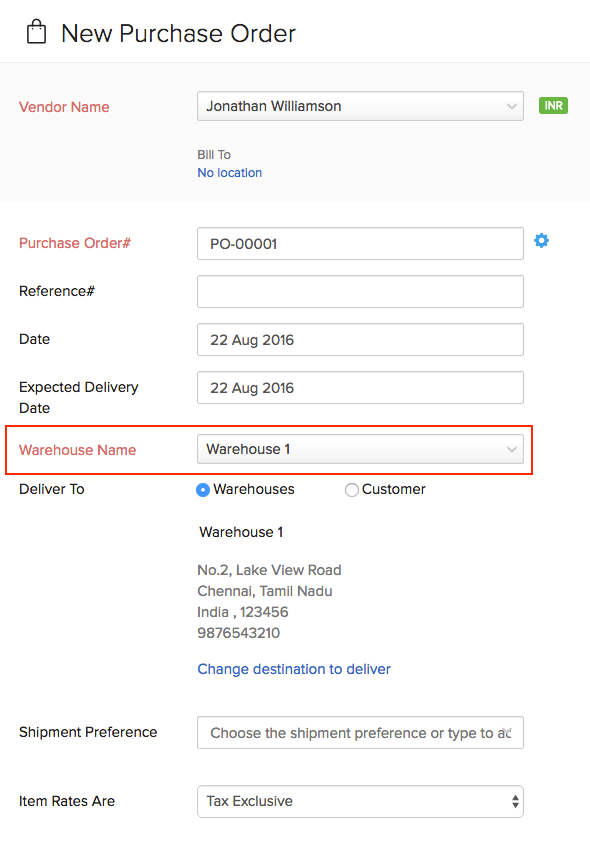
While creating a new Purchase Order, you can now select the preferred warehouse where you wish to have your purchased items delivered.
NOTE:
- To learn more about Purchase Orders, please click here.
- It is not possible to have different line items delivered to different warehouses.
Bills
Just like in a purchase order, you can select the warehouse name while creating a new Bill.
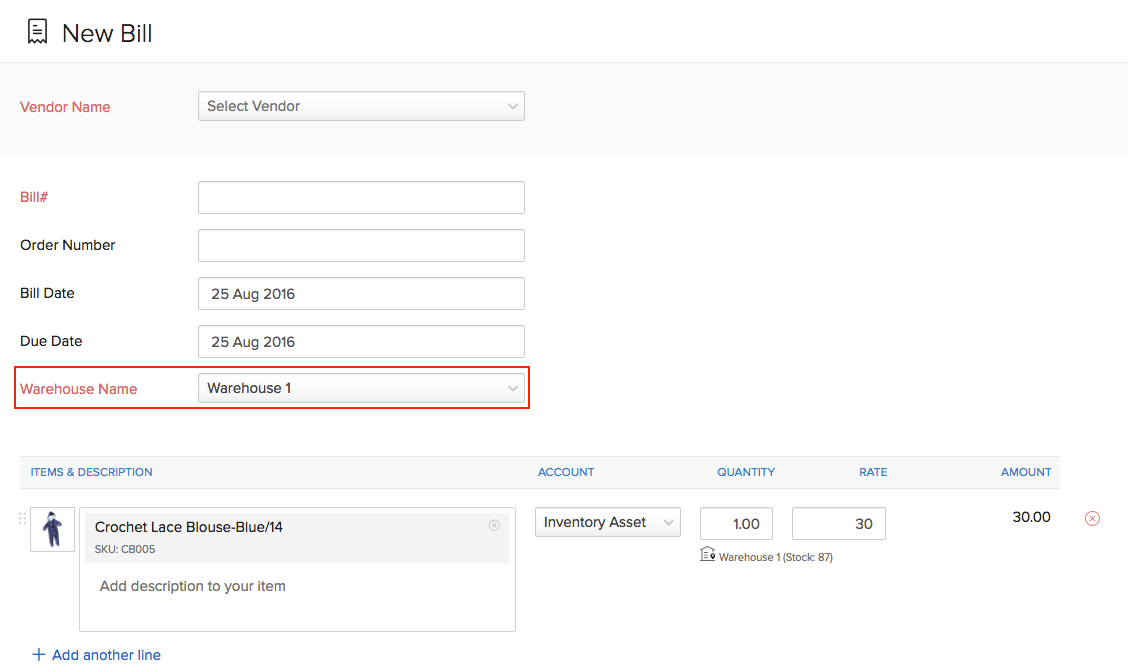
NOTE:
- It is not possible to change the items in a Bill if the bill has been created from a Purchase Order.
- To learn more about Bills, please click here.
Sales Orders
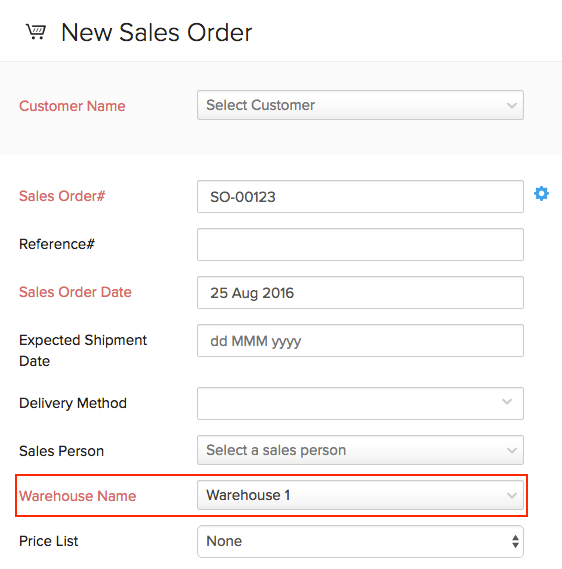
Selecting a preferred warehouse
While creating a new Purchase Order, you can select the preferred warehouse where you wish to have your items shipped from.
Selecting different warehouses for different line items
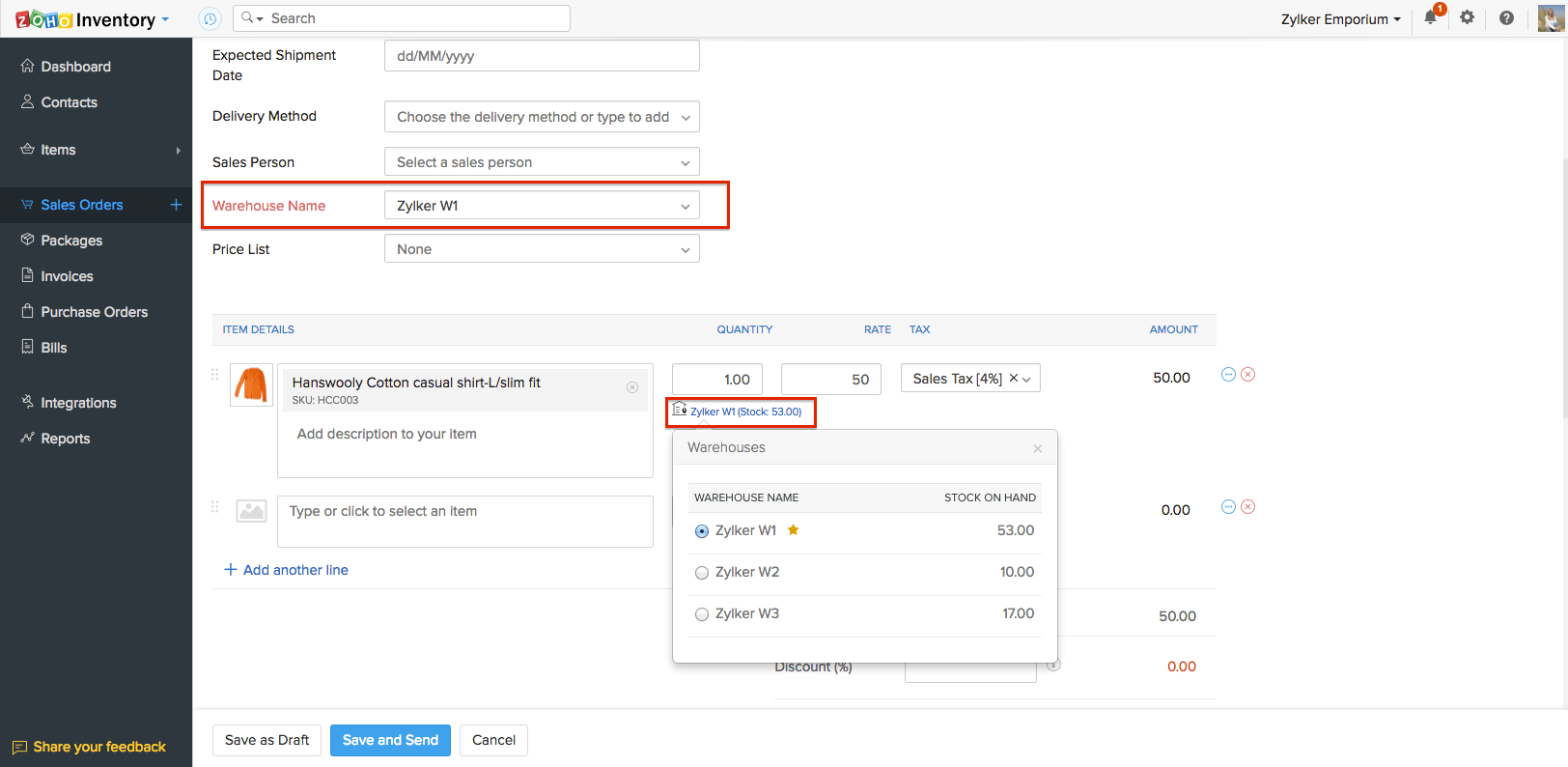
It is also possible to select different warehouses for different line items in the Sales Order. For example, you can have Item A shipped from your primary warehouse and Item B shipped from your other warehouse.
To do so,
- Create a new Sales Order.
- Select a warehouse from which you wish to have your items shipped.
- Add multiple line items.
- Click on the warehouse name below the item quantity field to change the warehouse from where it is shipped.
Note: To learn more about creating Sales Orders, click here.
Invoices
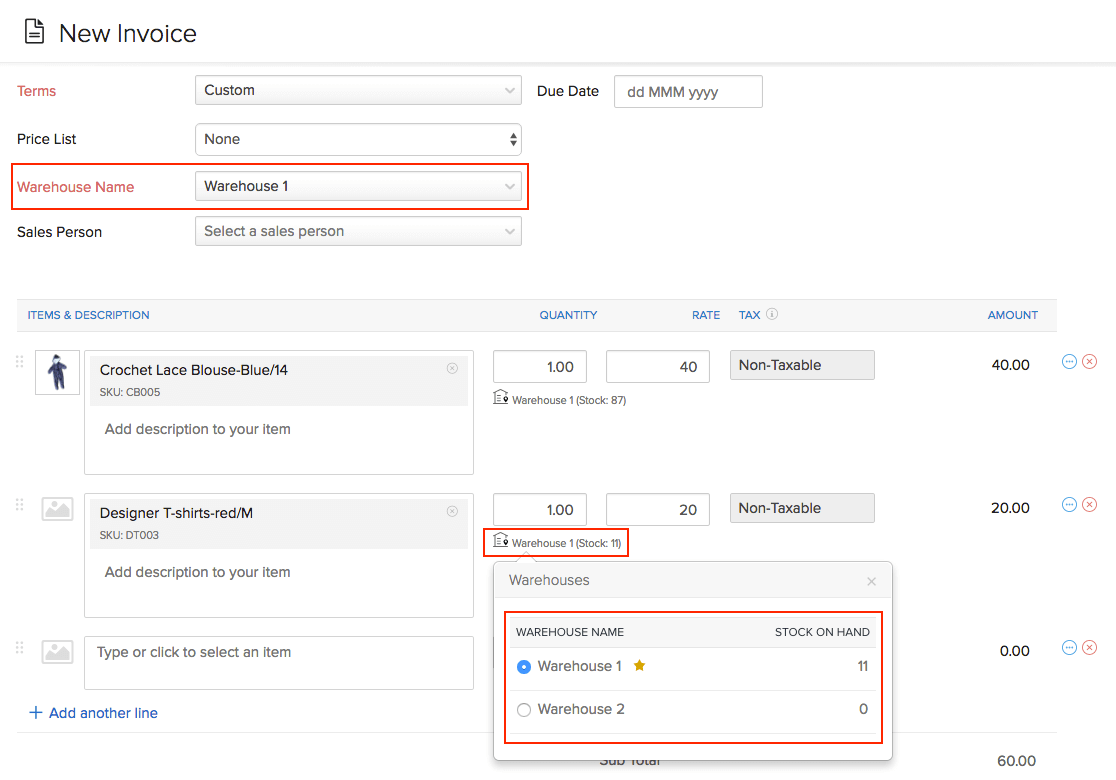
When creating a new Invoice, you can select the preferred warehouse from the list of available warehouses.
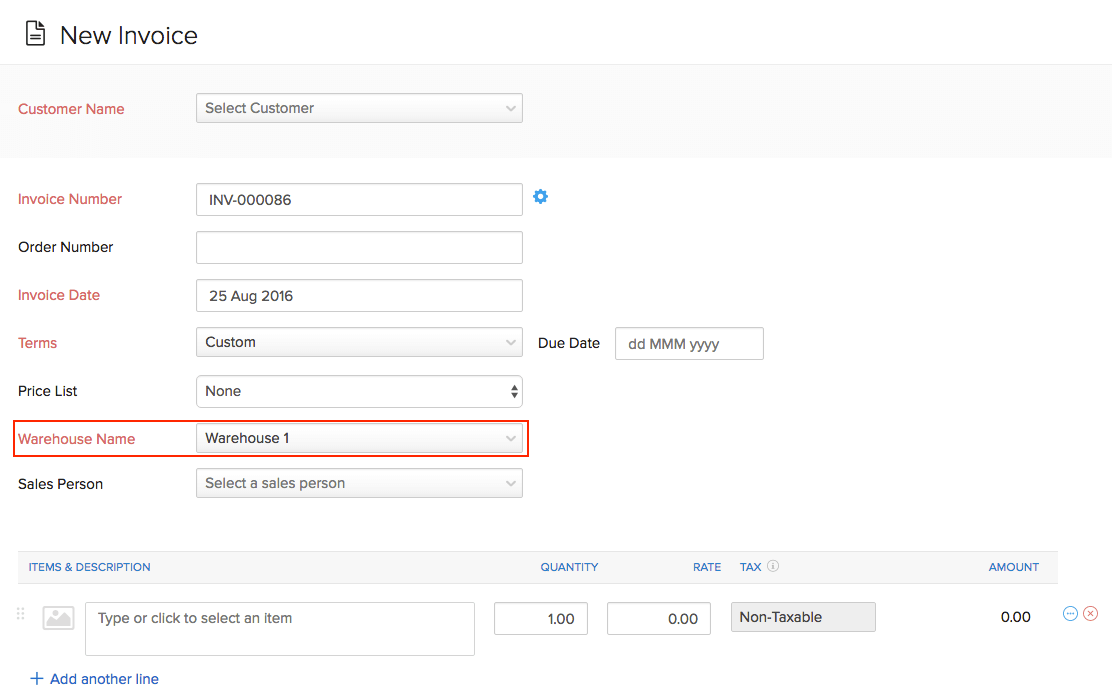
Selecting different warehouses for different line items
It is possible to select different warehouses for different line items in the Invoice. To do so,
- Create a new Invoice.
- Select a default warehouse.
- Add multiple line items.
- Click on the warehouse name below the item quantity field to change the warehouse for that particular line item.
Note:
- It is not possible to change the items in an Invoice if it has been created from a Sales Order.
- To know more about Invoices, click here.