

Warehouses
Guide Layout: Transfer Orders – Multiwarehouse Operations
Managing multiple warehouses has never been so easier. Zoho Inventory has a sleek multi-warehouse system that allows you to track and manage your inventory, seamlessly across different locations.
The Warehouses module in Settings allows you to do the following tasks:
- Enable & create warehouses
- Manage warehouses
- Disable multi-warehouse module
- Other operations related to multiwarehouse management
Enable multiple warehouses
Follow these steps to enable multi-warehouse management in Zoho Inventory.
- Click on the gear (Settings) icon from the top-right corner of Zoho Inventory.
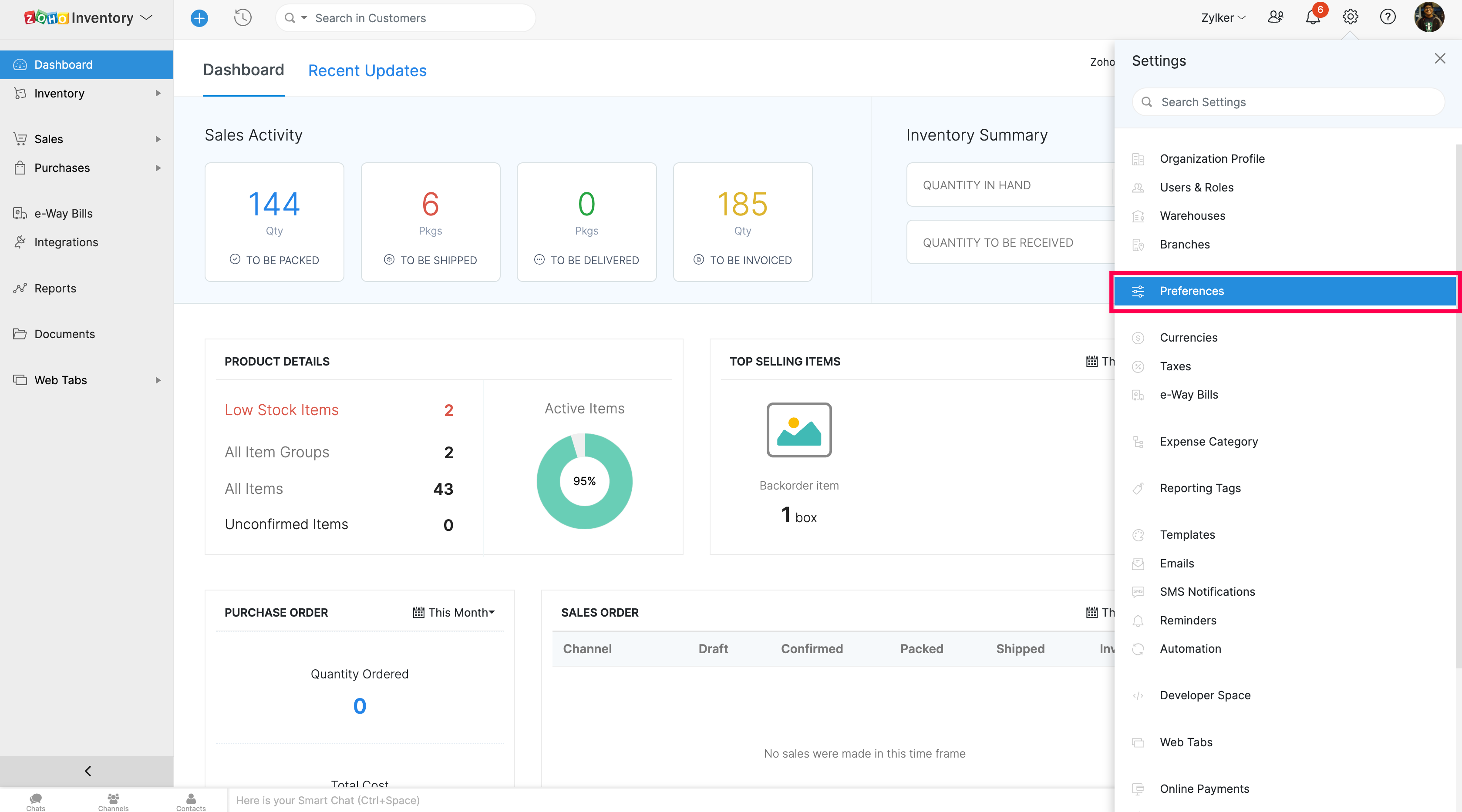
- Select More Settings from the drop-down.
- On the left pane, select Warehouses. This will take you to the page where you can enable multi-warehousing.
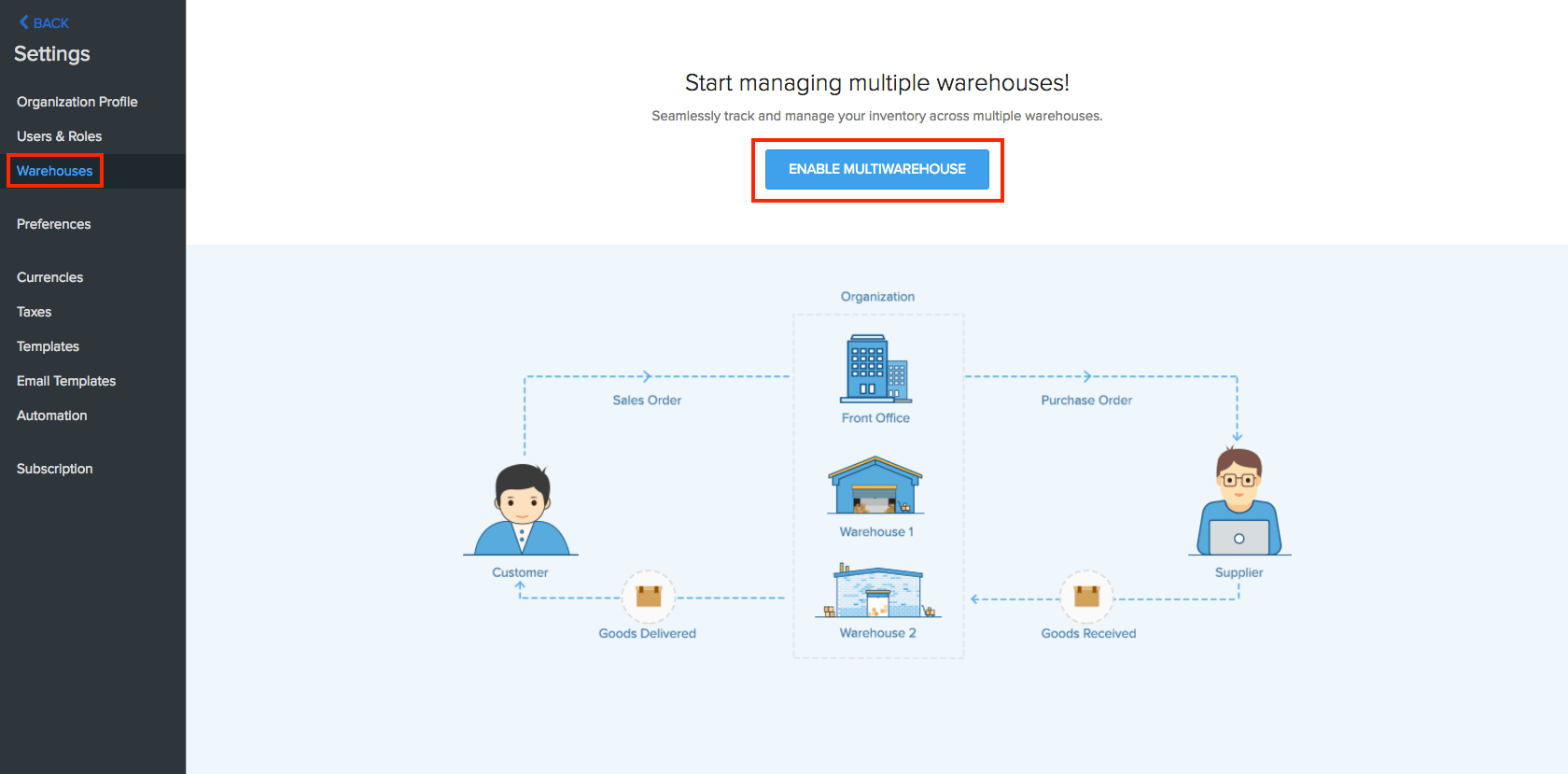
- Click on the Enable Multiwarehouse button. Your organization will now have support for multi-warehouse management.
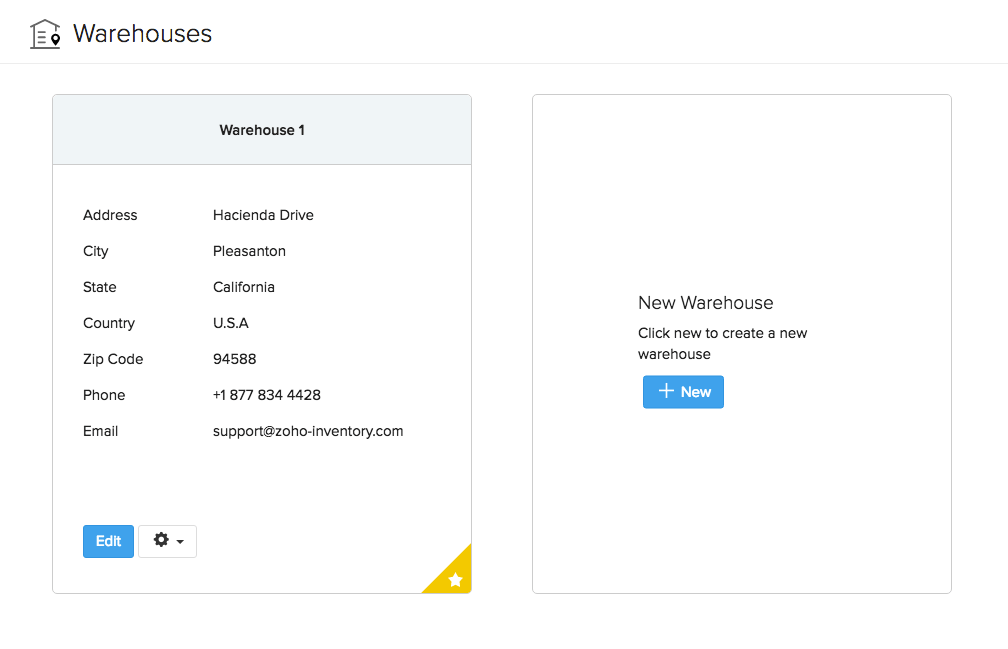
Add a new warehouse
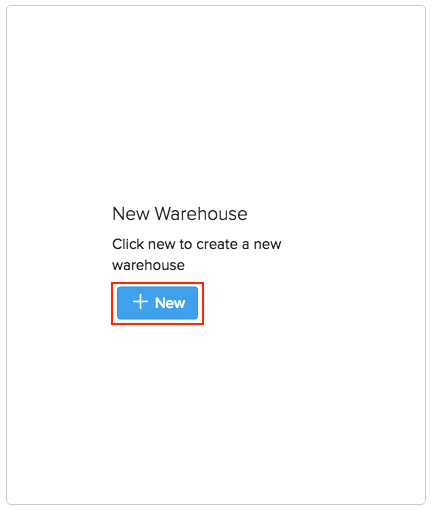
To add a new warehouse to your organization,
- Click on the New button in the New Warehouse card.
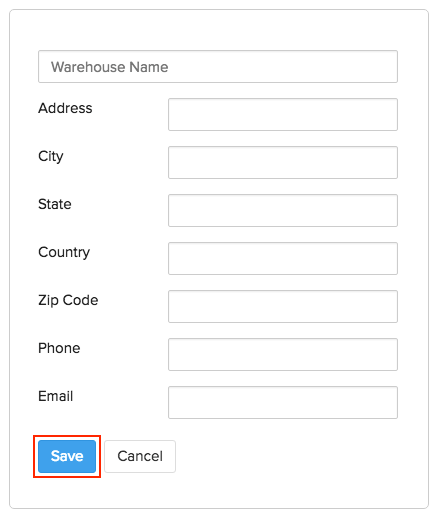
- Enter the details for your new warehouse and click on Save. Your new warehouse will now be saved.
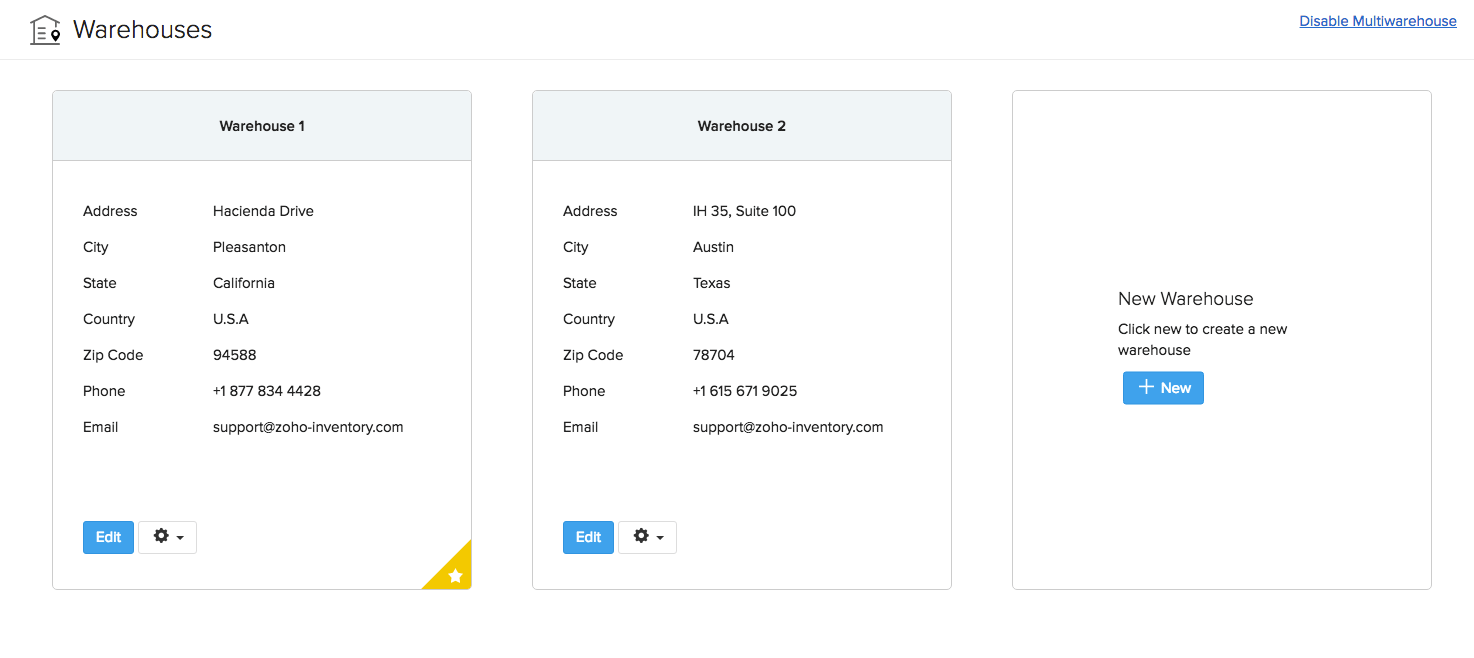
- Your warehouses page will be similar to the screenshot below once you’ve set it up properly.
Mark a warehouse as primary
By default, the first warehouse which is available when you enable multiple warehousing feature will be set as the Primary Warehouse. To set another warehouse as the primary one,
- Click on the gear (Settings) icon from the top-right corner of Zoho Inventory.
- Select More Settings from the drop-down.
- On the left pane, select Warehouses.
- Click on the gear (Settings) icon at the bottom of the warehouse card.
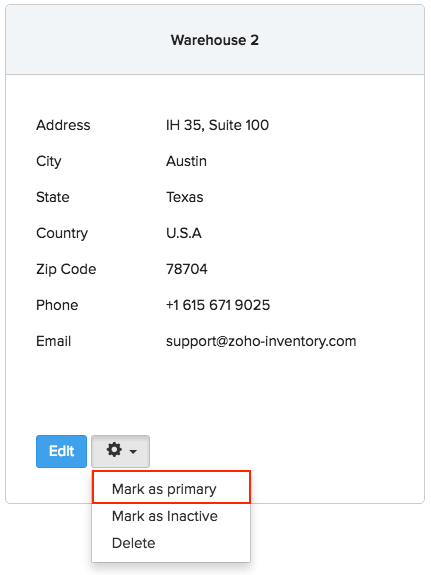
Select Mark as primary in the dropdown.
Confirm your selection in the pop-up that follows. The warehouse will now be marked as the primary warehouse.
Mark a warehouse as Inactive
To mark a warehouse as Inactive,
- Click on the gear (Settings) icon from the top-right corner of Zoho Inventory.
- Select More Settings from the drop-down.
- On the left pane, select Warehouses.
- Click on the gear (Settings) icon at the bottom of the warehouse card.
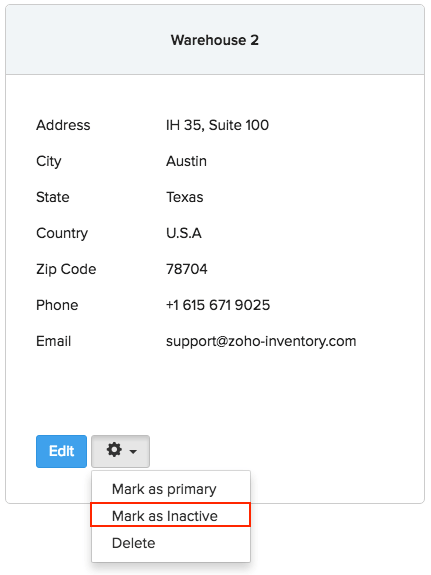
- Select Mark as Inactive in the dropdown.
- The warehouse will now be marked as Inactive and won’t be available for transactions.
Mark an inactive warehouse as Active
To mark an inactive warehouse as Active,
- Click on the gear (Settings) icon from the top-right corner of Zoho Inventory.
- Select More Settings from the drop-down.
- On the left pane, select Warehouses.
- Click on the gear (Settings) icon at the bottom of the warehouse card.
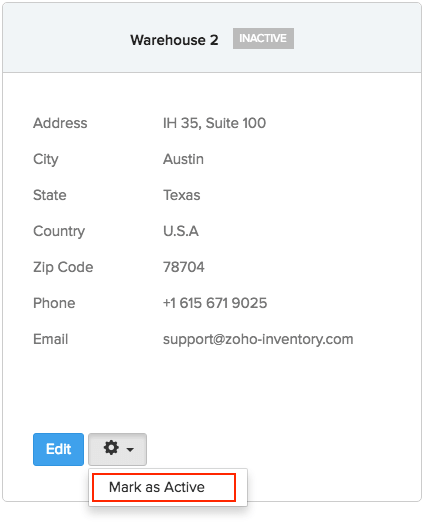
- Select Mark as Active in the dropdown.
- The warehouse will now be marked as active and will be available for transactions.
Edit a warehouse
To edit details of an existing warehouse,
- Click on the gear (Settings) icon from the top-right corner of Zoho Inventory.
- Select More Settings from the drop-down.
- On the left pane, select Warehouses.
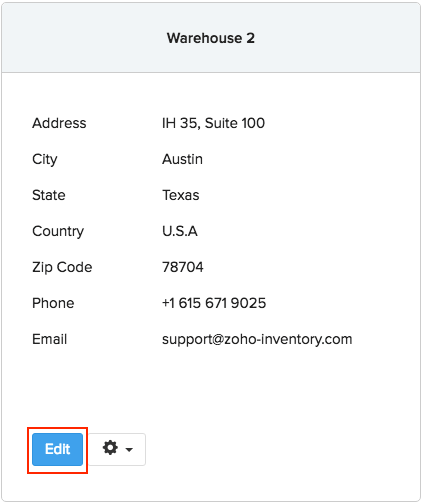
- Click on the Edit button at the bottom of the warehouse card.
- Make all the necessary changes and click on Save.
Delete a warehouse
To delete a warehouse,
- Click on the gear (Settings) icon from the top-right corner of Zoho Inventory.
- Select More Settings from the drop-down.
- On the left pane, select Warehouses.
- Click on the gear (Settings) icon at the bottom of the warehouse card.
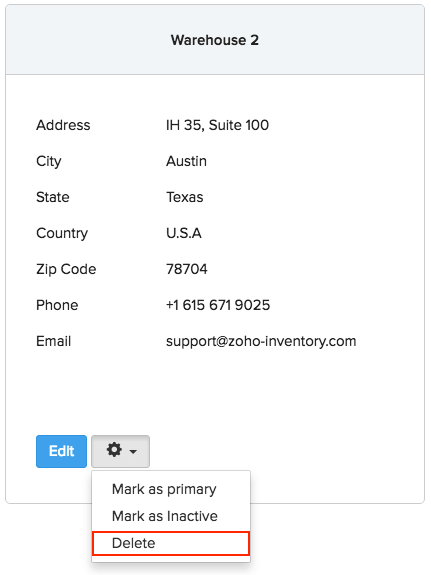
Select Delete in the dropdown.
Confirm your selection in the pop-up that follows. The warehouse will now be deleted.
Note: You can’t delete a warehouse which has transactions associated with it. Instead, you can mark the warehouse as inactive.
Disable multiple warehouse management
To disable multi-warehouse management,
- Click on the gear (Settings) icon from the top-right corner of Zoho Inventory.
- Select More Settings from the drop-down.
- On the left pane, select Warehouses.
- You will be able to see the Disable Multiwarehouse option on the top right of the page above your list of warehouses.
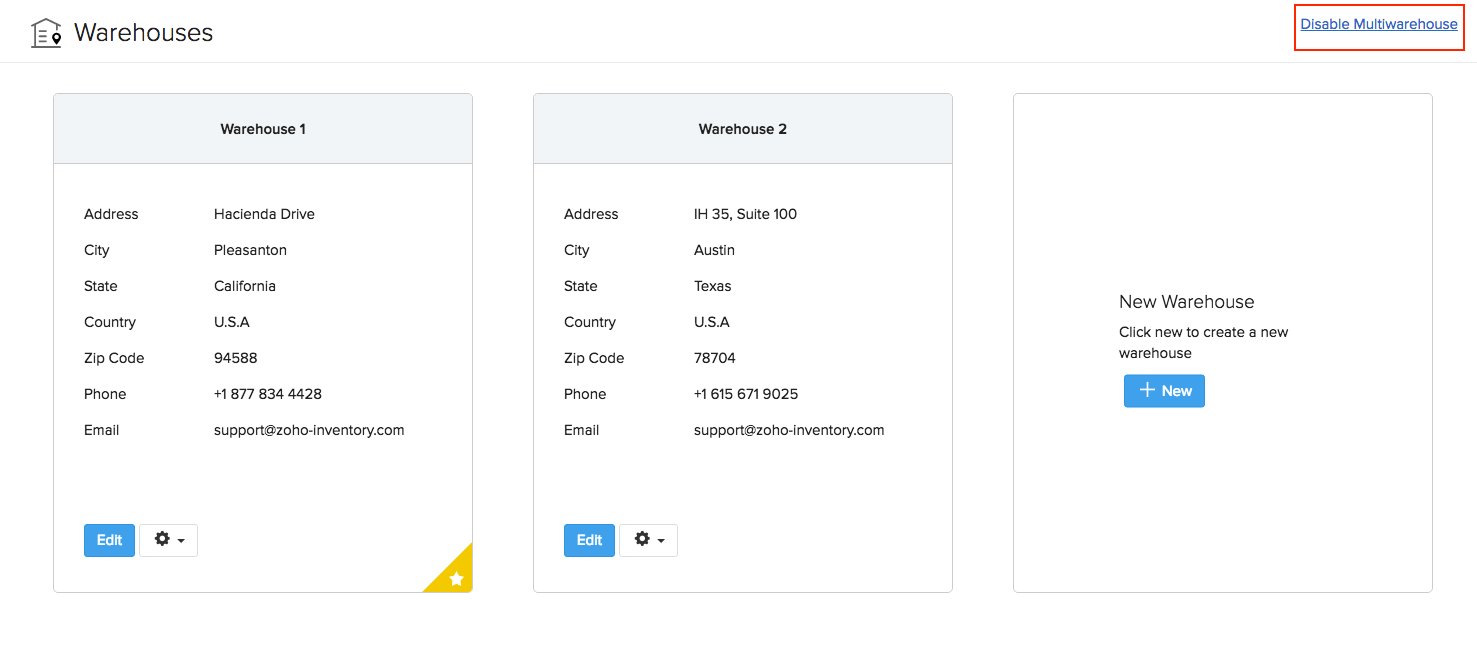
- Click on the button.
- If your organization has more than one warehouse, it is necessary to delete all the warehouses first before disabling this feature.