
Other actions
- Expected Delivery Date
- Convert to Bill
- Cancelling Purchase Order
- Cancel Items in a Purchase Order
- Importing Purchase Order
- Attaching Files with Purchase Order
- Edit, Clone, Print, PDF, Mail, Delete
Expected Delivery Date
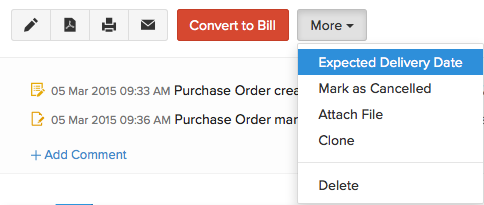
Expected delivery date of the items you have ordered to your vendor through a purchase order can be set by clicking on the Expected Delivery Date option from the More drop down.
Convert to Bill
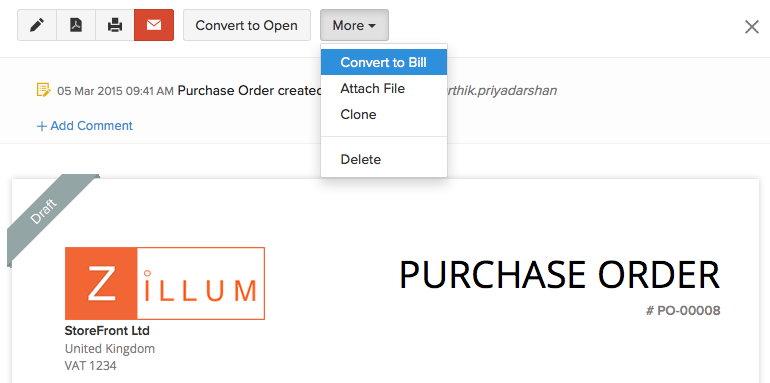
You can convert a Purchase Order into a Bill. The purchase order should be in the Draft state. Select Convert to Bill from the More drop down and a new bill form will open up with all the required information populated. Modify information if necessary and save it as a Bill.
Cancelling Purchase Order
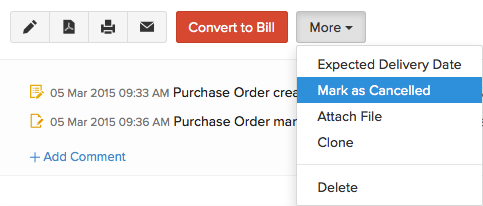
On the Purchase orders page, you can choose to mark a purchase order as Cancelled if you will not be using the Purchase Order anymore. Once deleted, it cannot be used again. Please note, only ‘Open’ Purchase Order can be cancelled.
Cancel Items in a Purchase Order
In case you’ve ordered extra items or have changed your mind about certain items in your purchase orders, you can choose to cancel those items. To do this:
- Go to the Purchase Orders module from the sidebar.
- Select the purchase order for which you’d like to cancel items.
- Click the More dropdown and select Cancel Items.
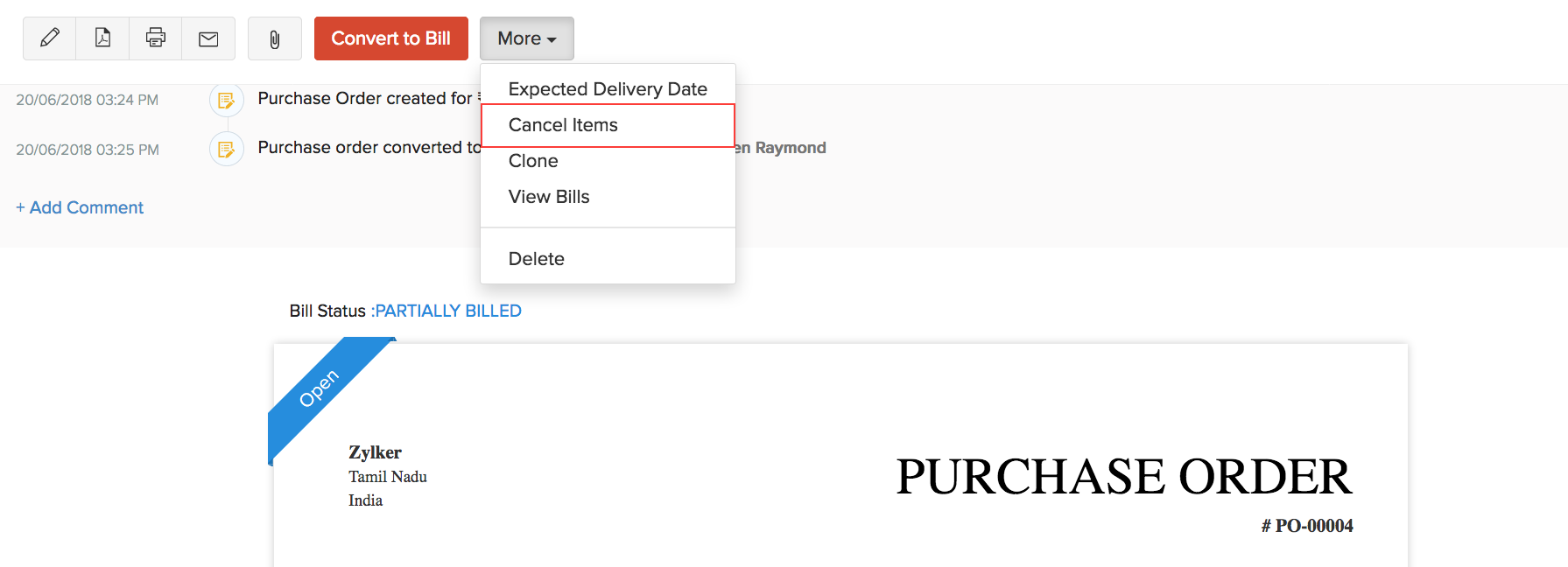
- Select the items that you’d like to cancel along with the quantity to be canceled and click Save.
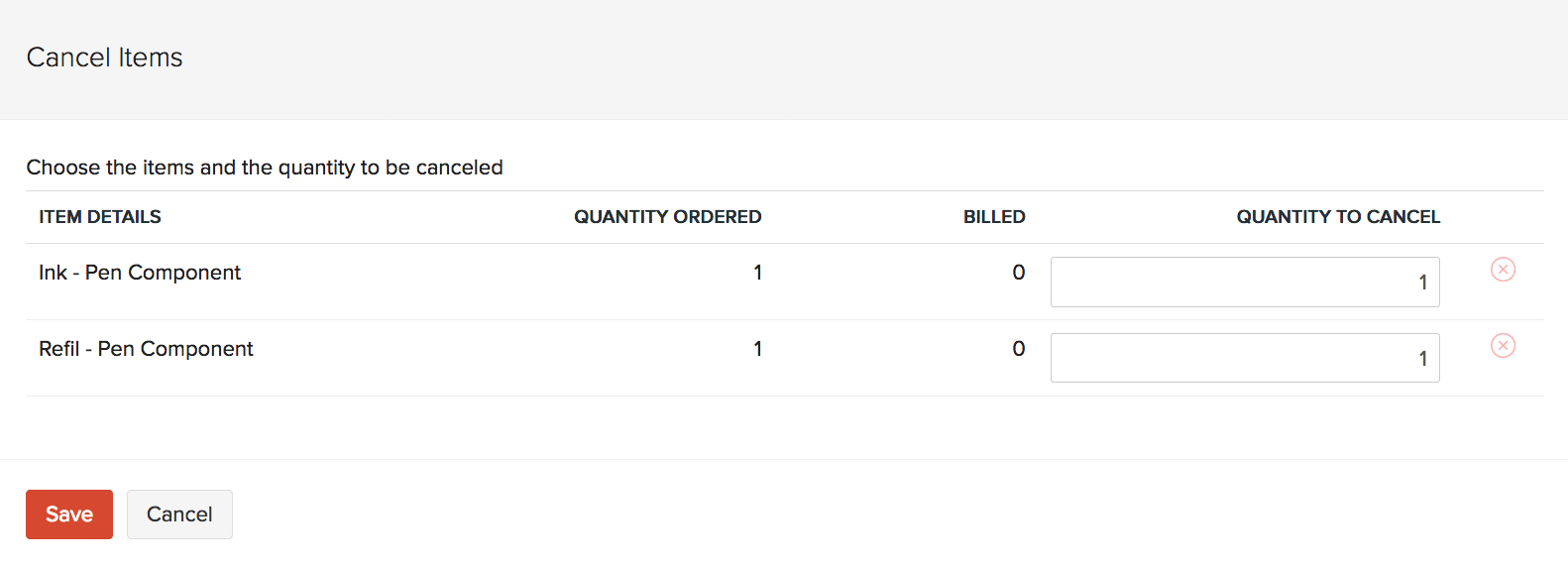
Now, the items that you’ve selected will be canceled and the status of your purchase order will be changed to Closed.
In case you’d like to undo this, Click the More dropdown and select Reopen Canceled Items. This will change the status of your purchase order back to Open.
Note: You can only cancel items in purchase orders that are partially billed. The item that was left out of the bill can then be cancelled in the purchase order.
You can view the items that were cancelled from a purchase order under the Canceled Items tab.
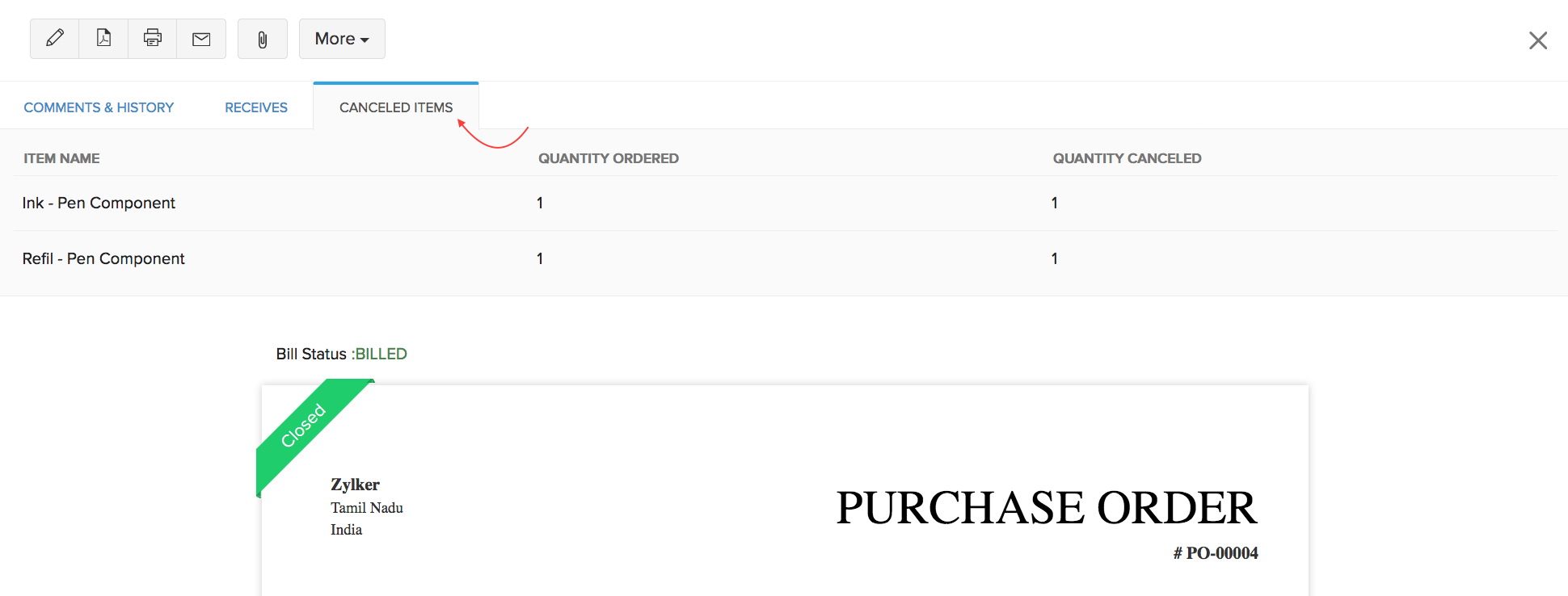
If there aren’t any bills associated with the purchase order yet, then you can choose to mark it as canceled. You can do this by clicking the More dropdown and selecting Mark as Canceled.
Importing Purchase Order
Data import can be carried out for each entity in Zoho Books including Purchase Orders. To Import purchase orders into Zoho Books,
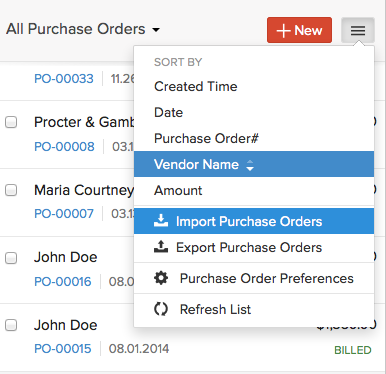
Go to the Purchase orders tab, where all your orders are listed. Click on the menu button and select the option ‘Import Purchase orders’.
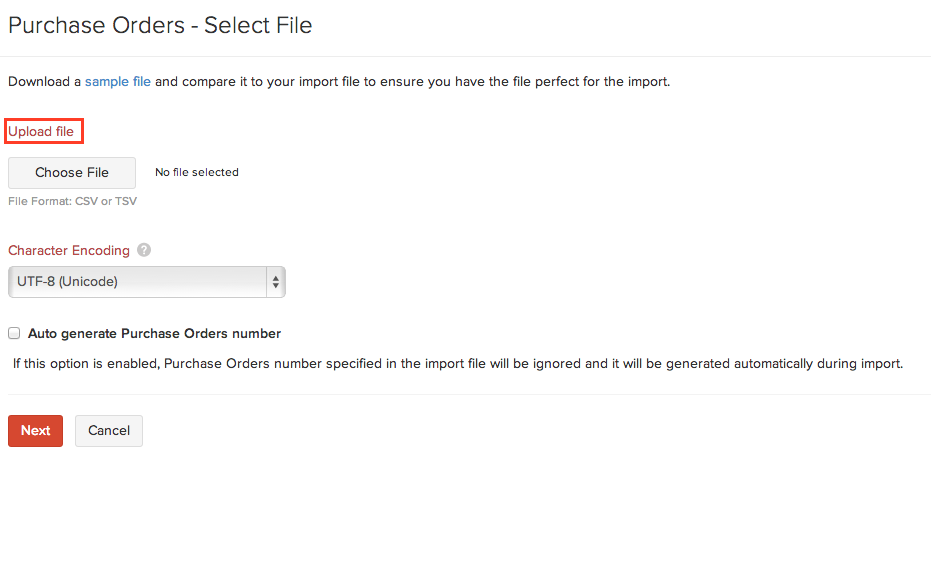
From here you can download a sample file to check the proper format for upload and ensure your PO file matches that format, or directly proceed to upload that file
You also have an option to enable auto generation of PO number for the file you’re about to upload.
Zoho Books will auto match the file headers of the imported file to the closest matching field in Zoho Books. You can manually edit each field too to match the headers, and save these preferences for future use
On proceeding, Zoho Books shows you any unmapped field you may have left out or could not match. You can map these by adding new fields matching the respective headers.
Attaching Files with Purchase Order
You can attach any receipts, bills or attachments associated with the purchase order and send it to your customer.
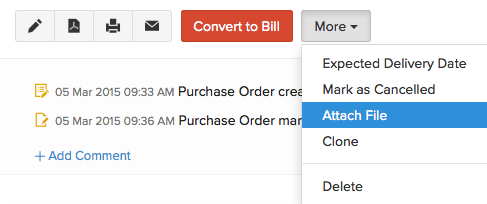
- To attach a file for a purchase order, click on the Attach File option placed inside the More drop down.
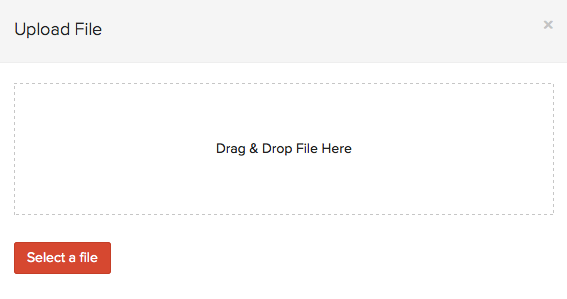
- After selecting the option, a pop-up screen appears where you can select the file to be uploaded by clicking on the Select File button or just drag & drop the files to upload.
Edit, Clone, Print, PDF, Mail, Delete
You can Edit, Clone, Print, download as PDF, Mail and Delete your purchase order.
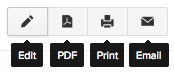
Purchase orders created by you can be edited by clicking on the Edit icon placed above the purchase order window.
You can print a purchase order by clicking on the Print icon, download as PDF by clicking on the PDF icon and send an email by selecting the Mail icon. All these options are provided on the top of the purchase order window.
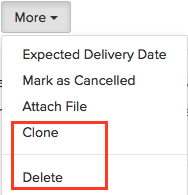
You can also create a duplicate of the purchase order with the same details by selecting the Clone option from the More drop down.
A purchase order can be deleted by selecting the Delete option from the More drop down.
Back to Purchase Order Overview
 Yes
No
Yes
No
 Thank you for your feedback!